Microsoft 365 Personal covers one person, so several people on one Mac or PC need Microsoft 365 Family or Premium, which the owner shares with up to five others who each sign in with their own Microsoft account.
This guide covers sharing and accepting a Family subscription, signing in from separate user accounts on one computer, upgrading from Personal, adding many business users at once, shared PCs at work, and fixes when sharing fails.
How to share Microsoft 365 with multiple users
Sharing works only from a Microsoft 365 Family, Premium or Pro subscription, and only the owner can send invitations. Microsoft 365 Personal and Basic cannot be shared.
- Go to account.microsoft.com/services/office/sharing and sign in with the Microsoft account that owns the subscription.
- Select Share. If no Start sharing button appears, the account does not own a plan that can be shared.
- Select Email invite, type the other person's email address and select Invite.
- Or select Create link, then Copy link, and paste the link into an email or text message.
- Ask the person to open the Microsoft email, select Get started and then Join now within 48 hours.
- Have them sign in to Word, Excel or Outlook with their own Microsoft account in their own user profile.
Until the person accepts, the owner's subscriptions dashboard shows Pending invite. Select Resend invite next to their name to send it again.
Never hand out the product key instead. Product keys cannot be used for sharing, and a second person entering it gets a key-already-used error.
How many users can use Microsoft 365?
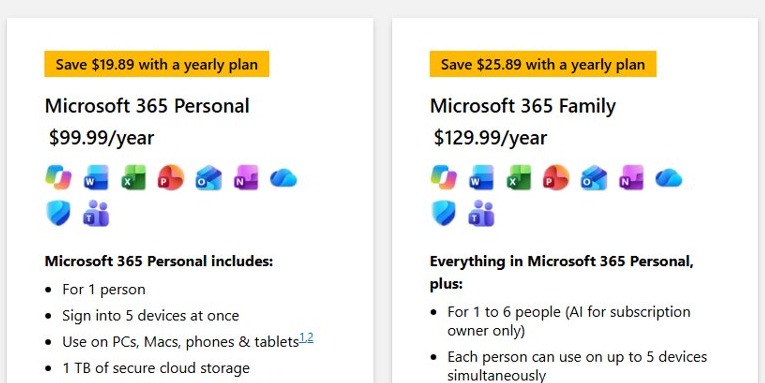
The number of people is set by the plan, not by the number of computers. These are the US list prices and limits on microsoft.com.
| Plan | People | Sign-ins at the same time | OneDrive storage | US price |
|---|---|---|---|---|
| Microsoft 365 Personal | 1 person | 5 devices | 1 TB | $99.99 a year or $9.99 a month |
| Microsoft 365 Family | 1 to 6 people | 5 devices per person | 2 TB shared | $129.99 a year or $12.99 a month |
| Microsoft 365 Premium | 1 to 6 people | 5 devices per person | 2 TB shared | $199.99 a year or $19.99 a month |
| Microsoft 365 Business Basic, Standard, Premium | One licence per user, up to 300 users | 5 PCs or Macs, 5 tablets and 5 phones per user | Per user | From $7.00 per user a month, paid yearly |
| Office Home 2024 (one-time purchase) | 1 PC or Mac | 1 PC or Mac | Free 5 GB | $179.99 once |
Copilot and the other AI features in Family and Premium belong to the subscription owner only. Shared members get the desktop apps and storage, but not the owner's AI usage or extended storage add-ons.
New Family and Premium subscriptions started on or after October 8, 2026 get 2 TB of pooled storage shared by every member. Existing subscriptions move to 2 TB pooled at renewal from May 2, 2027, and Pro gets 5 TB pooled.
Microsoft 365 for 2 users: Personal, Family or Business?
| Your situation | Plan to use | Why |
|---|---|---|
| Two people at home share one Mac or PC with separate user accounts | Microsoft 365 Family | Each person signs in with their own Microsoft account; one bill covers up to six people |
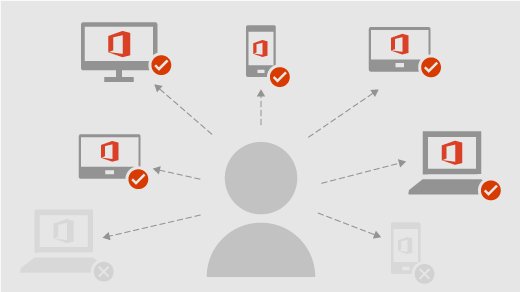
| One person uses a laptop, a desktop and a phone | Microsoft 365 Personal | One account signs in on five devices at the same time |
| You already pay for Personal and a second person needs the apps | Upgrade to Family with the same Microsoft account | The remaining Personal days convert into Family time |
| A small business needs work email and apps for staff | Microsoft 365 Business Basic, Standard or Premium | Each user gets a licence managed in the Microsoft 365 admin center |
| Shift workers take turns on one Windows PC with their own work accounts | Business Premium or an Enterprise plan with shared computer activation | Sign-ins on the shared PC do not count against each user's device limit |
| Someone only needs to read and print documents | No licence for that person | An account without a subscription can view and print files but not edit them |
Microsoft 365 multiple users on one computer
On a shared Mac or PC, each person uses their own macOS or Windows user account and signs in to Office with their own Microsoft account. Everyone needs an account linked to the subscription: the owner's, or one the owner shared Family with.
- On a Mac, choose Apple menu > System Settings > Users & Groups and select Add User if the second person has no account yet.
- Log out, then log in to the second person's user account.
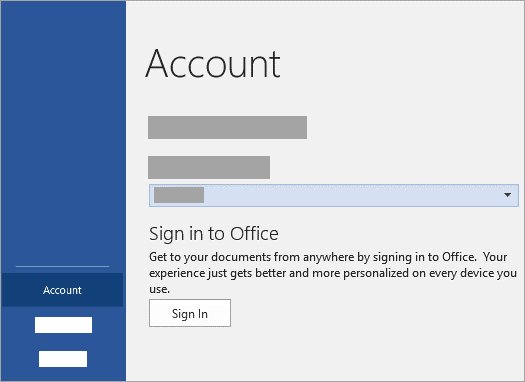
- Open Word and select Sign In. If a document is already open, choose File > New from Template > Sign In.
- Type the email address and password of the Microsoft account that accepted the Family invitation.
- On Windows, sign in to the second Windows account, open Word and select File > Account > Sign In.
- Create a new document to check that editing works for that person.
If someone signs in with an account that has no subscription, Office opens in view-only mode: files can be viewed and printed, not created or edited.
Office stays activated while the person stays signed in. Signing out removes the licence from that user account until they sign back in.
How to accept a Microsoft 365 Family invitation
The second user does this part on their own email and Microsoft account. Accepting also adds them to the owner's Microsoft family group.
- Open the email from Microsoft that says the subscription was shared, and select Accept or Get started.
- Create a Microsoft account if prompted, or sign in to an existing one.
- Select Join now to join the owner's family group.
- If a message says you are already in a family group, leave that group first and open the invitation again.
- Select Start using Microsoft 365 apps, then select Install and follow the prompts.
The invitation expires after 48 hours. Once accepted, the person can install Microsoft 365 apps on each device they use and reach their own OneDrive storage.
Microsoft 365 Personal multiple users: upgrade to Family
Microsoft 365 Personal is licensed for one person, so a second user on the same Mac needs Family. Switching keeps the same apps and the same Microsoft account.
- Go to account.microsoft.com/services, find the Personal subscription and select Manage to see who bills it.
- If Apple, Google or a retailer manages the subscription, make the change through that provider.
- If Microsoft bills it, buy Microsoft 365 Family while signed in with the same Microsoft account.
- Let the remaining Personal days convert; moving from Personal to Family adds 92% of the time left.
- Keep the installed apps; switching between home plans does not need a reinstall.
- Share the new Family subscription from account.microsoft.com/services/office/sharing.
Microsoft 365 subscriptions bought inside the Mac App Store apps are charged to the App Store account and managed in App Store account settings. If the App Store does not offer the plan you want, buy Family directly from microsoft.com and turn off the App Store renewal in App Store account settings.
Sharing itself always happens on the Microsoft account sharing page, whichever store sold the plan.
How to add multiple users in Microsoft 365 admin center
Business plans license each user separately. Buy enough licences first, and sign in with a license administrator or user administrator role.
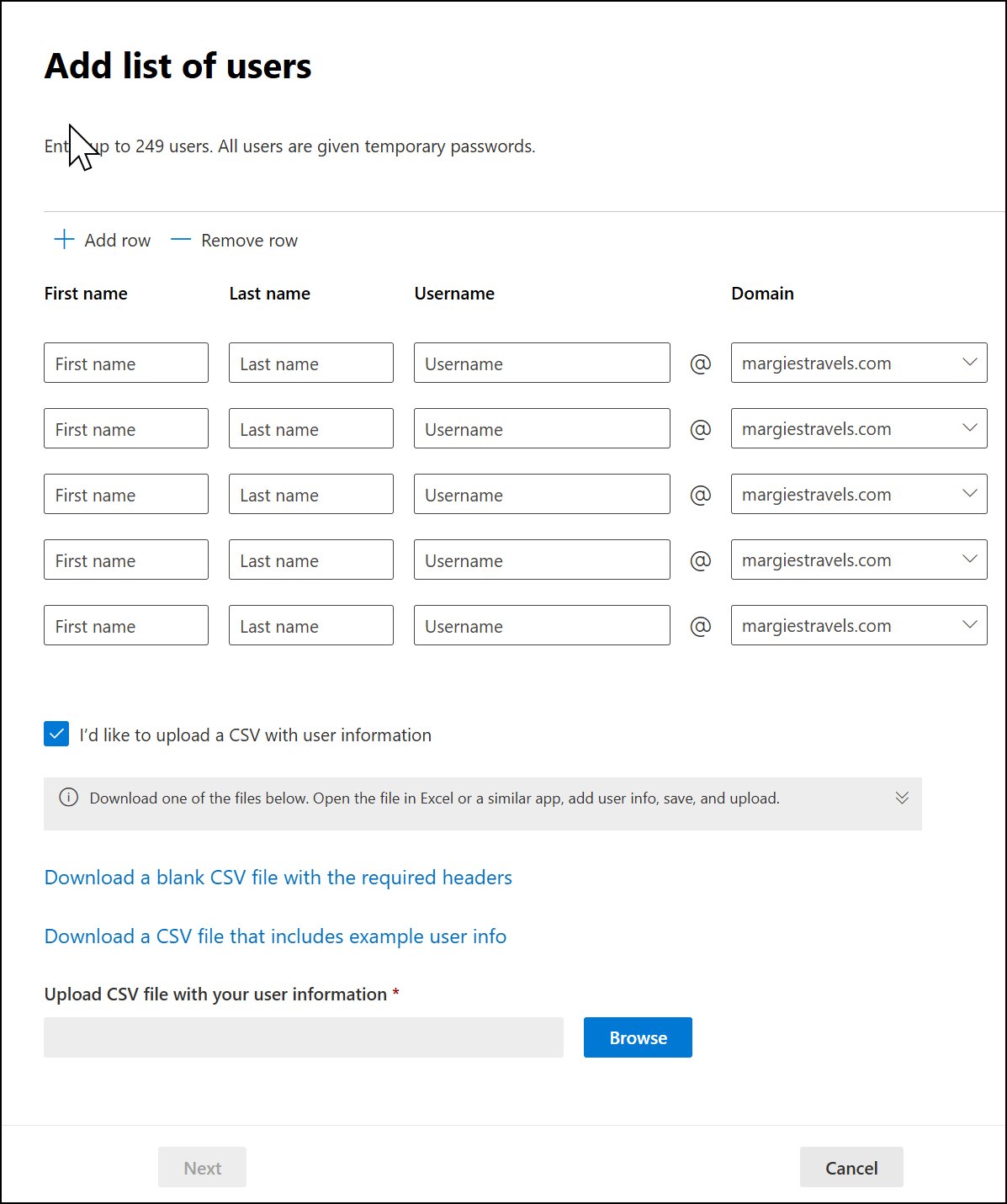
- Sign in to the Microsoft 365 admin center and go to Users > Active users.
- Select Add multiple users.
- Add people as rows on the page, or select I'd like to upload a CSV with user information.
- For a CSV, download the blank or example file, enter a user name and display name for each person, and keep the column headings and order unchanged.
- Save the file as CSV, select Browse, pick the file and select Open.
- Under Licenses, choose the location, licences and apps for all the new users.
- Review the choices and select Add users.
For one person, select Add a user in Dashboard view or Add user in Simplified view. Each username uses one of your domains, so change the onmicrosoft.com domain before creating accounts if staff need custom addresses.
Large organisations can also create accounts with Microsoft 365 PowerShell or sync them from Active Directory with Microsoft Entra Connect. Synced accounts still need a licence before they can use email and apps.
Microsoft 365 business multiple users on a shared PC
Shared computer activation lets several licensed users run Microsoft 365 Apps on one Windows computer, each with their own account, without using up their device limit. It is included with Business Premium, plans with Microsoft 365 Apps for enterprise such as E3 and E5, and Education A3 and A5.
Business Standard does not support it, and shared computer activation is not available for Office for Mac.
- Assign each person who will use the PC a Microsoft 365 Apps licence.
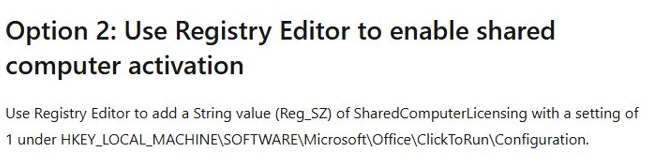
- Sign in to the shared PC with an administrator account and open Registry Editor.
- Go to
HKEY_LOCAL_MACHINE\SOFTWARE\Microsoft\Office\ClickToRun\Configuration. - Add a String value (REG_SZ) named
SharedComputerLicensingand set it to1. - Restart the PC so the change applies.
- Have each user sign in to Windows with their own account and open an Office app such as Word.
For a fresh install, add <Property Name="SharedComputerLicensing" Value="1" /> to the Office Deployment Tool configuration file instead. If a user activated Office before the change, reset that activation so shared computer activation can take over.
Microsoft 365 Apps for business does not accept the Group Policy route, so use the registry value or the deployment tool on Business Premium PCs.
How to see who is sharing your Microsoft 365 subscription
- Sign in at account.microsoft.com/services with the owner's Microsoft account.
- Select Sharing.
- Look in the Other people section for each person who joined.
- Treat Pending invite next to a name as not yet accepted, and select Resend invite if the 48 hours have passed.
- On the member's account, open Manage storage in OneDrive and refresh the page; the quota rises above 5 GB once the benefit applies.
The storage change can take up to two hours to show after the invitation is accepted.
How to stop sharing Microsoft 365 Family
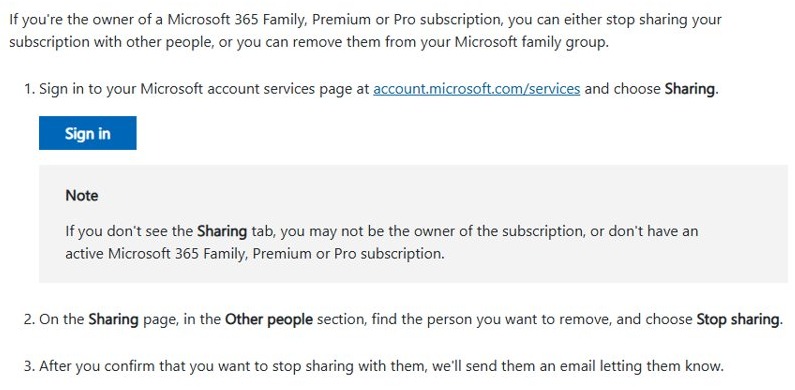
- Sign in at account.microsoft.com/services with the owner account and select Sharing.
- In the Other people section, find the person and select Stop sharing.
- Confirm; Microsoft emails the person to say sharing has ended.
- To remove them from the family group as well, go to account.microsoft.com/family as an organizer.
- Select the menu next to their name, choose Remove from family group, then select Remove.
Their files stay intact, but Office drops to view and print only with Unlicensed Product notices, and their OneDrive quota falls to 5 GB.
Microsoft 365 Family sharing not working
Microsoft 365 sharing invitation not received
The invitation went to an address the person does not check, or a junk filter caught it.
- Check that you used the person's preferred email address.
- Ask them to search the junk folder for a message with "Microsoft 365" in the subject.
- Send the invitation again with Resend invite, or select Create link and text them the link.
"It looks like you're already in a family group"
The invitee belongs to another Microsoft family group, and a person can be in only one.
- Have the invitee leave their current family group at account.microsoft.com/family.
- Open the invitation again and select Join now.
- Share the subscription again from the owner's Sharing page once they appear in your family group.
Share subscription or Start sharing button missing
The signed-in account is not the owner of an active Family, Premium or Pro plan, or all five shares are used.
- Sign out and sign in with the account that pays for the subscription.
- Check on account.microsoft.com/services that the plan is Family, Premium or Pro and still active.
- Stop sharing with someone who no longer uses it to free one of the five shares.
- Upgrade from Personal or Basic first if the plan cannot be shared.
OneDrive storage still shows 5 GB after accepting
The storage benefit takes time to apply, or the invitation was not fully accepted.
- Check that the person selected Join now, not only Get started.
- Wait up to two hours.
- Open Manage storage in OneDrive, refresh the page and check the quota again.
Second user only gets view-only Office or Unlicensed Product
Office on that user account is signed in with a Microsoft account that has no subscription or shared benefit.
- In Word, check which account is signed in, and sign out if it is the wrong one.
- Sign in with the Microsoft account that accepted the Family invitation.
- If the person was removed from sharing, ask the owner to share with them again.
Microsoft 365 product key already used
A product key was passed to a second person, but keys cannot add people to a subscription.
- Stop using the key on the second account.
- Send that person an email invitation or link from the owner's Sharing page instead.
Microsoft 365 multiple users FAQ
How many users can use Microsoft 365?
Microsoft 365 Personal is for one person. Family and Premium cover the owner plus up to five others, six people in total. Business plans license each user separately, and Business Basic, Standard and Premium manage up to 300 users.
Can you have multiple Microsoft 365 accounts?
Yes. One person can use a personal Microsoft account and a work or school account side by side, because Word, Outlook and OneDrive can hold several Microsoft 365 accounts at once. Each account carries its own licence.
Can Microsoft 365 Personal be used by multiple users?
No. Personal is licensed for one person, even though that person can sign in on five devices at once. Anyone else who signs in without their own subscription can only view and print files, so a second user needs Family or their own plan.
Is there a Microsoft 365 plan for 2 users?
There is no two-person plan. Microsoft 365 Family covers one to six people for one price, so it is the plan for two people at home. A business buys one licence per user, so two staff need two licences.
Can two user accounts on one Mac share Microsoft 365?
Yes, with Microsoft 365 Family. The owner shares the plan with the second person, who signs in to Word from their own macOS user account with their own Microsoft account. Both can then create and edit files on the same Mac.
Does Microsoft 365 Family share Copilot with every member?
No. Copilot in Word, Excel, PowerPoint and Outlook, and the other AI features, are available to the subscription owner only. Shared members get the desktop apps, their own sign-ins and a share of the storage.
Can people in my Microsoft 365 Family see my files?
No. Each member's files, email, contacts and photos stay private and are stored separately. The family group does get a shared Family inbox, calendar and OneNote, and you choose what goes into them.
What happens to other users if my Microsoft 365 Family expires?
Everyone loses the paid benefits together. Their files stay intact, but the desktop apps drop to view and print only, and OneDrive storage reverts to the free size until the subscription is renewed.