To connect your iPhone to a Windows PC, open iTunes or the Apple Devices app, plug the iPhone in with a USB cable that carries data, unlock it and tap Trust.
This guide covers which Apple app to use on Windows 11 and Windows 10, syncing and backing up, Wi-Fi sync, Phone Link, and fixes when the PC does not recognize the iPhone.
Connect iPhone to Windows PC with iTunes
Install iTunes from the Microsoft Store first if it is not on the PC. The first connection must use a cable; Wi-Fi sync can be turned on afterwards.
- Open iTunes on the PC.
- Connect the iPhone to the PC with a USB or USB-C cable.
- Unlock the iPhone with your passcode.
- Click Continue if iTunes asks whether to allow the computer to access the iPhone.
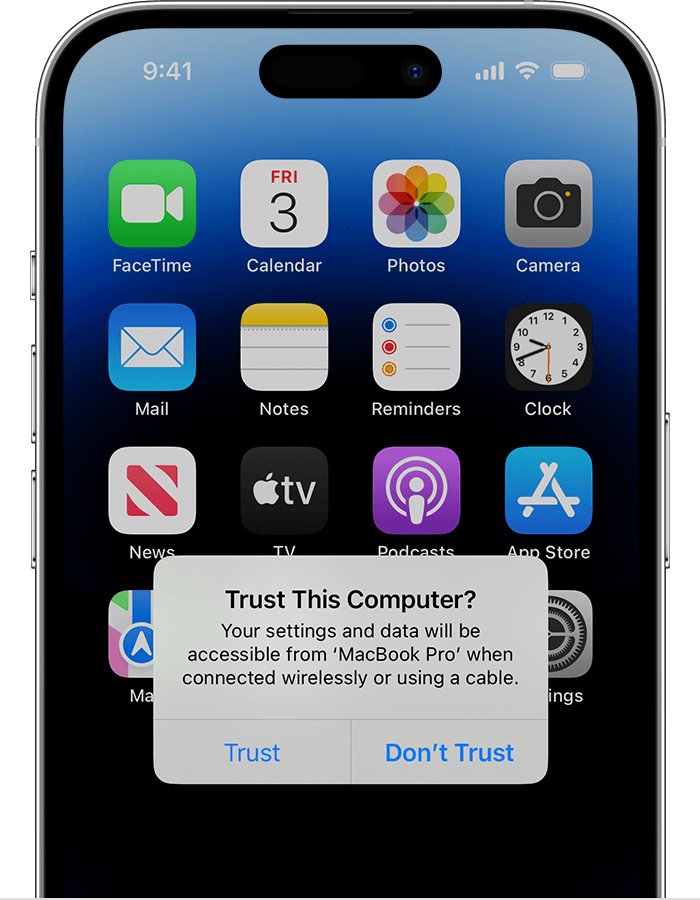
- Tap Trust on the iPhone when the Trust This Computer? alert appears, then enter the passcode.
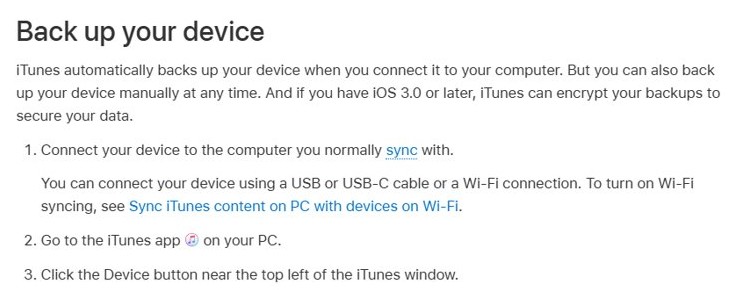
- Click the Device button near the top left of the iTunes window to open the iPhone's Summary page.
If you already use the Apple Music or Apple TV app on Windows, iTunes only handles podcasts and audiobooks. Use the Apple Devices app for the iPhone instead, as shown below.
iTunes vs Apple Devices app vs Phone Link on Windows
Apple split iTunes on Windows into Apple Music, Apple TV and Apple Devices. Microsoft's Phone Link is a separate, wireless option for messages and calls.
| Your situation | Use this | Why |
|---|---|---|
| You only have iTunes installed | iTunes | It still syncs, backs up and updates the iPhone when Apple Music and Apple TV are not installed |
| You use Apple Music or Apple TV on Windows | Apple Devices app | iTunes then keeps only podcasts and audiobooks; Apple Devices manages the iPhone |
| You want backups, updates or a restore | Apple Devices app or iTunes | Both back up to the PC and can encrypt the backup |
| You want iPhone texts, calls and notifications on the PC | Phone Link | Works over Bluetooth with iOS 16 or later; no cable needed |
| You want photos on the PC | Apple Devices app plus the Windows Photos app | Apple Devices supplies the connection and Photos imports the pictures |
Connect iPhone to Windows 11 with the Apple Devices app
- Open the Microsoft Store on the PC and search for Apple Devices.
- Select Apple Devices, then select Get.
- Open the Apple Devices app.
- Connect the iPhone with a USB or USB-C cable and unlock it.
- Tap Trust on the iPhone and enter your passcode.
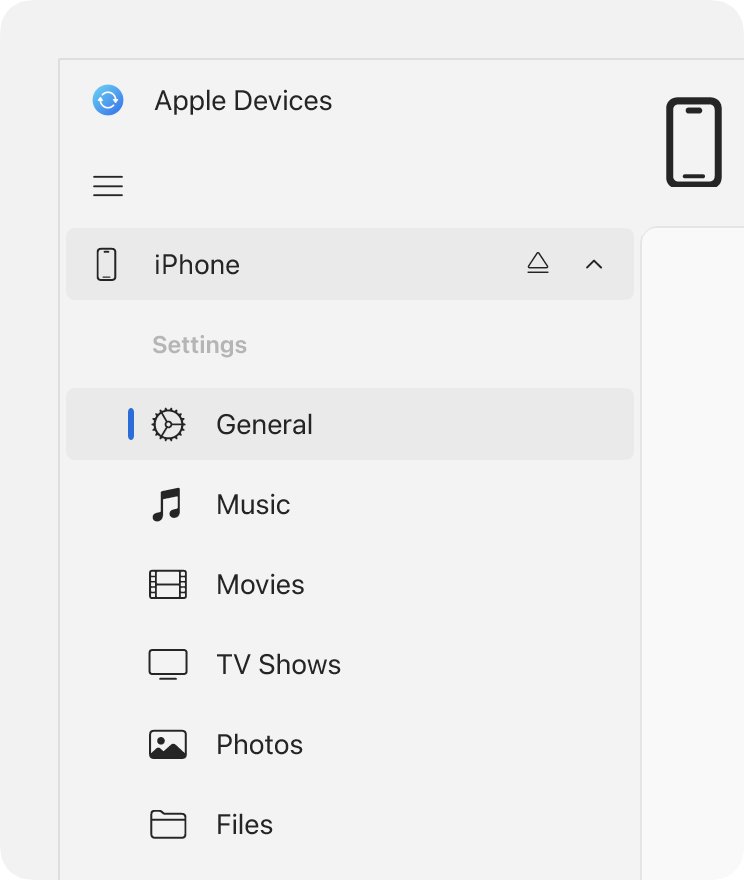
- Select the iPhone in the Apple Devices sidebar to see its sync and backup options.
Install the Apple Music app and Apple TV app too if you want to sync music, movies or TV shows. Apple Devices needs them for those content types.
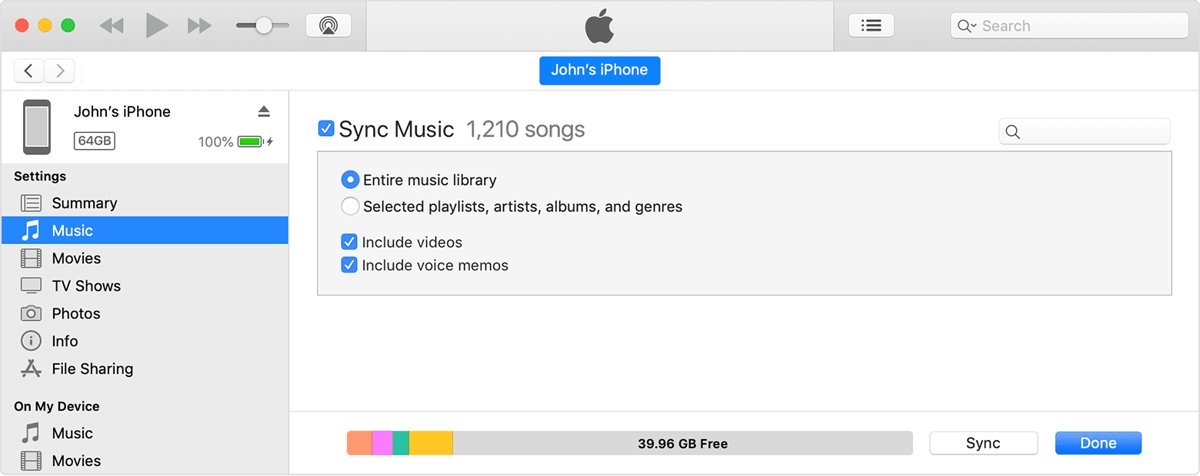
Sync iPhone with iTunes on Windows 10 and 11
- Open iTunes and connect the iPhone with a USB cable.
- Click the Device button near the top left of the iTunes window.
- Click a content type, such as Music or TV Shows, in the Settings list.
- Select the Sync checkbox, then select the items you want on the iPhone.
- Repeat for each content type and check the storage bar at the bottom of the window.
- Click Apply to start the sync.
- Click the eject button next to the iPhone before you unplug it.
If you use iCloud Photos and Apple Music, Music and Photos show no sync options because iCloud keeps them in step. An iPhone syncs with only one iTunes library at a time; choosing Remove and Sync replaces the synced content with this PC's library.
Back up iPhone to PC with iTunes or Apple Devices
- Connect the iPhone and open iTunes or the Apple Devices app.
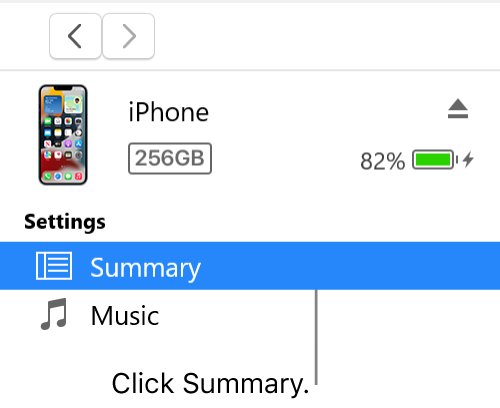
- In iTunes, click the Device button, then Summary. In Apple Devices, select the iPhone, then General.
- Choose to back up all of the iPhone's data to this computer.
- Select Encrypt local backup, type a password to protect the backup.
- Click Back Up Now in iTunes, or Backup Now in Apple Devices.
- Wait for the progress bar to finish before you unplug the iPhone.
Store the backup password somewhere safe. If you forget it, previous encrypted backups cannot be used.
Sync iPhone with iTunes over Wi-Fi
Wi-Fi sync works after one cable connection, with the iPhone and PC on the same network. It is slower than a cable, and restoring the iPhone still needs a cable.
- Connect the iPhone with a cable and open iTunes.
- Click the Device button, then click Summary.
- Select Sync with this iPhone over Wi-Fi. In Apple Devices, select General, then Show this iPhone when on Wi-Fi.
- Click Apply and unplug the cable.
- Keep the PC on and iTunes open; the iPhone syncs when it is on the same Wi-Fi and plugged in to power.
Transfer files and photos from iPhone to Windows PC
- Open the Apple Devices app and select the iPhone in the sidebar.
- Select Files to see the apps on the iPhone that accept file sharing.
- Drag a file from File Explorer onto an app in the list to copy it to the iPhone.
- For photos, connect and unlock the iPhone, tap Trust or Allow, then import the pictures with the Windows Photos app.
- If you use iCloud Photos, download the full-resolution originals to the iPhone before you import.
Files copied this way open in the matching app, and you can find files on your iPhone in the Files app afterwards. For better Windows compatibility, set Settings > Camera > Formats on the iPhone to Most Compatible so new photos and videos save as JPEG and H.264.
Connect iPhone to Windows laptop wirelessly with Phone Link
Phone Link pairs an iPhone over Bluetooth for texts, calls, notifications and contacts. It needs iOS 16 or later, Windows 10 with the May 2019 Update or Windows 11, and a PC with Bluetooth Low Energy.
- Turn on Bluetooth on both the PC and the iPhone and keep them close together.
- Open Phone Link from the Start menu.
- Select iPhone under Pick your phone.
- Scan the QR code on the PC with the iPhone's Camera app to start Bluetooth pairing.
- Allow the requested permissions on the iPhone.
- Turn on Share System Notifications, Show Notifications and Sync Contacts for the Bluetooth connection on the iPhone.
If iPhone is greyed out in Phone Link, turn on Bluetooth on the PC. Phone Link does not sync music or make backups; use iTunes or Apple Devices for that.
Check the iPhone is connected to the PC
- Look at the iPhone's battery icon. A charging symbol shows the cable and port are working.
- In iTunes, confirm the Device button appears near the top left of the window.
- In Apple Devices, confirm the iPhone's name appears in the sidebar.
- Click Summary or General and check the iPhone's name, capacity and iOS version are shown.
- Run a small sync or Back Up Now and confirm it finishes without an error.
iTunes not recognizing iPhone on Windows: fixes
iPhone charges but does not appear in iTunes or Apple Devices
The iPhone is locked, has not trusted the PC, or the cable is charge-only.
- Unlock the iPhone and stay on the Home Screen.
- Unplug and reconnect, then tap Trust on the iPhone.
- Use a cable that supports both data and charging, and try another USB port or PC.
Trust This Computer alert does not appear
The PC was previously refused, or the app is out of date.
- Update iTunes from Microsoft Store > Library, or with Help > Check for Updates for the version from Apple's site.
- If iTunes came from the Microsoft Store, make sure iTunes Mobile Device Helper is enabled as a startup item.
- On the iPhone, go to Settings > General > Transfer or Reset iPhone > Reset > Reset Location & Privacy, then reconnect.
"This iPhone cannot be used because the Apple Mobile Device Service is not started"
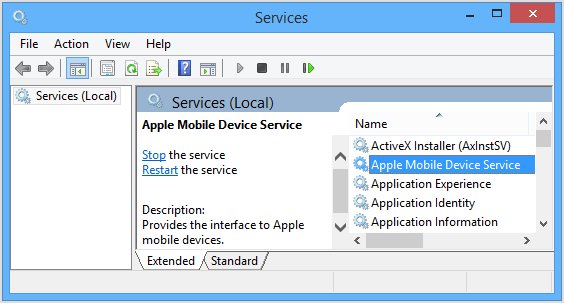
The Apple Mobile Device Service (AMDS) on Windows has stopped.
- Close iTunes and unplug the iPhone.
- Press Windows + R, type
services.mscand click OK. - Right-click Apple Mobile Device Service and choose Properties.
- Set Startup type to Automatic, click Stop, then click Start, then OK.
- Restart the PC, open iTunes and connect the iPhone.
iPhone still not detected after the steps above
Old software, a dirty port, or security software blocking the connection.
- Install the latest Windows updates and the latest iOS on the iPhone.
- Check the iPhone's charging port for debris if it does not chime or vibrate when connected.
- Check whether a VPN or third-party security software is interfering, then retry.
Wi-Fi sync stopped showing the iPhone
The PC and iPhone are on different networks, or the setting was turned off.
- Put both devices on the same Wi-Fi network.
- Connect once by cable and confirm Sync with this iPhone over Wi-Fi is still selected.
- Keep iTunes open with the PC turned on.
Connect iPhone to Windows PC FAQ
How do I connect my iPhone to my Windows PC?
Install iTunes or the Apple Devices app from the Microsoft Store, connect the iPhone with a USB cable, unlock it and tap Trust. The iPhone then appears as a Device button in iTunes or in the Apple Devices sidebar.
Can an iPhone be connected to a Windows PC?
Yes. Apple supports iPhone on Windows through iTunes and the Apple Devices app for syncing, backups and updates. Microsoft's Phone Link adds wireless texts, calls and notifications over Bluetooth for iPhones on iOS 16 or later.
Can I connect my iPhone to a Windows laptop?
Yes. A Windows laptop works the same as a desktop: use a data cable with iTunes or Apple Devices, or pair over Bluetooth with Phone Link if the laptop supports Bluetooth Low Energy and runs Windows 10 May 2019 Update or Windows 11.
How do I connect my iPhone to a Windows computer without iTunes?
Use the Apple Devices app from the Microsoft Store. It backs up, updates, restores and syncs an iPhone without iTunes. For photos, connect the iPhone and import them with the Windows Photos app.
How do I connect my iPhone to Windows 11?
On Windows 11, install the Apple Devices app or iTunes from the Microsoft Store, plug in the iPhone, unlock it and tap Trust. For wireless messages and calls, open Phone Link from the Start menu and select iPhone.
Why won't my iPhone connect to my Windows PC?
The usual causes are a locked iPhone, a refused Trust alert, a charge-only cable or a stopped Apple Mobile Device Service. Unlock the iPhone, tap Trust, use a data cable and restart the service in services.msc.
Can I connect my iPhone to Windows over Wi-Fi?
Yes, after one cable connection. In iTunes select Sync with this iPhone over Wi-Fi on the Summary page, or in Apple Devices select Show this iPhone when on Wi-Fi. Both devices must be on the same network.
Do I need iTunes to back up my iPhone on Windows?
No. The Apple Devices app also backs up an iPhone to the PC from its General page, including encrypted backups. iTunes still works for backups if Apple Music and Apple TV are not installed.