To transfer Android to iPhone, install Apple's Move to iOS app on the Android phone, then pick From Android on the iPhone's Transfer Your Apps & Data screen during setup.
This guide covers the Move to iOS steps, the app-free route on Android 17, moving data after setup, WhatsApp chats, your eSIM, and fixes when the transfer stalls.
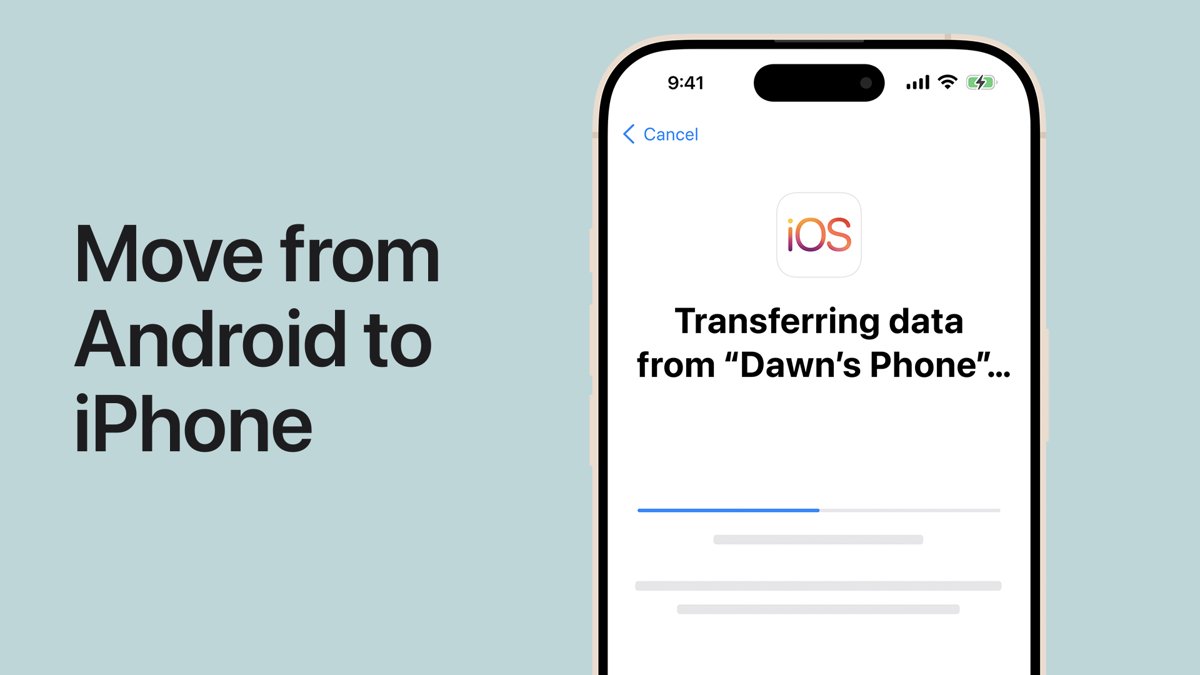
Step by step tutorial: How to transfer Android to iPhone
Move to iOS works only while the iPhone is in setup. Keep both phones plugged in and next to each other from start to finish.
- Install Move to iOS from Google Play on the Android phone, turn on Wi-Fi, and plug both phones into power.
- Turn on the new iPhone and follow the setup screens. On Quick Start, tap Set Up Without Another Apple Device.
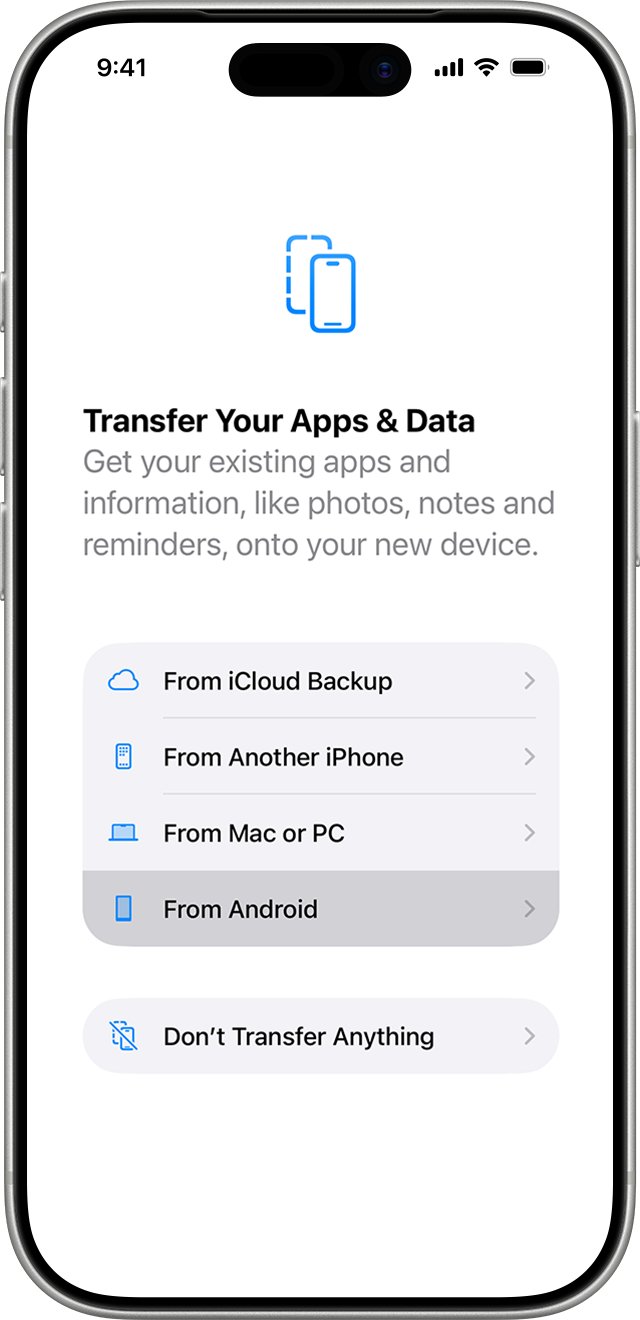
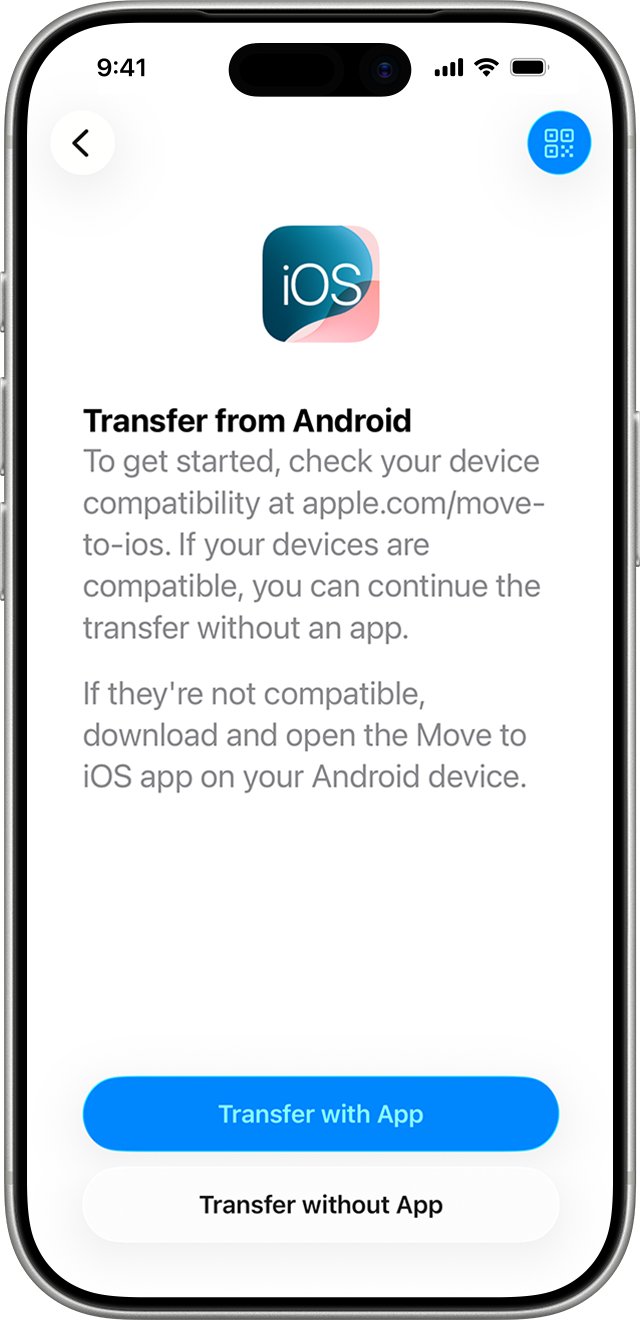
- On Transfer Your Apps & Data, tap From Android, then tap Transfer with App.
- Open Move to iOS on the Android phone, tap Continue, tap Agree, choose Automatically Send or Don't Send, and allow the location and notification permissions it asks for.
- On the iPhone, tap Continue on the Move from Android screen and wait for a six-digit or ten-digit code.
- Enter the code on the Android phone, then tap Connect to join the temporary Wi-Fi network the iPhone creates.
- On the Transfer Data screen, select contacts, messages, photos, WhatsApp and anything else you want, then tap Continue.
- Leave both phones alone until the loading bar on the iPhone finishes, even if Android says the transfer is done.
- Tap Done on Android, then tap Continue on the iPhone and finish setup.
Apple also supports a direct USB-C cable between the two phones for a faster transfer. Android may show a USB settings prompt that you need to accept before Move to iOS starts.
Move to iOS vs transfer without app vs manual transfer
| Your situation | Use this | Why |
|---|---|---|
| New or erased iPhone, any recent Android phone | Move to iOS app | Moves contacts, messages, photos, WhatsApp, calendars and more in one pass |
| Android phone runs a compatible version of Android 17 | Transfer without App | Built into Android; also moves your eSIM in the same flow |
| iPhone already set up and you do not want to erase it | Manual transfer | Google account sync and a computer move contacts, photos and music without a reset |
| No Google Play on the Android phone | Move to iOS installer from Apple | Apple publishes the app as a direct download for that case |
| Only WhatsApp chats matter | Move to iOS with WhatsApp selected | WhatsApp supports no other route from Android to iPhone |
Tips: How to ensure a smooth transfer from Android to iPhone
| Check | What to do | Why it matters |
|---|---|---|
| Power | Plug both phones into chargers | A phone that sleeps or dies mid-transfer stops the copy |
| Wi-Fi | Turn Wi-Fi on for Android | Move to iOS sends data over the iPhone's temporary Wi-Fi network |
| Storage | Compare Android content, including the microSD card, with the iPhone's free space | An iPhone that runs out of space stops with only part of your data |
| Chrome bookmarks | Update Chrome on Android to the latest version | Apple lists this as a requirement for moving bookmarks |
| Update WhatsApp on Android and keep the same phone number | WhatsApp needs current app versions and the same number on both phones | |
| iPhone state | Start from a new or erased iPhone | Move to iOS appears only during setup |
| Interruptions | Do not open other apps or take calls on Android | Leaving the Move to iOS screen cancels the transfer |
Step-by-step: How to transfer data from Android to iPhone without the Move to iOS app
Android 17 on supported phones has a built-in transfer that replaces the app. It also moves an eSIM. Your phone maker decides whether a model supports it.
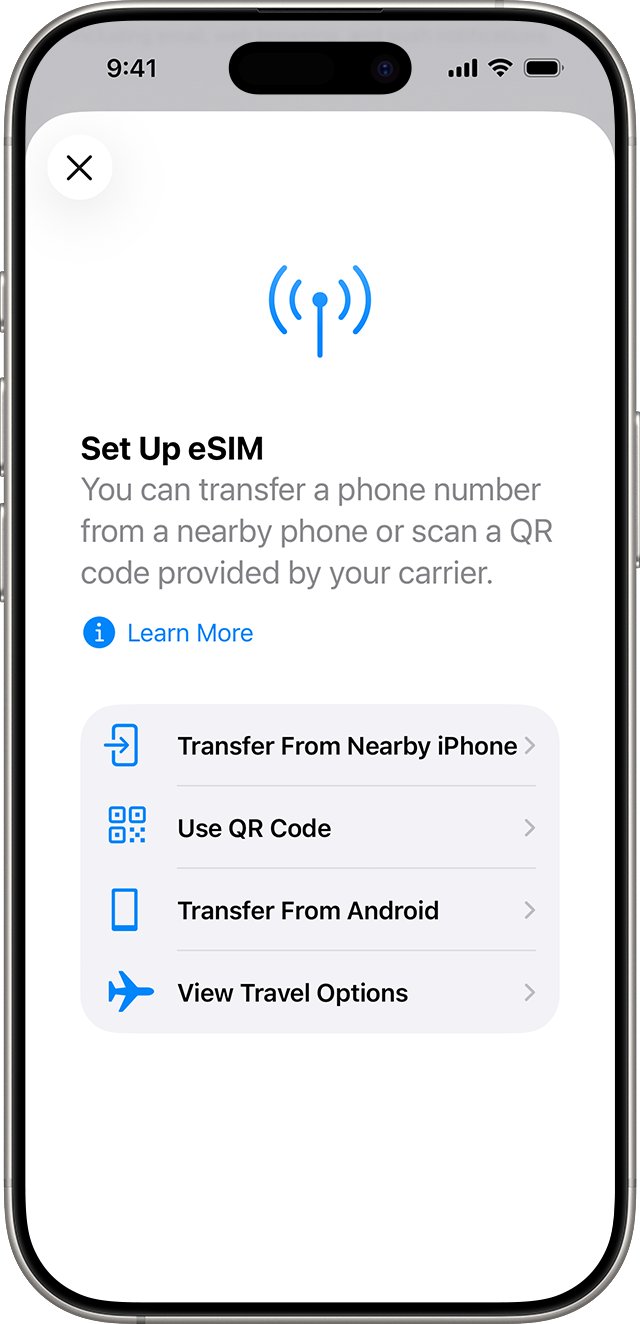
- Start setting up the iPhone. On Transfer Your Apps & Data, tap From Android.
- Tap Transfer without App.
- Place the Android phone next to the iPhone and tap Continue.
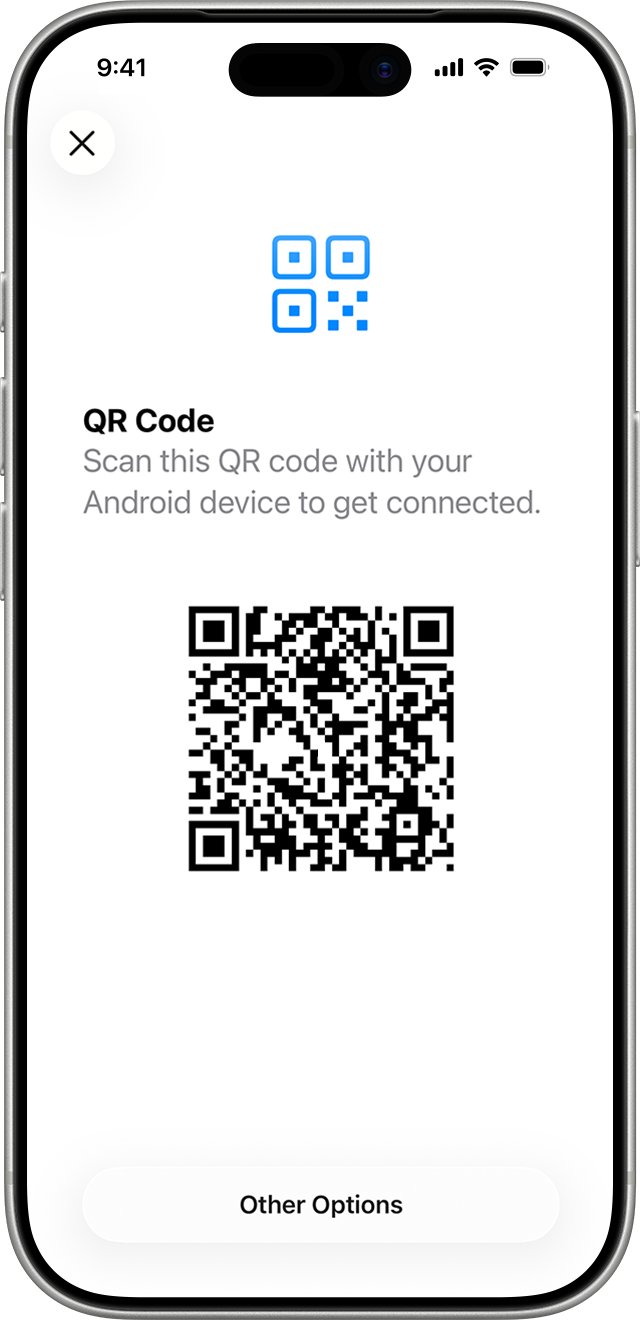
- Scan the QR code on the iPhone with the Android phone's camera to connect.
- On Android, select the data to move, such as photos, contacts, calendars, call history or messages.
- Tap Continue on the iPhone when the data transfer completes.
- To move an eSIM, select the number on Android and tap Transfer, then tap Continue on the iPhone to finish setup.
If the QR code will not scan, tap Other Options on the iPhone. On Android, open Settings > Google Services > All Services > Pair with iPhone or iPad > Copy Data, then enter the session ID and pairing code the iPhone shows.
How to transfer Android to iPhone after setup
Move to iOS cannot connect to an iPhone that has finished setup. You have two choices: erase the iPhone and run setup again, or move content manually and keep the iPhone as it is.
- Back up anything already on the iPhone that you want to keep.
- Open Settings > General > Transfer or Reset iPhone.
- Tap Erase All Content and Settings, then tap Continue.
- Choose to keep your eSIM, enter your passcode and Apple Account password, and wait for the reset.
- When the Hello screen appears, start setup and follow the Move to iOS steps above.
- To avoid erasing, use the manual methods in the next section instead.
If you deleted the eSIM during the erase, contact your carrier to reactivate your cellular plan.
Alternative solutions if Move to iOS won't work
These routes need no reset and move the most common content. Apple says music, books and PDFs always move manually, even after a Move to iOS transfer.
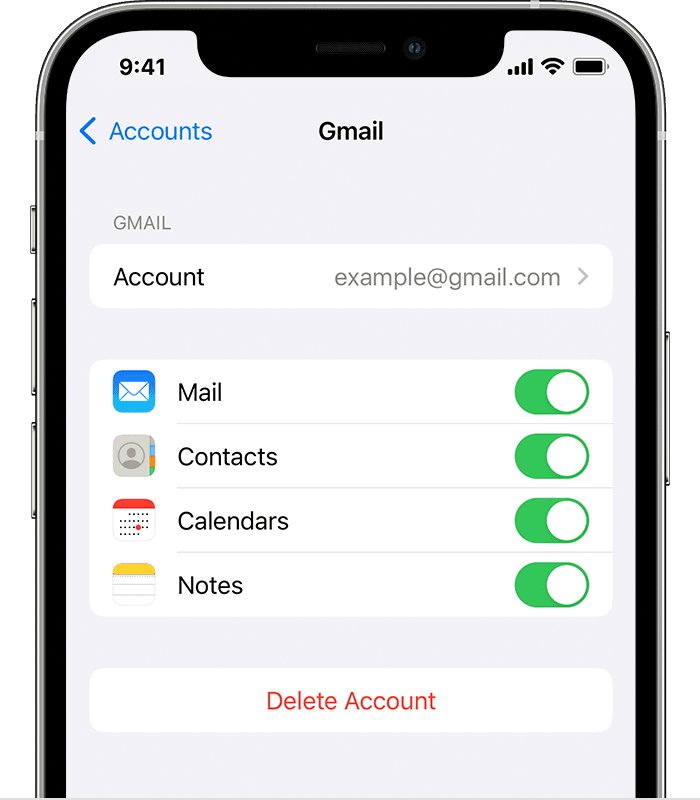
- Contacts, mail and calendars: On the iPhone, open Settings > Contacts > Add account > Google, sign in, choose what to sync, and tap Save.
- Photos (cloud): In Google Photos on Android, tap your profile picture > Photos settings > Backup and turn backup on. Wait for Backup complete, then sign in to Google Photos on the iPhone.
- Photos (computer): Connect Android to a computer, copy the DCIM folder, then sync those files to the iPhone with Finder on a Mac or the Apple Devices app on a PC.
- Music: Copy songs from Android's Music folder to the computer, add them to the Music app or Apple Devices, then select the iPhone, click Music, and click Sync.
- Books and PDFs: Copy them from Android's Documents folder and drag them into the Books app on a Mac or Apple Devices on a PC, then sync.
- Documents: Install Dropbox, Google Drive or OneDrive from the App Store and sign in, or sync files from the computer, then find your files on iPhone in the Files app.
- Apps: Open the App Store on the iPhone, search for each app you used, and install it.
If Google Play is unavailable on Android, Apple provides the Move to iOS installer directly for Android 6.0 and later, with older builds for Android 5.0, 4.4 and 4.3 and earlier.
How to transfer WhatsApp from Android to iPhone
WhatsApp supports only Move to iOS for this direction. You need Android 5 or later, iOS 15.5 or later, the same phone number, and a new or factory-reset iPhone.
- Open Move to iOS on Android and enter the code shown on the iPhone.
- Tap Continue, then select WhatsApp on the Transfer Data screen.
- Tap Start on Android and wait while WhatsApp prepares the export. WhatsApp signs you out on Android at this point.
- Tap Next to return to Move to iOS, tap Continue, and wait for the transfer to finish.
- Install the latest WhatsApp from the App Store on the iPhone.
- Open WhatsApp, sign in with the same phone number, tap Start, and let the import complete.
Call history, display name and media received through WhatsApp Channels do not transfer. The WhatsApp Business app does not support Android to iPhone chat transfer.
How to transfer eSIM from Android to iPhone
Apple offers three routes, depending on your carrier and Android version.
- During Move to iOS setup: When the iPhone asks to activate your phone number or eSIM, follow the prompts. Your carrier's website may open to finish activation.
- Android 17 without the app: In the Transfer without App flow, select your number on Android and tap Transfer.
- Carrier activation: Contact your carrier. They transfer the number by eSIM Carrier Activation or send a QR code.
- QR code after setup: Open the iPhone Camera, scan the carrier's QR code, tap Cellular Plan Detected, then tap Continue and Add Cellular Plan.
- Make a phone call on the iPhone to confirm the plan works.
eSIM needs an iPhone XS, iPhone XR or later and a carrier that supports eSIM.
Why is transferring data from Android to iPhone tricky?
Android and iOS store data in different apps and formats, so only content that Move to iOS knows how to convert crosses over.
| Content | Moves with Move to iOS? | How to get it on iPhone |
|---|---|---|
| Contacts, SMS history, call history, calendars | Yes | Select them on the Transfer Data screen |
| Camera photos, videos and albums | Yes | Select them on the Transfer Data screen |
| WhatsApp messages and media | Yes | Select WhatsApp, then sign in on the iPhone |
| Web bookmarks, mail accounts, files and folders | Yes | Update Chrome first for bookmarks |
| Voice memos, accessibility and display settings | Yes | Select them on the Transfer Data screen |
| Free apps on both stores | Some | Download matched apps from the App Store after setup |
| Paid apps | No | Buy or download again from the App Store |
| Music, books and PDFs | No | Copy them with a computer, or sign in to your streaming or reading app |
Tips for a clean transfer
Confirm the copy before you reset or sell the Android phone. Android keeps its data until you delete it.
- Open Contacts, Messages, Photos and Calendar on the iPhone and compare a few items with Android.
- Open the App Store and download the free apps Move to iOS matched.
- Copy music, books and PDFs with a computer, since Move to iOS skips them.
- Open WhatsApp on the iPhone and confirm recent chats appear.
- Make a call and send a text to confirm your number works and iMessage is turned on.
- Wipe the Android phone only after everything checks out.
Still not working? Fix Move to iOS transfer problems
Move to iOS transfer interrupted or stuck
Android left the Move to iOS screen, or Wi-Fi switched networks mid-transfer.
- Keep Move to iOS on screen and avoid calls and other apps until the iPhone loading bar finishes.
- Turn off Android features that switch networks, such as Smart Network Switch.
- In Android Settings > Wi-Fi, touch and hold each saved network and forget it.
- Turn off mobile data on Android, restart both phones, and try again.
No code appears on the iPhone
Setup was started earlier with Move to iOS but the migration never completed.
- Turn the iPhone off, then hold the side button while you connect it to a Mac or PC until the computer-and-cable screen appears.
- Choose Restore in Finder or the Apple Devices app.
- At Transfer Your Apps & Data, tap From Android, then tap Continue to generate a six-digit code.
Only some content transferred or iPhone shows full
The Android content was larger than the iPhone's free storage.
- Erase the iPhone from Settings > General > Transfer or Reset iPhone.
- Deselect large items such as videos on the Transfer Data screen.
- Run the transfer again.
Apps missing after the transfer
Only free apps listed on both stores that support the transfer come across.
- Open the App Store on the iPhone.
- Search for each missing app and install it.
- Sign in to the app to restore its data, or contact the app developer.
Frequently asked questions about transferring Android to iPhone
How do I transfer Android to iPhone after setup?
Move to iOS works only during iPhone setup. Erase the iPhone from Settings > General > Transfer or Reset iPhone and run setup again, or move contacts, photos and music manually through your Google account and a computer.
How do I transfer photos from Android to iPhone?
Select photos and videos on the Move to iOS Transfer Data screen during setup. After setup, back them up to Google Photos and sign in on the iPhone, or copy the DCIM folder to a computer and sync it with Finder or Apple Devices.
How do I transfer WhatsApp from Android to iPhone?
Select WhatsApp in Move to iOS during iPhone setup, tap Start to export, then sign in to WhatsApp on the iPhone with the same number. You need Android 5 or later and iOS 15.5 or later.
What is the Android to iPhone transfer app?
Apple's Move to iOS app on Google Play handles the transfer. Supported phones on a compatible version of Android 17 can skip it and use the Transfer without App option instead.
How do I transfer my eSIM from Android to iPhone?
Activate your number when the iPhone asks during setup, or use Transfer without App on Android 17. Otherwise, contact your carrier for eSIM Carrier Activation or a QR code.
How do I transfer contacts from Android to iPhone?
Select Contacts in Move to iOS during setup. If your contacts live in Google Contacts, open Settings > Contacts > Add account > Google on the iPhone and turn on Contacts sync.
Can I transfer apps from Android to iPhone?
Move to iOS matches some free apps available on both Google Play and the App Store, and you download them after setup. Paid apps and app data do not transfer.
What should I do if the transfer is interrupted?
Restart both phones, forget saved Wi-Fi networks on Android, turn off mobile data, and run the transfer again. Keep the Move to iOS app on screen until the iPhone loading bar finishes.
Can I transfer music and movies I purchased on Google Play?
Move to iOS does not move music, books or PDFs. Copy music files with a computer, or sign in to your music or video service's iPhone app to reach your purchases.
Is the process the same for iPhone 17 Pro Max, iPhone 16 Pro and older models?
Yes. Every iPhone that shows Transfer Your Apps & Data during setup uses the same From Android option, so the steps match on iPhone 11, 12, 14 Pro Max, 16 Pro and 17 Pro Max.
Is the Move to iOS app available in all countries?
Move to iOS is on Google Play, and Apple offers a direct installer for phones without Google Play. In China mainland, it is also on the Tencent, Huawei AppGallery and VIVO app stores.
Quick summary
Use Move to iOS on a new or erased iPhone, with both phones on power and Move to iOS on screen until the iPhone finishes. It is the only route that carries messages, call history and WhatsApp chats across. Manual sync suits an iPhone you do not want to erase, but it leaves those behind.