Type the latitude and longitude into the Apple Maps search field, tap the result, then save it to Places (called Favorites in iOS 16 and Library in iOS 18) or tap Pin.
This guide covers the coordinate format Maps accepts, naming the saved spot, the Mac steps, copying coordinates back out of a pin, and fixes when the favorite option seems to be missing.
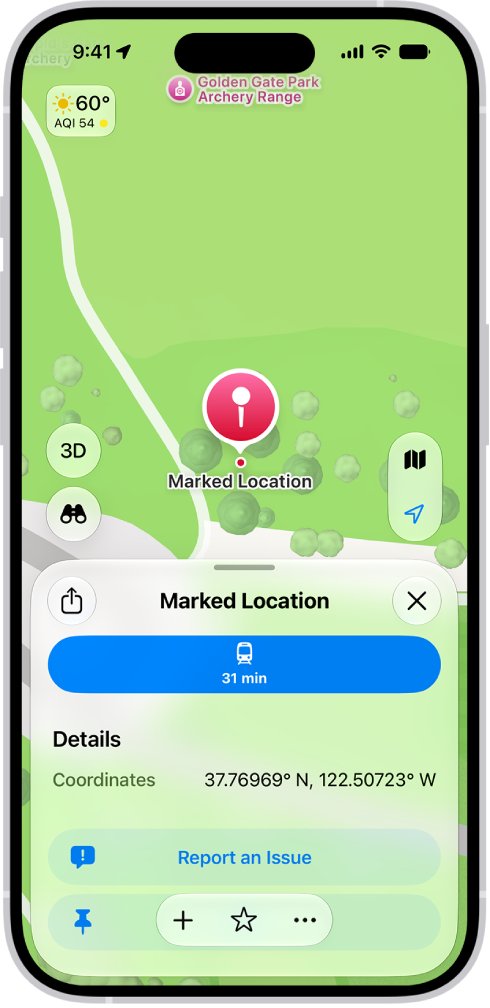
Set a favorite from latitude and longitude in Apple Maps on iPhone
These steps match the current iPhone User Guide, where saved spots live in Places. A pinned place shows as an icon in your Places row and under Pinned, which is the closest thing to the old Favorites row.
- Open the Maps app on your iPhone.
- Tap the search field and type the coordinates with latitude first, for example
37.8199 N, 122.4783 W. - Tap the matching result so its place card opens and a marker appears on the map.
- To fine-tune the spot, touch and hold the map at that marker until a pin appears, tap Move, then drag the map.
- Tap Pin to keep it as a pinned favorite, or open the place card's menu and tap Add to Places to save it to your Places list.
- Open Places and tap Pinned to confirm the new entry is there.
Only one unsaved pin shows on the map at a time, so save each coordinate before you search for the next one.
How to properly write latitude and longitude for Apple Maps
Apple's Maps documentation gives GPS coordinates in decimal degrees with compass letters, latitude first. Use the same order whatever notation you start from.
| Notation | Example (Golden Gate Bridge) | What to do with it |
|---|---|---|
| Decimal degrees with letters | 37.8199 N, 122.4783 W | Type it as shown; this is the form Apple's Maps guide uses |
| Signed decimal degrees | 37.8199, -122.4783 | Minus means south for latitude and west for longitude; keep the minus sign |
| Degrees, minutes, seconds | 37° 49' 11.6" N, 122° 28' 41.9" W | Convert to decimal degrees first: degrees + minutes/60 + seconds/3600 |
| Longitude written first | -122.4783, 37.8199 | Swap the order so latitude comes first |
Four decimal places pin a spot to roughly 11 metres, which is enough for a house, trailhead or parking spot.
Pin coordinates to your Places row in Apple Maps
This route starts from the Places row instead of the map, which is quicker when you already have the coordinates copied.
- Open Maps and look at the row of icons below Places.
- Tap the add button at the end of the row (you may need to swipe left to reach it).
- Paste or type the latitude and longitude into the search field.
- Tap the search result to add it as a pin.
- If the coordinates are your home, work or school, select Home, Work or School, or tap Add to Contact Card.
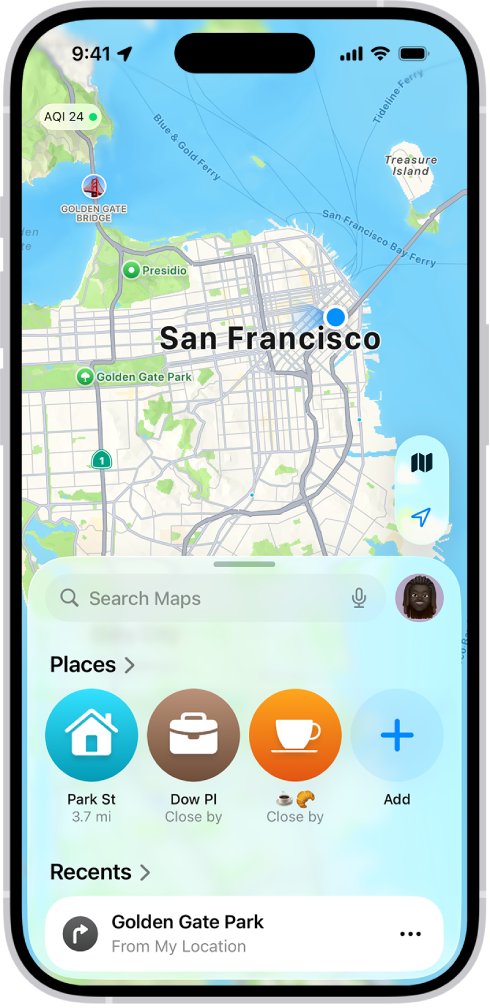
Rename a coordinate pin in Apple Maps
A pin saved from raw coordinates often shows a nearby street name or no useful label, so give it a name you will recognise.
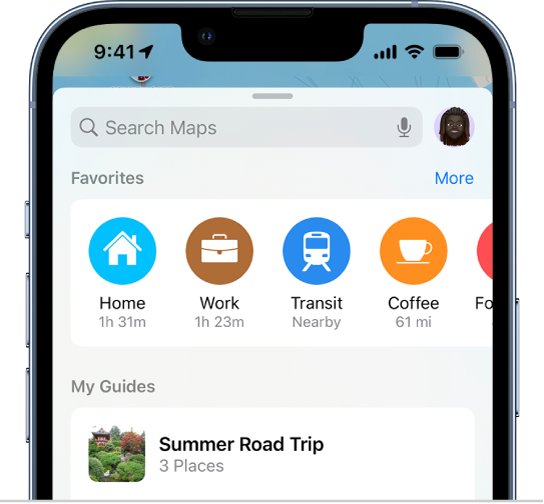
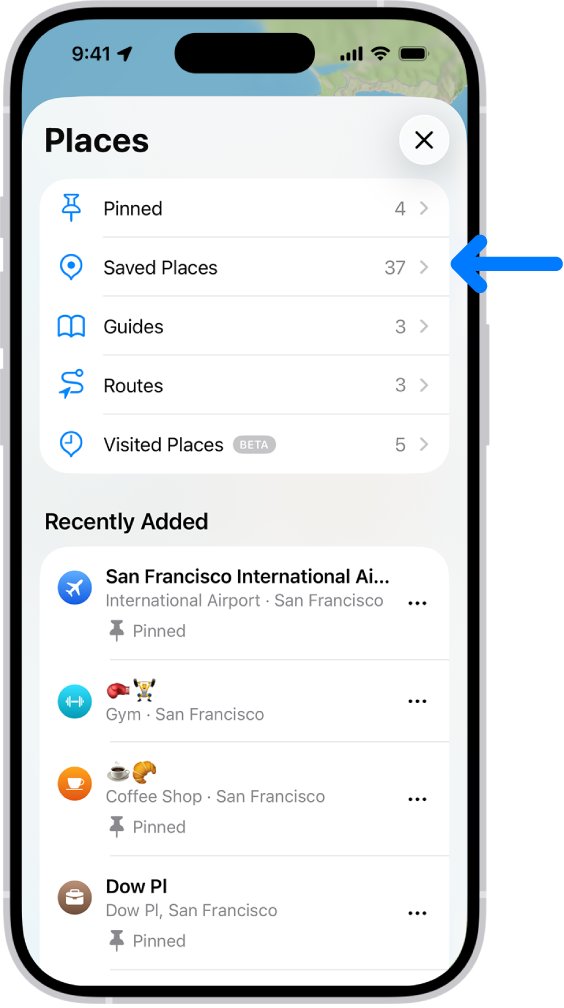
- Open Maps, tap Places, then tap Pinned.
- Tap the info button next to the pin.
- Tap in the Label field and type a new name.
- To make it your home, work or school address instead, choose an option below Type.
You can also attach a private note: on the place card, open the menu, tap Add a Note, write it, and save. Adding a note also saves the place to your Places.
Apple Maps favorites, Library and Places by iOS version
Apple has renamed the saved-places list twice, which is why older instructions mention a button you may not see.
| iPhone guide version | Saved list is called | Save option on the place card |
|---|---|---|
| iOS 16 | Favorites (row on the search card) | Add to Favorites |
| iOS 18 | Library | Add to Library |
| iOS 26 and iOS 27 | Places (with a Pinned section) | Add to Places, or Pin after dropping a pin |
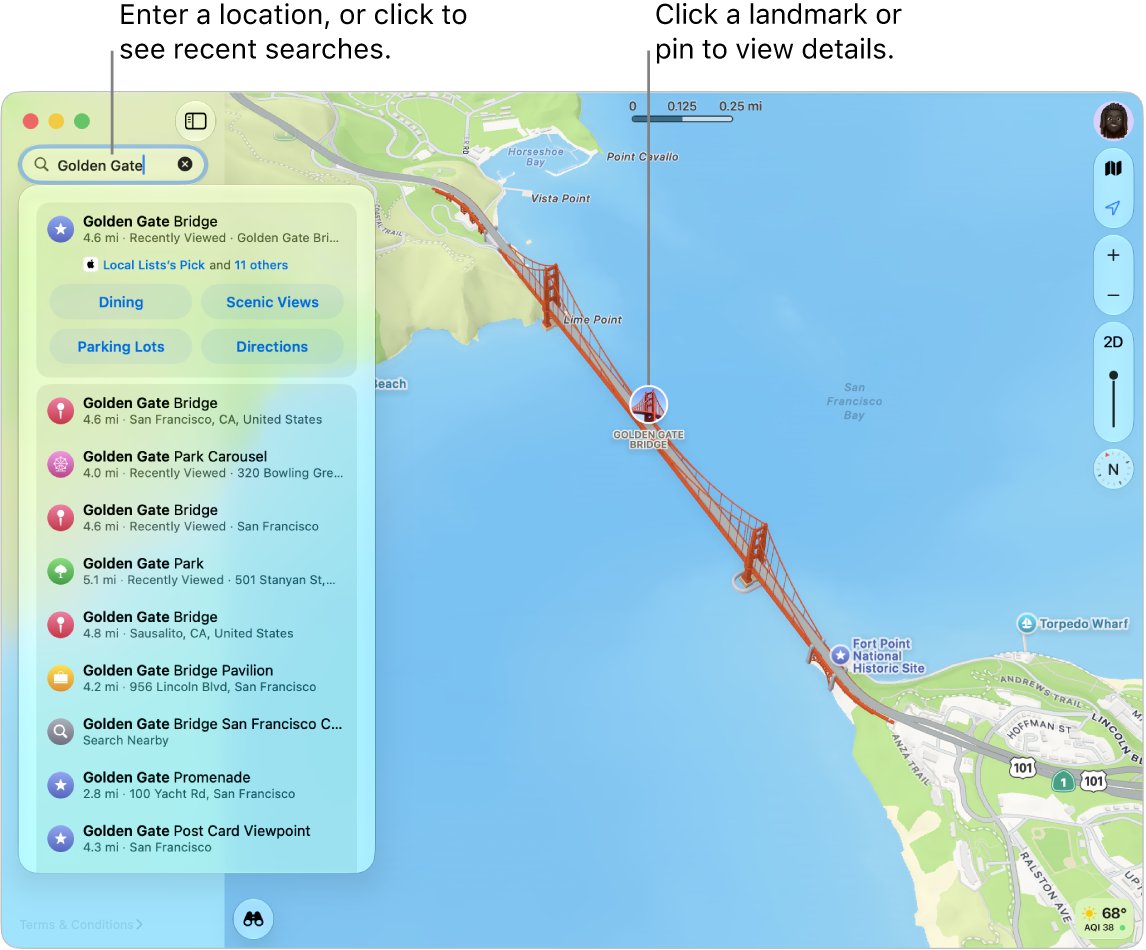
Use latitude and longitude in Apple Maps on Mac
The Mac search field explicitly accepts GPS coordinates, and saved spots go to Saved Places in the sidebar.
- Open Maps on your Mac and click the search field at the top of the sidebar.
- Type the coordinates, for example
37.8199 N, 122.4783 W, then click the result. - Click the save button near the bottom of the place card to add it to Saved Places.
- To pin an exact spot instead, Control-click the location, choose Mark Location, then click Pin in the place card.
- Click Pinned in the sidebar and click the info button next to the pin to rename it.
To add a private note to a saved coordinate on the Mac, click the place, click the menu near the bottom of the place card, click Add a Note, then click Done.
How to get latitude and longitude of a pin in Apple Maps
Use this to read coordinates out of Maps, for example to send an exact meeting point or to log a spot you dropped by hand.
- Touch and hold the map until a pin marker appears, then tap Pin to save it.
- Tap Places, tap Pinned, then tap the pin.
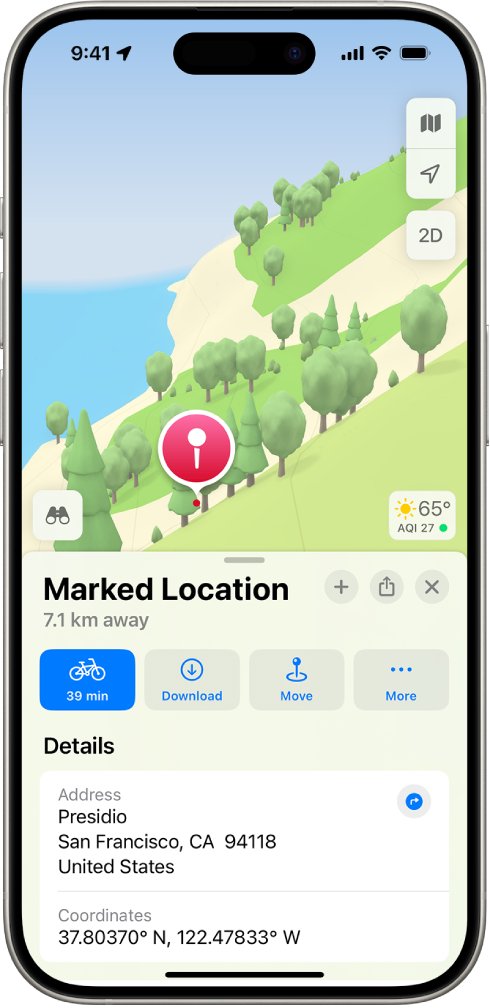
- Swipe up on the place card to Coordinates.
- Touch and hold the coordinates, then tap Copy.
- Paste them into Messages, Notes or another app.
To mark where you are standing without opening Maps first, touch and hold the Maps icon on the Home Screen and choose Mark My Location.
Check the saved favorite matches your coordinates
- Tap Places, tap Pinned, then tap the new pin.
- Swipe up to Coordinates and compare them with the numbers you entered.
- If the last decimal places differ slightly, the pin snapped to a nearby point; tap Move and drag the map to correct it.
- Tap the directions button to confirm Maps routes to the right spot.
Fix Apple Maps coordinates and favorites problems
There is no Add to Favorites option
Newer iOS versions renamed Favorites to Library and then to Places.
- Open the place card's menu and look for Add to Places (or Add to Library on iOS 18).
- Alternatively, drop a pin at the location and tap Pin.
- Find the saved entry under Places > Pinned.
The coordinates land in the wrong country or ocean
Latitude and longitude are swapped, or a minus sign or W/S letter is missing.
- Check that the first number is latitude, between -90 and 90.
- Add W or a minus sign to longitudes west of Greenwich, such as everywhere in the United States.
- Add S or a minus sign to latitudes south of the equator.
- Search again and open the new result.
The pin is close but not exactly on the spot
The search result snapped to a nearby address or the coordinates were rounded.
- Tap the pin, then tap Move.
- Drag the map until the marker sits on the exact spot.
- Save the pin again and recheck Coordinates on its place card.
Only one dropped pin stays on the map
Maps shows a single unsaved pin at a time.
- Tap Pin on each location before you drop the next one.
- Open Places > Pinned to see all of them together.
How latitude and longitude work
| Value | Range | Measured from | Direction |
|---|---|---|---|
| Latitude | 0 to 90 degrees N or S (-90 to 90) | The equator (0 degrees) | North-south position; lines run east-west |
| Longitude | 0 to 180 degrees E or W (-180 to 180) | The prime meridian at Greenwich (0 degrees) | East-west position; lines run north-south |
| One degree of latitude | About 111 km | Anywhere on Earth | Roughly constant |
| 0.0001 degree of latitude | About 11 m | Anywhere on Earth | Four decimal places of precision |
Apple Maps latitude and longitude FAQ
How do I enter latitude and longitude in Apple Maps?
Tap the search field in Apple Maps and type the coordinates with latitude first, such as 37.8199 N, 122.4783 W. Tap the result to open its place card, where you can get directions, pin it or save it to Places.
How do I properly write latitude and longitude?
Write latitude first and longitude second, separated by a comma. Use decimal degrees with N, S, E or W, or signed numbers where south and west are negative, for example 37.8199, -122.4783 for San Francisco.
How do I get latitude and longitude from Apple Maps?
Drop and save a pin, then tap Places, tap Pinned and tap the pin. Swipe up to Coordinates, touch and hold them and tap Copy. You can paste the copied coordinates into any app.
How do I work out latitude and longitude from degrees, minutes and seconds?
Divide the minutes by 60 and the seconds by 3600, then add both to the degrees. For example, 37 degrees 49 minutes 11.6 seconds becomes 37.8199. Make the result negative for south latitudes and west longitudes.
How does latitude and longitude work?
Latitude measures how far north or south of the equator a point is, from 0 to 90 degrees. Longitude measures how far east or west of the prime meridian at Greenwich it is, from 0 to 180 degrees. Together they name one point.
What way does latitude go?
Lines of latitude run east to west around the globe, parallel to the equator. The value itself measures north-south position, so a higher latitude number means a point farther from the equator.
What is latitude used for?
Latitude fixes a location's north-south position, which navigation, mapping apps and GPS devices combine with longitude to identify an exact spot. It also indicates climate zones, since places near the equator get more direct sunlight.
Why are latitude and longitude important?
They give every place on Earth a unique, unambiguous address that works where street addresses do not, such as trailheads, beaches or rural land. Apps like Apple Maps and Google Maps on desktop can route to them directly.
How do I display latitude and longitude in Apple Maps?
Apple Maps shows coordinates on a pin's place card. Drop a pin, open it from Places and swipe up to the Coordinates entry to read or copy them.