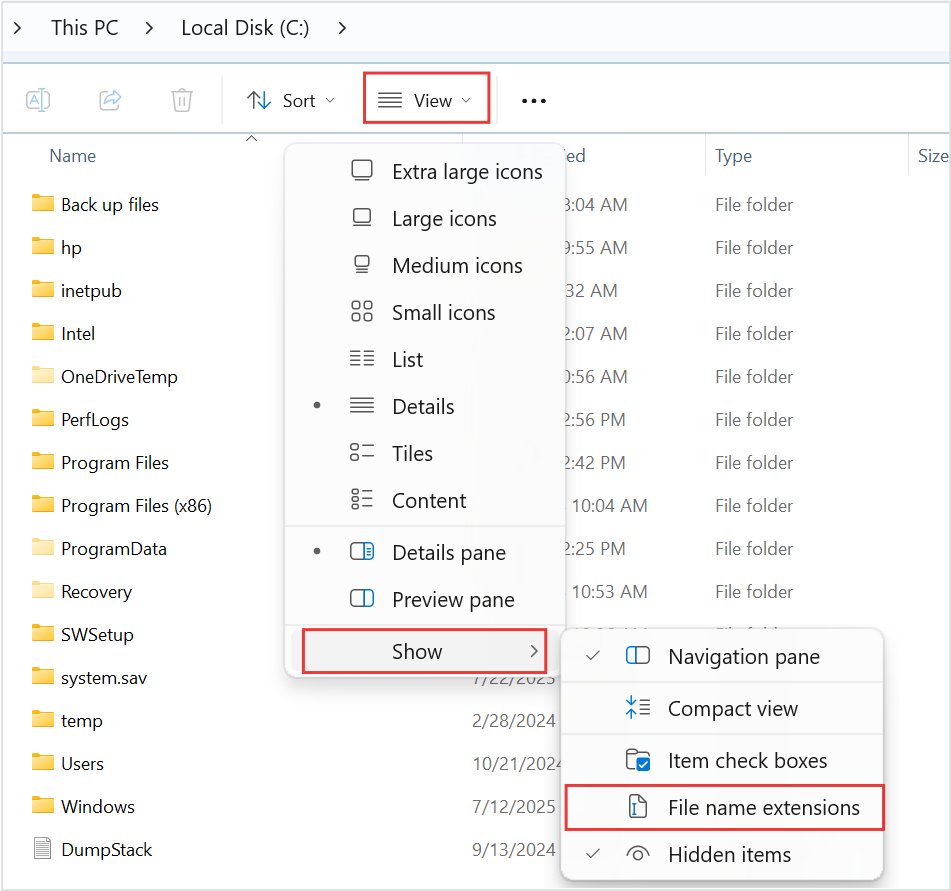
To change a file's extension in Windows 11, turn on View > Show > File name extensions in File Explorer, then rename the file and replace the letters after the last dot.
Renaming only changes the name, not the format, so this guide also covers converting with Save As, renaming many files at once, opening unknown file types and changing which app opens each type.
How to change file type or extension in Windows 11/10
Microsoft is clear on one point: changing a file name extension does not convert the file to another format. Pick the route that matches what you actually need.
| What you need | Do this | Why |
|---|---|---|
| The extension is wrong or missing, such as a .txt that is really .csv | Rename the extension in File Explorer | The content already matches the new type |
| A different format, such as .docx to .pdf or .xlsx to .csv | Open the file and use Save As with a new Save as type | Only the app that understands the format can convert it |
| Dozens of files with the same wrong extension | Run ren *.old *.new in Command Prompt |
One command renames them all |
| The file opens in the wrong app | Change the default app in Settings > Apps > Default apps | The extension is fine; the association is not |
| Windows does not know the file type | Use Open with > Search the Microsoft Store | The Store lists apps that can open it |
Displaying file extensions in Windows File Explorer
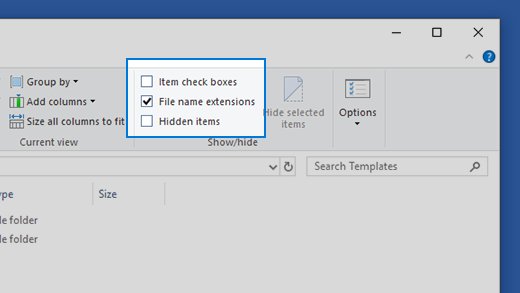
File Explorer hides extensions by default, so a file called report.txt shows only as report. You must show them before you can rename one.
| Windows version | Where the setting is |
|---|---|
| Windows 11 | File Explorer > View > Show > File name extensions |
| Windows 10 | File Explorer > View tab > Show/hide group > File name extensions check box |
The same Show menu also lets you view hidden files and folders when the file you want is not listed.
Renaming a file extension using Windows File Explorer
- Open File Explorer and go to the folder that holds the file.
- Make sure File name extensions is turned on, so the name reads like notes.txt.
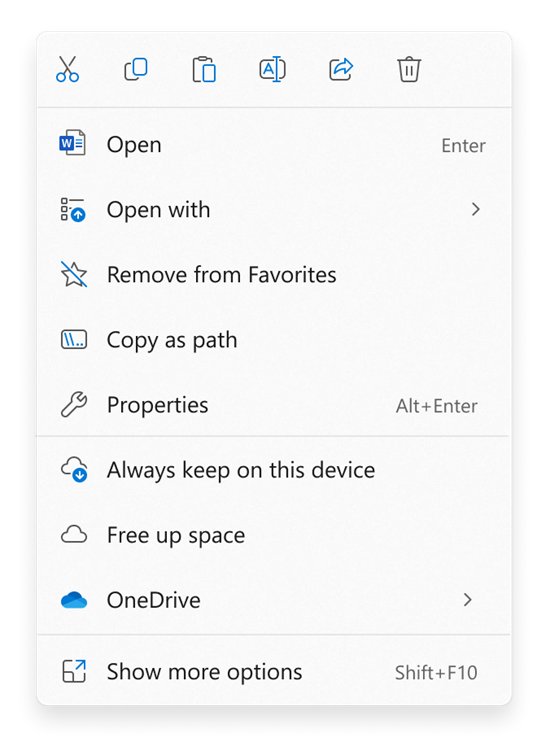
- Right-click the file and select the Rename icon at the top of the menu.
- Replace only the letters after the last dot, for example change txt to csv.
- Press Enter.
- Select Yes when Windows warns that the file might become unusable.
If the file stops opening, rename it back to the old extension. Nothing inside the file changed, so the original name restores it. A Mac spreadsheet renamed from .numbers to .xlsx still will not open in Excel, so open Numbers files on Windows through iCloud instead.
Saving a file in another file format
This is the route that genuinely changes a file type. The app that opens the file writes a new copy in the format you pick, and some formatting or features may not carry over.
- Open the file in the app that created it, such as Word, Excel or PowerPoint.
- Select File > Save As. On OneDrive or SharePoint files the command may be called Save a Copy.
- Select Browse and pick the folder for the new copy.
- Open the Save as type list and choose the format you want, such as PDF or CSV.
- Type a file name and select Save.
The original file stays untouched, so you keep both versions. Word, Excel and PowerPoint can also save to OpenDocument and to earlier Office formats from the same list.
Change file extension for multiple files with Command Prompt
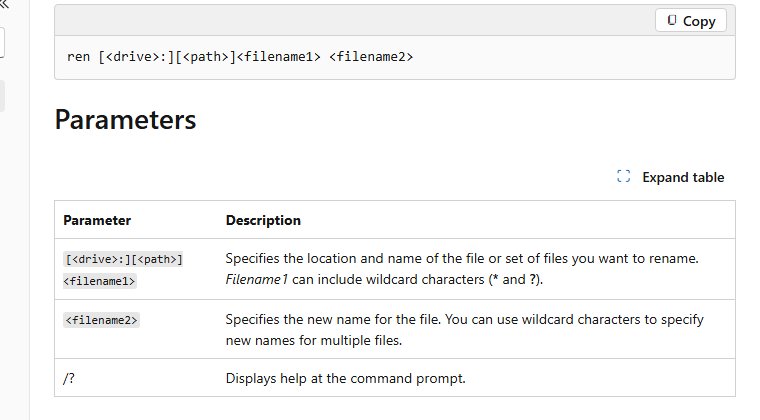
File Explorer renames one file at a time. The ren command accepts wildcards, so it changes every matching extension in a folder in one go.
ren *.txt *.csvOpen Command Prompt, use cd to move into the folder, then run the command. It renames every .txt file in that folder to .csv. Replace both extensions with your own; ren cannot move files to another folder or drive.
You should see: The files show the new extension in File Explorer. If you see Duplicate file name or file not found, a file with the new name already exists or nothing matched the pattern.
How to open unknown file type in Windows 11
An unknown file type is one no installed app has claimed. Windows gives you three ways to find one that can open it.
| Situation | What to do |
|---|---|
| You know the extension | Open Microsoft Store, type the extension in the search box and press Enter to see compatible apps |
| You do not know the extension | Right-click the file and select Open with > Search the Microsoft Store |
| An installed app might cope | Right-click the file and select Open with > Choose another app |
| It is a text-based document | Try Notepad, which opens any text-based file regardless of extension |
Set or change file associations & extensions in Windows 11
The association decides which app opens each extension. Changing it, like any other default program in Windows, never touches the files themselves.
- Open Settings and select Apps > Default apps.
- Type the extension, such as .pdf, in the search box at the top.
- Select the result that appears, then choose the app you want and confirm.
- Or select an app under Set defaults for applications to see every file and link type it can open.
- Select any file type in that list and pick a different app for it.
Remove file type associations using Registry Editor in Windows 11
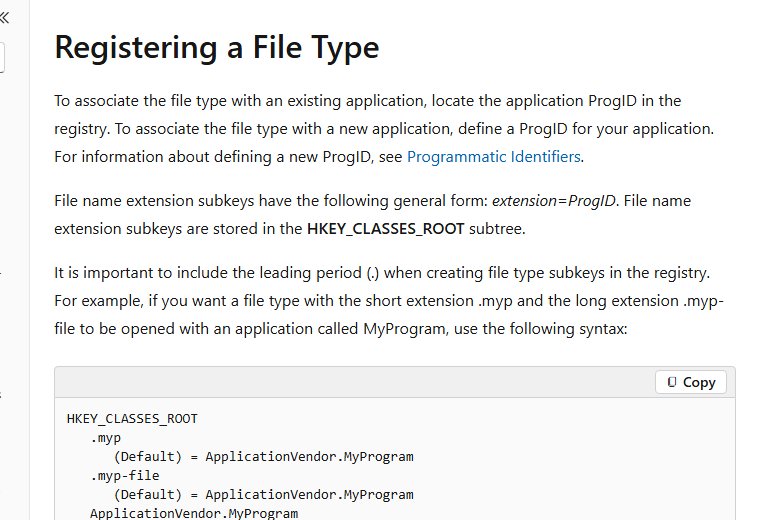
Settings has no button to remove an association, only to change it. File type registrations live in the registry, and Microsoft documents where.
| Registry location | What it holds |
|---|---|
| HKEY_CURRENT_USER\Software\Classes\.ext | File type registrations for your user account only |
| HKEY_LOCAL_MACHINE\Software\Classes\.ext | File type registrations for every user on the PC |
| HKEY_CLASSES_ROOT\.ext | A merged view of the two keys above; Microsoft says it is meant to be read, not written |
| .ext key, Default value | The ProgID of the app that owns the type; Windows ignores it if that ProgID is not registered |
| .ext\OpenWithProgids subkey | Other apps listed under Open with for that type |
Export a key before you change it: right-click it in Registry Editor and select Export. Deleting a per-user .ext key under HKEY_CURRENT_USER removes only that account's registration, and the machine-wide one under HKEY_LOCAL_MACHINE then applies.
For a normal "wrong app opens it" problem, use Default apps in Settings instead. It is the supported route and cannot damage other file types.
Changing file types using online services
Online converters upload your file to someone else's server, convert it and send a copy back. That is fine for a public image and a poor choice for contracts, tax forms or anything personal.
Convert with Save As in the app that already opens the file first, and use an online service only for files you would be comfortable sharing publicly. Built-in Save As keeps the file on your PC, while an online converter needs a copy on its servers and its results vary by format.
Managing files in Windows 10
Every method here works in Windows 10 too. Only the File Explorer and Settings layout differs.
| Task | Windows 11 | Windows 10 |
|---|---|---|
| Show extensions | View > Show > File name extensions | View tab > File name extensions check box |
| Rename a file | Right-click > Rename icon at the top of the menu | Right-click > Rename |
| Change the default app | Settings > Apps > Default apps | Settings > Apps > Default apps |
| Batch rename extensions | ren *.old *.new in Command Prompt |
ren *.old *.new in Command Prompt |
Confirm the new file extension in File Explorer
- With File name extensions turned on, check that the name ends in the new extension.
- Select View > Details and look at the Type column, which shows what Windows now treats the file as.
- Double-click the file. It should open in the app set for the new extension.
- For a Save As conversion, open the new copy and check that the content and formatting survived.
Change file type in Windows 11 FAQ
How do I change a file extension in Windows 11?
Open File Explorer, select View > Show > File name extensions, then right-click the file and choose Rename. Replace the text after the last dot and press Enter, then confirm the warning. This changes the name only, not the format.
How do I change a file type format?
Open the file in the app that created it and use File > Save As. Choose the new format in the Save as type list and save. That writes a real copy in the new format, which renaming the extension cannot do.
How do I change the file type of a photo?
Open the photo in an image app that offers Save As or Export and pick the new format, such as JPEG or PNG. Renaming .heic to .jpg does not convert it. If Windows will not open the photo at all, open HEIC files with the official extension first.
How do I change the file type for multiple files?
Open Command Prompt in the folder and run ren with wildcards, for example ren *.txt *.csv. Every matching file in that folder gets the new extension in one step. It renames only and does not convert content.
How do I change the file type in Word?
Select File > Save As, choose a folder, and pick the format in the Save as type list, such as PDF, an earlier Word format or OpenDocument Text. Select Save, and Word writes a new copy while the original stays as it was.
How do I change the file type of a PDF?
Renaming a .pdf to .docx breaks it, because the content is still PDF. Open the PDF in an app that can export it to another format and use its Save As or Export option, then check the converted copy before deleting the original.
How do I change the file type of a video?
A video must be re-encoded by a video app or converter to change its format. Renaming .mov to .mp4 only changes the label, and players may refuse it. Use an app that offers export to the format you need.
Why change the file type of photos?
Mostly for compatibility. Some websites, printers and older apps accept only JPEG or PNG. A converted copy opens everywhere, while the original format, such as HEIC, may need an extra codec on Windows.