To change your location on Find My iPhone, open the Find My app on the device you want to share from, tap Me and tap Use This iPhone as My Location.
This guide covers switching your Find My location to an iPhone, iPad or Apple Watch, renaming your location with a label, stopping sharing and fixing a location that will not update.
How to change my location on Find My iPhone
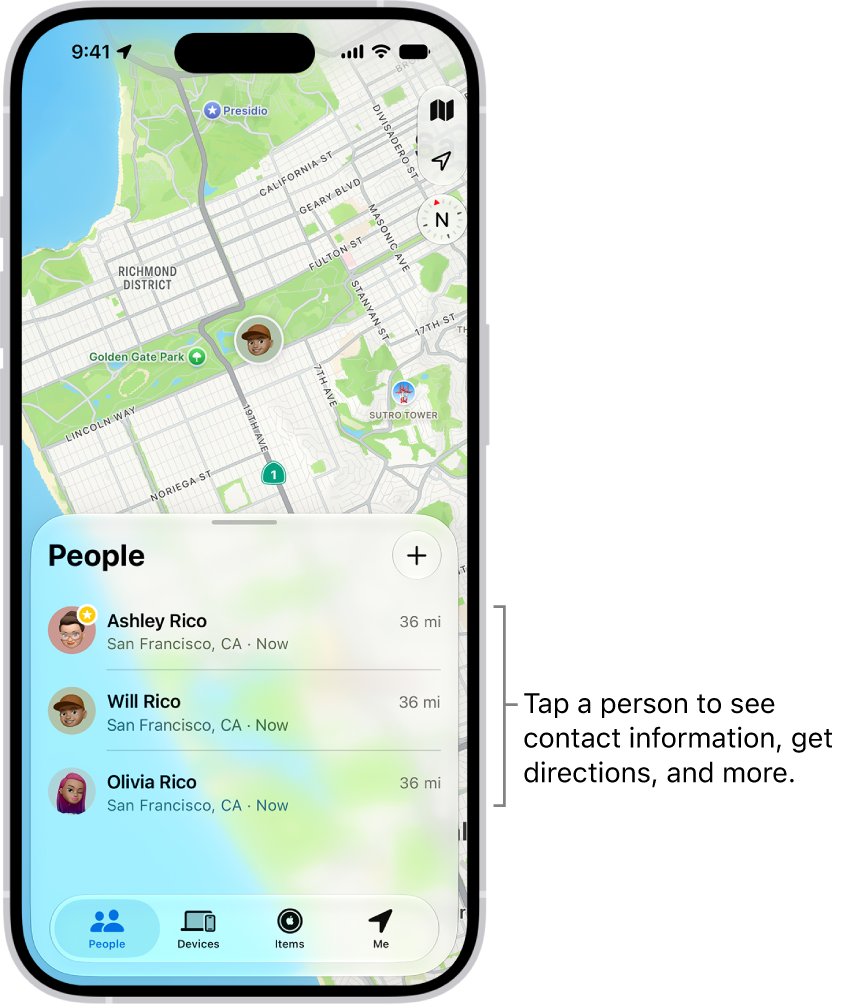
Find My shares the location of one device at a time. If friends see an old iPhone or an iPad left at home, switch the sharing device to the iPhone you carry.
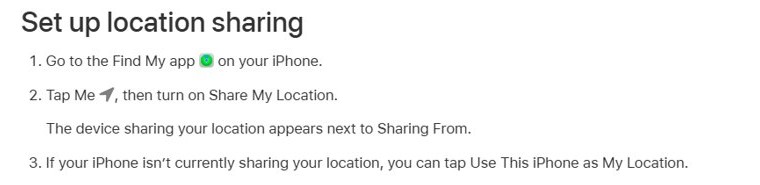
- Open the Find My app on the iPhone you want to use.
- Tap Me.
- Turn on Share My Location if it is off.
- Look at the device name next to Sharing From.
- If it names a different device, tap Use This iPhone as My Location.
The change has to be made on the device that will share from now on. You cannot push the location to another device remotely.
How to change Find My location to iPad
An iPad signed in to the same Apple Account can take over as your shared location, which helps if you carry it more than your phone.
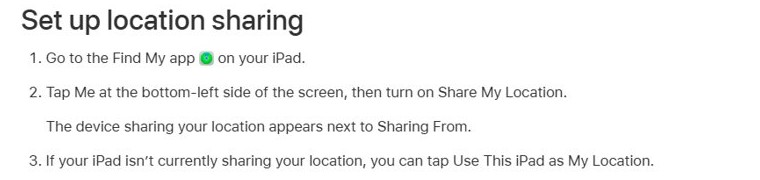
- Open the Find My app on your iPad.
- Tap Me at the bottom-left side of the screen.
- Turn on Share My Location.
- Tap Use This iPad as My Location.
To move it back to your iPhone later, repeat the steps in the Find My app on the iPhone.
How to change Find My location to Apple Watch
There is no separate Apple Watch switch for this. Apple Watch takes over automatically in one situation, set by how the watch is connected.
| Your setup | Which device shares your location |
|---|---|
| Apple Watch (GPS + Cellular) paired with the iPhone that shares your location, watch on your wrist, iPhone out of range | Apple Watch |
| Same setup, iPhone in range | iPhone |
| Apple Watch GPS-only model | iPhone |
| Location sharing set to a different device, such as an iPad | That device; switch back with Use This iPhone as My Location |
How to change your Find My location label to Home or Work
A location label renames the place you are at, so friends see Home or Work instead of an address. It does not move your location on the map.
- Open the Find My app on your iPhone.
- Tap Me, then tap Location Label.
- Select a label such as Home or Work.
- To create your own, tap Add Custom Label, enter a name and tap Done.
Change Find My location settings in iPhone Settings
The same sharing options also live in the Settings app, which is handy if the Find My app is not on your Home Screen.
| What you want to change | Where it is |
|---|---|
| Location sharing settings | Settings > [your name] > Find My |
| Find My location permission | Settings > Privacy & Security > Location Services > Find My |
| Location Services for the whole iPhone | Settings > Privacy & Security > Location Services |
| Find My iPhone, Find My network and Send Last Location | Settings > [your name] > Find My > Find My iPhone |
How to check which device is sharing your Find My location
- Open Find My and tap Me.
- Read the device name next to Sharing From. It should be the device you just switched to.
- Check that your location and any label shown under Me match where you are.
- Ask a friend who can see you in their People list to confirm the update.
How does Find My location work?
Find My shows the location that the sharing device reports through Location Services. There is no setting to type in a different place; the only way to change what friends see is to change the sharing device or stop sharing.
| Source | What it contributes |
|---|---|
| GPS | Position from satellites, when available |
| Wi-Fi networks | Position from local Wi-Fi networks nearby |
| Cellular network | Position from the mobile network |
| Bluetooth connections | Extra location information from nearby connections |
| Find My network | Locates an offline device, for up to 24 hours after a supported iPhone is turned off |
The Find My app needs Location Services turned on for it. If you only want friends to see your area, share your location on iPhone only with the people who need it.
How to stop or hide your location in Find My
If the goal is to stop people seeing where you are rather than change devices, hide or stop sharing instead.
- To hide your location from everyone, open Find My, tap Me and turn off Share My Location.
- To stop sharing with one person, tap People, tap the person's name, tap Stop Sharing My Location, then tap Stop Sharing Location.
- To pause sharing with one person, tap People, tap the person's name, then tap Hide Location.
- To stop arrival and departure alerts about you, tap Me, select a name under Notifications About You, tap the alert, then tap Delete Notification twice.
- To stop new location requests, tap Me and turn off Allow Friend Requests.
Find My location not changing or not showing: fixes
Find My still shows my old iPhone or iPad location
Sharing From still points at the other device.
- On the iPhone you carry, open Find My and tap Me.
- Tap Use This iPhone as My Location.
- If the button does not appear, check you are signed in with the same Apple Account on both devices.
Friends can't see my location in Find My
Location Services is off for Find My, or Share My Location is off.
- Go to Settings > Privacy & Security > Location Services and turn on Location Services.
- Tap Find My in the same list and allow location access.
- Open Find My, tap Me and turn on Share My Location.
- Check the friend is not set to Hide Location under People.
Find My location is wrong or not precise
Precise Location is off, or the device has poor GPS, Wi-Fi and cellular signal.
- Go to Settings > Privacy & Security > Location Services > Find My.
- Turn on Precise Location.
- Move to a spot with Wi-Fi or a mobile signal and reopen Find My.
Share My Location option missing
Find My iPhone is not set up on this device.
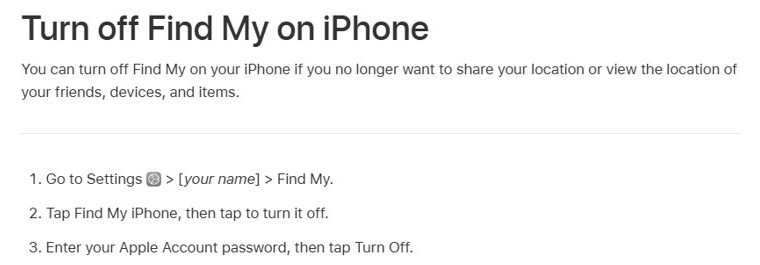
- Go to Settings > [your name] > Find My.
- Sign in with your Apple Account if asked.
- Tap Find My iPhone and turn it on, then return to the Find My app.

Find My iPhone location FAQ
How do I change my location on Find My iPhone?
Open the Find My app on the iPhone you want to use, tap Me and tap Use This iPhone as My Location. The device named next to Sharing From is the one friends see.
How do I change my Find My location to my iPad?
Open Find My on the iPad, tap Me at the bottom left, turn on Share My Location and tap Use This iPad as My Location. The iPad must use the same Apple Account.
How do I change my Find My location to Apple Watch?
You do not switch it manually. A GPS + Cellular Apple Watch paired with the sharing iPhone shares your location when it is on your wrist and the iPhone is out of range.
Can I change my Find My location to a different place?
No. Find My shows the real location reported by the sharing device. You can rename that place with a Location Label, or stop sharing, but not set a different address.
How does Find My location work?
The sharing device uses Location Services, which combines GPS, Bluetooth, local Wi-Fi networks and the cellular network, and sends that position to the people you share with in Find My.
How do I turn on Find My location?
Open Find My, tap Me and turn on Share My Location. Also make sure Location Services is on in Settings > Privacy & Security > Location Services > Find My.
How do I change my location in Settings for Find My?
Go to Settings, tap your name, then Find My. This screen holds the same location sharing settings as the Find My app, including Find My iPhone.
Does turning off Find My iPhone stop location sharing?
Yes. Turning off Find My iPhone in Settings > [your name] > Find My stops sharing your location and viewing friends, devices and items. You need your Apple Account password to turn it off.