To configure FSLogix profile containers on Windows Server RDS, install FSLogix Apps on every session host, create an SMB share with the right NTFS permissions, then set Enabled to 1 and VHDLocations to the share path under HKLM\SOFTWARE\FSLogix\Profiles.
This guide covers the share permissions, the registry values Microsoft recommends, Group Policy deployment to every host, advanced settings, verification with frx.exe and fixes for temporary or empty profiles.
Set up FSLogix profile containers on an RDS session host
These are the minimum steps for one Remote Desktop Session Host. Repeat the install and registry steps on every host in the collection, or push them with Group Policy.
- Create an SMB file share for the profiles and apply the recommended NTFS permissions (CREATOR OWNER, your admin group and your users).
- Sign in to the session host as an administrator and run FSLogixAppsSetup.exe from the x64\Release folder of the FSLogix download.
- Agree to the licence terms, select Install, and restart the server.
- Open Registry Editor and go to
HKEY_LOCAL_MACHINE\SOFTWARE\FSLogix\Profiles. - Create a DWORD named
Enabledwith the value1. - Create a REG_SZ or MULTI_SZ value named
VHDLocationsthat holds the share path, for example\\fileserver.contoso.com\fslprofiles. - Create a REG_SZ value named
VolumeTypewith the dataVHDX. - Sign in through Remote Desktop as a standard user and confirm a new folder with a VHDX file appears on the share.
What are FSLogix containers?
FSLogix redirects a Windows user profile into a virtual hard disk that is stored on network storage and mounted at sign-in. Applications see the profile as if it were on the local disk, because a filter driver handles the redirection at the file system level.
| Container | What it holds | When to use it on RDS |
|---|---|---|
| Profile container | The whole Windows user profile in one VHD or VHDX, including Microsoft 365 data | The default choice; Microsoft recommends a single profile container |
| ODFC container | Only the Office data: Microsoft 365 apps, OneDrive, Teams, SharePoint and OneNote | When another profile solution already manages the rest of the profile |
| Cloud Cache | A profile or ODFC container replicated to more than one storage provider | High availability or disaster recovery for the profile store |
| Application Rule Sets | Rules that hide or show apps, fonts and printers by user, group or IP address | Reducing the number of gold images on the session hosts |
If a profile container is configured, an ODFC container is not needed, because the profile container already includes the Microsoft 365 data.
FSLogix requirements for Windows Server RDS
| Requirement | Detail |
|---|---|
| Supported server | Windows Server 2016, 2019, 2022 and 2025 are listed as supported, along with Windows 10 and Windows 11 |
| Licence | An RDS Client Access License (CAL) or RDS Subscriber Access License (SAL) makes users eligible; Microsoft 365 E3/E5, A3/A5, F1/F3 and Business also qualify |
| Storage | An SMB file share with NTFS and share-level permissions, Azure Files or Azure NetApp Files |
| Account | A local administrator account on each session host to install FSLogix and edit the registry |
| FSLogix version | The latest release; Microsoft requires it before it opens a support case |
| Kerberos | Shares hosting containers should be moved from RC4 to AES-SHA1 before the April 2026 Windows Server update changes the default encryption type |
| Security exclusions | Microsoft lists FSLogix services, drivers, folders and the VHD/VHDX files on the share as exclusions for antivirus scanning, to avoid locked containers and slow sign-ins |
Create the FSLogix profile share and NTFS permissions
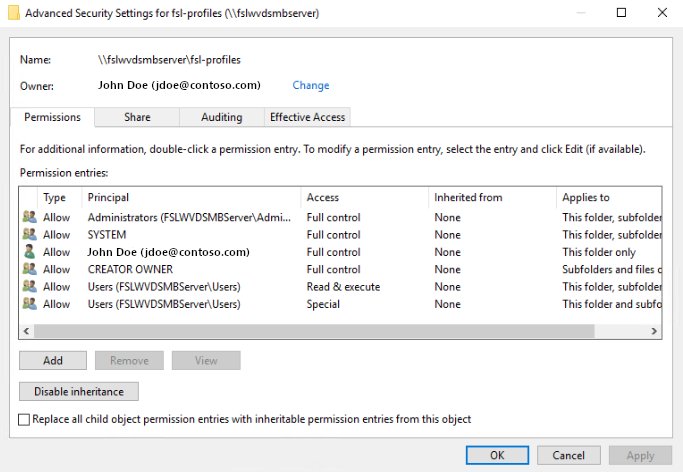
Each user should reach only their own profile folder, while administrators keep Full Control. Microsoft calls this user-based access and recommends it for every SMB share that stores containers.
- Open File Explorer at the root of the file share, right-click an empty area and select Properties.
- Select the Security tab, then Advanced.
- Select Disable inheritance and choose to remove the inherited permissions instead of copying them.
- Select Add, then Select a principal, type
CREATOR OWNER, select Check Names and OK. - Set Applies to to Subfolders and files only, set Basic permissions to Modify, and select OK.
- Add your administrators group with Full Control on This folder, subfolders and files.
- Add the users who sign in to RDS (for example Domain Users) with Modify on This folder only.
- Select OK twice to apply the permissions.
The users group needs Modify on the root only so it can create its own profile folder; CREATOR OWNER then gives each user rights to that folder alone.
Set FSLogix share permissions with icacls
icacls \\fileserver.contoso.com\fslprofiles /inheritance:r
icacls \\fileserver.contoso.com\fslprofiles /grant:r "CREATOR OWNER":(OI)(CI)(IO)(M)
icacls \\fileserver.contoso.com\fslprofiles /grant:r "CONTOSO\Domain Admins":(OI)(CI)(F)
icacls \\fileserver.contoso.com\fslprofiles /grant:r "CONTOSO\Domain Users":(M)
The first line removes inherited permissions. The next three grant CREATOR OWNER Modify on subfolders and files only, the admin group Full Control everywhere, and Domain Users Modify on the root folder. Replace the server, share and group names with your own.
You should see: The Security tab of the share root, under Advanced, shows only the three entries with inheritance disabled.
How to install and configure FSLogix for user profiles on Windows Server RDS
Install FSLogix Apps on every session host; the same installer handles new installs and upgrades. The Rule Editor is only needed on an administrator workstation.
- Extract the FSLogix .zip file on the session host and open x64, then Release.
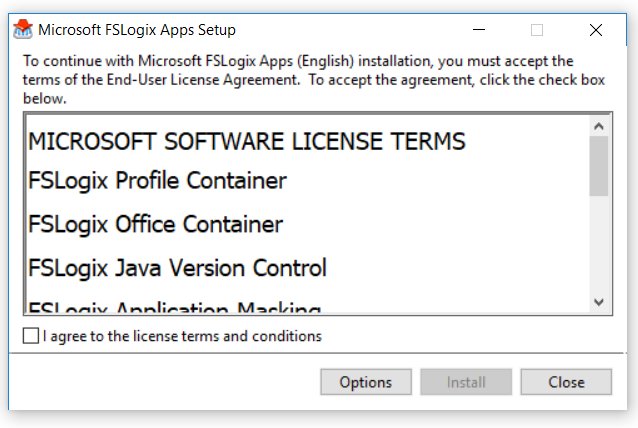
- Double-click FSLogixAppsSetup.exe, agree to the licence terms and select Install.
- Restart the session host when setup finishes.
- Open Registry Editor and go to
HKEY_LOCAL_MACHINE\SOFTWARE\FSLogix\Profiles. - Add the values from the registry table below: at minimum
Enabled,VHDLocationsandVolumeType. - Add
DeleteLocalProfileWhenVHDShouldApply=1only after you have checked which local profiles exist on the host. - Repeat on every host in the RDS collection, or deploy the values with Group Policy.
For scripted builds, FSLogixAppsSetup.exe /install /quiet /norestart installs silently; /log log.txt writes an install log and /uninstall removes the product.
FSLogix profile container registry settings for RDS
These are the values Microsoft lists for a standard profile container, all under HKEY_LOCAL_MACHINE\SOFTWARE\FSLogix\Profiles.
| Value name | Type | Data | Purpose |
|---|---|---|---|
| Enabled | DWORD | 1 | Required; turns profile containers on |
| VHDLocations | MULTI_SZ or REG_SZ | \\server\share | Required; where containers are found or created. Separate several paths with a semicolon in REG_SZ |
| VolumeType | REG_SZ | VHDX | Recommended; VHDX supports larger sizes and fewer corruption cases than the default VHD |
| DeleteLocalProfileWhenVHDShouldApply | DWORD | 1 | Recommended; deletes a local profile so the container is used instead |
| FlipFlopProfileDirectoryName | DWORD | 1 | Recommended; names folders username_SID so the share is easier to browse |
| LockedRetryCount | DWORD | 3 | Recommended; faster failure when a container is locked |
| LockedRetryInterval | DWORD | 15 | Recommended; seconds between locked-file retries |
| ReAttachRetryCount | DWORD | 3 | Recommended; faster failure on reattach |
| ReAttachIntervalSeconds | DWORD | 15 | Recommended; seconds between reattach attempts |
| ProfileType | DWORD | 0 | Default; one read-write connection per container |
| SizeInMBs | DWORD | 30000 | Default; maximum container size in MB |
Set FlipFlopProfileDirectoryName at first deployment. Changing it after containers exist makes FSLogix look for folders that are not there and give users new, empty profiles.
Add FSLogix registry settings with PowerShell
$VHDLocations = "\\fileserver.contoso.com\fslprofiles"
New-ItemProperty -Path HKLM:\SOFTWARE\FSLogix\Profiles -Name Enabled -PropertyType dword -Value 1 -Force
New-ItemProperty -Path HKLM:\SOFTWARE\FSLogix\Profiles -Name VHDLocations -PropertyType string -Value $VHDLocations -Force
New-ItemProperty -Path HKLM:\SOFTWARE\FSLogix\Profiles -Name VolumeType -PropertyType string -Value vhdx -Force
New-ItemProperty -Path HKLM:\SOFTWARE\FSLogix\Profiles -Name FlipFlopProfileDirectoryName -PropertyType dword -Value 1 -Force
New-ItemProperty -Path HKLM:\SOFTWARE\FSLogix\Profiles -Name LockedRetryCount -PropertyType dword -Value 3 -Force
New-ItemProperty -Path HKLM:\SOFTWARE\FSLogix\Profiles -Name LockedRetryInterval -PropertyType dword -Value 15 -Force
New-ItemProperty -Path HKLM:\SOFTWARE\FSLogix\Profiles -Name ReAttachRetryCount -PropertyType dword -Value 3 -Force
New-ItemProperty -Path HKLM:\SOFTWARE\FSLogix\Profiles -Name ReAttachIntervalSeconds -PropertyType dword -Value 15 -Force
Run it in an elevated PowerShell window on each session host. It writes the required values and the recommended retry timings. Add DeleteLocalProfileWhenVHDShouldApply separately once local profiles have been reviewed.
You should see: Each New-ItemProperty line prints the value name and data, and Registry Editor shows the values under HKLM\SOFTWARE\FSLogix\Profiles.
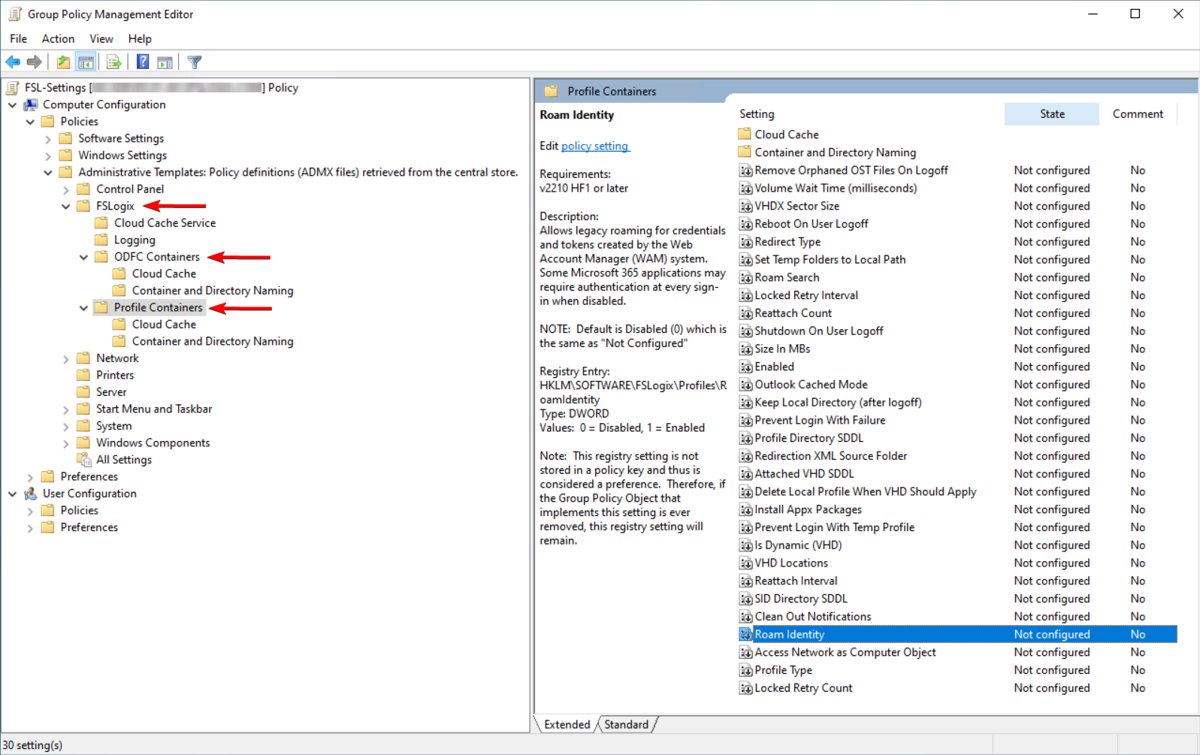
Configure FSLogix with Group Policy for all RDS hosts
A domain GPO linked to the session host OU keeps every host identical. FSLogix ships fslogix.admx and fslogix.adml in its download for this.
- Copy fslogix.admx to
%systemroot%\sysvol\domain\policies\PolicyDefinitionson a domain controller. - Copy fslogix.adml to the language subfolder, for example
PolicyDefinitions\en-us. - Open Group Policy Management, right-click the OU that holds the session host computer accounts and select Create a GPO in this domain, and Link it here….
- Name the GPO, select OK, then right-click it and select Edit.
- Expand Computer Configuration > Policies > Administrative Templates > FSLogix.
- Enable the profile container settings and fill in the VHD location, then select OK on each.
- On a session host, run
gpupdate /target:computer /forceto force a Group Policy update without waiting for the refresh cycle.
Settings under HKLM\SOFTWARE\FSLogix are written as preferences, not policies. Removing the GPO or setting a value to Not Configured leaves the registry value on the host, so change the value explicitly when you need to undo it.
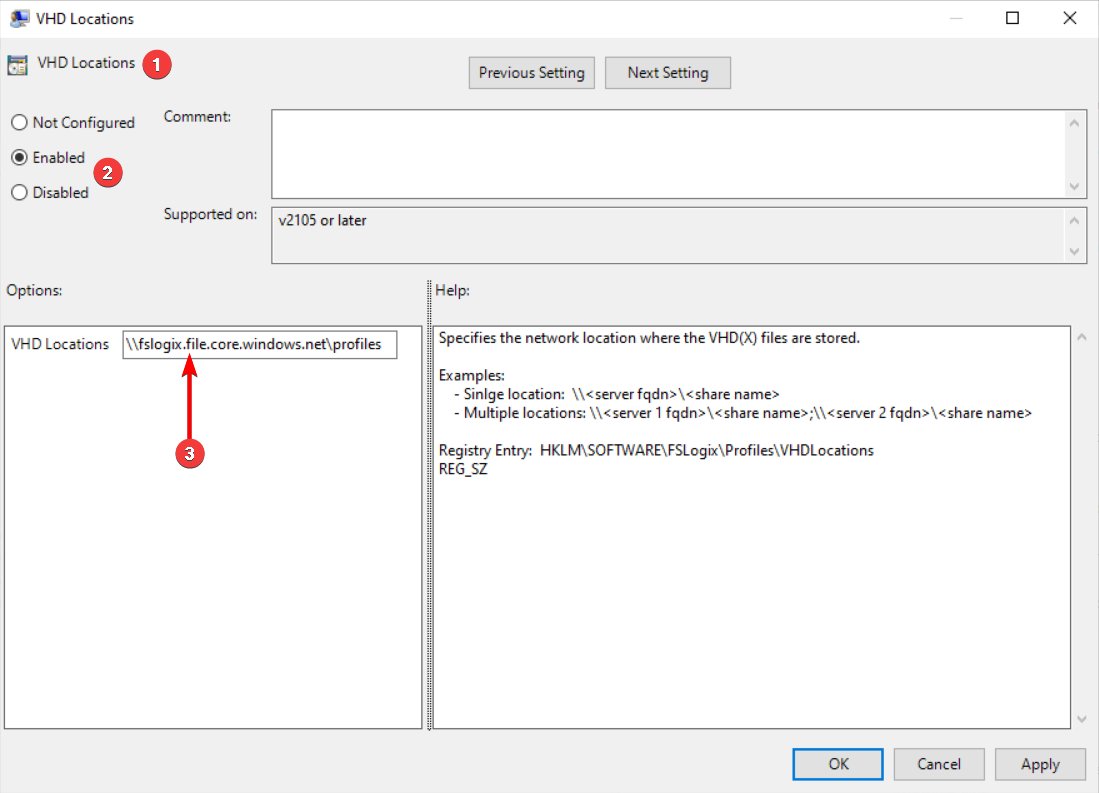
Advanced FSLogix profile configuration on Windows Server RDS
Match your RDS situation to a row. Every value below lives under HKLM\SOFTWARE\FSLogix\Profiles unless stated.
| Your situation | Setting | Value and effect |
|---|---|---|
| Keep disk use on the share low | IsDynamic (DWORD) | 1 (default): the VHDX grows only as data is written, up to SizeInMBs |
| Users run out of space in the profile | SizeInMBs (DWORD) | Raise the number; existing containers expand at next sign-in. It cannot be lowered to shrink existing disks |
| Users open sessions on two hosts at once | ProfileType (DWORD) | 3: try read-write, fall back to read-only, using differencing disks |
| Users open two sessions on the same host | fSingleSessionPerUser under HKLM\SYSTEM\CurrentControlSet\Control\Terminal Server | 0, with fDenyTSConnections = 0, plus ProfileType 3 |
| Block sign-in if the container fails to attach | PreventLoginWithFailure (DWORD) | 1: loads FRXShell and the user can only sign out |
| Block sign-in with a Windows temporary profile | PreventLoginWithTempProfile (DWORD) | 1: same FRXShell behaviour when a temp profile is created |
| Keep caches or folders out of the container | RedirXMLSourceFolder (REG_SZ) and redirections.xml | Path to the folder holding redirections.xml; it is copied into the profile at sign-in |
| Set folder permissions at creation | SIDDirSDDL (REG_SZ) | An SDDL string applied to each new user folder |
| Replicate profiles to two storage locations | CCDLocations (REG_SZ or MULTI_SZ) | Cloud Cache provider list used instead of VHDLocations |
| Keep admins or pilot users out of FSLogix | FSLogix local include and exclude groups | Add accounts to the profile exclude group in Computer Management; the include group contains Everyone by default |
OneDrive does not support concurrent or multiple connections to the same container, so test ProfileType 3 with OneDrive users before rolling it out.
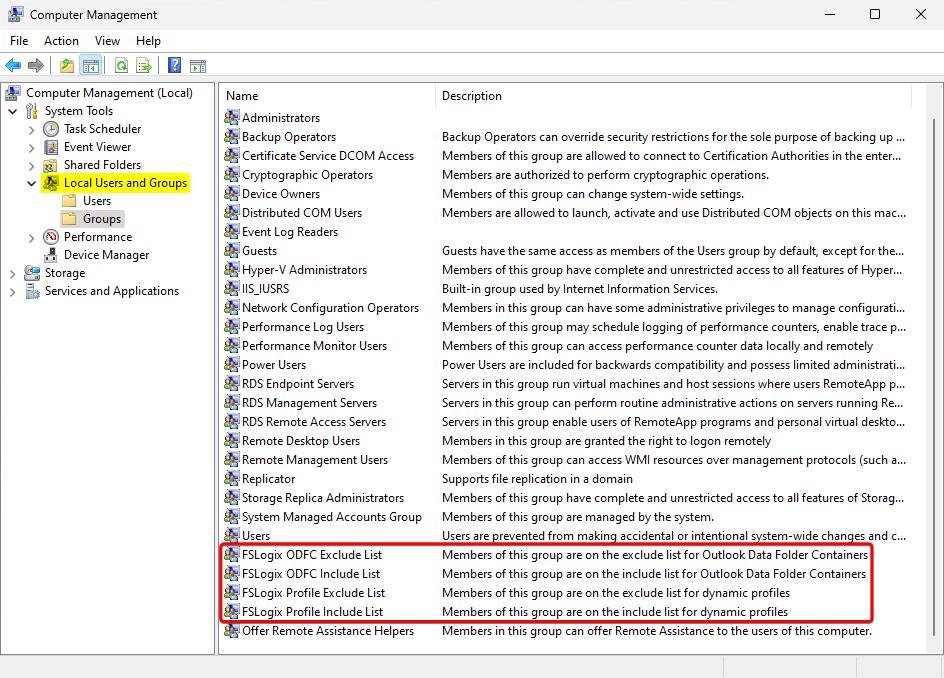
Verify the FSLogix profile container is attached
- Sign in to the session host through Remote Desktop as a standard user.
- Right-click Start and open Terminal.
- Run
cd "C:\Program Files\FSLogix\Apps". - Run
.\frx.exe list-redirectsand confirm a line maps\Users\<username>to a volume ending in\Profile. - Run
frx versionto confirm the installed FSLogix version. - Open the VHDLocations path in File Explorer, open the user's folder and confirm the
Profile_<username>.vhdxfile exists.
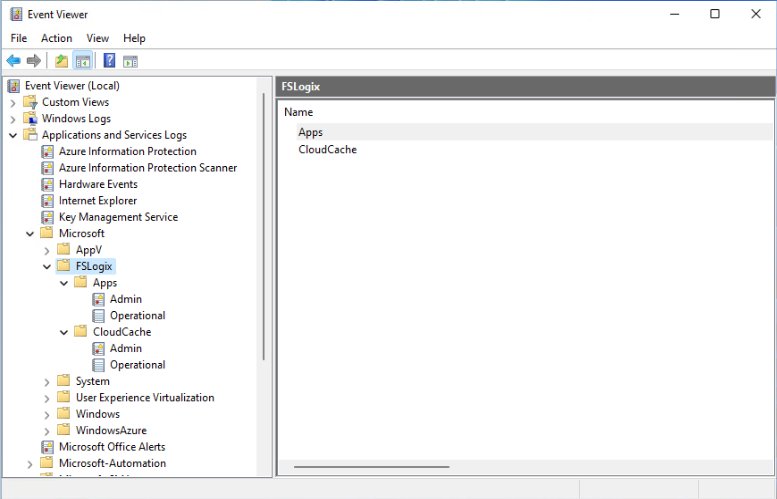
Event Viewer also records each attach under Applications and Services Logs > FSLogix > Apps.
FSLogix profile not loading on RDS: temp profile and access denied fixes
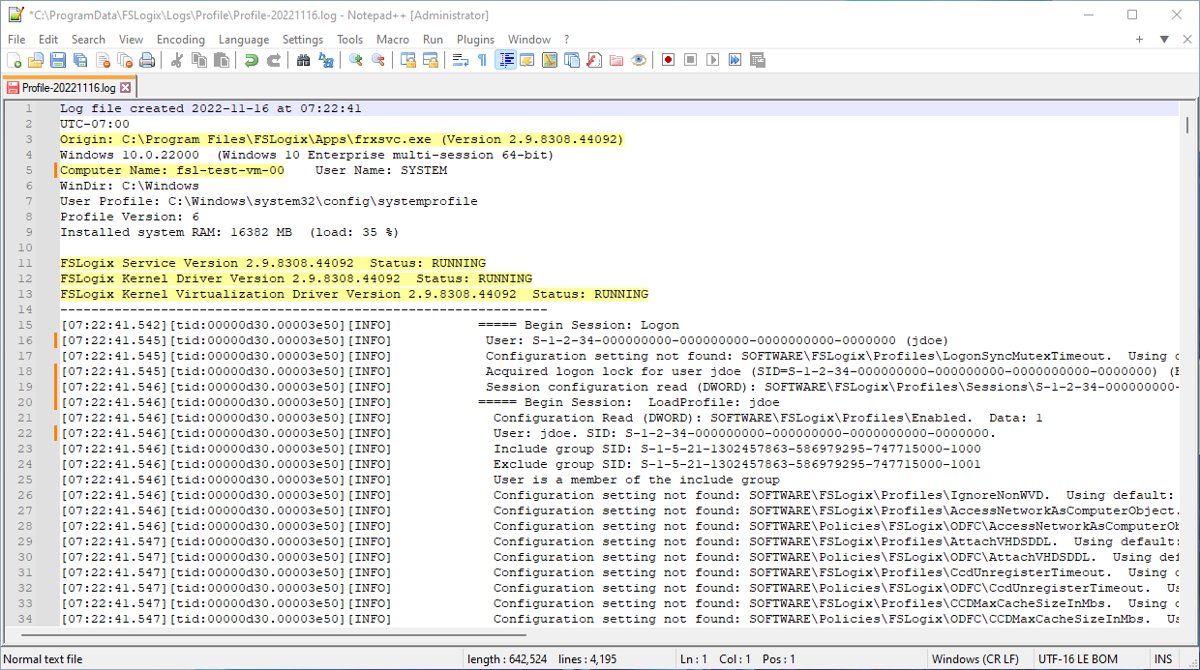
Start with the newest file in C:\ProgramData\FSLogix\Logs\Profile and search for LoadProfile: <username>. Each error line carries a code that points to one of the causes below.
User gets a normal local profile and no VHDX is created
FSLogix is installed but profile containers are not enabled, or VHDLocations is missing or wrong.
- Open
HKEY_LOCAL_MACHINE\SOFTWARE\FSLogix\Profileson the host. - Confirm
Enabled=1. - Confirm
VHDLocationsexists as REG_SZ or REG_MULTI_SZ, with semicolons between multiple REG_SZ paths. - Open the path as a test user to prove the host can reach it.
"Failed to attach VHD (Access is denied)" in the profile log
NTFS, share-level or Azure RBAC permissions on the storage are wrong.
- Compare the share root permissions with the CREATOR OWNER, admin and users entries above.
- Confirm the users group has Modify on This folder only at the root.
- For Azure Files, confirm the share-level role is assigned to the users.
- Sign out the user and sign in again.
Temporary profile because the profile is in use on another host
The user did not sign out of a session on another host, and the default ProfileType allows only one read-write attach.
- Sign the user out of the session on the other host.
- Ask the user to sign in again.
- If users need sessions on several hosts, set ProfileType to 3 and test it first.
FSLogix ignores the container because a local profile exists
FSLogix honours an existing local profile by default.
- Review which local profiles exist on the host and back up any data you need.
- Set
DeleteLocalProfileWhenVHDShouldApply=1. - Have the user sign in again so the container is attached.
User sees an empty profile after a settings change
FlipFlopProfileDirectoryName, SIDDirNameMatch, SIDDirNamePattern, VHDNameMatch or VHDNamePattern was changed after containers existed.
- Check the folder names on the share: SID_username or username_SID.
- Set the registry value back so it matches the existing folders.
- Restart the FSLogix Apps Services (frxsvc) and have the user sign in again.
- The old data stays on the share at the original path.
Sessions hang or new users get temp profiles when the share is full
The storage provider has reached its capacity.
- Check free space on the file server or the Azure Files quota.
- Increase the storage capacity.
- Sign the affected users out and back in.
FSLogix status and reason codes explained
The profile log sets a Status and a Reason for every sign-in. Status 0 is success; other low numbers are errors, and the Reason explains why a profile was skipped.
| Code in the log | Meaning | What to check |
|---|---|---|
| Status 12 | Can't attach to virtual disk | Permissions and file locks on the share |
| Status 25 | Maximum sessions reached | ProfileType and concurrent session settings |
| Status 27 | Can't find virtual disk at the provided location | VHDLocations path and folder naming settings |
| Reason 1 | User isn't a member of the include group | FSLogix profile include group membership |
| Reason 2 | User is a member of the exclude group | FSLogix profile exclude group membership |
| Reason 3 | A local profile for this user exists | DeleteLocalProfileWhenVHDShouldApply |
| Reason 7 | Profile is a Windows temporary profile | Earlier attach errors in the same log |
FSLogix on Windows Server RDS FAQ
Can FSLogix be used with Windows Server RDS without Azure?
Yes. FSLogix runs in any public or private data center as long as users are licensed, and an on-premises SMB file share works as the profile store. An RDS CAL or RDS SAL is one of the licences that makes a user eligible.
Which Windows Server versions support FSLogix profile containers?
Microsoft lists Windows Server 2016, 2019, 2022 and 2025 as supported, along with Windows 10 and Windows 11. Install the latest FSLogix release on each session host, because Microsoft requires it before opening a support case.
Do I need an ODFC container as well as a profile container?
No. A profile container already includes all Microsoft 365 application data, so an ODFC container adds nothing. ODFC is meant for environments where another product manages the rest of the user profile.
Should FSLogix use VHD or VHDX on RDS?
Use VHDX. The VolumeType default is VHD, but Microsoft recommends VHDX because it supports larger disks and has fewer corruption scenarios. Set VolumeType to VHDX before users sign in for the first time.
What size should an FSLogix profile container be?
The default SizeInMBs is 30000, about 30 GB. With IsDynamic at its default of 1, the file on the share grows only as data is written. You can raise SizeInMBs later, but lowering it never shrinks existing containers.
Where are FSLogix logs stored on the session host?
Text logs are in C:\ProgramData\FSLogix\Logs, with profile sign-in logs in the Profile subfolder. Event Viewer also has FSLogix logs under Applications and Services Logs, split into Admin and Operational.
Can a user have sessions on two RDS hosts with one FSLogix profile?
Yes, with ProfileType set to 3. The first host takes the read-write role and later hosts fall back to read-only differencing disks. OneDrive does not support this setup, so test it before production.
Does removing the FSLogix GPO turn FSLogix off?
No. Profile settings under HKLM\SOFTWARE\FSLogix are written as preferences, so they stay in the registry after the GPO is removed or set to Not Configured. Set Enabled to 0 explicitly to turn profile containers off.