Yes, updating an iPhone 13 Pro Max to iOS 18 is safe: Apple lists the iPhone 13 Pro Max as a supported iOS 18 model, and the update keeps your data and settings.
This guide explains why iOS 26 or iOS 27 is now the better target for this phone, which iOS 18 features it gets, how to back up and update, and how to fix an update that fails.
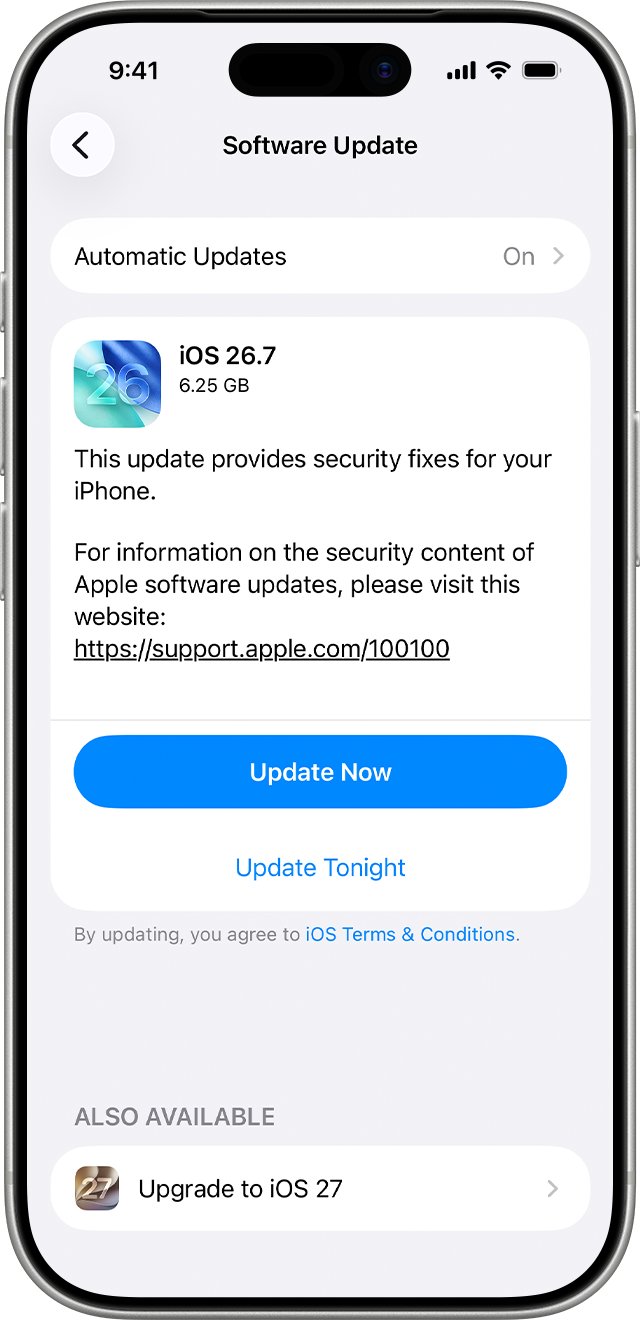
Update iPhone 13 Pro Max safely in Settings
The wireless update in Settings is the route Apple recommends. It installs the newest version Apple offers for your iPhone 13 Pro Max.
- Back up your iPhone with iCloud or your computer.
- Plug the iPhone into power and connect to Wi-Fi.
- Open Settings and tap General.
- Tap Software Update to see your current iOS version and any available update.
- Tap Download and Install, enter your passcode, then follow the onscreen instructions.
- Leave the iPhone on power until it restarts to the Lock Screen.
iOS 18 vs iOS 26 vs iOS 27 on iPhone 13 Pro Max
iOS 18 is two major versions old. Apple's security release list shows that iOS 18.7.2, released on 5 November 2025, was the last iOS 18 update offered to iPhone XS and later.
From iOS 18.7.3 onward, Apple ships iOS 18 security fixes only to the iPhone XS, iPhone XS Max and iPhone XR. An iPhone 13 Pro Max left on iOS 18 no longer receives security patches.
| Version | Supports iPhone 13 Pro Max | Latest release for this phone | Still getting security fixes |
|---|---|---|---|
| iOS 18 | Yes | iOS 18.7.2 (5 November 2025) | No, later iOS 18 updates cover iPhone XS, XS Max and XR only |
| iOS 26 | Yes | iOS 26.7.2 (26 October 2026) | Yes, Apple still patches the previous major version |
| iOS 27 | Yes | iOS 27.2 (26 October 2026) | Yes, this is the current version |
If your phone runs iOS 17 or older, install the newest version Software Update offers rather than holding out for iOS 18.
Is the latest iPhone update safe?
Apple calls updating the most effective way to stay secure, because each release patches flaws that malware and attackers use. Major releases arrive about once a year, and smaller releases ship throughout the year.
| Concern | What Apple states | What to do |
|---|---|---|
| Data loss | Updating to the latest iOS leaves your data and settings unchanged | Back up anyway, in case the install fails |
| Security | Updates fix vulnerabilities and protect against malware and other threats | Install security releases soon after they appear |
| Battery drain or heat after a major update | Temporary, while the phone indexes files, downloads assets and updates apps | Give the phone a day or two on Wi-Fi and power |
| Going back to the old version | iOS updates cannot be downgraded once installed | Decide on the version before you tap Download and Install |
| Waiting before a major upgrade | Apple keeps patching the previous major version for a period | Stay on the previous version only while it still gets fixes |
iOS 18 features on iPhone 13 Pro Max
Most iOS 18 features run on the iPhone 13 Pro Max. A few need newer hardware.
| iOS 18 feature | Available on iPhone 13 Pro Max | Apple's model requirement |
|---|---|---|
| Home Screen, Lock Screen and Control Center customization | Yes | All iOS 18 models |
| Redesigned Photos app | Yes | All iOS 18 models |
| Eye Tracking | Yes | iPhone 12 and later, iPhone SE (3rd generation) |
| Live audio transcription in Notes | Yes | iPhone 12 and later |
| Repair Assistant for genuine parts | Yes | iPhone 12 and later |
| Carrier-provided satellite features (iOS 18.5) | Yes | iPhone 13 (all models) |
| Messages via satellite | No | iPhone 14 and later |
| Music Haptics | No | iPhone 14 and later |
| Emergency SOS Live Video | No | iPhone 14 and later |
| Apple Intelligence | No | iPhone 15 Pro, iPhone 15 Pro Max and iPhone 16 models |
Back up iPhone 13 Pro Max before updating
A backup is the only safety net if an install fails and the phone needs a restore. iCloud backs up daily when the iPhone is locked, on power and on Wi-Fi.
- Open Settings and tap your name.
- Tap iCloud, then tap iCloud Backup.
- Turn on Back Up This iPhone.
- Tap Back Up Now and wait for it to finish.
- To back up to a Mac instead, connect the iPhone with a cable, select it in the Finder sidebar, click General, choose Back up all of the data on your iPhone to this Mac, then click Back Up Now.
On a Windows PC, open iTunes, click the iPhone button, click Summary, then click Back Up Now.
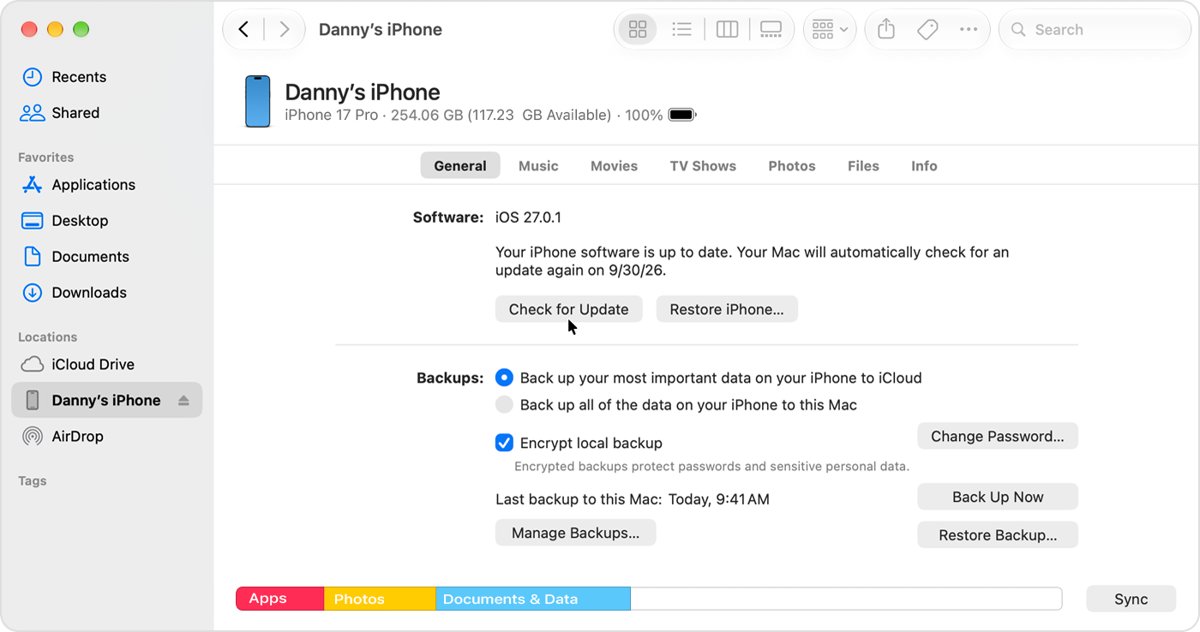
Update iPhone 13 Pro Max with a Mac or PC
Use a computer when the update does not appear in Settings or the wireless install keeps failing.
- Open the Finder on a Mac, or the Apple Devices app on a PC. Use iTunes on macOS Mojave or earlier, or on a PC without Apple Devices.
- Connect the iPhone to the computer with a cable and trust the computer if asked.
- Select your iPhone in the sidebar.
- Click General, then click Check for Update.
- Click Download and Update and follow the onscreen instructions.
- Enter your iPhone passcode when prompted.
If the Mac uses Personal Hotspot from the iPhone you are updating, connect the Mac to a different Wi-Fi or Ethernet network first.
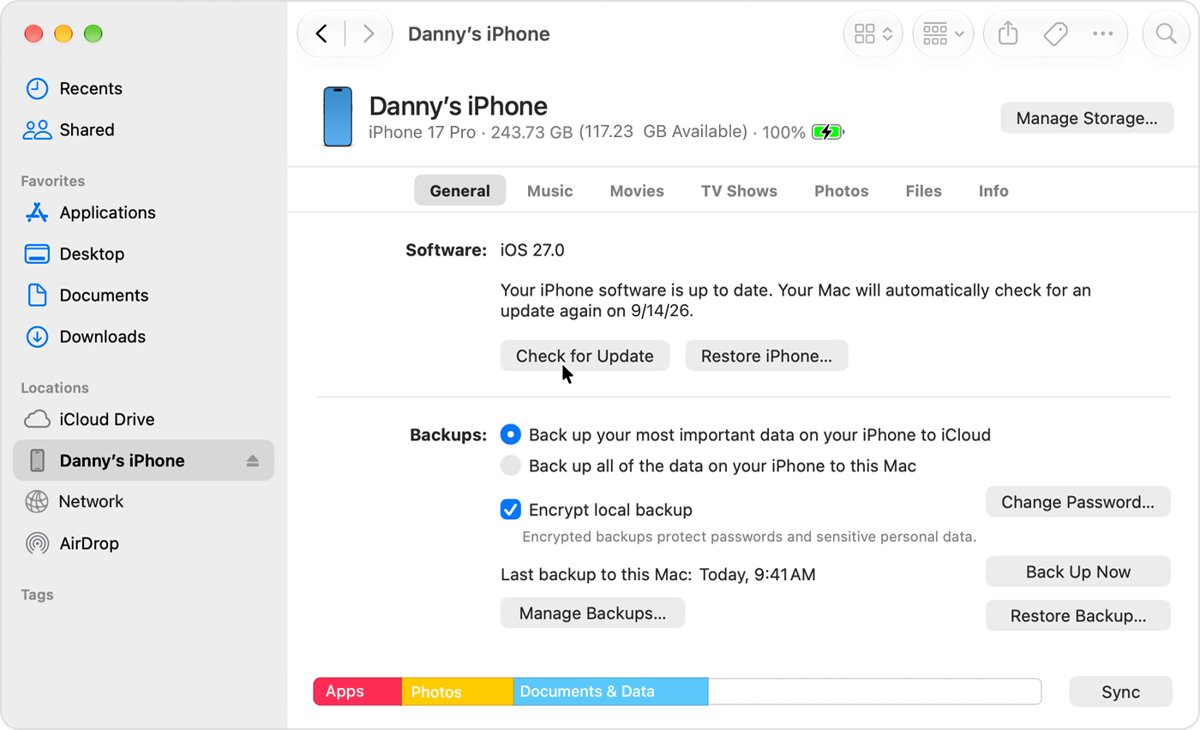
Find the iOS version on iPhone 13 Pro Max
- Open Settings and tap General.
- Tap About and read the iOS version line.
- Go back to General and tap Software Update.
- Confirm the screen shows the installed version and says no newer update is available.
How to prevent iPhone from updating automatically
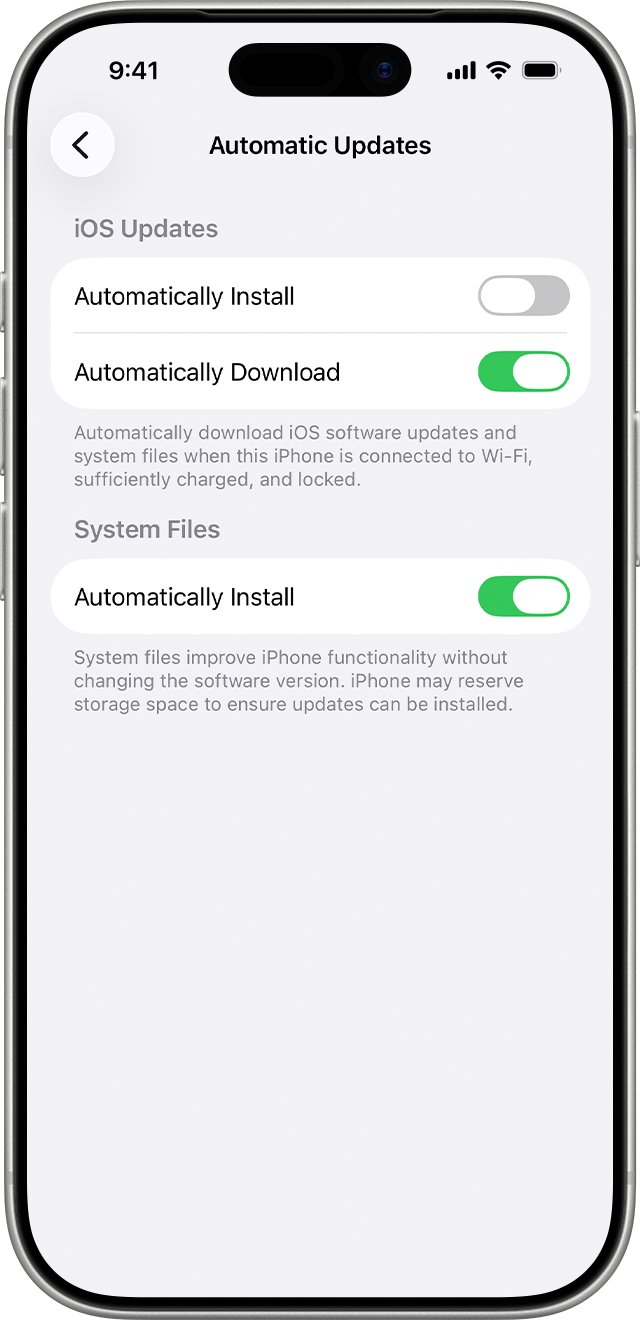
Turning off automatic installs lets you choose when to update. Leave system file updates on so the phone still gets feature fixes that do not change the iOS version.
- Open Settings and tap General.
- Tap Software Update, then tap Automatic Updates.
- Under iOS Updates, turn off Automatically Install.
- Turn on Automatically Download if you want updates ready to install later.
- Under System Files, turn on Automatically Install.
iPhone 13 Pro Max won't update software
An update needs a compatible device, an internet connection and enough free storage. Match your symptom below.
Not enough space to download the update
The update file needs free storage on the iPhone, not iCloud storage.
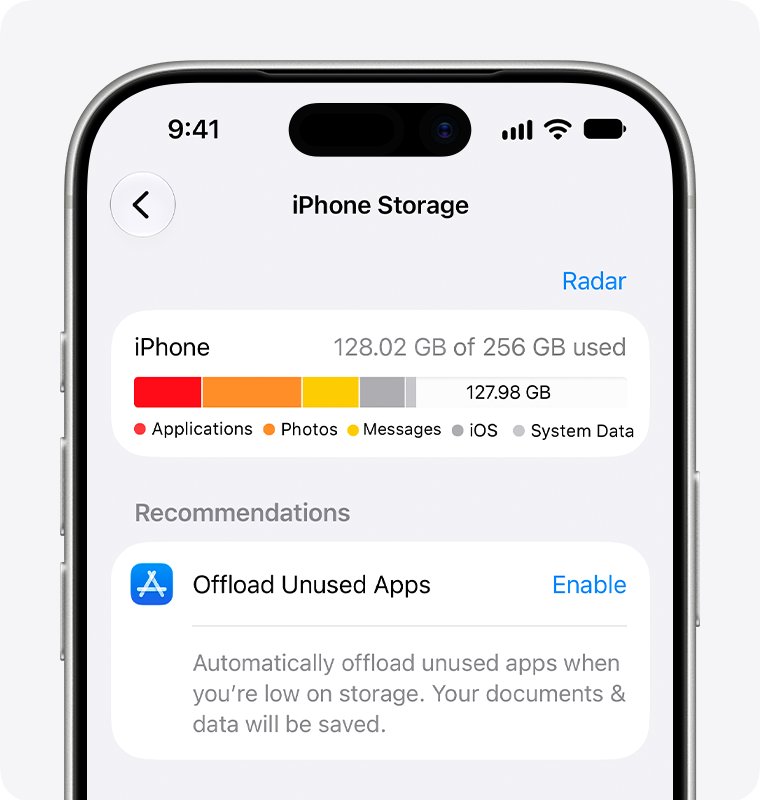
- Open Settings > General > iPhone Storage.
- Tap Enable next to Offload Unused Apps, or follow the other recommendations.
- Offload or delete large apps you do not need.
- If a message asks to remove apps temporarily, tap Continue. iOS reinstalls them after the update.
"Unable to Check for Update" or "Unable to Download"
The iPhone cannot reach Apple's update server, often because of the network, a VPN or a proxy.
- Connect to Wi-Fi and try the update again on the same network.
- Turn off any VPN or proxy and retry.
- Try a different Wi-Fi network.
- If the alert keeps appearing, update with a Mac or PC instead.
The update takes a long time to download
Download time depends on the update size and your internet speed.
- Stay on Wi-Fi rather than cellular data.
- Pause other downloads and streaming while the update downloads.
- Keep using the phone if you need to; it notifies you when the update is ready to install.
The update won't complete or keeps failing
A damaged download or a loss of power stopped the install.
- Connect the iPhone to power and turn it on so the update can finish.
- Open Settings > General > iPhone Storage and find the update in the app list.
- Tap the update, then tap Delete Update.
- Go to Settings > General > Software Update and download it again.
- If the update is missing from the list or fails again, update with a Mac or PC.
Stuck on the Apple logo after an update
The progress bar can move slowly or restart while the install finishes.
- Leave the iPhone on power and wait for the progress bar to finish.
- If the screen shows the Apple logo for several minutes with no progress bar, force restart the iPhone.
- If it still will not start, connect it to a computer and use recovery mode to update.
Battery drains or the iPhone gets warm after the update
After a major release, the phone indexes data, downloads new assets and updates apps in the background.
- Keep the iPhone on Wi-Fi and power overnight for the first day or two.
- Install any follow-up update in Settings > General > Software Update, since minor releases carry bug fixes.
iPhone 13 Pro Max iOS update FAQ
Is it safe to update iPhone?
Yes. Apple describes updating as the most effective way to keep an iPhone secure, because updates fix security flaws and bugs. Updating to the latest iOS keeps your data and settings, but make a backup first in case the install fails.
Should I update my iPhone 13 Pro Max to iOS 18 or a newer version?
Install the newest version your phone is offered. The iPhone 13 Pro Max supports iOS 26 and iOS 27, and Apple stopped sending iOS 18 security updates to it after iOS 18.7.2 in November 2025.
What happens if you don't update iPhone?
The iPhone keeps working, but it misses security fixes, bug fixes and new features. Once Apple stops patching the version you run, known vulnerabilities on that phone stay open, so staying on an old iOS release raises your security risk.
Can you use iPhone while updating?
Yes, while the update downloads. Apple says you can keep using the device during the download, and it notifies you when the update is ready to install.
Can I go back to iOS 17 after installing iOS 18?
No. Apple states that after an iOS update is installed, it cannot be downgraded to the previous version. Decide which version you want before you tap Download and Install.
Does iPhone 13 Pro Max get Apple Intelligence?
No. Apple Intelligence in iOS 18 requires an iPhone 15 Pro, iPhone 15 Pro Max or an iPhone 16 model. The iPhone 13 Pro Max still gets most other iOS 18 features, including the redesigned Photos app and Home Screen customization.
What iPhones don't update anymore?
The newest iOS 26 and iOS 27 releases support iPhone 11 and later. The iPhone XS, iPhone XS Max and iPhone XR stop at iOS 18, where Apple still ships security fixes. Older models such as the iPhone X stay on earlier versions.
How to check if iPhone needs update?
Open Settings, tap General, then tap Software Update. The screen shows the installed iOS version and whether an update is available. If one is listed, tap Download and Install.
How to fix iPhone after update problems?
Give the phone a day on Wi-Fi and power, because battery drain and heat right after a major update are temporary. Then install any follow-up update from Software Update, since minor releases carry bug fixes.