To manage and clear storage on your iPhone, open Settings > General > iPhone Storage, follow the recommendations at the top, then offload or delete the apps, photos and message attachments that take the most space.
This guide covers every built-in way to free space on iOS, what each storage category means, how System Data behaves, and what to do when the Storage Almost Full alert will not go away.
How to check iPhone storage and free up space
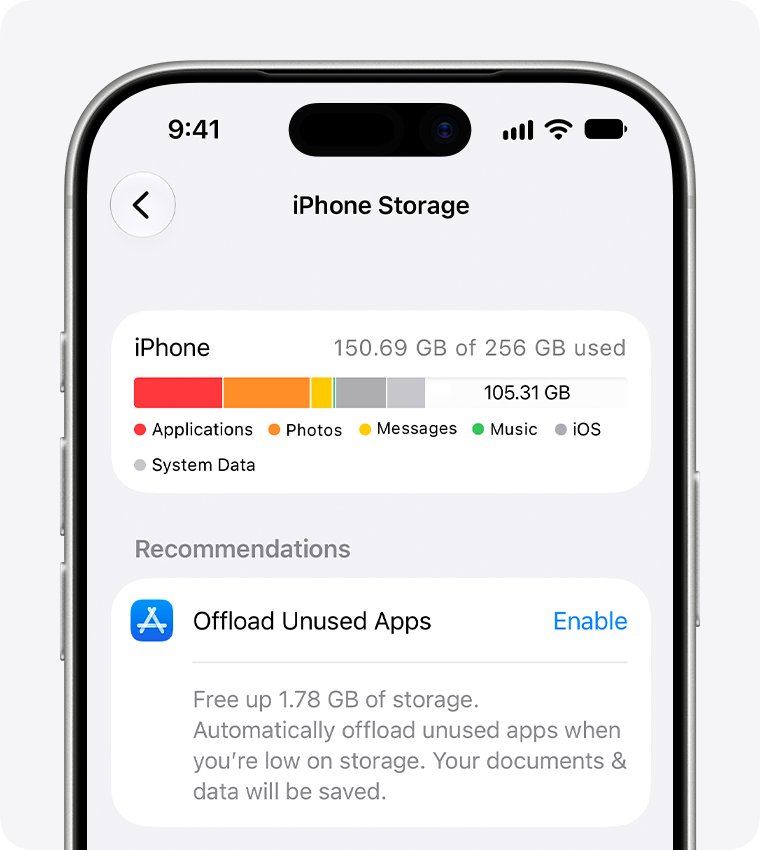
The iPhone Storage screen shows the space left at the top, a colour bar by category, and a list of apps sorted by the space they use.
- Open the Settings app.
- Tap General, then tap iPhone Storage.
- Read the available storage figure at the top of the screen.
- Under the recommendations, tap Show All, then tap Enable on any recommendation you want, or tap it to review what it would delete.
- Scroll the app list and tap the largest app you no longer use.
- Tap Offload App to keep its documents and data, or Delete App to remove the app and its data.
Available storage can take a moment to update after you delete an app, so wait a few seconds before you check the figure again. If an app shows no delete option, fix apps that will not delete before you continue.
Offload app vs delete app on iPhone
| Your situation | Use this | What happens |
|---|---|---|
| You will use the app again and want your data kept | Offload App | The app is removed but its documents and data stay; the icon stays on the Home Screen with a cloud symbol and reinstalls when you tap it |
| You are finished with the app | Delete App | The app and its data on the iPhone are removed; data saved to iCloud through the app is not deleted |
| You want iOS to handle unused apps for you | Offload Unused Apps | When storage runs low, the iPhone removes apps you do not use and keeps their data |
| You only want the icon off your Home Screen | Remove from Home Screen | The app moves to App Library and still uses the same storage |
| The app has a paid in-app subscription | Cancel the subscription first, then delete | Deleting an app does not cancel its in-app subscriptions |
What each iPhone Storage category means
The colour bar on the iPhone Storage screen splits used space into categories. Knowing what sits in each one tells you which app to open next.
| Category | What it contains | Where to clear it |
|---|---|---|
| Apps | Installed apps and their content, files in On My iPhone in the Files app, and Safari downloads | iPhone Storage app list, or the Files app |
| Photos | Photos and videos in the Photos app | Photos app, then the Recently Deleted collection |
| Media | Music, videos, podcasts, ringtones, artwork and voice memos | The Music, TV, Podcasts or Voice Memos app |
| Emails and their attachments | The Mail app | |
| Apple Books | Books and PDFs in the Books app | The Books app |
| Messages | Messages and their attachments | The Messages app, or the Keep Messages setting |
| iCloud Drive | iCloud Drive content downloaded to the iPhone | The Files app |
| Other | Siri voices, fonts, dictionaries, non-removable logs and caches, the Spotlight index, and system data such as Keychain | Managed by iOS; not cleared by hand |
| System | The operating system itself; the size varies by device and model | Not removable |
Turn on Offload Unused Apps on iPhone
Offload Unused Apps lets the iPhone remove apps you have not used when storage runs low. Your documents and data stay, so a reinstalled app opens where you left it.
- Open the Settings app.
- Tap Apps, then tap App Store.
- Turn on Offload Unused Apps.
- To reinstall an offloaded app later, tap its Home Screen icon with the cloud symbol.
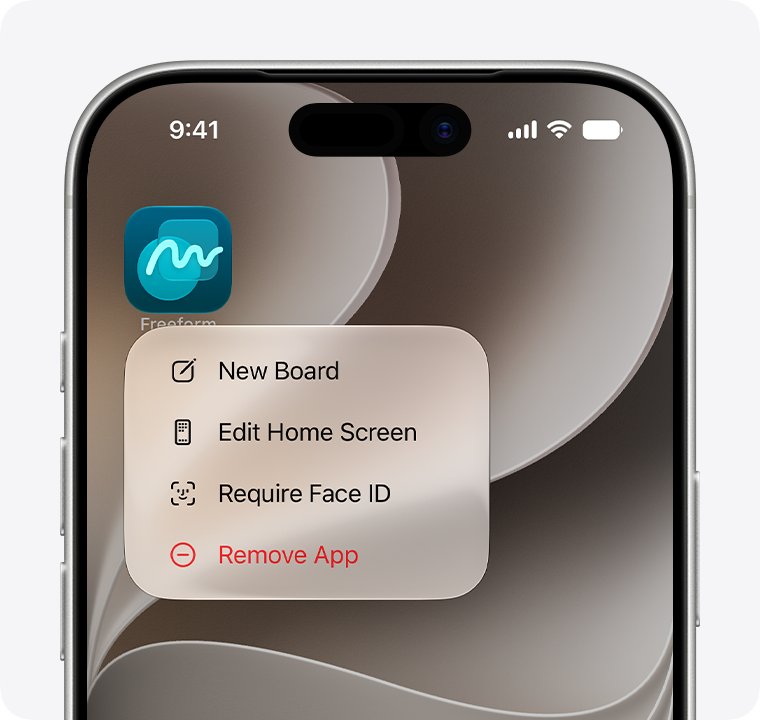
To offload one app straight away, open Settings > General > iPhone Storage, tap the app, then tap Offload App.
Delete photos and empty Recently Deleted on iPhone
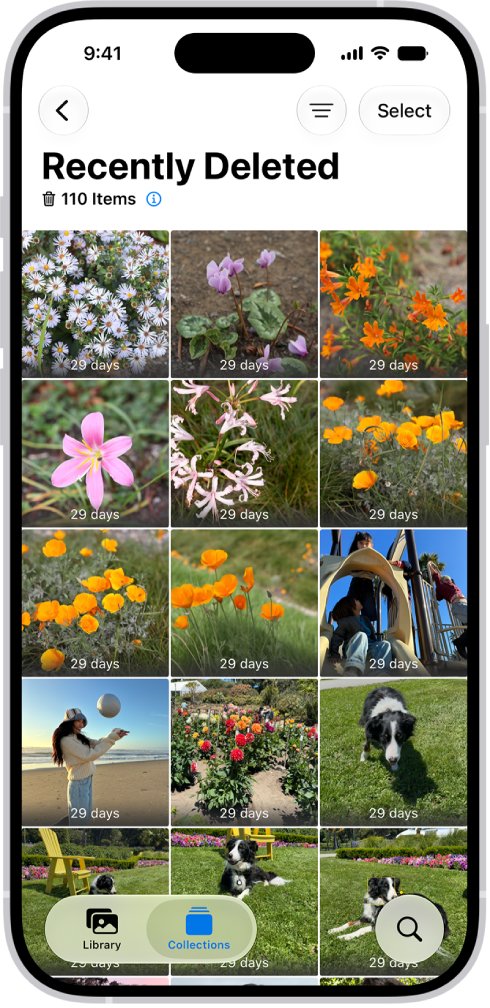
Deleted photos and videos stay in the Recently Deleted collection for 30 days. With iCloud Photos on, a deletion applies to every device signed in to the same Apple Account, so back up anything you want to keep first.
- Open the Photos app and view your library.
- Tap Select, tap the photos and videos you want to remove, then tap the delete button.
- Tap Collections.
- Below Utilities, tap Recently Deleted, tap View Album, then unlock with Face ID, Touch ID or your passcode.
- Tap Select and choose the items to remove for good.
- Tap the more button, then tap Delete to remove them permanently.
Permanent deletion from Recently Deleted cannot be undone. If an item is missing from Recently Deleted, look in the Recovered collection.
Turn on Optimize iPhone Storage for photos
Optimize Storage keeps space-saving versions of photos and videos on the iPhone while iCloud Photos stores the full-resolution originals. The library shrinks on the device without removing anything from iCloud.
- Open Settings and tap your name.
- Tap iCloud.
- Under Saved to iCloud, tap Photos and make sure Sync this device is on.
- Tap iPhone Storage, then choose Optimize Storage. On iOS 26 or earlier, choose Optimize Storage directly on the Photos screen.
When the iPhone needs space, iCloud Photos optimizes the photos and videos you open least first. Originals download over Wi-Fi or cellular when you open them. Optimized photos use iCloud storage, so your iCloud plan must hold the full library.
Delete old messages and attachments on iPhone
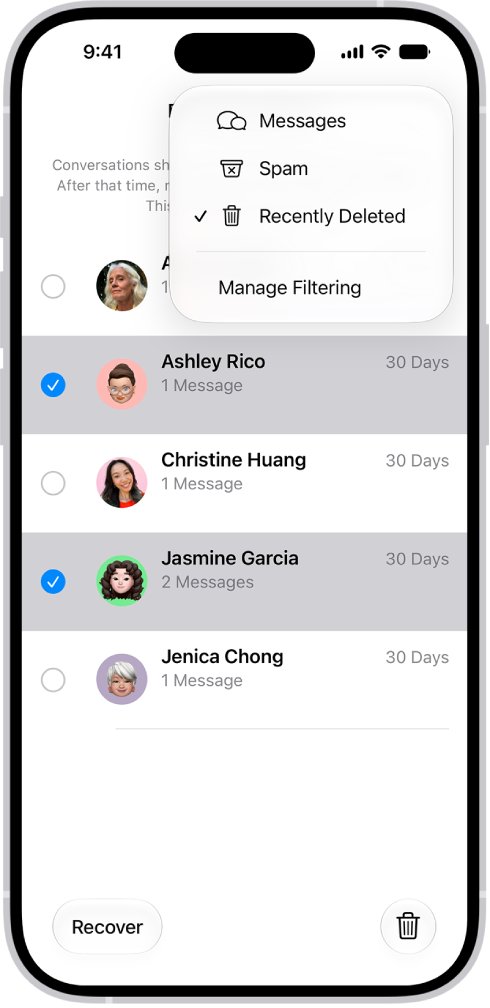
Photos and videos sent in Messages count toward the Messages category, and long-running group chats can grow large. Deleted messages stay in Recently Deleted for up to 30 days.
- Open Messages and open a large conversation.
- Tap the contact or group icon at the top, then tap a category such as Photos.
- Tap Edit, tap Select, tap each attachment to remove, tap the delete button, and confirm.
- Back in the conversation list, open Recently Deleted, select the conversations, tap the delete button, then tap Delete to free the space now.
- To trim history automatically, open Settings > Apps > Messages, tap Keep Messages under Message History, and choose 30 Days or 1 Year.
Any option other than Forever removes older conversations and their attachments automatically. With Messages in iCloud turned on, deletions also apply to your other Apple devices.
Clear Safari history, cache and website data on iPhone
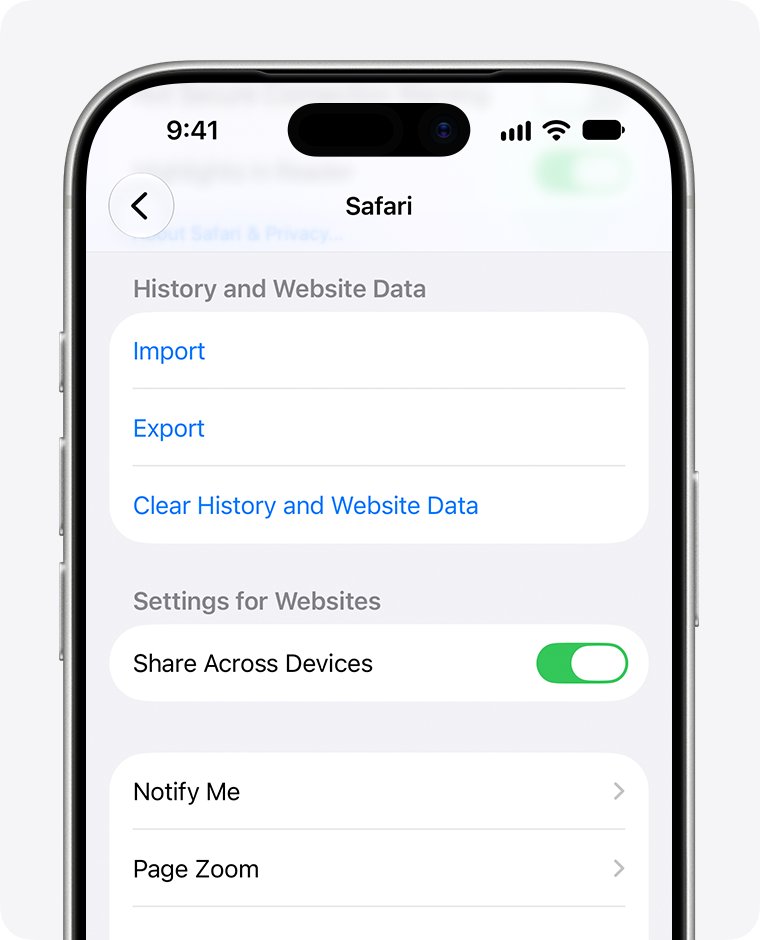
Safari stores cookies, cached pages, website data and your iPhone search history. Clearing it frees a small amount of space and signs you out of most sites.
- Open Settings, tap Apps, then tap Safari.
- To keep your history, tap Advanced > Website Data > Remove All Website Data, then tap Remove Now.
- To clear history as well, go back to the Safari screen and tap Clear History and Website Data.
- Confirm the time range, then tap Clear History.
Clearing history does not change your AutoFill information.
Check iPhone storage on a Mac or Windows PC
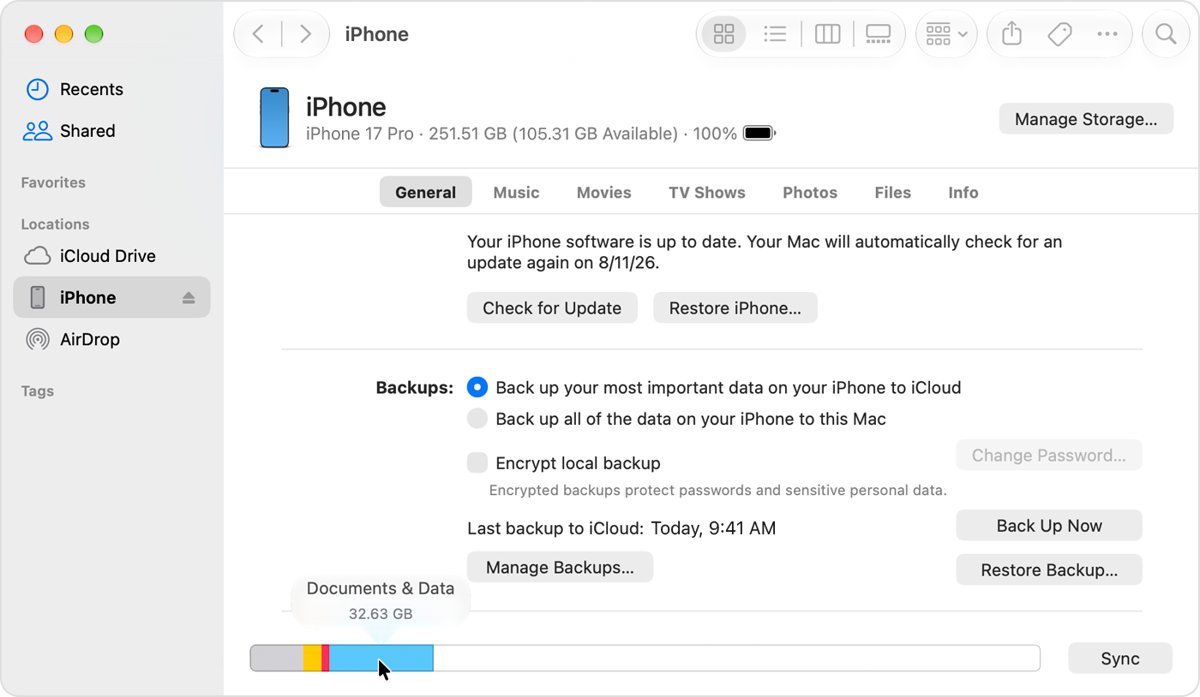
A computer shows the same storage as a bar you can hover over. The categories differ from the iPhone screen: cached music, videos and photos appear as Other.
- On a Mac, open the Finder. On a Windows PC, open the Apple Devices app; use iTunes on a PC without Apple Devices or on macOS Mojave and earlier.
- Connect the iPhone to the computer with a cable.
- Select the iPhone in the Finder sidebar or the Apple Devices app, or in the upper-left corner of iTunes.
- Move the pointer over the storage bar to see the space each content type uses.
- To remove synced music or videos, deselect them, then click Sync.
Content synced from a computer cannot be removed on the iPhone itself; it has to be deselected and synced off. If the computer is also short of space, free up storage on your Mac before you back up the iPhone to it.
What is System Data on iPhone and can you clear it?
System Data on the iPhone Storage screen is the Other category: Siri voices, fonts, dictionaries, logs, caches, the Spotlight index, and system data such as Keychain and the CloudKit database. iOS manages it, and there is no button to empty it.
| Item | Can you delete it? | What actually reduces it |
|---|---|---|
| Cached and temporary files | Not by hand | iOS removes them automatically when the iPhone needs space |
| Streaming caches for music, video and photos | Not by hand | Cleared by iOS on demand; a computer shows them as Other |
| Logs, Spotlight index, Siri voices, fonts | No | Non-removable system assets |
| System (iOS itself) | No | Size depends on device and model |
| App cached data | Only by deleting or offloading the app | Cached and temporary data may not count toward the app's listed size |
A cleaner app is not needed for these files. Free space in the categories you control and iOS trims caches by itself.
Check how much iPhone storage you freed
- Note the available figure at the top of Settings > General > iPhone Storage before you start.
- Delete or offload the items you chose.
- Leave the screen, wait a minute, then open iPhone Storage again.
- Compare the available figure with your note; the colour bar should show a smaller Photos, Messages or Apps segment.
- Confirm the Storage Almost Full alert no longer appears in Settings.
iPhone storage still full after deleting? Fixes by symptom
Storage Almost Full alert keeps appearing
Large photo, video and app categories outgrow the space iOS can recover from caches.
- Open Settings > General > iPhone Storage and tap Show All under the recommendations.
- Enable the recommendations you accept, or tap each one to review its items.
- Remove videos and unused apps first, since they are the largest items Apple names for this alert.
Free space did not rise after deleting photos
Deleted photos stay in Recently Deleted for 30 days.
- Open Photos > Collections > Recently Deleted and unlock it.
- Tap Select, choose the items, tap the more button, then tap Delete.
- Check iPhone Storage again after a minute.
Free space did not rise after deleting messages
Deleted conversations stay in the Messages Recently Deleted folder for up to 30 days.
- Open Messages, then open Recently Deleted from the conversation list.
- Select the conversations, tap the delete button, then tap Delete.
Remove All Website Data or Clear History is grey
There is no data to clear, or Screen Time web content restrictions block it.
- Open Settings > Screen Time and review the content restrictions for web content.
- Return to Settings > Apps > Safari and try again.
Storage on the Mac or PC does not match the iPhone
The Finder, Apple Devices and iTunes count cached music, videos and photos as Other.
- Trust the figure in Settings > General > iPhone Storage on the iPhone.
- Use the computer only to remove synced content you cannot delete on the iPhone.
iPhone storage FAQ
How do I clear storage on my iPhone?
Open Settings > General > iPhone Storage, enable the recommendations you agree with, then offload or delete the largest unused apps. Next, delete unwanted photos and empty Recently Deleted, and remove large Messages attachments. Those steps clear the biggest categories.
What does clearing storage do on an iPhone?
Clearing storage removes content from the iPhone to raise the available space. Deleting an app removes it and its on-device data, offloading keeps the data, and deleting photos with iCloud Photos on removes them from every device after 30 days in Recently Deleted.
How do I clear system storage on my iPhone?
You cannot clear System or System Data by hand. iOS removes cached and temporary files itself when space runs low. Free space in Photos, Messages and Apps, and iOS trims its caches when it needs room.
How do I completely clear storage on my iPhone?
Completely clearing storage means erasing the iPhone, which removes all content and settings, so back it up first. For normal clean-ups, deleting apps, photos and message attachments frees space without losing your setup.
What is the easiest way to clear storage on an iPhone quickly?
Open Settings > General > iPhone Storage and use the recommendations, such as Offload Unused Apps or reviewing large videos. They target the biggest items first and take a few taps each.
How do I clear local storage in Safari on iPhone?
Go to Settings > Apps > Safari > Advanced > Website Data, tap Remove All Website Data, then tap Remove Now. This removes cookies and stored site data but keeps your browsing history.
Do I need an app to clear cache and manage storage on iPhone?
No. iOS removes cached and temporary files automatically when space runs low, and the iPhone Storage screen in Settings covers offloading, deleting and Apple's own recommendations. Built-in settings such as Offload Unused Apps and Keep Messages do the ongoing clean-up for you.
Does offloading an app delete its data?
No. Offloading frees the space the app uses but keeps its documents and data. The icon stays on the Home Screen with a cloud symbol, and tapping it reinstalls the app if it is still in the App Store.
Does deleting an app cancel its subscription?
No. Deleting an app does not cancel in-app subscriptions. Cancel any subscription you no longer need before you delete the app, or you will keep being charged.