When an iPhone 15 Pro won't connect to a JBL speaker, the fix that usually works is to forget the speaker in Settings > Bluetooth, put the speaker back in pairing mode, and pair it again from scratch.
This guide skips the power-cycle advice and covers the real causes: a stale pairing, the speaker being held by another device, the Control Center Bluetooth toggle, app permissions, iOS bugs and corrupted network settings.
Forget the JBL speaker and pair it again on iPhone 15 Pro
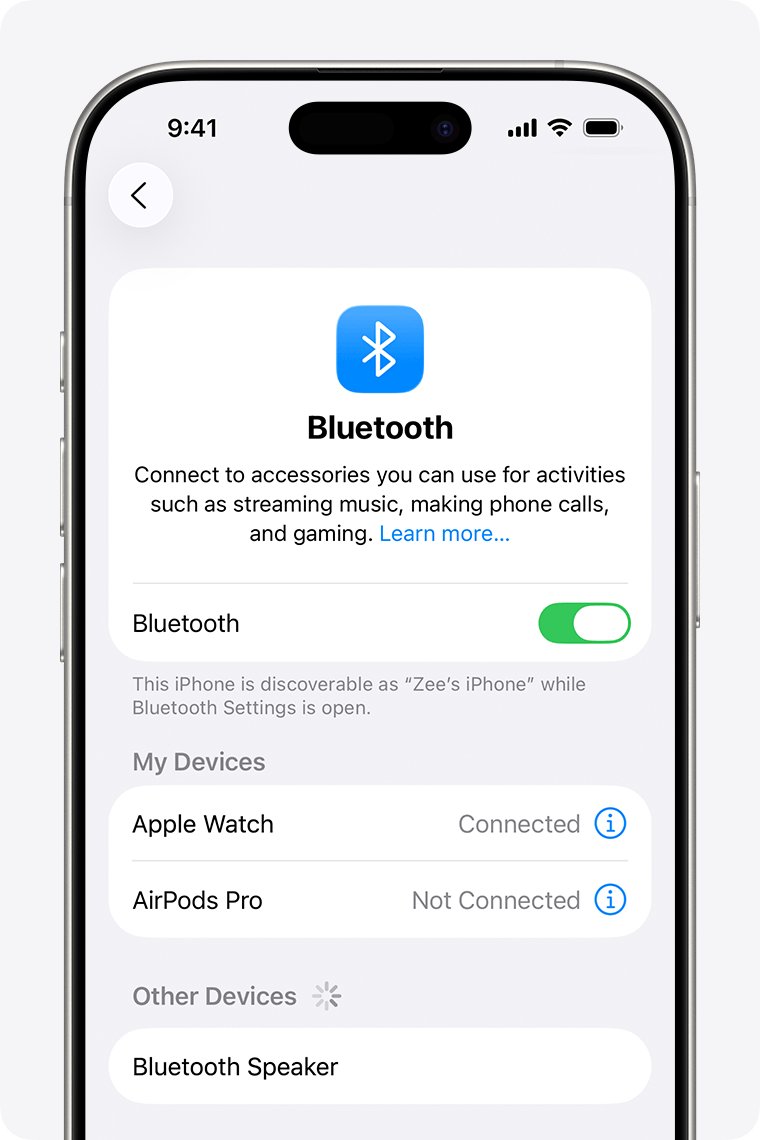
Apple's own fix for an accessory that paired before but no longer connects is to unpair it, put it back in discovery mode and pair again. A stale pairing record is the most common reason a speaker that used to work stops connecting.
- Open the Settings app on your iPhone 15 Pro and tap Bluetooth.
- Tap the More Info button next to the JBL speaker.
- Tap Forget This Device, then tap Forget Device to confirm.
- Put the JBL speaker in pairing (discovery) mode as its manual describes.
- Keep the iPhone within about 33 feet (10 meters) of the speaker.
- Wait for the speaker's name to appear below the devices list, then tap it.
- Enter a PIN or passcode only if the speaker's instructions give one.
Forgetting an accessory removes it from every device signed in to the same Apple Account, so an iPad on that account also needs to pair again later.
JBL speaker not connecting to iPhone: match the symptom to the fix
| What you see | Likely cause | Fix to use |
|---|---|---|
| Speaker shows Not Connected and taps do nothing | Stale pairing record | Forget the speaker and pair it again |
| Speaker never appears in the Bluetooth list | It is not in discovery mode, or another device holds it | Unpair it from other phones, tablets and computers, then use pairing mode |
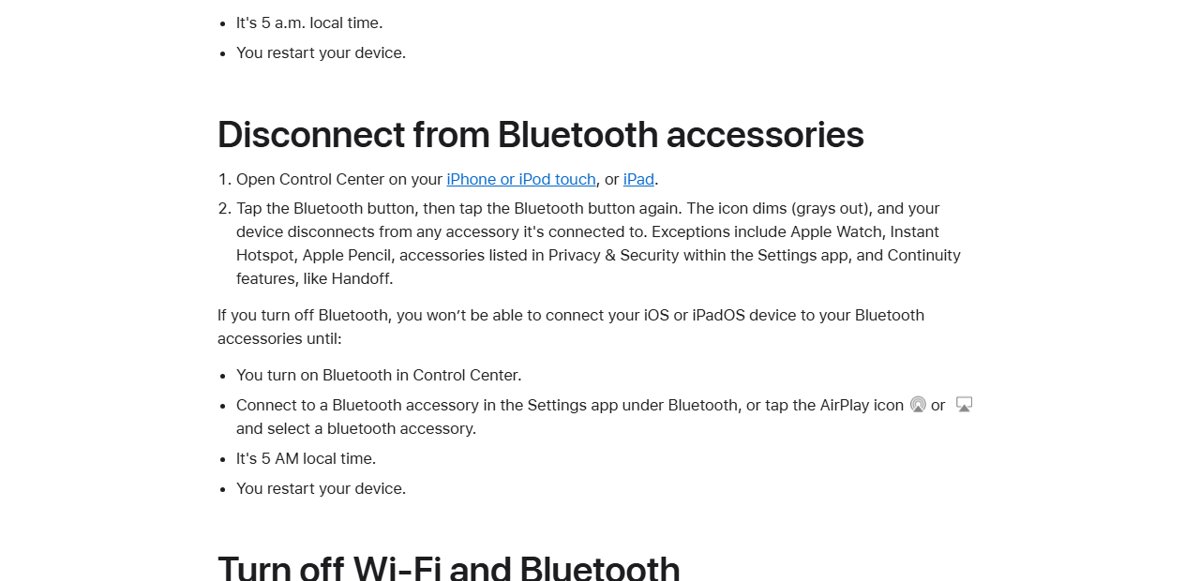
| Worked yesterday, now stays disconnected | Bluetooth was tapped off in Control Center, which disconnects accessories until the next day | Turn Bluetooth on in Settings and tap the speaker |
| The JBL app cannot find the speaker | The app has no Bluetooth permission | Allow Bluetooth for the app in Privacy & Security |
| No Bluetooth accessory connects at all | iOS or network settings problem | Update iOS, then reset network settings |
| Bluetooth switch is grayed out | Possible hardware fault | Contact Apple Support |
Unpair the JBL speaker from your other devices
Apple notes that an accessory which pairs with other devices but not your iPhone should be unpaired from those devices first. Many speakers reconnect to the last phone or laptop they used, which blocks a new connection.
- Turn off Bluetooth on any other phone, tablet or computer near the speaker, such as when you switch Bluetooth off in Windows 11, or remove the speaker from its Bluetooth list.
- Put the JBL speaker back in pairing mode.
- On the iPhone, open Settings > Bluetooth.
- Tap the speaker's name when it appears.
- Play audio to confirm the iPhone now owns the connection.
Reconnect after using the Control Center Bluetooth button
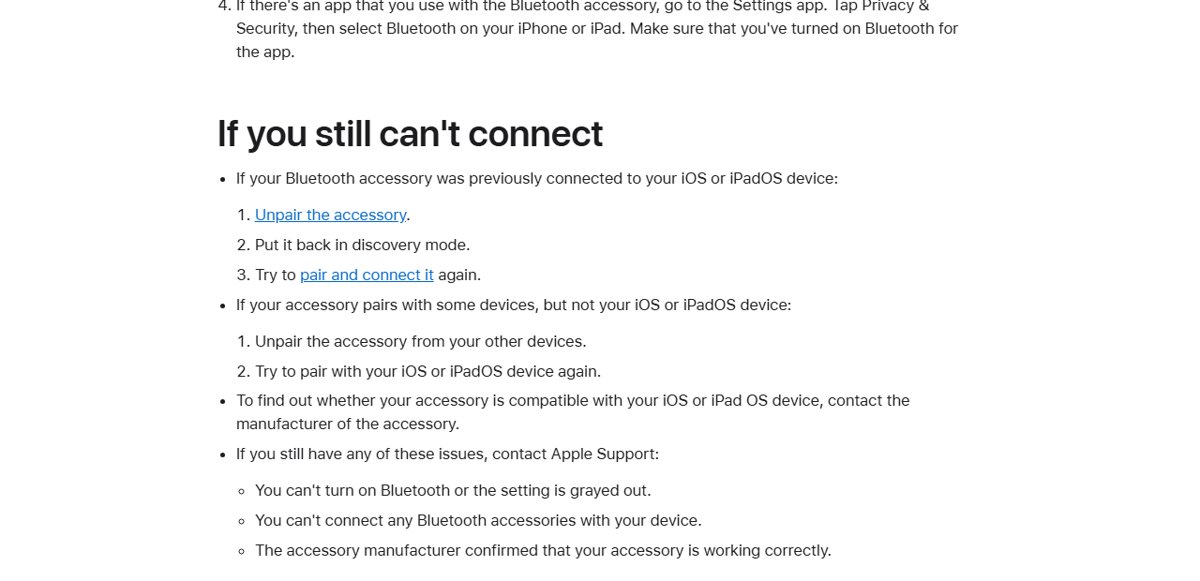
Tapping the Bluetooth button in Control Center does not switch Bluetooth off. It disconnects your accessories until the next day, which looks exactly like a pairing failure.
- Open the Settings app and tap Bluetooth.
- Make sure the Bluetooth switch is on.
- Under My Devices, tap the JBL speaker to connect it now.
- If it still shows Not Connected, forget it and pair again.
Allow Bluetooth access for the JBL app on iPhone
If you use a companion app with the speaker, iOS blocks it from talking to Bluetooth devices until you allow it.
- Open the Settings app.
- Tap Privacy & Security, then tap Bluetooth.
- Find the JBL app in the list and turn its switch on.
- Open the app again and let it search for the speaker.
Update iOS on iPhone 15 Pro to fix Bluetooth bugs
Apple says Bluetooth profiles work best on the latest iOS. A pending update can carry the bug fix your speaker needs.
- Back up the iPhone with iCloud or a computer.
- Plug in to power and connect to Wi-Fi.
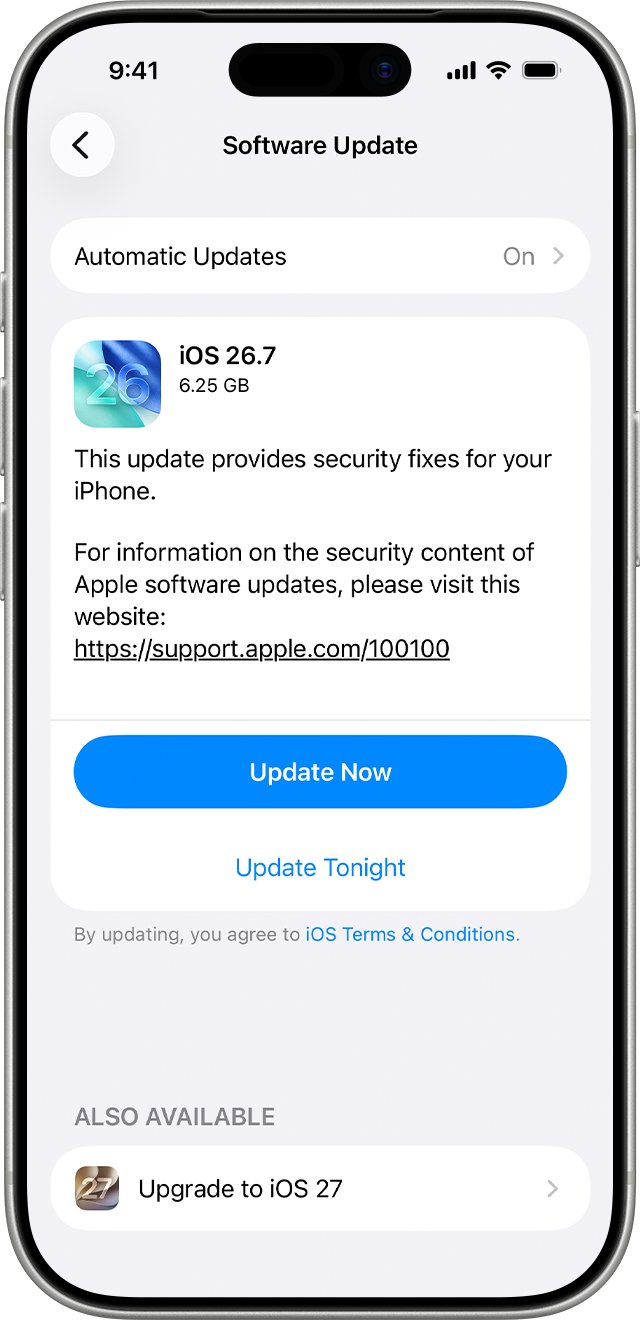
- Open Settings, tap General, then tap Software Update.
- Tap Download and Install if an update is listed, and follow the onscreen instructions.
- Pair the speaker again after the iPhone restarts.
Reset network settings on iPhone 15 Pro
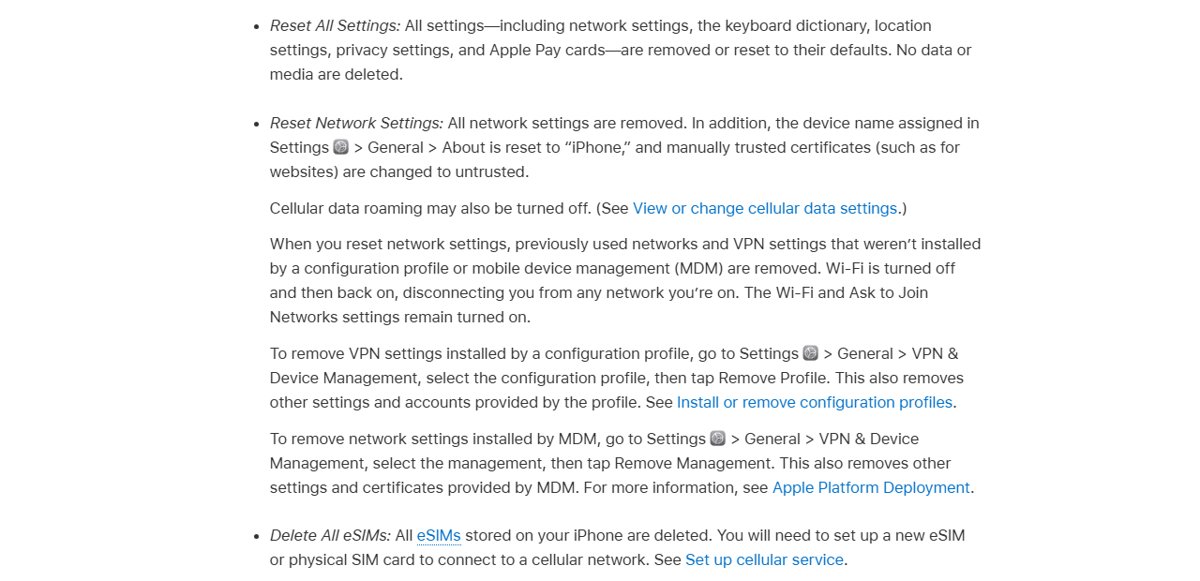
When no Bluetooth accessory pairs properly, reset network settings. This clears corrupted network and pairing data without deleting photos, apps or messages.
- Open the Settings app.
- Tap General, tap Transfer or Reset iPhone, then tap Reset.
- Tap Reset Network Settings and confirm with your passcode.
- Do not choose Erase All Content and Settings, which removes your data.
- After the restart, rejoin your Wi-Fi network and pair the JBL speaker again.
The reset removes saved Wi-Fi networks and VPN settings, renames the device to "iPhone" in General > About, and may turn off cellular data roaming.
Which Bluetooth profiles iPhone 15 Pro uses with a speaker
A speaker only works fully if it supports the same profiles as the iPhone. Feature differences between speakers come from the speaker's maker, not iOS.
| Profile | What it does for a speaker |
|---|---|
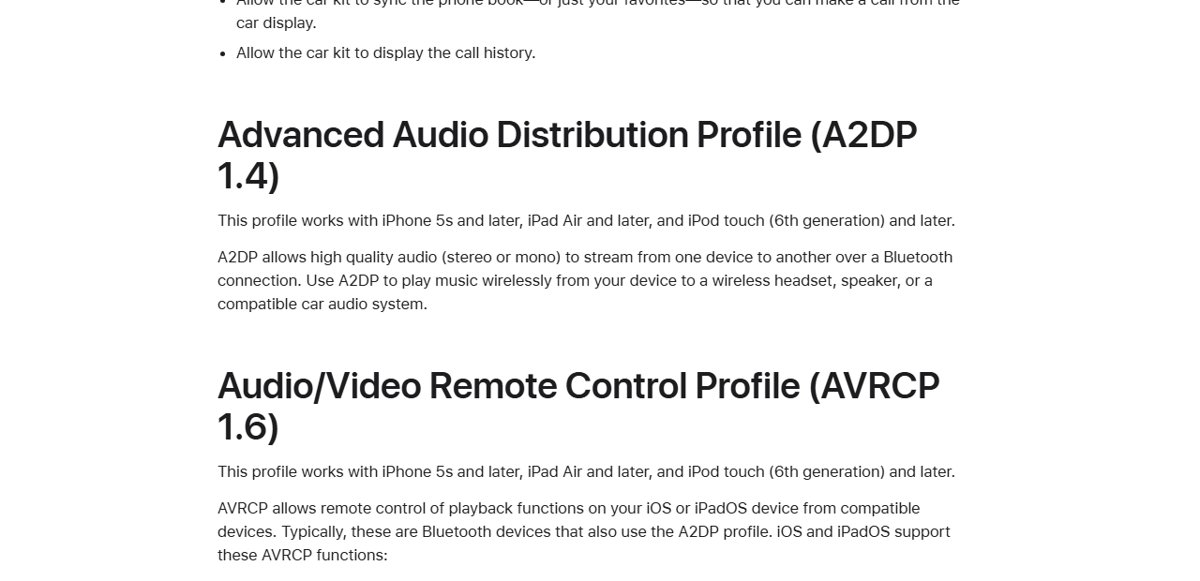
| A2DP 1.4 | Streams stereo or mono audio from the iPhone to a wireless speaker |
| AVRCP 1.6 | Lets speaker buttons pause, play, stop and skip tracks, and show metadata |
| HFP 1.8 | Carries phone calls on speakers with a microphone for hands-free use |
| Encryption | Pairing sets up an encrypted link, so the speaker must support an encrypted connection |
Check the JBL speaker is connected to iPhone
- Open Settings > Bluetooth and confirm the speaker shows Connected under My Devices.
- Play a song in the Music app and confirm the sound comes from the speaker.
- Press the speaker's play or pause button and check the iPhone responds.
- Walk a few feet away and back to confirm the audio holds within range.
iPhone 15 Pro Bluetooth not working: fixes by symptom
Audio cuts out or crackles on the JBL speaker
Wireless interference or distance between the iPhone and the speaker.
- Move the iPhone closer to the speaker, well inside 33 feet (10 meters).
- Reposition both devices away from walls and other wireless gear.
- Turn on Airplane Mode and then turn Bluetooth back on, which Apple notes may eliminate audio interference.
Speaker turns off or will not stay on
The speaker battery is low.
- Charge the speaker fully or connect it to power.
- Pair it again once it stays on.
Bluetooth switch is grayed out or will not turn on
Apple treats this as a fault that needs its support team.
- Update iOS from Settings > General > Software Update.
- Reset network settings.
- If the switch stays grayed out, contact Apple Support.
No Bluetooth accessory connects to the iPhone
The problem is the iPhone, not the speaker.
- Try a different Bluetooth accessory to confirm.
- Update iOS and reset network settings.
- Contact Apple Support if nothing pairs.
JBL speaker connects to other phones but never to the iPhone
A compatibility issue with the speaker model, or a pairing held by another device.
- Unpair the speaker from all other devices.
- Try pairing with the iPhone again.
- Ask JBL whether the speaker model is compatible with iPhone and current iOS.
iPhone 15 Pro and JBL speaker Bluetooth FAQ
Why won't my iPhone 15 Pro connect to my JBL speaker?
The usual causes are a stale pairing, the speaker staying connected to another device, or Bluetooth being toggled in Control Center. Forget the speaker in Settings > Bluetooth, unpair it from other devices, and pair it again.
Why does my JBL speaker not show up in iPhone Bluetooth?
The speaker is not in discovery mode, or another device already holds the connection. Put the speaker in pairing mode, keep it within about 33 feet of the iPhone, and turn off Bluetooth on other nearby devices.
Does turning off Bluetooth in Control Center disconnect my speaker?
Yes. The Control Center button disconnects Bluetooth accessories until the next day while Bluetooth stays available for AirDrop and other features. Turn Bluetooth on in Settings and tap the speaker to reconnect.
Will resetting network settings delete my data?
No. Reset Network Settings removes saved Wi-Fi networks, VPN settings and pairing data, but not photos, apps or messages. Avoid Erase All Content and Settings, which removes everything.
Why is my iPhone 15 Bluetooth not working?
If no accessory connects, update iOS in Settings > General > Software Update and then reset network settings. If Bluetooth is grayed out or still fails with every accessory, contact Apple Support.
Can a JBL speaker be connected to two iPhones at once?
That depends on the speaker model, because the speaker maker controls Bluetooth feature variations. If the speaker is stuck on another phone, unpair it there before pairing it with your iPhone 15 Pro.
Best fix for a JBL speaker that won't pair with iPhone 15 Pro
Forget the JBL speaker on the iPhone, unpair it from every other device, then pair it fresh in discovery mode; reset network settings only if that fails. Most speaker failures come from a stale or competing pairing, and clearing it fixes the link without touching your data; a grayed-out switch or no accessory pairing at all points to Apple Support.