An EML file is one email message saved as a file in the MIME standard, and you open it by double-clicking it or dragging it into new Outlook, Outlook on the web or another desktop mail app.
This guide covers what an EML file holds, how to open one on Windows, Mac and phones, how Gmail and Outlook handle it, conversion to PDF, MSG or MBOX, safety checks, and fixes when it will not open.
The fastest way to open an EML file on Windows
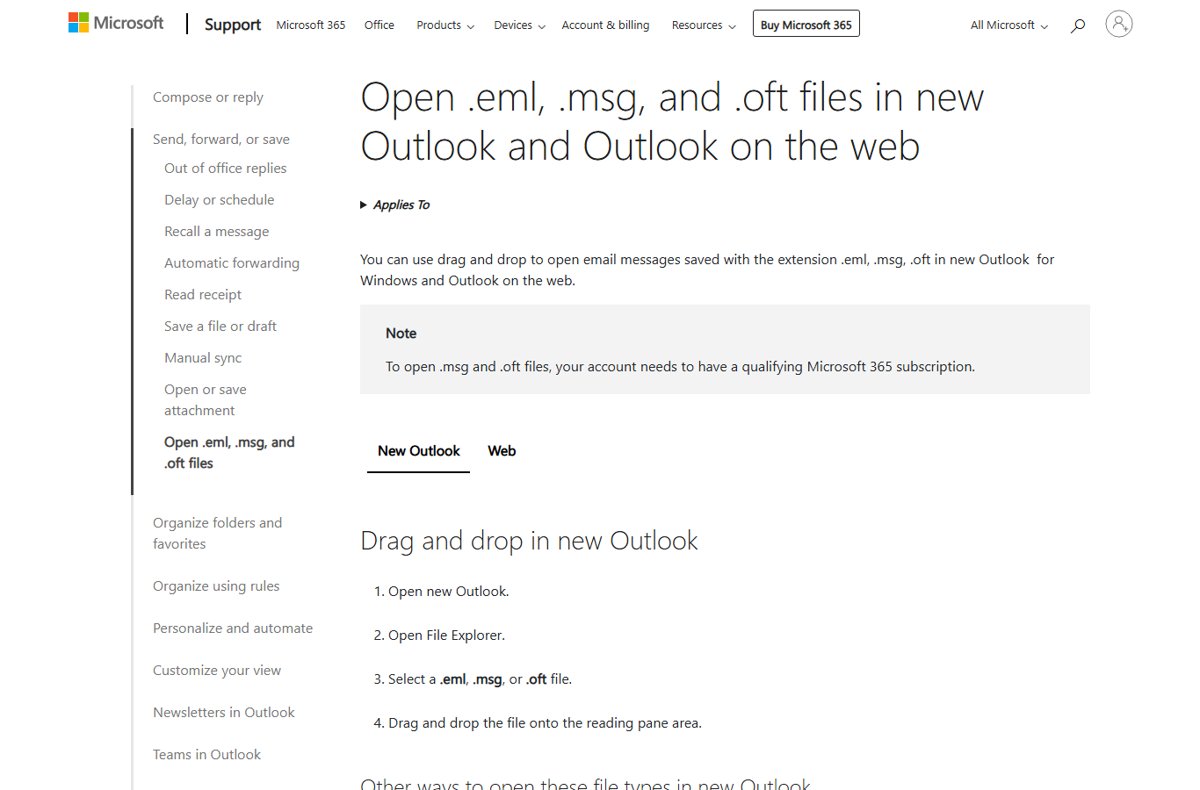
New Outlook for Windows and Outlook on the web open .eml files for free, with no Microsoft 365 subscription needed for this file type.
- Open File Explorer and find the .eml file.
- Right-click the file and select Open with > Outlook (new).
- If new Outlook is already open, drag the file onto the reading pane instead.
- Read the message, then open any attachments only if you trust the sender.
Double-clicking also works once new Outlook is the default app for .eml files.
What Is an EML File?
MIME is the industry standard internet email uses to carry text, HTML and attachments. Many email apps save a message in that format as a file with the .eml extension, so one .eml file equals one email.
| Format | What it holds | Typical source |
|---|---|---|
| EML | One email in the open MIME standard | Gmail's Download message, Outlook on the web's Download, new Outlook's Save as, many desktop mail apps |
| MSG | One Outlook item in Microsoft's own format | Classic Outlook's Save As |
| OFT | An Outlook email template | Classic Outlook's Save As template |
| MBOX | Many messages stacked in one mailbox file | Mail on Mac's Export Mailbox |
What Information Does an EML File Contain?
An EML file is text you can read in any text editor. The top is a block of headers, and the body and attachments follow, separated by MIME boundary lines.
| Part | Example header or content | What it tells you |
|---|---|---|
| Sender and recipients | From, To | Who sent it and to whom |
| Subject and date | Subject, Date | The subject line and when it was sent |
| Message identity | Message-ID | A unique ID for that email |
| Delivery path | Received | Each mail server the message passed through |
| Format markers | MIME-Version, Content-Type | That it is MIME, and whether the body is plain text, HTML or both |
| Attachments | Content-Disposition, Content-Transfer-Encoding | File names, and the encoding, often base64, used to store them |
Because the headers are kept, an EML file is what Microsoft asks for when you report a phishing email: the original message as an attachment, not a forward.
How to Open an EML File on Windows, Mac, and Mobile
| Your device | Open it with | How |
|---|---|---|
| Windows 11 or Windows 10 | New Outlook for Windows | Right-click > Open with > Outlook (new), or drag onto the reading pane |
| Any computer with a browser | Outlook on the web | Sign in at Outlook on the web and drag the file onto the reading pane |
| Mac | A desktop mail app | Control-click the file, choose Open With, then choose the app |
| iPhone, iPad or Android | A computer is the reliable route | Gmail notes a downloaded .eml needs a desktop mail client, so move the file to a computer |
| Only need the raw headers | Any text editor | Open the file in Notepad or TextEdit to read the headers |
To make one app the default on a Mac, select the file, choose File > Get Info, pick the app under Open with, and click Change All.
How to Open EML Files in Gmail, Outlook, and Other Email Apps
Gmail creates .eml files but does not open a local one: its help page says the downloaded file needs a desktop mail client. You can still send an .eml to someone through Gmail as an attachment.
- In new Outlook or Outlook on the web, open the app, then drag the .eml file from File Explorer onto the reading pane.
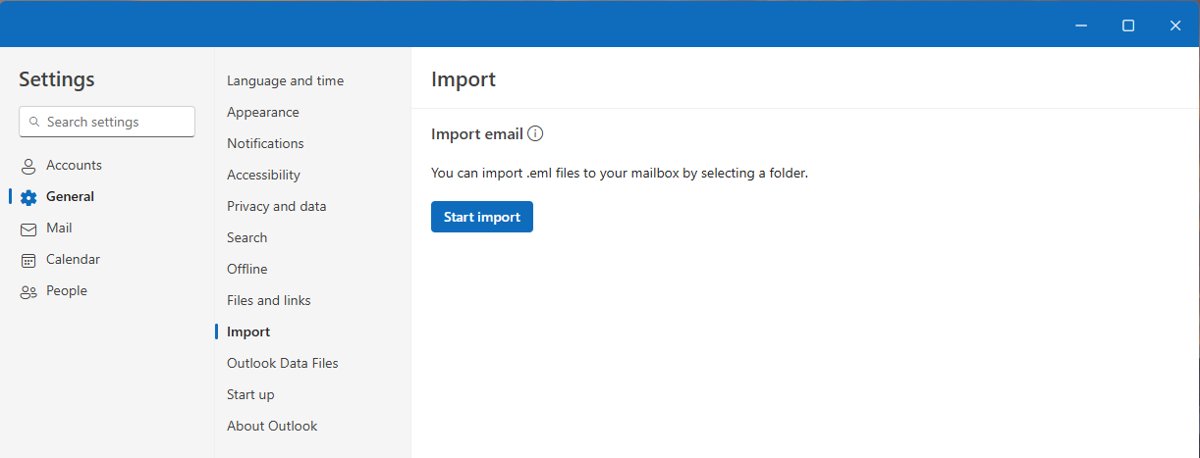
- To bring many .eml files into new Outlook, select Settings > Files > Import > Start import.
- Choose the folder with the .eml files, then the destination account and folder, and select Import.
- In Gmail, select Compose > Attach files, choose the .eml file and select Open to send it as an attachment.
- To get an .eml out of Gmail, open the email, select More > Download message.
- In other desktop mail apps, use the app's open or import command, or set it as the default app for .eml files.
Bulk import only reads .eml files at the top level of the folder you pick, ignores subfolders, needs an internet connection, and skips files over 14 MB.
How to Convert an EML File to PDF, MSG, or MBOX
| Target format | Route | Steps |
|---|---|---|
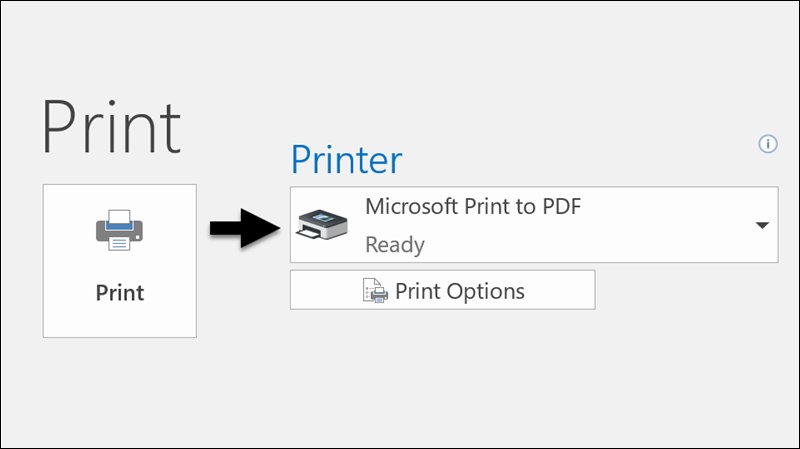
| New Outlook and Microsoft Print to PDF | Open the .eml in new Outlook, select More actions > Print > Print, choose Microsoft Print to PDF, select Print, then name and save the file | |
| MSG | Import, then save from classic Outlook | Bulk import the .eml into a mailbox folder with new Outlook, open the message in classic Outlook, select File > Save As and choose MSG in Save as type |
| MBOX | Mail on Mac | Get the messages into a mailbox that Mail on Mac shows, select it, then choose Mailbox > Export Mailbox |
| EML from Outlook | Outlook on the web | Select the message, then More actions > Download |
New Outlook has no PDF option in Save as, which is why the print route is the documented way to make a PDF.
Are EML Files Safe? Security Risks to Check
An EML file is as safe as the email inside it. It can carry the same links and attachments as any phishing message.
- Check the From address and whether you expected the message at all.
- Be wary of urgent demands to click, call or open an attachment now.
- Hover over links without clicking and compare the real address with the text.
- Do not open an attachment you were not expecting, even from someone you trust.
- Treat Outlook's banner that it could not verify the sender as a warning sign.
- Report a suspicious message as an attachment to [email protected] if you do not use Outlook's report button.
What to Do If an EML File Won't Open
Why can't I open an EML file by double-clicking it?
No mail app is set as the default for .eml files.
- Right-click the file and select Open with > Outlook (new).
- To make it stick, set new Outlook as the default app for .eml in Windows default apps settings.
- On a Mac, use File > Get Info > Open with > Change All.
Outlook will not open the file, or asks for a subscription
The file is .msg or .oft rather than .eml; those need a qualifying Microsoft 365 subscription in new Outlook.
- Check the file extension in File Explorer.
- For a .msg file, open it in classic Outlook or sign in with a qualifying Microsoft 365 account.
- For a true .eml file, drag it onto the reading pane instead of double-clicking.
Bulk import skips some EML files
Files are in subfolders, are over 14 MB, or the PC went offline.
- Move all .eml files into one folder with no subfolders.
- Check file sizes and open any file over 14 MB on its own with drag and drop.
- Confirm the PC is online and run Import again.
The file opens as unreadable text, or not at all
The file is damaged, incomplete, or arrived inside an archive.
- Open the file in Notepad and check that it starts with headers such as Received or From and contains MIME-Version.
- If the file came inside a compressed folder, extract the ZIP file first and open the .eml from the extracted folder.
- Ask the sender to download the message again and resend it.
Frequently Asked Questions
What is an EML file and how do I open it?
An EML file is a single email saved in the MIME standard. On Windows, right-click it and choose Open with > Outlook (new), or drag it into Outlook on the web. On a Mac, use Open With and choose a mail app.
Why can't I open an EML file?
Usually no mail app is set as the default for .eml files. Right-click the file and choose Open with > Outlook (new). If that fails, check that the file is really .eml and not damaged by opening it in Notepad.
Can Gmail open an EML file?
No. Gmail can download a message as an .eml file and attach one to an email, but its help page says you need a desktop mail client to open the downloaded file.
Do I need Microsoft 365 to open EML files in Outlook?
No. New Outlook and Outlook on the web open .eml files without a subscription. Only .msg and .oft files need a qualifying Microsoft 365 subscription.
Can I open an EML file in Notepad?
Yes. An EML file is text, so Notepad shows the headers and the raw body. HTML formatting and base64-encoded attachments will not display properly, so use a mail app to read it normally.
What is the difference between EML and MSG?
EML is the open MIME email standard used by many apps. MSG is Microsoft Outlook's own format for a saved item. Classic Outlook saves both, and new Outlook opens both, with MSG needing Microsoft 365.
How do I save an email as an EML file?
In Gmail, open the message and select More > Download message. In Outlook on the web, select More actions > Download. In new Outlook, select More actions > Save as.
Bottom Line
Open EML files with new Outlook or Outlook on the web on Windows, a desktop mail app on a Mac, and print to PDF when you need a copy for records. These routes are free, documented by Microsoft, and keep the full message including headers, while Gmail and phones offer no direct way to open a standalone .eml file.

![How to add another OneDrive account [use multiple accounts]](https://techdows.com/wp-content/uploads/2026/10/Microsoft-support-page-for-adding-an-account-in-OneDrive-with-Windows-tab-select-600x338.jpg)