To check for Microsoft Office updates on Windows, open Word or another Office app, select File > Account, then Update Options > Update Now.
This guide also covers volume-license Office through Windows Update, Office on Mac, iPhone and iPad, how to read your version number, and what to do when the update button is missing.
The fastest way to check for Office updates on Windows
- Open any Microsoft 365 app, such as Word, and create a new blank document.
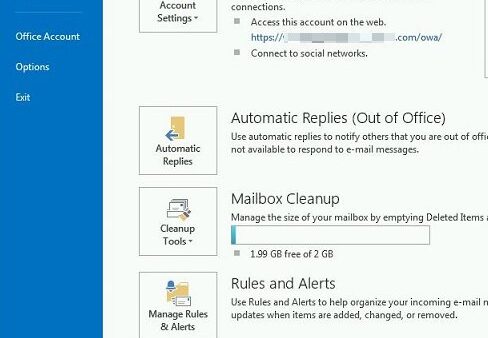
- Select File > Account (in classic Outlook, File > Office Account).
- Under Product Information, select Update Options > Update Now.
- If you see Enable Updates instead, select it first, then Update Now.
- Close the You're up to date! or Updates were installed window when it appears.
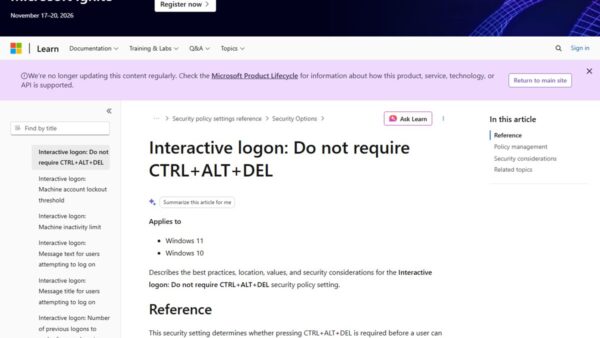
One check updates every Office app at once: Word, Excel, PowerPoint, Outlook and the rest share the same installation.
Which update method fits your Office?
| Your setup | Where to check | Why |
|---|---|---|
| Microsoft 365 or Office 2024/2021 on Windows | File > Account > Update Options > Update Now | Click-to-Run Office updates itself |
| Only an About button, no Update Options | Windows Update with other Microsoft products turned on | Volume license or Group Policy controls updates |
| Office on a Mac | Help > Check for Updates in any Office app | Opens Microsoft AutoUpdate |
| Office apps on iPhone or iPad | App Store > your profile picture | Mobile apps update through the App Store |
| Work or school PC | Your IT help desk | Updates are often managed centrally |
Check which version of Office you have
The version decides which update route applies and whether updates are still available.
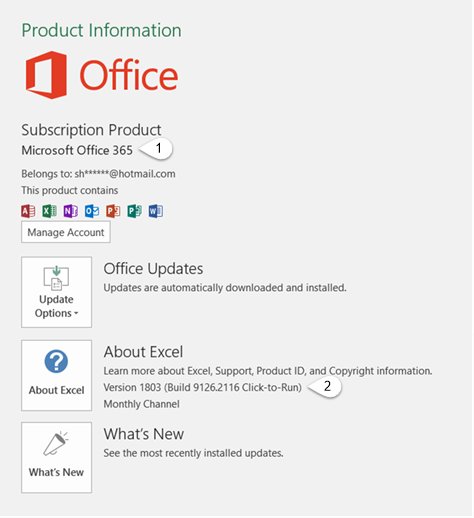
- Open Word or Excel and select File > Account (or Help on some versions).
- Read the product name under Product Information, such as Microsoft 365 or Office Home and Student.
- Read the version and build number and the install type, such as Click-to-Run or Windows Store.
- Select About Word (or About Excel) for the full build and whether Office is 32-bit or 64-bit.
On a Mac, select Word > About Word. If it says Microsoft 365, you have a subscription; Office 2021 or 2019 is a one-time purchase.
Get Office updates through Windows Update
Volume-license and older Windows Installer (MSI) versions of Office get updates through Microsoft Update instead of the Office app.
- Select Start > Settings > Windows Update.
- Select Advanced options.
- Turn on Receive updates for other Microsoft products when you update Windows.
- Return to Windows Update and select Check for updates.
- Install any Office or Microsoft 365 Apps update listed, including optional ones.
Microsoft 365 Apps that have not updated for more than 90 days on Current Channel or Monthly Enterprise Channel may be offered an optional repair update (KB5002907) here.
Check for Office updates on a Mac
- Make sure the Mac runs macOS 12 (Monterey) or later via Apple menu > System Settings > General > Software Update.
- Open any Office app, such as Word or Excel.
- In the menu bar, select Help > Check for Updates.
- In Microsoft AutoUpdate, select Update or Update All.
- Restart the app when the update finishes.
Update Office apps on iPhone or iPad
- Make sure the device runs iOS 17 or later in Settings > General > Software Update.
- Open the App Store.
- Tap your profile picture at the top.
- Tap Update next to any Microsoft 365 app, or tap Update All.
- Open the app and sign in if prompted.
Turn automatic Office updates on or off
Click-to-Run Office installs updates automatically in the background unless updates are disabled.
- Open Word and select File > Account.
- Select Update Options.
- Select Enable Updates to turn automatic updates back on.
- Select Disable Updates only if you must hold a version, and turn it back on soon.
- Select View Updates to see what was previously installed.
How to check Office is up to date
- Run Update Now and confirm the You're up to date! message.
- Note the version and build under File > Account > Product Information.
- Open Microsoft's Update history for Microsoft 365 Apps page on learn.microsoft.com.
- Compare your build with the latest one listed for your channel; for example, Current Channel version 2609 is build 20430.20118 as of 30 September 2026.
Importance of Checking for Updates
| What updates bring | Why it matters |
|---|---|
| Security fixes | Close holes that malicious documents and attachments use |
| Bug fixes | Stop crashes and features that misbehave |
| New features | Microsoft 365 subscribers get new tools in monthly versions |
| Continued access on Mac and iOS | Apps below the minimum version (16.83 on Mac, 2.93 on iPhone and iPad) must update to keep working fully |
| Supported status | Out-of-support versions stop receiving security updates entirely |
Fix Office updates that do not work
Update Options is missing and only About is shown
A volume-license install, or your company manages updates with Group Policy.
- Turn on updates for other Microsoft products in Windows Update > Advanced options.
- Check for updates in Windows Update.
- On a work PC, contact your help desk.
Update Now is not shown under Update Options
Updates are disabled.
- Select Update Options > Enable Updates.
- Select Update Options > Update Now.
Office has not updated for months
The update process stalled.
- Check that the PC is online.
- Look in Windows Update for the optional Microsoft 365 Apps update and install it.
- If it is not offered, update Office manually from Microsoft's Office Updates downloads.
Office apps will not open, so you can't reach File > Account
A damaged installation.
- Run Microsoft's Office repair for your installation.
- Open an Office app and run Update Now again.
Mac or iPhone will not take the Office update
The operating system is below macOS 12 or iOS 17.
- Update the operating system first.
- If the device can't be updated, use Microsoft 365 on the web from a browser.
Office versions that no longer get updates
| Version | Support status |
|---|---|
| Office 2021 | End of support on 13 October 2026; no security updates after that date |
| Office 2019 for Mac | Ended 10 October 2023; no further updates |
| Microsoft 365 | Keeps receiving updates while the subscription is active |
Checking for updates on an out-of-support version finds nothing new. Moving to Microsoft 365 or a current one-time version is the only way to keep getting fixes.
Frequently asked questions
How do I check for Microsoft 365 updates?
Open Word, Excel or another Microsoft 365 app, select File > Account, then Update Options > Update Now. Office downloads and installs any update and shows You're up to date when finished.
How do I check my Microsoft Office version?
Open an Office app and select File > Account. Product Information shows the product name, version and build. Select About Word for the full build and 32-bit or 64-bit.
How do I check which Office I have on a laptop?
The steps are the same on any Windows laptop: open Word, select File > Account and read Product Information. On a Mac laptop, select Word > About Word.
How do I check if Office is installed?
Search the Start menu for Word or Excel. If the app opens, Office is installed; File > Account then shows exactly which version you have.
Does Office update automatically?
Yes, Microsoft 365 and Click-to-Run versions update automatically unless updates are disabled under File > Account > Update Options. Volume-license Office updates through Windows Update.
Why is there no Update Options button in Office?
Your copy is a volume-license install or your organization controls updates with Group Policy. Use Windows Update with other Microsoft products turned on, or ask your help desk.
How do I check for Office updates on a Mac?
Open any Office app and select Help > Check for Updates in the menu bar. Microsoft AutoUpdate opens; select Update or Update All, then restart the app.
Does updating Office one app update all of them?
Yes. Word, Excel, PowerPoint, Outlook and the other apps share one installation, so Update Now in any app updates them all.