To change the default font and size in classic Outlook for Windows, go to File > Options > Mail > Stationery and Fonts and pick a font under New mail messages and again under Replying or forwarding messages; in new Outlook use View > View settings > Mail > Compose.
This guide covers every Outlook version, including the web and Mac, how to enlarge text for reading, why recipients may see a different font, and fixes when the new default does not stick.
How to Change the Default Font in Classic Outlook for Windows
Classic Outlook stores separate fonts for new messages and for replies and forwards, so set both.
- Select File > Options > Mail.
- Under Compose messages, select Stationery and Fonts.
- On the Personal Stationery tab, under New mail messages, select Font.
- Choose the font, style, size and color, then select OK.
- Under Replying or forwarding messages, select Font and repeat the same choices.
- Select OK until all dialogs close, then open a new message to check.
Before You Start: Know Which Outlook You’re Using
Each Outlook app keeps its own font setting in a different place. Microsoft's own tip: if the new Outlook steps do not match your screen, you are probably still on classic Outlook.
| Outlook version | How to recognize it | Where fonts are set |
|---|---|---|
| Classic Outlook for Windows | Has a File menu with Options | File > Options > Mail > Stationery and Fonts |
| New Outlook for Windows | No File > Options; has View > View settings | View settings > Mail > Compose |
| Outlook on the web and Outlook.com | Runs in a browser | Settings > Mail > Compose |
| Outlook for Mac | Outlook menu in the macOS menu bar | Outlook > Settings > Composing |
| Legacy Outlook for Mac | The older Mac interface; support ends October 2026 | Follow Microsoft's Legacy Outlook for Mac steps |
Which Method Should You Use?
| You want to | Use this | Why |
|---|---|---|
| Change the font of emails you write in classic Outlook | Stationery and Fonts | Sets new messages and replies separately |
| Change the font of emails you write in new Outlook | View settings > Mail > Compose | One Message format setting |
| Change it in a browser | Outlook on the web Compose settings | Applies to messages you write on the web |
| Change it on a Mac | Outlook > Settings > Composing | Separate buttons for new mail and replies |
| Make incoming emails easier to read | Reading pane Zoom | Changes display only, not what you send |
| Make the inbox list larger | Message list text size or Row Font | Affects subject lines and headers |
How to Change the Default Font in the New Outlook for Windows
- Open new Outlook and select the View tab.
- Select View settings.
- Select Mail, then Compose.
- Under Message format, choose the font, size and style you want.
- Select Save.
How to Change the Default Font in Outlook on the Web
This also applies to Outlook.com. The font options only work for HTML messages.
- Sign in to Outlook on the web or Outlook.com.
- Go to Settings > Mail > Compose.
- Set Compose messages to HTML format.
- Choose your preferred font and size.
- Select Save.
How to Change the Default Font in Outlook for Mac
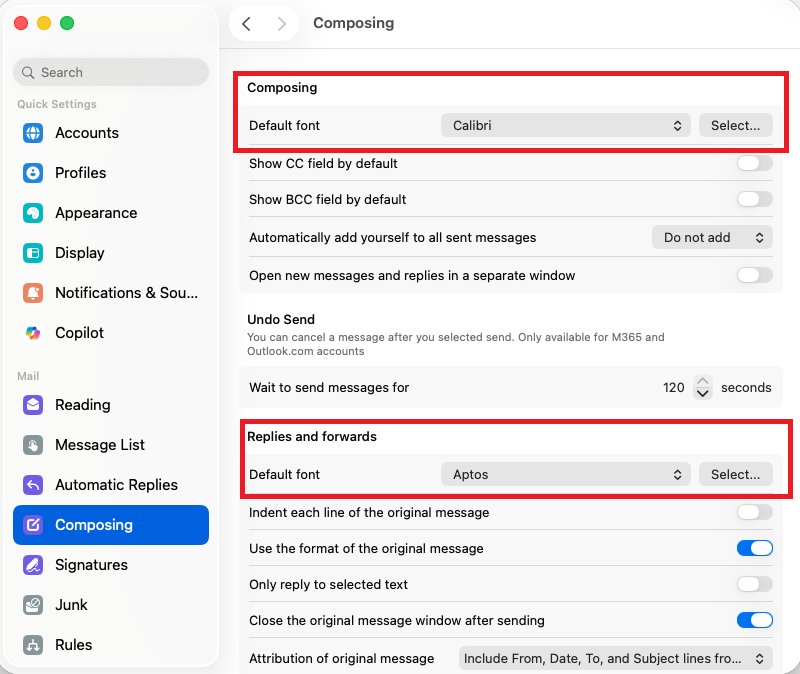
- With Outlook open, select the Outlook menu in the menu bar, then Settings.
- Select Composing on the left.
- For New mail, select the Select… button and choose the font and size in the Font panel.
- Do the same for Reply or forward.
- Select OK to apply the changes.
- To change the font used to preview messages, go to Settings > Reading and choose a font under Preview font for message.
Microsoft ends support for legacy Outlook for Mac in October 2026, so these steps target the current Outlook for Mac.
Can You Change the Default Font in Outlook for iPhone, iPad, or Android?
Set your default font in Outlook on the web, Windows or Mac instead. Microsoft's default-font instructions cover new Outlook, classic Outlook, Outlook on the web and Outlook for Mac only. Each Outlook app keeps its own font setting, and Microsoft documents no default-font option for the mobile apps, so a mobile change cannot be relied on to carry over.
How to Change the Font Size for Reading Emails
These settings change what you see, not what recipients get.
- New Outlook: select a message, then View > Zoom and use + or – (50% to 200%). Reset returns to default; the zoom applies to the open message only.
- New Outlook message list: View > View settings > Mail > Layout, then choose Small, Medium or Large under Text size and spacing and select Save.
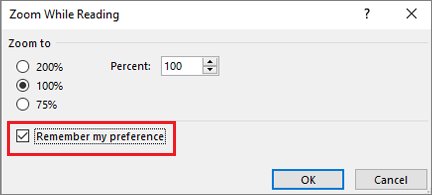
- Classic Outlook: drag the zoom slider at the bottom right of the Reading pane. To keep it, select the percentage, choose a level, tick Remember my preference and select OK.
- Classic Outlook message list: View > View Settings > Other Settings, then use Column Font for headers and Row Font for subject lines.
- Outlook for Mac: select a message, then Format > Increase Font Size or Decrease Font Size for that folder; it reverts when you leave the folder.
- Outlook on the web: use your browser's zoom.
If all text on the PC is too small, not just Outlook, change the text size in Windows instead.
Quick Reference: Where to Change Outlook Font Defaults
| Setting | Classic Outlook | New Outlook | Web | Mac |
|---|---|---|---|---|
| Font for new emails | File > Options > Mail > Stationery and Fonts > New mail messages | View > View settings > Mail > Compose | Settings > Mail > Compose | Outlook > Settings > Composing > New mail |
| Font for replies and forwards | Stationery and Fonts > Replying or forwarding messages | Same Compose setting | Same Compose setting | Composing > Reply or forward |
| Reading size | Reading pane zoom slider | View > Zoom | Browser zoom | Format > Increase Font Size |
| Message list and preview text | View Settings > Other Settings > Row Font | View settings > Mail > Layout | Browser zoom | Settings > Reading > Preview font for message |
| Signature font | Signature editor | Settings > Accounts > Signatures | Signature settings | Signature editor |
Why Is Changing the Default Font in Outlook Confusing?
| Reason | What it means |
|---|---|
| Four different Outlook apps | Classic, new, web and Mac each store their own font setting |
| Two settings in classic Outlook | New messages and replies or forwards are set separately |
| The default font changed | Microsoft designed Aptos as the new default Office font to replace Calibri, so older guides mention Calibri |
| Signatures carry their own formatting | A signature keeps the font you gave it in the signature editor |
| Incoming emails keep the sender's fonts | Your font choice does not reformat HTML messages you receive |
Why Your Outlook Font May Look Different to Recipients
| Cause | What happens | What to do |
|---|---|---|
| Font not installed on their device | Their mail program substitutes an available font | Use a common font that ships with Office or Windows |
| They read in plain text | All formatting is dropped | Nothing on your side changes this |
| Their reading zoom or text size | Your 11 pt looks larger or smaller on their screen | Judge size on your own screen at 100% zoom |
| You wrote the message on another Outlook app | That app used its own default font | Set the same font in every Outlook you use |
How to Set a Professional Default Font
| Choice | Recommendation | Reason |
|---|---|---|
| Font family | Calibri (the long-standing default) or Aptos (the current Office default) | Both are Microsoft fonts made for everyday Office text; recipients without them see a substitute |
| Size | 10 to 12 pt; 11 pt is the long-standing default | Readable without looking oversized |
| Color | Automatic (black) | Highest contrast on light and dark themes |
| Style | Regular | Bold or italic for whole messages reads as shouting |
| Consistency | Same font in the signature as in the body | Avoids a visible switch at the end of each email |
How Signatures Interact with Default Fonts
A signature keeps the font, color and style you give it in the signature editor, so it can differ from your message font. Match them in new Outlook like this.
- Select Settings, then Accounts > Signatures.
- Select Edit signature next to your signature.
- Select the signature text and set the same font and size as your default.
- Select Save, then start a new email to compare body and signature.
Alternative Methods
| Need | Alternative | Where |
|---|---|---|
| Bigger text only while writing (Mac) | Format > Zoom in the message; resets after sending | Outlook for Mac |
| Bigger text in one folder (Mac) | Format > Increase Font Size | Outlook for Mac |
| Bigger text in one message (Windows) | Reading pane Zoom | New and classic Outlook |
| Larger inbox subject lines | Row Font or Text size and spacing | Classic and new Outlook |
| A consistent look in every email | Format the signature with the same font | Signature settings |
How to restore Outlook's original default font
- In classic Outlook, select File > Options > Mail > Stationery and Fonts.
- Under New mail messages, select Font.
- Set Font to +Body, Font style to Regular, Size to 11 and color to Automatic, then select OK.
- Repeat under Replying or forwarding messages.
- Select OK to close the remaining dialogs.
Troubleshooting: Outlook Font Changes Not Working
New messages still use the old font
The setting was changed in a different Outlook app from the one you write in.
- Check which Outlook you use with the table at the top.
- Set the font in that app, for example View settings > Mail > Compose in new Outlook.
Replies use a different font
Classic Outlook and Outlook for Mac store reply and forward fonts separately.
- Open Stationery and Fonts (Windows) or Settings > Composing (Mac).
- Set the font under Replying or forwarding messages, or Reply or forward.
Font choice has no effect in Outlook on the web
Messages are composed as plain text.
- Go to Settings > Mail > Compose.
- Set Compose messages to HTML and choose the font again.
The recipient says the font looks different
Their device lacks the font, or they read in plain text.
- Switch to a common Office font such as Aptos or Calibri.
Text looks too small only while composing or reading
That is display size, not the default font.
- Use Zoom in the message or reading pane, or Format > Zoom on a Mac.
Still not working after all of the above
The signature or a stuck format is overriding the default.
- Restore the defaults with the steps above, then set your font again.
- Edit your signature so its font matches.
- Close and reopen Outlook before testing a new message.
Best Practices for Outlook Font and Size Settings
| Practice | Why |
|---|---|
| Set new-mail and reply fonts together | Prevents mixed fonts in one thread |
| Set the same font in every Outlook you use | Each app has its own setting |
| Tips for choosing an email font: pick a common sans serif | Uncommon fonts are substituted on recipients' devices |
| Use zoom for reading comfort, not a bigger default font | Recipients do not need oversized text |
| Keep HTML on in Outlook on the web | Fonts only apply to HTML messages |
| Recheck after moving to new Outlook | Classic settings live in a different place |
Frequently Asked Questions
Can I change the default font in Outlook?
Yes. In classic Outlook use File > Options > Mail > Stationery and Fonts. In new Outlook use View > View settings > Mail > Compose. In Outlook on the web use Settings > Mail > Compose, and on a Mac use Outlook > Settings > Composing.
How do I change the default font size in Outlook?
Size is set in the same place as the font. In classic Outlook open Stationery and Fonts, select Font under New mail messages and choose a size, then repeat for replies. In new Outlook pick the size under Message format in View settings > Mail > Compose.
How do I change the default font in Outlook 365?
Outlook in Microsoft 365 is either classic Outlook or new Outlook. In classic, go to File > Options > Mail > Stationery and Fonts. In new Outlook, go to View > View settings > Mail > Compose and select Save after choosing the font.
Why did Outlook change the default font to Aptos?
Microsoft commissioned Aptos, designed by Steve Matteson, as the new default Office font to replace Calibri. It is a sans serif typeface built for readability. You can switch back to Calibri or any other font in your Outlook compose settings.
Why did the default font change in Outlook?
Usually because Microsoft moved Office from Calibri to Aptos, or because you started using new Outlook or Outlook on the web, which keep their own font settings separate from classic Outlook. Set your preferred font in the Outlook app you now use.
How do I change the font back to default in Outlook?
In classic Outlook open File > Options > Mail > Stationery and Fonts, select Font, then set Font to +Body, style to Regular, size to 11 and color to Automatic. Do this for both new messages and replies or forwards.
How do I make emails bigger to read in Outlook?
Use Zoom. In new Outlook select View > Zoom; in classic Outlook drag the slider at the bottom right of the Reading pane and tick Remember my preference to keep it. Zoom changes only what you see, not the font recipients get.
Quick Summary
Set the font where you actually write: Stationery and Fonts in classic Outlook, View settings > Compose in new Outlook, Settings > Compose on the web, and Settings > Composing on a Mac, and set replies too. Each Outlook app stores its own default, so a change in one never reaches the others, and reading zoom only changes what you see.