To manage Google Play subscriptions on Android, open the Play Store, tap your profile icon, select Payments & subscriptions, then Subscriptions, and choose the subscription you want to cancel, pause, resume or update.
This guide covers each of those actions, how plan changes and renewals are billed, where to see past charges, and what to do when a subscription is missing or a payment fails.
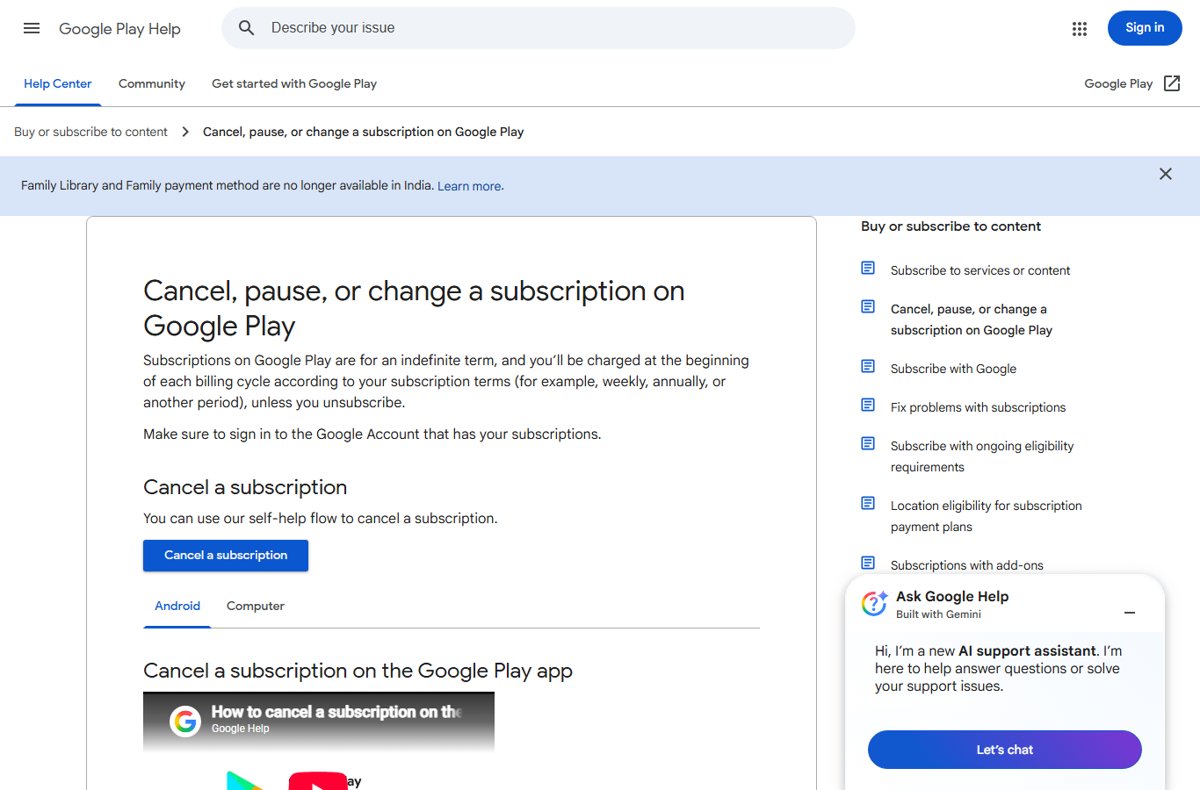
Accessing Your Google Play Subscriptions
Sign in to the Google Account that holds your subscriptions first; each account has its own list.
- Open the Google Play Store app on your Android phone or tablet.
- Tap your profile icon at the top right.
- Tap Payments & subscriptions.
- Tap Subscriptions to see every active and cancelled subscription.
- Tap a subscription to see its price, renewal date and Manage options.
Google's direct link, play.google.com/store/account/subscriptions, opens the same list.
Understanding Google Play Subscriptions
| Rule | What Google Play says |
|---|---|
| Term | Subscriptions run for an indefinite term and are charged at the start of each billing period |
| Free trials | You get an email before a trial ends; the first charge follows automatically unless you cancel |
| Authorization hold | A hold may be placed up to 48 hours before renewal (up to 5 days in India or Brazil) |
| Failed payment | You may get a grace period of 0 to 30 days, then an account hold of up to 60 days |
| Prepaid plans | Fixed-length access that does not renew automatically |
| Uninstalling the app | Does not cancel the subscription |
Why You Should Manage Your Subscriptions
| Reason | What managing prevents |
|---|---|
| Trials convert to paid automatically | A charge for a trial you meant to stop |
| Deleting an app leaves the subscription running | Paying for an app you no longer have |
| Expired cards cause failed renewals | Losing access during an account hold |
| Promotional discounts end when you cancel | Surprise at a higher price if you resubscribe later |
Canceling a Subscription
- Open your subscriptions in Google Play (profile icon > Payments & subscriptions > Subscriptions).
- Select the subscription you want to cancel.
- Tap Cancel subscription.
- Follow the instructions to confirm.
You keep access for the time you have already paid. Cancel a trial before it ends to avoid the first charge, and note that cancelling removes any promotional discount tied to the subscription.
Pause or resume a subscription
- Open your subscriptions in Google Play and select the subscription.
- Tap Manage, then Pause payments.
- Set the time period to pause payments and tap Confirm.
- To restart early, select the paused subscription and tap Resume, then follow the on-screen instructions.
Pausing stops payments for the period you set, so you avoid cancelling and resubscribing to keep a subscription you will use again.
Changing a Subscription Plan
- Open the app that you subscribe to.
- Go to its subscription or plan screen and select a new plan or billing cycle.
- Review the price shown; depending on the subscription you may pay the full price or the difference for the new plan.
- Confirm the change, then check the new plan under Payments & subscriptions > Subscriptions.
Renewing Subscriptions
Active subscriptions renew on their own. Renewing here means restarting one you cancelled, or keeping a prepaid plan going.
- Open your subscriptions in Google Play.
- Find the cancelled subscription and tap Resubscribe.
- For a prepaid plan, extend the plan or switch it to a recurring subscription before the term ends.
- Check the next renewal date on the subscription's page.
Update the payment method for a subscription
- Open your subscriptions in Google Play and select the subscription.
- Tap Manage, then Update.
- Follow the on-screen instructions to pick or add a payment method.
- On a computer, add a backup at play.google.com subscriptions: next to the subscription click Manage > Backup payment method > Setup; it is charged only if the primary method fails.
Reviewing Your Subscription History
- Open the Play Store and tap your profile icon.
- Tap Payments & subscriptions, then Budget & history.
- Review each subscription charge and its date.
- On a computer, use play.google.com > profile icon > Payments & subscriptions > Budget & Order history, or payments.google.com.
Charges to Google Play balance show at once; card and other charges generally appear within a few days, and in rare cases take 10 business days or more.
Setting Up Subscription Notifications
| Notice | How you get it |
|---|---|
| Purchase confirmation | Email with order details to the Google Account used for the purchase |
| Trial ending | Email before the trial period ends |
| Card needs verification (India) | Email from [email protected] titled "Action required to keep your subscription" |
Make sure the Google Account's email is one you read, because that is where these notices arrive.
Using Family Library for Shared Subscriptions
Family Library shares purchases, not subscriptions; check each app for its own family plan. Google describes Family Library as sharing purchased apps, games, movies, TV shows, e-books and audiobooks with up to 5 family members. To set it up, open the Play Store, tap the profile icon, then Settings > Family > Sign up for Family Library, and every family member follows the same steps. Family Library and the family payment method are no longer available in India.
Troubleshooting Subscription Issues
A subscription is missing from the list
You are signed in to a different Google Account from the one used to subscribe.
- Switch to your other Google Accounts in the Play Store and check each subscriptions list.
- Search your email for the subscription receipt to see which account it went to.
- Ask family members whether their account was used.
- Check Google Wallet for the subscription.
The payment failed and access stopped
The renewal was declined and the grace period ended, so the account is on hold.
- Open the subscription and tap Manage, then Update.
- Add or choose a working payment method.
- Add a backup payment method to avoid repeat failures.
Charged after deleting the app
Uninstalling an app does not cancel its subscription.
- Open your subscriptions in Google Play.
- Select the subscription and tap Cancel subscription.
Paid content inside the app is not working
Google Play processes the payment, but the developer runs the app and its content.
- Contact the app developer, who handles the app and its content.
- Describe the subscription and the content that did not arrive.
Frequently asked questions
How do I manage payments in Google Play?
On a computer, go to play.google.com, click your profile icon and choose Payments & subscriptions > Payment Methods > Edit payment methods. For one subscription on Android, open it in your subscriptions list and tap Manage, then Update, to change the card it uses.
How do I access Google Play subscriptions on Android?
Open the Play Store, tap your profile icon at the top right, tap Payments & subscriptions, then Subscriptions. Make sure you are signed in to the Google Account you used to subscribe, because each account has its own list.
How does Google Play subscription billing work?
Subscriptions run for an indefinite term and are charged at the start of each billing period, such as weekly or yearly, until you cancel. A hold may be placed on your payment method up to 48 hours before renewal.
Does uninstalling an app cancel its subscription?
No. Uninstalling the app leaves the subscription active and billing continues. Cancel it from your subscriptions list in Google Play by selecting it and tapping Cancel subscription. If the app is removed from Google Play, future billing is cancelled.
What happens when I cancel a Google Play subscription?
You keep access for the time you have already paid, then the subscription ends. Promotional discounts tied to it are lost. Past payments are not refunded except in the cases covered by Google Play's refund policies.
Can I pause a Google Play subscription?
Yes. Open the subscription, tap Manage, then Pause payments, choose a pause period and tap Confirm. To restart early, open the paused subscription and tap Resume.
How do I see what Google Play has charged me?
In the Play Store, tap your profile icon, then Payments & subscriptions, then Budget & history. On a computer use Budget & Order history on play.google.com, or payments.google.com. Google also emails a confirmation for each purchase.