Say "Hey Google, open Assistant settings" on a phone, speaker or Smart Display with Google Assistant, and the Assistant settings page opens on your phone.
This guide covers the voice command, the manual routes on Android, iPhone and iPad, what changes when Gemini has replaced Assistant on your phone, and fixes when the command does nothing.
Accessing Google Assistant Settings via Voice Commands
Google documents this exact phrase for most Assistant-enabled devices. "Hey Google" must be turned on for the hands-free part to work.
- Unlock your phone, or stand near your speaker or Smart Display.
- Say "Hey Google, open Assistant settings."
- If "Hey Google" is off, open the Google Assistant app instead and say "Assistant settings."
- When the page opens, look under All settings for the section you want, such as General.
- If you do not see the item, tap View all settings or See all Assistant Settings.
Navigating to Google Assistant Settings
The route depends on your device and on whether Gemini now answers "Hey Google" on your phone. Match your case to a row.
| Your device | Fastest route | Notes |
|---|---|---|
| Android phone or tablet with Assistant | Say "Hey Google, open Assistant settings" | Manual route runs through the Google Home app |
| Pixel 4 or later | Voice command, or See all Assistant settings | Google lists a separate button for these phones |
| iPhone or iPad | Google Assistant app > profile picture | Voice Match lives in the Google Home app |
| Speaker, Smart Display or Smart Clock | Say the command; settings open on your phone | These devices keep Google Assistant |
| Android phone where Gemini replaced Assistant | Gemini app > Menu > profile picture > Settings | Or switch back to Assistant first |
Manually Accessing Google Assistant Settings
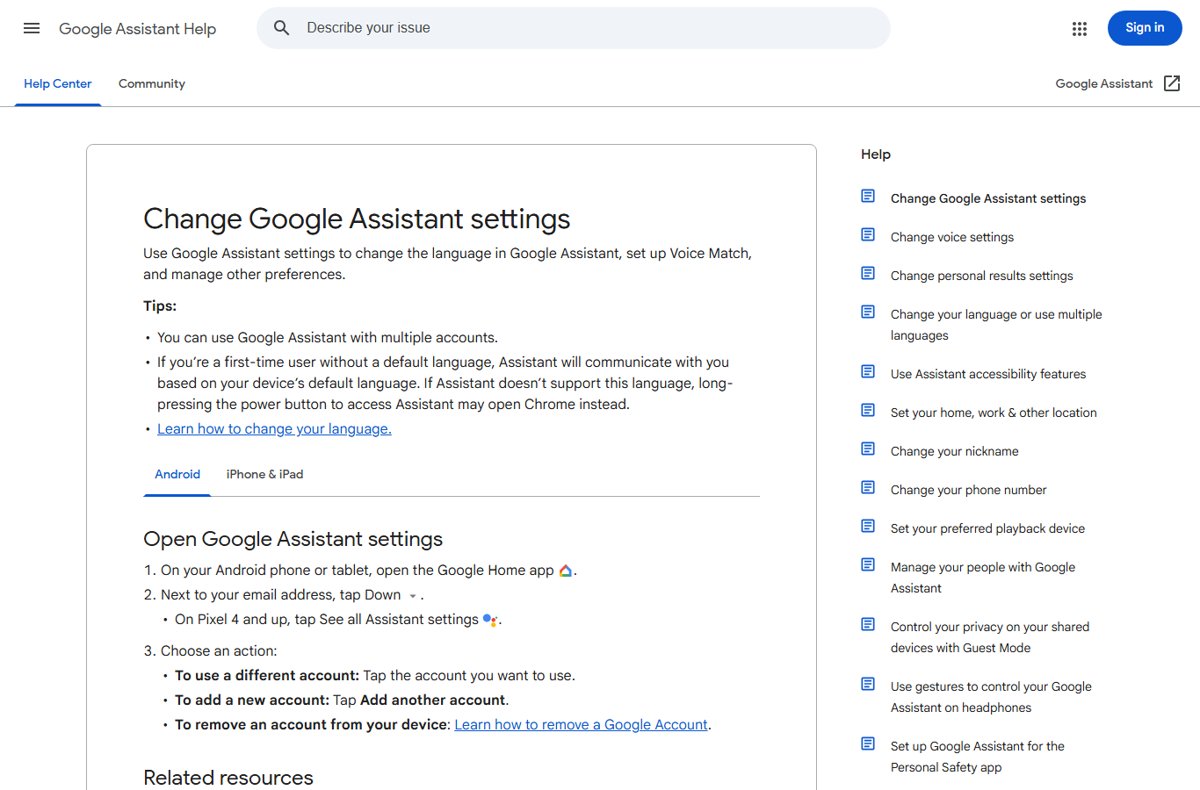
Use this on Android when you prefer not to speak, or when "Hey Google" is off. Google routes Assistant settings through the Google Home app.
- Open the Google Home app on your Android phone or tablet.
- Next to your email address, tap the Down arrow; on Pixel 4 and later, tap See all Assistant settings.
- Pick the account to change if you use more than one Google account.
- Open the section you need, for example General under All settings.
- Change the setting; it saves as soon as you toggle or pick it.
If the Assistant language is not supported for your account, Google notes that long-pressing the power button may open Chrome instead of Assistant. Set a supported language in Assistant settings to fix that.
Open Assistant settings on iPhone and iPad
- Open the Google Assistant app.
- Tap your profile picture or initial at the top right.
- To change accounts, tap the Down arrow next to your email address and pick an account.
- For Voice Match, open the Google Home app, tap your profile picture, then Assistant settings > Voice Match.
- If Voice Match is not listed, tap View more settings.
Google notes that the Voice Match steps do not work with a Google Workspace account on iPhone and iPad.
Open settings when Gemini has replaced Assistant
On many Android phones, Gemini is now the primary mobile assistant and answers "Hey Google." Speakers, Smart Displays, TVs and cars keep Google Assistant.
- Open the Gemini app.
- Tap Menu at the left, then your profile picture or initial.
- Tap Settings to change Gemini options such as Talk to Gemini hands-free.
- To return to Google Assistant, tap Menu > profile picture > Switch to Google Assistant > Google Assistant.
- Tap Switch in the confirmation dialog, then say "Hey Google, open Assistant settings" again.
Your Gemini activity stays saved after the switch; Google says you can review and delete it at any time.
Introduction to Google Assistant
Google Assistant answers questions, makes calls, sends texts, sets reminders and gives directions. It runs across a wide ecosystem of Google and partner devices.
| Part of the ecosystem | How you reach Assistant | Where its settings live |
|---|---|---|
| Android phone or tablet | "Hey Google", touch and hold Home, or hold Power | Google Home app or the voice command |
| iPhone or iPad | Google Assistant app | Assistant app and Google Home app |
| Speakers, Smart Displays, Smart Clocks | "Hey Google" | Google Home app on your phone |
| Headphones and watches | "Hey Google" or a button | Paired phone's settings |
| Phones using Gemini | "Hey Google" opens Gemini | Gemini app settings |
On Android, Assistant needs Android 5.0 or later with 1.0 GB of free memory, or Android 6.0 or later with 1.5 GB, plus Google app 6.13 or later, Google Play services and a 720p screen.
Exploring the Google Assistant Settings Menu
Google groups the most-used options under All settings. Names shift between app versions, so look for the item rather than its exact position.
Use this overview before diving into each area, so you know which page holds the switch you want.
| Setting | What it controls |
|---|---|
| General | Turn Google Assistant on or off and set preferred input |
| Voice Match and Hey Google | Hands-free activation and voice recognition |
| Languages | Your Android language plus up to two Assistant languages |
| Routines | Several actions from one command or trigger |
| Personal results and lock screen | What Assistant shows when the phone is locked |
| Accounts | Switch, add or remove the Google account Assistant uses |
Customizing Assistant Responses and Behavior
These steps turn on "Hey Google" and teach Assistant your voice, which also controls how it responds to you personally.
- Open the Google Home app on your Android phone or tablet.
- Tap Settings > Google Assistant > Voice Match.
- Turn on Use Voice Match in this home.
- Turn on Hey Google; if it is missing, turn on Google Assistant first.
- Follow the prompts so Assistant learns your voice.
- To type instead of speak, open All settings > General > Preferred input and choose Keyboard.
For hands-free help on a locked phone, also turn on the Assistant on lock screen setting.
Advanced Customizations and Tips
These advanced settings enhance the everyday experience once the basics work.
| You want | Setting to use | Tip |
|---|---|---|
| One phrase to run several actions | Routines, such as "Hey Google, good morning" | Create personal or household routines |
| Assistant in two languages | Languages > Add a language | You can speak either language, but not mix them in one request |
| Typing instead of speaking | General > Preferred input > Keyboard | Useful in quiet places |
| Help while the phone is locked | Assistant on lock screen | Android 8.0 and later supports it |
| A second Google account | Down arrow next to your email > Add another account | Pick the account before changing settings |
Routines can be limited by Digital Wellbeing downtime, filters or Do not disturb. Google also warns not to rely on routines for safety-critical tasks.
Configuring Smart Home Devices through Assistant Settings
Smart home devices are added and managed in the Google Home app. On a Gemini phone, you connect Google Home to Gemini to control them by voice.
- Add your lights, plugs or thermostat in the Google Home app first.
- On a Gemini phone, open the Gemini app with the same Google account.
- Ask it to control a device, such as "turn on living room lights."
- When asked, connect Google Home and follow the on-screen steps.
- Make sure Keep Activity is on; Gemini cannot connect to Google Home without it.
Google Home in Gemini needs a personal Google account for now. Some security actions, such as unlocking a door, open the Google Home app instead.
Managing Privacy and Data Settings
Assistant may ask you to turn on several account settings during setup. Each one also applies to other Google services you use.
| Setting | What it saves | How to control it |
|---|---|---|
| Web & App Activity | Your Assistant interactions and activity on Google sites and apps | Turn off, or delete entries in My Activity |
| Voice and audio activity | Audio recordings from Search, Assistant and Maps | Manage recordings within Web & App Activity |
| App info from your devices | Installed app details from signed-in devices | Manage device app info in your account |
| Contact info from your devices | Contacts from signed-in devices | Manage contact info in your account |
| Quick deletion | Recent conversations | Say "Hey Google, delete my last conversation" or "delete today's activity" |
How to Reset Assistant Settings
There is no single reset button. These steps retrain voice recognition and restart Assistant, which clears most odd behaviour.
- Open the Google Home app and tap Settings > Google Assistant > Voice Match.
- Tap Voice model > Retrain voice model and follow the prompts.
- Say "Hey Google, open Assistant settings," open General and turn off Google Assistant.
- Restart the phone, then turn Google Assistant back on.
- Delete old activity by voice or in My Activity if you want a clean history.
How to check your settings took effect
- Say "Hey Google" with the screen off and confirm Assistant or Gemini responds.
- Ask a personal question, such as your next calendar event, to test Voice Match.
- Open Assistant settings again and confirm the toggles you changed are still set.
- If you added a language, ask a question in that language.
Troubleshooting Common Issues
Assistant not responding to "Hey Google"
Hey Google or Voice Match is off, or the device has a weak connection.
- Check the phone has a strong internet connection and restart it if needed.
- Turn on Hey Google and Voice Match in the Google Home app.
- On a speaker, check it is powered, on the same Wi-Fi as your phone and its microphone is on.
Voice recognition errors
The saved voice model no longer matches how you sound.
- Open Settings > Google Assistant > Voice Match in the Google Home app.
- Tap Voice model > Retrain voice model.
- Speak the prompts in a quiet room.
"Hey Google" cannot be turned on with a school account
A Google Workspace for Education admin may have disabled it.
- Switch Assistant to a personal Google account, or
- Ask your school admin to allow "Hey Google."
Holding the power button opens Chrome
Assistant does not support the language set for your device.
- Open Assistant settings with the voice command or the Google Home app.
- Open Languages and pick a supported language.
- Try the power button again.
Gemini opens instead of Assistant
Gemini has replaced Assistant as the primary mobile assistant.
- Open the Gemini app and tap Menu > profile picture.
- Tap Switch to Google Assistant > Google Assistant > Switch.
Best Practices for Using "Hey Google, Open Assistant Settings"
| Practice | Why it helps |
|---|---|
| Unlock the phone before saying the command | Settings open on the phone screen |
| Set up Voice Match first | Some devices only respond to "Hey Google" with Voice Match |
| Check which account is active | Settings apply per Google account |
| Use the Gemini app's settings on Gemini phones | Gemini has its own settings menu |
| Keep the Google app updated | Assistant needs Google app 6.13 or later |
Frequently asked questions
How do I get to Google Assistant settings?
Say "Hey Google, open Assistant settings." On Android you can also open the Google Home app and tap the Down arrow next to your email address, or See all Assistant settings on Pixel 4 and later.
Where do I find Google Assistant settings on iPhone?
Open the Google Assistant app and tap your profile picture at the top right. Voice Match settings are in the Google Home app under your profile picture > Assistant settings > Voice Match.
How do I turn on Google Assistant?
Touch and hold the Home button or say "Hey Google." If Assistant is off, you are asked to turn it on. You can also open the Google Home app and tap Turn on at the bottom.
How do I enable "Hey Google"?
Open the Google Home app, tap Settings > Google Assistant > Voice Match, turn on Use Voice Match in this home, then turn on Hey Google and follow the voice prompts.
How do I open Google Assistant on Android?
Say "Hey Google," touch and hold the Home button, press and hold the Power button, or open the Google Assistant app. On Pixel 2 to Pixel 4 you can also squeeze the phone.
Where is my Google Assistant?
On many Android phones, Gemini has replaced Google Assistant as the primary assistant. Open the Gemini app, tap Menu > your profile picture > Switch to Google Assistant if you want Assistant back.
How do I set up Google Assistant?
Use an Android phone with Android 5.0 or later, Google app 6.13 or later and Google Play services. Say "Hey Google" or hold Home, turn Assistant on when asked, then set up Voice Match.
How do I set up Google Assistant on a laptop?
Google's Assistant setup steps cover phones, tablets, speakers and Smart Displays. On a laptop, use Gemini in your web browser instead; note that the Gemini web app cannot control Google Home devices.
Can I turn off Google Assistant completely?
Yes. Say "Hey Google, open Assistant settings," tap General under All settings and turn off Google Assistant. If General is missing, tap View all settings first.
Summary and Key Takeaways
Summing up the power of customizing Google Assistant settings: a few changes make Assistant respond faster and more personally.
| Takeaway | Detail |
|---|---|
| Fastest route | Say "Hey Google, open Assistant settings" |
| Manual route on Android | Google Home app > Down arrow next to your email |
| Manual route on iPhone | Google Assistant app > profile picture |
| Gemini phones | Gemini app > Menu > profile picture > Settings |
| Fix recognition problems | Retrain voice model under Voice Match |
Final Thoughts
Use the "Hey Google, open Assistant settings" command first, and fall back to the Google Home app on Android or the Assistant app on iPhone when voice activation is off. The voice command is the one route Google documents across most Assistant devices, while the manual routes differ by platform and by whether Gemini has taken over your phone.