There is no Google Home app for Windows 10, so you set up devices with the Google Home phone app and then use Google Home for web at home.google.com on your PC.
This guide covers what the web version can and cannot do, how to cast from Chrome, why an Android emulator is a poor substitute, and fixes for the common setup problems.
Can You Install Google Home App Directly on Windows 10?
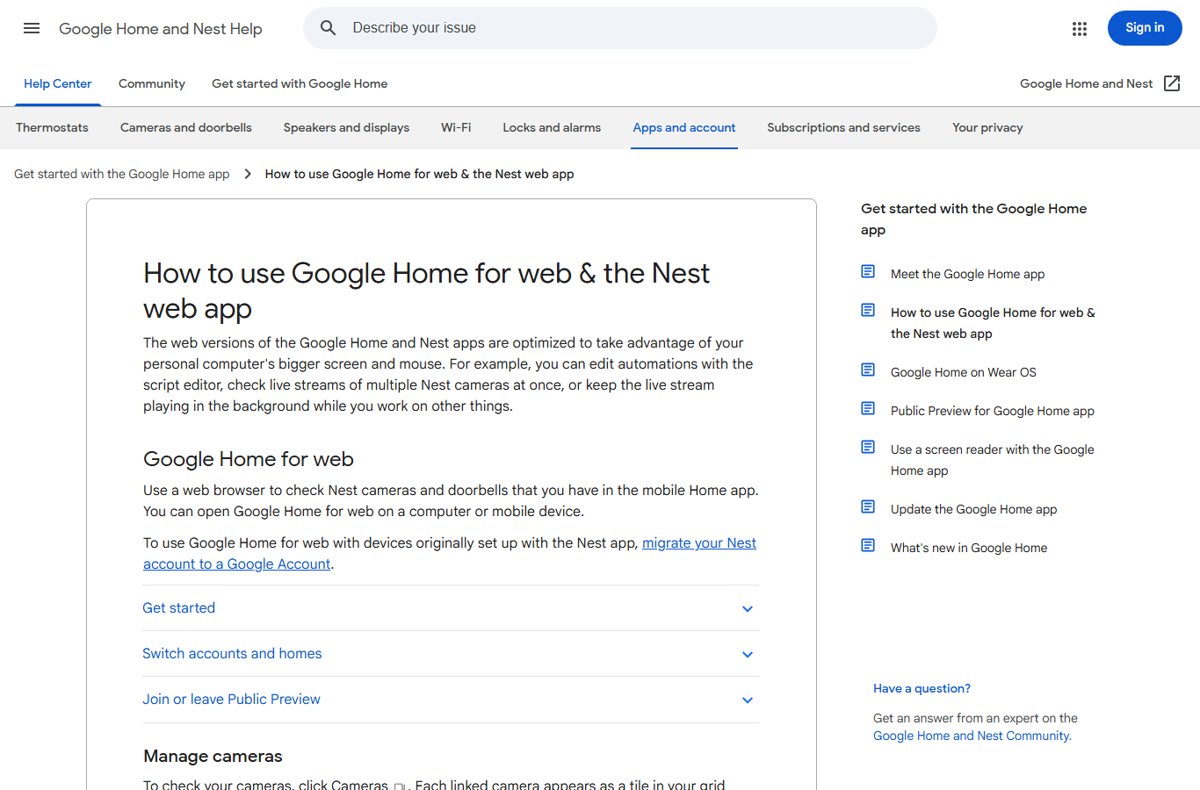
No. Google states plainly that you can't set up devices or use the Google Home app on a computer. The app runs only on Android and iPhone or iPad.
What Windows 10 does get is Google Home for web, a browser version built for a bigger screen and a mouse. Once a device is in your home through the phone app, open it on the PC like this.
- On your Windows 10 PC, open Chrome, Edge or Firefox.
- Go to home.google.com.
- Click Go to Google Home.
- Sign in with the same Google Account you use in the Google Home phone app.
- Select Devices or Cameras in the left menu to see what is already in your home.
Internet Explorer is not supported. The browser needs WebRTC and Media Source Extensions, which every current version of Chrome, Edge and Firefox includes.
Which route fits what you want to do?
| What you want to do on the PC | Use this | Why |
|---|---|---|
| Set up a new speaker, display, Chromecast or Nest camera | Google Home app on an Android phone or iPhone | Setup needs Bluetooth, a QR code scan and the mobile app; a computer cannot do it |
| Watch Nest cameras or doorbells, talk through them, review video history | Google Home for web at home.google.com | Built for this, with several camera feeds on one screen |
| Run a routine or write a scripted automation | Google Home for web, Automations | The script editor is easier with a keyboard; it needs Public Preview |
| Turn a light or plug on and off | Google Home for web, Devices | Works, but the controls are limited and vary by device |
| Show a browser tab, video or your whole screen on a TV | Chrome's Cast menu | Casting is built into Chrome; no Home app needed |
| Manage older devices set up in the Nest app | Nest web app at home.nest.com | Covers Nest products that were never moved into Google Home |
What You Need Before Setting Up Google Home on PC
| Requirement | Details |
|---|---|
| Phone or tablet for setup | Android 9.0 or later, or iPhone or iPad with iOS 17.0 or later |
| Google Home app | The latest version, from the Google Play Store or the App Store |
| Google Account | The same account on the phone and in the PC browser |
| Home Wi-Fi | 2.4 GHz or 5 GHz; a WPA2-Enterprise network will not work for speaker and display setup |
| Bluetooth | Turned on on the phone during setup |
| Location access (Android) | Location on, and the Home app allowed to use it all the time |
| PC browser | A current Chrome, Edge or Firefox with WebRTC and MSE support; not Internet Explorer |
| Microphone permission | Needed in the browser only if you want 2-way talk with a camera or doorbell |
Devices first set up in the Nest app must be migrated to a Google Account before they show up in Google Home for web.
How to add a device with the Google Home phone app
This step happens once per device, and it has to happen on a phone or tablet. After that, the PC can see the device.
- Plug the speaker or display into a wall outlet. Factory reset it first if it has been used before.
- Open the Google Home app on your phone.
- At the top right, tap Add, then Device. If a setup card for your device appears, tap Set up instead.
- Scan the QR code on the device. If you can't, tap Use setup code and enter the code.
- Wait for the Connected confirmation screen.
- Follow the in-app steps to join Wi-Fi, assign a room and choose features such as Voice Match.
- On the PC, refresh home.google.com to see the new device.
Can You Use Google Home on Windows 10 With an Android Emulator?
Some guides suggest running the Android app inside an emulator. Google does not support that route, and the one Microsoft-built option has gone.
| Option | Status | What it means for you |
|---|---|---|
| Windows Subsystem for Android | Removed from the Microsoft Store on March 5, 2025, and it only ever ran on Windows 11 | Not available on Windows 10 at all |
| Third-party Android emulators | Not a Google-supported platform for the Home app | Setup relies on Bluetooth, location and a QR scan from a real phone, so it can fail partway |
| Google Home for web | Official, maintained by Google | Covers cameras, routines and basic device controls with no emulator |
If you try an emulator anyway, install it only from its developer's own site and sign in with an account protected by 2-Step Verification.
How to Access Google Home Features Through Chrome
Chrome gives a Windows 10 PC two Google Home features: the web app itself and casting to a TV with Google Cast. Casting needs the PC and the streaming device on the same Wi-Fi network.
- Open Chrome on your PC and make sure it is up to date.
- Open the tab, video or file you want to show. Press Ctrl + O to open a local music or video file in a tab.
- At the top right, select More, then Cast, save, and share, then Cast….
- To share the whole desktop, select Sources, then Cast screen.
- Select your Chromecast, Google TV Streamer or TV with Google Cast.
- To finish, select Cast on the right of the address bar, then Stop casting.
A cast tab plays its sound on the TV only. A cast screen may keep the audio on the computer, so cast the tab when the sound matters. For a new streaming stick, follow the Chromecast setup steps on your phone first.
Managing Smart Devices From a Windows 10 Computer
Google Home for web suits camera monitoring and routines best. Device controls exist, but Google notes they are limited and vary between devices.
| Task | Where in Google Home for web | Notes |
|---|---|---|
| Watch live camera feeds | Cameras, then click a camera tile | Several feeds can play at once; picture-in-picture keeps one visible in other tabs |
| Review and clip recorded video | Open a camera, then its video history | Clips can be created and downloaded |
| Talk through a camera or doorbell | Press the microphone on the camera stream | Allow the microphone for home.google.com first; it turns off after 2 minutes idle |
| Run a routine | Automations | Most routines can be checked and run |
| Write a scripted automation | Automations, script editor | Requires joining Public Preview |
| Control a light, plug or thermostat | Devices, choose a room, click the tile | Controls are limited compared with the phone app |
| Switch homes or accounts | Click the home name or your profile picture | Useful if you manage more than one home |
| Add or set up a new device | Not available | Use the phone app |
Battery-powered Nest cameras and doorbells stop the live stream after 5 minutes to save power. Click Watch live to restart it.
How to check the PC sees your home
- Open home.google.com and confirm the home name at the top matches the one in the phone app.
- Select Devices and check that every room and device from the phone appears.
- Click a light or plug tile and toggle it; the change should show in the phone app within seconds.
- Select Cameras and confirm a live feed starts.
- If a device is missing, check that the profile picture at the top right shows the right Google Account.
Common Setup Problems and Fixes
The Google Home app can't find the speaker or display during setup
The device is not in setup mode, location access is off, or the phone is too far away.
- Update the Google Home app and confirm the device is plugged in and powered on.
- Look for blinking white lights, which show setup mode on Nest Mini, Nest Audio and older Home speakers.
- On Android, open Settings, tap Location, turn on Use Location, then set the Home app to Allow all the time.
- Stand in the same room as the device.
- Reboot the device, turn the phone's Wi-Fi off and on, then force close and reopen the app.
- If it is still missing, try another phone or tablet, then factory reset the device.
Setup fails on campus, dorm or office Wi-Fi
Speakers and displays cannot join WPA2-Enterprise networks that need a username and password.
- Check whether the network asks for a username as well as a password.
- If it does, ask the network's administrator whether a device network exists for smart speakers.
- Run setup again on a standard WPA2 home-style network.
Devices do not appear at home.google.com
The browser is signed in to a different account, or the devices still live in the Nest app.
- Click your profile picture and switch to the account used in the phone app.
- Click the home name and select the correct home.
- Migrate any Nest app account to a Google Account, or manage those devices at home.nest.com.
Chrome shows no cast destination
The PC and streaming device are on different networks, or the device needs a restart.
- Reboot the Chromecast, Google TV Streamer or TV.
- Connect the PC to the same Wi-Fi network as the streaming device.
- Update Chrome, then select More, Cast, save, and share, Cast… again.
- If it still does not appear, factory reset the streaming device and set it up again from the phone.
Camera live view or 2-way talk does not work in the browser
The browser lacks WebRTC or MSE support, or the microphone is blocked for the site.
- Switch to a current Chrome, Edge or Firefox instead of Internet Explorer.
- Click the site icon at the left of the address bar and allow the Microphone for home.google.com.
- Click Watch live if a battery camera stream stopped after 5 minutes.
Security and Privacy Tips for Using Google Home on PC
Anyone signed in to your Google Account on a shared PC can watch your cameras and unlock what your home controls. Protect the account before you rely on the browser version.
- Turn on 2-Step Verification: open your Google Account, select Security & sign-in, then Turn on 2-Step Verification, and follow the steps. An authenticator app for sign-in codes works as the second step.
- Use a separate Windows user account on a shared PC, and sign out of home.google.com when you finish.
- Allow the microphone for home.google.com only, not for every site.
- Avoid emulators and "Google Home for PC" installers from download sites; the only official desktop route is the browser.
- Review camera sensing, Voice Match and Face Match choices in the phone app's device settings, since these are opt-in features.
Frequently Asked Questions
How do I set up Google Home on a PC?
You can't set up a Google Home device from a PC. Add it with the Google Home app on an Android phone or iPhone, then open home.google.com on the PC and sign in with the same Google Account to control it.
Is there an official Google Home app for Windows 10?
No. Google offers the Google Home app only for Android 9.0 or later and iOS 17.0 or later. On Windows 10, the official option is Google Home for web at home.google.com in a current browser.
How do I set up a Google Home Mini or Nest Mini?
Plug the speaker into a wall outlet, open the Google Home app on your phone, tap Add, then Device, and scan the QR code or enter the setup code. Follow the in-app steps to join Wi-Fi and choose a room.
How do I set up a Google Nest Hub or other display?
A Nest Hub uses the same phone-app flow as a speaker: plug it in, tap Add, then Device in the Google Home app, scan the code and follow the prompts. Afterward you can set up Photo Frame, media services and calling.
What Wi-Fi does Google Home need for setup?
Speakers and displays need a 2.4 GHz or 5 GHz network with internet access. WPA2-Enterprise networks that ask for a username and password will not work, and the phone needs Bluetooth turned on during setup.
Can I set up Google Home in a dorm room?
Only if the dorm offers a standard password-only network. Many campus networks use WPA2-Enterprise sign-in, which Google speakers and displays cannot join. Ask your housing IT office whether a separate network for smart devices exists.
How do I access Google Home from a computer?
Go to home.google.com, click Go to Google Home and sign in with the account from your phone app. From there you can watch cameras, run routines and use basic device controls.
Can I set up Google Home automations on a computer?
Yes. The Automations section of Google Home for web lets you check and run most routines. If you join Public Preview, you can also write advanced scripted automations with the script editor, which is easier with a keyboard.
Can I fully set up a new Nest speaker or Chromecast from my Windows 10 PC?
No. New devices, including Chromecast and Nest speakers, are set up only in the Google Home phone app. The PC can cast to a Chromecast from Chrome once setup is finished.
Bottom Line
Set up every device with the Google Home app on your phone, then bookmark home.google.com on your Windows 10 PC for cameras, routines and quick controls. Google supports no Windows app and no emulator route, while the web version is official, needs no install, and handles the jobs a big screen does best.