Add networkingMode=mirrored under [wsl2] in %UserProfile%\.wslconfig, run wsl --shutdown, and WSL 2 on Windows 11 22H2 or later mirrors the Windows network interfaces into Linux; DNS tunneling is already on by default.
This guide explains why the default NAT mode trips up VPNs and LAN access, how to switch modes in WSL Settings or by hand, which Hyper-V firewall rules to add, and how to test and roll back the change.
How to turn on WSL mirrored networking mode in Windows 11
These steps need Windows 11 version 22H2 or later and the current WSL from the Microsoft Store.
- Open PowerShell and run
wsl --updateto get the latest WSL release. - Press Windows logo key + R, type
notepad %UserProfile%\.wslconfigand press Enter. If the file does not exist yet, accept Notepad's prompt to create it. - Add a
[wsl2]line, and under it addnetworkingMode=mirroredanddnsTunneling=true. - Save the file and close Notepad.
- Run
wsl --shutdownin PowerShell, wait about 8 seconds, then open your distribution again. - Run
ip addrinside Linux. The interfaces and addresses now match the ones Windows shows inipconfig.
WSL networking background
WSL 1 and WSL 2 reach the network in very different ways, which is why advice written for one often fails on the other.
| Version or mode | How it connects | What you notice |
|---|---|---|
| WSL 1 | Runs on the Windows network stack through a translation layer | Linux apps share the Windows IP address and are reachable on the LAN like Windows apps |
| WSL 2, NAT (default) | A Hyper-V utility VM behind a NAT service with its own virtual Ethernet adapter | A separate IP address that changes on restart |
| WSL 2, mirrored | Windows network interfaces mirrored into the Linux VM | IPv6, localhost both ways, LAN access and better VPN compatibility |
| WSL 2, bridged | Bridged to a Hyper-V switch | Deprecated since WSL 2.4.5 |
| WSL 2, none | No network | The WSL network is disconnected |
Check which version each distribution uses with wsl -l -v. All networking modes in this guide apply to WSL 2 only, the default version for new distributions in a WSL development environment on Windows 11.
Why WSL networking feels broken
Most WSL 2 network complaints trace back to the VM sitting behind its own NAT, separate from the Windows adapters.
| What you see | Why it happens in NAT mode |
|---|---|
| Linux has a different IP address from Windows | WSL 2 behaves like a virtual machine with a virtualized adapter |
localhost from Linux does not reach a Windows server |
Linux must use the Windows host IP from ip route show |
| Other PCs on the LAN cannot reach a Linux service | The VM address is private to the host, so a netsh interface portproxy rule is needed |
| The internet drops inside Linux after a VPN connects | VPNs change routes and DNS servers that the NAT network does not follow |
| Names resolve on Windows but not in Linux | The DNS packet from the VM to Windows is blocked by the network setup |
| No network at all on a work PC | Enterprise firewall policy with local rule merging set to No blocks WSL |
The default NAT model
NAT is still the default, and it works for most single-machine development. These are the rules it follows.
| Connection | How to make it in NAT mode |
|---|---|
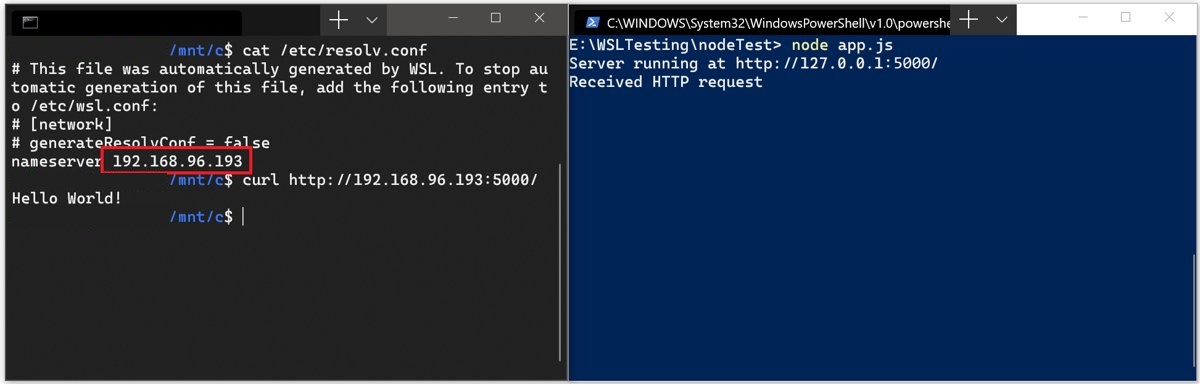
| Windows app to a Linux server | Use localhost:port; localhostForwarding=true handles it by default |
| Linux app to a Windows server | Find the host IP with ip route show | grep -i default | awk '{ print $3}' and connect to that address |
| Find the Linux VM address from Windows | Run wsl.exe hostname -I (capital I) |
| Another PC on the LAN to a Linux server | Add netsh interface portproxy add v4tov4 listenport=4000 listenaddress=0.0.0.0 connectport=4000 connectaddress=<WSL IP> and allow the port |
| Linux server visible to remote clients | Bind the app to 0.0.0.0 instead of 127.0.0.1 |
| DNS inside Linux | dnsProxy=true points Linux DNS at the NAT on the host; false copies the Windows DNS servers |
The VM IP changes after every restart, so any portproxy rule that names it must be updated each time.
VPNs, DNS, and the “no route” symptom
A VPN on Windows often leaves WSL 2 with no working route or no name resolution, even though Windows itself is online.
| VPN behavior | Effect on WSL | Fix |
|---|---|---|
| Rewrites routes (Cisco AnyConnect is a documented case) | NAT traffic from the VM has no route out | Use mirrored mode, or Cisco's WSL 2 workaround in the AnyConnect admin guide |
| Applies NRPT DNS policies | Linux queries skip the corporate DNS rules | Turn on DNS tunneling so NRPT applies to WSL queries |
| Pushes more than three DNS servers | /etc/resolv.conf holds only three |
DNS tunneling lets Linux use every Windows DNS server |
| Blocks DNS packets from the VM | Names fail while IP addresses still work | DNS tunneling answers DNS through a virtualization channel instead of a packet |
| Global Secure Access client returns temporary addresses | WSL connections break after name resolution | Set dnsTunneling=false or networkingMode=nat |
Without tunneling, the manual fallback is to set generateResolvConf=false under [network] in /etc/wsl.conf and put the VPN DNS server first in /etc/resolv.conf.
What changed: DNS tunneling and mirrored networking
Microsoft introduced mirrored mode, DNS tunneling and Hyper-V firewall together in the WSL September 2023 update, and they have since moved into the main [wsl2] settings.
| Feature | .wslconfig key | Default now | What it does |
|---|---|---|---|
| Mirrored networking | networkingMode=mirrored |
NAT | Mirrors Windows network interfaces into Linux |
| DNS tunneling | dnsTunneling=true |
On (Windows 11 22H2+) | Resolves DNS through a virtualization feature instead of a network packet |
| Hyper-V firewall | firewall=true |
On with WSL 2.0.9+ on 22H2+ | Applies Windows Firewall rules and Hyper-V rules to WSL traffic |
| Auto proxy | autoProxy=true |
On | Copies the Windows HTTP proxy into Linux as HTTP_PROXY, HTTPS_PROXY and NO_PROXY |
With DNS tunneling on, Linux /etc/resolv.conf points at 10.255.255.254, Windows answers each query with the DNS servers set in Windows, and the Windows hosts file policies apply without copying the file into Linux.
What mirrored mode gives you (and what it doesn’t)
| Mirrored mode gives you | Mirrored mode does not give you |
|---|---|
| IPv6 support | IPv6 localhost: ::1 is not supported, only 127.0.0.1 |
Windows servers reachable from Linux at 127.0.0.1 |
Inbound UDP 68 and TCP 135, 1900, 2869, 3702, 5004, 5357 and 5358 steered to Linux |
| Direct LAN access to Linux services | Inbound LAN traffic past the Hyper-V firewall without a rule |
| Better compatibility with VPNs | Support for every VPN; some are confirmed incompatible |
| Multicast support | Your own sysctl networking tweaks; WSL sets them and user changes are unsupported |
| No need to look up peer IP addresses | Windows 10 support; it needs Windows 11 22H2 or later |
Before you begin: minimum requirements and safety checklist
| Requirement | How to check it |
|---|---|
| Windows 11 version 22H2 or later | Press Windows logo key + R, type winver and select OK |
| Store version of WSL, up to date | Run wsl --version, then wsl --update |
| Distribution running as WSL 2 | Run wsl -l -v; the VERSION column must show 2 |
| Policy allows custom networking | On managed PCs, the Intune policy Allow custom networking configuration must not be disabled |
| A backup of any existing .wslconfig | Copy %UserProfile%\.wslconfig before you edit it |
| No unsaved work in Linux | wsl --shutdown stops every running distribution at once |
If WSL is missing, install WSL 2 on Windows 11 first, then change the network mode.
How to enable mirrored networking (two ways)
| Your situation | Use this | Why |
|---|---|---|
| You prefer a settings screen | Method A: WSL Settings app | Microsoft recommends WSL Settings over editing the file by hand |
You need extra keys such as ignoredPorts or hostAddressLoopback |
Method B: edit .wslconfig | The file accepts every documented key |
| You script setups across several PCs | Method B: edit .wslconfig | One text file copies cleanly between machines |
| Your organization manages WSL | Ask IT | Intune can set the default networking mode and block local changes |
Method A: Use the WSL Settings app (GUI)
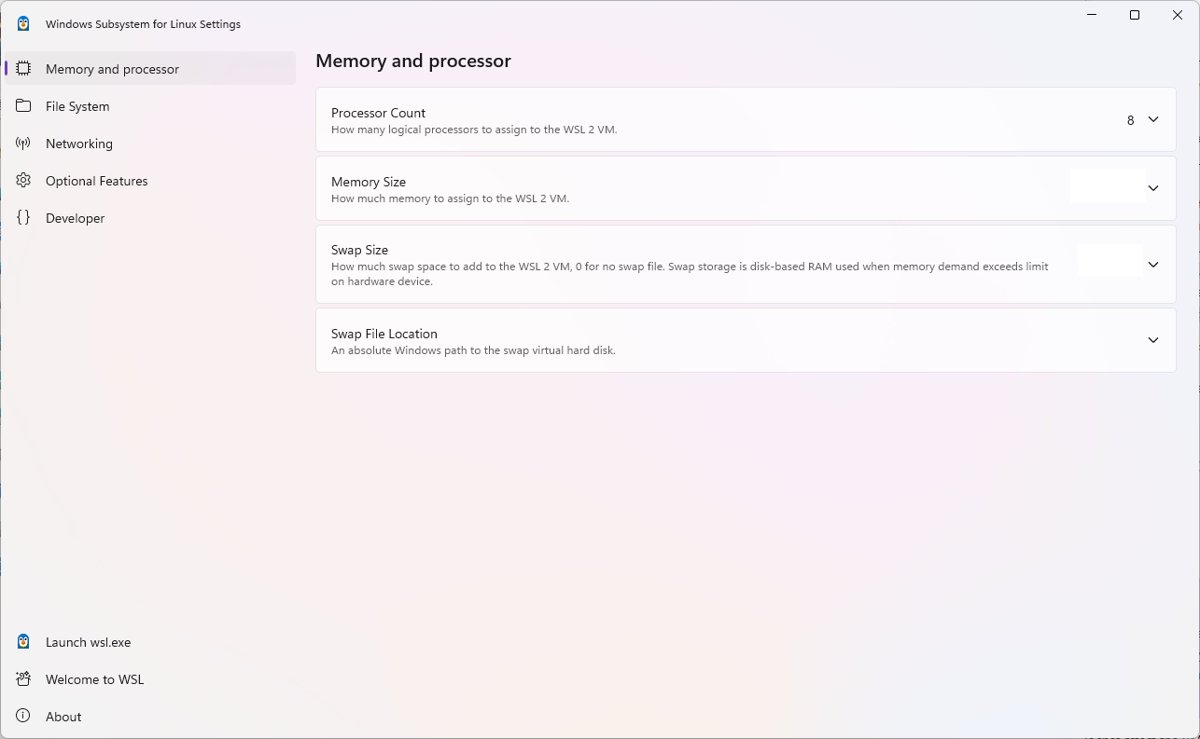
WSL Settings sits in the Start menu, and Microsoft recommends it over editing .wslconfig by hand.
- Select Start, type WSL Settings and open the app.
- Open the networking settings page in the app's left pane.
- Set the networking mode to Mirrored.
- Leave DNS tunneling, firewall and auto proxy switched on unless a known conflict applies to you.
- Close WSL Settings.
- Run
wsl --shutdownin PowerShell and reopen your distribution so the new mode loads.
Method B: Edit .wslconfig (manual)
.wslconfig does not exist by default. If it is missing or malformed, WSL starts normally and ignores it.
- Open File Explorer, type
%UserProfile%in the address bar and press Enter. - Create or open
.wslconfigin Notepad; the path looks likeC:\Users\<UserName>\.wslconfig. - Add
[wsl2]on its own line, followed bynetworkingMode=mirrored,dnsTunneling=true,firewall=trueandautoProxy=true, one per line. - For Docker or other Linux-only listeners, add
ignoredPorts=3000,9000(your ports) under[experimental]. - To reach WSL from Windows by the host's own IPv4 address, add
hostAddressLoopback=trueunder[experimental]. - Save the file, run
wsl --shutdown, and wait about 8 seconds before you start Linux again.
localhostForwarding is ignored once networkingMode=mirrored is set, so you can leave it out.
WSL .wslconfig networking settings reference
| Key | Section | Default | Notes |
|---|---|---|---|
networkingMode |
[wsl2] |
nat | none, nat, mirrored, consomme; bridged is deprecated |
dnsTunneling |
[wsl2] |
true | Windows 11 22H2 or later |
firewall |
[wsl2] |
true | Hyper-V firewall filtering of WSL traffic |
autoProxy |
[wsl2] |
true | Uses the Windows HTTP proxy in Linux |
dnsProxy |
[wsl2] |
true | NAT mode only |
localhostForwarding |
[wsl2] |
true | NAT mode only |
ignoredPorts |
[experimental] |
none | Mirrored only; comma-separated ports Linux may bind even if Windows uses them |
hostAddressLoopback |
[experimental] |
false | Mirrored only; allows host IPv4 addresses besides 127.0.0.1 |
dnsTunnelingIpAddress |
[experimental] |
10.255.255.254 | Nameserver written to /etc/resolv.conf |
bestEffortDnsParsing |
[experimental] |
false | Resolves the question and ignores unknown DNS records |
Post‑change checklist: firewall and port rules
In mirrored mode, inbound LAN traffic to Linux passes through the Hyper-V firewall. Open only the ports you serve, from an elevated PowerShell window.
- Open PowerShell as administrator: search for PowerShell, then select Run as administrator.
- Run
Get-NetFirewallHyperVVMCreatorand confirm the WSL entry has VMCreatorId{40E0AC32-46A5-438A-A0B2-2B479E8F2E90}. - Check the current policy with
Get-NetFirewallHyperVVMSetting -PolicyStore ActiveStore -Name '{40E0AC32-46A5-438A-A0B2-2B479E8F2E90}'. - Allow one port, for example a web server on 80:
New-NetFirewallHyperVRule -Name MyWebServer -DisplayName "My Web Server" -Direction Inbound -VMCreatorId '{40E0AC32-46A5-438A-A0B2-2B479E8F2E90}' -Protocol TCP -LocalPorts 80. - List the WSL rules with
Get-NetFirewallHyperVRule -VMCreatorId '{40E0AC32-46A5-438A-A0B2-2B479E8F2E90}'. - Bind the Linux app to
0.0.0.0so it accepts LAN connections, then test from another PC.
LoopbackEnabled in that output shows whether host-to-WSL loopback traffic is allowed without rules; WSL turns it on by default.
Practical troubleshooting and validation commands
wsl --version: shows the WSL, kernel and Windows versions. Use it before reporting a bug.wsl -l -v: lists each distribution with its WSL version and state.wsl --status: shows the default distribution and kernel version.wsl hostname -I: prints the Linux VM IP. In mirrored mode it matches a Windows adapter address.ip route show | grep -i default | awk '{ print $3}'(inside Linux): prints the default gateway, which is the Windows host in NAT mode.cat /etc/resolv.conf(inside Linux): showsnameserver 10.255.255.254when DNS tunneling is on.env | grep -i proxy(inside Linux): lists the proxy variables autoProxy copied from Windows.wsl --shutdown: restarts the VM so.wslconfigchanges apply.
How to check if WSL mirrored mode and DNS tunneling are on
- Run
ipconfigin Windows and note the IPv4 address of your active adapter. - Open your distribution and run
ip addr. Mirrored mode shows that same address; NAT mode shows a separate private address. - Run
cat /etc/resolv.conf.nameserver 10.255.255.254confirms DNS tunneling. - Start a test server in Windows on a free port and run
curl http://127.0.0.1:<port>from Linux. A reply confirms localhost works from Linux to Windows.
Known limitations and compatibility warnings
| Limitation | Effect | Workaround |
|---|---|---|
Docker Desktop containers with published ports (-p) |
Containers fail to be created in the default network namespace | Use --network host, or list the port in ignoredPorts |
| Network Manager running in a container | Loopback connections to the host fail | Run sudo systemctl disable network-manager.service |
| Bitdefender 26.0.2.1, OpenVPN 2.6.501, McAfee Safe Connect 2.16.1.124 | Confirmed incompatible VPNs with mirrored mode | Use NAT mode with that VPN |
| Docker Desktop DNS | Container DNS queries bypass DNS tunneling | Docker applies host DNS settings its own way |
| DoH or DoT inside Linux | Not possible while tunneling is on | Windows DNS encryption already covers WSL; turn tunneling off only to run your own |
generateResolvConf=false in wsl.conf |
DNS tunneling cannot turn on | Leave generateResolvConf enabled |
| IPv6 disabled in the Windows registry | WSL loses network connectivity | Re-enable IPv6 components in Windows |
Security considerations — don’t open the house
Open single ports with New-NetFirewallHyperVRule instead of setting DefaultInboundAction to Allow. Setting the Hyper-V default inbound action to Allow exposes every Linux listener to your LAN, and binding apps to 0.0.0.0 accepts connections from any address. Keep firewall=true, scope rules to the ports you need, and remember that Windows Firewall rules now apply inside WSL too. Hyper-V firewall rules can also be limited to the Public, Private or Domain profile.
Why this should be the default (and why it’s not)
| For making mirrored the default | Against it, today |
|---|---|
| Microsoft's own networking page recommends trying mirrored mode | Microsoft's troubleshooting page still lists it as an experimental setting |
| Fixes VPN, IPv6, LAN and localhost gaps in one setting | Some VPNs are confirmed incompatible |
| No more IP lookups or portproxy rules | Docker Desktop published ports need a workaround |
| Applies Windows firewall and proxy policy consistently | Enterprise policies can block custom networking modes |
How to switch WSL back to NAT networking
- Open
%UserProfile%\.wslconfigin Notepad. - Change
networkingMode=mirroredtonetworkingMode=nat, or delete the line. - Keep
dnsTunneling=trueunless the Global Secure Access client or a DoH setup inside Linux needs it off. - Save the file and run
wsl --shutdown. - Reopen the distribution and run
ip addr; a separate private address confirms NAT mode.
A compact troubleshooting checklist (quick reference)
Mirrored mode setting has no effect
WSL was still running, the PC is older than Windows 11 22H2, or policy blocks custom networking.
- Run
wsl --shutdownand wait 8 seconds. - Check
winverfor version 22H2 or later. - Confirm the line sits under
[wsl2], not[experimental]. - Ask IT whether Allow custom networking configuration is disabled.
WSL has no network connectivity once connected to a VPN
The VPN changes routes or DNS that NAT mode does not follow.
- Set
dnsTunneling=trueandnetworkingMode=mirrored. - Restart WSL with
wsl --shutdown. - If the VPN is on the incompatible list, return to NAT and put the VPN DNS server first in
/etc/resolv.conf.
Other PCs cannot reach a Linux server
The Hyper-V firewall blocks inbound traffic or the app listens on 127.0.0.1 only.
- Add a
New-NetFirewallHyperVRulefor the port. - Bind the app to
0.0.0.0. - Check that the port is not one of the ports mirrored mode never steers to Linux.
WSL has no network connection on a work machine
Firewall policy sets local rule merging to No.
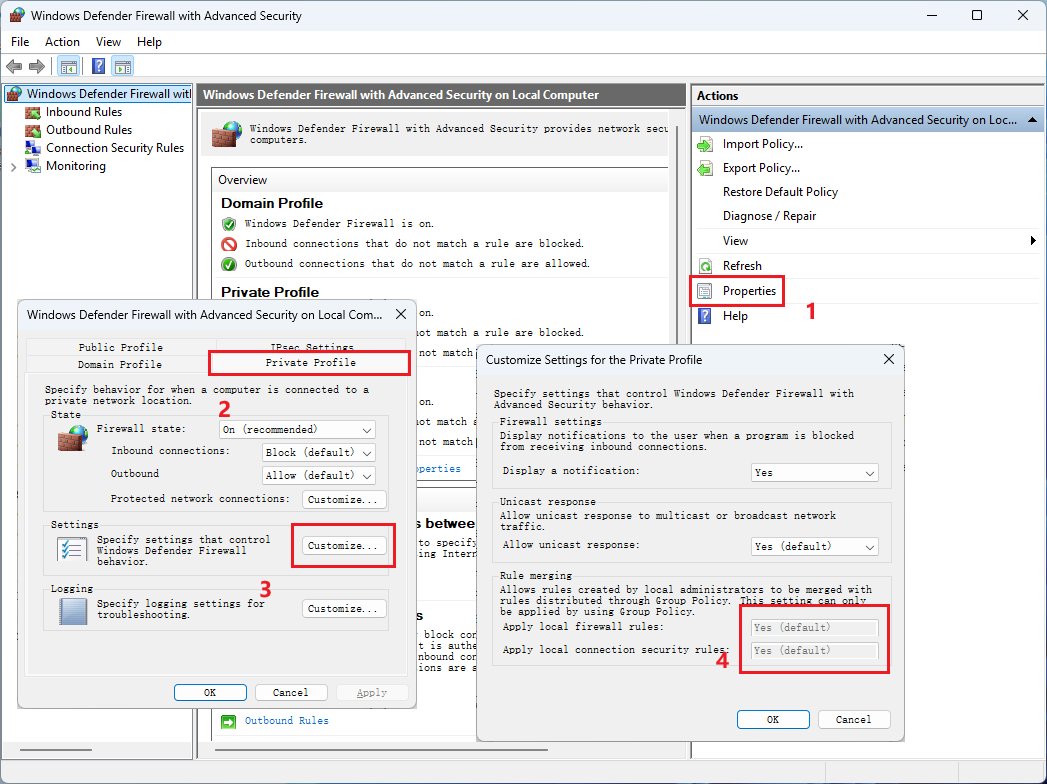
- Open Windows Defender Firewall with Advanced Security.
- Right-click Windows Defender Firewall with Advanced Security on Local Computer and select Properties.
- On the Public Profile tab, select Customize under Settings and check Rule merging.
- If it shows No, ask your administrator to add a rule for WSL.
Docker containers with published ports fail
Known issue with mirrored mode in the default network namespace.
- Run the container with
--network host. - Or add the port to
ignoredPortsunder[experimental]and restart WSL.
WSL mirrored networking FAQ
What is mirrored mode in WSL?
Mirrored mode is a WSL 2 networking mode that copies the network interfaces you have on Windows into Linux. It adds IPv6, multicast, LAN access and localhost connections in both directions, and it improves compatibility with VPNs compared with the default NAT mode.
Does WSL mirrored mode work on Windows 10?
No. Mirrored networking, DNS tunneling and the Hyper-V firewall settings require Windows 11 version 22H2 or later. On Windows 10, WSL 2 uses NAT networking, and LAN access needs a netsh portproxy rule.
What does DNS tunneling do in WSL?
DNS tunneling answers DNS requests from Linux through a virtualization feature instead of sending a network packet to Windows. That keeps name resolution working behind VPNs and strict firewalls, applies NRPT policies and lets Linux use every Windows DNS server.
Is DNS tunneling on by default?
Yes. On Windows 11 22H2 and later, dnsTunneling defaults to true in the [wsl2] section of .wslconfig. You only need to add it if you turned it off earlier or want the setting written down explicitly.
Where is the .wslconfig file?
It lives in your user profile folder at %UserProfile%\.wslconfig, usually C:\Users\<UserName>\.wslconfig. The file does not exist until you create it, and its settings apply to every WSL 2 distribution after a restart.
Why can I not use ::1 to reach Windows from WSL?
Mirrored mode supports the IPv4 loopback address 127.0.0.1 only. The IPv6 localhost address ::1 is not supported, so point Linux clients at 127.0.0.1 when they connect to servers running on Windows.
How do I apply .wslconfig changes?
Run wsl --shutdown in PowerShell, wait about 8 seconds for the VM to stop, and open your distribution again. Closing the terminal window alone is not enough if any distribution is still running in the background.
Final analysis — strengths, risks, and recommended defaults
On Windows 11 22H2 or later, use networkingMode=mirrored with dnsTunneling, firewall and autoProxy left on, and open inbound ports one rule at a time. That combination fixes the common NAT problems with VPNs, IPv6, LAN access and localhost while keeping Windows firewall policy in force. Stay on NAT if your VPN is on the incompatible list, you rely on Docker published ports without a workaround, or your organization's policy sets the mode for you.