You need a wifi extender or booster only when a speed test near your router is fast but the same test in a specific room is slow or drops, and moving the router has not fixed it.
This guide shows how to test each room, the free fixes to try first, and when a single extender, a mesh system or a wired access point is the better buy.
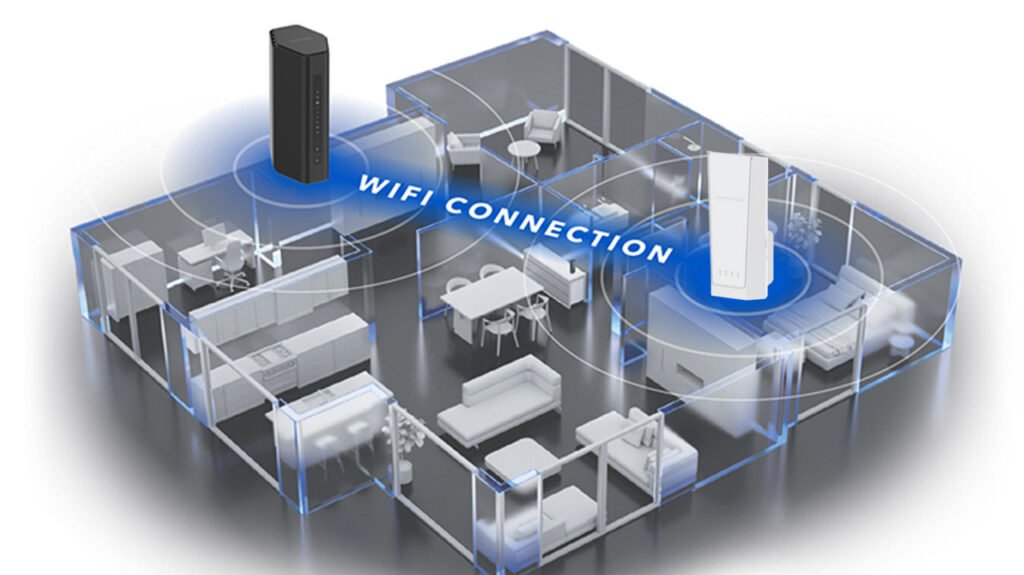
Step by step tutorial: Deciding if you need a wifi extender or booster
Work through these steps in order with a phone or laptop and a speed test app. Each one rules out a cause that an extender would not fix.
- Run a speed test a few feet from your router and write down the result. This is your baseline.
- Walk to each room you use and run the same test, noting rooms where the result drops sharply or the connection fails.
- Mark the rooms with weak or no signal as your dead zones, along with the walls and floors between them and the router.
- Move the router toward the middle of your home and off the floor, then repeat the tests in the dead zones.
- Connect to the 2.4 GHz network in the weak room if your router broadcasts it separately, since 2.4 GHz reaches further through walls.
- Compare the baseline with your plan speed. If the test next to the router is already slow, the problem is your internet plan or router, not range.
- Buy an extender only if one or two rooms stay weak after these changes; choose mesh if several rooms or floors are weak.
Microsoft recommends running several speed tests at different places in your home before changing anything, then testing again after each change.
Wifi extender vs booster: what is the difference?
In most consumer products there is no difference. NETGEAR describes "WiFi booster" as a broad marketing term for devices that extend range, and says extenders, repeaters and boosters are the same thing in most consumer cases.
| Device | How it works | Best for | Main trade-off |
|---|---|---|---|
| Wifi extender (range extender) | Receives your router's signal and rebroadcasts it, often as a second network name | One or two rooms the router cannot reach | Retransmitting on the same band can cut available bandwidth and add latency |
| Wifi repeater | Same job as an extender; the name is used interchangeably | Small homes with a single dead zone | Same speed penalty as an extender |
| Wifi booster | Marketing name for an extender or repeater | Same as an extender | Improves signal reach, not your internet plan's bandwidth |
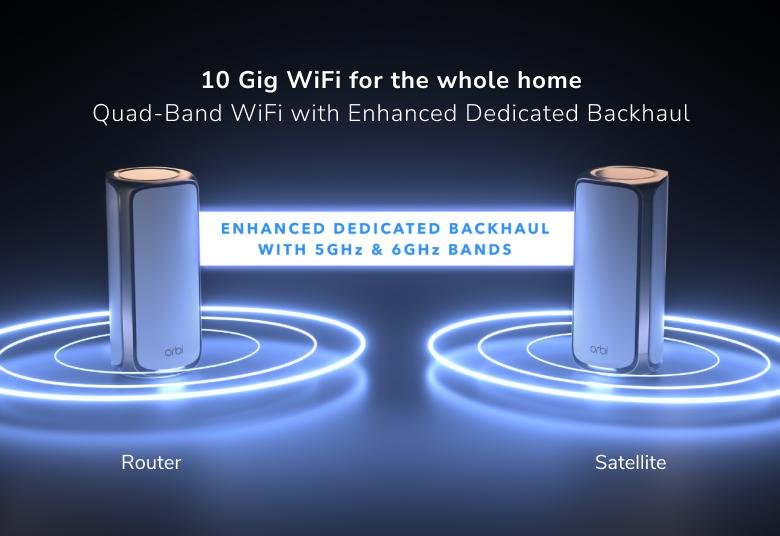
| Mesh wifi system | A router plus satellites that talk over a dedicated backhaul | Large or multi-story homes and many devices | Costs more than a single extender |
| Wired access point | Connects to the router by Ethernet cable | Maximum stability where you can run a cable | Needs a cable run to each location |
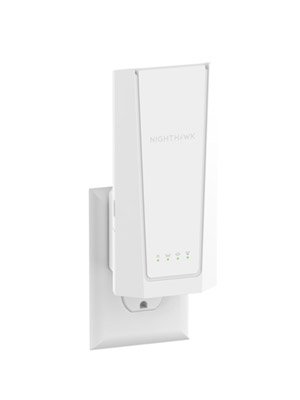
Do I need a wifi extender or a mesh system?
| Your situation | Choose | Why |
|---|---|---|
| One room or a patio has weak signal | Single wifi extender | Fixes a targeted dead zone at the lowest cost |
| Several rooms or a second floor are weak | Mesh wifi system | Satellites share one network and use dedicated backhaul |
| Many devices stream or game at once | Mesh wifi system | NETGEAR recommends mesh for households with many devices |
| You can run Ethernet to the weak area | Wired access point or mesh with wired backhaul | A cable avoids the wireless speed penalty entirely |
| Slow speed even next to the router | Neither: check your plan or router | An extender cannot add bandwidth the connection does not have |
| Weak signal only after moving the router to a corner | Move the router back | Central, raised placement is free and often enough |
How to check wifi signal strength on Windows 11
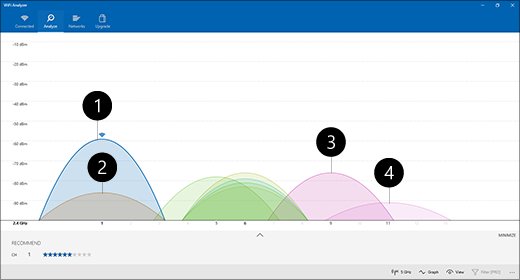
Windows lists every visible network with its signal strength, channel and radio type. Run it in the weak room and again near the router to compare.
netsh wlan show networks mode=bssidOpen Command Prompt and run the command. The mode=bssid option adds the BSSID, signal strength, channel and radio type for each network your adapter can see, which shows band, channel and coverage problems.
You should see: Your network appears with a signal strength value for each access point your adapter can hear. A much lower value in one room than near the router confirms a coverage gap there.
How to find wifi dead zones in your house
A dead zone is a spot where your devices lose the network or slow to a crawl. Mapping them tells you whether one extender is enough.
- Install a network speed test app on the phone or laptop you will carry around, such as one from the Microsoft Store.
- Stand a few feet from the router, but not right next to it, and run a test.
- Run the same test in every room, hallway and outdoor area you use, on each floor.
- Write down the download speed and whether the connection dropped in each spot.
- Note what sits between each weak spot and the router: concrete, brick, metal, water tanks or mirrors.
- Count the weak areas. One or two point to an extender; most of a floor points to mesh.
Apple rates metal as a very high source of signal loss, concrete and plaster as high, and brick, marble and water as medium. Wood and glass cause little loss.
Does a wifi extender slow down internet speed?
Expect some speed loss on devices connected through a standard extender, and choose mesh if every room needs full speed. A standard extender must receive and retransmit on the same band, which NETGEAR says typically cuts available bandwidth in half and adds latency. Mesh systems reduce the penalty with dedicated backhaul, and no booster raises your internet plan's bandwidth.
Where to place a wifi extender
- Plug the extender into an outlet near the router for setup, and wait for its power light to turn solid.
- After it connects, move it to a spot roughly halfway between the router and the dead zone.
- Keep it within the range NETGEAR suggests: about 25 to 40 feet from the router, ideally with a line of sight.
- Avoid outlets behind metal cabinets, appliances or thick concrete walls.
- Run your speed test in the dead zone again. If the result barely changes, move the extender a little closer to the router.
If you add a second extender, keep it well apart from the first and give each one a single hop back to the main router.

How to set up a wifi extender with WPS
Most extenders connect with the router's WPS button. If your router has no WPS button, use the extender maker's app or its web setup page instead. The WPS button on your router is usually on the back or side.
- Plug the extender in near the router and wait for the power light to turn solid.
- Press the WPS button on your router.
- Press the WPS button on the extender within the time window in its manual.
- Wait for the extender's link light to show it has joined the router.
- Connect your device to the extender's network name, which a standard extender broadcasts as a new SSID.
- Move the extender halfway toward the dead zone and run a speed test there.
Tips: Enhancing your wifi connectivity
Try these free changes before you buy anything. Several of them require you to sign in to your router settings from a web browser.
| Tip | What to do | Why it helps |
|---|---|---|
| Move the router | Place it near the middle of your home and higher up, not in a corner or under a desk | Fewer walls and obstacles sit between it and your devices |
| Remove interference | Keep it away from microwaves, cordless phones, wireless cameras, fluorescent lights and power cables | These sources disrupt the 2.4 GHz band |
| Pick a clear channel | On 2.4 GHz use channel 1, 6 or 11, the one with the fewest nearby networks | These three channels do not overlap |
| Choose the right band | Use 2.4 GHz for range, 5 GHz or 6 GHz for speed close to the router | Each band trades range against throughput |
| Name each band | Give the 2.4 GHz, 5 GHz and 6 GHz networks different SSIDs | You can see which band a device is using |
| Narrow the channel width | Set 2.4 GHz channel width to 20 MHz if a strong signal still drops | Some older adapters handle 40 MHz badly |
| Update and restart | Install the latest router firmware and restart the modem and router | Creates a fresh connection to your provider |
| Use WPA3 | Avoid WEP, hidden SSIDs and mixed WPA+WPA2 modes | Older adapters may fail to fall back between WPA2 and WPA |
2.4 GHz vs 5 GHz vs 6 GHz wifi range
Band choice often decides whether a far room needs an extender at all. Switching a distant device to 2.4 GHz can be enough.
| Band | Range and walls | Speed | Notes |
|---|---|---|---|
| 2.4 GHz | Longest range, best at passing through walls | Slowest | Most compatible; more congested by Bluetooth and household devices |
| 5 GHz | Shorter range, weaker through walls | Faster | More non-overlapping channels and less congestion |
| 6 GHz | Shortest range, weakest through walls | Fastest close to the router | Needs a Wi-Fi 6E router and a device and driver that support it |
Wifi slow in one room: how to fix it
Connected to the internet but very slow speed
The device is far from the router, behind obstacles, or another app is using the bandwidth.
- Move the device closer to the router and run a speed test again.
- Press Ctrl + Shift + Esc to open Task Manager on Windows and end apps using heavy network bandwidth.
- Connect another device in the same spot. If it is also slow, the router or its placement is the cause.
Wifi connection is dropping frequently
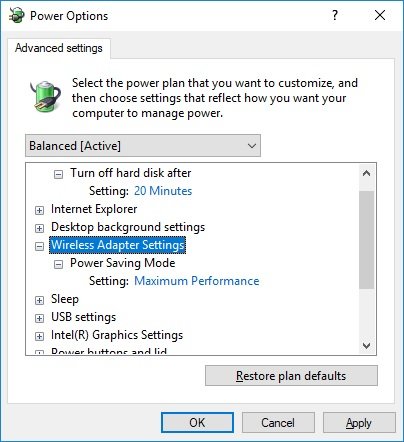
A crowded channel or adapter power saving interrupts the link.
- Sign in to your router and change the wireless channel to reduce interference.
- On Windows, open Control Panel > Hardware and Sound > Power Options.
- Select Change plan settings > Change advanced power settings and expand Wireless Adapter Settings.
- Set Power Saving Mode to Maximum Performance.
The 5 GHz network does not show up in the far room
5 GHz has a shorter range, or the adapter supports only 2.4 GHz.
- Connect to the 2.4 GHz network instead.
- Check the adapter's documentation for the bands it supports.
- If you need 5 GHz speed there, add an extender or mesh point between the router and the room.
Speed still low after adding a wifi extender
The extender sits too far from the router, or too close to the dead zone, to receive a strong signal.
- Move the extender closer to the router, within about 25 to 40 feet.
- Run the speed test in the dead zone again.
- If several rooms stay slow, replace the extender with a mesh system or a wired access point.
Wifi extender or booster FAQ
What is the difference between a wifi extender and a booster?
For most home products there is no real difference. Booster is a marketing name for a device that extends range, and extenders and repeaters do the same job: they pick up your router's signal and rebroadcast it to rooms it cannot reach.
Can I use more than one wifi extender or booster in my home?
Yes, but keep them apart and give each one a single hop back to the main router. Chaining one extender to another usually creates a bottleneck. If you need two or more, a mesh system is generally the better choice.
Will a wifi extender or booster work with any router?
Most will. NETGEAR states its extenders work with most wireless routers on the market, including the routers internet providers supply. Check the extender's listed wifi standard, because an older extender limits newer devices to its own speed.
Do wifi extenders and boosters reduce internet speed?
Usually, yes, for devices connected through them. A standard extender receives and retransmits on the same band, which can cut available bandwidth roughly in half and add latency. Mesh systems with dedicated backhaul reduce this penalty.
Is it easy to set up a wifi extender or booster?
Yes. Plug it in near the router, press the WPS button on the router and then on the extender, and wait for it to connect. Without WPS, use the maker's app or web setup page, then move the extender halfway toward the dead zone.
How far from the router should a wifi extender be?
Place it roughly halfway between the router and the weak area. NETGEAR suggests about 25 to 40 feet from the router, ideally with a line of sight, so the extender still receives a strong signal to repeat.
Can a wifi booster increase my internet speed?
No. A booster improves signal strength and reach in weak rooms, but it cannot add bandwidth beyond your internet plan. If a speed test next to the router is already slow, contact your provider or check the router instead.
Is a mesh system better than a wifi extender?
For large or multi-story homes and households with many devices, yes. Mesh uses a router plus satellites with dedicated backhaul under one network. A single extender is cheaper and fine for one or two dead zones.