Conhost.exe is the Windows Console Host, a Microsoft system file that runs behind Command Prompt, PowerShell and every other command-line program, and the genuine file in the Windows system folder is safe.
This guide explains what it does, why several copies run at once, how to check that the file is the real one, and what to do if it looks suspicious.
Is Conhost.exe Safe?
Yes, when it is the copy Windows installed. Microsoft documents conhost.exe as part of the operating system, stored in the Windows system directory. Run this one command to confirm the copies running on your PC are genuine.
Get-Process -Name conhost | Select-Object Id, PathLists every running conhost.exe process with the full path of the file it was started from. Run it in a 64-bit PowerShell window; the 32-bit version of PowerShell returns an empty Path for 64-bit processes.
You should see: Every Path reads C:\Windows\System32\conhost.exe. A conhost.exe running from any other folder needs checking.
What Conhost.exe Does in Windows
| Role | What it means for you |
|---|---|
| Console API server | Command-line programs call conhost.exe to read keyboard input and write text to the screen |
| Classic console window | The black window that opens for Command Prompt or a console tool is drawn by conhost.exe |
| Bridge for Windows Terminal | When Windows Terminal hosts a shell, conhost.exe keeps servicing the console calls through the pseudoconsole (ConPTY) and hands the display to the terminal |
| Security split from csrss.exe | This code used to live inside csrss.exe, a critical system process, and was moved out for security and isolation |
| Ships with Windows | It is part of the operating system, not a third-party add-on, and it cannot be uninstalled like an app |
Why Multiple Conhost.exe Processes May Appear
Windows creates a new console each time it starts a console program such as cmd.exe, unless the program shares its parent's console. Each console session has its own console host, so several programs give you several conhost.exe entries.
| What is running | Why it adds a conhost.exe |
|---|---|
| Command Prompt or PowerShell windows | Each window is its own console session |
| Windows Terminal tabs | Shells in tabs still use the console host through the pseudoconsole |
| Background tools and updaters with a console | Some apps and drivers start command-line helpers that need a console even when no window is visible |
Several copies are normal. The number to worry about is not how many there are, but where each one runs from.
How to Verify the Real Conhost.exe File
Checking the digital signature confirms the file was signed by Microsoft and has not been altered since.
- Right-click Start and select Terminal or Windows PowerShell.
- Run
Get-Process -Name conhost | Select-Object Id, Pathand note every path shown. - Run
Get-AuthenticodeSignature -FilePath C:\Windows\System32\conhost.exe. - Check that the Status column reads Valid.
- If the first command showed a conhost.exe in another folder, run
Get-AuthenticodeSignatureon that path too and compare the result.
Any Status other than Valid means the signature could not be confirmed. Treat that copy as suspicious.
How to check the result
Conhost.exe is genuine when every running copy comes from C:\Windows\System32 and Get-AuthenticodeSignature reports Valid for that file. The system folder is where Windows installs the console host, and a valid Authenticode signature proves the file has not been modified since Microsoft signed it.
Signs Conhost.exe Could Be Malware
| Sign | Why it matters |
|---|---|
| The file runs from a folder other than System32, such as AppData, Temp or Downloads | Windows does not install its console host in user folders; malware often borrows system file names |
| The signature status is not Valid | The real file carries a valid Microsoft signature |
| The name is slightly different, such as conhost32.exe or c0nhost.exe | Look-alike names are a common way to hide in Task Manager |
| Windows Security has flagged the file | Microsoft Defender detections take priority over any manual check |
What to Do If Conhost.exe Is Suspicious
Conhost.exe runs from the wrong folder or has an invalid signature
Malware may be using the conhost.exe name to hide.
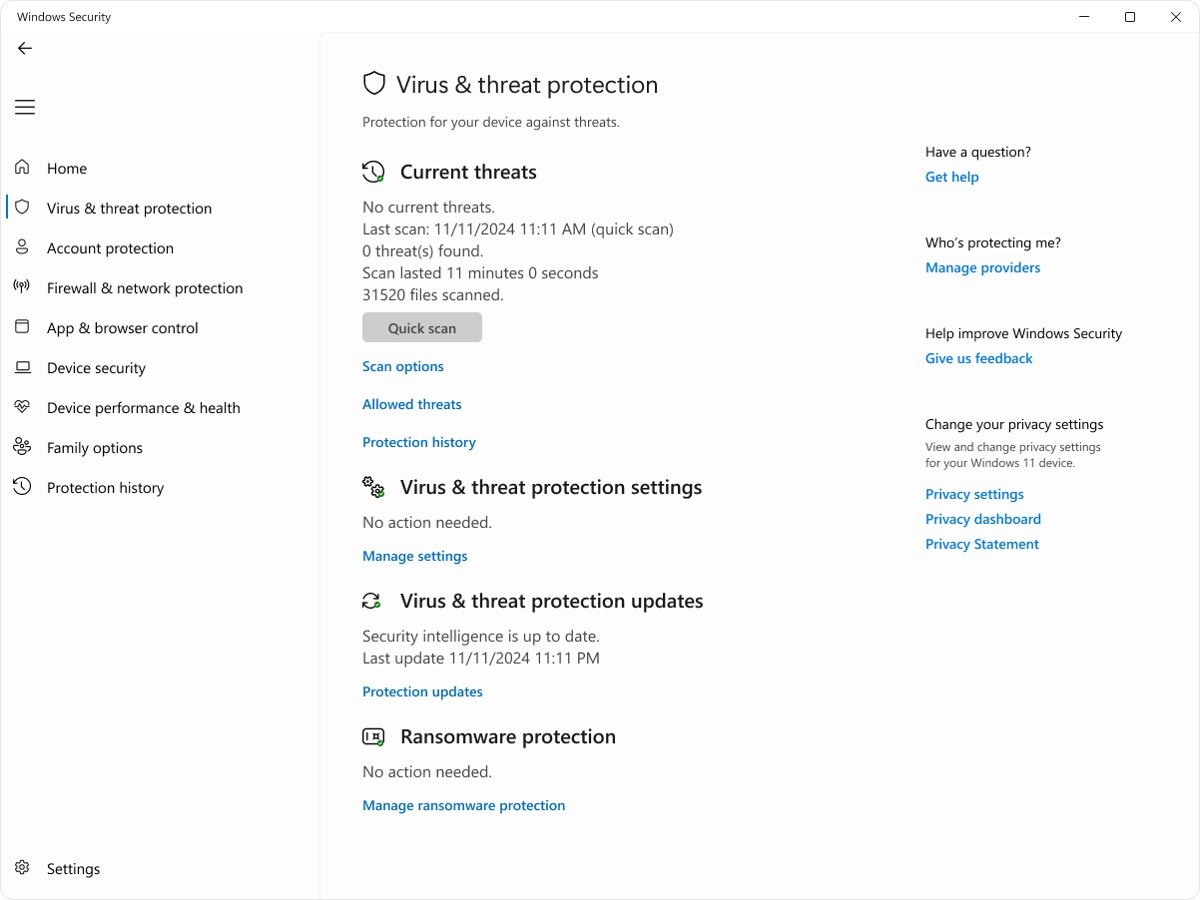
- Open Windows Security and select Virus & threat protection.
- Select Scan options, choose Full scan, and select Scan now.
- If threats are found, follow the actions Windows Security offers.
- Run Microsoft Defender Antivirus (offline scan) from the same Scan options page; it scans after a restart, before Windows loads.
- After the restart, open Windows Security and check Protection history for the results.
Many conhost.exe processes use CPU when no console window is open
A background program keeps starting command-line helpers.
- Close any open Command Prompt, PowerShell and Terminal windows and check whether the count drops.
- Restart the PC and watch whether the processes return.
- Run the signature check above on each path; if every copy is the genuine file, the activity comes from the program that started it, not from conhost.exe itself.
- Run a Windows Security full scan if the cause stays unclear.
Should you end or delete conhost.exe?
Do not delete the conhost.exe file in System32, and only end a conhost.exe process if you are ready to close the command-line program it serves. Every command-line program depends on the console host, so removing it breaks Command Prompt, PowerShell and console tools, and ending one process closes the console session attached to it.
Frequently Asked Questions
What is the conhost.exe process?
Conhost.exe is the Windows Console Host. It is the server for the Windows console APIs and the classic window for command-line programs, so Command Prompt, PowerShell and console tools rely on it to read input and display text.
Is conhost.exe a virus?
No, the real conhost.exe is a Microsoft system file stored in C:\Windows\System32 with a valid Microsoft signature. Malware can copy the name, so a conhost.exe running from any other folder or with an invalid signature should be scanned with Windows Security.
Why is conhost.exe running?
Conhost.exe runs whenever a console program is active, including Command Prompt, PowerShell, Windows Terminal shells and background tools that start command-line helpers. Each console session gets its own console host, which is why several copies can run at once.
What is conhost.exe used for?
It services the console API calls that command-line programs make and draws the classic console window. When Windows Terminal is the host, conhost.exe still handles the API calls and passes the display to the terminal through the pseudoconsole.
What is conhost.exe in Task Manager?
Each conhost.exe entry in Task Manager is the console host for a command-line program that is running. You can check that an entry is genuine by confirming its file path is C:\Windows\System32\conhost.exe and its signature is valid.
Can I delete conhost.exe?
No. The file in System32 is part of Windows and every command-line program depends on it. Only a conhost.exe found outside the system folder, with an invalid signature, is a candidate for removal through a Windows Security scan.
Is conhost.exe related to PowerShell?
Yes. PowerShell is a command-line program, so each PowerShell window runs with a conhost.exe process that services its console input and output.
Other Windows processes raise the same question, such as the msedge.exe browser process and the mstsc.exe Remote Desktop client.
Bottom Line
Leave conhost.exe alone when it runs from C:\Windows\System32 with a valid signature, and run a Windows Security full scan and offline scan on any copy that does not. The console host is a required part of Windows, so the only real risk is malware borrowing its name, and the path and signature checks separate the two in under a minute.