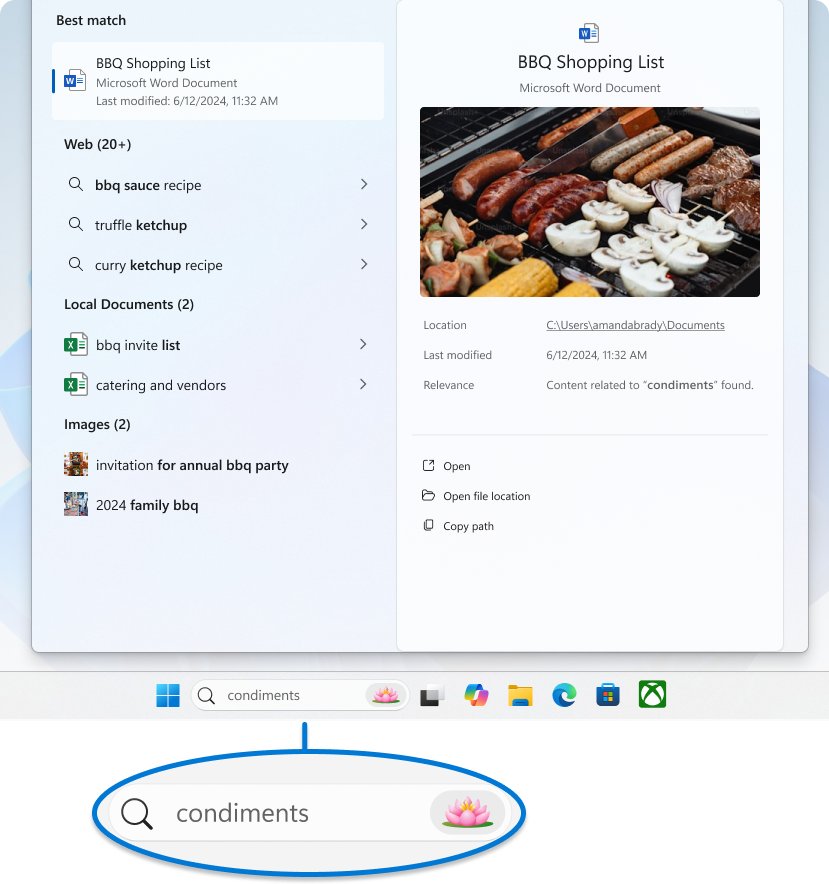
Windows 11 has no Address toolbar, so the closest built-in way to add an address bar to the taskbar is to switch the taskbar search to Search box in Taskbar settings.
This guide covers that setting, the Run box, File Explorer, a pinned browser, PowerToys Run and Command Palette, the command line, and what to know before trying a third-party toolbar tool.
Best built-in replacement: use the Windows 11 search box on the taskbar
The search box is the only text field Windows 11 lets you place on the taskbar itself. It opens apps, files and settings, and passes anything else to a web search.
- Right-click an empty area of the taskbar.
- Select Taskbar settings.
- Under Taskbar items, open the dropdown next to Search.
- Select Search box.
- Click the box on the taskbar, or press Windows key + S, and start typing.
The same dropdown also offers Search icon and label, Search icon only and Hide. If the box is missing, the Windows 11 search bar guide covers more ways to bring it back.
Which method should you use?
Every method to add or emulate an address bar in the Windows 11 taskbar ends in a different place. Match what you type most often to a row.
| What you want to type | Use this | Why |
|---|---|---|
| App names, file names, settings | Taskbar search box | Built in, always visible on the taskbar |
| Commands and folder paths | Run box (Windows key + R) | Opens a command or path in one step |
| Folder paths while browsing files | File Explorer address bar | Alt+D or Ctrl+L puts the cursor straight in it |
| Web addresses | Browser pinned to the taskbar | One click, then Ctrl+L or Alt+D |
| Paths, URLs, commands and web searches in one box | PowerToys Run or Command Palette | Free Microsoft launcher with prefixes for each job |
| Scripts or repeated URLs | start command in Command Prompt or Terminal | Opens any URL in the default browser |
| The exact Windows 10 toolbar look | A third-party taskbar tool | Only route to a real toolbar, with stability trade-offs |
Can you add the old Address toolbar to the Windows 11 taskbar?
No. Windows 10 offered an Address entry under Toolbars in the taskbar's right-click menu. The Windows 11 taskbar menu has only Taskbar settings, and no setting in it adds a toolbar.
| Feature | Windows 10 taskbar | Windows 11 taskbar |
|---|---|---|
| Address toolbar | Available under Toolbars | Not available |
| Custom folder toolbars | Available under Toolbars | Not available |
| Search box on the taskbar | Available | Available: Search box, icon and label, icon only, or hidden |
| Taskbar position | Any screen edge | Bottom of the screen only |
| Pinned apps and jump lists | Available | Available |
Understanding the Windows 11 Taskbar and Its Limitations
Microsoft's Windows 11 specifications list the taskbar changes as deliberate removals, not bugs, so no update or setting brings the old toolbar back.
| Change listed by Microsoft | What it means for an address bar |
|---|---|
| Apps can no longer customize areas of the Taskbar | Programs cannot add their own toolbar or text field to the taskbar |
| Alignment to the bottom of the screen is the only location allowed | You cannot dock a taskbar with a toolbar to the top or sides |
| People is no longer present on the Taskbar | Contact shortcuts on the taskbar are gone too |
| Some icons may no longer appear in the System Tray | Older tray customizations from Windows 10 may not carry over |
Best built-in option for paths and commands: use the Run box
The Run box is a one-line text field that opens programs, commands and special folders. It is the nearest thing to the old toolbar for typing a command.
- Press Windows key + R to open the Run dialog.
- Type a command such as
cmd,controlorshell:startup. - Press Enter or select OK.
- Press Windows key + R again later; the dropdown remembers what you typed before.
Use File Explorer’s address bar for folders, websites, and commands
File Explorer keeps a full address bar at the top of every window. It is the fastest way to jump to a folder path. For websites and commands, the Run box above and the start command below are the reliable routes.
- Select the File Explorer icon on the taskbar, or press Windows key + E.
- Press Alt + D or Ctrl + L to select the address bar.
- Type or paste a folder path, such as
C:\Users. - Press Enter to open it.
- Press F4 instead when you want to edit the current path.
Add a browser-style address bar by pinning your browser to the taskbar
Using the browser address bar for quick navigation is the closest match for typing web addresses. Pin the browser once, and the address bar is one click and one shortcut away.
- Open your browser, for example Microsoft Edge.
- Right-click its icon on the taskbar and select Pin to taskbar.
- Click the pinned icon whenever you want to type an address.
- Press Ctrl + L or Alt + D to select the address bar.
- Type the URL and press Enter, or press Ctrl + E to type a search query instead.
Install Microsoft PowerToys Run for a better launcher
PowerToys is a free Microsoft utility set. PowerToys Run opens a search box with Alt + Space and accepts apps, folders, URLs, shell commands and web searches. Microsoft calls Command Palette, opened with Windows key + Alt + Space, the evolution of PowerToys Run.
- Install Microsoft PowerToys from Microsoft's official install page on Microsoft Learn.
- Open PowerToys and make sure PowerToys Run (or Command Palette) is enabled.
- Press Alt + Space to open PowerToys Run.
- Type
//followed by an address, such as// learn.microsoft.com, to open it in your default browser. - Type
>followed by a command, such as> Shell:startup, to run it. - Type
??followed by words to search the web with your default browser.
PowerToys must stay running in the background for the shortcut to work. You can change the activation shortcut in the PowerToys Run settings page.
Using Windows Terminal or Command Prompt for URL Access
The start command opens a URL in your default browser from Command Prompt, and it works in the Command Prompt profile of Windows Terminal. It suits scripts and batch files that open the same pages every day.
start "Bing" "https://www.bing.com"The first quoted value is a window title, which start requires when the target is quoted. The second is the URL, which Windows detects and opens with the default browser through its file association.
You should see: Your default browser opens a tab on the address you typed, and the prompt returns immediately.
Replace the address with any URL. Save several start lines in a .bat file and pin a shortcut to it if you open the same set of pages every morning.
Create a desktop shortcut that behaves like an address launcher
Microsoft Edge can turn any site into an app with its own desktop shortcut and taskbar icon. Each one opens its address directly.
- Open the site in Microsoft Edge.
- Select Settings and more (the three dots), then More tools > Apps > Install this site as an app.
- Type
edge://appsin the address bar and press Enter. - Select Details on the app's card.
- Select Create Desktop shortcut, Pin to taskbar or Pin to Start.
Use Start menu pins and taskbar jump lists for common locations
Creating a custom toolbar in Windows Explorer for quick access is not possible in Windows 11, but Quick access and jump lists do the same job for folders you open daily.
- Open File Explorer and find a folder you use often.
- Right-click the folder and select Pin to Quick access.
- Right-click the File Explorer icon on the taskbar to see the jump list of pinned and recent folders.
- Right-click any other pinned app on the taskbar to see its jump list of recent files, folders or websites.
- To pin an app to Start, search for it, right-click it and select Pin to Start.
Utilizing Touch, Voice, and Widgets for Quick Access
Touch and voice can reach the same launchers without a keyboard. Widgets show news, weather and other feeds but have no field for typing an address.
| Input | How to reach an address field | Limits |
|---|---|---|
| Touch | Tap the taskbar search box, or a pinned browser icon | Uses the on-screen keyboard for typing |
| Voice access | Say "Open Edge" or "Open" followed by any app name | If the app is not found, voice access opens the Windows search box with the name typed in |
| Widgets | Not available | The widgets board has no address or command entry |
Use a third-party tool to restore classic taskbar toolbars
Using a third-party tool such as ObjectBar or similar customization applications is the only way to get a real toolbar back. These tools replace or patch parts of the Windows shell, which Microsoft does not support.
Use the built-in search box, Run box or PowerToys first, and only install a taskbar customization tool from its developer's own site if you truly need the Windows 10 toolbar layout. Windows 11 removed the ability for apps to customize the taskbar, so these tools work around the shell. Feature updates can break them, and a broken shell patch can leave the taskbar unusable until you uninstall the tool.
Advanced Approach: Modifying System Files or Registry (Not Recommended)
Do not edit system files or the registry to try to restore the Address toolbar in Windows 11. Microsoft documents no registry value or policy that adds a toolbar to the Windows 11 taskbar, and replacing system files can stop Windows from updating or starting. The built-in options above do the same job safely.
How to check it worked
- Look at the taskbar: a text field labelled Search should sit next to the Start button.
- Click it and type the name of an app such as Notepad; it should appear as the top result.
- Press Windows key + R, type
cmdand press Enter; a Command Prompt window should open. - If you installed PowerToys, press Alt + Space and confirm the PowerToys Run box appears.
Troubleshooting common problems
Where is my address bar? The search box is missing from the taskbar
The Search option in Taskbar settings is set to Hide, Search icon only or Search icon and label.
- Right-click the taskbar and select Taskbar settings.
- Under Taskbar items, set Search to Search box.
PowerToys Run does not open with Alt + Space
PowerToys is not running in the background, Run is disabled, or another app owns the shortcut.
- Open PowerToys from the Start menu so it runs in the background.
- Check that PowerToys Run is enabled.
- In PowerToys Run settings, change the Activation shortcut, or turn on Use centralized keyboard hook.
- Note that Ignore shortcuts in full-screen mode stops the shortcut while a full-screen app is in front.
Can't find the address bar in File Explorer or the browser
The window is focused on its content, not the address bar.
- Press Alt + D or Ctrl + L in File Explorer or Microsoft Edge.
- Press F4 in either one to select the current address.
A URL typed at the command line opens the wrong browser
The start command uses the default browser set in Windows.
- Open Settings > Apps > Default apps.
- Select the browser you want and set it as default.
Best Practices and Tips for Effective Navigation in Windows 11
Learn the shortcuts that drop the cursor straight into a text field. Together they replace the old toolbar for most tasks.
| Shortcut | Where | What it does |
|---|---|---|
| Windows key + S | Anywhere | Opens search |
| Windows key + R | Anywhere | Opens the Run dialog box |
| Alt + D or Ctrl + L | File Explorer, Microsoft Edge | Selects the address bar |
| F4 | File Explorer, Microsoft Edge | Selects the address bar or current path |
| Ctrl + E | Microsoft Edge | Opens a search query in the address bar |
| Alt + Space | PowerToys Run | Shows or hides the launcher |
| Windows key + Alt + Space | Command Palette | Opens Command Palette |
Frequently Asked Questions
How do I add an address bar to the taskbar in Windows 11?
Windows 11 has no Address toolbar. The closest built-in option is the taskbar search box: right-click the taskbar, select Taskbar settings, and set Search under Taskbar items to Search box. It opens apps, files, settings and web searches.
What is an address bar?
An address bar is the text field that shows where you are and lets you type where to go. In a browser it holds the web address; in File Explorer it holds the folder path. Typing a new address and pressing Enter takes you there.
What's the function of the address bar?
The address bar shows the current web page or folder location and accepts a new one. In Microsoft Edge it also runs searches when you type words instead of a URL. In File Explorer it accepts any folder path you paste in.
Where is my address bar?
In a browser, the address bar sits at the top of the window above the page. In File Explorer, it sits above the file list. On the Windows 11 taskbar there is no address bar, but the search box can be turned on in Taskbar settings.
How do I open or access the address bar?
Press Alt + D or Ctrl + L in Microsoft Edge or File Explorer to select the address bar, then type. F4 also selects it. On the taskbar, press Windows key + S to jump straight into the search box.
Can I bring back the Windows 10 Address toolbar with a registry edit?
No supported registry value or policy restores the Address toolbar in Windows 11. Microsoft removed the ability for apps to customize the taskbar. Only third-party shell tools recreate it, and feature updates can break them.
Is PowerToys Run safe to use as a taskbar address bar replacement?
Yes. PowerToys is a free Microsoft utility documented on Microsoft Learn. Press Alt + Space to open PowerToys Run, then type // and an address to open a website or > and a command to run it.
Conclusion
Turn the taskbar search to Search box for an always-visible text field, and add PowerToys Run if you want one box that also opens URLs, paths and commands. Windows 11 removed taskbar toolbars by design, and these two Microsoft options cover what the Address toolbar did without patching the shell.

![Clear or refresh cache in Google Chrome [Windows 11]](https://techdows.com/wp-content/uploads/2026/10/Google-Chrome-Help-page-listing-steps-to-delete-browsing-data-on-a-computer-600x338.jpg)