To sign in to Outlook with a QR code, open Outlook on your PC with your work or school account, then scan the QR code it shows with the Outlook app on your phone, and the phone signs in without your password.
This guide covers that desktop-to-phone transfer, organization-issued QR badges, the QR code that links Microsoft Authenticator, personal Outlook.com accounts, and fixes for each failure.
How to Log In to the Outlook Mobile App With Your QR Code
Microsoft calls this feature authentication transfer. It moves your signed-in state from a Microsoft app on your PC to the same app on your phone, and desktop Outlook is the example Microsoft gives.
It works for work or school accounts, and it is on by default unless your admin has blocked it.
- Install Microsoft Outlook on your iPhone or Android phone from the App Store or Google Play.
- On your PC, open Outlook and sign in with your work or school account, completing any multifactor prompt.
- Find the QR code Outlook shows on the PC that offers to set up Outlook on your mobile device.
- Open Outlook on your phone and use its option to scan that QR code.
- Point the phone camera at the code on the PC screen until it reads.
- Wait for Outlook on the phone to open your mailbox; you do not re-enter your password or repeat MFA.
- If the phone asks you to sign in manually instead, enter your email and password; a company policy stopped the transfer.
Microsoft states that support varies by app and version, so an older Outlook build may not show the code at all. The section on a missing QR-code option below covers that case.
Which QR code do you need?
Four different QR codes turn up around Outlook sign-in, and only two of them actually sign you in. Match your situation to a row.
| Your situation | QR code to use | What it does |
|---|---|---|
| Outlook already works on your work PC and you want it on your phone | The QR code desktop Outlook shows | Signs Outlook mobile in with no password or second MFA prompt |
| You are a frontline worker on a shared store or warehouse phone | The QR code printed on your badge by your employer | Signs you in with the badge plus your numeric PIN |
| You want push approvals or codes for a work or personal account | The QR code on your Security info page | Links the account to Microsoft Authenticator; it does not sign in to Outlook itself |
| You have a personal Outlook.com account and a passkey on your phone | The QR code the sign-in page shows for another device | Uses the phone's passkey over Bluetooth to finish sign-in on the PC |
| You only need the Outlook app installed | The download QR code on Microsoft's setup pages | Opens the app store listing; it does not sign you in |
What Outlook QR Code Sign-In Is
There is no QR code option on the Outlook.com or Outlook on the web password page for home users. QR sign-in into Outlook itself comes from Microsoft Entra ID, the identity service behind work and school accounts.
| Feature | Account type | Where the code comes from | Status |
|---|---|---|---|
| Authentication transfer | Work or school (Microsoft Entra ID) | Shown inside desktop Outlook after you sign in | Preview; on by default |
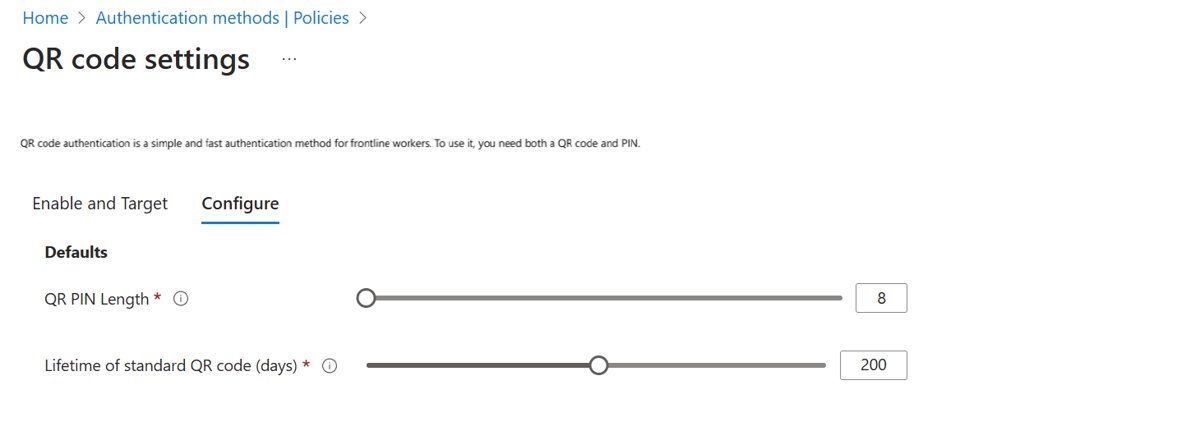
| QR code authentication | Work or school, frontline workers | Printed by an admin from the Microsoft Entra admin center or My Staff | Off by default; an admin turns it on |
| Passkey from another device | Personal Microsoft account | Shown on the sign-in screen, scanned by the phone holding the passkey | Needs Bluetooth on both devices |
| Authenticator enrolment | Personal or work | Shown on your security settings page | One-time setup, not a sign-in |
QR-code methods at a glance
| Method | Scan with | Also needs | Works on desktop? |
|---|---|---|---|
| Desktop Outlook to phone transfer | Outlook mobile app | A signed-in Outlook on the PC | The PC shows the code; the phone signs in |
| Organization-issued badge QR code | The phone's sign-in screen camera | An 8 to 20 digit PIN | No, iOS, iPadOS and Android only |
| Microsoft Authenticator setup | Authenticator app | Access to your security settings page | The code is on the PC; the account lands in the app |
| Passkey from another device | Phone camera | Bluetooth on both devices and internet on both | Yes, the PC signs in |
Requirements Before You Start
| Requirement | Detail |
|---|---|
| Account | A work or school Microsoft 365 account for desktop-to-phone transfer and badge QR codes |
| Outlook on the PC | Signed in, with any multifactor step completed; you must reauthenticate there before a transfer starts |
| Outlook on the phone | The current Microsoft Outlook app for iOS or Android |
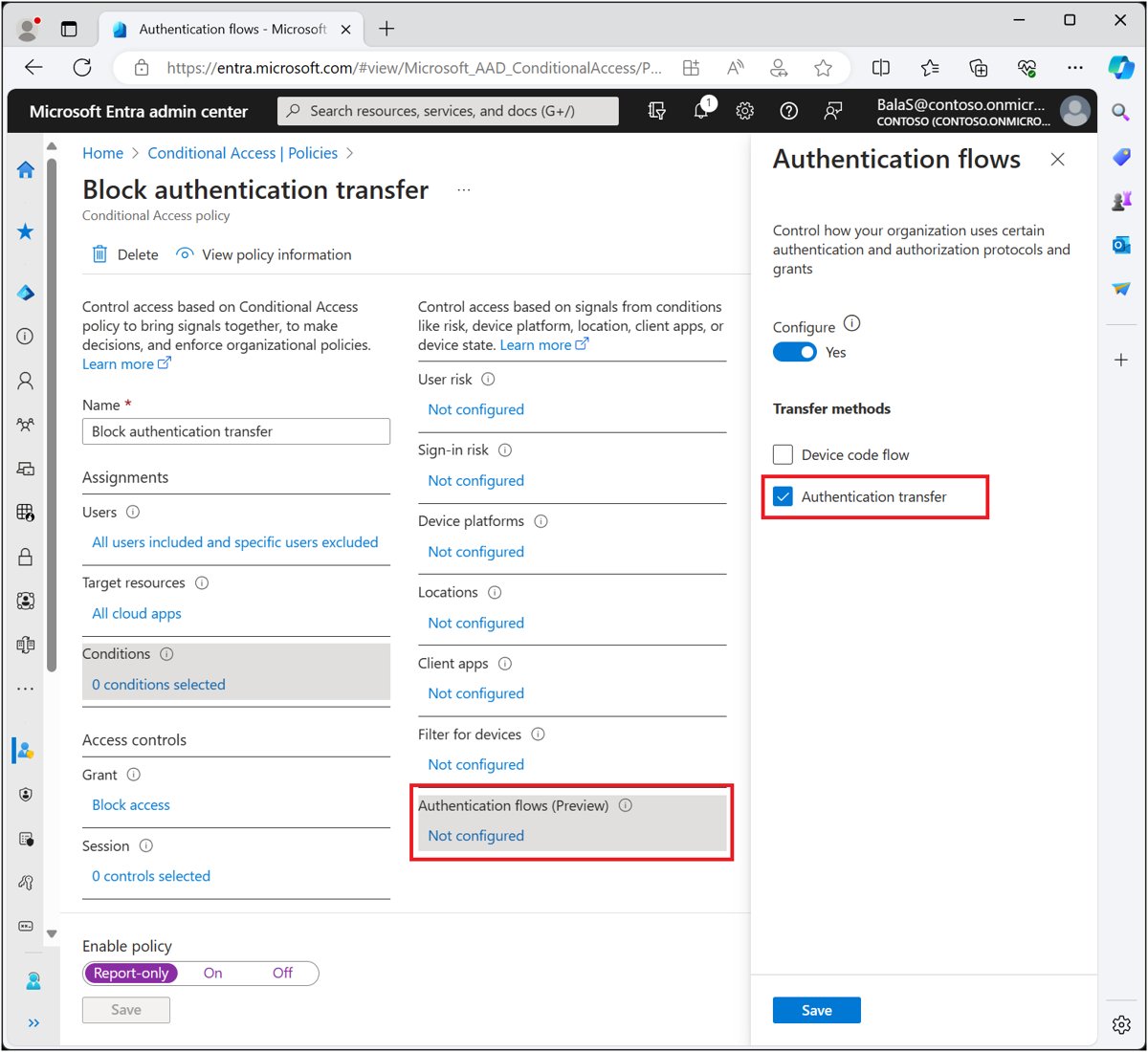
| Organization policy | Transfer is on by default, but an admin can block it with Conditional Access |
| Device rules | Device compliance does not transfer, so the phone must meet any managed-device rule on its own |
| Badge QR codes | An admin must enable the method and give you a temporary PIN |
| Outlook as an approver (personal) | Outlook for Android version 4.2405.0 or newer |
Find the QR code for adding Outlook to your phone
Two codes answer this search. One installs the app, and the other signs it in.
- To install the app, open Microsoft's Set up the Outlook app for iOS support page and scan the download QR code with your iPhone camera.
- On Android, install Microsoft Outlook from Google Play, or scan the download code on Microsoft's Using Outlook mobile to sign in page.
- To sign in, open Outlook on your PC with your work or school account.
- Look for the QR code the app offers for moving your session to a mobile device.
- Scan it from the Outlook mobile app, not the phone's own camera app, so the sign-in reaches Outlook.
Microsoft does not publish one fixed menu location for the transfer code, and the old Mobile devices page was removed from Outlook on the web for Microsoft 365 accounts in late 2025.
Use an organization-issued QR code to sign in
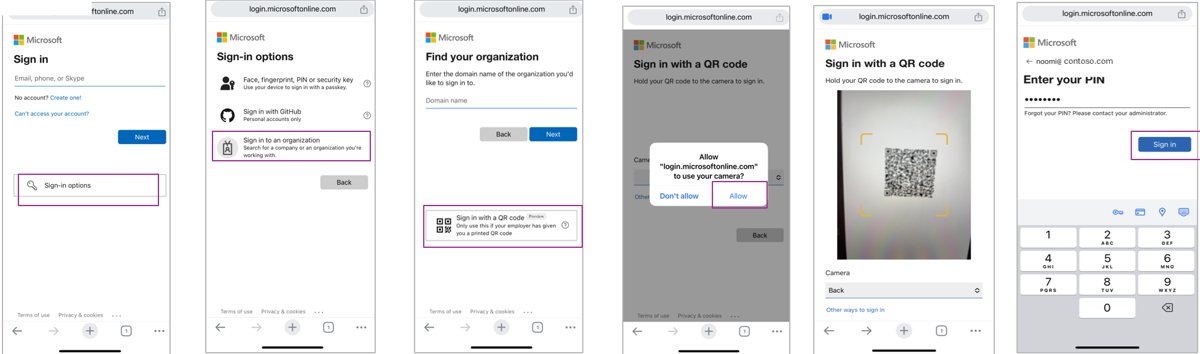
This is for frontline staff on shared iOS or Android devices. Your employer prints a QR code for you, often on a badge, and gives you a temporary PIN.
- Sign in once with your password or another method first, or the first QR attempt shows Incorrect QR code.
- On the shared device's Microsoft sign-in screen, select Sign in options.
- Select Sign in to an organization, then Sign in with a QR code.
- Allow camera access and hold your badge QR code in front of the camera.
- Enter the temporary PIN your admin gave you.
- Create your own PIN of 8 to 20 digits when prompted; avoid sequences like 123123.
- Continue into Outlook once sign-in completes.
Badge QR codes do not work in desktop apps or desktop browsers. A forgotten badge can be covered by a temporary QR code that lasts up to 12 hours.
Find the QR code for Microsoft Authenticator
Authenticator does not sign you in to Outlook by QR code. It uses a QR code once, to link your account, and then approves Outlook sign-ins.
| Account type | Page that shows the QR code | Path to the code |
|---|---|---|
| Personal Microsoft account (Outlook.com, Hotmail) | account.microsoft.com/security | Manage how I sign in > Add a new way to sign in or verify > Use an app |
| Work or school account | mysignins.microsoft.com/security-info | Add sign-in method > Microsoft Authenticator > Add > Next |
Scan a QR code to set up Microsoft Authenticator
- Open the page from the table above on your PC and bring up the QR code.
- Open Microsoft Authenticator on your phone and tap the + icon.
- For a work account, tap Add account > Work or school account > Scan a QR code.
- For a personal account, tap Personal account > Scan a QR code.
- Point the camera at the code on your PC screen.
- If the camera will not read it, select Can't scan the image (work) or I can't scan the bar code (personal) on the PC, then tap Enter code manually in the app.
- Finish the prompts on the PC so the account is saved as a sign-in method.
Work accounts can skip the QR code entirely: tap +, choose Work or school account, and select Sign in.
Using the Microsoft Authenticator App
After setup, Authenticator is how you approve an Outlook sign-in on any device. The QR code is not needed again.
- Start signing in to Outlook on the PC, the web or the phone and enter your email address.
- Watch for the notification from Microsoft Authenticator on your phone.
- Match the number shown on the sign-in screen with the number in the app.
- Tap Approve to finish signing in to Outlook.
Approve a sign-in from Outlook mobile
Outlook mobile can act like an authenticator. Personal accounts need Outlook for Android 4.2405.0 or newer; work and school accounts work on Android and iOS if your organization allows it.
- Sign in to Outlook on your phone with your Microsoft account.
- Wait for the message confirming that sign-in requests will arrive on this device.
- When you sign in elsewhere, the sign-in page tells you to check your Outlook app.
- Open the notification on your phone.
- Match the number on the sign-in screen and tap Approve.
- For a code instead, tap the Home icon, then the Settings gear, then Accounts under General.
- Select your account, tap Sign-in requests, tap the copy icon and paste the code into the sign-in page.
Codes refresh every 30 seconds. If the countdown is nearly out, wait for the next code.
Sign in to a personal Outlook.com account
Personal Outlook.com, Hotmail and Live accounts have no Outlook QR sign-in. The closest QR route is a passkey stored on your phone, used to sign in on a PC.
- Save a passkey for your Microsoft account on your phone first.
- Turn on Bluetooth on both the PC and the phone, and connect both to the internet.
- Go to the Outlook.com sign-in page on the PC and choose to sign in with a passkey.
- Choose the option to use another device; a QR code appears on the PC.
- Scan the code with your phone's camera and confirm with your phone's screen lock.
- Wait for Outlook.com to open your inbox on the PC.
The two devices do not need to share a Wi-Fi network, but they must be within Bluetooth range.
How to check the QR sign-in worked
- Open Outlook on the phone and confirm your work inbox loads without a password prompt.
- Open Settings in the app and check that your work account is listed.
- For Authenticator, confirm the new account tile appears in the app's account list.
- For Outlook as an approver, confirm the setup message said sign-in requests will come to this device.
- Admins can open the Microsoft Entra sign-in logs, select the event and check Original transfer method under Basic info reads Authentication transfer.
QR codes are not normally needed after setup
Treat every Outlook QR code as a one-time handoff, except a frontline badge, which you scan at each shift sign-in. A transfer leaves Outlook mobile signed in, and an Authenticator QR code only links the account once. Later sign-ins use approvals, codes or your PIN, so a new QR code is needed only on a new phone or after you remove the account.
Why the QR-code option is missing
If there is no QR-code option anywhere in Outlook, one of these causes applies.
Desktop Outlook never shows a QR code
Your admin blocked authentication transfer, or your Outlook version does not support it yet.
- Update Outlook on the PC to the latest version your organization offers.
- Ask IT whether a Conditional Access policy blocks Authentication transfer for your group.
- If it is blocked, sign in to Outlook mobile with your email address and password instead.
Personal Outlook.com account has no QR option
QR sign-in into Outlook is a work or school feature.
- Use Outlook mobile or Authenticator approvals instead.
- Or save a passkey on your phone and use the another-device QR code on the PC.
No **Sign in with a QR code** under **Sign in options**
QR code authentication is off by default and must be enabled for your account.
- Ask your admin to enable QR code authentication for you and issue a code and PIN.
- Sign in once with your password so the new method is picked up.
When the QR code scans but authentication fails
Outlook mobile asks for your password after scanning
A Conditional Access rule, such as a managed or compliant device requirement, is not met on the phone.
- Sign in manually and complete any MFA prompt on the phone.
- Enroll the phone in your company's device management if IT requires it.
- Ask IT to check the sign-in log's Conditional Access tab for the policy that stopped it.
**Incorrect QR code** on a badge scan
The method was enabled after your last sign-in, or the badge code expired or was deleted.
- Sign in once with your password, then try the badge again.
- Ask your admin for a new standard code or a temporary code for the day.
**Invalid PIN** when setting a badge PIN
The PIN is shorter than required, has letters or symbols, or repeats a pattern.
- Use digits only, at least your organization's minimum length.
- Avoid 0123456789, 9876543210 and repeats like 121212.
Sign-in fails with error AADSTS530036
An authentication flows policy invalidated a session that started with a transfer.
- Sign out of Outlook mobile and sign in again with your email and password.
- Send the error code to IT so they can review the authentication flows policy.
When Outlook does not show a sign-in request
No approval notification arrives in Outlook mobile
The app is too old, notifications are off, or your organization does not allow Outlook for authentication.
- Update Outlook for Android to 4.2405.0 or newer for a personal account.
- Open Settings > Accounts, select your account and use Sign-in requests to copy a code instead.
- For a work account, ask IT whether Outlook is allowed as an authenticator.
The one-time code is rejected
The 30-second code expired before you pasted it.
- Wait for a fresh code to appear.
- Copy and paste it straight away.
Troubleshooting QR Code Sign-In Problems
These fixes cover general Outlook sign-in failures that show up around QR sign-in.
Passkey QR code does not appear or the phone cannot connect
Bluetooth is off, the devices are out of range, or your organization restricts cross-device Bluetooth sign-in.
- Turn on Bluetooth on both devices and keep them close together.
- Make sure both devices are online.
- Cancel, refresh the sign-in page and try again if it hangs.
Why does Outlook keep asking me to sign in?
An outdated app version can fail current security standards and repeat the prompt.
- Update Outlook from the App Store, Google Play or Microsoft Store.
- Sign out and sign back in once after the update.
Why can't I sign in to Outlook.com?
A problem with the personal Microsoft account itself, such as a wrong email or a locked account.
- Run Microsoft's sign-in helper tool with your email or phone number.
- Follow the fix it gives for the problem it detects.
Can't sign in to a work or school Outlook account
A forgotten password or a policy only your organization controls.
- Use your organization's password reset portal if self-service reset is on.
- Otherwise contact your IT admin.
Security Tips for QR Code Login
| Tip | Why it matters |
|---|---|
| Scan transfer codes only from your own signed-in PC | The code carries a signed-in session, so a stranger's code could sign your phone into their account or leak yours |
| Report a lost or stolen badge QR code at once | A badge plus a known PIN is enough to sign in; an admin can delete and reissue it |
| Never share your badge PIN | Badge sign-in is single-factor, and the PIN is the only secret |
| Always match the number before tapping Approve | Number matching stops you approving a sign-in you did not start |
| Admins: review whether transfer is needed | Microsoft's Zero Trust guidance recommends blocking authentication transfer unless there is a business need |
| Admins: exclude emergency access accounts from block policies | Prevents locking every admin out through a policy mistake |
Frequently Asked Questions
Can I use a QR code to log in to Outlook on my desktop?
Not with Outlook's own QR feature, because it runs the other way: desktop Outlook shows the code and your phone signs in. Badge QR codes also do not work on desktop. A personal account can sign in on a PC by scanning a passkey QR code with your phone.
How do I sign in to Outlook from another device?
For a work account, scan the QR code desktop Outlook shows with Outlook mobile. For a personal account, sign in with your email and approve the request in Microsoft Authenticator or Outlook mobile, or use a passkey saved on your phone.
How do I sign in to Outlook with Authenticator?
Link your account to Microsoft Authenticator once by scanning the QR code on your security settings page. After that, enter your email on the Outlook sign-in page, match the number shown and tap Approve in the app.
How do I sign in to Outlook on iPhone?
Install Microsoft Outlook from the App Store, open it and enter your email address, then follow the prompts. With a work account, you can instead scan the QR code desktop Outlook shows, if your organization allows authentication transfer.
How do I sign in to the Outlook app on my desktop?
Open Outlook on Windows or Mac, enter your email address and password, and complete any Authenticator or code prompt. Desktop Outlook has no QR code sign-in; its QR code is for moving your session to a phone.
Does QR code sign-in work with a personal Outlook.com account?
No. QR sign-in into Outlook is a feature of Microsoft Entra work and school accounts. Personal accounts can use Outlook mobile or Authenticator approvals, or a passkey from another device, which does show a QR code on the PC.
Why can't I sign in to Outlook.com?
Start with Microsoft's sign-in helper tool, which checks the email or phone number you enter and names the problem it finds. If Outlook keeps asking you to sign in on a phone, update the app first.
Is signing in to Outlook with a QR code safe?
It is safe when you scan codes only from your own signed-in PC or your own badge. Company policies are still checked before the phone signs in, though some organizations block the feature as a precaution.
Bottom Line
Use the QR code in desktop Outlook to put a work account on your phone, and use Authenticator or Outlook mobile approvals for everything else. The desktop code is the only Outlook QR route that skips both password and MFA. Personal Outlook.com accounts never get a QR sign-in inside Outlook, so a passkey or phone approval is the fastest option for them.

![How to Change System Cooling Policy in Windows 11/10 [Guide]](https://techdows.com/wp-content/uploads/2026/09/Power-Options-Advanced-settings-with-System-cooling-policy-set-to-Active-600x338.jpg)