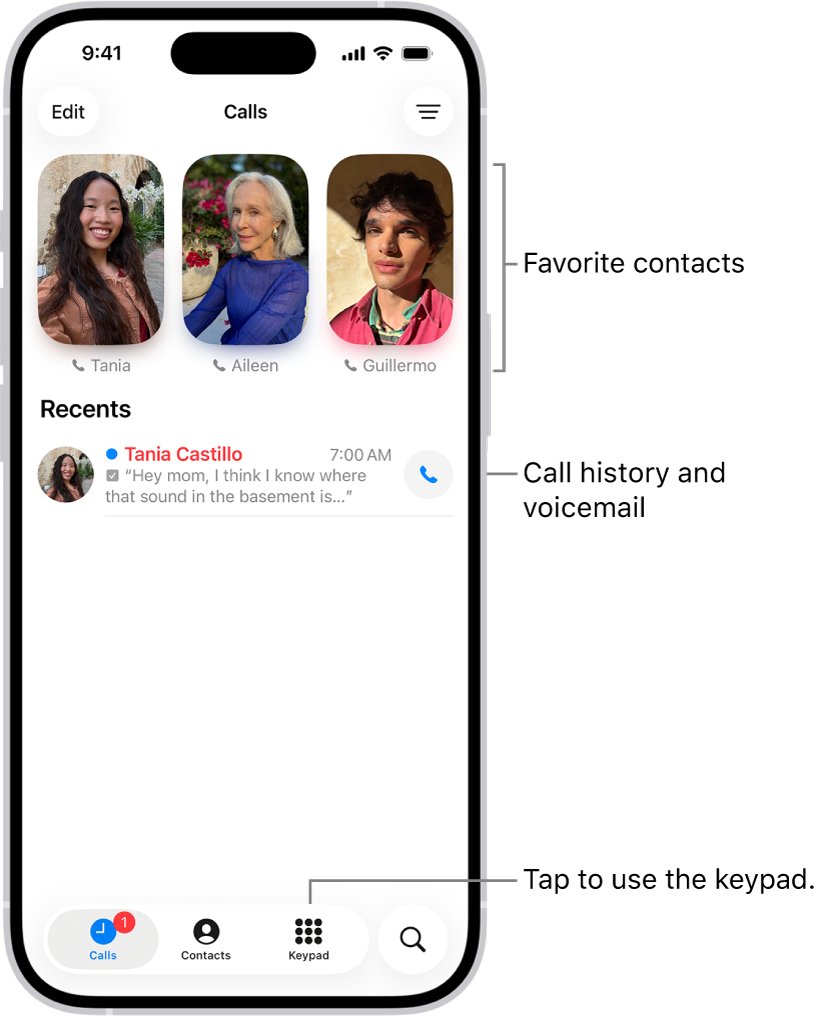
Open the Phone app and tap Calls (iOS 26 and later, Unified layout) or Recents (Classic layout and iOS 18 or earlier) to see your recent calls on an iPhone.
This guide covers every iOS layout, filtering missed and unknown calls, reading call details, deleting and recovering call history, and viewing the same list on a Mac or iPad.
The fastest way to see recent calls on your iPhone
The call log lives inside the Phone app, not in Settings. The tab name depends on your iOS version and the layout you picked.
- Open the Phone app from your Home Screen.
- Tap Calls at the bottom of the screen. If you see separate tabs instead, tap Recents.
- Scroll the list. The newest calls sit at the top.
- Tap a name or number to see the call time, length and direction. In the Classic layout, tap the info button next to the call instead.
A red badge on the Phone icon shows how many calls you missed since you last opened the list.
Understanding the Recent Calls List on iPhone
The Recents list is the iPhone's call log. It records incoming, outgoing and missed calls placed through the Phone app.
| What you see | Where it appears | What it tells you |
|---|---|---|
| Name or number | Each row of the list | Who called or who you called; unsaved numbers show as digits |
| Red badge | The Phone app icon | How many missed calls are waiting |
| Call length and time | Call details screen | When the call happened and how long it lasted |
| Incoming or outgoing | Call details screen | Whether you placed or received the call |
| Missed, Unknown Callers, Spam | The filter menu | Smaller lists that separate missed, unknown and suspected spam calls |
| Older or deleted history | Your carrier's records | Apple notes that your carrier may hold more than the iPhone shows |
Accessing Recent Calls on Different iPhone Models and iOS Versions
Where the list sits depends on the iOS version, not the iPhone model. Check your version in Settings > General > About.
| Your iPhone runs | Where recent calls are | How to open call details |
|---|---|---|
| iOS 26 or later, Unified layout | Phone > Calls tab, merged with Favorites and voicemail | Tap the call or contact |
| iOS 26 or later, Classic layout | Phone > Recents tab | Tap the info button next to the call |
| iOS 12 to iOS 18 | Phone > Recents tab | Tap the info button next to the name or number |
On iOS 26 and later you can switch layouts. Open Phone, tap Calls or Recents, tap the layout menu button, then choose Classic or Unified.
Finding Specific Calls in Your Call History
Filters cut a long list down to the calls you are hunting for. Missed calls from unknown numbers and suspected spam can sit in their own lists.
- Open the Phone app.
- Tap the filter button on the Calls screen. On iOS 18 and earlier, tap Recents instead.
- Choose Calls for everything, Missed for calls you did not answer, Unknown Callers for numbers not in your contacts, or Spam for flagged calls.
- Scroll to the date you need; entries run from newest to oldest.
- Tap the entry (Unified layout) or its info button (Classic layout) to see the time, length and your history with that caller.
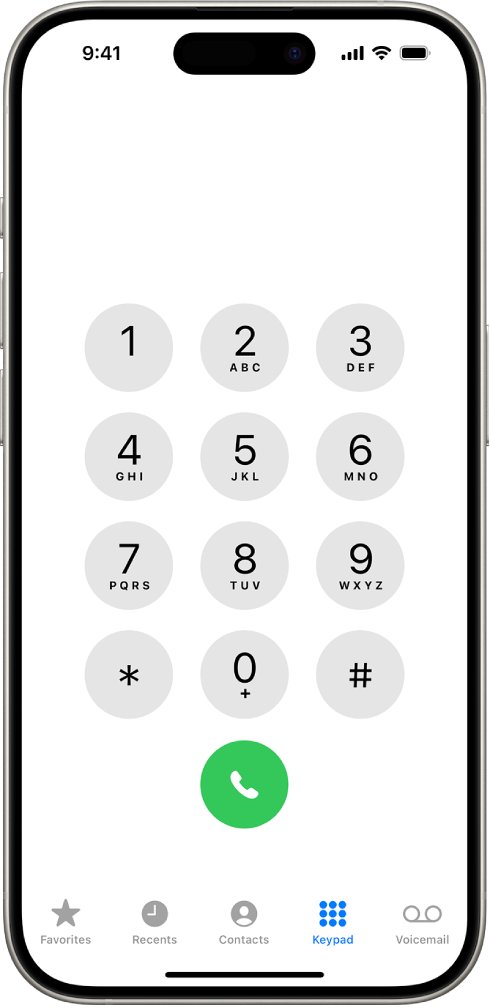
To get the number of the last call, open the list and look at the top entry. The Keypad redial button also shows the last number you dialed.
Managing Call History
Delete single entries or several at once. Deleted calls do not go to a recycle bin, so check before you remove them.
| What you want to do | iOS 26 and later | iOS 18 and earlier |
|---|---|---|
| Delete one call | Swipe the call all the way to the left | Tap Recents, then swipe the call all the way to the left |
| Delete several calls | Tap Edit, tap Select, tap each call, then tap Delete | Tap Recents, Edit, Select, then tap the delete button next to each call |
| Clear the whole list | Select the calls with Edit > Select, then tap Delete | Tap Recents, Edit, Select, Clear, then Clear All Recents |
| Return a call | Tap the name, tap the call button, then tap the number | Tap the name or number; the call starts at once |
Deleting a call removes it only from that list. The same caller stays in Contacts if you saved them.
How to Find Recently Deleted Calls
The Phone app has no Recently Deleted folder for calls. Apple's only route back is restoring a backup made before you deleted them, which replaces everything on the phone with that backup.
Your carrier may also hold older or deleted call records, usually in your online account or on your bill.
- Back up anything created since the old backup, such as new photos, because the restore overwrites it.
- Erase the iPhone so it shows the Hello screen; a restore only runs during setup.
- Follow setup until Transfer Your Apps & Data, then tap From iCloud Backup and sign in to your Apple Account.
- Pick a backup dated before the calls were deleted, then wait for the progress bar to finish on Wi-Fi.
- For a computer backup instead, connect the iPhone, select it in Finder, the Apple Devices app or iTunes, click Restore Backup, pick the backup and click Restore.
- Open Phone > Calls or Recents to confirm the old calls are back.
Finding Recent Calls on Mac or iPad (Using Continuity)
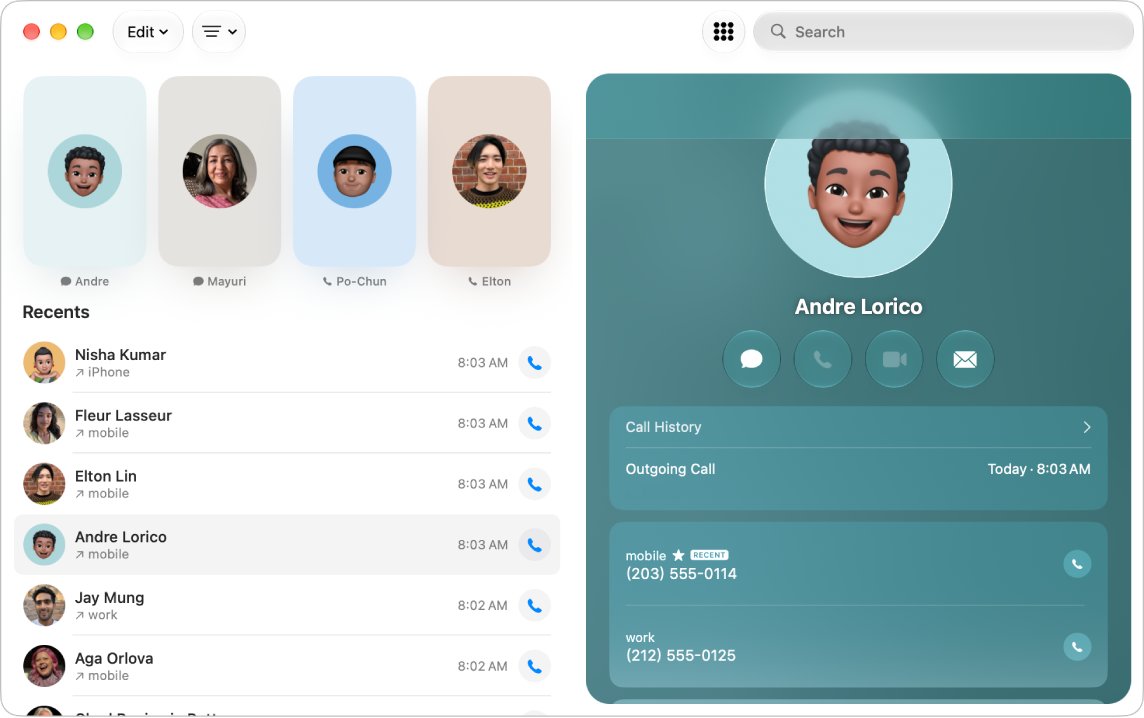
Your iPhone can relay cellular calls to a Mac or iPad signed in to the same Apple Account. Both then have a Phone app with its own call history list.
- On the iPhone, open Settings > Apps > Phone > Calls on Other Devices.
- Turn on Allow Calls on Other Devices, then turn on your Mac or iPad in the list.
- Sign in to FaceTime on the Mac or iPad with the same Apple Account and turn on your phone number there.
- Keep both devices on the same Wi-Fi network and within 30 feet (10 meters) of each other.
- On a Mac, open the Phone app, click the filter button and choose Calls, Missed or Unknown Callers.
- On an iPad, open the Phone app, tap the filter button, tap Calls, and pick a call in the Recents list on the left to see its details on the right.
The Mac Phone app needs macOS Tahoe 26 or later. If the iPad lacks the Phone app, download it from the App Store.
How to check you are looking at the full call list
- Place a short call to a number you know, then hang up.
- Open Phone > Calls (or Recents) and confirm the call sits at the top of the list.
- Open its details and check the time and outgoing direction match what you just did.
- If the call is missing, open the filter menu and switch back from Missed, Unknown Callers or Spam to Calls.
Enhancing Your Call Management Experience
| Feature | Where to set it | What it does for your call list |
|---|---|---|
| Tap Recents to Call | Settings > Apps > Phone > Tap Recents to Call (Unified layout) | Calls a number the moment you tap it in Recents |
| Favorites | Unified: Calls > Edit > Add Favorite. Classic: Favorites > add button | Keeps frequent contacts one tap away instead of scrolling Recents |
| Siri | Say "Return my last call" or "Redial that last number" | Calls back the last caller or number without opening the list |
| Unknown Callers filter | Settings > Apps > Phone > Unknown Callers (iOS 26 and later) | Removes calls from unknown numbers from Recents and sends them to the Unknown Callers list |
| Spam filter | Settings > Apps > Phone > Spam (iOS 26 and later) | Silences calls your carrier flags as spam or fraud, sends them to voicemail and moves them to the Spam list |
| Call recording | During a call, tap the more button, then Call Recording | Saves the audio to the Call Recordings folder in Notes, where supported |
Call recording is not available in some regions, including the European Union. Both participants hear a notice that the call is being recorded.
Best Practices for Managing Recent Calls
| Practice | Why it matters |
|---|---|
| Save important numbers to Contacts before deleting calls | Deleted calls cannot be brought back without a full restore |
| Keep iCloud or computer backups current | A backup is the only Apple route to recover a deleted call history |
| Check the Unknown Callers and Spam lists weekly | Missed calls from new numbers, such as a delivery driver, can land there |
| Delete single entries rather than clearing everything | Keeps the rest of your history for later reference |
| Ask your carrier for older records | Carriers may keep call history the iPhone no longer shows |
Troubleshooting Common Issues
Recent calls not showing up
A filter such as Missed, Unknown Callers or Spam is active, so the full list is hidden.
- Open Phone and tap Calls or Recents.
- Open the filter menu and choose Calls.
- Check the Unknown Callers and Spam lists for calls from numbers not in your contacts.
- To stop a number landing in Unknown Callers, open that list, tap Mark as Known next to the call, then tap Mark as Known again.
- To keep every call in the main list, open Settings > Apps > Phone and turn off Unknown Callers.
Recent call history disappeared
The entries were deleted, or the iPhone was set up as new instead of from a backup.
- Check a Mac or iPad signed in to the same Apple Account in its Phone app for calls relayed there.
- Restore a backup made before the history vanished, using the steps in the deleted calls section above.
- Ask your carrier for the call records if no backup exists.
Calls do not appear on your Mac or iPad
Calls on Other Devices is off, or the devices are not on the same Apple Account and Wi-Fi network.
- On the iPhone, open Settings > Apps > Phone > Calls on Other Devices and turn on Allow Calls on Other Devices.
- Turn on the Mac or iPad in the device list.
- Confirm both devices use the same Apple Account, have Wi-Fi on, and sit within 30 feet (10 meters) of each other.
Frequently Asked Questions
Where is my recent call list on an iPhone?
Your recent call list is in the Phone app. On iOS 26 and later with the Unified layout, tap Calls. With the Classic layout, or on iOS 18 and earlier, tap Recents at the bottom of the screen.
Where is my recent call history stored?
Your call history is stored in the Phone app on the iPhone and included in iCloud or computer backups. A Mac or iPad set up for Calls on Other Devices also shows call history in its own Phone app, and your carrier may keep records too.
How do I find deleted recent calls on my iPhone?
There is no Recently Deleted folder for calls. Apple's only route is restoring the iPhone from an iCloud or computer backup made before the calls were deleted. Your carrier may also be able to show older call records in your account.
How can I see recently deleted phone calls without a backup?
Without a backup, the iPhone cannot show deleted calls again. Check your carrier's online account or bill, which may list call records, and check the Phone app on a Mac or iPad that relays your calls.
How do I get back recent calls after clearing them?
Restore the iPhone from a backup dated before you cleared them. Erase the phone, choose From iCloud Backup during setup, or click Restore Backup in Finder or the Apple Devices app. The restore replaces all current data with the backup's contents.
How do I get the number of my last call?
Open the Phone app and tap Calls or Recents; the top entry is your last call. Tap it, or its info button in the Classic layout, to see the full number. On the Keypad, the redial button shows the last number you dialed.
How do I see only missed calls on an iPhone?
Open the Phone app, open the filter menu on the Calls screen and choose Missed. The Missed list keeps only calls you did not answer, and the red badge on the Phone icon shows how many are new.
How do I listen to previous phone calls on an iPhone?
You can only listen to calls you recorded. Recorded calls are saved to the Call Recordings folder in the Notes app. Open the note and tap play. To keep a copy, tap Save Audio Files and pick a location such as the Files app. Call recording is not available in every region, including the European Union.
Can I see my iPhone's recent calls on a Mac?
Yes. Turn on Allow Calls on Other Devices in the iPhone's Phone settings and pick your Mac. On macOS Tahoe 26 or later, open the Phone app on the Mac and choose Calls or Missed to see the history.
Conclusion
Use the Phone app's Calls or Recents tab with the Missed and Unknown Callers filters to find any call, and keep a current backup before you delete anything. The iPhone has no undo for deleted calls, so a backup made before deletion is the only Apple route to get them back.