To fix the Something Went Wrong error in Office, restart your PC, sign back in, and run an Online Repair of Microsoft 365 from Windows Settings.
If that fails, this guide walks through updates, account and license checks, add-ins, the Office cache, a clean reinstall, and the sign-in variant that shows error 1001.
The fastest way to fix Something Went Wrong in Office
Microsoft lists these two fixes first for the startup error, in this order. Most readers can stop after step 7.
- Close every Office app, wait a few minutes, then restart the PC.
- Sign in to Windows and open the Office app again. If the error is gone, you are done.
- If it returns, right-click the Start button and select Installed apps (on Windows 10, select Apps and Features).
- Find your Microsoft 365 or Office entry, select the … button next to it, and select Modify (on Windows 10, select the entry and then Modify).
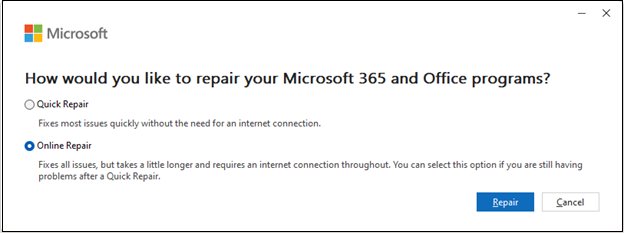
- In How would you like to repair your Office Programs, select Online Repair.
- Select Repair and follow the prompts until the repair finishes.
- Restart the PC and open the Office app again.
Microsoft recommends Online Repair to make sure everything gets fixed; the faster Quick Repair only detects and replaces corrupted files.
Common Causes of the ‘Something Went Wrong’ Error in Office
The message is generic. Office shows it for startup failures, sign-in failures, activation problems and install errors, so the cause decides the fix.
| Common trigger | What usually points to it | Fix to try |
|---|---|---|
| Damaged or incomplete Office program files | Error on launch in every Office app | Repair Office (Quick Repair, then Online Repair) |
| No internet or a broken connection | Error while signing in, activating or updating | Restart Office and check the connection |
| Outdated Office or Windows build | Error started after a long gap without updates | Update Office and Windows |
| Wrong account, expired subscription or cached credentials | Error appears at sign-in, or the title bar shows Unlicensed Product | Sign out, sign back in, check the license, clear saved Office credentials |
| A faulty add-in | Only one app fails, and it opens fine in safe mode | Disable the add-in and clear the Office cache |
| Two copies of Office installed | Activation keeps failing after sign-in | Uninstall the copy you do not use |
| Broken Windows sign-in broker (WAM) | The message includes the code [1001] | Re-register the broker packages (see the command section) |
| Install blocked by proxy, firewall or network | Error appears during setup, not at launch | Use the Office offline installer |
Other Microsoft components use similarly vague wording with different fixes, such as Windows Setup's 'Something happened' error and the Microsoft Store's 'Something bad happened' error.
Which fix to try first
| When the error appears | Try this first | Why |
|---|---|---|
| Right after opening Word, Excel, PowerPoint or Outlook | Restart, then Online Repair | Microsoft's own first two fixes for the startup error |
| While signing in, with code [1001] | Reboot, then re-register the WAM packages | Microsoft traces 1001 to the Windows sign-in broker |
| While signing in, no code | Sign out, sign back in with the purchasing account | The wrong account or a stale sign-in is common |
| Title bar says Unlicensed Product | Check the subscription and remove duplicate Office copies | Expired plans and duplicate installs both break activation |
| In one app only | Open that app in safe mode | Safe mode skips add-ins, which isolates them |
| During Office setup | Offline installer | It avoids proxy, firewall and connection problems during install |
| In Outlook while adding an account | Contact your domain's web host | The domain's web server is answering Autodiscover requests |
What you need before you start
| Requirement | Why it matters |
|---|---|
| The email address you used to buy Office | Signing in with a different account returns 'We couldn't find any Office products' |
| Internet access | Online Repair, updates, activation and reinstalling all download from Microsoft |
| Windows 10 or later | Microsoft's uninstall and activation troubleshooters need it |
| Administrator rights on the PC | Repair, uninstall and reinstall change installed programs |
| Your files saved and apps closed | Repair and reinstall close Office apps; unsaved work is lost |
Restart Office and Check Your Internet Connection
Sign-in, activation and update steps all need a working connection. Check it before you change any Office setting.
- Save your work and close every Office app, including Outlook and Teams.
- Open a browser and load any website to confirm the connection works.
- If pages do not load, restart your router or switch to another network, then test again.
- If you use a VPN or proxy, disconnect it temporarily and test Office again.
- Restart the PC, sign in to Windows, and open the Office app.
- Confirm the clock shows the correct date, time and time zone, because Microsoft lists a wrong clock as an activation blocker.
Update Microsoft Office and Windows
Microsoft ships sign-in fixes through Office updates. Update both Office and Windows before repairing anything.
- Open any Office app, such as Word, and create a blank document.
- Select File > Account (in classic Outlook, Office Account).
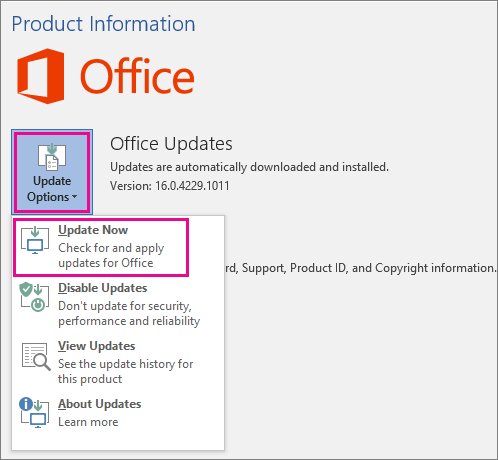
- Under Product Information, select Update Options > Update Now. If you only see Enable Updates, select it first.
- Wait for the You're up to date! or Updates were installed window, then close it.
- Select Start > Settings > Windows Update and check for Windows updates.
- Select Download & install for any offered update, then restart when prompted.
If Update Options is missing and only About appears, your copy is volume licensed or managed by Group Policy. Ask your IT help desk to push the update.
If no Office app opens at all, skip to the repair steps, then update afterwards.
Repair Microsoft Office from Windows Settings
Repair covers the whole suite, even if only Word or Excel fails. Try the faster Quick Repair first, then Online Repair if the error remains.
- Close all Office apps.
- Right-click Start and select Installed apps on Windows 11, or Apps and Features on Windows 10.
- Find your Microsoft 365 or Office product. For a standalone app such as Visio or Project, search for that app's name instead.
- Select … > Modify on Windows 11, or select the product and Modify on Windows 10.
- For a Click-to-Run install, choose Quick Repair and select Repair; this only detects and replaces corrupted files.
- If the error returns, run the same steps again and choose Online Repair > Repair.
- For an MSI-based install, choose Repair in Change your installation and select Continue.
- Restart the PC when the repair finishes.
Click-to-Run is the most common install type. Control Panel works too: open Programs > Programs and Features, right-click the product and select Change.
Sign Out, Sign Back In, and Check Your License
Stale sign-in data or an expired plan often shows up as this error at sign-in. Signing out removes your license until you sign back in, plus your recent files list and custom theme.
- In any Office app, select File > Account (in Outlook, Office Account) > Sign out.
- Close all Office apps so the sign-out completes.
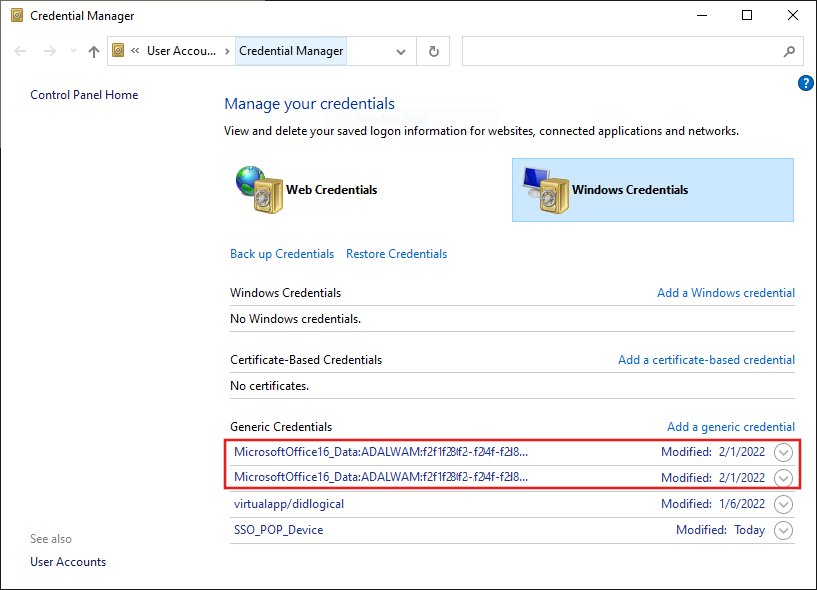
- Open Control Panel > Credential Manager > Windows Credentials, expand each entry that belongs to Office, and select Remove.
- Open Word, select File > Account > Sign In, and enter the email address you used to buy Office.
- Sign in to the Services & subscriptions page of your Microsoft account and confirm the subscription is listed and active.
- If it has expired, renew it, then restart the Office app.
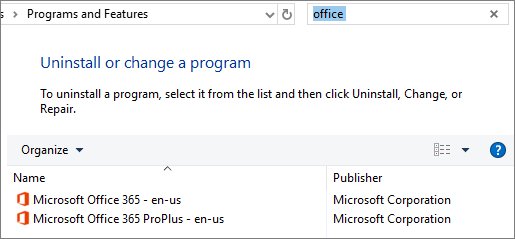
- Open Control Panel > Programs > Programs and Features, search for office, and uninstall any second copy you do not use.
- Restart the PC and sign in to Office again.
Microsoft 365 home plans let you sign in on five devices at once. Office signs you out of devices automatically when you exceed that, so sign back in on the PC showing the error.
Disable Problematic Add-ins and Clear Office Cache
If Office opens in safe mode but not normally, an add-in is the likely cause. Safe mode loads no add-ins, so it isolates them.
- Hold Ctrl and double-click the app's shortcut, then select Yes to start in safe mode. Or press Win + R and run
winword /safe,excel /safe,powerpnt /safeoroutlook /safe. - If the app opens cleanly in safe mode, select File > Options > Add-ins.
- In Manage, choose COM Add-ins and select Go.
- Clear the check box for every add-in, select OK, and restart the app normally.
- Re-enable the add-ins one at a time, restarting after each, until the error returns. The last one you ticked is the culprit; leave it off.
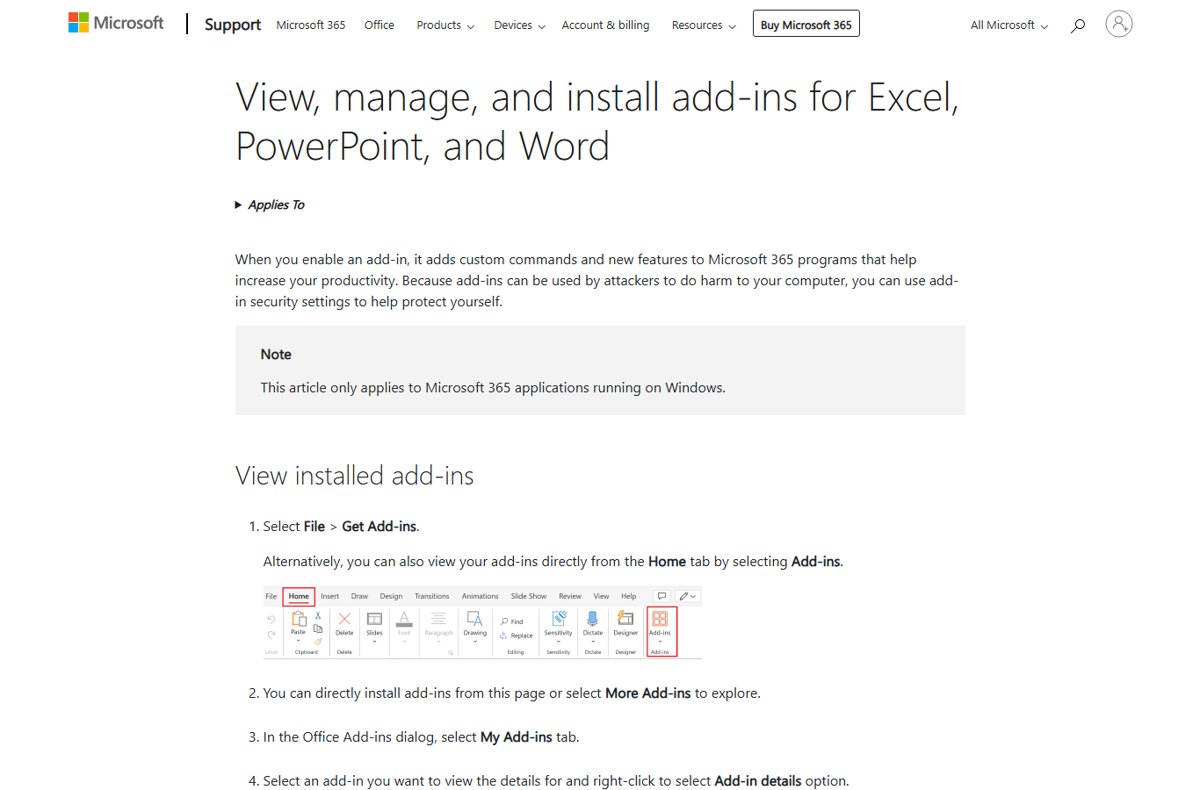
- For Store add-ins, select File > Get Add-ins (or Home > Add-ins) > My Add-ins, right-click the add-in and select Remove.
- To clear the Office add-in cache, go to File > Options > Trust Center > Trust Center Settings > Trusted Add-in Catalogs, tick Next time Office starts, clear all previously-started web add-ins cache, and restart the app.
- Alternatively, close all Office apps and delete the contents of
%LOCALAPPDATA%\Microsoft\Office\16.0\Wef\.
Clear the Wef folder completely. Microsoft warns that deleting individual manifest files can stop all add-ins from loading.
In Outlook, web add-ins are turned off from File > Manage Add-ins, which opens a page with a Turned on column.
Reinstall Office if the Error Still Appears
Reinstall only after Online Repair fails. Uninstalling removes the apps, not the documents, workbooks or files you created.
- Open any Office app, select File > Account > About, and note whether the version line says Click-to-Run or Microsoft Store.
- For Click-to-Run, open Control Panel > Programs > Programs and Features, select your Microsoft 365 product, and select Uninstall.
- If that fails or leaves Office behind, run Microsoft's uninstall troubleshooter from the uninstall support article and select Open when asked to open Get Help.
- Follow the prompts and restart the PC when asked.
- Sign in at the Microsoft 365 account page with the purchasing account and install Office again.
- Open an Office app and sign in with the same account to activate it.
The uninstall troubleshooter handles Microsoft 365, Office 2021, 2019 and 2016, but not Office 2024. It also needs Windows 10 or later.
If Office is not listed in Programs and Features, it is a Microsoft Store install; remove it from Installed apps instead.
Repair the Windows sign-in broker for Something Went Wrong [1001]
Microsoft traces the [1001] variant to the Web Account Manager (WAM) sign-in broker. Reboot first. If the error stays, run these two commands in a normal, non-admin PowerShell window, one at a time.
Add-AppxPackage -Register "$env:windir\SystemApps\Microsoft.AAD.BrokerPlugin_cw5n1h2txyewy\Appxmanifest.xml" -DisableDevelopmentMode -ForceApplicationShutdown
Add-AppxPackage -Register "$env:windir\SystemApps\Microsoft.Windows.CloudExperienceHost_cw5n1h2txyewy\Appxmanifest.xml" -DisableDevelopmentMode -ForceApplicationShutdown
Re-registers the AAD Broker Plugin and Cloud Experience Host packages that Office uses to sign in through Windows. -ForceApplicationShutdown closes apps that hold those packages open.
You should see: Both commands return to the prompt without red error text. Restart Office and sign in; the [1001] message no longer appears.
While you wait for a fix, Office on the web, Outlook on the web and the mobile apps still work with the same account.
How to check the fix worked
- Close the Office app completely, then open it normally, not in safe mode.
- Select File > Account and confirm your name appears under User Information.
- Check Product Information lists your Microsoft 365 or Office product, and that the title bar does not say Unlicensed Product.
- Create a new document, type a line, and save it; editing and saving fail on an unlicensed copy.
- Open a second Office app, such as Excel, to confirm the fix covers the suite.
Fix Something Went Wrong when the usual steps fail
Microsoft Something Went Wrong [1001] at sign-in
Microsoft names security software interfering with the WAM broker, or roamed profile data, as the two causes.
- Restart the PC and try signing in again.
- Run the two re-register commands from the section above.
- Update Office; Microsoft shipped sign-in fixes in Current Channel Version 2310.
- On a work or school PC, ask your admin to open a Microsoft 365 support ticket and review profile-roaming settings.
- If a third-party security product is involved, contact its vendor or your admin for an Office exclusion; do not switch protection off.
Outlook: Something went wrong and Outlook couldn't set up your account
Your custom domain's web server answers Outlook's Autodiscover lookup with an unexpected result.
- Confirm the error appears while adding an account with a custom domain or personalized address.
- Contact the web hosting provider for your domain's website.
- Ask them to stop the web server responding to Autodiscover requests.
- Once they confirm the change, restart Outlook and add the account again.
The error appears while installing Office
A proxy, firewall, antivirus scan or unstable connection interrupts the online installer.
- Restart the PC and run the installer again from your Microsoft 365 account page.
- If it fails again, download the Office offline installer as Microsoft's install troubleshooting page describes.
- Run the offline setup and sign in when it finishes.
Office still opens as Unlicensed Product after signing in
The wrong account, an expired plan or a duplicate Office install blocks activation.
- Sign in with every personal address you use, and your work or school account, in case Office was bought on another one.
- Check the subscription on your Microsoft account's Services & subscriptions page.
- Remove duplicate Office copies from Programs and Features, then restart.
- Run Microsoft's Microsoft 365 activation troubleshooter from its activation support article and select Open for Get Help.
The app will not open even in safe mode
Office program files are damaged beyond what add-in changes can fix.
- Run Online Repair, not Quick Repair.
- If the error persists, uninstall and reinstall Office as described above.
Frequently Asked Questions
How do I fix Microsoft Something Went Wrong errors in Office?
Restart the PC, sign back in, and open the app again. If the error returns, run Online Repair from Installed apps (Windows 11) or Apps and Features (Windows 10). Then update Office, sign in with the purchasing account, and uninstall and reinstall Office only if the repair fails.
Does the Something Went Wrong error mean my Office files are damaged?
No. The message refers to the Office app, sign-in or activation, not to your documents. Your files stay where you saved them. Even a full uninstall of Office removes only the apps, never the documents, workbooks or presentations you created with them.
What should I try first before repairing or reinstalling Microsoft Office?
Restart the PC and confirm the internet connection works, then install Office and Windows updates. Microsoft lists a restart as the first fix for this error. If Office opens in safe mode, check add-ins next before running any repair.
Will repairing Microsoft Office delete my documents, emails, or settings?
Repair works on Office's program files, and your documents are separate files that stay in place. Signing out of Office during troubleshooting is what removes custom settings such as your background, theme and recent files list. Those return after you sign back in and set them again.
What is the difference between Quick Repair and Online Repair?
Quick Repair is the faster option and only detects and replaces corrupted Office files. Online Repair is the one Microsoft recommends to make sure everything gets fixed, and it takes longer. Try Quick Repair first, then Online Repair if the Something Went Wrong error comes back.
How do I know if an Office add-in is causing the error?
Hold Ctrl while opening the app, or run winword /safe from the Run box. If the app opens cleanly in safe mode, an add-in is likely responsible. Disable all COM add-ins, then re-enable them one at a time until the error returns.
When should I uninstall and reinstall Office?
Reinstall only after Online Repair fails, or when the app will not open even in safe mode. Remove it from Programs and Features or with Microsoft's uninstall troubleshooter, restart, then install again from your Microsoft 365 account and sign in with the purchasing account.
How do I fix Something Went Wrong in Outlook?
If it appears when opening Outlook, use the same steps as other Office apps: restart, repair, and start Outlook with outlook /safe to test add-ins. If it appears while adding a custom-domain account, the domain's web host must stop answering Autodiscover requests.
Should I turn off my antivirus to fix Something Went Wrong?
No. Microsoft notes security software can interfere with Office sign-in, but the safe route is a vendor-supported exclusion, not disabling protection. Restart, re-register the sign-in broker, and update Office first; then ask the security vendor or your admin.
Bottom Line
Restart first, then run Online Repair; that pair clears most Something Went Wrong errors at Office launch, and a reinstall is only worth it when repair fails. Microsoft ranks restart and repair as the most common fixes. Sign-in variants such as [1001] and license errors need the account and broker steps instead, and Outlook's account-setup version is a domain-hosting problem no local repair can fix.