Connect the display, press Windows key + P, then select Duplicate to project your Windows 11 screen to a TV, monitor or projector.
This page covers wired projection, wireless Miracast casting, projecting to a second PC, Remote Desktop, the Windows key + P modes, and the fixes for a projection that will not start.
The fastest way to project your screen on Windows 11
This route works with an HDMI, DisplayPort or USB-C cable and with a Miracast display.
- Turn on the TV, projector or monitor and select its input for the port you are using.
- Plug the video cable into the PC and the display, or press Windows key + K and select a Miracast display from the list.
- Press Windows key + P on the PC.
- Select Duplicate to show the same picture on both screens, or Extend to use the second screen as extra desktop space.
Windows remembers the mode for that display, so the next connection reopens in the same layout.
Understanding Screen Projection in Windows 11
Windows 11 uses several separate features for sending a picture to another screen, and the names overlap in ordinary speech.
| Feature | What it does | Where it lives |
|---|---|---|
| Project menu | Switches what appears on the displays already connected | Windows key + P |
| Cast | Finds Miracast displays and adapters and connects to one wirelessly | Windows key + K |
| Miracast | The wireless display standard Windows uses when no cable is involved | Built into supported Wi-Fi and display hardware |
| Wireless Display app | Turns a PC into a target other devices can project to | Settings > System > Projecting to this PC |
| Remote Desktop | Controls another PC over the network instead of mirroring this one | Settings > System > Remote Desktop |
| WiGig dock | Links the PC wirelessly to a dock that holds the display cable | Settings > Network & Internet > Airplane mode |
Casting a headset or console to a PC works the other way round; casting an Oculus headset to a computer screen uses the headset's own casting menu.
Which projection method fits your setup
| Your situation | Use this | Why |
|---|---|---|
| A TV or projector in the same room with a free video port | An HDMI, DisplayPort or USB-C cable | No network involved, and nothing to pair |
| A Miracast TV, or a Miracast adapter in an HDMI port | Windows key + K | Casts over the PC's Wi-Fi hardware with no cable |
| A second Windows 11 PC used as the screen | The Wireless Display optional feature on that PC | It makes the other PC discoverable as a projection target |
| You need the other PC's apps and files, not a mirror of this screen | Remote Desktop | It gives a full session on the remote PC |
| An Android phone whose content you want on the PC | Phone Link with the Link to Windows app | Windows 11 has no feature that sends its own screen to a phone |
| The display is plugged in but Windows shows nothing | Settings > System > Display > Multiple displays > Detect | Forces Windows to scan the video ports again |
Check hardware compatibility before you project
Wireless projection fails most often on hardware, not on settings.
| Requirement | How to check it | If it is missing |
|---|---|---|
| Miracast support on the PC | Press Windows key + K. An unsupported PC shows a message saying you need to connect an external display with a cable | Use a cable, or a USB wireless display adapter |
| Miracast support on the display | Look for a cast or screen mirroring input on the TV | Plug a Miracast adapter into a free HDMI port |
| Wi-Fi turned on | Select the Network, Sound or Battery icons on the right of the taskbar | Turn Wi-Fi on; Miracast uses the Wi-Fi radio even without a router |
| A free video output | Check the PC for HDMI, VGA, DVI or DisplayPort | Add a docking station or a USB-C video adapter |
| Current Windows build | Settings > Windows Update > Check for updates | Install the pending updates and restart |
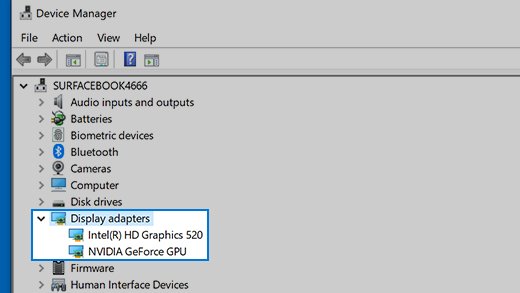
| Current display drivers | Device Manager > Display adapters | Take the driver from the PC or graphics card maker's own support page |
A display splitter cannot extend the desktop across two monitors. It copies one signal, so both screens show the same thing.
Project using a cable (wired projection)
A cable is the route to choose when the display is within reach and video quality matters.
- Turn on the TV, projector or monitor.
- Connect the cable to a video output on the PC and to the matching port on the display.
- Select that input on the display using its own source or input button.
- Press Windows key + P and pick Duplicate, Extend or Second screen only.
- If nothing appears, open Settings > System > Display, expand Multiple displays and select Detect.
- Select Identify on the same page to see which number belongs to which screen.
Disconnect all docks, dongles and adapters first when a wired display misbehaves. Connected hardware can conflict.
Project using Wireless Display (Miracast)
Miracast sends the picture straight from the PC's Wi-Fi hardware to the display, so no router or shared network is needed.
- Turn on the TV, projector or other display. Plug in the Miracast dongle or adapter if the display needs one.
- Switch the display to the adapter's HDMI input, or to its own screen mirroring mode.
- On the PC, press Windows key + K to open Cast.
- Select the display or adapter from the list of available devices.
- Follow any prompt shown on the TV, such as a PIN.
- Press Windows key + P and choose the mode you want once the connection is live.
Settings > System > Display > Multiple displays > Connect to a wireless display reaches the same list without the shortcut.
Use the Project menu (Windows key + P)
The Project menu decides what each connected screen shows. It changes nothing about the connection itself.
| If you want to | Choose | Typical use |
|---|---|---|
| See things on one display only | PC screen only | Ending a presentation without unplugging |
| See the same thing on all your displays | Duplicate | Presenting to a room from a laptop |
| See your desktop across multiple screens | Extend | Slides on the projector, notes on the laptop |
| See everything on the second display only | Second screen only | Using a TV as the sole display |
Extend is the mode Windows expects while an external monitor is being set up, so select it first when troubleshooting a blank second screen.
Enable the Wireless Display feature to project to another PC
A Windows 11 PC is not a projection target until the Wireless Display optional feature is installed on it.
- On the PC you want to project to, select Start > Settings > System > Projecting to this PC.
- Under Add the "Wireless Display" optional feature to project to this PC, select Optional features.
- Next to Add an optional feature, select View features, then type wireless display.
- Select the check box next to Wireless Display, select Next, then select Install.
- Select Back and set your preferences on the Projecting to this PC page.
- Type wireless display in the taskbar search box and open the Wireless Display app so the PC starts listening.
- On the PC you are projecting from, press Windows key + K and select that PC.
The Wireless Display app ships on Windows 11 version 22H2 and later. Earlier versions use the Connect app instead.
Projecting between a Windows 11 PC and an Android or iOS device
Windows 11 has no built-in feature that sends its own screen to an Android or iOS device. The supported direction is phone to PC, through Phone Link.
Phone Link needs Windows 11, an Android device on Android 10 or later, and both devices on the same Wi-Fi network.
- Type Phone Link in the taskbar search box and open Phone Link on the PC.
- Sign in with your Microsoft account if Windows prompts you.
- On the Android device, open a browser and go to www.aka.ms/yourpc to install or open Link to Windows.
- Sign in to the mobile app with the same Microsoft account.
- Back on the PC, select the I have the Link to Windows app ready check box, then select Pair with QR code.
- In the mobile app, select Link your phone and PC, select Continue, then scan the QR code shown on the PC.
- Grant the Android permissions the app asks for, select Done, then return to the PC.
Select Pair manually on the PC instead of the QR code to type a pairing code on the phone. To put an iPhone or Android screen on a television rather than a PC, use the phone's own cast or screen mirroring setting.
Connecting to Windows 11 via Remote Desktop (screen sharing over a network)
Remote Desktop is not mirroring. It opens a session on the remote PC with its apps, files and network access.
Only Windows 11 Pro, Enterprise and Education can host a connection. Home editions can connect out but cannot be connected to.
- On the PC you want to reach, sign in with an administrator account.
- Select Start > Settings > System > Remote Desktop.
- Set Enable Remote Desktop to On, then select Confirm.
- Select Select users that can remotely access this PC, select Add, type the user name and select OK.
- Note the PC name shown on the same page.
- On the other device, open Remote Desktop Connection from the Start menu.
- Type the PC name or IP address, select Connect, enter the credentials and select OK.
Enabling Remote Desktop opens a port on the PC. Turn it on only on trusted networks, and give every account with remote access a strong, unique password.
Multiple display management after projection starts
Windows treats a projector or TV like any other monitor once the connection is live.
- Select Start > Settings > System > Display.
- Select Identify to show a number on each screen.
- Drag the numbered rectangles so they match the real position of the screens, then select Apply.
- Expand Multiple displays to reach Detect and Connect for displays Windows has not found.
- Turn on Remember window locations based on monitor connection so windows return to the right screen after a reconnect.
- Turn on Minimize windows when a monitor is disconnected if you unplug the display often.
Each screen keeps its own resolution, scale and refresh rate, and brightness is adjusted per display on laptops that support it.
How to check the projection worked
- Select Start > Settings > System > Display and confirm a second numbered display is listed.
- Select Identify and check that the number on the TV matches the rectangle Windows highlights.
- Drag a window towards the edge of the desktop and watch it appear on the projected screen when Extend is selected.
- Play a short video and confirm the sound comes from the display you expect.
- Press Windows key + P and confirm the mode you chose is the one highlighted.
A screenshot of the projected desktop captures every connected screen, which is a quick way to record the final layout.
Fix Windows 11 when it cannot project the screen
Windows + K says you need to connect a display with a cable
The PC's hardware does not support Miracast, so wireless casting is not available.
- Connect the display with an HDMI, DisplayPort or USB-C cable instead.
- Check Settings > Windows Update > Check for updates and install everything pending.
- Install the newest display driver from the PC or graphics card maker's own support page.
- Add a USB wireless display adapter if the PC must cast without a cable.
The TV or adapter never appears in the Cast list
Either Wi-Fi is off on the PC, or the display is not in its mirroring mode.
- Select the Network, Sound or Battery icons on the taskbar and turn Wi-Fi on.
- Switch the TV to the adapter's HDMI input, or to its own screen mirroring source.
- Confirm the display supports Miracast; if it does not, add a Miracast adapter to a free HDMI port.
- Restart both the PC and the display, then press Windows key + K again.
The second Windows PC is not discoverable
The Wireless Display feature is missing, closed, or the PC is set not to be discovered.
- On the target PC, confirm Wi-Fi is on.
- Type wireless display in the taskbar search box and open the app so it starts listening.
- Open Settings > System > Projecting to this PC and set it to be discoverable.
- Press Windows key + K on the sending PC and look for the target PC again.
A wired monitor stays black after Windows + P
The mode, the cable or the port is wrong, rather than the display itself.
- Press Windows key + P and select Extend.
- Disconnect every dock, dongle and adapter, then connect the monitor straight to the PC.
- Swap the video cable for a known-good one.
- Plug the monitor into a different video output if the PC has more than one.
- Open Settings > System > Display > Multiple displays and select Detect.
A previously paired wireless display will not reconnect
The stored pairing has gone stale.
- Open Settings > Bluetooth & devices > Devices.
- Under Wireless displays & docks, select the display or adapter.
- Select Remove device.
- Press Windows key + K and pair it again from scratch.
Crashes, no sound, or screen glitches?
Picture on the TV but no sound
Windows is still sending audio to the laptop speakers.
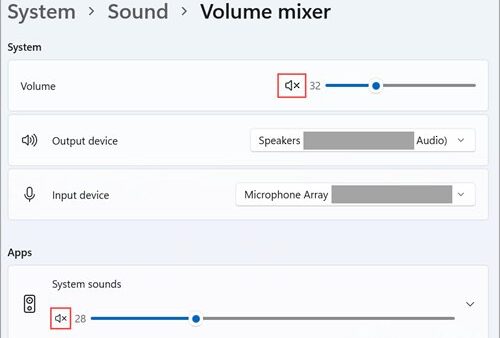
- Select Start > Settings > System > Sound.
- Under Output, select the TV, projector or adapter.
- Check that the volume slider is up and not muted.
- Select More sound settings > Playback, right-click the display and select Set as default if it keeps reverting.
- Open the output device's page, scroll to Advanced settings and set Audio enhancements to Off if the sound is distorted.
Flicker, tearing or a frozen picture on the projected screen
The display driver has lost its state, or a Windows update replaced it with a worse one.
- Press Windows key + Ctrl + Shift + B to reset the graphics driver.
- Restart the PC from Start > Power > Restart.
- Open Device Manager, expand Display adapters, right-click the adapter and select Properties.
- Open the Driver tab and select Roll Back Driver if the trouble started after an update.
The wireless session drops after a few minutes
Miracast shares the Wi-Fi radio, so weak signal and stale firmware both break the stream.
- Move the PC closer to the display or adapter and clear the line of sight.
- Install the newest firmware for the wireless display or adapter from the maker's own support page.
- Check Settings > Windows Update > Check for updates on both PCs.
- Restart the PC and the wireless display, then reconnect with Windows key + K.
Notifications and private windows appear on the projected screen
Duplicate mode copies everything on the desktop, including pop-ups.
- Press Windows key + P and select Extend, then keep private windows on the laptop screen.
- Turn on focus assist or do not disturb before presenting.
- In a browser meeting, share a single window rather than the whole desktop; Chrome blocks notifications during screen sharing for the same reason.
How to disable project screen in Windows 11
Stopping a live projection and blocking projection permanently are two different jobs.
- Press Windows key + P and select PC screen only to end a session and return everything to the laptop screen.
- Unplug the video cable, or disconnect the wireless display from Settings > Bluetooth & devices > Devices > Wireless displays & docks > Remove device.
- Open Settings > System > Projecting to this PC and set the page so the PC is not discoverable, to stop other devices projecting to it.
- On Windows 11 Pro, Enterprise or Education, open the Local Group Policy Editor and go to Computer Configuration > Windows Components > Connect.
- Enable Don't allow this PC to be projected to to block incoming projection for every user on that PC.
Leaving the Wireless Display optional feature uninstalled has the same practical effect, because nothing on the PC listens for an incoming connection.
Frequently asked questions
How do you project a screen on Windows 11?
Connect the display with a cable or press Windows key + K and pick a Miracast display. Then press Windows key + P and choose Duplicate, Extend or Second screen only for the layout you want.
What is the project screen shortcut in Windows 11?
Windows key + P opens the Project menu with the four display modes. Windows key + K opens Cast, which finds wireless displays and adapters to connect to before the Project menu is used.
How do you project Windows 11 to a TV?
Use an HDMI cable from the PC to a free TV input, or press Windows key + K and select the TV if it supports Miracast. A TV without Miracast needs an adapter plugged into one of its HDMI ports.
Why can't I project my screen in Windows 11?
The usual causes are a PC without Miracast support, Wi-Fi switched off, a display that is not in mirroring mode, or a target PC without the Wireless Display feature installed and running. Windows key + K reports an unsupported PC directly.
How do I enable projecting to this PC in Windows 11?
Go to Settings > System > Projecting to this PC, select Optional features, then View features, search for wireless display and install it. Open the Wireless Display app afterwards so the PC is discoverable.
How do you disable project screen in Windows 11?
Press Windows key + P and select PC screen only to end a session. To block other devices, set Projecting to this PC so the PC is not discoverable, or enable the Don't allow this PC to be projected to policy on Pro and Enterprise.
Is there a project screen driver to download for Windows 11?
No. Wireless projection uses the Wireless Display optional feature that ships inside Windows plus the PC's existing Wi-Fi and display drivers. Get those drivers from Windows Update or the hardware maker's own support page.
How do you project a phone screen on a Windows 11 laptop?
Pair the phone with Phone Link using the Link to Windows app, with both devices on the same Wi-Fi network and the phone running Android 10 or later. Windows 11 has no feature that projects its own screen onto a phone.
What is the difference between Duplicate and Extend?
Duplicate shows the same picture on every connected display, which suits presentations. Extend spreads one desktop across the screens so windows can be dragged between them, which suits working on two monitors.
Why is there no sound after projecting to a TV?
Windows keeps the old playback device. Open Settings > System > Sound and select the TV under Output, then use More sound settings > Playback > Set as default if it switches back.
Can Windows 11 Home host a Remote Desktop connection?
No. Windows Home editions can connect out to other PCs, but only Professional, Enterprise and Education editions can accept an incoming Remote Desktop connection.
Does projecting need a Wi-Fi network?
Miracast uses the PC's Wi-Fi hardware directly, so a router is not required, but Wi-Fi must be switched on. Projecting to another PC over Phone Link or Remote Desktop does need both devices on the same network.
Bottom line
Use a cable and Windows key + P for anything that has to work first time, and keep Miracast for displays you cannot reach. A wired link needs no pairing, no Wi-Fi radio and no optional feature, so the only variable left is which mode the Project menu is set to.