Press Windows key + . (period) on a PC, or Fn/🌐–E on a Mac, then pick 🤞 to type the fingers crossed emoji.
This guide covers the keyboard routes on Windows, macOS, iPhone, Android and web applications, the Unicode code point, custom shortcuts, and fixes when the character will not appear.
The fastest way to type the fingers crossed emoji
Each platform opens its emoji picker from the keyboard while the cursor sits in a text field.
- Click or tap into the text field first, so the system knows text entry is active.
- On Windows 11 or Windows 10, press Windows key + . (period). The emoji keyboard appears.
- On a Mac, press Fn/🌐–E, or choose Edit > Emoji & Symbols.
- On an iPhone or iPad, tap 🙂 or 🌐 to switch to the emoji keyboard.
- Type
crossedto filter the list, then select 🤞. It drops in at the cursor.
Nothing is installed and nothing is downloaded. The character is part of the system font.
Which method should you use?
| Your situation | Use this | Why |
|---|---|---|
| You are typing in any app on a PC | Windows key + . (period) | Works during text entry anywhere in Windows |
| You are on a Mac | Fn/🌐–E | Opens the Character Viewer over the app you are in |
| You are on a phone or tablet | The emoji key on the onscreen keyboard | No shortcut to remember |
| You need the same emoji many times a day | A text replacement | Turns 🤞 into three letters you already type |
| You need it inside a Word document | The code point 1F91E followed by Alt + X |
No picker, and it works with no mouse |
| The app refuses to show the picker | Copy it and paste from clipboard history | Bypasses the app's own input handling |
Understanding the Fingers Crossed Emoji
| Fact | Detail |
|---|---|
| Character | 🤞 |
| Unicode code point | U+1F91E |
| Unicode block | Supplemental Symbols and Pictographs |
| Skin tone variants | Five, formed by adding an emoji modifier from U+1F3FB to U+1F3FF |
| What the gesture means | A wish for luck, from the older habit of making a cross with two fingers |
| Second meaning | Fingers crossed behind the back marks a white lie or cancels a promise |
| Where it reads differently | In German-speaking countries, Sweden, Latvia and several Slavic countries the crossed fingers gesture signals lying, and luck is wished by pressing thumbs instead |
| Where to avoid it | In Vietnam the gesture is considered rude, especially when aimed at another person |
The drawing changes by platform, but the code point does not. Every device receives the same U+1F91E.
Keyboard Options for Emoji Input
Six input routes reach the same character. The one you pick depends on the hardware in front of you.
| Keyboard option | How it opens | Best for |
|---|---|---|
| Windows emoji panel | Windows key + . (period) or Windows key + ; (semicolon) | Any app on a PC, including browsers |
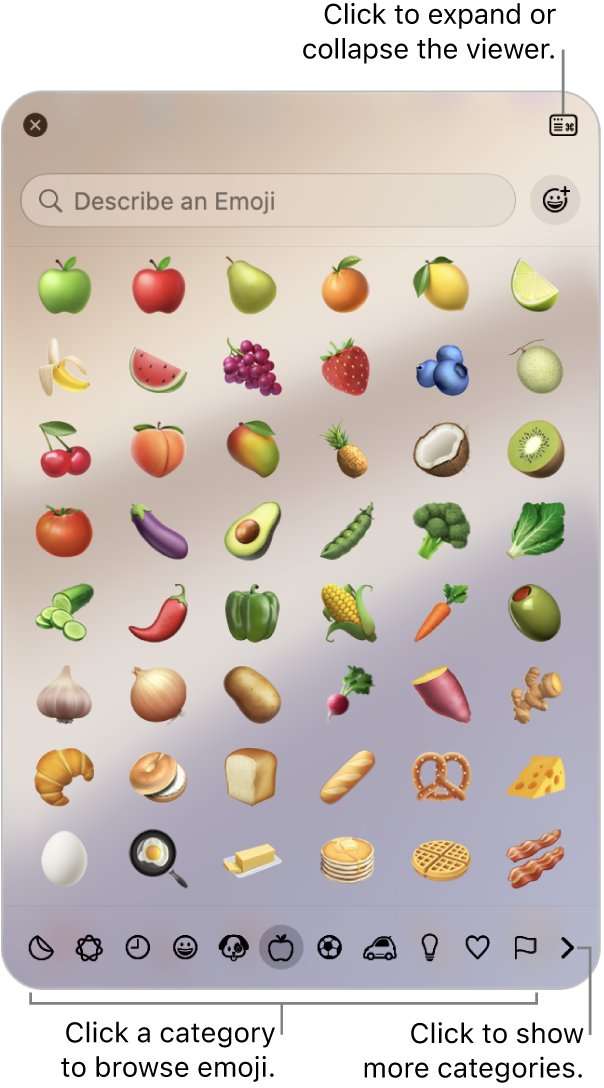
| macOS Character Viewer | Fn/🌐–E or Edit > Emoji & Symbols | Searching by name and picking a skin tone |
| Onscreen emoji keyboard | The 🙂 or 🌐 key on a phone or tablet | Messaging on the move |
| Third-party keyboard app | Added under the device's keyboard settings | People who prefer another layout or emoji search |
| Unicode code point entry | Type 1F91E, then press Alt + X in Word |
Documents, and keyboards with no picker key |
| Copy and paste | Windows key + V reopens clipboard history on a PC | Apps that block the picker |
On Windows Computers
The emoji panel is built into Windows 11 and Windows 10. It only opens while text entry is active.
- Click into the text box, document or message field you are writing in.
- Press Windows key + . (period). The emoji keyboard appears above or below the cursor.
- Keep typing
crossedto search through the available emojis. - Select 🤞 with the mouse, or move to it with the arrow keys and press Enter.
- Press Esc to close the panel and carry on typing.
Windows key + ; (semicolon) opens the same panel. The panel also holds Symbols, GIFs and Kaomoji tabs.
On MacOS Devices
- Place the cursor where the emoji belongs.
- Press Fn/🌐–E, or choose Edit > Emoji & Symbols from the menu bar.
- Enter
crossed fingersin the search field of the Character Viewer. - Click 🤞 to add it to your text. Double-click it if the viewer is expanded.
- Click and hold the emoji first if you want a different skin tone.
More Mac keyboard routes, including Genmoji, are in How to Use Emojis on Mac, Keyboard Shortcut, Emoji Keyboard & Genmoji.
Traditional Mobile Keyboard Method
This is the route on an iPhone or iPad, where the emoji keyboard sits beside the letters.
- Tap a text field to bring up the keyboard.
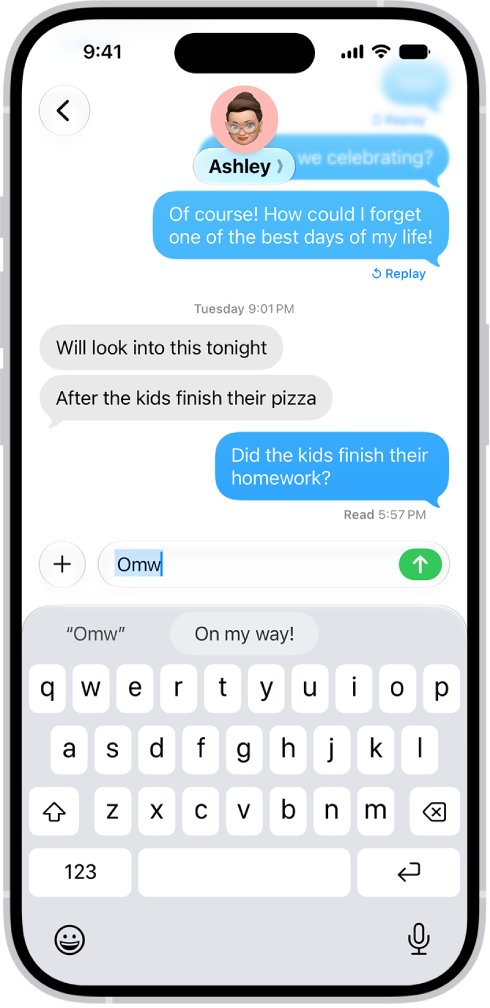
- Tap 🙂 or 🌐 to switch to the emoji keyboard.
- Tap the hand symbol below the emoji keyboard to jump to that category.
- Swipe left or right to browse, then tap 🤞 to add it to your text field.
- Touch and hold 🤞, then drag and release on a skin tone variation if you want one.
- Tap ABC to return to the regular keyboard.
On Smartphones and Tablets
Android phones and tablets running Gboard reach the same character in four taps.
- Open any app where you can write, such as Gmail or Keep.
- Tap where you can enter text.
- Tap Emoji on the keyboard.
- Tap 🤞 to insert it, then tap Send.
- Tap ABC to go back to entering letters.
Recently used emoji move to the front of the list, so the second use takes two taps.
Using Third-Party Keyboard Apps
A replacement keyboard is worth adding only if you want its search or layout. The emoji itself is identical.
- Install the keyboard app on your phone or tablet.
- On an iPhone, go to the Settings app, tap General, then tap Keyboard.
- Tap Keyboards, tap Add New Keyboard, then choose the app from the list.
- While typing text, touch and hold 🙂 or 🌐, then tap the keyboard you want to switch to.
- Open its emoji section and tap 🤞.
Swipe left on a keyboard in the same list and tap Delete to remove one you no longer use.
Using Emoji Shortcuts on Your Device
Both macOS and iOS can swap a typed word for the emoji, which skips the picker entirely.
- On a Mac, type a commonly used word such as
crossedin the text field. - Press Fn/🌐–E. Emoji suggestions appear for the word you entered.
- Press Return to replace the text with the suggested emoji, or choose another suggestion.
- On an iPhone, enter the word and tap the suggested emoji that appears above the keyboard.
- If no suggestion matches, the Character Viewer opens instead and you can search there.
Inserting the Fingers Crossed Emoji on Various Platforms
| Platform | What to press or tap | Where the emoji lands |
|---|---|---|
| Windows 11 and Windows 10 desktop computers | Windows key + . (period) | At the cursor, in whatever field had focus |
| macOS on desktop and laptop Macs | Fn/🌐–E | At the insertion point in the front app |
| iPhone and iPad | The 🙂 or 🌐 key on the onscreen keyboard | In the text field you tapped |
| Android mobile devices with Gboard | The Emoji key on the keyboard | In the text field you tapped |
| Web applications open in a browser | The same operating system shortcut, with the cursor in the text box | In the page's text box, as a normal character |
| A Word document | 1F91E followed by Alt + X |
Replacing the code you typed |
In Web Applications
Browsers do not need an extension for this. The operating system picker writes into the page like any other text.
- Click inside the message box, comment field or document in the browser tab.
- Press Windows key + . (period) on a PC, or Fn/🌐–E on a Mac.
- Type
crossedto narrow the list, then select 🤞. - If the web application has its own emoji button, use that instead and pick the same character.
- Press Windows key + V to paste it again from clipboard history on later lines.
Turn clipboard history on first under Settings > System > Clipboard, with the Clipboard history toggle on.
Manual Methods: Creating the Fingers Crossed Emoji with Characters
Word converts a Unicode character code into the character it names, which reaches 🤞 with no picker at all.
- Open the document in Word and put the cursor where the emoji belongs.
- Type the character code
1F91Ewith no spaces. - Press ALT, and then press X. The code turns into 🤞.
- If Alt + X converts the wrong character code, select the correct character code first, then press Alt + X again.
There is no plain-text emoticon for crossed fingers in the way :-) stands in for a smile, so the code point is the manual route.
Create Custom Keyboard Shortcuts
A text replacement turns 🤞 into a few letters. Type the letters, and the emoji lands.
- Copy 🤞 from this page or from the picker first.
- On a Mac, choose Apple menu > System Settings, then click Keyboard in the sidebar.
- Click Text Replacements, click the add button, type the replacement text 🤞 and the shortcut
xfc, then click Add. - Click Done. The replacement syncs to your other Apple devices.
- On an iPhone, touch and hold 🙂 or 🌐 while in a text field, tap Keyboard Settings, then tap Text Replacement.
- Tap the add button, paste 🤞 in the Phrase field and type
xfcin the Shortcut field.
Windows has no system-wide text replacement of this kind. Clipboard history under Windows key + V is the closest equivalent.
Tips for Easy Access and Usage of the Fingers Crossed Emoji
These additional tips cut the emoji down to two or three keystrokes after the first use.
| Tip | How to set it up | Where it helps |
|---|---|---|
| Let the recent list do the work | Pick 🤞 once; both the Windows panel and the Character Viewer put recently used characters first | The second and third use |
| Make it a favourite on a Mac | Press Fn/🌐–E, select 🤞, then click Add to Favorites | Keeps it at the top of the viewer permanently |
| Put the Character Viewer in the menu bar | System Settings > Keyboard > Text Input > Edit, then turn on Show Input menu in menu bar | Opening the viewer from the desktop with the mouse |
| Make one key open the picker | In Keyboard settings, set the Press fn key to menu to Show Emoji & Symbols | One key instead of a two-key combination |
| Reuse it from clipboard history | Turn on Clipboard history in Settings > System > Clipboard, then press Windows key + V | Dropping the same emoji into several messages |
| Practice the shortcut for speed | Type it ten times in a scratch document until the key combination is muscle memory | Chat and comment fields, where speed matters |
Bookmark Emoji Resources
Four official pages settle every fact on this page. Bookmark the one that matches your device.
| Resource | Official page | What it settles |
|---|---|---|
| Windows emoji panel | Windows keyboard tips and tricks | The emoji panel shortcut and the Symbols tab |
| macOS Character Viewer | Use emoji and symbols on Mac | Fn/Globe-E, search, favourites and skin tones |
| iPhone emoji keyboard | Add emoji, Memoji, and stickers with the iPhone keyboard | The emoji key, categories and skin tone variations |
| Android keyboard | Use your keyboard – Gboard Help | The Emoji key and returning to letters with ABC |
How to check it worked
- Look at the character you just inserted. It should render in full colour, not as a hollow box or a question mark.
- Send the text to yourself in a second app, then open it there and confirm the same coloured glyph.
- Reopen the picker. 🤞 should now sit in the recently used row at the front.
- On a Mac, expand the Character Viewer and check that 🤞 appears under Frequently Used.
How to remove it if the wrong emoji lands
- Press Ctrl + Z on a PC, or Command + Z on a Mac, immediately after inserting.
- Press Backspace once if undo is not available in that field.
- Press Backspace a second time for a skin-toned version, because the modifier is a separate character.
- On a phone, tap the delete key on the onscreen keyboard.
More undo shortcuts across apps are in How to Undo on a Keyboard.
Troubleshooting Common Issues When Trying to Type the Fingers Crossed Emoji
There is no emoji key on the phone keyboard
The emoji keyboard has been removed from the device's keyboard list.
- On an iPhone, go to the Settings app, tap General, then tap Keyboard.
- Tap Keyboards, then tap Add New Keyboard.
- Choose the emoji keyboard from the list.
- Return to any text field and check that 🙂 or 🌐 now appears next to the space bar.
The picker opens but closes again before anything is inserted
Focus left the text field, so the inserted character has nowhere to go.
- Click directly inside the text field and watch for the blinking cursor.
- Press Windows key + . (period) again without clicking anywhere else.
- Select the emoji with the arrow keys and Enter rather than the mouse.
Emoji Not Displaying Properly
The emoji shows as an empty box or a question mark
The font in use has no glyph for U+1F91E, so the app falls back to a placeholder.
- Paste the same text into a second app to confirm the character itself arrived.
- In Word, select the character and set the font to Segoe UI Emoji.
- On a PC, press Windows key + . (period) and check that the panel itself shows coloured emoji.
- If the panel is coloured but the app is not, the app is overriding the font, not Windows.
Incompatible Keyboard or Software
The app strips the emoji or refuses to accept it
Some fields accept a restricted character set and drop anything outside it.
- Paste the emoji into Notepad on a PC, or TextEdit on a Mac, to prove the character is on the clipboard.
- Use the app's own emoji button if it has one, instead of the system picker.
- Send the message from a different app or from the web version of the same service.
- Write the words "fingers crossed" as a fallback where the field will not take the character.
Incorrect Shortcut Usage
Windows key and period does nothing
The panel only opens during text entry, and the Windows logo key is easy to mistake for Ctrl.
- Click into a text field first, then press the combination.
- Hold the Windows logo key down, then tap . (period), rather than pressing both at once.
- Try Windows key + ; (semicolon), which opens the same panel.
- On a Mac, check that you are pressing Fn/🌐–E and not Fn + F.
Font Compatibility Issues
The emoji looks different on the other person's screen
Each platform draws U+1F91E with its own emoji font, so the artwork differs while the character does not.
- Confirm the recipient sees a hand and not a box. A different drawing is normal.
- On Windows, the artwork comes from Segoe UI Emoji, which ships with Windows 11 and Windows 10 and is also available in Office apps.
- Add a few words alongside the emoji when the exact drawing carries the meaning.
- Avoid pasting the emoji as an image, which stops it being searchable text.
Keyboard Language and Region Settings
The panel opens but typing a word finds nothing
The search box matches emoji names, so a word from another input language returns an empty list.
- Clear the search box and browse the hand category instead.
- Press Windows key + Spacebar to switch forward through input languages and keyboard layouts, then search again.
- On an iPhone, touch and hold 🌐, then tap the keyboard you want to switch to.
- Try a shorter term such as
crossin place of a full phrase.
Frequently Asked Questions
Why do we say fingers crossed?
Crossing the fingers is a hand gesture used to wish for luck or to bid someone Godspeed. Early Christians used it to implore the protection of the Holy Cross, and the phrase kept the sense of asking for a good outcome.
What do crossed fingers mean?
Crossed fingers usually mean a wish for luck. Held behind the back, the same gesture marks a white lie, and a related belief holds that crossing your fingers invalidates a promise you are making.
Why do crossed fingers mean good luck?
The gesture is believed to have started from its resemblance to the Cross of Christ, used as protection from evil. It gained traction in 16th-century England, where people crossed their fingers to ward off evils and ill health.
What is meant by fingers crossed?
"Fingers crossed" is shorthand for hoping something goes well. The full expressions are "cross your fingers" and "keep your fingers crossed", and the emoji 🤞 carries the same meaning in a message.
Why do people cross their fingers when they lie?
Children adopted the gesture for white lies, believing that crossing the fingers behind the back makes fibbing acceptable. In German-speaking countries, Sweden and Latvia, crossed fingers read as a sign of lying outright.
Is it fingers crossed or crossed fingers?
Both are correct. "Fingers crossed" is the set phrase people say or type, while "crossed fingers" names the gesture and the emoji itself. The character is the same either way.
What does the crossed fingers emoji mean?
🤞 stands for hoping for a good result, the same as saying "fingers crossed". Because the gesture also covers white lies in English and reads as lying in several European languages, context decides the reading.
How do you copy and paste the fingers crossed emoji?
Select 🤞, press Ctrl + C on a PC or Command + C on a Mac, then paste with Ctrl + V or Command + V. On a PC, Windows key + V reopens clipboard history so you can paste it again later.
What does keep your fingers crossed mean?
It is a request to keep wishing for a good outcome on someone's behalf until the result is known. Sending 🤞 in a message is the written equivalent of making the gesture.
Are there other ways to cross your fingers?
In German-speaking and many Slavic countries, luck is wished by holding or pressing the thumbs instead. In pre-Christian Western Europe, two people crossed their index fingers together to make a wish.
Does the fingers crossed emoji have skin tones?
Yes. U+1F91E accepts the five emoji modifiers from U+1F3FB to U+1F3FF. Touch and hold the emoji on a phone, or click and hold it in the Mac Character Viewer, to pick a tone.