Press the DPI button on the mouse to change its DPI, because DPI is stored in the mouse itself and Windows has no DPI slider.
This guide covers the DPI button, the maker's app, the pointer speed sliders in Windows 11 and Windows 10, and fixes when the cursor misbehaves.
The fastest way to change mouse DPI
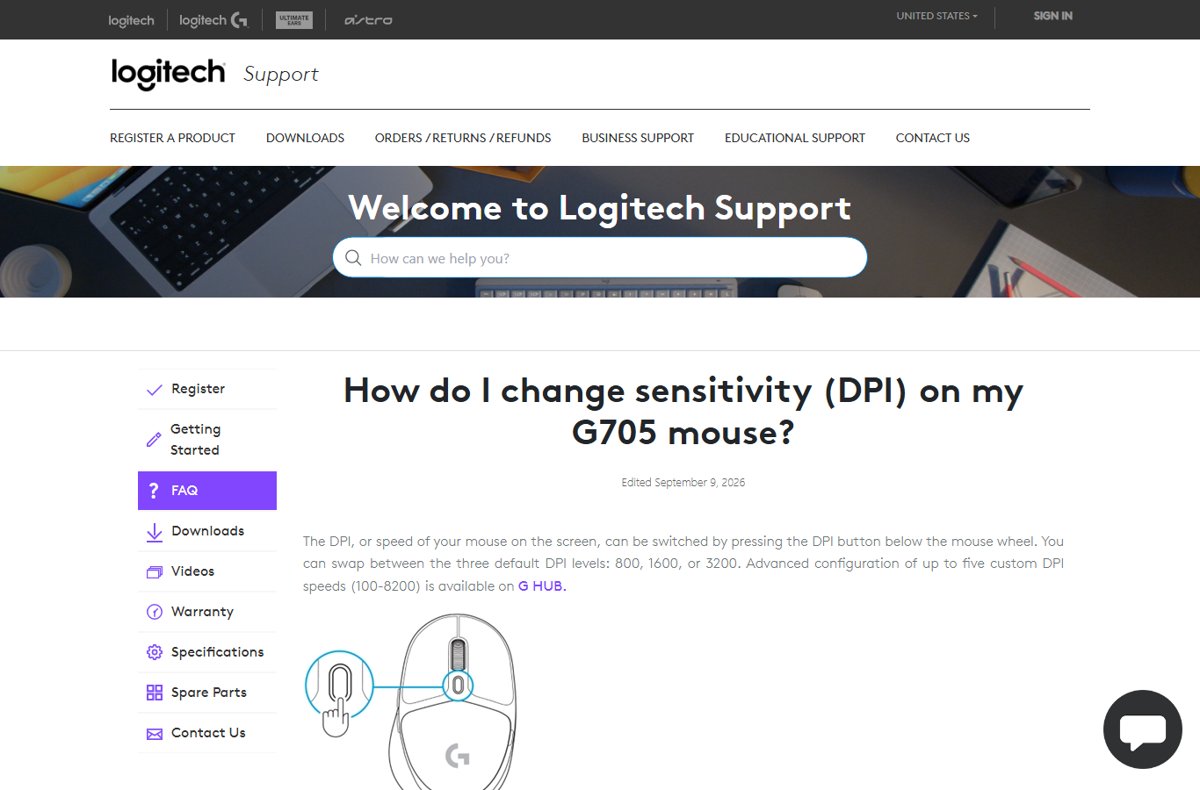
Most gaming and mid-range mice carry a small DPI button just behind or below the scroll wheel.
- Press the DPI button on top of the mouse once.
- Move the mouse across the screen and judge the new speed.
- Press DPI again to step to the next preset, and keep pressing until the cursor feels right.
- Watch the small indicator LED if the mouse has one; on many models its colour marks which preset is active.
Logitech's G705, for example, cycles three factory presets of 800, 1600 and 3200 DPI from that button.
No DPI button on the mouse? Use the maker's app, or change the Windows pointer speed instead.
What Mouse DPI Means and How It Affects Cursor Movement
DPI is dots per inch: how many steps the sensor reports for every inch the mouse travels. The higher the DPI, the faster the cursor crosses the screen.
| Setting | Where it lives | What it changes | Range |
|---|---|---|---|
| Mouse DPI | The mouse sensor, set by its DPI button or the maker's app | How much movement the sensor reports per inch of desk travel | Hardware dependent; Logitech G HUB accepts 100-8200 DPI on the G705 |
| Windows pointer speed | Settings, or the Mouse Properties window | How Windows scales the movement the mouse already reported | 1 (slowest) to 20 (fastest), with 10 as the default |
| Enhance pointer precision | Mouse Properties, Pointer Options tab | Adds acceleration, so a fast flick travels further than a slow one | On or off |
| Display scaling | Settings, under display and text size | The size of text and icons, not cursor speed | Percentage scale |
DPI and pointer speed stack. A 3200 DPI mouse at pointer speed 20 will feel unusable, so raise one and leave the other near default.
Scaling is a separate idea that also uses the letters DPI; see how to change text size in Windows 11/10 for that.
Which method should you use?
| Your situation | Use this | Why |
|---|---|---|
| The mouse has a DPI button | Press the DPI button | Changes the sensor itself, and the setting survives a reboot or a different PC |
| A gaming mouse with no DPI button | The maker's app, such as Logitech G HUB | Sets exact DPI numbers and saves them to onboard memory |
| A plain office or laptop mouse | Windows pointer speed | The sensor DPI is fixed, so the Windows slider is the only control |
| Microsoft Adaptive Mouse | Microsoft Accessory Center | Microsoft exposes the DPI slider there as Cursor Speed (DPI) |
| Cursor feels wrong only in one game | The game's own sensitivity setting | Games that read raw input take data straight from the device and apply their own sensitivity |
How to Change Mouse Pointer Speed in Windows 11
Windows 11 moved mouse settings under Bluetooth & devices. The slider here is pointer speed, not sensor DPI.
- Select Start, then Settings.
- Select Bluetooth & devices, then Mouse.
- Drag the Mouse pointer speed slider left to slow the cursor or right to speed it up.
- Move the mouse as you drag; the change applies live, with no Apply button to press.
- Turn Enhance pointer precision on if you want acceleration, or off for a constant ratio.
The same page holds Primary mouse button, Roll the mouse wheel to scroll, Lines to scroll at a time and Scroll inactive windows when hovering over them.
How to Change Mouse Pointer Speed in Windows 10
- Select Start, then Settings.
- Select Devices, then Mouse.
- Drag the Cursor speed slider until the cursor keeps up with your hand.
- Select Additional mouse options on the right to open the Mouse Properties window.
- Open the Pointer Options tab and set Enhance pointer precision to match Windows 11 behaviour.
Windows 10 labels the slider Cursor speed and Windows 11 labels the same control Mouse pointer speed.
Use the classic Mouse Properties window
Mouse Properties is the old Control Panel dialog. It carries the settings the Settings app never picked up.
- On Windows 11, go to Settings > Bluetooth & devices > Mouse and select Additional mouse settings.
- On Windows 10, go to Settings > Devices > Mouse and select Additional mouse options.
- Open the Pointer Options tab and drag the pointer speed slider there.
- Tick Show location of pointer when I press the CTRL key if you keep losing the cursor.
- Open the Buttons tab to set the double-click Speed: slider or Turn on ClickLock.
- Open the Wheel tab to set Horizontal Scrolling, then select OK.
The window has four tabs in this order: Pointers, Pointer Options, Wheel and Hardware.
Open Mouse Properties from Run or Command Prompt
This skips the Settings app entirely and is the quickest route when the cursor is already misbehaving.
control.exe mousecontrol.exe is the Control Panel launcher, and the mouse argument is a documented legacy command that opens the Mouse Properties window. Press Win + R, type it, and press Enter, or run it from Command Prompt or PowerShell.
You should see: The Mouse Properties window opens with the Pointers, Pointer Options, Wheel and Hardware tabs.
control.exe /name Microsoft.Mouse does the same thing through the item's canonical name, which does not change with the display language.
How to Change DPI Using Mouse Software or DPI Buttons
The maker's app writes DPI values into the mouse, so they follow the mouse to any PC it is plugged into.
- Install the app that matches the brand: Logitech G HUB for Logitech G mice, or Microsoft Accessory Center for Microsoft accessories.
- Open the app with the mouse switched on and connected.
- Select the mouse from the device list, then pick the profile you want to edit from the dropdown at the top left.
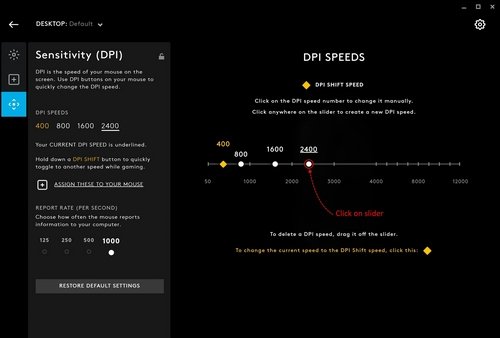
- In G HUB, open the Sensitivity (DPI) tab and click anywhere on the slider to create a new DPI speed.
- Click and hold the dot next to a speed and drag it down to remove it; G HUB allows five DPI speeds per profile and will not let you remove the DPI SHIFT speed.
- In Microsoft Accessory Center, select your Microsoft Adaptive Mouse and drag Cursor Speed (DPI).
- Save the profile, then press the mouse's DPI button to confirm it now cycles the new values.
Microsoft Accessory Center also offers Switch to different speeds for separate horizontal and vertical cursor speeds.
Logitech's G705 accepts custom DPI speeds from 100 to 8200 in G HUB.
Recommended DPI Settings for Work, Gaming, and Everyday Use
Manufacturers ship 800, 1600 and 3200 as the three factory presets on many mice, which makes those the sane places to start.
| What you are doing | Start at | Then adjust |
|---|---|---|
| Everyday desktop work on a 1080p screen | 800 DPI | Leave Windows pointer speed at 10 and step up only if you lift the mouse to cross the screen |
| Office work on a 1440p or 4K screen | 1600 DPI | More pixels need more counts per inch, so step up before touching the pointer speed slider |
| Two or three monitors | 1600 DPI | Enough to cross the whole desktop in one sweep without acceleration |
| Photo editing or CAD | 800 DPI or the DPI shift preset | A low preset gives pixel-level control; bind DPI shift to drop speed while a button is held |
| First-person shooters | 800 DPI | Set aim in the game's own sensitivity field and keep DPI fixed so muscle memory holds |
| Fast strategy or MOBA play | 1600 DPI | Faster screen crossing matters more than pixel precision |
Find your own number by changing one preset at a time and using the PC normally for a day before changing anything else.
Screen resolution changes how a given DPI feels, so recheck after a new monitor; changing display settings in Windows 10 covers that side.
Where mouse speed settings live in Windows 11 and Windows 10
| What you want to change | Windows 11 path | Windows 10 path |
|---|---|---|
| Pointer speed | Settings > Bluetooth & devices > Mouse > Mouse pointer speed | Settings > Devices > Mouse > Cursor speed |
| Enhance pointer precision | Settings > Bluetooth & devices > Mouse > Enhance pointer precision | Settings > Devices > Mouse > Additional mouse options > Pointer Options |
| Primary button | Settings > Bluetooth & devices > Mouse > Primary mouse button | Settings > Devices > Mouse > Select your primary button |
| Scroll lines | Settings > Bluetooth & devices > Mouse > Lines to scroll at a time | Settings > Devices > Mouse > Additional mouse options > Wheel |
| Classic Mouse Properties | Settings > Bluetooth & devices > Mouse > Additional mouse settings | Settings > Devices > Mouse > Additional mouse options |
| Pointer size and colour | Settings > Accessibility > Mouse pointer and touch | Settings > Ease of Access > Mouse pointer |
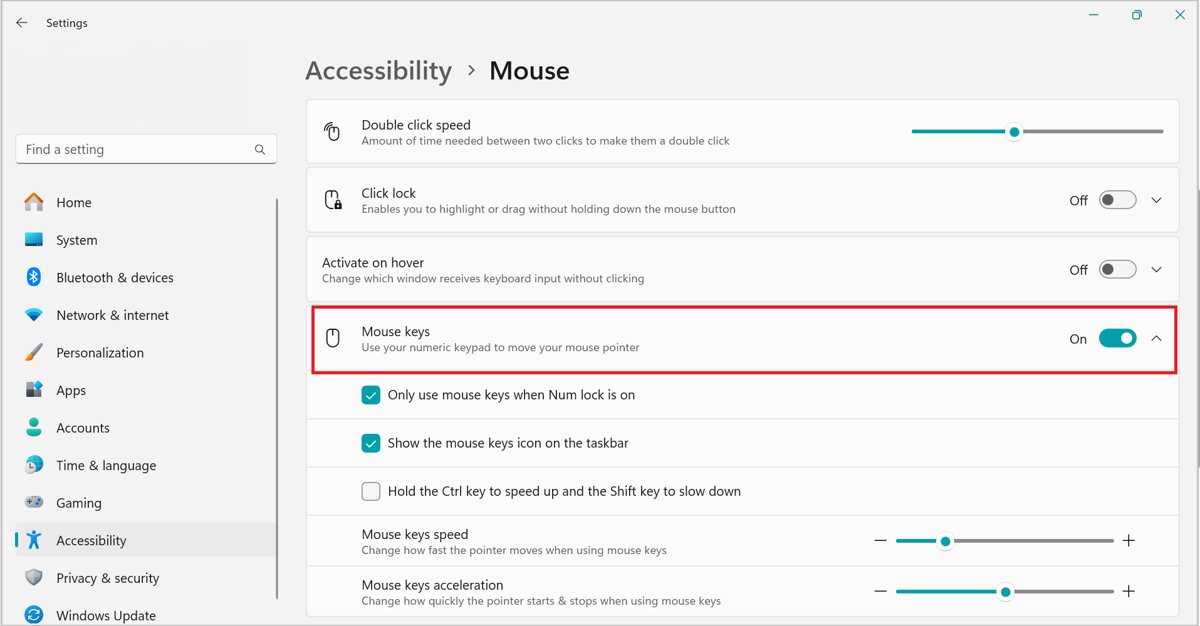
| Mouse keys pointer speed | Settings > Accessibility > Mouse | Settings > Ease of Access > Mouse |
How to check it worked
- Put the mouse at the left edge of the mousepad and sweep once to the right without lifting it.
- Check where the cursor landed: one comfortable sweep should cross the full desktop width.
- Open a text document and try to place the caret between two characters; if you overshoot, the DPI is too high for that screen.
- Reopen Settings > Bluetooth & devices > Mouse on Windows 11, or Settings > Devices > Mouse on Windows 10, and confirm the slider sits where you left it.
- Unplug the mouse, plug it back in, and repeat the sweep; a DPI set in hardware survives the reconnection, a Windows slider setting is per user account.
How to undo it
- Press Win + R, type
control.exe mouseand press Enter. - Open the Pointer Options tab and drag the pointer speed slider to the exact middle notch, which is the Windows default of 10.
- Tick Enhance pointer precision, the Windows default state, then select OK.
- Press the mouse's DPI button until the indicator returns to the preset you started on.
- In the maker's app, switch back to the stock profile instead of editing the custom one.
Troubleshooting Mouse DPI or Sensitivity Problems
The DPI button does nothing
The button is bound to something else in the maker's app, or the mouse has no DPI button at all.
- Look behind the scroll wheel and on the underside for a small unlabelled button; that is the usual DPI or DPI cycle button.
- Open the maker's app and check what that button is assigned to in the current profile.
- Reassign it to DPI cycle, or set the DPI speeds directly on the Sensitivity (DPI) tab.
- If the mouse genuinely has no DPI button and no app, change Mouse pointer speed in Settings instead.
The pointer speed slider has no effect
A vendor app or the game in focus is overriding the Windows setting.
- Close the maker's app from the notification area and move the slider again.
- Check the app's profile list for a per-application profile that switches automatically when a given program is in focus.
- Turn Enhance pointer precision off, move the slider, then decide whether you want it back on.
- Sign out and back in, because pointer speed is stored per user account.
Fix jumpy, skipping, or delayed cursor movement
A surface, connection or power problem at the sensor, not a DPI setting.
- Clean the sensor window on the underside and move to an opaque, non-glossy surface; glass and gloss defeat most sensors.
- Unplug the USB cable or receiver, wait for Windows to unload the driver, then plug it back in.
- Plug the mouse or its receiver straight into the PC rather than through a USB hub.
- Replace or recharge the batteries on a wireless mouse.
- Move the receiver to a USB port on the front or the opposite side of the PC to get it away from interference.
- Test the mouse on another PC; if it skips there too, the hardware is at fault.
DPI or pointer speed keeps changing by itself
An automatic profile switch, a stuck DPI button, or two configuration apps fighting over the same mouse.
- Uninstall every mouse app except the one for your current mouse, so no two apps push profiles at once.
- Open the remaining app and turn off automatic per-application profile switching.
- Press each mouse button in turn and watch for one that stays down, especially the DPI button.
- Save the DPI speeds you want to the mouse's onboard memory so they survive a profile reload.
The mouse stopped responding after a driver change
The installed driver no longer matches the device.
- Type
check for updatesin the taskbar search box and select Check for updates, then install any driver updates offered. - Type
device managerin the search box and select Device Manager. - Double-click the mouse under its hardware category, open the Driver tab and select Update Driver.
- Reconnect the mouse to a different USB port once the driver installs.
Frequently Asked Questions
Can I change my mouse DPI?
Only if the mouse supports it. DPI lives in the sensor, so it changes through the mouse's DPI button or the maker's app. A basic office mouse has one fixed DPI, and the Windows pointer speed slider is the only control you get.
How to change mouse DPI in Windows 11?
Press the mouse's DPI button, or set exact values in the maker's app such as Logitech G HUB. For cursor speed inside Windows, go to Settings > Bluetooth & devices > Mouse and drag the Mouse pointer speed slider.
How to change mouse DPI in Windows 10?
The DPI button and the maker's app work the same on Windows 10. The Windows slider is at Settings > Devices > Mouse, labelled Cursor speed, with the classic dialog behind Additional mouse options.
How do I change DPI on my mouse?
Press the DPI button behind the scroll wheel to step through the factory presets. For exact numbers, open the brand's app, select the mouse, and edit the DPI speeds on its sensitivity page, then save the profile.
Is changing Windows pointer speed the same as changing mouse DPI?
No. DPI changes what the sensor reports before Windows sees it. Pointer speed is a Windows multiplier applied afterwards, on a scale of 1 to 20 with 10 as the default. Only DPI follows the mouse to another PC.
What DPI should I use for everyday work in Windows 11 or Windows 10?
Start at 800 DPI on a 1080p screen and 1600 DPI on a 1440p or 4K screen, with Windows pointer speed left at the default of 10. Adjust one preset at a time until a single sweep crosses the desktop.
How do I know if my mouse has a DPI button?
Look for a small unlabelled button just behind or below the scroll wheel, and sometimes on the underside. Press it and watch the cursor speed or the indicator LED change. The product page for your model confirms it.
Why does my mouse sensitivity feel different in games than on the Windows desktop?
Games that use the Windows raw input API get data directly from the device and apply their own sensitivity, so the Windows pointer speed slider does not affect aim. Change the in-game sensitivity setting instead.
What should I do if my DPI or pointer speed keeps changing by itself?
Remove any second mouse configuration app, then turn off automatic per-application profile switching in the one you keep. Check that no button is physically stuck, and save your DPI speeds to the mouse's onboard memory.
Does a higher DPI make the mouse more accurate?
No. A higher DPI only makes the cursor travel further for the same hand movement. Past the point where one sweep crosses the screen, extra DPI costs precision because each sensor count moves the cursor more pixels.
Bottom Line
Set DPI on the mouse with its DPI button or the maker's app, and leave the Windows pointer speed slider at its default of 10. DPI is stored in the mouse and follows it to any PC, while pointer speed is a per-account Windows multiplier that stacks on top and makes a well-set mouse feel erratic.

![How to Fix 100% Disk Usage issue on Windows 10 or 11 [18 Ways]](https://techdows.com/wp-content/uploads/2026/09/Windows-11-Delivery-Optimization-settings-with-Allow-downloads-from-other-device-600x338.jpg)