Open your browser's extensions page and turn the ad blocker's toggle off, then reload the page that asked you to.
This guide covers 8 ways to do it, on desktop browsers, iPhone, iPad, Android, VPN apps and your router, plus how to switch protection back on.
Disable an Ad Blocker Extension in Chrome, Edge, or Firefox
Almost all desktop ad blocking comes from a browser extension, so this one toggle settles most blocked pages.
The switch is reversible. Nothing is uninstalled and no filter list is deleted.
- In Chrome, select More at the top right, then Extensions and Manage extensions.
- Find the ad blocker's card and turn its toggle off.
- In Microsoft Edge, select Extensions to the right of the address bar, then Manage extensions, and turn the ad blocker's toggle off.
- In Firefox, type
about:addonsin the address bar, press Enter, select the ad blocker and turn it off. - Return to the page and reload it.
Turn the toggle back on as soon as that page is done. The section on re-enabling below covers every device.
Which of these 8 ways fits your situation
Ad blocking can sit in an extension, in the browser itself, in a phone setting, in a VPN app or on your router. Match the row that describes what you are seeing.
| Your situation | Use this | Why |
|---|---|---|
| A desktop browser blocks ads and an extension is installed | Turn the extension off | One toggle, and it is undone in one click |
| One site nags but you want filtering everywhere else | Pause the blocker for that site only | Every other site keeps its protection |
| You no longer want the blocker at all | Remove the extension | Nothing is left to switch itself back on |
| Ads stay blocked with no extension installed | Turn off the browser's own blocking | Chrome, Edge, Opera, Brave and Safari filter on their own |
| iPhone or iPad | Turn off the Safari extension or content blocker | iOS keeps that switch in Settings, not on the page |
| Android phone or tablet | Turn off the browser's blocker in the app | Samsung Internet and Chrome each carry their own |
| Ads blocked in every browser and every app | Turn off ad blocking in your VPN or security app | It filters the request before the browser sees it |
| Every device on the same Wi-Fi is affected | Clear Private DNS and router filtering | The network is doing the blocking, not the device |
Pause Your Ad Blocker for One Website Only
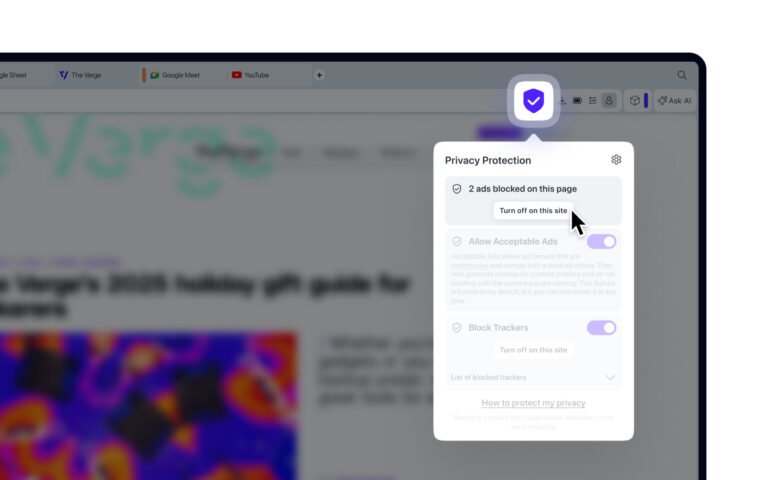
This is the route to prefer. One site gets its ads back and the rest of your browsing stays filtered.
- Open the site that asked you to disable the blocker.
- In Chrome or Edge, select Extensions to the right of the address bar.
- Select More next to the ad blocker and point to This can read and change site data.
- Select When you select the extension, which limits the blocker to the times you open it yourself.
- In Opera, select the Ad Blocker badge in the combined address and search bar, then select Turn off for this site.
- On a Mac, choose Safari > Settings, click Websites, select Content Blockers, and set the site to Off.
- Reload the page.
Some blockers filter through their own rule lists rather than site permissions. If ads stay blocked, open the blocker's own panel from the toolbar and use its pause control for the current site instead.
Remove the ad blocker extension instead of switching it off
Remove it when you have decided you do not want the blocker back, or when a toggle keeps re-enabling itself after a browser update.
- In Chrome, right-click the extension's icon to the right of the address bar and select Remove from Chrome, then confirm with Remove.
- If the icon is hidden, go to More > Extensions > Manage extensions, select Remove on the extension's card, then Remove again.
- In Microsoft Edge, right-click the extension icon and choose Remove from Microsoft Edge, then Remove.
- In Edge you can also open Extensions, select More actions next to the extension, and choose Remove from Microsoft Edge.
- In Firefox, open
about:addons, select the ad blocker in the list and remove it there. - Close and reopen the browser, then load the page again.
Removing an extension deletes its allowlist. Any site exceptions you built up over the years go with it. Techdows covered the feature set of one of the best known blockers in Adblock Plus Now with New Features, Lets you Block Malware Sites and Disable Ad Tracking.
Turn Off Built-In Ad Blocking in Safari, Brave, Opera, and Edge
Several browsers filter ads or trackers with no extension installed. Chrome blocks intrusive ads, Edge blocks trackers, and Opera, Brave and Safari ship blockers of their own.
- In Chrome, select View site information to the left of the web address, then Site settings, and under Permissions set Intrusive ads to Allow.
- In Microsoft Edge, go to Settings and more > Settings > Privacy, search, and services and set Tracking prevention to Basic, or turn the Tracking prevention switch off.
- To keep Edge's protection elsewhere, leave the level alone and add the site under Tracking prevention > Exceptions > Add a site.
- In Opera, press Alt + P to open Settings, then under Privacy protection turn off the Block ads switch.
- In Safari on a Mac, choose Safari > Settings, click Websites, select Content Blockers, and set the site to Off.
- In Brave, open the blocking control in the address bar and turn blocking off for the current site.
- Reload the page to see the ads that were previously blocked.
Disable Ad Blocking on iPhone or iPad
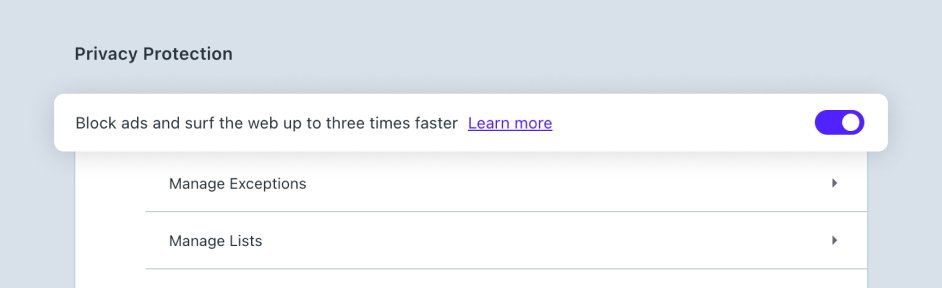
On iOS and iPadOS the blocker is a Safari extension or a content blocker app, and its switch lives in Settings rather than in the browser toolbar.
- Open the Settings app, tap Apps, then tap Safari.
- Tap Extensions, tap the ad blocker, and turn Allow Extension off.
- If you use Safari profiles, turn the extension off for each profile that had it on.
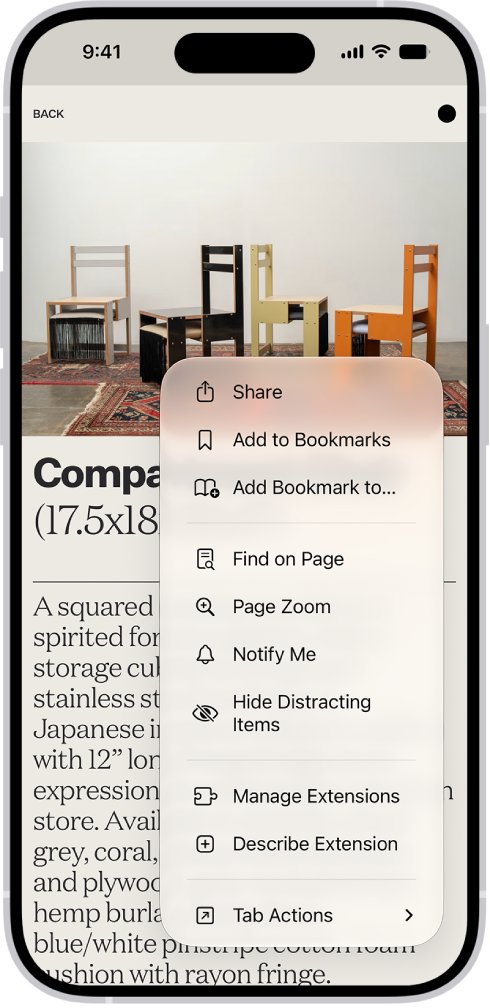
- For one site only, open Safari, tap the control on the left side of the search field, tap Manage Extensions, and turn the blocker off.
- To get rid of a content blocker app entirely, swipe down on the Home Screen, search for the app, touch and hold its icon, then tap Delete App.
- Reload the page in Safari.
Check the rest of the Extensions list before you move on. A privacy app, a coupon app or a VPN app can install a blocker you did not add on purpose.
Disable Ad Blocking on Android Devices
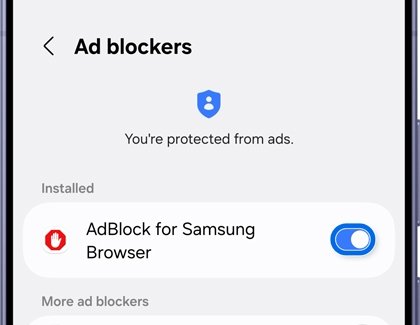
Android browsers do not share one setting. Samsung Internet installs ad blockers as separate apps, and Chrome uses a site permission.
- In Samsung Internet, open the app, tap the Tools icon (three vertical dots), then tap Ad blockers.
- Tap the switch next to each installed ad blocker to turn it off.
- To uninstall one, tap the ad blocker's name, then tap Uninstall.
- In Chrome, tap More, then Settings > Site settings > Intrusive ads, and turn the Intrusive ads toggle on so any site can show ads.
- In Firefox, Brave or Opera on Android, open the browser's own settings and turn its ad-blocking switch off.
- Reload the page.
A standalone ad-blocking app can filter every browser at once. Uninstall it from its entry in the app list if ads stay blocked after the browser switches are off.
Check for VPN, DNS, or Router-Level Ad Blocking
A VPN or security app filters before the browser sees the request, so no browser setting will bring the ads back while it is running.
- Open your VPN app and look for an ad-blocking or threat-protection feature in its main screen or settings.
- In Proton VPN on Windows, select the NetShield shortcut on the Home screen, choose the off level, then click Apply.
- On iPhone or iPad, tap Settings > NetShield and select Off. On Android, open the NetShield Privacy Panel and turn its switch off.
- Open your antivirus or security suite and turn off its ad-blocking component, then reload the page. Techdows has the steps for one such tool in How to Install or Uninstall Avast Ad Blocker.
- If the app has no separate ad-blocking switch, disconnect the VPN and reload the page.
- Leave your antivirus scanning and web protection on. Only the ad-filtering part needs to stop.
Turn off Private DNS and whole-home filtering
Network-level blocking explains the case where every browser and every device on the same Wi-Fi hides the same ads.
- On Android, open Settings, tap Network & internet, then Private DNS.
- Select Automatic or Off, then tap Save.
- Reload the page. If the ads return, a filtering DNS service was the cause.
- On a computer, check the DNS servers set on the active network adapter. A filtering service listed there blocks ads for everything on that device.
- Sign in to your router's admin page and look for content filtering, parental controls or custom DNS servers. The wording differs by brand.
- Turn the filter off for your device, or remove the filtering DNS addresses, then reload the page.
Private DNS also encrypts your DNS lookups. Set it back to Automatic rather than Off once the page works.
How to check the ad blocker is really off
A cached page can keep showing the block message after the switch has already moved.
- Select the reload button on the site that asked you to disable the blocker.
- Confirm the "turn off your ad blocker" overlay is gone and the video or article plays.
- In Chrome or Edge, open Manage extensions and confirm the ad blocker's toggle is grey, not blue.
- Check the blocker's toolbar icon. A blocked-item count on the badge means something is still filtering that page.
- Open the same page in a second browser with no blocker installed. If ads appear there but not in your main browser, blocking is still active locally.
Re-Enable Your Ad Blocker Safely Afterward
Turn the blocker back on as soon as the page you needed is finished loading. A blocker left off everywhere removes filtering on every site you open next, including pages that serve malicious ads.
Re-enabling uses the same switch in every case.
- In Chrome, go to More > Extensions > Manage extensions and turn the ad blocker's toggle back on.
- In Microsoft Edge, select Extensions > Manage extensions and turn the toggle back on.
- In Firefox, open
about:addons, select the ad blocker and turn it back on. - On iPhone or iPad, go to Settings > Apps > Safari > Extensions, tap the blocker and turn Allow Extension on.
- On Android, reopen Ad blockers in Samsung Internet and turn each switch back on, and set Private DNS back to Automatic.
- Open your exceptions list and delete any site you no longer need, such as Tracking prevention > Exceptions in Edge.
Keep exceptions narrow. One permanent exception for a site you visit daily is reasonable; a list of forty sites you allowed once is not.
Fix it when the site still says your ad blocker is on
The block message stays after the extension is off
A second blocker is running, or the page is still the cached copy.
- Open Manage extensions and look for a second privacy, coupon or tracker-blocking extension.
- Turn every one of them off, not only the one named as an ad blocker.
- Reload the page with the reload button, then close the tab and open the site again.
Ads are still blocked with no extension installed
The browser's own filtering or a content blocker app is doing the work.
- In Chrome, set Intrusive ads to Allow under Site settings for that site.
- In Edge, set Tracking prevention to Basic or add the site under Exceptions.
- In Opera, turn off Block ads under Privacy protection in Settings.
- On a Mac, set Content Blockers to Off for the site under Safari > Settings > Websites.
An ad blocker appeared that you never installed
A security suite or a system utility added its own blocking extension during setup.
- Open the extensions page and read the publisher name on each card.
- Open the parent app's settings and turn off its browser-protection or ad-blocking component there, because removing the extension alone often reinstalls it. Techdows covered one example in Advanced SystemCare 10 adds Ad-Blocking Extension.
- Reload the page.
Ads return on one device but stay blocked on another
The blocking is on the network, so it follows every device on that Wi-Fi.
- Switch the affected device to mobile data and load the page again.
- If the ads appear on mobile data, the router or its DNS is filtering them.
- Sign in to the router's admin page and turn off content filtering or the custom DNS servers.
Frequently Asked Questions
Why do websites ask you to disable your ad blocker?
Ads pay for the content. A blocker stops the ad scripts loading, so the site earns nothing from the visit and often detects the missing scripts and holds the page back until the blocker stops.
Is it safe to disable your ad blocker?
It is safe on a site you trust. The risk is leaving it off everywhere, because malicious ads reach you on any page afterwards. Pause the blocker for the single site instead of switching it off globally.
How do you disable an ad blocker for one website only?
Use the blocker's own pause control in the toolbar, or set the extension's site access to When you select the extension in Chrome and Edge. In Opera, select the Ad Blocker badge and choose Turn off for this site.
How do you disable an ad blocker on an iPhone?
Open Settings, tap Apps, tap Safari, tap Extensions, tap the blocker and turn Allow Extension off. For one site, tap the control left of the Safari search field and choose Manage Extensions.
How do you disable an ad blocker on Android?
In Samsung Internet, tap the Tools icon, tap Ad blockers and turn each switch off. In Chrome, open Settings > Site settings > Intrusive ads and turn the toggle on to allow ads.
Does Chrome have a built-in ad blocker?
Chrome blocks intrusive ads on sites that break the Better Ads Standards. Allow them for one site by selecting View site information, then Site settings, and setting Intrusive ads to Allow.
Why are ads still blocked after turning the extension off?
Something else is filtering. The usual causes are a second privacy extension, the browser's own ad or tracker blocking, a VPN feature such as NetShield, a Private DNS entry on Android, or filtering set on the router.
Should you remove an ad blocker or just turn it off?
Turn it off if you plan to use it again, because the toggle keeps your filter lists and site exceptions. Remove it only when you have finished with the blocker, since removal deletes its allowlist.
Can a VPN block ads?
Yes. Proton VPN's NetShield blocks ads, trackers and malware, and other VPN apps ship similar features. Turn that feature off, or disconnect the VPN, before assuming the browser is at fault.
How do you turn your ad blocker back on?
Open Manage extensions in Chrome or Edge, or about:addons in Firefox, and switch the toggle back on. On iPhone, turn Allow Extension on again under Settings > Apps > Safari > Extensions.
Does disabling an ad blocker turn off your antivirus?
No. Turning off a security suite's ad-filtering component leaves its scanning and web protection running. Never turn the antivirus itself off to make a page load.
Why do ads stay blocked on every device in the house?
The router or a network-wide DNS service is filtering them. Test by loading the page on mobile data. If ads appear there, remove the custom DNS servers or turn off content filtering in the router's admin page.
Bottom Line
Pause the ad blocker for the one site that asked, and turn it back on the moment that page is done. A per-site pause fixes the page you came for while every other site you open keeps its filtering, which matters most on pages that carry malicious ads.


![How to Fix 100% Disk Usage issue on Windows 10 or 11 [18 Ways]](https://techdows.com/wp-content/uploads/2026/09/Windows-11-Delivery-Optimization-settings-with-Allow-downloads-from-other-device-600x338.jpg)