Windows 11 gets the fingerprint driver from Settings > Windows Update > Advanced options > Optional updates, and the PC maker's support site supplies it when Windows Update has nothing.
This page covers installing, updating, verifying, rolling back and fixing that driver, plus Windows Hello enrollment and Enhanced Sign-in Security.
The fastest way to install the fingerprint driver on Windows 11
Windows Update carries the biometric drivers that PC makers submit to Microsoft. Start here before downloading anything.
- Select Start > Settings > Windows Update > Advanced options.
- Turn on Receive updates for other Microsoft products.
- Select Optional updates under Additional options.
- Expand Driver updates and tick the fingerprint or biometric entry.
- Select Download and install.
- Restart the PC once the install finishes.
Microsoft asks for a restart after a driver install even when the update does not demand one.
Understanding Fingerprint Drivers and Their Role
| Component | What it does | Where you see it |
|---|---|---|
| Fingerprint sensor | Captures the print, or matches it on the sensor's own chip | Keyboard deck, power button, or a USB reader |
| Fingerprint driver | Lets Windows enumerate and talk to that sensor | Device Manager > Biometric devices |
| Windows Biometric service | Runs enrollment and match operations for every app | Service name wbiosrvc |
| Windows Hello | Turns a successful match into a sign-in credential | Settings > Accounts > Sign-in options |
| Biometric event log | Records each sensor the framework enumerates | Event Viewer, Biometrics > Operational, event ID 1108 |
Without a working driver Windows never enumerates the sensor. Fingerprint recognition (Windows Hello) then stays unavailable in Sign-in options, which is why the driver matters more here than the hardware.
Windows 11 and Biometrics: An Overview
Windows 11 supports three biometric types. Fingerprint sensors come in three shapes, and each has its own accuracy bar.
| Sensor type | How Windows 11 treats it | Microsoft's requirement |
|---|---|---|
| Large-area touch sensor, 160 x 160 pixels or more at 320 dpi or greater | Listed under Biometric devices once its driver loads | FAR under 0.001%, real-world FRR under 10%, presentation attack defence required |
| Small-area touch sensor, under 160 x 160 at 320 dpi or greater | Same, and the usual shape on a power-button reader | FAR under 0.002%, real-world FRR under 10%, presentation attack defence required |
| Swipe sensor | Same, common on older business laptops | FAR under 0.002%, real-world FRR under 10%, antispoofing required |
| External USB fingerprint reader | Enumerated when plugged in, unless Enhanced Sign-in Security is on | Must be Windows Hello compatible |
| Infrared camera for face | A separate Windows Hello modality with its own driver | FAR under 0.001%, TAR above 95% |
| Iris | Supported only on HoloLens 2 | Biometric security FAR of 1 in 100,000 |
Fingerprint templates stay on the device. Windows never sends the biometric data to an external device or a server, so there is no central store to breach.
Compatibility and Requirements
| Requirement | Detail |
|---|---|
| A fingerprint reader | Built into the PC, or a USB reader connected to it |
| A driver source | Windows Update optional driver updates, or the PC maker's own support site |
| A PIN | Windows Hello pairs the fingerprint gesture with a PIN, and the PIN never leaves the device |
| Windows Hello for Business editions | Pro, Enterprise, Pro Education/SE and Education |
| Enhanced Sign-in Security | TPM 2.0, virtualization-based security, an ESS-capable match-on-chip sensor and an ESS-compatible driver |
| Copilot+ PCs | ESS is enabled by default, so a non-ESS reader is blocked until ESS is turned off |
Other driver jobs follow the same route. Updating drivers on an Acer laptop uses the same Device Manager and vendor-site pairing.
Which install route should you use?
| Your situation | Use this | Why |
|---|---|---|
| Sensor is listed in Device Manager but sign-in is missing | Windows Update optional driver updates | Microsoft ships the signed driver the PC maker submitted |
| No Biometric devices section at all | Manufacturer download, installed manually | Only the maker publishes model-specific biometric packages |
| Sensor is listed but stopped responding | Uninstall the device, then restart | Windows reinstalls the driver on the next boot |
| Fingerprint broke right after a driver update | Roll Back Driver on the Driver tab | Restores the version that worked |
| USB reader ignored on a Copilot+ PC | Turn off Enhanced sign-in security | ESS refuses to enumerate non-ESS sensors |
Installing Fingerprint Drivers on Windows 11
Device Manager can search Microsoft's driver catalogue for the specific sensor, which is narrower than a full Windows Update scan.
- Right-click the Start menu and select Device Manager.
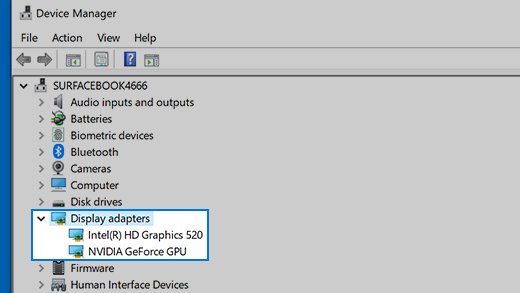
- Select the arrow next to Biometric devices to expand it.
- Right-click the fingerprint sensor and select Update driver.
- Select Search automatically for updated driver software.
- Let Windows search and install anything it finds.
- Select Close to close the Update Drivers window.
If there is no Biometric devices section, no driver is loaded for the sensor yet. Use the manufacturer route below.
Downloading Drivers from the Manufacturer's Website
Microsoft's own advice is to avoid downloading drivers from any site other than the manufacturer's official one.
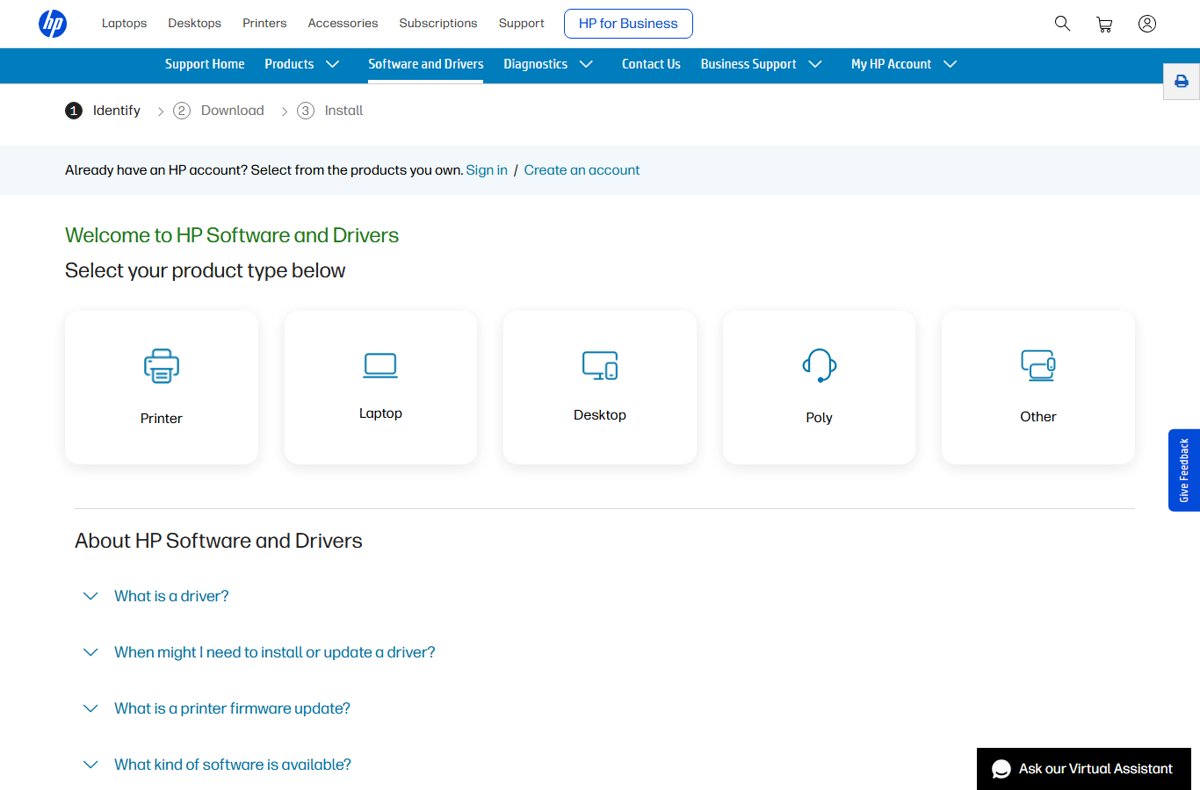
- Open the PC maker's driver page, such as HP Software and Drivers or the ASUS Download Center.
- Identify the exact model, then open its software and drivers list.
- Download the fingerprint or biometric driver that matches Windows 11 and the 64-bit architecture.
- Note the folder the file was saved to.
- Right-click Start, select Device Manager, and expand Biometric devices.
- Right-click the sensor, select Update driver, then select Browse my computer for drivers.
- Select the Browse… button, pick the folder, then select Next.
- Select Close when the install finishes, then restart.
Skip third-party driver installation utilities and driver updater tools. They are not the manufacturer, and Windows Update already distributes the same signed packages. The pattern holds for other peripherals, including DisplayLink drivers on Windows 11 and 10.
Windows Hello and Fingerprint Recognition: enroll a finger
A driver alone does not sign anyone in. The enrollment step is what creates the Windows Hello credential.
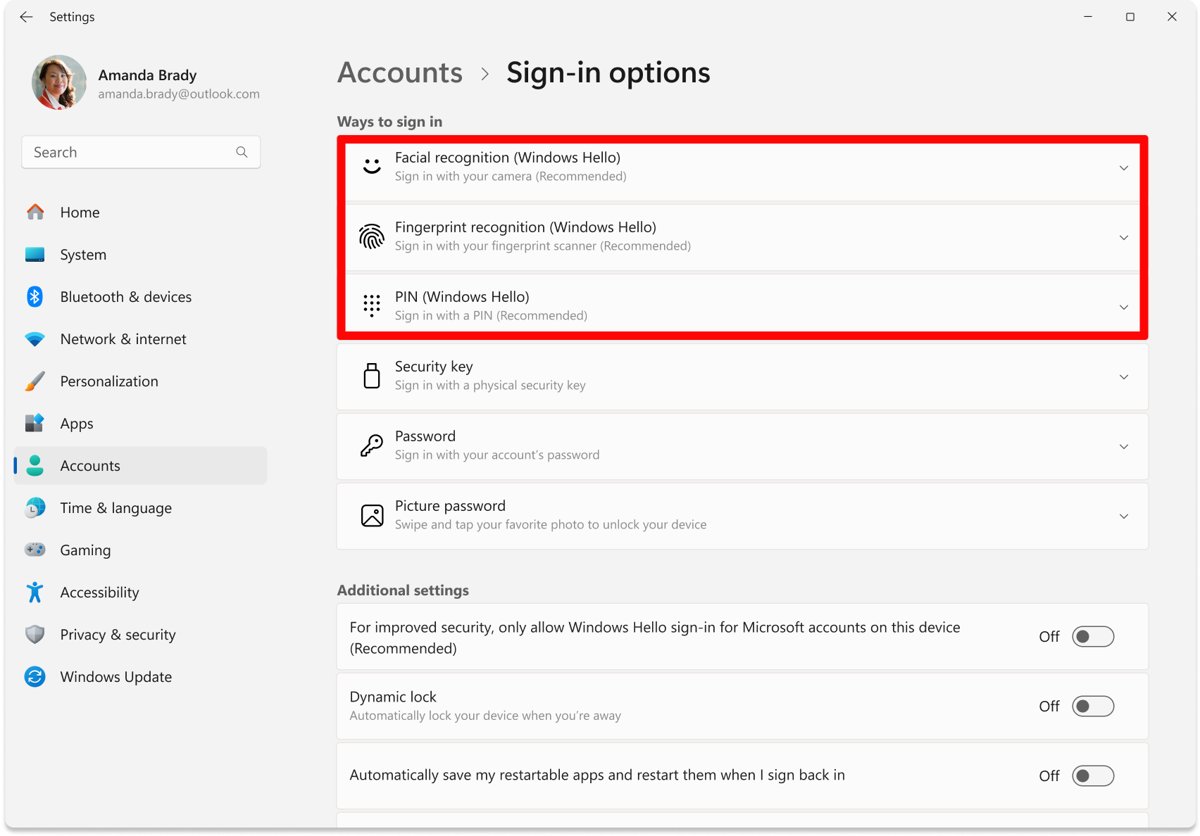
- Select Start > Settings > Accounts > Sign-in options.
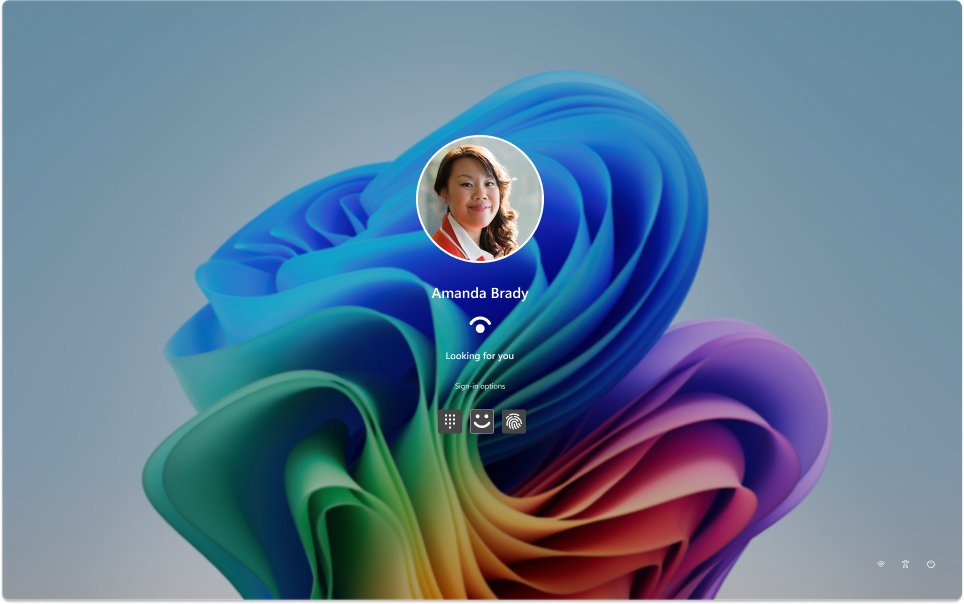
- Under Ways to sign in, select Fingerprint recognition (Windows Hello).
- Select Set up.
- Follow the on-screen prompts, lifting the finger on and off the sensor as asked.
- Set a PIN if Windows asks for one, because it is the fallback gesture.
ms-settings:signinoptions opens the same page directly from the Run box.
How to check the fingerprint driver installed correctly
- Right-click Start and select Device Manager.
- Expand Biometric devices and confirm the sensor is listed without a warning marker.
- Right-click the sensor, select Properties, then open the Driver tab and read the driver date and version.
- Open Settings > Accounts > Sign-in options and confirm Fingerprint recognition (Windows Hello) is selectable.
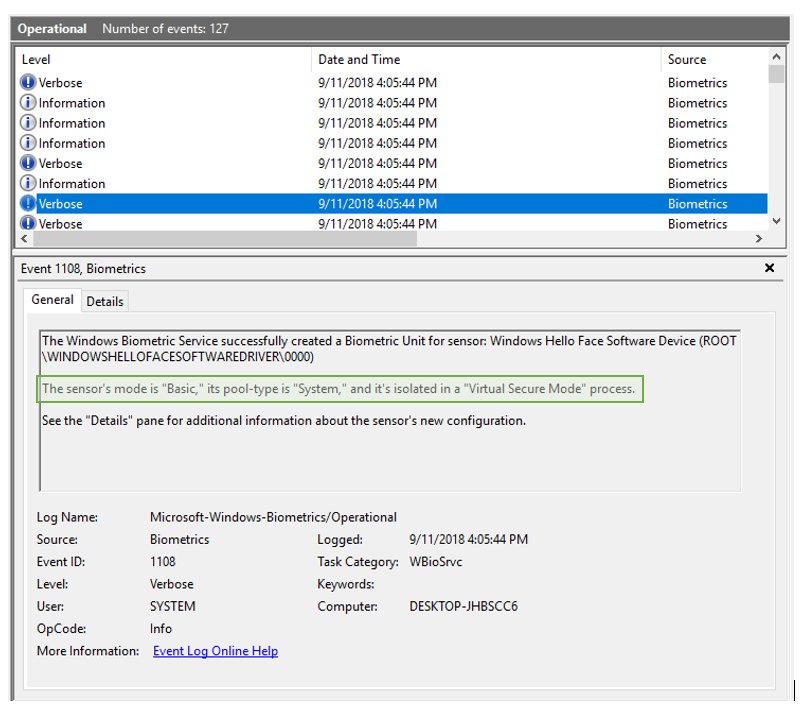
- Open Event Viewer and go to Applications and Services Logs > Microsoft > Windows > Biometrics > Operational.
- Look for event ID 1108 naming the sensor, which proves the biometric framework loaded it.
- Lock the PC and touch the sensor to sign back in.
In event 1108, a sensor isolated in a Virtual Secure Mode process is running with Enhanced Sign-in Security. One isolated in a System process is not.
Advanced Configuration and Customization
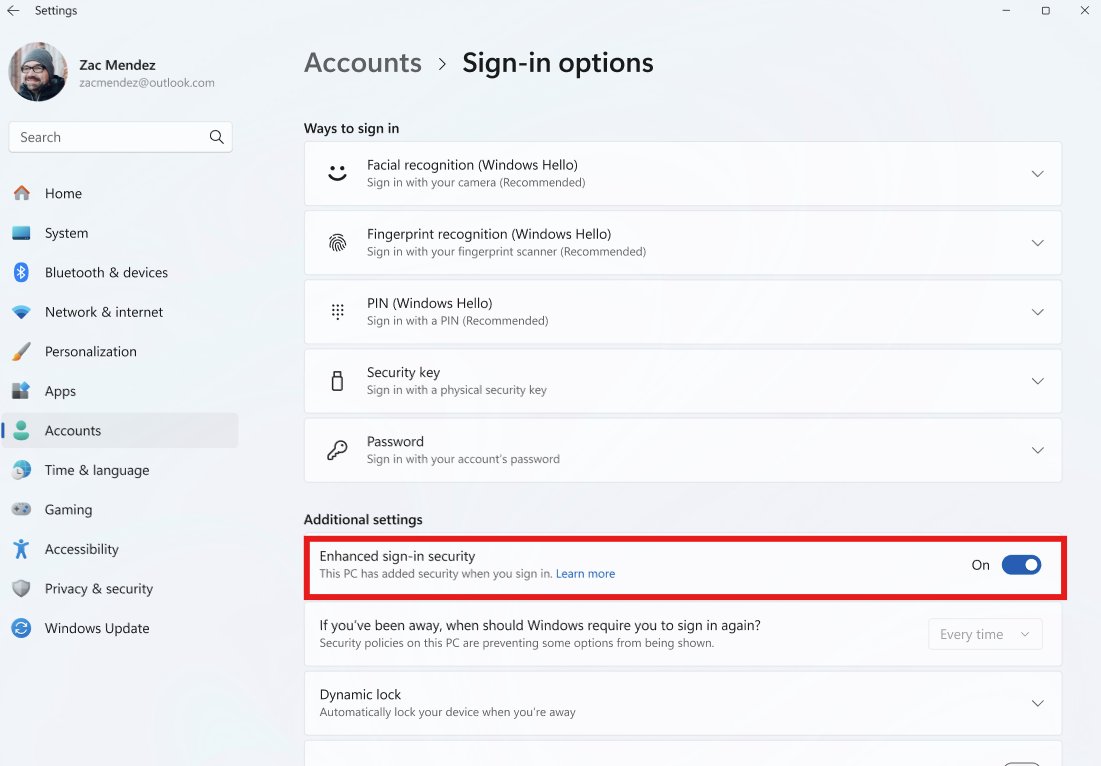
Enhanced Sign-in Security decides whether a non-ESS reader is allowed at all. The control sits beside the enrollment options, and its wording changed between Windows 11 releases.
- Select Start > Settings > Accounts > Sign-in options.
- Open Additional settings.
- On Windows 11 version 24H2 or newer, set the Enhanced sign-in security toggle: On blocks non-ESS peripherals, Off allows them.
- On Windows 11 version 23H2, use Sign in with an external camera or fingerprint reader instead, where On disables ESS and Off enables it.
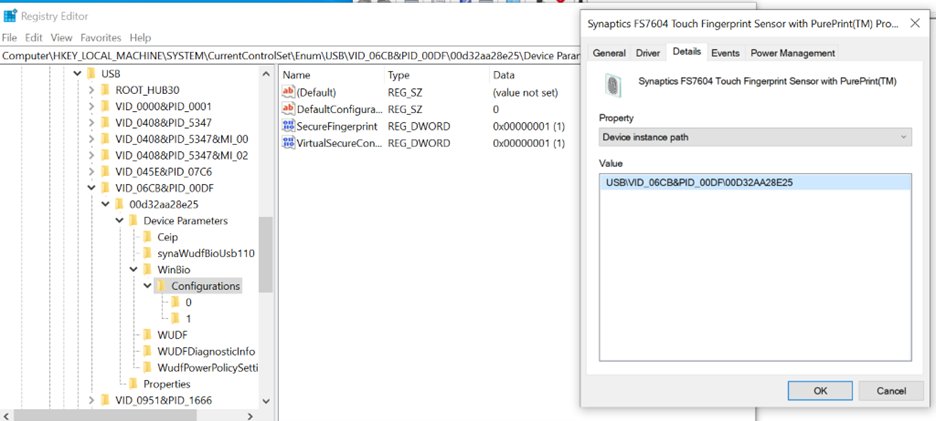
- To test whether a sensor is ESS-capable, open its Properties > Details in Device Manager and select Device instance path.
- Open
regedit.exeand go toHKLM\SYSTEM\CurrentControlSet\Enum\[DeviceInstancePath]\Device Parameters\WinBio\Configurations. - Check for a
SecureFingerprintvalue of1and two subfolders named0and1; anything less means the sensor is not secure-capable.
If Enhanced sign-in security reads Pending set up, the first sensor enrolled decides the state. Enroll an ESS sensor first and ESS stays on; enroll a non-ESS reader first and it stays off.
Enhancing Security with Fingerprint Authentication
| Protection | What it does |
|---|---|
| Local-only templates | Biometric data stays on the device and never reaches a server |
| Key-based credential | There is no shared password for a server breach or a phishing page to capture |
| Enhanced Sign-in Security | Virtualization-based security and TPM 2.0 isolate the matching code and the template |
| Match on chip | The sensor's own processor holds the template and performs the comparison |
| Sensor certificate | A Microsoft-issued certificate burned in at manufacture opens a secure session with the sensor |
| Brute-force protection | Built into Windows Hello, and the PIN never leaves the device |
| FIDO2 and passkeys | The same finger signs in to FIDO2 sites and apps without a password |
Turning ESS on removes existing non-ESS enrollments and the credentials tied to them, including passkeys. Re-provision them afterwards.
Best Practices for Managing Fingerprint Drivers
| Practice | Reason |
|---|---|
| Take the driver from Windows Update or the PC maker's site | Microsoft's guidance is to avoid every other source |
| Ignore third-party driver updater tools | They are not the manufacturer, and Windows already distributes signed driver updates |
| Keep a PIN enrolled | It is the fallback whenever the sensor or its driver fails |
| Note the installed driver version before updating | Roll Back Driver only helps while a previous version is still present |
| Re-enroll after switching ESS on | Non-ESS enrollments and their credentials are removed on the switch |
| Restart after any driver install | Microsoft asks for it even when the update does not force one |
| Check Windows Update first on a managed PC | The organisation may already be pushing the approved biometric driver |
Troubleshooting Common Fingerprint Driver Issues
Device not recognized: there is no Biometric devices section in Device Manager
No fingerprint driver is loaded, so Windows never enumerates the sensor.
- Select Start > Settings > Windows Update > Advanced options > Optional updates.
- Install everything listed under Driver updates, then restart.
- If nothing is listed, download the biometric driver for the exact model from the PC maker's support site.
- Right-click Start, select Device Manager, right-click the sensor and select Update driver.
- Select Browse my computer for drivers, point at the download folder, then select Next.
Fingerprint sensor not detected after it worked before
The driver is loaded but the device is in a bad state after an update or a sleep cycle.
- Save open work and close your applications.
- Right-click Start and select Device Manager.
- Expand Biometric devices, right-click the sensor and select Uninstall device.
- Confirm with the Uninstall button in the Uninstall Device window.
- Right-click Start, select Shut down or sign out > Restart.
- Let Windows reinstall the driver during boot, then test the sensor.
Windows Hello not working: "We couldn't find a fingerprint scanner compatible with Windows Hello"
The enrollment or the biometric service is in a broken state, or the sensor is not being enumerated.
- Open Settings > Accounts > Sign-in options and remove the non-working fingerprint enrollment.
- Set it up again with Fingerprint recognition (Windows Hello) > Set up.
- If the option is missing, uninstall the sensor in Device Manager and restart so Windows reinstalls the driver.
- Still missing: remove the PIN in Sign-in options.
- Open Command Prompt as an administrator and run
net stop wbiosrvcfollowed bynet start wbiosrvc. - Add the PIN back, then enroll the finger again.
Can't use fingerprint on Windows 11: the option is greyed out or not available
Enhanced Sign-in Security is on and the reader does not support it, so the framework never enumerates it.
- Select Start > Settings > Accounts > Sign-in options > Additional settings.
- On Windows 11 version 24H2 or newer, set Enhanced sign-in security to Off.
- On Windows 11 version 23H2, turn Sign in with an external camera or fingerprint reader on.
- Reconnect the external reader and re-check Sign-in options.
- On a Copilot+ PC, expect ESS to be on by default and to need this change before a non-ESS reader appears.
Driver compatibility errors: biometrics fail after Enhanced Sign-in Security is enabled
The sensor firmware or its driver does not meet the ESS requirements, so the secure session never forms.
- Open System Information and check System Summary for Virtualization Based Security listed as *Running*.
- Open Software Environment > Running Tasks and look for
bioiso.exeandngciso.exe. - Confirm the sensor is ESS-capable by checking
SecureFingerprintin theWinBio\Configurationsregistry key. - Restart the biometric service with
net stop wbiosrvcandnet start wbiosrvcfrom an elevated Command Prompt. - If the checks fail, ask the device manufacturer for an ESS-compatible driver or firmware.
Fingerprint sign-in disappears on a work or school PC
A managed device applies the organisation's sign-in configuration, which can remove biometric options.
- Open Settings > Accounts > Sign-in options and check whether Fingerprint recognition (Windows Hello) is present at all.
- Install anything waiting in Windows Update, because managed drivers arrive that way.
- Confirm the sensor still appears under Biometric devices in Device Manager.
- If the sensor is present but the option is not, ask the IT administrator which sign-in methods the device policy allows.
How to roll back or remove the fingerprint driver
- Right-click the Start menu and select Device Manager.
- Expand Biometric devices and find the fingerprint sensor.
- Right-click the device and select Properties.
- Select the Driver tab.
- Select Roll Back Driver, choose a reason when prompted, then select Yes.
- Restart if Windows asks for it.
To drop the enrollment rather than the driver, open Settings > Accounts > Sign-in options and remove Fingerprint recognition (Windows Hello). The PIN keeps working.
FAQs About Fingerprint Drivers for Windows 11
How do you install a fingerprint driver on Windows 11?
Go to Settings > Windows Update > Advanced options > Optional updates, expand Driver updates, select the biometric entry and choose Download and install. If nothing is listed, download the driver from the PC maker's support site and install it through Device Manager.
How do you update a fingerprint driver on Windows 11?
Right-click Start, select Device Manager, expand Biometric devices, right-click the sensor and select Update driver. Choose Search automatically for updated driver software. Windows installs a newer version if the catalogue holds one, then close the window and restart.
Why can't you use fingerprint on Windows 11?
The two usual causes are a missing driver and Enhanced Sign-in Security. Without a driver the sensor never appears under Biometric devices. With ESS on, Windows refuses to enumerate any sensor that lacks match-on-chip support and an ESS certificate.
Why is fingerprint not available in Windows 11 sign-in options?
Windows only shows Fingerprint recognition (Windows Hello) once the biometric framework has enumerated a compatible sensor. Check Device Manager for a Biometric devices entry first. On a managed PC, the organisation's configuration can also remove the option.
Where do you download a fingerprint driver for an HP Windows 11 laptop?
Use HP's own Software and Drivers page at support.hp.com/us-en/drivers. Select the product type, identify the exact model, then download the biometric driver listed for Windows 11. Microsoft advises against taking drivers from any site other than the manufacturer's.
Is there a Microsoft fingerprint driver for Windows 11?
Microsoft distributes fingerprint drivers through Windows Update, but the drivers themselves come from the sensor and PC makers. There is no generic Microsoft fingerprint driver that fits every reader, so the optional driver update or the vendor package is the route.
Does a USB fingerprint reader work with Windows 11?
Yes, when the reader is Windows Hello compatible and Enhanced Sign-in Security allows it. ESS blocks non-ESS peripherals, so turn the setting off under Sign-in options > Additional settings before connecting a non-ESS reader.
Does Windows 11 Pro need a different fingerprint driver?
No. The driver depends on the sensor, not the edition. Edition matters only for Windows Hello for Business, which is supported on Pro, Enterprise, Pro Education/SE and Education.
What future developments should you expect for fingerprint drivers?
The clear trend is Enhanced Sign-in Security: every Copilot+ PC ships with it enabled, which pushes makers toward match-on-chip sensors and ESS-capable drivers. Passkey and FIDO2 sign-in also extends the same finger to websites and apps.
Where does Windows 11 store fingerprint data?
On the device only. Windows keeps the biometric template locally, and with Enhanced Sign-in Security it is encrypted by keys available only to virtualization-based security or held on the sensor chip itself. The data never goes to a server.