pagefile.sys is the Windows paging file, and deleting it by hand is not safe: Windows keeps it open and recreates it at the next start.
This guide covers what the paging file does, how to shrink, move or switch it off from the Virtual memory dialog, how hiberfil.sys differs, and how to reclaim the space without breaking crash dumps.
Can You Delete pagefile.sys Safely?
The file is a Windows system file that the memory manager opens at startup, so File Explorer cannot remove it while Windows is running.
The supported route is the Virtual memory dialog: set the drive to No paging file, press Set, then restart. Windows stops creating pagefile.sys on that drive.
Leave pagefile.sys in place and leave it system managed on the drive Windows is installed on. The system commit limit is physical memory plus every page file combined. Remove the page file and that limit drops to slightly less than installed RAM, and Windows can no longer write a memory dump when a Stop error happens.
Which change should you make?
Match your reason for being here to a row. Each route is spelled out further down the page.
| Your situation | Do this | Why |
|---|---|---|
| A few GB short on C: and everything works | Leave the paging file alone and clear temporary files instead | Storage Sense frees space without touching the commit limit |
| pagefile.sys is several times larger than RAM | Check the crash dump setting, then set a custom size | System-managed files grow to back a memory dump |
| C: is a small SSD and a second internal drive has room | Move the paging file to the second drive | Frees the space on C:, but a memory dump needs a page file on the boot volume |
| Plenty of RAM and no need for crash dumps | Set the drive to No paging file | Recovers the full file size, and lowers the commit limit to RAM alone |
| hiberfil.sys is what is eating the space | Run powercfg.exe /hibernate off |
That file is reserved by hibernation, not by virtual memory |
| Out-of-memory errors after a change | Restore Automatically manage paging file size for all drives | Puts sizing back under Windows control |
How to Reduce, Move, or Disable the Paging File
All three changes happen in the same dialog, and all three need a restart before the file on disk changes.
- Press Windows logo key + Pause/Break to open System Properties.
- Select Advanced system settings, then select Settings in the Performance section on the Advanced tab.
- Select the Advanced tab, then select Change in the Virtual memory section.
- Clear the Automatically manage paging file size for all drives check box.
- To shrink it: select the drive, select Custom size, type an Initial size and a Maximum size in MB, then select Set.
- To move it: select the second drive, choose System managed size or Custom size and select Set, then select the C: drive, choose No paging file and select Set.
- To switch it off: select the drive, select No paging file, then select Set.
- Select OK and restart the computer.
Microsoft recommends an initial size of 1.5 times installed RAM when a fixed size is used, because a page file that grows on demand can produce out-of-memory errors while it expands.
Moving the file off the boot volume disables memory dumps. Move it back to the boot volume before you try to capture one.
How to find and view pagefile.sys on your drive
The file sits in the root folder of the drive it is configured on, usually C:\pagefile.sys, and it is hidden.
- Open File Explorer from the taskbar.
- Select the C: drive in the navigation pane.
- On Windows 11, select View > Show, then select Hidden items.
- On Windows 10, select View > Options > Change folder and search options, open the View tab, select Show hidden files, folders, and drives under Advanced settings, then select OK.
- Look for pagefile.sys in the root of the drive, listed with a dimmed icon.
A page file configured on another drive appears in that drive's root instead. Windows can hold more than one, and the page file that responds first is the one it uses.
How to remove hiberfil.sys by turning hibernation off
hiberfil.sys is reserved by hibernation, so it is removed by switching the feature off rather than by deleting the file.
- Press the Windows key to open the Start menu, then search for cmd.
- Right-click Command Prompt in the results and select Run as Administrator.
- Select Continue at the User Account Control prompt.
- Type
powercfg.exe /hibernate offand press Enter. - Type
exitand press Enter to close the Command Prompt window. - Restart the computer and check the root of C: again.
Hibernation and hybrid sleep both stop working after this, and unsaved work is lost if power fails while hybrid sleep was the configured behaviour.
To keep hibernation but shrink the file, run powercfg.exe /hibernate /size 0 followed by powercfg.exe /hibernate /type reduced. A reduced hiberfile supports fast startup only, not full hibernation.
Check the page file size and usage from PowerShell
This reads the live state of every page file on the system without opening any dialog.
Get-CimInstance Win32_PageFileUsage | Select-Object Name, AllocatedBaseSize, CurrentUsage, PeakUsageWin32_PageFileUsage reports the run-time state of each page file. AllocatedBaseSize is the disk space allocated to it, CurrentUsage is how much of it is in use, and PeakUsage is the highest figure since startup. All three are in megabytes.
You should see: One row per page file, with Name showing a path such as C:\pagefile.sys and AllocatedBaseSize showing the current size in MB.
Configured sizes live in a separate class, Win32_PageFileSetting, whose InitialSize and MaximumSize values map to the registry value HKEY_LOCAL_MACHINE\SYSTEM\CurrentControlSet\Control\Session Manager\Memory Management\PagingFiles.
Where the paging file settings live in Windows 11 and Windows 10
Two dialogs decide the size of pagefile.sys, and changing one without the other is the usual reason a file grows straight back.
| What you want to set | Where it lives | What it controls |
|---|---|---|
| Paging file size and location | System Properties > Advanced > Performance Settings > Advanced > Virtual memory > Change | Which drives hold a page file, and the initial and maximum size of each |
| Crash dump type | Control Panel > System and Security > System > Advanced system settings > Advanced > Startup and Recovery Settings | The dump Windows writes on a Stop error, which sets the minimum page file size |
| Hibernation and hiberfil.sys | Command Prompt run as administrator, powercfg.exe /hibernate off |
Whether the hibernation file is reserved at all |
| Temporary file cleanup | Start > Settings > System > Storage | Storage Sense and the temporary files list on the system drive |
How to check it worked
Nothing changes on disk until the restart, so verify after the machine comes back up.
- Restart the computer.
- Open File Explorer, turn on Hidden items, and look at the root of the drive you changed.
- Confirm pagefile.sys is gone, or that its size matches the Initial size you typed.
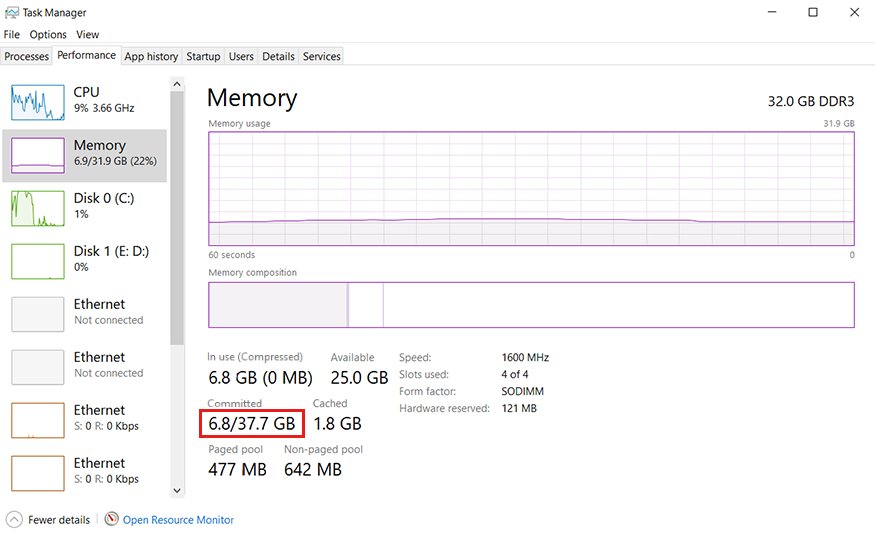
- Open Task Manager and select the Performance tab.
- Read the committed memory figure, shown as committed bytes over the commit limit.
- Check that the commit limit still sits comfortably above the figure on its left during your normal workload.
A commit charge that climbs towards the commit limit is the warning sign. At the limit, processes stop receiving committed memory and applications freeze or crash.
What Is pagefile.sys?
Microsoft describes a page file as an optional, hidden system file on a hard disk. Windows creates it during installation and manages it by default.
| Property | Detail |
|---|---|
| Full name | Paging file, stored as pagefile.sys |
| Location | Root folder of each drive configured to hold one, typically C:\pagefile.sys |
| Attributes | Hidden system file, held open by the memory manager while Windows runs |
| Default sizing | System managed, sized from usage history, RAM and the crash dump setting |
| Minimum system-managed size | Varies with page file usage history, RAM divided by 8 up to 32 GB, and the crash dump setting |
| Maximum system-managed size | 3 x RAM or 4 GB, whichever is larger, limited to the volume size divided by 8 |
| Number allowed | More than one; the page file that responds first is the one used |
| Related file | hiberfil.sys, which belongs to hibernation and is a separate file |
Why Windows Uses a Paging File
The paging file does three separate jobs, and only the first one is about running out of RAM.
| Job | What it means in practice |
|---|---|
| Physical extension of RAM | Windows removes infrequently accessed modified pages from memory so frequently accessed pages get the space |
| Raising the commit limit | The system commit limit is physical memory plus all page files combined, and the commit charge can never exceed it |
| Backing a crash dump | A page file or a dedicated dump file must exist and be large enough, or no Memory.dmp is written |
| Application requirements | Some products require a page file; Microsoft names domain controllers, DFS Replication servers, certificate servers and ADAM/LDS servers |
| What never goes into it | Data already on disk, such as .dll, .exe and saved documents; only modified data with no file behind it is paged out |
A system-managed file grows when the commit charge reaches 90 percent of the commit limit, which is why a busy machine ends up with a larger pagefile.sys than a quiet one.
What Is hiberfil.sys in Windows? Can You Delete It Safely?
hiberfil.sys is not virtual memory. The Windows Kernel Power Manager reserves it when Windows is installed, and it holds a copy of system memory while the computer hibernates.
Deleting it in File Explorer is not the route; turning hibernation off is, and that also removes hybrid sleep and fast startup.
| Question | Answer |
|---|---|
| Where is it | Root folder of the drive Windows is installed on |
| How big is it | Approximately equal to installed RAM |
| What reserves it | The Windows Kernel Power Manager, at installation |
| What needs it | Hibernation, hybrid sleep and fast startup; without the file the computer cannot hibernate |
| How to remove it | Run powercfg.exe /hibernate off from an elevated Command Prompt |
| How to shrink it instead | powercfg.exe /hibernate /size 0 then powercfg.exe /hibernate /type reduced; a reduced hiberfile supports fast startup only |
| Custom size rule | The default hiberfile size set with /size cannot be smaller than 50 percent of total memory |
| Risk of removing it | Unsaved data is lost if power fails, because hybrid sleep stops working |
How to Reclaim Disk Space Without Breaking Windows
Start here before touching virtual memory. Temporary files usually give back more space than a shrunken paging file, and nothing about the commit limit changes.
- Select Start > Settings > System > Storage.
- Set Storage Sense to On to let Windows clear temporary files on a schedule.
- Select Storage Sense and pick how often it runs under Run Storage Sense.
- Set Delete files in my recycle bin if they have been there for over and Delete files in my Downloads folder if they haven't been opened for more than to suit your habits.
- Return to Storage, select Temporary files under disk usage, and remove items such as a previous Windows installation.
- For a drive other than C:, open Advanced storage settings > Storage used on other drives and select that drive.
Storage Sense runs on the system drive only. Browser leftovers are a separate clean-up: see how to delete trackers on Windows 11.
How to undo it
Hand sizing back to Windows if applications start reporting low memory, or if a Stop error produced no dump file.
- Press Windows logo key + Pause/Break, then select Advanced system settings.
- Select Settings in the Performance section, open the Advanced tab, then select Change under Virtual memory.
- Select the Automatically manage paging file size for all drives check box.
- Select OK and restart the computer.
- To bring hibernation back, open Command Prompt as administrator, type
powercfg.exe /hibernate onand press Enter. - Restart once more and confirm pagefile.sys and hiberfil.sys are back in the root of C:.
Fix pagefile.sys when it is too big or comes back
pagefile.sys is huge, far larger than expected
A system-managed file grows to back the commit charge and the crash dump setting. It can reach 3 x RAM or 4 GB, whichever is larger.
- Open Control Panel > System and Security > System and select Advanced system settings.
- On the Advanced tab, select Settings under Startup and Recovery.
- Read the entry under Write debugging information.
- Change Complete memory dump to Automatic memory dump if a full dump is not needed, and select OK.
- Restart, then recheck the file size in the root of C:.
The file returns after you delete it
The drive is still configured to hold a page file, so the memory manager creates a new one at startup.
- Open the Virtual memory dialog through Performance Settings > Advanced > Change.
- Clear Automatically manage paging file size for all drives.
- Select the drive, select No paging file, then select Set.
- Select OK and restart so the setting takes effect.
pagefile.sys is nowhere in File Explorer
It is a hidden system file, and it may be configured on a different drive than the one you are looking at.
- Turn on Hidden items under View > Show on Windows 11.
- Open PowerShell and run
Get-CimInstance Win32_PageFileUsage | Select-Object Name, AllocatedBaseSize. - Read the Name column to see which drive actually holds the file.
- Open the root of that drive in File Explorer.
Out-of-memory errors after shrinking or disabling the paging file
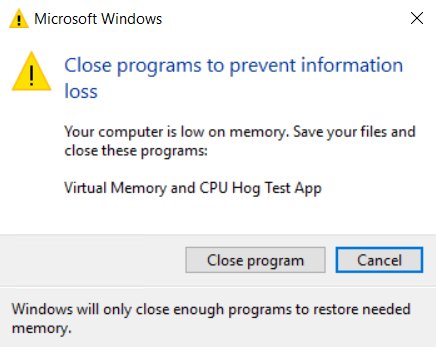
The commit limit is now too low for the peak commit charge, or the file is growing on demand and cannot keep up.
- Open Task Manager, select the Performance tab and note the committed figures during the workload that fails.
- Reopen the Virtual memory dialog and select Custom size for the system drive.
- Set Initial size to 1.5 times installed RAM, as Microsoft recommends, and set Maximum size higher than that.
- Select Set, select OK, and restart.
- Raise the initial size again if the errors continue.
No Memory.dmp after a blue screen
The dump feature needs a page file on the boot volume that is large enough for the selected dump type.
- Move the paging file back to the boot volume in the Virtual memory dialog.
- Select System managed size for that drive, then select Set.
- Confirm the dump type under Startup and Recovery; a complete memory dump needs 1 x RAM plus 257 MB.
- Select OK and restart before testing again.
When You Should Leave pagefile.sys Alone
Automatic management is the right answer on most machines, and on a few it is the only safe answer.
Keep the paging file system managed on the boot volume if you want crash dumps, run software that requires a page file, or cannot predict your peak commit charge. System-managed files are sized at startup against the crash dump setting and grow when the commit charge reaches 90 percent of the commit limit. A fixed or absent file removes that headroom, and Microsoft names domain controllers, DFS Replication servers, certificate servers, ADAM/LDS servers and the Hyper-V management OS as roles that should keep it.
Administrators who want a crash dump without a paging file have a documented alternative: a dedicated dump file, which backs Memory.dmp but is never used for paging.
Frequently Asked Questions
What is the purpose of pagefile.sys?
It backs infrequently accessed modified pages so Windows can free physical memory for pages in active use. It also raises the system commit limit and supports a crash dump when a Stop error occurs.
Do you need pagefile.sys?
Microsoft calls the page file optional, and a machine with large physical memory may not need one to cover peak commit charge. A page file or a dedicated dump file is still required for a crash dump.
Can I delete pagefile.sys to free up disk space?
Not by deleting the file. Set the drive to No paging file in the Virtual memory dialog, select Set, then restart. Windows stops creating the file on that drive, and the commit limit drops to installed RAM.
Where is pagefile.sys located in Windows 11?
In the root folder of each drive configured to hold one, normally C:\pagefile.sys. The path is the same on Windows 10. A system with more than one page file has one in the root of each of those drives.
How do I view pagefile.sys?
Turn on hidden items in File Explorer: View > Show > Hidden items on Windows 11. To confirm the path and size without Explorer, run Get-CimInstance Win32_PageFileUsage in PowerShell.
Why is pagefile.sys so big?
A system-managed page file grows when the commit charge reaches 90 percent of the commit limit, up to 3 times RAM or 4 GB, whichever is larger. The crash dump setting also raises the minimum size.
How large should pagefile.sys be?
Microsoft says sizing cannot be generalised, because it depends on the crash dump setting and the peak commit charge of that machine. For a fixed size, Microsoft recommends an initial size of 1.5 times installed RAM.
Is it safe to disable the paging file if I have 16GB or 32GB of RAM?
Physical memory alone may cover the commit charge at that size, but the commit limit then drops to slightly less than installed RAM. Crash dumps also stop unless a dedicated dump file is configured.
How do I move pagefile.sys to another drive?
In the Virtual memory dialog, clear Automatically manage paging file size for all drives, give the second drive a size and select Set, then set C: to No paging file and select Set. Restart afterwards.
Will reducing pagefile.sys make my PC faster?
No. A smaller page file lowers the commit limit and can cause out-of-memory errors, and a file that must grow on demand adds latency during allocation. Disk performance, not page file size, drives paging speed.
Can I delete hiberfil.sys the same way?
No. hiberfil.sys belongs to hibernation, so run powercfg.exe /hibernate off from an elevated Command Prompt instead. Hibernation, hybrid sleep and fast startup stop working once it is gone.
What is pagefile.sys used for in Windows Server?
The same three jobs, plus application requirements. Microsoft states that domain controllers, DFS Replication servers, certificate servers and ADAM/LDS servers require a page file, and that Hyper-V hosts keep the default System Managed setting.
Bottom Line
Leave pagefile.sys system managed on C:, remove hiberfil.sys with powercfg.exe /hibernate off if hibernation is unused, and clear temporary files for the space you were after. The paging file carries the commit limit and the crash dump, so it is the worst file on the drive to fight over. The hibernation file is roughly the size of installed RAM and costs nothing on a desktop that never hibernates.