To delete trackers on Windows 11, turn off the advertising ID, delete your diagnostic data and activity history in Settings > Privacy & security, then clear cookies and switch on tracking prevention in your browser.
This guide covers each Windows 11 privacy setting, cookie deletion and tracker blocking in Edge, Chrome and Firefox, the Microsoft privacy dashboard, and the same paths on Windows 10.
Steps to Remove Trackers on Windows 11
Windows 11 has no single tracker removal button. The identifiers and logs live in a handful of built-in settings and in your browser, and this sequence clears the main ones in about five minutes.
- Select Start > Settings > Privacy & security > Recommendations & offers and turn off Let apps show my personalized ads by using my advertising ID.
- Go back to Privacy & security, open Diagnostics & feedback, and under Diagnostic data choose the Required option instead of Optional.
- On the same page, under Delete diagnostic data, select Delete.
- Go back to Privacy & security, open Activity history, and turn off Store my activity history on this device.
- Next to Clear activity history for this account, select Clear history.
- In Microsoft Edge, press Ctrl + Shift + Delete, set Time range to all time, tick Cookies and other site data, and select Clear now.
- In Edge, open Settings and more > Settings > Privacy, search, and services > Tracking prevention and select Strict.
Use Chrome or Firefox instead of Edge? The browser sections below give their exact steps.
Understanding Trackers
"Tracker" covers two different things on a Windows 11 PC: identifiers that Windows itself creates, and cookies or scripts that websites drop through your browser. Each one is removed in a different place.
| Tracker | What it records | Where you remove or limit it |
|---|---|---|
| Windows advertising ID | A unique ID per user that apps and their ad networks can tie your data to | Settings > Privacy & security > Recommendations & offers |
| Optional diagnostic data | App activity, device health and, per Microsoft, information about websites you browse | Settings > Privacy & security > Diagnostics & feedback |
| Activity history | Apps and services you use, files you open and websites you browse, stored locally | Settings > Privacy & security > Activity history |
| Location | Your device location; with a Microsoft account, the last-known location is saved to the cloud | Settings > Privacy & security > Location, plus the privacy dashboard |
| Third-party cookies | Cookies set by embedded ads and content that learn about actions you take on other sites | Your browser's cookie settings |
| Cross-site trackers and fingerprinters | Your browsing across many sites; fingerprinting identifies the browser from device details | Edge tracking prevention, Firefox Enhanced Tracking Protection |
| Account activity | Bing searches, Edge browsing, location, voice, media, and apps and services activity tied to your Microsoft account | Microsoft privacy dashboard |
Why You Should Remove Trackers
Microsoft describes the advertising ID as working much like a cookie: apps can link the personal data they collect about you to it. Cross-site trackers are why an ad for one shopping site follows you onto a news site.
Removing trackers has a cost, so decide what you are willing to give up before you clear everything.
| Action | What you gain | What you give up |
|---|---|---|
| Turn off the advertising ID | Apps can no longer link your data through that ID | Nothing functional; Microsoft says you see the same number of ads, just less relevant ones |
| Switch diagnostic data to Required | Browsing and app-activity details stop going to Microsoft | Nothing; Microsoft states the device stays just as secure and works normally |
| Delete all cookies | Every site's stored identifier is gone | You are signed out of most sites and lose saved site preferences |
| Strict tracking prevention | Most cross-site trackers are blocked | Some sites break: a video may not play or a sign-in may fail |
| Turn off location | Windows and apps lose access to device location | Automatic time zone and Find my device stop working |
Which trackers to remove first
| Your situation | Do this | Why |
|---|---|---|
| Ads follow you from site to site | Clear cookies and set browser tracking to Strict | Cross-site trackers and third-party cookies cause this |
| Apps show ads based on your habits | Turn off the advertising ID | That ID is what apps and ad networks share |
| You do not want Microsoft collecting browsing data | Set diagnostic data to Required and delete existing data | Optional diagnostic data can include websites you browse |
| Someone else uses this PC | Clear activity history and browser history | Both are stored locally for each account |
| You signed in with a Microsoft account | Also clear the privacy dashboard | Cloud copies are not removed by clearing the device |
| You still use Windows 10 | Use the Windows 10 paths in the table further down | The settings sit under Privacy instead of Privacy & security |
Turn off the advertising ID and personalized offers
Turning the advertising ID back on later resets it, so an old profile tied to the previous ID cannot be continued.
- Select Start and choose Settings.
- Select Privacy & security, then Recommendations & offers.
- Turn off Let apps show my personalized ads by using my advertising ID.
- Turn off Let websites show me locally relevant content by accessing my language list if you do not want sites reading your language list.
- Turn off Let Windows improve Start and search results by tracking app launches to stop app launch tracking.
- Go back to Privacy & security, open Personalized offers, and turn off Get personalized tips, ads, and recommendations based on my Windows activity.
Older builds show Tailored experiences under Diagnostics & feedback instead of Personalized offers. Microsoft is replacing it, so install the latest update if you see only the old label.
Limit and delete Windows diagnostic data
Deleting diagnostic data removes the copy for this device only. It does not stop future data from being sent, and it does not delete data associated with your Microsoft account.
- Select Start, then Settings > Privacy & security > Diagnostics & feedback.
- Under Diagnostic data, choose the Required option so Optional data stops being sent.
- Under Tailored experiences, turn the setting off if it appears on your build.
- Turn off Improve inking and typing so typing and handwriting samples are not collected.
- Under Delete diagnostic data, select Delete.
- Open the Microsoft privacy dashboard to delete the diagnostic data tied to your Microsoft account.
Clear and stop Windows activity history
Activity history is kept locally for each local, Microsoft, or work or school account on the PC. Hiding an account in the filter does not delete its data, so clear it instead.
- Select Start, then Settings > Privacy & security > Activity history.
- Switch Store my activity history on this device to Off.
- Next to Clear activity history for this account, select Clear history.
- Repeat while signed in to each other account on the PC that you want cleared.
The option to send activity history to Microsoft was removed in the January 23, 2024 update (KB5034204) for Windows 11 22H2 and 23H2. If an older build still shows it, turn it off or install the latest update.
Control location tracking and clear location history
Local location history was removed from Windows in March 2025. If you sign in with a Microsoft account, location can still be saved to the cloud, so clear it there.
- Select Start > Settings > Privacy & security > Location.
- Turn off Location services to block location for every user, if you are an administrator on the PC.
- Or turn off Let apps access your location to block it for your account only.
- To keep location on, review the app list and turn off precise location for any app that does not need it.
- Under Default location, select Set default, clear the address box, and select Save to remove a stored default location.
- Go to account.microsoft.com, sign in, select Clear location activity, and then select Clear.
Desktop apps installed from the internet do not support per-app precise location control. Some can still estimate location from your IP address or Bluetooth even with Location services off.
Delete cookies and turn on tracking prevention in Microsoft Edge
Edge blocks harmful trackers such as cryptominers and fingerprinters at every level. Balanced is the default recommendation; Strict blocks most trackers across sites.
- Select Settings and more > Settings > Privacy, search, and services.
- Select Tracking prevention, make sure it is turned on, and choose Strict.
- Select Cookies and turn on Block third-party cookies.
- Go back, select Clear browsing data, then Choose what to clear next to Clear browsing data now.
- Set Time range, tick Cookies and other site data, and select Clear now.
- Select Choose what to clear every time you close the browser and turn on Cookies and other site data.
To remove one site's cookies only, select Cookies > See all cookies and site data, search for the site, select the down arrow beside it, and select Delete.
If sync is on, cleared items are removed across all your synced devices. Turn sync off first under Settings > Profiles > Sync to clear this PC only.
Delete cookies and block third-party cookies in Google Chrome
If you are signed in to Chrome, deleting data also removes it from your Google Account and your other devices.
- Open Chrome and select More at the top right, then Delete browsing data.
- Choose a time range such as All time.
- Select Cookies and other site data, tick any other items you want gone, and select Delete data.
- Select More > Settings > Privacy and security > Third-party cookies.
- Select Block third-party cookies.
- To delete one site's cookies, select See all site data and permissions, search for the site, select Delete, and confirm.
Blocked third-party cookies stay blocked for every site except those on your exceptions list.
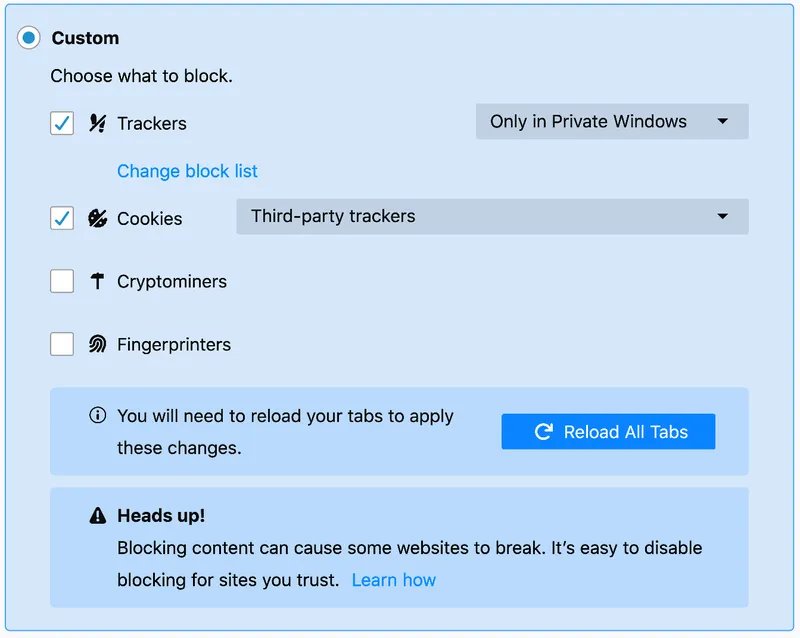
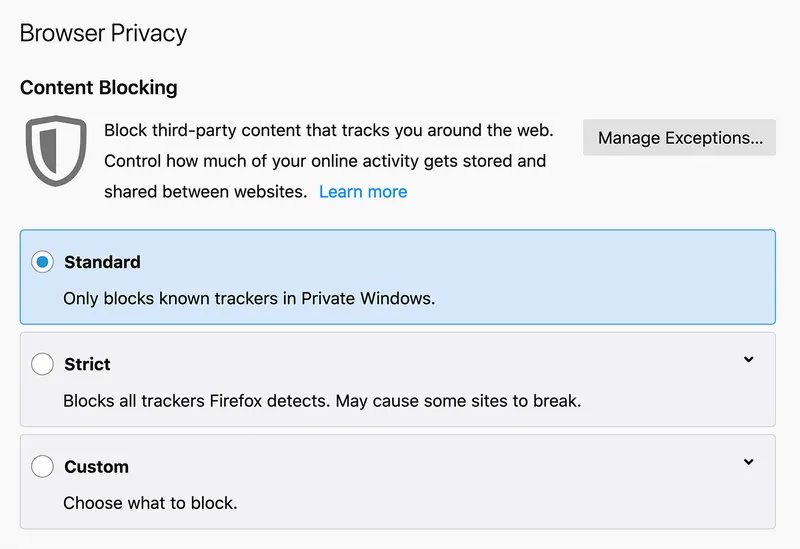
Turn on Strict Enhanced Tracking Protection in Firefox
Firefox blocks common trackers in Standard mode. Strict blocks more trackers and cookies, and Custom lets you pick what to block. Firefox also blocks known fingerprinters, which can track you even after you clear cookies.
- Open any web page in Firefox.
- Select the shield icon to the left of the address bar.
- Select Protection Settings.
- Choose Strict, or Custom to pick cookies and trackers individually.
Clear your data on the Microsoft privacy dashboard
Clearing Windows and Edge on the PC does not touch the copies kept with your Microsoft account. The privacy dashboard holds Bing searches, Edge browsing, and location, voice, media, and apps and services activity.
- Go to account.microsoft.com/privacy and sign in with the Microsoft account you use on Windows 11.
- Review each activity category the dashboard lists for your account.
- Use the clear option for browsing history, search history, and apps and services activity.
- For location, select Clear location activity, then Clear.
- Open the Personalized ads & offers page in your Microsoft account if you also want to opt out of personalized ads across Microsoft products.
Data you delete on the dashboard is not deleted from your device, so do the device steps as well.
Where the tracking settings live in Windows 11 and Windows 10
| Setting | Windows 11 | Windows 10 |
|---|---|---|
| Diagnostic data, delete diagnostic data, Tailored experiences | Settings > Privacy & security > Diagnostics & feedback | Settings > Privacy > Diagnostics & feedback |
| Activity history | Settings > Privacy & security > Activity history | Settings > Privacy > Activity history |
| Advertising ID | Settings > Privacy & security > Recommendations & offers | Under Settings > Privacy |
| Location | Settings > Privacy & security > Location | Under Settings > Privacy |
| Browser cookies and tracking | Inside Edge, Chrome or Firefox | Same as Windows 11 |
How to check the trackers are gone
- In Edge, open a site, select View site information on the left of the address bar, and select Trackers to see how many were blocked.
- In Edge, open Settings > Privacy, search, and services > Cookies > See all cookies and site data and confirm only sites you visited since clearing are listed.
- In Chrome, open Settings > Privacy and security > Third-party cookies > See all site data and permissions and check the list is short.
- In Windows, open Settings > Privacy & security > Location and check under Let apps access your location when each app last used your location.
- Watch the taskbar notification area: the location icon appears only while an app is using your location.
- To see exactly what diagnostic data leaves the PC, turn on View diagnostic data under Diagnostics & feedback and select Open Diagnostic Data Viewer.
Fix problems after removing trackers
These are the side effects Microsoft and Google document for the settings above.
Diagnostic data options are greyed out
Your workplace or school manages the PC and sets these by policy.
- Open Settings > Privacy & security > Diagnostics & feedback.
- Look for Some settings are hidden or managed by your organization at the top.
- If it is there, ask your IT department; the setting cannot be changed locally.
A site stops working after switching to Strict
Strict blocks trackers some sites need for video, comments or sign-in.
- On the broken site in Edge, select View site information.
- Turn off Tracking prevention for this site.
- Reload the page; every other site stays on Strict.
- To manage the list later, go to Tracking prevention > Exceptions and use Add a site.
You are signed out of every website
Deleting cookies removes the sign-in cookies along with the trackers.
- Sign back in to the sites you use.
- Next time, delete cookies for individual sites instead of all of them.
- If you turned on clearing cookies every time Edge closes, turn it off under Clear browsing data > Choose what to clear every time you close the browser.
Let apps access your location cannot be turned on
Location services is off for the whole device, which overrides your account setting.
- Sign in with an administrator account.
- Open Settings > Privacy & security > Location.
- Turn on Location services, then set Let apps access your location for each account.
Conclusion: Safeguarding Your Privacy on Windows 11
Turn off the advertising ID, set diagnostic data to Required, clear activity history once, and leave your browser on Strict tracking with third-party cookies blocked. Those four changes stop new tracking rather than only deleting old data, so you do not have to repeat a full cleanup every week. Add a privacy dashboard pass if you sign in with a Microsoft account, because device clearing never reaches the cloud copy.
Frequently Asked Questions
Does Windows 11 have tracker removal?
Windows 11 has no single tracker removal tool. Its controls are spread across Settings > Privacy & security: Recommendations & offers for the advertising ID, Diagnostics & feedback, Activity history and Location. Browser trackers are handled by Edge tracking prevention or your browser's cookie settings.
How do I delete trackers on Windows 10?
Use the same settings under Settings > Privacy instead of Privacy & security. Delete diagnostic data under Privacy > Diagnostics & feedback, clear Privacy > Activity history, and clear cookies in your browser. Browser steps are identical on Windows 10 and Windows 11.
How do I stop trackers in Windows 11 instead of deleting them each time?
Change the settings that create new tracking data. Turn off the advertising ID, set diagnostic data to Required, turn off Store my activity history on this device, and set Edge tracking prevention to Strict or Firefox to Strict. Deleting alone only clears what already exists.
How do I delete trackers on my PC's browser only?
Clear cookies and site data in the browser. In Edge press Ctrl + Shift + Delete, tick Cookies and other site data and select Clear now. In Chrome select More > Delete browsing data, tick Cookies and other site data and select Delete data.
Can I remove all tracking from Windows 11?
No. Required diagnostic data is always sent, because Microsoft uses it to keep Windows updated and secure. You can stop Optional diagnostic data, the advertising ID, activity history, location access and most browser tracking, which covers the tracking that profiles your behavior.
Is there Windows 11 tracking software I should uninstall?
Tracking in Windows 11 is controlled by settings, not a separate program you uninstall. Use the Privacy & security pages and the privacy dashboard. Avoid third-party tracker cleaners, since the built-in settings already switch off the identifiers Microsoft documents.
Does InPrivate browsing stop trackers in Edge?
InPrivate stops Edge from keeping your data after the session. Edge deletes browsing history, cookies and site data when you close all InPrivate windows, and InPrivate browsing is not saved to Windows activity history. Trackers still see you while the window is open, so keep tracking prevention on.
Does clearing cookies remove browser fingerprinting?
No. Fingerprinting identifies your browser from device details such as fonts, screen resolution and time zone, so clearing cookies does not reset it. Firefox blocks known fingerprinters through Enhanced Tracking Protection, and Edge blocks fingerprinting trackers at every tracking prevention level.
How do I clear trackers in other browsers such as Vivaldi?
Open that browser's clear browsing data option and tick cookies and site data, the same as in Edge or Chrome. Vivaldi also keeps typed address-bar entries separately, covered in deleting Vivaldi’s typed history.

![6 best free virtual webcam software for Windows [2026 update]](https://techdows.com/wp-content/uploads/2026/10/6-best-free-virtual-webcam-software-for-Windows-2026-update-600x338.jpg)
What Is pagefile.sys and Can You Delete It Safely? - Techdows
[…] Storage Sense runs on the system drive only. Browser leftovers are a separate clean-up: see how to delete trackers on Windows 11. […]