To put an iPhone in DFU mode, power it off, connect it to a computer, then hold the button Apple lists for that model until the screen goes black and stays black.
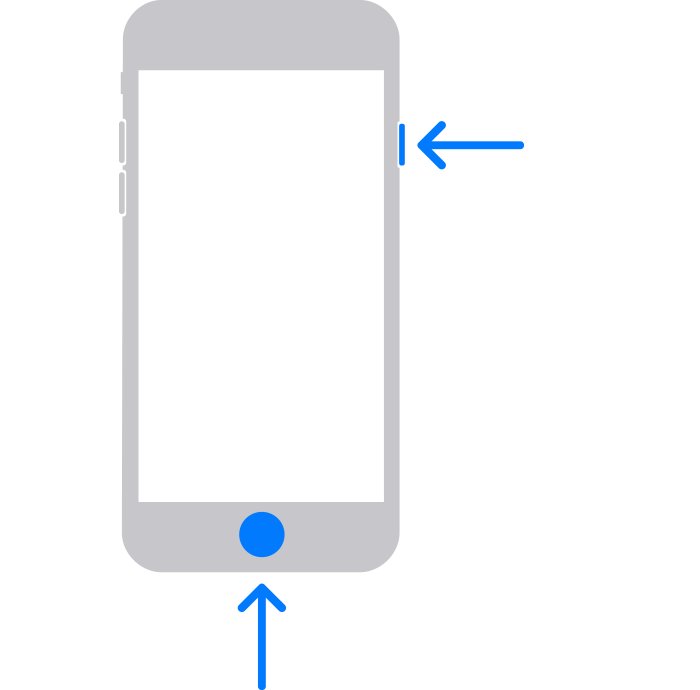
The button differs by model: the side button on iPhone 8 and later, Volume down on iPhone 7, the Home button on iPhone 6s and earlier.
The fastest way to put an iPhone in DFU mode
DFU mode is a black screen. The computer, not the iPhone, tells you the phone is there.
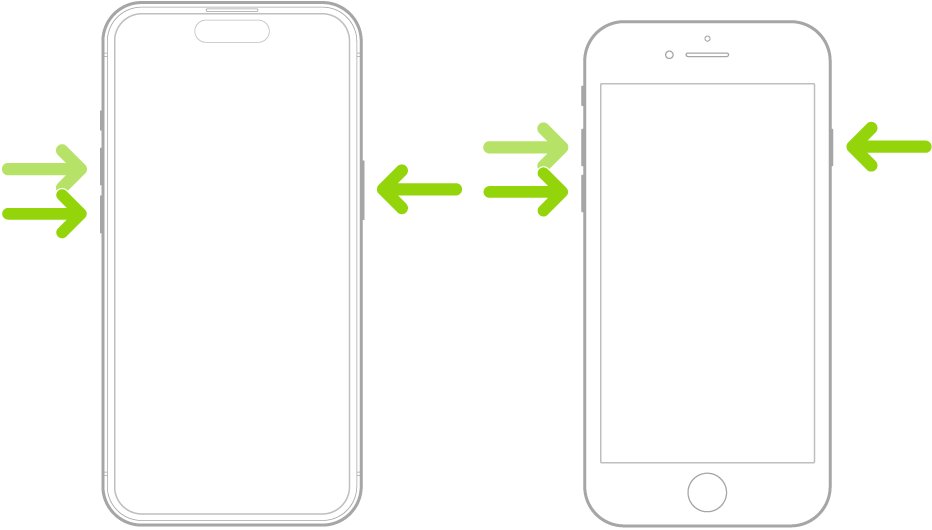
- Power the iPhone off. On a Face ID model, hold the side button and Volume down until the power off slider appears, then drag it. On a Home button model, hold the top button or the side button instead.
- Connect the cable to your Mac or Windows PC, then connect it to the iPhone.
- Press and hold the button for your model straight away: the side button on iPhone 8 and later, Volume down on iPhone 7 and 7 Plus, the Home button on iPhone 6s and earlier.
- Keep holding while the Apple logo appears, and keep holding after the screen goes dark again.
- Release the button while the screen is still black and no image has appeared on it.
- Look at the computer. Finder or the Apple Devices app reports an iPhone in recovery mode while the iPhone screen stays black. That pairing is DFU mode.
If the image of a computer and a cable appears on the iPhone screen, the phone is in recovery mode instead. Power it off and start again.
What DFU Mode Is and When You Should Use It
Apple documents DFU mode in the Apple Platform Security guide rather than in a consumer walkthrough.
| Question | What Apple states |
|---|---|
| What DFU stands for | Device Firmware Upgrade. The device's Boot ROM code waits to be recovered over USB. |
| What the iPhone screen shows | Nothing. The screen is black in DFU mode. |
| What the computer shows | Finder or iTunes presents a prompt saying it has detected an iPhone in Recovery mode. |
| What a DFU restore achieves | It returns the device to a known good state with the certainty that only unmodified Apple-signed code is present. |
| Why the Boot ROM matters | The Boot ROM is the first code the processor runs and is an integral part of the processor, so it cannot be altered. |
| What happens to your passcode data | On A12 and later chips, the Secure Enclave Boot ROM locks the passcode seed bit once DFU or recovery mode is entered. |
| When to reach for it | When a restore started from recovery mode stalls or fails, and when the iPhone shows the Apple logo for several minutes with no progress bar. |
DFU Mode vs. Recovery Mode
Both modes end at the same Restore button. They differ in how deep the reload starts and in what the screen shows.
| Your situation | Use this | Why |
|---|---|---|
| Apple logo for several minutes with no progress bar | Recovery mode | Apple lists that exact symptom under recovery mode, and Update there can keep your data |
| A recovery mode restore stops part way | DFU mode | DFU hands the restore to the Boot ROM, which cannot be altered |
| The screen already shows a computer and a cable | You are in recovery mode | DFU keeps the screen black, so that image rules it out |
| You forgot the passcode | Either mode | Apple's passcode reset article uses the same power-off and button-hold sequence |
| You want to keep your files | Neither yet | A restore erases the data currently on your iPhone, so back up first |
| Buttons do not respond at all | Neither | Apple says you might need service when the buttons cannot reach the recovery screen |
Before You Start: Backup, Cables, and Computer Requirements
Apple lists the same short kit for every model, and the time estimate is generous for a reason.
| Requirement | Detail |
|---|---|
| Computer | A Mac or a Windows PC |
| Software on a Mac | Finder. Select the iPhone in the sidebar under Locations. |
| Software on Windows | The Apple Devices app, from the Microsoft Store |
| Cable | A cable that could charge your phone |
| Internet connection | Required. The iOS download alone can take more than 15 minutes. |
| Time | Up to 60 minutes |
| Backup | Make one before you start, because a restore erases the data currently on your iPhone |
| Working buttons | The volume, side, top and Home buttons all take part. Broken buttons mean service, not a workaround. |
How to Enter DFU Mode on iPhone 8 and Later, Including Face ID Models
This covers iPhone 8, iPhone X and every Face ID model after it, plus iPhone SE 2nd and 3rd generation.
One button does the work on this group: the side button.
- Press and hold the side button and Volume down until the power off slider appears, then drag the slider to power off the iPhone.
- Connect the cable to your Mac or Windows PC first.
- Connect the cable to the iPhone and quickly hold the side button. Do not release it.
- Continue to hold the side button while the Apple logo appears.
- Keep holding after the logo clears, then release while the screen is black and empty.
- Check Finder or the Apple Devices app on the computer for the iPhone.
Holding the side button until an image of a computer and a cable appears gives recovery mode, which is Apple's documented stopping point for this sequence.
How to Enter DFU Mode on iPhone 7 and iPhone 7 Plus
The iPhone 7 pair has a solid-state Home button that does nothing while the phone is off, so Apple uses Volume down instead.
- Press and hold the side button until the power off slider appears, then drag the slider.
- Connect the cable to your Mac or Windows PC.
- Connect the cable to the iPhone and quickly hold Volume down. Do not release it.
- Continue to hold Volume down while the Apple logo appears.
- Keep holding past the logo and release while the screen is black.
- Confirm on the computer that Finder or the Apple Devices app now lists the iPhone.
How to Enter DFU Mode on iPhone 6s, iPhone SE 1st Gen, and Earlier
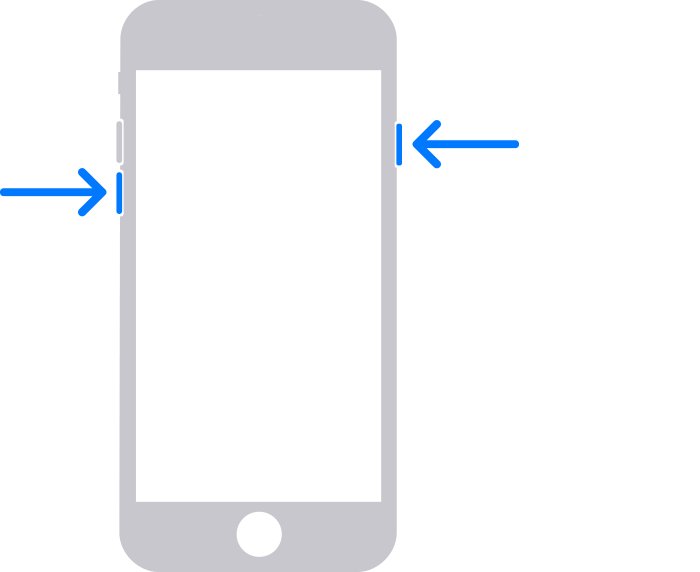
Button timing for older Home button iPhones is the same idea, with a physical Home button doing the holding.
- Press and hold the top button or the side button until the power off slider appears, then drag the slider.
- Connect the cable to your Mac or Windows PC.
- Connect the cable to the iPhone and quickly hold the Home button. Do not release it.
- Continue to hold the Home button while the Apple logo appears.
- Keep holding past the logo and release while the screen is black.
- Check the computer for the iPhone in Finder or the Apple Devices app.
The same Home button route applies to iPod touch 6th generation and earlier.
How to Tell If Your iPhone Is Successfully in DFU Mode
Two signals have to agree. Either one alone points at a different mode.
- Look at the iPhone screen. It is black, with no Apple logo, no cable image and no text.
- Look at the computer. Finder or iTunes shows a prompt that it has detected an iPhone in Recovery mode.
- Compare the two. A black screen plus that prompt is DFU mode.
- Treat a computer-and-cable image on the iPhone screen as recovery mode, not DFU mode.
- Treat a black screen with no prompt on the computer as an iPhone that is simply switched off.
How to restore the iPhone once it is in DFU mode
DFU mode on its own does nothing. The restore is the point of it.
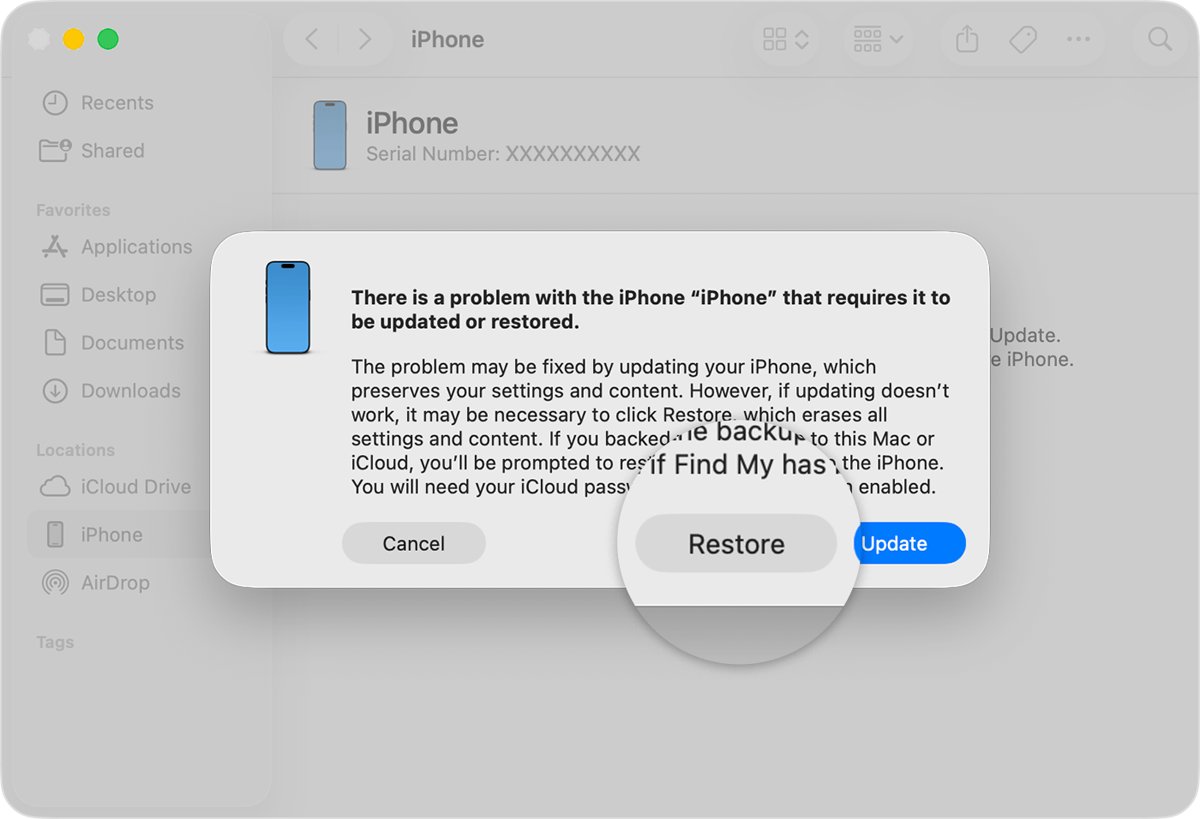
- On a Mac, open a Finder window and select the iPhone in the sidebar under Locations. Allow the accessory to connect if asked.
- On a Windows PC, open Apple Devices, select the iPhone in the sidebar, select Trust if asked, then select General.
- Select Restore when the option to Restore or Update appears.
- Leave the iPhone connected while iOS downloads. That download can take more than 15 minutes.
- If the iPhone drops off the recovery screen during the download, let the download finish, then power the iPhone off and start the button sequence again.
- Follow the onscreen instructions once the Hello screen appears, then disconnect the cable.
Restore reinstalls iOS and erases all your data. Update reinstalls iOS without touching your data, but it is not offered from DFU mode.
How to Exit DFU Mode on Any iPhone Model
A force restart leaves DFU mode on every model. Nothing is erased by doing it.
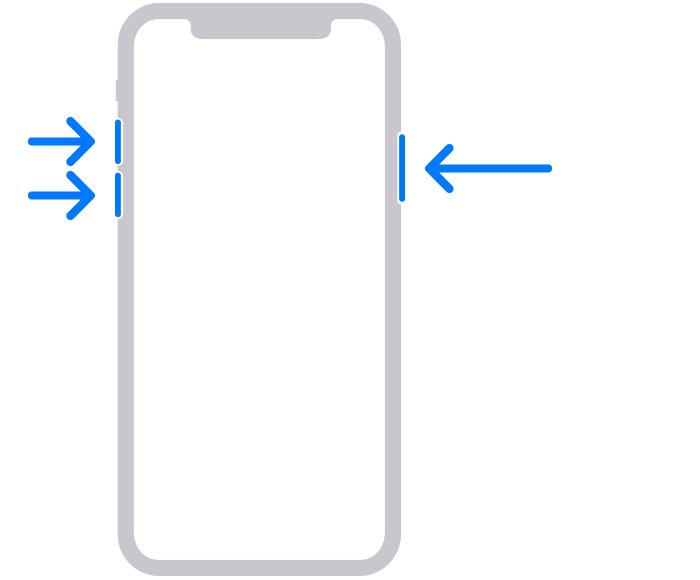
- On iPhone 8 and later, including Face ID models: press and quickly release Volume up, press and quickly release Volume down, then press and hold the side button until the Apple logo appears. This might take longer than 10 seconds.
- On iPhone 7 and iPhone 7 Plus: press and hold the side button and Volume down together until the Apple logo appears. This might take longer than 10 seconds.
- On iPhone 6s and earlier, including iPhone SE 1st generation: press and hold the Home button and the side button or top button together until the Apple logo appears. This takes around 10 seconds.
- Release the buttons at the Apple logo and let the iPhone finish starting.
- Disconnect the cable once the Lock Screen appears.
The full set of hard reset sequences is in How to Force Restart or Hard Reset iPhone (All Models).
Fix DFU mode when the iPhone will not enter it
The iPhone keeps showing the Apple logo instead of entering DFU mode
The button was released while the logo was on screen, so the iPhone booted normally.
- Let the iPhone finish starting, then power it off again from the power off slider.
- Connect the cable to the computer before you touch any button.
- Hold the button for your model the instant the cable meets the iPhone.
- Hold through the Apple logo and past it, releasing only once the screen is black and empty.
DFU mode is not working and the screen shows a computer and a cable
The button was held too long, which is Apple's documented route into recovery mode.
- Force restart the iPhone using the sequence for your model to clear recovery mode.
- Power the iPhone off again once the Lock Screen appears.
- Repeat the button hold and release a little earlier, before any image reaches the screen.
- Use recovery mode instead if a restore is all you need. Both modes offer Restore.
The computer never shows the iPhone
The cable, the port or the companion app is the missing piece, not the button timing.
- Swap to a cable that could charge your phone, and try a different port on the computer.
- On Windows, install the Apple Devices app from the Microsoft Store and open it before connecting.
- On a Mac, open a Finder window and watch the sidebar under Locations.
- Select Trust on the computer if a prompt asks for it.
The iPhone is stuck in DFU mode and will not start
DFU mode waits indefinitely, so nothing changes until a force restart or a restore ends it.
- Force restart the iPhone with the sequence for your model.
- Charge the iPhone for one hour if it does not turn on, then try again.
- Charge it for 30 minutes or until it starts if a low-charge battery image appears.
- Restore it from Finder or Apple Devices if the force restart alone does not bring it back.
The buttons do not respond at all
A failed volume, side or Home button cannot drive either mode.
- Confirm the button works in normal use, for example the side button waking the screen.
- Try the sequence once more with a different grip so both buttons register together.
- Book service if the iPhone still cannot reach the recovery screen. Apple names service as the next step here.
What a DFU restore costs you
Back up before you enter DFU mode, because the restore that follows erases the iPhone. Apple states plainly that the process erases the data currently on your iPhone, and DFU mode offers no data-preserving Update path. Entering DFU mode by itself changes nothing on the phone, so a force restart at that point still costs nothing.
How to enter DFU mode on an iPad or a MacBook Pro
The iPad follows the iPhone pattern. A Mac does not, and uses a separate Apple procedure.
| Device | What Apple documents | Official article |
|---|---|---|
| iPad with a Home button | Power off, connect the cable, hold the Home button; the screen stays black in DFU mode | If you can't update or restore your iPad |
| iPad with Face ID | Apple lists the button sequence for the model on the same page, and the black-screen test is identical | If you can't update or restore your iPad |
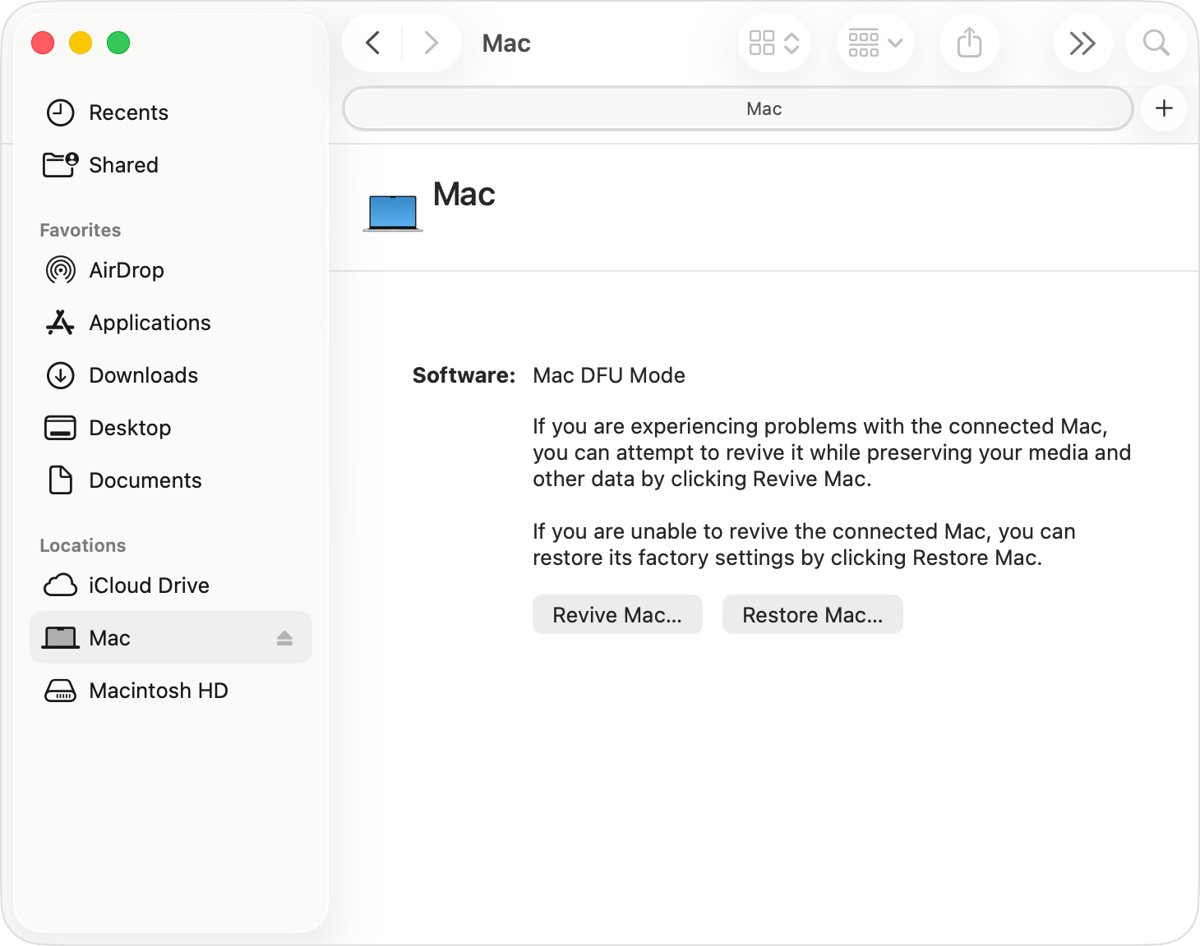
| Mac with Apple silicon | Hold four keys for about 10 seconds, release all but the power button, then hold the power button for up to 10 seconds more | How to revive or restore Mac firmware |
| Mac with a T2 chip | Hold the same four keys for about 3 seconds, until the DFU window appears | How to revive or restore Mac firmware |
| Cable for a Mac | A USB-C to USB-C cable that supports data and charging. Apple says not to use a Thunderbolt 3 cable. | How to revive or restore Mac firmware |
| Second Mac needed | The helper Mac runs macOS 14 or later, and the cable goes into the DFU port of the affected Mac | How to identify the DFU port on Mac |
On a Mac, Revive Mac reinstalls firmware without erasing. Restore Mac erases it and restores factory settings.
Frequently Asked Questions
What is DFU mode?
DFU stands for Device Firmware Upgrade. Apple describes it as a mode in which the device's Boot ROM code waits to be recovered over USB. The screen is black, and a connected computer running Finder or iTunes reports that it has detected an iPhone in Recovery mode.
Will DFU mode erase everything on my iPhone?
Entering DFU mode erases nothing. The restore that follows does: Apple states that the process erases the data currently on your iPhone. Back up first, and force restart the iPhone if you change your mind before selecting Restore.
How do I know my iPhone is in DFU mode and not recovery mode?
Check the screen. DFU mode leaves it completely black. Recovery mode shows an image of a computer and a cable. The computer reports recovery mode in both cases, so the iPhone screen is the deciding signal.
Can I enter DFU mode without a computer?
No. DFU mode waits to be recovered over USB, and the only proof that it worked comes from Finder on a Mac or the Apple Devices app on Windows. Without a computer, visit an Apple Store or an Apple Authorized Service Provider.
How do I exit DFU mode?
Force restart the iPhone. On iPhone 8 and later, press and quickly release Volume up, press and quickly release Volume down, then hold the side button until the Apple logo appears. This might take longer than 10 seconds.
How to enter DFU mode on iPhone 11, iPhone 12, iPhone 14 or iPhone 15?
Every one of these is a Face ID model, so they share the iPhone 8 and later sequence. Power the phone off, connect the cable to the computer, then connect it to the iPhone and hold the side button until the screen is black and stays black.
How to enter DFU mode on iPhone XR?
The iPhone XR uses the side button, like every Face ID model. Power it off with the side button and Volume down, connect the cable to the computer, then hold the side button from the moment the cable is attached.
How to enter DFU mode on an iPhone SE?
It depends on the generation. iPhone SE 2nd and 3rd generation use the side button, the same as iPhone 8. iPhone SE 1st generation uses the Home button, the same as iPhone 6s and earlier models.
How to enter DFU mode on iPhone 6s?
Power the iPhone 6s off with the top or side button. Connect the cable to your Mac or Windows PC, connect it to the iPhone, then quickly hold the Home button and keep holding past the Apple logo while the screen is black.
How to enter DFU mode on an iPad, iPad Air or iPad mini 2?
iPads follow the same shape: power off, connect the cable, then hold the button Apple lists for that model. Apple publishes the per-model sequence in its article on restoring an iPad, and the black screen remains the test for DFU mode.
How to enter DFU mode on a MacBook Pro?
A Mac uses a different procedure and a second Mac running macOS 14 or later. Connect a USB-C to USB-C cable that supports data and charging to the DFU port, then use the key sequence for Apple silicon or T2 in Apple's firmware article.
Is DFU mode safe to use on an iPhone with hardware problems?
DFU mode itself only loads Boot ROM code, so it changes nothing on the phone. It cannot repair hardware, and it needs working buttons. Apple says you might need service when the buttons cannot reach the recovery screen.
Bottom Line
Try recovery mode first, and keep DFU mode for the restore that recovery mode could not finish. Recovery mode reaches the same Restore button, offers Update alongside it, and announces itself with a picture on the screen. DFU mode gives up that feedback in exchange for a restore that starts from the Boot ROM, the deepest reload Apple documents for an iPhone.