Riot Vanguard installs itself when you install a Riot game that needs it, such as VALORANT or League of Legends, through the Riot Client, and it starts working after one restart.
This guide covers the install, the Windows 11 security features Vanguard checks (TPM 2.0, Secure Boot, Memory Integrity and IOMMU), the VAN error codes Riot documents, and how to reinstall, update or uninstall Vanguard.
How to Install Riot Vanguard on Windows 11
Riot does not document a separate Vanguard setup file. Vanguard arrives with the game, so the job is really installing the Riot Client and a Vanguard-protected game.
- Open riotgames.com in your browser, select your game (for example VALORANT or League of Legends) and download its client.
- Run the downloaded file while signed in to a Windows account with admin rights. It installs the Riot Client, which then downloads and installs the game. If installing Windows programs is new to you, see how to install apps on a Windows PC.
- Let the Riot Client finish the game install. Riot Vanguard is installed automatically as part of it.
- Read the message Your game requires a system restart to play. The Play button stays locked until you restart.
- Restart Windows 11 from Start > Power > Restart.
- Open the Riot Client again and select Play.
- If a VAN error appears instead of the game, match its code in the troubleshooting section below.
The restart is required because Vanguard’s kernel driver loads during Windows startup. Skipping it is the most common reason a fresh install will not launch.
What Riot Vanguard Is and Why You Need It
Riot Vanguard is Riot Games’ own anti-cheat and game security software. Riot requires it to be active while you play most of its PC games.
| Part or fact | What Riot says about it |
|---|---|
| Vanguard client (vgc) | Runs while Riot games are active. It is the vgc Windows service. |
| Kernel mode driver (vgk) | Loads with Windows, which is why a restart is needed after install and after re-enabling Vanguard. |
| System tray icon (VGTray) | Shows Vanguard’s status, which security requirements your PC meets, and Pre-Check eligibility. |
| Games that need it | VALORANT and League of Legends, including Teamfight Tactics on PC because it runs through the League Client. |
| What happens without it | Games that require Vanguard will not start. Exiting or uninstalling it blocks play until it is running again. |
| Shared between games | Uninstalling League of Legends does not remove Vanguard while VALORANT is still installed. It is removed automatically only when every game that needs it is uninstalled. |
Before You Install: Check Windows 11 Requirements
Vanguard may ask for specific Windows security features before a game launches. The tray icon names whichever one is missing, but checking first saves a failed launch.
For the full list of Windows 11 hardware requirements, see all Windows 11 hardware requirements.
| Requirement | What Vanguard uses it for | How to check it |
|---|---|---|
| Windows fully updated | Updates carry security and system service changes Vanguard relies on. A VAN: RESTRICTION can demand build 19045 or newer, or build 26100 or newer, which only Windows 11 supports. | Install every available Windows update and restart. |
| TPM 2.0 | Hardware-based check of system integrity. Needed to clear VAN 9001. | Press Win + R, type tpm.msc, press Enter. Look for The TPM is ready for use and Specification Version: 2.0. |
| Secure Boot | Stops unauthorized software loading during startup. Needed to clear VAN 9003. | Press Win + R, type msinfo32, press Enter. BIOS Mode should read UEFI and Secure Boot State should read On. |
| Memory Integrity (HVCI / VBS) | Virtualization-based protection against malicious code and drivers. Named in some VAN: RESTRICTION messages. | The VGTray icon reports it if it is missing. |
| IOMMU | Hardware protection for memory access by devices. Named in some VAN: RESTRICTION messages. | The VGTray icon reports it if it is missing. |
| A real PC, not a virtual machine | Riot games do not support running inside VirtualBox, VMware, Parallels or similar. | Install and play directly on Windows. |
| Admin rights | Riot’s uninstall and repair steps assume an admin account. | Sign in with an administrator account before installing. |
How to Enable TPM 2.0 and Secure Boot for Vanguard
Most PCs have TPM 2.0 and support Secure Boot, but either can be switched off in firmware. Both settings live in your PC’s UEFI (BIOS), and menu names vary by manufacturer, so keep your PC or motherboard maker’s instructions open.
A discrete TPM chip satisfies VAN 9001. A VAN: RESTRICTION that lists TPM needs the firmware TPM instead: Intel PTT on Intel systems or AMD fTPM on AMD systems.
- Open Start > Settings > System > Recovery.
- Next to Advanced startup, select Restart now.
- After the restart, choose Troubleshoot > Advanced options > UEFI Firmware Settings, then confirm the restart. Alternatively, press Del, F2 or F10 while the PC starts; the key varies by brand.
- Find the TPM setting (often under Security) and enable Intel PTT or AMD fTPM.
- Open the Boot tab. If Boot Mode says Legacy or CSM and your disk is already GPT, set it to UEFI and disable CSM.
- Set Secure Boot (or Secure Boot State) to Enabled. Many firmware menus have a search, often on F9, if you cannot find it.
- Save and exit, usually with F10, and let Windows start normally.
- Recheck with
tpm.mscandmsinfo32as described in the requirements table.
If msinfo32 shows BIOS Mode: Legacy, do not switch the firmware to UEFI yet. Convert the system disk from MBR to GPT first, as the next section explains, or Windows will not boot.
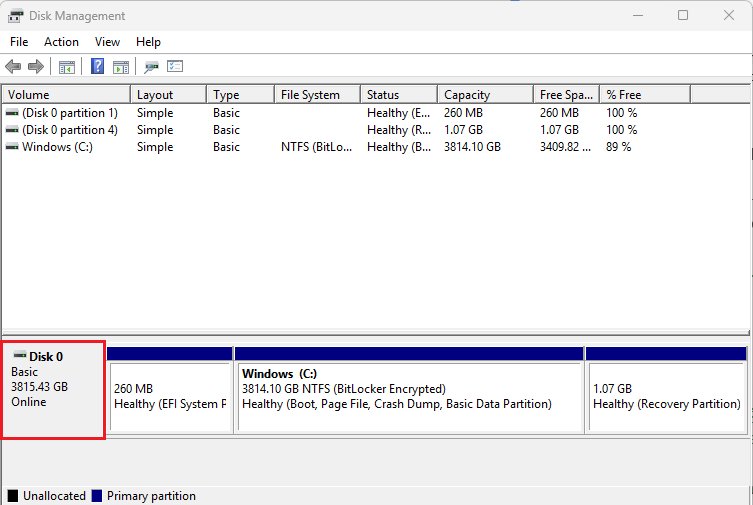
Convert an MBR drive to GPT before turning on Secure Boot
Secure Boot needs UEFI mode, and UEFI mode needs a GPT disk. Riot’s Secure Boot guide lists the conditions: Windows 10 version 1703 or later, 64-bit Windows, no more than three partitions on the MBR disk, BitLocker or other encryption off, no dual boot, and Secure Boot still disabled.
Back up your files first. The conversion cannot be reversed.
mbr2gpt /validate /allowFullOS
mbr2gpt /convert /allowFullOS
Run both lines in Command Prompt opened with Run as administrator. The first line checks whether the disk can be converted; run the second only if validation succeeds. /allowFullOS lets the tool run from inside Windows.
You should see: Validation reports success and the conversion completes. Do not restart into Windows normally: go straight into UEFI settings, switch Boot Mode from Legacy to UEFI, then enable Secure Boot.
How to Confirm Riot Vanguard Is Installed and Running
- Look in the system tray at the bottom-right of the taskbar for the red Riot Vanguard icon. Select the arrow to show hidden icons if it is not visible.
- Hover over or right-click the icon to see Vanguard’s status and any security requirement it says still needs attention.
- Press Win + R, type
services.mscand press Enter. - Find vgc in the list and confirm its Status is Running, or that it is set to start as you expect.
- Open Settings > Apps > Installed apps and confirm Riot Vanguard is listed.
- Launch your game from the Riot Client. Reaching the main menu with no VAN error is the final proof.
Fix Common Riot Vanguard Installation Problems on Windows 11
Match the exact message you see. Riot keeps one support article per VAN code, and the fix depends on the code.
“Your game requires a system restart to play” keeps coming back
Vanguard’s boot status file or a background program stops the driver from loading after restart.
- Open File Explorer and go to
C:\Windows. - Delete the file
vgkbootstatus.dat. - Restart the PC and launch the game.
- If the message returns, perform a clean boot so no startup programs load, then restart again.
- Confirm you are not running Windows inside a virtual machine.
VAN 9001: “This build of Vanguard requires TPM 2.0 to be enabled”
Vanguard does not detect TPM 2.0 as enabled on the PC.
- Run
tpm.mscand check the status and Specification Version. - If it is missing or disabled, enable Intel PTT or AMD fTPM in UEFI, as shown in the TPM and Secure Boot section.
- Restart and launch the game.
VAN 9003: “This build of Vanguard requires secure boot to be enabled”
Secure Boot is off in firmware.
- Run
msinfo32and read BIOS Mode and Secure Boot State. - If BIOS Mode is Legacy, convert the disk to GPT first.
- Enable Secure Boot in UEFI and restart.
- Recheck that Secure Boot State reads On, then launch the game.
VAN: RESTRICTION (with or without a number)
Vanguard needs a newer Windows build or a specific security feature before the game can launch.
- Read the requirement the error message names.
- If it asks for a Windows update, install every available update and restart. A build 26100 requirement means Windows 10 PCs must move to Windows 11.
- If it names TPM 2.0, Secure Boot, Memory Integrity (HVCI/VBS) or IOMMU, turn that feature on.
- Restart and launch the game.
VAN 1067 or the vgc service won’t start
Vanguard hit a problem starting or checking in, often because the vgc service is not running.
- Install all Windows updates and restart.
- Unplug controllers and other USB devices you do not need.
- Right-click the Riot Client and choose Run as administrator.
- Press Win + R, type
services.msc, press Enter and double-click vgc. - Set Startup type to Automatic, select Start if the service is stopped, then Apply and OK.
- Restart the PC. If the error remains, run a full scan in Windows Security and then reinstall Vanguard.
VAN: Incompatible Software, or conflicts with other software
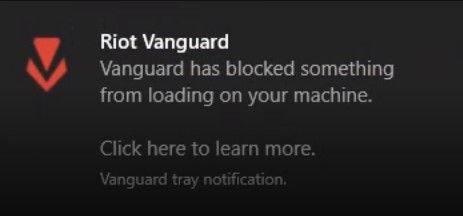
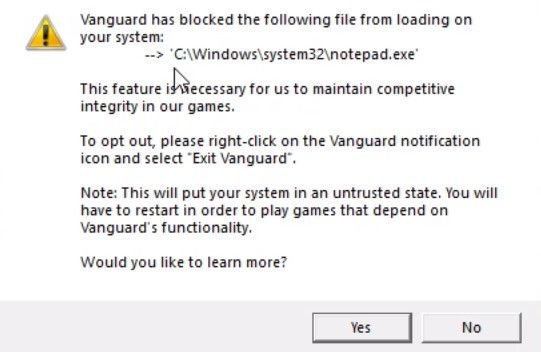
A driver or program on the PC does not meet Vanguard’s security requirements. The error names the file.
- Note the file path in the error, for example a
.sysdriver inC:\Windows\System32. - Open Settings > Apps > Installed apps and uninstall the program that owns that driver.
- Restart the PC.
- If the program cannot be uninstalled, delete the flagged
.sysfile and restart. - Turn off any VPN or proxy, then reinstall Vanguard if the error persists.
“You are on an unsupported Operating System”
Windows is out of date, or the game is running in compatibility mode.
- Update Windows to the latest available version.
- Right-click the game’s .exe file and select Properties > Compatibility.
- Clear Run this program in compatibility mode for.
- Select Apply > OK and relaunch the game.
Riot lists every VAN code on its Vanguard Error Codes page. If yours is not covered here or there, submit a ticket to Riot Player Support with your logs attached.
Which VAN error codes point to a Windows 11 setup problem
| Error | What Riot says it means | Where to act |
|---|---|---|
| VAN 9001 | TPM 2.0 is not detected as enabled | UEFI: enable Intel PTT or AMD fTPM |
| VAN 9003 | Secure Boot is not enabled | UEFI: enable Secure Boot (GPT disk required) |
| VAN: RESTRICTION | A Windows update or security setting is required | Windows Update, or the feature the message names |
| VAN 1067 | Vanguard hit an unexpected problem starting or checking in | Windows Update, vgc service, reinstall Vanguard |
| VAN: Incompatible Software | A named driver or program conflicts with Vanguard | Uninstall that program or remove the flagged driver |
| VAL codes (for example VAL 59) | VALORANT game errors, not Vanguard errors | Riot’s VALORANT Error Codes article |
How to Reinstall Riot Vanguard Cleanly
A clean reinstall restores Vanguard’s default settings and replaces corrupted files. Close every Riot game and the Riot Client first, and use an admin account.
- Right-click the Riot Client in the system tray and select Exit.
- Right-click the red Riot Vanguard icon, select Exit Vanguard, then Yes.
- Press the Windows key, type
cmd, right-click Command Prompt and select Run as administrator. - Type
sc delete vgcand press Enter. - Type
sc delete vgkand press Enter. - Restart the PC.
- Open File Explorer, go to
C:\Program Filesand delete the Riot Vanguard folder if it is still there. - Launch the Riot Client or a Vanguard game. Vanguard reinstalls automatically.
- Restart once more when the client asks, then select Play.
Should You Let Vanguard Run at Startup?
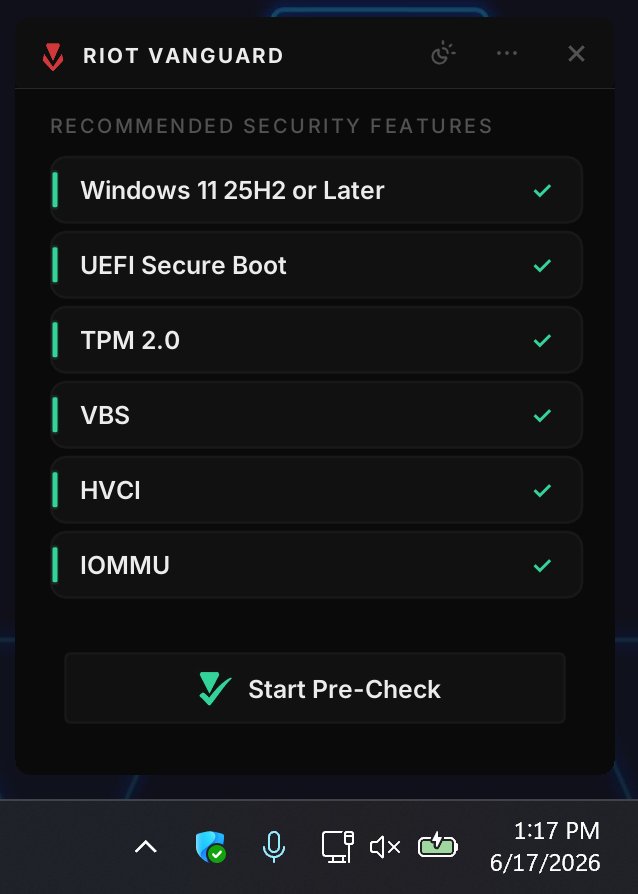
By default Vanguard starts with Windows. Vanguard Pre-Check is an optional mode that starts it when you launch a Riot game and shuts it down after play, but only on PCs that meet a stricter security bar.
| Your PC | Startup mode | Why |
|---|---|---|
| Windows 11 version 25H2 or newer with Secure Boot, TPM 2.0, IOMMU, VBS and HVCI all on | Vanguard Pre-Check (on-demand) | Vanguard runs only around gameplay, and you can start or stop it without a full restart. |
| Any PC that does not meet every Pre-Check requirement | Start with Windows: set the vgc service to Automatic | Without Pre-Check, Vanguard must already be running when the game starts, or it fails with errors such as VAN 1067. |
| You exited Vanguard from the tray and now want to play | Restart the PC | Once disabled, the on-boot version of Vanguard needs a restart before it runs again. |
| Not sure which applies | Check the VGTray icon | It reports Pre-Check eligibility and lists any requirement still missing. |
How to Update Riot Vanguard
Riot’s support site describes no separate Vanguard updater or standalone download. The documented ways to bring Vanguard current are keeping Windows updated and replacing a broken copy through the Riot Client.
- Open Settings > Windows Update and install every available update.
- Restart the PC so Windows and Vanguard’s driver load the changes.
- Open the Riot Client and launch your game.
- If Vanguard still reports an error, remove it with the clean reinstall steps above and launch the game to get a fresh copy.
How to Uninstall Riot Vanguard If You No Longer Play
Uninstalling Vanguard blocks every Riot game that needs it until you reinstall. Close the Riot Client and exit Vanguard from the tray first.
- Right-click the red Riot Vanguard icon in the system tray.
- Select Advanced, then Uninstall Vanguard, and follow the prompts.
- Or press the Windows key, type Add or remove programs, press Enter, find Riot Vanguard and select Uninstall.
- Restart the PC.
- Confirm the Vanguard icon no longer appears in the system tray.
- If it is still there, use the
sc delete vgcandsc delete vgkcommands from the clean reinstall steps, restart, and deleteC:\Program Files\Riot Vanguard.
Uninstalling your Riot games from Installed apps also removes Vanguard automatically once no installed game needs it.
Security and Privacy Notes for Windows 11 Users
| Concern | What Riot documents |
|---|---|
| Kernel-level access | Vanguard includes a kernel mode driver. Riot says it was developed in-house and reviewed internally and through external security audits. |
| Personal data | Riot says Vanguard was built to follow regional data privacy laws. Data use is covered in Riot’s Privacy Notice. |
| Visibility | The tray icon shows when Vanguard is running, and Windows notifications report vulnerable vectors it affects. |
| Control | You can exit Vanguard from the tray at any time, but Vanguard-protected games stop working until it runs again. |
| Security settings | Vanguard enforces Secure Boot-like standards while on, and may require TPM 2.0, Secure Boot, Memory Integrity and IOMMU. These are Windows security features, so turning them on raises protection rather than lowering it. |
| BIOS changes | Riot warns that wrong firmware settings can stop a PC from starting. Follow your PC or motherboard maker’s instructions. |
Quick Installation Checklist
| Check | Done when |
|---|---|
| Windows 11 fully updated | Windows Update shows no pending updates |
| TPM 2.0 on | tpm.msc shows The TPM is ready for use and version 2.0 |
| Secure Boot on | msinfo32 shows BIOS Mode: UEFI and Secure Boot State: On |
| Game installed through the Riot Client | Download came from riotgames.com |
| PC restarted after install | The Play button is unlocked |
| Vanguard running | Red Vanguard icon in the tray, vgc service running |
| Game launches | No VAN error on start |
Frequently Asked Questions
How do I install Riot Vanguard manually?
Launch the Riot Client or any game that needs Vanguard, such as VALORANT or League of Legends, and it installs Vanguard automatically. Riot’s support site describes no separate manual installer. Restart the PC when the client asks, because the Play button stays locked until you do.
How do I reinstall Riot Vanguard?
Exit the Riot Client and Vanguard, run sc delete vgc and sc delete vgk in an administrator Command Prompt, restart, and delete the leftover Riot Vanguard folder in Program Files. Then launch the Riot Client or a Vanguard game, and restart again when prompted.
How do I uninstall Riot Vanguard?
Right-click the Vanguard tray icon, select Advanced, then Uninstall Vanguard. You can also remove Riot Vanguard from Add or remove programs in Windows Settings. Restart afterwards; Vanguard is fully removed when its icon no longer appears in the system tray.
Is there a Riot Vanguard installer download?
Riot does not document a standalone Vanguard installer. The download you need is the game client from riotgames.com, which installs the Riot Client, the game and Vanguard together. Avoid Vanguard files offered by third-party download sites.
Does Riot Vanguard work on Windows 10?
Vanguard can require Windows 10 build 19045 or newer. Some VAN: RESTRICTION errors require build 26100 or newer, which only Windows 11 supports, so affected Windows 10 PCs must upgrade to keep playing. Vanguard Pre-Check needs Windows 11 version 25H2 or newer.
Do I need to install Riot Vanguard separately for VALORANT?
No. Installing VALORANT through the Riot Client installs Vanguard with it, and VALORANT will not start without Vanguard running. The same copy serves League of Legends and Teamfight Tactics on PC, so installing both games does not add a second Vanguard.
What causes Riot Vanguard problems on Windows 11?
Most Windows 11 Vanguard problems come from a missing restart after install, TPM 2.0 or Secure Boot switched off in firmware, outdated Windows builds, a stopped vgc service, or an incompatible driver. Each shows a specific VAN code that points to the matching fix.
Why does Riot Vanguard need a restart after installing?
Vanguard’s kernel driver loads while Windows starts, so it cannot run until the PC restarts. The Riot Client shows “Your game requires a system restart to play” and locks the Play button until then. Vanguard Pre-Check PCs can start Vanguard on demand instead.