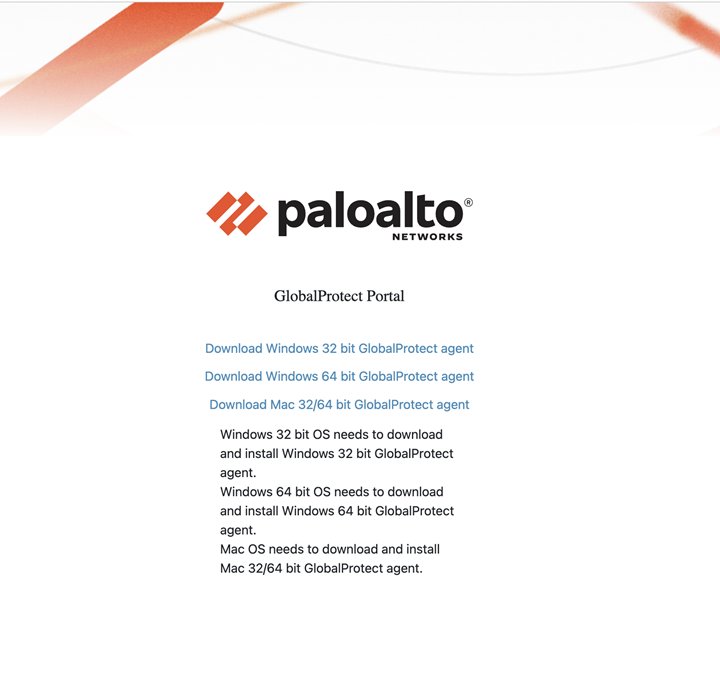
Download GlobalProtect for Windows 11 from your organization's GlobalProtect portal: open https://<portal address> in a browser, sign in with your work credentials, and click the Windows installer link.
Palo Alto Networks publishes no public download link, so this guide covers the three ways organizations hand out the app, the install and first connection, updates, removal, and fixes for the errors people hit most.
The fastest way to download GlobalProtect on Windows 11
Everything hinges on one piece of information: the portal address your IT team uses. With that address and your work sign-in, the download is a single link on one page.
Ask your IT team for the GlobalProtect portal address, open https://<portal address> in Edge or Chrome, sign in, and download the Windows installer from the page that appears. Palo Alto Networks states that you must download the app directly from a GlobalProtect portal within your organization, because the right app version depends on how that organization set up GlobalProtect or Prisma Access. For that reason there is no direct download link on the Palo Alto Networks site.
If your PC is managed by work, the app may already be waiting in Company Portal or Software Center instead. Both routes are covered below.
What GlobalProtect Is and Where the Download Comes From
GlobalProtect is the Palo Alto Networks app that connects a laptop or desktop to a company network protected by a Palo Alto firewall or Prisma Access. It is not a consumer VPN, so it only works with a portal your organization runs.
| Where the installer can come from | Who sets it up | What you do |
|---|---|---|
| Your organization's GlobalProtect portal | IT hosts the app on the firewall or a web server | Sign in to the portal in a browser and download the Windows installer |
| Company Portal (Microsoft Intune) or Software Center (Configuration Manager) | IT publishes GlobalProtect as a managed app | Select GlobalProtect and click Install |
| Group Policy or a command-line install | IT pushes the app to managed PCs | Nothing, apart from restarting or signing in when asked |
| The Palo Alto Networks public website | Not offered | No direct GlobalProtect app download link exists there |
Any other website offering a GlobalProtect download is not an official source. The version your organization needs depends on its own setup, so a random copy can also fail to connect.
Which download route fits your situation
| Your situation | Use this | Why |
|---|---|---|
| You have the portal address and your work username and password | Method 1: the organization's portal | It serves the app version your organization tested |
| Your Windows 11 PC is enrolled in Intune | Method 2: Company Portal | IT may already list GlobalProtect as an optional app |
| Your PC shows Software Center in the Start menu | Method 2: Software Center | Configuration Manager installs it with no download step |
| You have no portal address, or the portal shows no download link | Method 3: ask your IT department | Only IT can give you the address or enable the download |
Before You Download GlobalProtect on Windows 11
Gather these before you start. The first two come from your GlobalProtect administrator, not from Palo Alto Networks.
| What you need | Details |
|---|---|
| Portal address | The IP address or fully qualified domain name (FQDN) of your organization's GlobalProtect portal, for example gp.example.com |
| Username and password | In most cases the same credentials you use for the corporate network; your administrator confirms which ones work |
| A supported Windows 11 PC | GlobalProtect 6.0 to 6.3 support Windows 11 on 64-bit (x64) and ARM64 devices |
| Visual C++ Redistributables 12.0.3 | GlobalProtect 5.0 and later need it; the app installs it automatically when no redistributable is present |
| Administrator rights, if IT requires them | Palo Alto's guide notes that only administrators can uninstall the app; ask IT whether your account can install it |
If you already have Visual C++ Redistributables 12.0.2 or earlier, Palo Alto says to uninstall that package or upgrade it to 12.0.3 before installing GlobalProtect.
Method 1: Download GlobalProtect from Your Organization’s VPN Portal
This is the route Palo Alto Networks documents for end users. It works from any browser on Windows 11.
- Open a web browser and go to
https://<portal IP address or FQDN>, using the address your administrator gave you. - On the portal login page, enter your Name (username) and Password, then click LOG IN.
- Wait for the app download page, which usually appears straight after you sign in.
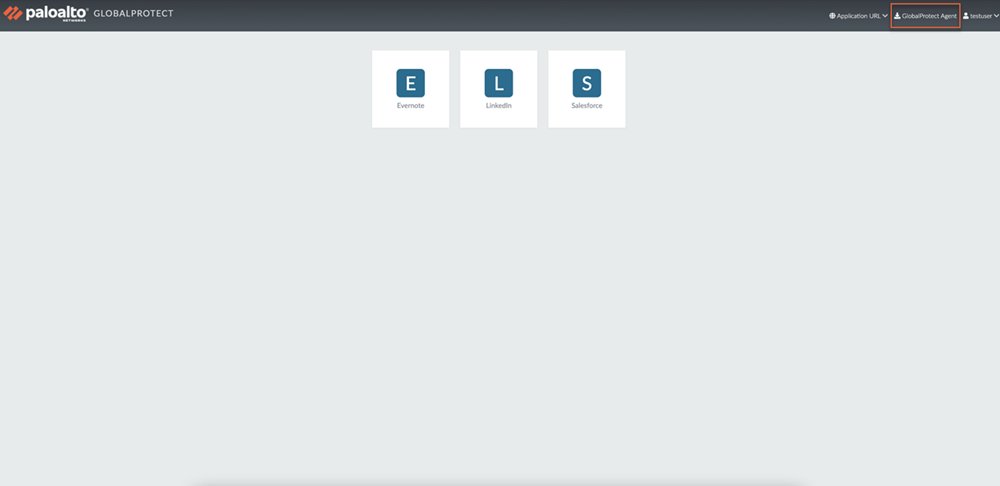
- If an applications page opens instead, select GlobalProtect Agent to reach the download page. This happens when your administrator has enabled GlobalProtect Clientless VPN.
- Click the Windows software link that matches your PC. On Windows 11, pick the 64-bit link; ask your administrator if the page lists an ARM64 build separately and you use an ARM-based PC.
- Save the installer file, then continue with the install steps below.
If you are unsure whether your computer is 32-bit or 64-bit, Palo Alto's own advice is to ask your system administrator before you continue.
Method 2: Install GlobalProtect from Company Portal or Software Center
Work-managed PCs often skip the browser download entirely. Your IT team publishes GlobalProtect as an app, and you install it with one click.
- Company Portal (Intune): open Company Portal from the Start menu and sign in with your work or school account.
- Go to Apps, or type
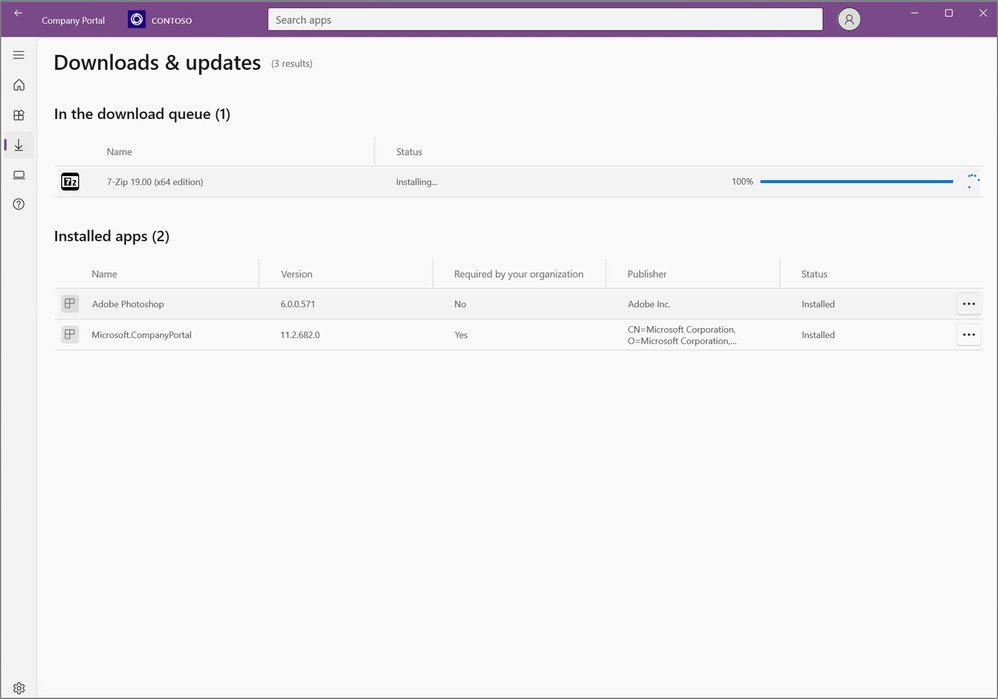
GlobalProtectin the search bar in the navigation pane. - Select GlobalProtect, then choose Install. The status changes to Installing and then Installed; it can take up to ten minutes to update.
- Software Center (Configuration Manager): open the Start menu and find Software Center under the Microsoft Endpoint Manager group.
- Select the Applications tab, then select GlobalProtect in the list.
- Click Install, then check the Installation status tab until it shows Installed.
If GlobalProtect is a required app, Intune installs it automatically and lists it under Downloads & updates with Yes in the Required by your organization column. If neither tool lists it, use Help & support in Company Portal to reach your helpdesk.
Method 3: Get the Installer from Your IT Department
When you have no portal address, or the portal shows no download link, only your IT team can unblock you. Palo Alto documents several ways administrators distribute the app, so ask which one your organization uses.
- Contact your IT helpdesk and ask for the GlobalProtect portal address and which username and password to use.
- Ask whether GlobalProtect is pushed to managed PCs through Group Policy, Company Portal, Software Center or a command-line install.
- If IT pushes it for you, restart or sign in again when asked, then look for the GlobalProtect icon in the system tray.
- If IT sends you a download link instead, check that it points to your organization's own portal or web server before you open it.
- Once the app is on the PC, follow the first-connection steps below with the portal address IT gave you.
For a silent command-line rollout, Palo Alto documents msiexec.exe /i GlobalProtect.msi /quiet PORTAL="portal.example.com", which installs the app with no prompts and pre-fills the portal address. That command is for administrators; you do not need it for a normal install.
How to Install GlobalProtect on Windows 11
These steps apply to the installer you downloaded from the portal in Method 1. Company Portal and Software Center run the same setup for you in the background.
- Open the installer file you saved from the portal.
- When prompted, choose Run to start the software, then Run again to launch the GlobalProtect Setup Wizard.
- In the GlobalProtect Setup Wizard, click Next.
- Click Next to accept the default folder,
C:\Program Files\Palo Alto Networks\GlobalProtect, then click Next twice more. - When the installation finishes, click Close.
Keep the default folder. Palo Alto recommends it because that location is read-only for non-privileged users, which protects the app against tampering.
How to Connect to GlobalProtect for the First Time
Many organizations sign you in to GlobalProtect automatically once the app is installed. Follow these steps if the app asks for details instead.
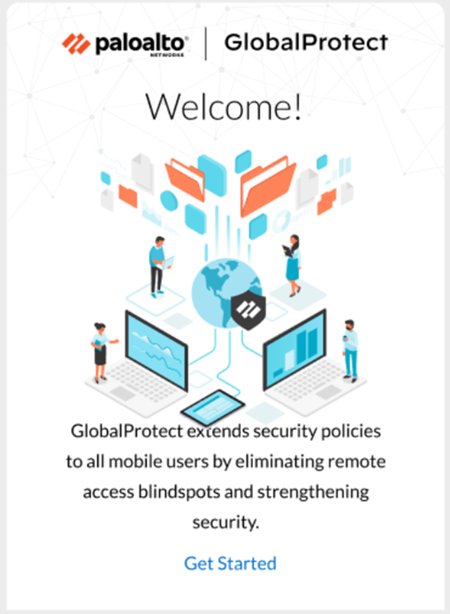
- If a welcome page appears after your first sign-in to Windows, click Get Started.
- Click the GlobalProtect icon in the system tray to open the status panel.
- Read and accept your company's terms of use if they appear; you cannot connect without accepting them.
- Enter the portal IP address or domain your administrator provided, then click Connect.
- If prompted, enter your Username and Password and click Sign In, then approve any multi-factor prompt your organization uses.
- Leave the gateway on Best Available unless IT tells you to pick one from Change Gateway.
If your administrator uses certificate authentication with the On-Demand connect method, select your client certificate from the Certificate drop-down on the first connection.
How to check GlobalProtect is connected
- Look at the GlobalProtect icon in the system tray. A shield means you are connected from outside the office.
- Hover over the icon. It reads Connected for an external connection or Internal Network when a house icon shows you are on the office network.
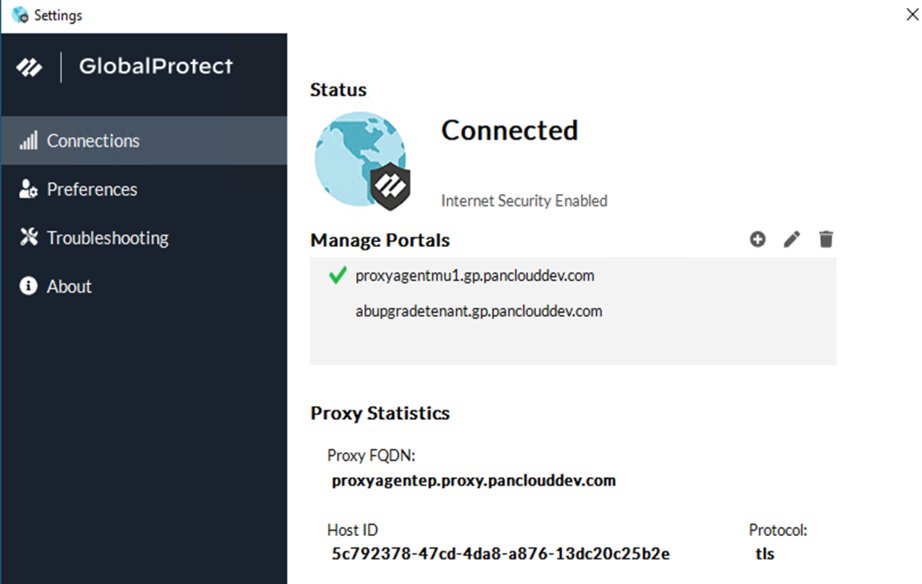
- Open the status panel and confirm it shows Connected or Connected – Internal.
- Click the menu icon on the status panel, select Settings, and open the Connections tab to see which gateway you are using.
- Open the About tab to see the installed GlobalProtect version.
A gray icon with Not Connected on hover means the app is installed but has no tunnel. Reopen the status panel and connect again.
How to Update GlobalProtect on Windows 11
Your organization controls which GlobalProtect version you run. Administrators host updates on the portal or a web server, and the app picks them up when it connects.
- Click the GlobalProtect icon in the system tray.
- Click the menu icon on the status panel and select Settings.
- Open the About tab and note the current version.
- Click Check for Updates and follow any prompt the app shows.
- If Company Portal or Software Center installed GlobalProtect, open it and install any listed update there instead.
Never update by downloading a newer build from another website. Get new versions only from your portal, Company Portal, Software Center or IT.
Common Problems Downloading or Installing GlobalProtect
The Portal Page Does Not Load
The portal address is wrong or incomplete, or the portal is not reachable from your current network.
- Check the address against what IT sent you, and make sure it starts with
https://. - Try the IP address instead of the domain name, or the domain instead of the IP, if IT gave you both.
- Try a different network, such as a phone hotspot, to rule out a network that blocks the portal.
- If a browser certificate warning appears, stop and contact IT rather than clicking through it.
You Can Sign In, but There Is No Download Link
Clientless VPN is enabled, so the portal opens an applications page, or the download has not been enabled for your account.
- Look for GlobalProtect Agent on the applications page and select it to open the download page.
- If it is not there, sign out and ask IT whether the app is offered through Company Portal or Software Center instead.
- Otherwise ask IT to enable the app download for your user or group.
Setup Fails Because of Visual C++ Redistributables
GlobalProtect 5.0 and later need Visual C++ Redistributables 12.0.3, and an older 12.0.2 or earlier package is already installed.
- Ask IT to upgrade the existing redistributable package to 12.0.3, or remove the older one.
- Run the GlobalProtect installer again.
An Upgrade Fails or All Traffic Is Blocked Afterwards
Two Microsoft installer (msiexec.exe) processes ran at once while your organization enforces GlobalProtect for network access.
- Restart the PC.
- Press Ctrl + Alt + Delete and click Task Manager.
- Find any third-party
msiexecinstaller that is running, select it, and click End task. - Restore the existing GlobalProtect version, reinstalling it if needed, then run the upgrade again.
Windows Blocks the Installer
Windows security features or your organization's policies can stop an installer they do not trust or that you lack permission to run.
- Delete the file if it did not come from your organization's portal, and download it again from the portal.
- Do not turn off Microsoft Defender or SmartScreen to force the install.
- Send IT the exact warning text; they can push the app through Company Portal, Software Center or Group Policy instead.
Common Problems Connecting After Installation
The App Stays Not Connected
No portal is saved yet, or the saved portal is the wrong one.
- Open the status panel from the system tray icon.
- Enter the portal address from IT and click Connect.
- If several portals are saved, choose the right one from Change Portal.
Sign-In Fails After a Password Change
The app saved your old password.
- Open the status panel, click the menu icon and select Settings.
- Click Sign Out to clear the saved credentials.
- Connect again and sign in with the new password.
The Connection Is Slow or Uses the Wrong Location
The app picked a gateway that is not the best one for you.
- Open the status panel and open the Change Gateway drop-down.
- Select another gateway, or click the star icon to make one your preferred gateway.
- Clear the star later to go back to Best Available.
The Problem Continues
The fault sits on the portal, gateway or policy side, which only IT can see.
- Open Settings and select the Troubleshooting tab.
- Click Collect Logs.
- Send the logs and a description of the error to your IT helpdesk.
How to Uninstall GlobalProtect from Windows 11
Removing the app ends your VPN access to the corporate network and removes the protection of your company's security policies. Only accounts with administrator rights can uninstall it.
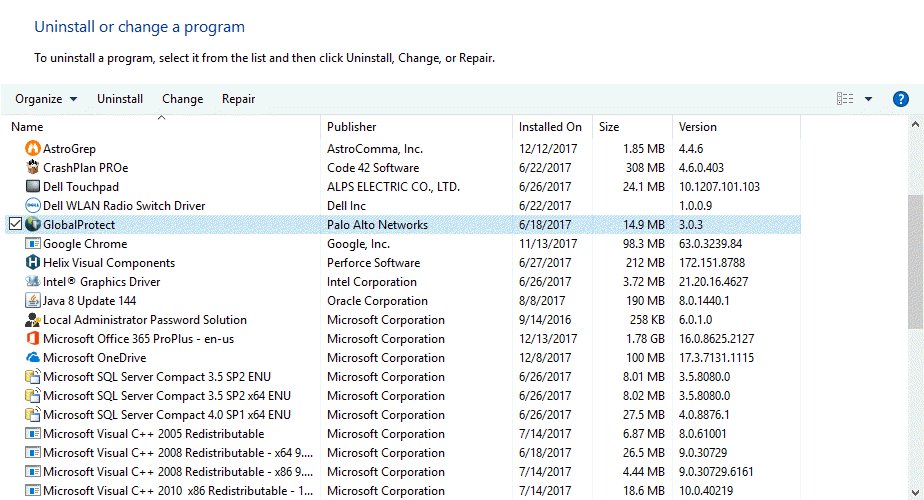
- Open Control Panel from the Start menu.
- Select Programs, then Programs and Features.
- Select GlobalProtect in the list and click Uninstall.
- Click Yes when asked to confirm.
On an Intune-managed PC, open Company Portal, go to Apps, select GlobalProtect and choose Uninstall if the option is offered. A required app may be reinstalled automatically.
Security Tips When Downloading GlobalProtect
| Do this | Why it matters |
|---|---|
| Download only from your organization's portal, Company Portal, Software Center or IT | Palo Alto offers no public download, so any other site is unofficial |
| Type the portal address IT gave you rather than following an emailed link | A look-alike address can host a fake sign-in page |
| Stop at any certificate warning on the portal | Administrators can configure the app to refuse portals with invalid certificates for this reason |
| Keep the default install folder | It is read-only for non-privileged users, which protects the app from tampering |
| Update only through your portal or IT | The version you need depends on your organization's setup |
Frequently Asked Questions
How do I download GlobalProtect VPN?
Download it from your organization's GlobalProtect portal. Open https://<portal address> in a browser, sign in with your work username and password, and click the Windows installer link. Your IT team provides the portal address, because Palo Alto Networks offers no public download link.
How do I use GlobalProtect VPN?
Click the GlobalProtect icon in the system tray, enter your portal address, and click Connect. Sign in if prompted. A shield icon and the word Connected on hover confirm the tunnel is up. Many organizations connect you automatically after you sign in to Windows.
Can I download GlobalProtect from the Palo Alto Networks website?
No. Palo Alto Networks states there is no direct GlobalProtect app download link on its site. The right version depends on your organization's GlobalProtect or Prisma Access setup, so you must get it from your organization's portal or IT team.
Is there a 64-bit GlobalProtect for Windows 11?
Yes. GlobalProtect app versions 6.0 through 6.3 support Windows 11 on 64-bit (x64) and ARM64 devices. Pick the 64-bit link on your portal's download page, and ask your administrator if you are unsure which build fits your PC.
Does GlobalProtect work on Windows 11 ARM laptops?
Yes. Palo Alto's compatibility matrix lists Windows 11 support on ARM64 devices for GlobalProtect 6.0, 6.1, 6.2 and 6.3. Your organization's portal decides which installer you receive, so check with IT if the download page does not match your device.
Where do I find my GlobalProtect portal address?
Ask your GlobalProtect administrator or IT helpdesk. The portal address is an IP address or a domain name specific to your organization, and Palo Alto cannot give it to you. IT can also confirm which username and password to use.
Why does GlobalProtect show a list of applications instead of a download?
Your administrator has enabled GlobalProtect Clientless VPN, so the portal opens an applications page after sign-in. Select GlobalProtect Agent on that page to open the download page with the Windows installer.
Do I need administrator rights to remove GlobalProtect?
Yes. Palo Alto's user guide states that only users with administrator privileges can uninstall the GlobalProtect app from Windows endpoints. Uninstalling it also ends your VPN access to the corporate network, so check with IT first.
Can I use GlobalProtect as a personal VPN?
No. GlobalProtect only connects to a portal your organization runs, so it does nothing without a work or school account. For private browsing on a home PC, use a consumer VPN such as Proton VPN instead.
How do I disconnect GlobalProtect?
Open the status panel from the system tray icon and click Disconnect. This button appears when your administrator uses the On-Demand connect method. With an always-on setup, the app stays connected and the option may not be available.

![Download & Install ASUS Aura Sync on Windows 10/11 [2024]](https://techdows.com/wp-content/uploads/2026/09/Armoury-Crate-Aura-Sync-effects-tab-with-Rainbow-selected-600x338.jpg)