To record on iPhone, use the app built for the job: Voice Memos for audio, Camera for video, the Screen Recording control in Control Center for your screen, and the Phone app for calls.
This guide gives the steps for each one, the settings that improve quality, where every recording is saved, and fixes for the problems readers hit most often.
The fastest way to record on iPhone
Every recorder you need is already on your iPhone. Match what you want to capture to a row, then jump to that section.
| What you want to record | Use this | Fastest start | Where it is saved |
|---|---|---|---|
| Your voice, a lecture or a meeting | Voice Memos app | Open Voice Memos and tap the red record button | Voice Memos app, synced by iCloud if turned on |
| Video of what is in front of you | Camera app | Open Camera, tap Video, tap the Record button | Photos app |
| A quick clip while taking photos | Camera in Photo mode | Touch and hold the Shutter button | Photos app |
| What is happening on your screen | Screen Recording control | Open Control Center and tap the Screen Recording control | Photos, under Screen Recordings |
| A phone call with one other person | Phone app call recording | During the call, start Call Recording | Notes app, Call Recordings folder |
1. Preparing Your iPhone for Recording
Two minutes of setup prevents most failed recordings. Long videos at high frame rates fill storage quickly, and some recording features depend on your iOS version.
| Check | Where | Why it matters |
|---|---|---|
| Free storage space | Settings > General > iPhone Storage | Faster frame rates and higher resolutions produce larger video files |
| Latest iOS | Settings > General > Software Update | Call recording arrived in iOS 18.1; newer features such as Dual Capture need current iOS |
| Camera and microphone settings | Settings > Camera > Record Video and Record Sound | Sets the default resolution, frame rate and audio format before you press record |
| Microphone and camera in use | Orange dot (microphone) or green dot (camera) at the top of the screen | Confirms the app you opened is actually capturing |
| A quiet, well-lit spot | Your surroundings | Action mode works best in bright light, and Voice Isolation can only filter so much noise |
When you update iOS, your data and settings stay unchanged. Back up your iPhone first anyway.
2. Recording Audio on iPhone
Voice Memos sits in the Utilities folder on the Home Screen. It records with the built-in microphone, a supported headset or an external microphone.
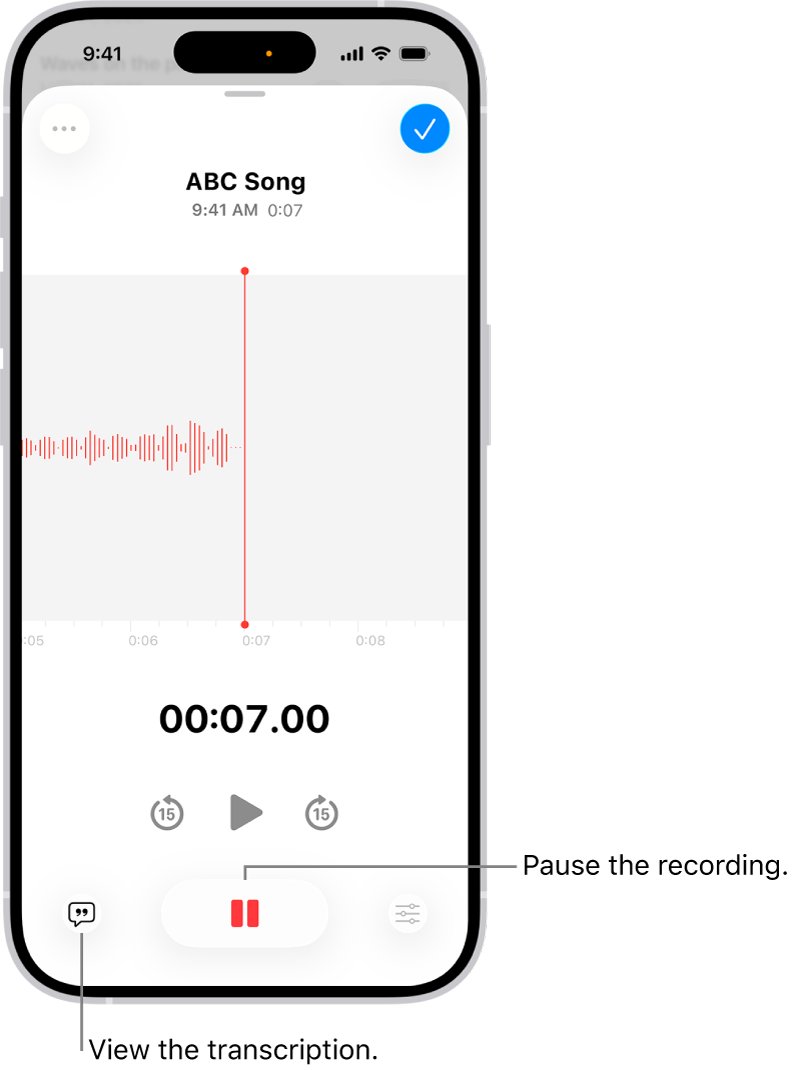
- Open the Voice Memos app from the Utilities folder.
- Tap the red record button to start recording.
- Move the microphone closer to or farther from the source to adjust the recording level.
- Tap the stop button to pause, then tap Resume if you want to keep going in the same recording.
- Swipe up from the top of the waveform to see more detail while recording.
- Tap Done to save the recording.
- Tap the recording, tap its name and type a new one to rename it.
New recordings are named New Recording, or after your location when Location Services is on. You can switch to another app while recording, but Voice Memos stops if that app starts playing audio.
Third-party recording apps from the App Store work too. Voice Memos covers most needs, since it already offers trim, replace and resume editing.
3. Recording Video on iPhone
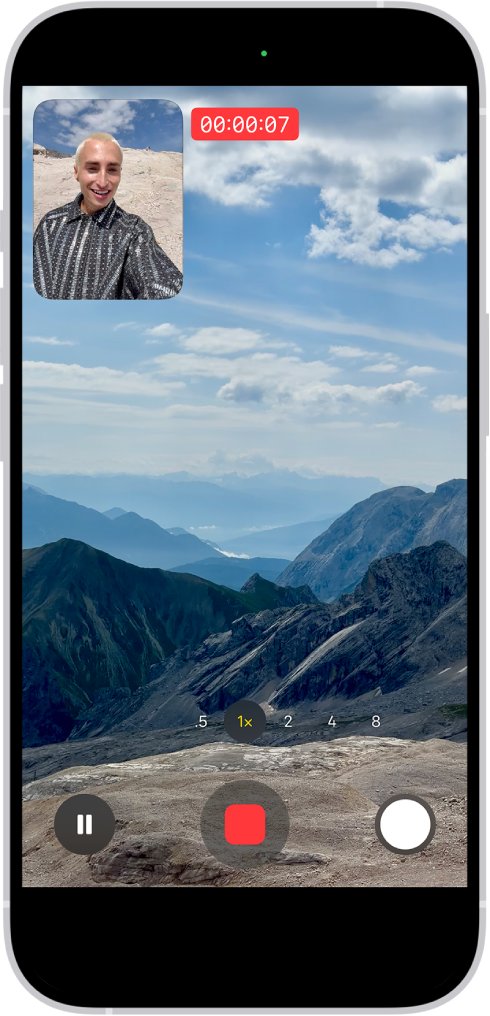
The Camera app records video in Video mode, or straight from Photo mode for a quick clip. Video recording is not available during a phone or FaceTime call.
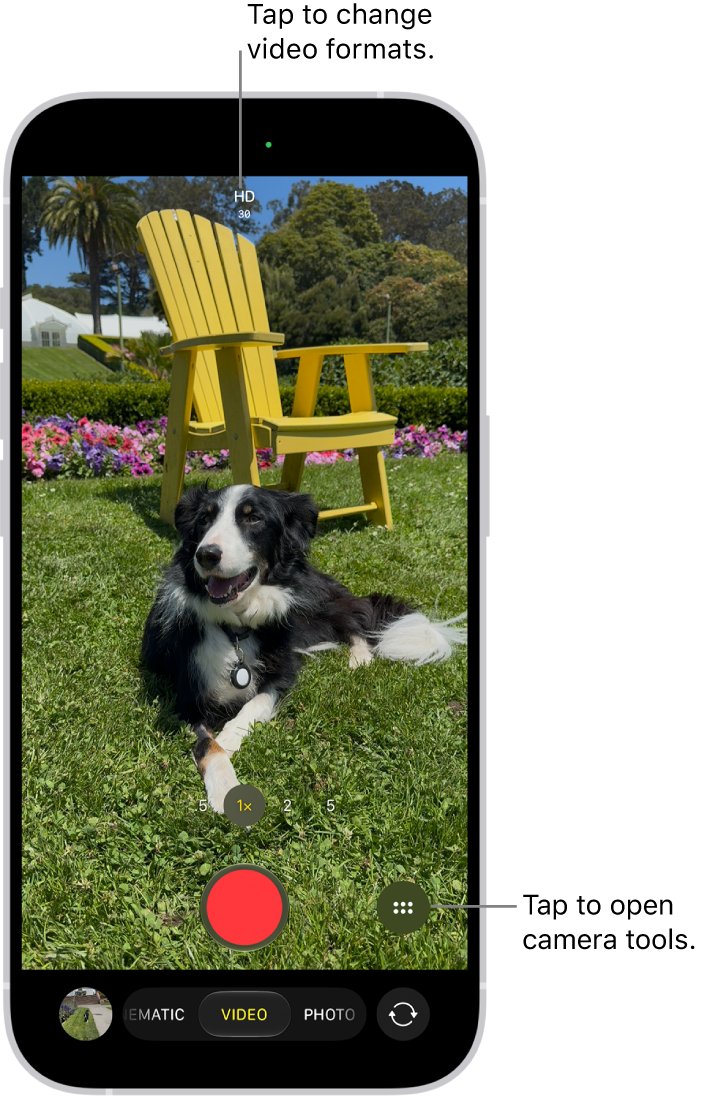
- Open Camera and tap Video to switch to Video mode.
- Tap the resolution and frame rate values at the top of the screen to pick a format, such as 4K at 60 fps.
- Tap the Record button, press either volume button, or click the Camera Control on supported models to start.
- Pinch the screen, or tap .5x, 1x, 2x and the other zoom values, to zoom while recording.
- Tap the white Shutter button to take a still photo mid-recording, or tap Pause to pause.
- Tap the Record button or press a volume button again to stop.
For a quick clip in Photo mode, touch and hold the Shutter button. Slide it right onto the lock to keep recording hands-free, and release or tap Record to stop.
Third-party video apps are optional. Camera already covers Slo-mo, Time-lapse, Cinematic and Action mode, and supported AirPods can start a recording with a press of the stem.
Record video in Cinematic mode
Cinematic mode keeps the subject sharp and blurs the foreground and background. It is available on supported models, and you can change the focus point later in Photos.
- Open Camera and swipe left to select Cinematic mode.
- Tap the resolution and fps values in the corner to change them, on supported models.
- Tap the Record button or press either volume button to start.
- Tap a gray frame to move focus to that person, and tap again to lock it.
- Touch and hold the screen to lock focus at a single distance.
- Tap the Record button or press a volume button to stop.
A yellow frame marks the person in focus; a gray frame marks a person the camera detected but is not focusing on. Cinematic video records at 1080 HD at 30 fps by default.
4. Recording Screen Activity
Screen recording uses a control in Control Center. If the control is missing, add it first with the steps in the troubleshooting section below.
- Swipe down from the top-right corner of the screen to open Control Center. On an iPhone with a Home button, swipe up from the bottom.
- To include your voice, touch and hold the Screen Recording control, tap Microphone to turn it on, then tap Start Recording.
- Without sound from the microphone, just tap the Screen Recording control.
- Wait for the 3-second countdown, then swipe up to close Control Center.
- Do what you want to record.
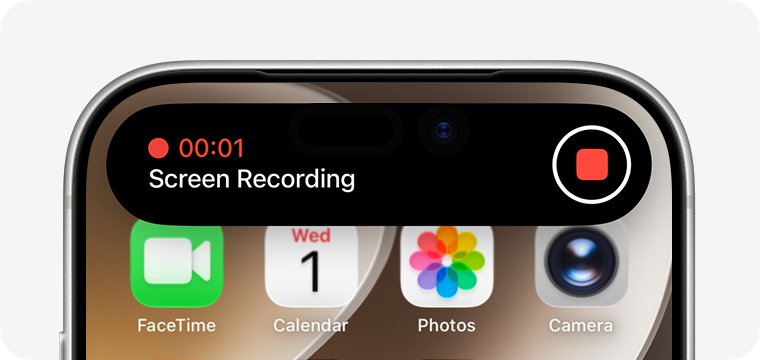
- To stop on an iPhone with a Dynamic Island, tap the red circle, then tap the stop button.
- On other models, tap the red timer at the top left of the screen, then tap Stop.
To edit a screen recording, open it in Photos. Apple's guide covers trimming its length and editing its audio there, like any other video.
How to record a phone call on iPhone
Call recording arrived in iOS 18.1. It works on calls with one other person, in supported countries and regions only.
Both people on the call hear an audio notice that the call is being recorded. Apple also asks you to make sure the other person is willing to be recorded.
- Open the Phone app and make or answer a call.
- During the call, tap the record control on the call screen. On iOS 27, tap the button that holds it, then tap Call Recording.
- Wait for the audio notice that both people hear.
- Tap the stop control, or just hang up, to end the recording.
- Tap View Saved Call to open the recording in Notes.
Call recording is not available in the European Union and a number of other countries and regions, including Russia, Saudi Arabia, South Africa, Turkey and the United Arab Emirates. Check Apple's iOS Feature Availability page for your region.
5. Capturing Music or Sound Effects
For music, rehearsals or ambient sound, change how Voice Memos captures audio. Spatial Audio and Stereo use several microphones with separate left and right channels.
- Open Settings, tap Apps, then tap Voice Memos.
- Tap Recording Mode and choose Mono, Stereo or Spatial Audio.
- Open Voice Memos and start a recording.
- Open Control Center and tap Voice Memos at the top.
- Select Wide Spectrum to keep the room sound, or Voice Isolation to filter out background sounds.
- Open Control Center and turn on Silent mode if you want to mute the start and stop tones.
Spatial Audio and Wide Spectrum are not available on every model. For stereo from older iPhones, connect an external stereo microphone or audio interface marked Made for iPhone or Works with iPhone.
To capture sound playing on the iPhone itself, use a screen recording. Some apps do not allow their audio or video to be recorded.
6. Enhancing Your Recordings
These settings change quality before you record. Options vary by iPhone model, so a missing switch means your model does not support it.
| Setting | Where to find it | What it does |
|---|---|---|
| Video format and frame rate | Settings > Camera > Record Video | HD, 4K and PAL formats at 24, 25, 30, 60 or 120 fps, depending on model |
| Action mode | Camera in Video mode; add the button in Settings > Camera > Indicators | Stronger stabilization for movement, up to 2.8K resolution |
| Action Mode Lower Light | Settings > Camera > Record Video | Lets Action mode work in dimmer scenes |
| Enhanced Stabilization | Settings > Camera > Record Video | Zooms in slightly for steadier Video and Cinematic footage; on by default |
| Auto FPS | Settings > Camera > Record Video | Drops to 24 fps in low light to improve quality |
| Lock White Balance | Settings > Camera > Record Video | Keeps colours consistent as lighting shifts |
| Record Sound | Settings > Camera > Record Sound | Spatial Audio, Stereo or Mono for video; iPhone 16 and later default to Spatial Audio |
| Wind Noise Reduction | Settings > Camera > Record Sound | Cuts wind noise in Spatial Audio and Stereo video on iPhone 16 and later |
| Cinematic resolution | Settings > Camera > Record Cinematic | Switch from 1080 HD at 30 fps to 4K at 24 or 30 fps |
| Slo-mo frame rate | Settings > Camera > Record Slo-mo | Back camera defaults to 1080 HD at 240 fps |
Supported AirPods can also act as the microphone when you record video, which helps when you are some distance from the phone.
7. Managing and Saving Your Recordings
Each recorder saves to a different app. This table shows where to find a recording and how to share or remove it.
| Recording type | Saved to | How to find it | Share, save or delete |
|---|---|---|---|
| Screen recording | Photos library | Photos > Collections > Media Types > Screen Recordings | Share or delete from Photos like any video |
| Camera video | Photos library | Tap the thumbnail in Camera, or open Photos | Share or delete from Photos; back up with iCloud Photos |
| Voice memo | Voice Memos app | Open Voice Memos; syncs to iPad and Mac when Voice Memos is on in iCloud | Edit with trim, replace and resume in Voice Memos |
| Phone call | Notes app | Notes > Call Recordings folder | In the recording, use Save Audio Files, Share Audio or Delete |
Deleting a call's audio recording also deletes its transcript. To free space, back up photos and videos to iCloud and remove them from the phone.
How to check the recording worked
- Look for the orange dot while recording audio, or the green dot while the camera runs.
- For a screen recording, confirm the red timer or red Dynamic Island indicator appears after the countdown.
- Open Photos > Collections > Screen Recordings and play the newest clip with the sound on.
- For a voice memo, check it appears at the top of the Voice Memos list, then play it back.
- For a call, open Notes > Call Recordings and tap the recording to play it.
8. Troubleshooting Common Recording Issues
Why did my iPhone record video with no audio?
Screen recordings capture your voice only when the microphone is on, and some apps block audio capture.
- Open Control Center and touch and hold the Screen Recording control.
- Tap Microphone so it turns on.
- Tap Start Recording and test again.
- If one app is still silent, that app does not allow its content to be recorded.
Why does my iPhone not have screen record?
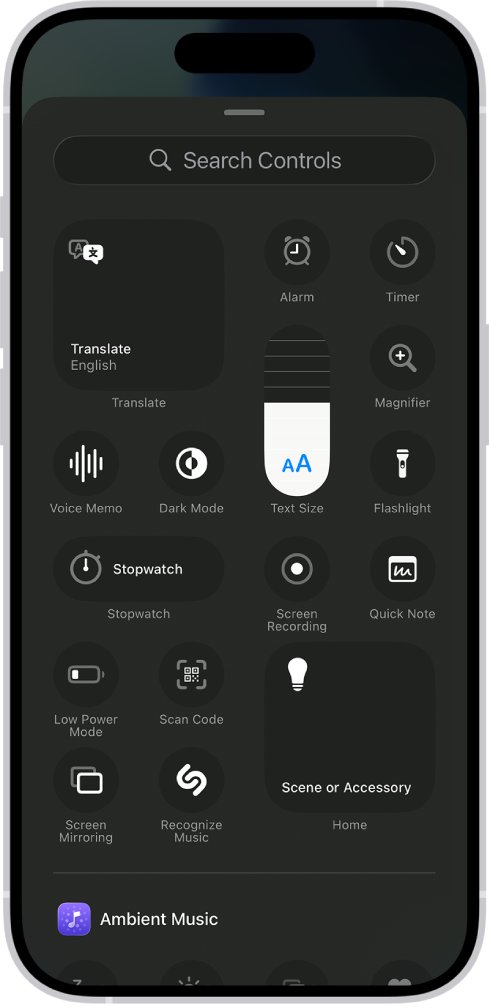
The Screen Recording control is not in Control Center yet.
- Open Control Center.
- Tap the edit button in Control Center to start editing the controls.
- Tap Add a Control at the bottom of the screen.
- Tap Screen Recording in the controls gallery.
- Swipe up from the bottom center to close Control Center.
Why can't I screen record on my iPhone?
Screen mirroring is on, or the app you are in does not allow recording.
- Stop screen mirroring; you cannot mirror and record at the same time.
- Try recording a different app to rule out an app restriction.
- Check Settings > General > iPhone Storage for free space.
Why does call recording not work on my iPhone?
Your region, your iOS version or a turned-off setting blocks it.
- Update to iOS 18.1 or later in Settings > General > Software Update.
- Confirm call recording is offered in your region on Apple's iOS Feature Availability page.
- Go to Settings > Apps > Phone > Audio Call Recording (Call Recording on iOS 18) and turn it on.
- Record only calls with one other person.
Why does my iPhone record my calls?
Someone on the call started a recording; iPhone plays an audio notice to both people when that happens.
- Listen for the announcement that the call is being recorded.
- Ask the other person to stop recording if you do not agree to it.
- To stop your own iPhone offering the feature, go to Settings > Apps > Phone and turn off Audio Call Recording.
Voice Memos stopped recording on its own
Another app started playing audio while Voice Memos recorded in the background.
- Switch to apps that do not play sound while recording.
- Return to Voice Memos and tap Resume to continue the same recording.
Shaky or unstable video
Normal stabilization cannot absorb heavy movement.
- Turn on Enhanced Stabilization in Settings > Camera > Record Video.
- In Camera Video mode, switch on Action mode for fast movement.
- Use a tripod or a stable surface for time-lapse and low-light shots.
Recording stops or will not start because storage is full
4K and high frame rate video use a lot of space.
- Go to Settings > General > iPhone Storage to see what is using space.
- Back up photos and videos to iCloud, then remove them from the phone.
- Turn on Offload Unused Apps in Settings > Apps > App Store.
- Choose a lower resolution or frame rate in Settings > Camera > Record Video.
9. Final Tips for Perfect Recordings
| Tip | Why |
|---|---|
| Get the microphone close to the source | Voice Memos sets the level by distance, not by a slider |
| Use Voice Isolation for speech and Wide Spectrum for music | One filters background sound, the other keeps it |
| Match the format to the job instead of always choosing the highest | Faster frame rates and higher resolutions create larger files |
| Shoot Action mode in bright light | It performs best there; turn on Action Mode Lower Light otherwise |
| Turn on Silent mode before a voice memo | Mutes the start and stop tones |
| Ask before recording a call | Both people hear a notice, and Apple asks you to confirm the other person agrees |
| Verify a call transcript before relying on it | Apple notes transcripts may not be a perfect record of the conversation |
Frequently Asked Questions
Can I record on my iPhone without an extra app?
Yes. Voice Memos records audio, Camera records video, Control Center records the screen, and the Phone app records calls in supported regions. All four are built in, so you do not need to download anything to start recording.
How do I record on iPhone 16 or iPhone 16 Pro?
Open Camera, choose Video, and click the Camera Control or tap the Record button. For the screen, use the Screen Recording control in Control Center. iPhone 16 models record video sound in Spatial Audio by default and can cut wind noise automatically.
How do I record on iPhone 11, iPhone 13 or iPhone 15?
The steps are the same as on other Face ID models. Swipe down from the top-right corner for Control Center and screen recording, open Camera for video, and open Voice Memos for audio. Some features, such as Cinematic or Action mode, depend on the model.
How do I record on iPhone SE?
On an iPhone SE, or any iPhone with a Home button, open Control Center by swiping up from the bottom of the screen. Then tap the Screen Recording control. Camera and Voice Memos work the same way as on other models.
How do I record my iPhone screen with sound?
Open Control Center, touch and hold the Screen Recording control, and tap Microphone to turn it on. Then tap Start Recording and wait for the 3-second countdown. Some apps still block their audio from being recorded.
How do I record what is playing on my iPhone?
Use a screen recording from Control Center, which saves the screen and its sound as a video in Photos. Some apps do not allow their content to be recorded, and you cannot record while screen mirroring.
Why does my iPhone record my calls?
A call is only recorded when someone on it starts Call Recording, and both people hear an audio notice when that happens. You can turn off the feature on your own iPhone in Settings > Apps > Phone > Audio Call Recording.
Where do iPhone recordings go?
Screen recordings and camera videos go to Photos, with screen recordings grouped under Collections > Media Types > Screen Recordings. Voice memos stay in the Voice Memos app, and call recordings go to the Call Recordings folder in Notes.
Can I record video while on a phone call?
No. Apple states that video recording in the Camera app is not available during a phone or FaceTime call. End the call first, or use call recording in the Phone app if you want to capture the conversation.
10. Conclusion
Start with the built-in apps: Voice Memos for audio, Camera for video, Control Center for the screen and the Phone app for calls. They cover every common recording job, save to predictable places, and expose the quality settings that matter, such as frame rate, stabilization and Spatial Audio, without a third-party app.