To speed up or slow down a video on Instagram Reels, tap Speed in the tool menu on the left of the Reels camera, pick a speed, then record the clip.
This guide covers the speed values Instagram offers, fast motion and slow motion step by step, how to check the result before sharing, and what to do when the tool is missing.
Change reel speed on Instagram with the Speed tool
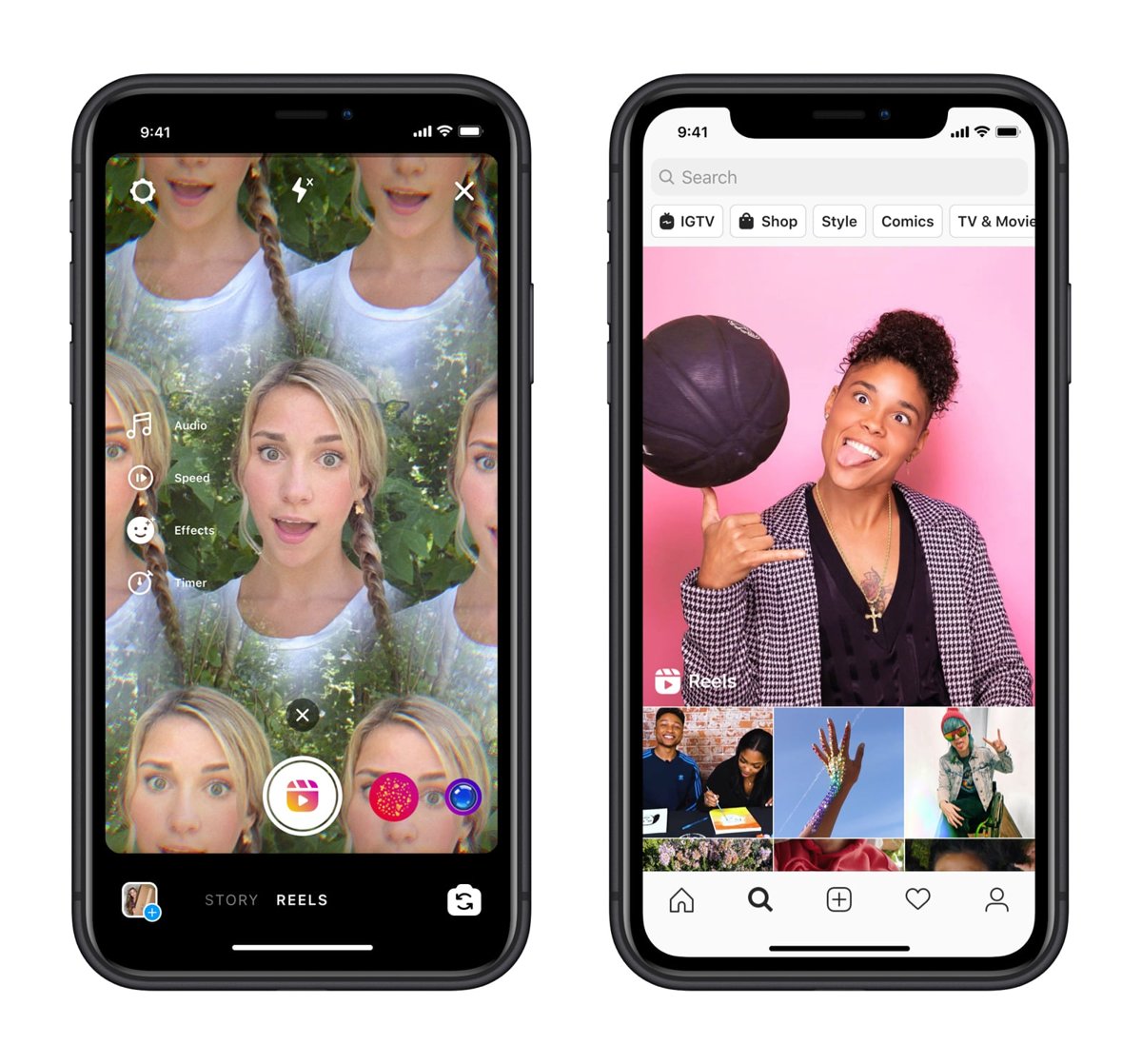
The Speed tool lives in the Reels camera on the Instagram app for iPhone and Android. You set it before you record each clip.
- Open the Reels camera: on iPhone, tap Create at the bottom of Feed and tap REEL; on Android, tap your profile picture, tap Create new in the top right, then tap Reel.
- Tap Camera at the top to record a new reel.
- Tap Speed in the tool menu on the left.
- Choose 0.5x to slow the clip down, or 2x or 3x to speed it up.
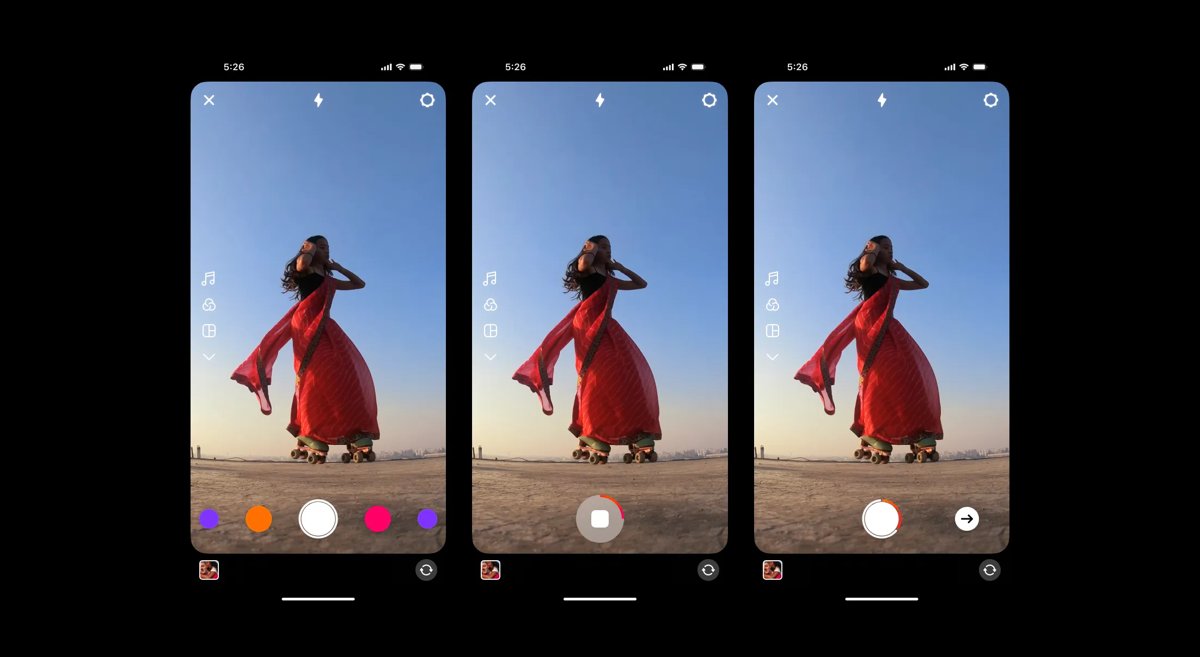
- Tap and hold Record to film the clip, or tap once to start and tap again to stop.
- Tap Next in the bottom right when you finish recording.
The new speed applies to both the video and the audio of that clip. Set it again before any later clip that needs a different pace.
Instagram Reels speed options: 0.5x, 2x and 3x compared
Instagram lists three speed changes for the Reels camera. Match the effect you want to a row and set that value before recording.
| What you want the reel to do | Speed to pick | Why |
|---|---|---|
| Slow-motion moment, such as a jump, a splash or a hair flip | 0.5x | Plays the clip at half pace, which Instagram describes as slow-mo |
| Quick transition between two outfits or locations | 2x | Shortens the gap between takes so the cut feels snappy |
| Time-lapse of a long task, such as cooking or cleaning | 3x | The fastest documented option, built for fast-forward and time-lapse clips |
| Clip that has to stay on the beat of a song | 0.5x, 2x or 3x per clip | Instagram pitched speed as a way to keep a clip on the beat |
| Normal talking-head clip | Leave Speed unchanged | Speech stays natural, because speed also changes the clip's audio |
Instagram Reels speed tool requirements
| Requirement | Detail |
|---|---|
| App | The Instagram app for iPhone or Android; the Speed tool sits in the mobile Reels camera |
| App version | Update Instagram from the App Store or Google Play if a Reels tool is missing |
| Reels access | Reels is not available to every account; some accounts can watch reels but cannot record them |
| Length | One or more clips can add up to 20 minutes; reels over 3 minutes are not recommended to new audiences |
| Video quality | Reels need at least 30 FPS and 720 pixels; turn on Upload at highest quality under Media quality |
How to speed up videos on Instagram Reels
Use 2x for brisk cuts and 3x for time-lapse footage. Each clip can carry its own speed, so set it again before every take you want faster.
- Open Instagram and go to the Reels camera through Create (iPhone) or your profile picture, then Create new and Reel (Android).
- Tap Camera at the top.
- Tap Speed in the tool menu on the left.
- Tap 2x for a quicker clip or 3x for a time-lapse feel.
- Tap and hold Record and film the clip; watch the progress bar at the top to track its length.
- Repeat for the next clip, choosing a new speed first if that clip should play differently.
- Tap Next to preview the sped-up reel.
A fast clip covers more real time in fewer seconds of reel, so a 30-second task filmed at 3x plays in roughly 10 seconds.
How to slow down videos on Instagram Reels
Slow motion on Reels uses the 0.5x setting. It stretches each second of footage across two seconds of playback.
- Open the Reels camera and tap Camera at the top.
- Tap Speed in the tool menu on the left.
- Tap 0.5x.
- Frame the action, then tap and hold Record for the moment you want in slow motion.
- Before the next clip, tap Speed again if that clip should play at a different pace.
- Tap Next in the bottom right to see the slowed-down reel.
Because slow motion doubles playback time, a 5-second clip at 0.5x uses about 10 seconds of your reel. The audio for that clip slows down with it.
Preview a sped-up or slow-motion reel before sharing
- After recording, tap Next and watch the reel play in the preview.
- Tap Edit video in the bottom left to open the timeline.
- Scroll through the timeline and check that each clip plays at the pace you set.
- Use the trimmers on a clip to cut slack at the start or end, or tap Reorder to move clips, then tap Done.
- Tap Next in the top right, add a caption and cover, then tap Share.
Not ready to post? Tap Next, then Next again and Save draft. Drafts stay on the phone and open later from Profile, Reels, Drafts.
Understanding video speed in Instagram Reels
Speed is one of the basic features of Instagram Reels, alongside music, effects, timer and align. It changes how fast a recorded clip plays back, not how the camera captures it.
| Question | How Reels speed works |
|---|---|
| Where the control lives | Speed in the tool menu on the left of the Reels camera |
| When you set it | Before you press Record for a clip |
| Documented values | 0.5x for slow motion; 2x and 3x for fast motion |
| What it changes | Both the video and the audio of the clip |
| Scope | Part of a reel: each clip can use a different speed |
| Enhancing humor | Fast motion makes everyday actions look comic |
| Creating a dramatic effect | Slow motion draws out a key moment such as a reveal |
| Pacing and timing | Speed changes keep a clip on the beat of the track |
| Capturing attention | A sudden change of pace in the first seconds stands out in the Reels feed |
Tips for effective speed manipulation in Instagram Reels
Speed works best as an accent on one or two clips. These tips pair it with the other tools on the Reels editing screen.
| Tip | How to apply it in Reels |
|---|---|
| Choose the right moments | Save 0.5x for the single peak of the action and keep set-up shots at normal speed |
| Maintain consistency with auditory cues | Change speed on clip boundaries that land on a beat, since the clip's audio changes speed too |
| Use text wisely | Tap Aa and use the timeline to show text only while a sped-up clip plays, so viewers can read it |
| Add captions for spoken clips | Add the Captions sticker so speech in a fast or slow clip stays readable |
| Experiment with different speeds | Record the same take at 2x and 3x, then keep the one that fits the track |
| Line up transitions | Use Align clips to match the last frame before you record the next sped-up clip |
| Film hands-free | Set the timer so a 3 or 10 second countdown runs before a time-lapse clip starts |
| Follow trends but stay authentic | Use a trending track, but pick speeds that suit your own footage rather than copying another reel |
Instagram Reels speed option not working: fixes
The Reels camera or its tool menu does not appear
Reels is not available to every account, and an outdated app can hide newer tools.
- Update Instagram from the App Store or Google Play.
- Reopen the app and go to Create, then REEL or Reel.
- Tap Camera at the top and look for the tool menu on the left.
- If you can watch reels but still cannot record, the account does not have Reels recording yet.
The speed of a posted reel cannot be changed
After posting, only the caption, cover image, tags and location can be edited.
- Save the original clips, or rerecord them with the right Speed setting.
- Build the reel again and check it on the Edit video timeline.
- Share the new reel.
- Delete the old reel from your profile.
Bottom line: when to speed up or slow down an Instagram reel
Set Speed in the Reels camera before each take: 0.5x for one slow-motion peak, 2x or 3x for transitions and time-lapses. Speed is fixed once a clip is recorded and the reel is posted, so choosing it per clip up front is the only way to get the pace right.
Instagram Reels speed FAQ
How do I change Instagram Reel speed?
Open the Reels camera, tap Speed in the tool menu on the left, and pick 0.5x, 2x or 3x. Then tap and hold Record. The new speed applies to the clip you record next.
Does changing reel speed change the audio too?
Yes. Instagram states that the Speed tool affects both the video and the audio of your clip. A slow-motion clip has slowed audio, and a 3x clip has fast audio, so leave speech clips at normal speed.
How do you make a slow-motion reel on Instagram?
Tap Speed in the Reels camera and choose 0.5x before you record. The clip then plays at half pace. Record the rest of the reel at normal speed so the slow-motion moment stands out.
Can I change the speed of a reel after posting it?
No. After posting you can edit the caption, cover image, tags and location only. To change the speed you have to rebuild the reel with the right setting, share it, and delete the old one.
What speeds does Instagram Reels offer?
Instagram documents 0.5x for slow motion and 2x or 3x for fast motion. You pick one in the Speed tool before recording each clip.
Can one reel have clips at different speeds?
Yes. Speed is set before each clip, so you can film one clip at 0.5x, the next at normal pace and another at 3x. Instagram describes the tool as a way to speed up or slow down part of a reel.
How long can Instagram Reels be?
Clips recorded in Reels can add up to 20 minutes. Reels over 3 minutes are not recommended to new audiences, and slow-motion clips take up twice their filming time in the reel.
Can I save a sped-up reel as a draft?
Yes. Tap Next, tap Next again, then tap Save draft. Open it later from Profile, Reels, Drafts. Drafts stay on that phone and are lost if you uninstall the app.
What is the Edits app?
Edits is Instagram's standalone video editor. It adds a detailed timeline, layered audio and frame-by-frame control, and it exports straight to Instagram as a reel.

![Unable to accept invite in Discord [Fix]](https://techdows.com/wp-content/uploads/2026/10/Unable-to-accept-invite-in-Discord-Fix-1-600x338.jpg)