To use Xbox remote play on PC, turn on remote features on your Xbox Series X|S or Xbox One, then open xbox.com/remoteplay on your Windows PC and pick your console.
This guide covers the console and PC setup, the hardware, software and network requirements, how remote play differs from cloud gaming, and fixes for the connection problems people hit most.
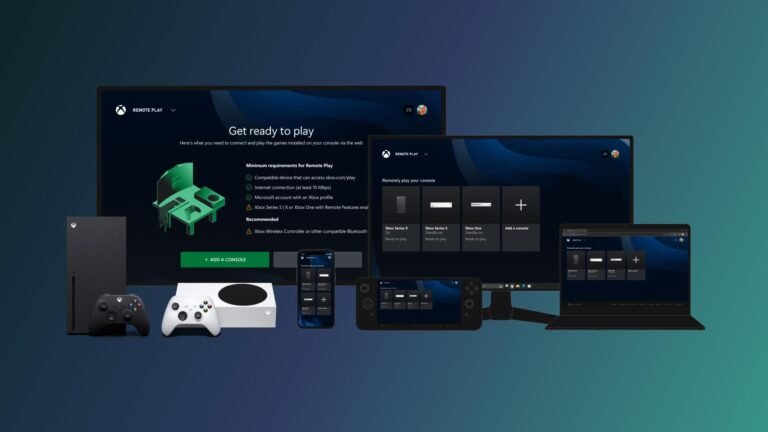
The fastest way to use Xbox remote play on PC
Do the console part once. After that, starting a session from the PC takes under a minute.
- On the Xbox, press the Xbox button and open Settings.
- Go to General > Power options and choose Sleep, so the PC can wake the console.
- Go to Devices & connections > Remote features and turn remote features on.
- On the PC, connect an Xbox Wireless Controller by USB cable or Bluetooth.
- Open a web browser and go to xbox.com/remoteplay.
- Sign in with the same Microsoft account that is signed in on the console.
- Select your console, then launch any game installed on it.
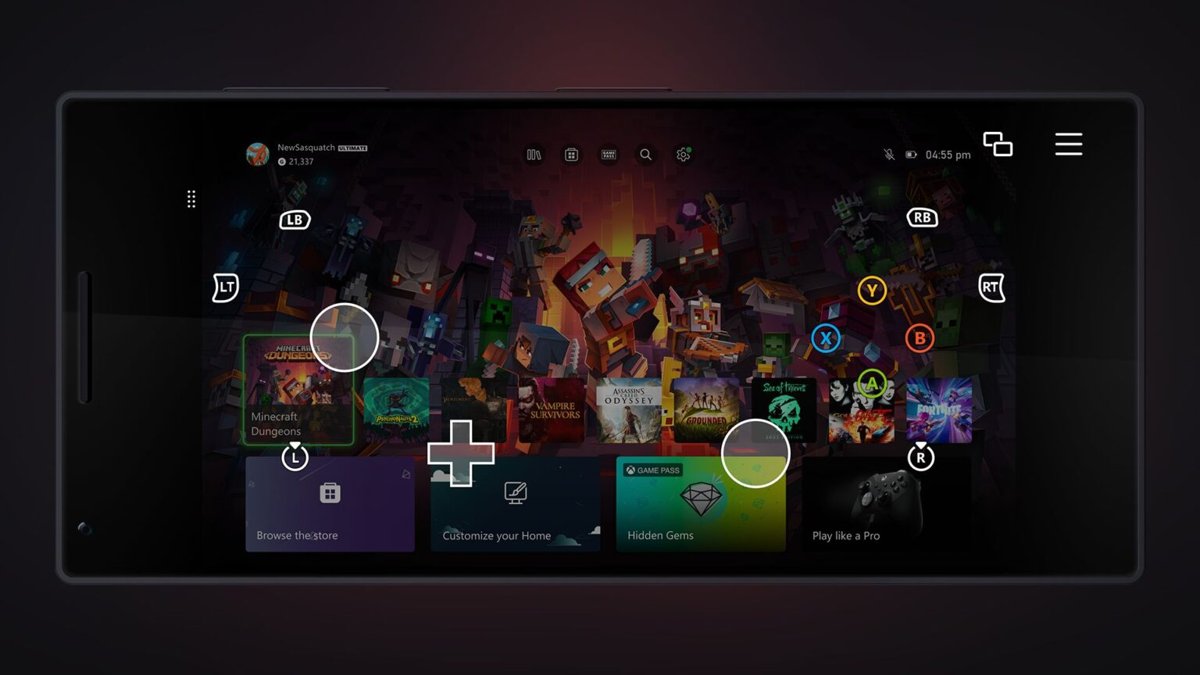
The console's own home screen now streams to your PC window, and the controller drives it as if you were on the couch.
Understanding Xbox Remote Play: What It Is and Why It Matters
Remote play streams your own console to another screen. The game runs on the Xbox; the PC only shows the video and sends your button presses back.
| Question | Answer |
|---|---|
| Where does the game run? | On your Xbox Series X|S or Xbox One at home |
| Which games can you play? | Any game installed on the console, including Xbox Game Pass titles and backward compatible Xbox 360 and original Xbox games |
| What else can you do? | Browse your library, change console Settings and talk to friends, because you see the full console interface |
| Where can you play from? | Your home network or anywhere else with a fast internet connection |
| Stream quality | Up to 1080p at 60 fps, according to Xbox |
| Does it need Game Pass? | No. Remote play is free; only some games and online multiplayer need a subscription, exactly as on the console |
It matters because it turns any Windows laptop into a second screen for a console you already own, with no second copy of the game.
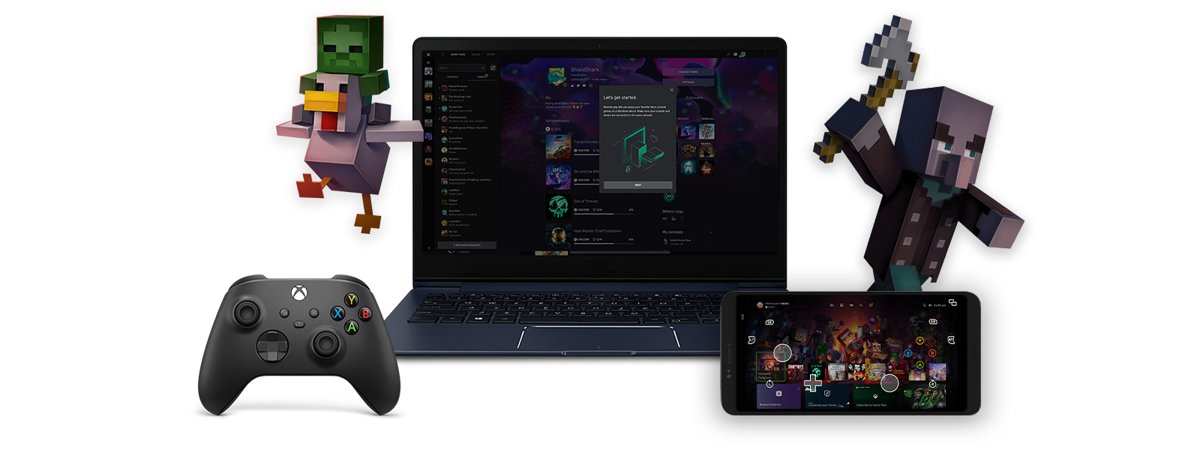
Prerequisites for Using Xbox Remote Play on PC: Hardware, Software, and Network Requirements
Match your setup to a row before you start. Each row names the one fix for a setup that falls short.
| Your setup | Works? | What to do |
|---|---|---|
| Xbox Series X, Series S or any Xbox One | Yes | Turn on remote features |
| Xbox 360 or original Xbox console | No | Only the Xbox One and Series X|S families can host remote play |
| Windows 10 or 11, version 22H2 or later | Yes | Nothing to change |
| Windows older than 22H2 | No | Install the latest update in Windows Update first |
| PC on 2.4 GHz Wi-Fi | Unreliable | Move to a 5 GHz network or plug in an Ethernet cable |
| Console set to Shutdown (energy saving) | Only while the console is on | Switch to Sleep so it can wake remotely |
| No controller on the PC | Touch screen only | Connect an Xbox Wireless Controller |
Hardware Requirements
| Device | Requirement | Notes |
|---|---|---|
| Console | Xbox Series X, Xbox Series S or Xbox One | Must be on, or in Sleep mode, when you connect |
| PC | Any Windows 10 or Windows 11 PC | The game runs on the console, so the PC does not need gaming specs |
| Controller | Xbox Wireless Controller or another compatible controller | Connect it by USB cable, the Xbox Wireless Adapter for Windows, or Bluetooth |
| Touch-screen PC | Optional | Custom touch layouts exist for over a hundred games, and a basic layout covers most others |
Software Requirements
| Item | Requirement | Where to get it |
|---|---|---|
| Windows | Windows 10 or 11, version 22H2 or higher | Settings > Windows Update |
| Browser or app | A supported web browser, or the Xbox app for PC | Browser: go to xbox.com/remoteplay. App: the Xbox PC app page on xbox.com |
| Account | Microsoft account with an Xbox profile | The same account must be signed in on the console |
| Console setting | Remote features turned on | Settings > Devices & connections > Remote features |
Network Requirements
| Link | Minimum | Better |
|---|---|---|
| PC download speed | 10 Mbps | More headroom reduces blur and stutter |
| PC Wi-Fi band | 5 GHz Wi-Fi | Ethernet cable |
| Console connection | Online and signed in | Ethernet cable to the router |
| Mobile data or hotspot | Supported at 10 Mbps down | Watch your data cap, because streaming uses data continuously |
Xbox publishes the PC-side minimum only. The console's upload speed matters too when you play away from home, because the stream leaves your house through it.
1. Check Prerequisites
- On the PC, press Win + R, type
winverand press Enter. - Confirm the version reads 22H2 or later; if not, open Settings > Windows Update and install updates.
- Confirm your console is an Xbox One, Xbox Series X or Xbox Series S.
- Note which Microsoft account is signed in on the console; you will use the same one on the PC.
- Connect the PC to 5 GHz Wi-Fi or Ethernet.
2. Configure Your Xbox Console
The console must be reachable when you are not in the room. That means the right power mode and remote features switched on.
- Press the Xbox button on the controller to open the guide.
- Open Settings > General > Power options.
- Select Sleep as the power option.
- Optional: set Active hours to the times you plan to play remotely.
- Go back to Settings and open Devices & connections > Remote features.
- Turn remote features on.
- Leave the console in Sleep rather than unplugging it.
With Active hours set, the console wakes remotely only inside that window and fully shuts down outside it.
3. Set Up Your PC and Xbox App
- Plug the Xbox Wireless Controller into the PC with a USB cable, or pair it over Bluetooth.
- Optional: install the Xbox app for PC from its page on xbox.com if you want to launch from the app.
- Open the Xbox app or your browser and sign in with the Microsoft account used on the console.
- Check that the controller responds before you start a stream.
The app is optional. Xbox's own remote play page sends players to xbox.com/remoteplay in a browser, which needs nothing installed.
4. Initiate Remote Play
- In your browser, go to xbox.com/remoteplay; it opens the consoles page on Xbox.com.
- Sign in if prompted.
- Select your console from the list.
- Wait while the PC wakes the console and connects.
- Launch a game from the streamed console home screen.
- Close the browser tab when you finish; the console returns to its power mode.
How to check remote play is working
- Confirm the stream shows your console's own home screen, with your pins and installed games.
- Press the Xbox button on the PC controller; the console guide should open in the stream.
- Open a game that is only on the console, not on the PC, and check it loads.
- Watch a fast scene for blur or freezes; if either appears, see the connectivity table below.
Pros and Cons of Using Xbox Remote Play on PC
| Pros | Cons |
|---|---|
| Free with the console you already own | The console must stay at home, powered and online |
| Plays everything installed, including disc installs and Xbox 360 or original Xbox titles | Quality depends on both your home upload and the PC's download speed |
| No game download on the PC and no gaming PC needed | Remote wake needs the console left in Sleep mode rather than fully off |
| Works on the home network and away from home | Tops out at 1080p and 60 fps |
| Full console interface, including settings and friends | Needs a controller or touch screen for input |
Fine-Tune Your Settings
| If you want | Change this | Where |
|---|---|---|
| The PC to wake the console at any time | Power option to Sleep | Settings > General > Power options |
| Lower standby power but remote wake while you play | Active hours | Settings > General > Power options |
| Maximum energy saving | Shutdown (energy saving); remote play then works only while the console is already on | Settings > General > Power options |
| Touch play on a touch-screen PC | Find games with a touch layout | My games & apps filter: Technical features > Touch enabled |
| To stop all remote access | Turn remote features off | Settings > Devices & connections > Remote features |
Connectivity Tips
| Your situation | Use this | Why |
|---|---|---|
| PC in the same house as the Xbox | Ethernet on the console, 5 GHz Wi-Fi or Ethernet on the PC | Removes the two weakest wireless hops |
| Playing away from home | Fast hotel or office Wi-Fi, or a phone hotspot at 10 Mbps or more | Xbox lists 10 Mbps down as the floor |
| Stream blurs in busy scenes | Pause large downloads on both networks | Other traffic eats the stream's bandwidth |
| Router supports only 2.4 GHz | Plug the PC in by cable | 2.4 GHz is not on Xbox's supported list |
Troubleshooting Common Issues
These are connection failures: the PC cannot find or reach the console.
Your console does not appear on xbox.com/remoteplay
The PC is signed in with a different account, or remote features are off.
- Sign out of Xbox.com and sign back in with the account used on the console.
- On the console, open Settings > Devices & connections > Remote features and confirm remote features are on.
- Reload xbox.com/remoteplay and select the console again.
The console will not wake when you connect
The console is in Shutdown (energy saving) mode, is outside its Active hours, or has lost power.
- Open Settings > General > Power options on the console and select Sleep.
- If you set Active hours, widen them to cover when you play.
- Keep the console plugged in and connected to the network.
Remote play works at home but not away from home
The remote network is too slow, or the home connection cannot upload the stream.
- Test the remote connection; it needs at least 10 Mbps down.
- Switch the PC to 5 GHz Wi-Fi, Ethernet or a stronger hotspot.
- At home, connect the console to the router by Ethernet before you leave.
Common Issues and How to Resolve Them
These are problems once the stream is running.
Stream lags, blurs or freezes
Not enough bandwidth, or a crowded 2.4 GHz Wi-Fi link.
- Move the PC to 5 GHz Wi-Fi or plug it in by cable.
- Pause downloads and other streams on both the home and PC networks.
- Restart the session from xbox.com/remoteplay.
Controller does nothing in the stream
The controller is not connected to the PC, or it is still paired to the console.
- Connect the controller to the PC with a USB cable to rule out pairing.
- For wireless use, pair it to the PC by Bluetooth or the Xbox Wireless Adapter for Windows.
- Click inside the stream window so it has focus, then press a button.
Keyboard does not control the game
Xbox lists a compatible controller or touch controls as remote play input, not a keyboard.
- Connect an Xbox Wireless Controller to the PC.
- On a touch-screen PC, pick a game with a touch layout instead.
Comparing Xbox Remote Play to Other Remote Gaming Options
Remote play and Xbox Cloud Gaming both stream to a PC window, which is why they get confused. Remote play streams your own console; cloud gaming runs the game on Microsoft's servers. For the cloud route, see how to cloud play Xbox on PC.
| Your situation | Use this | Why |
|---|---|---|
| You own an Xbox and want its installed games on the PC | Xbox remote play | Free, and plays anything installed on the console |
| You have no console, or it is switched off at the wall | Xbox Cloud Gaming | Runs on Microsoft's servers; needs Xbox Game Pass Ultimate |
| You want to try a Game Pass game without installing it anywhere | Xbox Cloud Gaming | Nothing to download on console or PC |
How It Compares to Other Options
| Feature | Xbox remote play | Xbox Cloud Gaming |
|---|---|---|
| Where the game runs | Your console at home | Microsoft's cloud servers |
| Subscription | None for remote play itself | Xbox Game Pass Ultimate |
| Game library | Whatever is installed on your console | Cloud-enabled Game Pass titles |
| Xbox 360 and original Xbox games | Yes, if installed and backward compatible | Depends on the Game Pass catalogue |
| Start page on PC | xbox.com/remoteplay | Xbox app or xbox.com cloud gaming |
| Console needed | Yes | No |
Practical Use Cases: When and Why to Use Xbox Remote Play
| When | Why remote play fits |
|---|---|
| The TV is taken | Keep playing your console session on a laptop in another room |
| Travelling with a laptop | Reach your whole installed library without carrying the console |
| A disc or Xbox 360 game you own | Remote play streams anything installed on your console, including games installed from disc |
| Low-spec PC | The console does the work, so the PC only decodes video |
| Changing a console setting while away | The full console interface streams, including Settings |
Frequently Asked Questions
How does Xbox remote play work?
Xbox remote play runs the game on your own Xbox Series X|S or Xbox One and streams the picture to your PC over the internet. Your controller input travels back to the console, so the PC needs no gaming hardware and no copy of the game.
Can I remote play Xbox on PC?
Yes. Any Windows 10 or 11 PC on version 22H2 or later can remote play an Xbox Series X|S or Xbox One. Turn on remote features on the console, then open xbox.com/remoteplay in a browser and select your console.
How do I enable remote play on Xbox?
Open Settings on the console, go to Devices & connections > Remote features and turn remote features on. Then set General > Power options to Sleep so the console can wake when you connect from another device.
How do I use Xbox remote play on a laptop?
A laptop works exactly like a desktop PC. Connect it to 5 GHz Wi-Fi or Ethernet, plug in or pair an Xbox Wireless Controller, go to xbox.com/remoteplay, sign in with your console's Microsoft account and select the console.
Can I use Xbox remote play away from home?
Yes. Remote play works on your home network or away from it, as long as the PC has at least 10 Mbps down over 5 GHz Wi-Fi or mobile data. Leave the console in Sleep mode with remote features on before you go.
How do I remote play on the Xbox app?
The Xbox app for PC gained remote play in 2021, but Xbox now points players to xbox.com/remoteplay in a web browser. The browser route needs nothing installed and reaches the same console, so use it if the app shows no console option.
Can I use a keyboard on Xbox remote play?
Xbox lists a compatible controller or on-screen touch controls as the ways to play remotely, not a keyboard and mouse. Connect an Xbox Wireless Controller to the PC by USB cable, Bluetooth or the Xbox Wireless Adapter for Windows.
Do I need Xbox Game Pass for remote play?
No. Remote play itself is free with your console and Microsoft account. Some games and online multiplayer still need a Game Pass subscription, exactly as they do when you play on the console directly.
Is Xbox remote play the same as cloud gaming?
No. Remote play streams your own console from home, so it plays anything you have installed. Xbox Cloud Gaming streams Game Pass games from Microsoft's servers, needs Game Pass Ultimate and does not need a console at all.
How do I use Xbox remote play on iPhone?
Open xbox.com/remoteplay in a browser on the iPhone, sign in and select your console. Xbox lists iOS 15.1 or later, and the Xbox mobile app no longer offers remote play directly, so the browser is the route on phones too.