To keep your Dell drivers updated, open SupportAssist, select Update software on the Home tab, then select Start and install what it finds.
This guide also covers Dell's Drivers & Downloads page by Service Tag, Dell Command | Update for business PCs, Windows Update optional driver updates, Device Manager, and rolling back a bad driver.
Method 1: Update Drivers with Dell SupportAssist
SupportAssist is Dell's free tool, and it comes preinstalled on most Dell computers. It scans your PC, finds the driver and firmware updates that match your model, and installs them for you. Many Dell models also ship with SmartByte, whose SmartByte Telemetry component runs in the background until you uninstall the app.
- Sign in to Windows with an administrator account, because installing drivers needs admin rights.
- Search for SupportAssist in the Start menu and open the app.
- On the Home tab, select Update software.
- Select Start to check for driver and firmware updates.
- Install the updates it lists and follow the on-screen instructions.
- Restart your computer if SupportAssist prompts you to.
SupportAssist also sends notifications when new updates are available, so leaving it installed keeps drivers current without a manual check. It runs on Windows 10 version 1809 or later (64-bit) and Windows 11.
Which Dell driver update method should you use?
All of these routes install the same Dell-signed packages. They differ in how much they do for you and which Dell PCs they suit.
| Your situation | Use this | Why |
|---|---|---|
| Home Inspiron, XPS or Alienware that boots Windows | SupportAssist | Scans the PC and installs only matching updates |
| Business Latitude, OptiPlex or Precision | Dell Command | Update | Dell's update tool for business systems, with scheduled updates |
| You want one specific driver or the app fails | Drivers & Downloads on dell.com | You pick the exact driver and version for your Service Tag |
| Dell has not published a driver for your Windows version | Windows Update optional driver updates | Dell's own fallback when a driver is missing from its site |
| One device misbehaves, such as audio or Wi-Fi | Device Manager | Targets a single device and can roll the driver back |
| You just reinstalled or reset Windows | SupportAssist, then Windows Update | Dell lists a reinstall or factory reset as a time to update drivers |
Why Updating Dell Drivers Matters on Windows 11/10
A driver is the software that lets Windows talk to hardware such as the sound card, graphics chip or Wi-Fi adapter. Dell says updates improve performance, fix problems, add features and add security protections.
| Question | Dell's answer |
|---|---|
| When should you update? | When a device has problems, after reinstalling Windows, after a factory reset, or when Dell marks an update urgent or recommended |
| Can you skip updates? | Non-urgent updates can wait while the PC works normally |
| How often does Dell release updates? | Monthly: functional updates in odd months and security updates in even months, usually on the second Tuesday |
| What does Critical mean? | Install right away; it fixes important problems and may include security updates |
| What does Recommended mean? | Install during your regular update schedule |
| What does Optional mean? | Review it to see whether it applies to your setup |
| Which category goes first? | BIOS, then Chipset, then the rest such as Audio, Video and Network |
Outdated drivers are a common cause of crashes, missing sound and screen glitches. When one of those appears after a Windows update, checking Dell's Critical and Recommended drivers is the first move.
How to Check Your Dell Model and Current Driver Versions
Dell matches drivers to your Service Tag, the code on a sticker on the bottom of a laptop or the back of a desktop. The Express Service Code is a numeric version of the same tag and works on Dell's site too.
- Open SupportAssist and read the Service Tag on its main screen.
- Or search for PowerShell in the Start menu, open Windows PowerShell, and run
GWMI -Class Win32_Bios | select SerialNumber; the SerialNumber value is the Service Tag. - Or restart the PC, press F2 repeatedly at the Dell logo, and read the tag under Overview or System Information.
- To see a device's current driver, press Windows + R, type
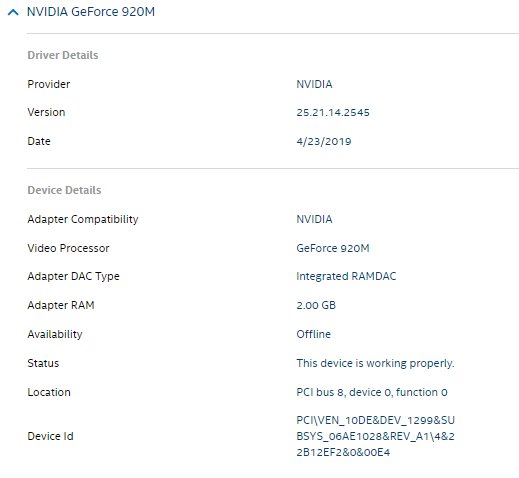
devmgmt.mscand press Enter to open Device Manager. - Right-click the device, select Properties, and open the Driver tab to see the installed driver details.
- On a business PC, open Dell Command | Update, go to System Information, and select Export for a report of every installed driver, firmware and BIOS version.
Dell no longer recommends the wmic command for this, because Microsoft deprecated WMIC and it is disabled by default in Windows 11 24H2 and newer. Your Service Tag also opens your Dell warranty details on the same support site.
Method 2: Download Drivers from Dell’s Official Support Website
Use Dell's Drivers & Downloads page when you want a specific driver, or when SupportAssist cannot install one. Download Dell drivers only from dell.com; other sites risk crashes and malware.
- Open Dell's Drivers & Downloads page.
- Select Detect This PC, or enter your Service Tag, Express Service Code or model number.
- Confirm the model name shown matches your computer.
- Check that the listed operating system is your version of Windows, and select Change OS if it is not.
- Expand a category such as Chipset, Audio, Video or Network and find the driver you need.
- Select Download and save the file.
- Run the downloaded file, follow the on-screen instructions, and restart if prompted.
With a Service Tag entered, Dell shows only drivers for parts that shipped with your PC. Turn off the Show downloads for only THIS PC toggle to see every driver for the model, for example after you add a new graphics card.
BIOS updates need extra care, such as keeping the AC adapter connected and suspending BitLocker; updating the BIOS on a Dell covers those steps separately.
Method 3: Use Windows Update and Optional Driver Updates
Windows 11 and Windows 10 install recommended drivers automatically through Windows Update. Optional driver updates, which often include Dell hardware drivers, wait for you to pick them.
| Step | Windows 11 | Windows 10 |
|---|---|---|
| 1. Open the settings | Start > Settings > Windows Update > Advanced options | Start > Settings > Update & Security > Windows Update > Advanced options |
| 2. Allow more updates | Turn on Receive updates for other Microsoft products | Turn on Receive updates for other Microsoft products when you update Windows |
| 3. Find the drivers | Under Additional options, select Optional updates | Go back, select Check for updates, then View optional updates |
| 4. Install | Select the drivers you want, then Download and install | Select the drivers you want, then Download and install |
| 5. Finish | Restart the PC when installation completes | Restart the PC when installation completes |
Install an optional driver only when it fixes a problem you have or Dell has no newer version on its own site. Dell treats Windows Update as the fallback when a driver is not listed on Dell Support.
Method 4: Update Specific Devices in Device Manager
Device Manager is the right choice when one device misbehaves and the rest of the PC is fine. Devices with driver problems often show an exclamation mark or a red cross.
- Right-click the Start button and select Device Manager.
- Select the arrow next to the device's category to expand it.
- Right-click the device and select Update driver.
- Select Search automatically for drivers to let Windows find one.
- To use a Dell driver you already downloaded and extracted, select Browse my computer for drivers instead, then Browse, pick the folder, and select Next.
- Select Close when Windows finishes, and restart if asked.
Windows installs a driver from your folder only if it is newer than the one already in place. Most Dell driver downloads install by simply running the file, so this route is mainly for single devices.
Method 5: Keep Latitude, OptiPlex and Precision PCs updated with Dell Command | Update
Dell Command | Update is built for business computers such as Latitude, OptiPlex and Precision, plus newer Dell Pro and Dell Plus models. If it is not installed, see the Dell Command Update download guide.
- Search for Dell Command | Update in the Start menu and open it.
- On first launch, select Yes, run automatically with the default settings.
- Select Check to scan for the latest drivers, BIOS and firmware.
- Review the list and select Recommended Updates or the drivers you want.
- Turn on Automatically restart system (when required).
- Select Install and expect several restarts.
- To automate future checks, select the gear icon in the upper-right corner and set an automatic update schedule.
On a work PC, your IT department may already manage these updates. Ask them before installing drivers yourself.
How to check your Dell drivers are up to date
- Run SupportAssist > Update software > Start again and confirm it reports no pending updates.
- On a business PC, select Check in Dell Command | Update and open Update History to see what installed.
- Open Device Manager and confirm no device shows an exclamation mark or red cross.
- Open the updated device's Properties > Driver tab and compare the version with the one on Dell's Drivers & Downloads page.
- Check Windows Update > Advanced options > Optional updates and confirm the driver you installed no longer appears.
To hear about new releases without checking, sign in to your Dell account and turn on Driver Subscriptions at dell.com/support/subscriptions.
How to roll back a Dell driver that causes problems
Roll back when a new driver brings crashes, no sound or screen glitches. Windows keeps the previous version only if one was installed before.
- Press Windows + R, type
devmgmt.msc, and press Enter. - Right-click the problem device and select Properties.
- Open the Driver tab and select Roll Back Driver.
- Choose a reason when Windows asks, then select Yes.
- Restart the computer.
If Roll Back Driver is greyed out, no earlier driver is stored. Uninstall the driver and install the version you want from Dell's Drivers & Downloads page instead.
How to Fix Dell Driver Update Problems and Stay Safe
SupportAssist or Dell Command | Update fails to install a driver
Automated tools sometimes fail on one package, and every method needs administrator rights.
- Sign in with an administrator account and try again.
- Restart the PC and run the scan once more.
- Download the driver manually from Drivers & Downloads with your Service Tag.
- Run the file and follow the on-screen instructions.
The driver you need is not listed on Dell's site
The Service Tag filter hides non-factory parts, or Dell does not publish drivers for that Windows version on your model.
- Turn off Show downloads for only THIS PC to see every driver for the model.
- Select Change OS and check whether your Windows version is listed; if it is not, Dell provides no drivers for it on that model.
- Check Optional updates in Windows Update, or use Update driver > Search automatically for drivers in Device Manager.
- For a non-Dell device, get the driver from that manufacturer's own website.
A device stopped working after a driver update
The new driver does not suit your setup.
- Roll the driver back from the Driver tab in Device Manager.
- If rollback is unavailable, right-click the device and select Uninstall device, then Uninstall.
- Restart the PC so Windows tries to reinstall a driver automatically.
- Install the driver version you want from Dell's Drivers & Downloads page.
How to delete a Dell driver
Removing a driver is done per device, not from a folder.
- Open Device Manager and right-click the device.
- Select Uninstall device and confirm with Uninstall.
- Restart the computer.
- Leave the Windows driver store alone; Microsoft says staged driver files should not be removed or modified by hand.
A website or tool offers to update all your Dell drivers
Dell warns that third-party driver scanning tools and untrusted websites may contain malware.
- Close the site or tool without installing anything.
- Use SupportAssist, Dell Command | Update or dell.com for Dell hardware.
- Use Windows Update or the device maker's own site for non-Dell hardware.
Frequently Asked Questions
What is the safest way to update Dell drivers on Windows 11 or Windows 10?
Use Dell's own tools. Run SupportAssist on a home PC or Dell Command | Update on a Latitude, OptiPlex or Precision, or download drivers from dell.com with your Service Tag. Dell says to download Dell drivers only from dell.com.
Should I use third-party driver updater tools for my Dell laptop or desktop?
No. Dell warns never to use third-party driver scanning tools or untrusted websites, because they may contain malware. SupportAssist is free, preinstalled on most Dell PCs, and installs only the drivers that match your model.
How do I check my Dell drivers?
Run SupportAssist, select Update software on the Home tab, and select Start to see which updates are pending. To see a single device's driver, open Device Manager, right-click the device, select Properties and open the Driver tab.
How do I find drivers for my Dell laptop?
Go to Dell's Drivers & Downloads page, select Detect This PC or enter your Service Tag, and expand a category such as Chipset, Audio, Video or Network. Turn off Show downloads for only THIS PC to see drivers for parts that did not ship with the laptop.
How do I find my Dell Service Tag before downloading drivers?
Look for the sticker on the bottom of a laptop or the back of a desktop, check the SupportAssist main screen, or press F2 at startup. In PowerShell, run GWMI -Class Win32_Bios | select SerialNumber; the SerialNumber value is the Service Tag.
Are Windows Update driver updates enough for a Dell computer?
Not always. Windows Update installs recommended drivers automatically, but Dell releases driver, BIOS and firmware updates on its own schedule. Run SupportAssist or Dell Command | Update as well, and use Windows Update optional updates when Dell has no driver listed.
How do I roll back Dell drivers?
Open Device Manager, right-click the device, select Properties, open the Driver tab and select Roll Back Driver, then restart. If the button is greyed out, no earlier driver is stored; uninstall the driver and install the version you want from Dell's site.
How do I delete a Dell driver?
Open Device Manager, right-click the device, select Uninstall device, and confirm with Uninstall. Restart the PC afterwards. Windows tries to reinstall a driver automatically, so install your chosen Dell driver if the automatic one causes trouble.
Where are Dell drivers stored?
Installed drivers are kept in the Windows Driver Store, a protected collection on the system drive. Microsoft says files staged there should not be removed or modified by hand. Manage drivers through Device Manager instead of deleting files.
What should I do if a Dell driver update fails or causes problems?
If the install fails, sign in as an administrator, restart, and download the driver manually from Dell's Drivers & Downloads page. If the driver installs but causes problems, roll it back in Device Manager or uninstall it and install an earlier Dell version.
How do I get Dell support for drivers?
Go to Dell's support home page at dell.com/support, enter your Service Tag, and open Drivers & Downloads or the contact options for your product. Dell Technical Support can also identify a PC by its Dell order number if the Service Tag is missing.
Bottom Line
Leave SupportAssist installed on a home Dell PC, or schedule Dell Command | Update on a business model, and install Critical and Recommended updates as they appear. Both tools read your exact model, so you never install the wrong driver. Keep Drivers & Downloads, Windows optional updates and Device Manager for single drivers, missing drivers and rollbacks.







How to Update Drivers on Windows 11 [Complete Guide] - Techdows
[…] A Dell machine has its own routine worth following end to end: How to Keep Your Dell Drivers Updated on Windows 11/10. […]