Microsoft Edge has no personal setting that sends new tabs to a page of your choice; only the NewTabPageLocation policy does that, and it works only on work- or school-managed devices.
On a home PC, set your page as the startup page and the Home button target instead, or add a new tab extension. This guide covers each route, blank tabs, Google, Mac, phones, fixes and the way back.
The fastest way to get your page in Edge on a home PC
These two settings live on the same Settings page. Together they put your page on screen at launch and one click away from any tab.
- Open Edge and select Settings and more (…) > Settings.
- Select Start, home, and new tab page.
- Under When Edge starts, choose Open these pages, select Add a new page, enter your page's address and save it.
- Turn on Show home button on the toolbar.
- Choose Enter URL, type the same address and save it.
- Open a new tab with Ctrl + T, then select the Home button to jump to your page.
If your PC is managed by an employer or school, ask the IT admin to set NewTabPageLocation. That is the only Microsoft-documented way to change the page every new tab opens with.
First, Know The Difference Between Startup, Home, And New Tab Pages
Edge treats these as three separate pages, and each one has its own control. Mixing them up is why most attempts seem to fail.
| Page | When it appears | Who can change the address | Policy that controls it |
|---|---|---|---|
| Startup page | When you launch Edge | You, in Settings > Start, home, and new tab page | RestoreOnStartup and RestoreOnStartupURLs |
| Home page | When you select the Home button | You, after turning on Show home button on the toolbar | HomepageLocation, HomepageIsNewTabPage, ShowHomeButton |
| New tab page | Every new tab, and every new window | Only an admin, through policy; you can change its layout and content | NewTabPageLocation |
Microsoft's policy reference adds one wrinkle: if your startup setting is to open the new tab page, a custom new tab URL also changes what you see at launch. It does not change the Home button.
Which method should you use?
| Your situation | Use this | Why |
|---|---|---|
| Personal PC, you want your page in literally every new tab | Method 1: a new tab extension | Policies are ignored on unmanaged PCs; an extension is the only per-user route |
| The extension you want is only in the Chrome Web Store | Method 2: allow extensions from other stores | Edge asks for this once before it installs a Chrome extension |
| Work or school PC joined to a domain, Microsoft Entra ID or MDM | Method 3: NewTabPageLocation policy | The only Microsoft-supported new tab URL setting |
| You mainly want your page when Edge opens | Method 4: custom startup page | Built in, no extension, works on any PC |
| You want your page one click away from any tab | Method 5: Home button | Built in and survives every new tab |
| You just want a calmer default page | Customize the built-in new tab page | Turn the feed off and keep your own quick links |
Method 1: Use An Extension To Open New Tabs With Any Page
Microsoft's own Edge tips point to the Microsoft Edge Add-ons store for extensions that personalize the new tab page. Microsoft's install prompt lists each extension's permissions, so read them before you add one.
- Select Extensions to the right of the address bar. If it is not there, select Settings and more (…) > Extensions.
- Select Get Extensions for Microsoft Edge.
- Search the store for a new tab extension and open its listing; check the publisher, the reviews and the date it was last updated.
- Select Get.
- Read the permissions prompt carefully, then select Add extension only if the access matches what the extension does.
- Open the extension's options and enter the address you want new tabs to open.
- Press Ctrl + T to test it.
If new tabs stop showing your page later, check Extensions > Manage extensions first; a turned-off extension hands new tabs back to Edge.
Method 2: Allow Chrome Web Store Extensions If Needed
Extensions designed for Google Chrome also run in Edge. Use this route only when the extension you want is not in the Edge store.
- In Edge, go to the Chrome Web Store.
- Search for the extension and select its tile to open the details page.
- Select Get extension on the banner at the top, or Get on the page.
- When the Allow extensions from other stores dialog appears, select Allow.
- Review the permissions and select Add extension to finish.
- Set your page in the extension's options, then open a new tab to test it.
Method 3: Use Microsoft Edge Policy To Set A New Tab URL
NewTabPageLocation sets the page that opens for every new tab and every new window. Microsoft states that it is available only on Windows devices joined to Active Directory, joined to Microsoft Entra ID (formerly Azure Active Directory), or enrolled in device management.
It also does not apply to a profile signed in with a personal Microsoft account. On a home PC, setting it changes nothing.
- Get the Microsoft Edge policy templates from the Microsoft Edge Enterprise landing page and extract them.
- Copy msedge.admx from windows > admx to
C:\Windows\PolicyDefinitions, and msedge.adml from the en-US folder toC:\Windows\PolicyDefinitions\en-US. On a domain, use the Central Store instead. - Press Win + R, type
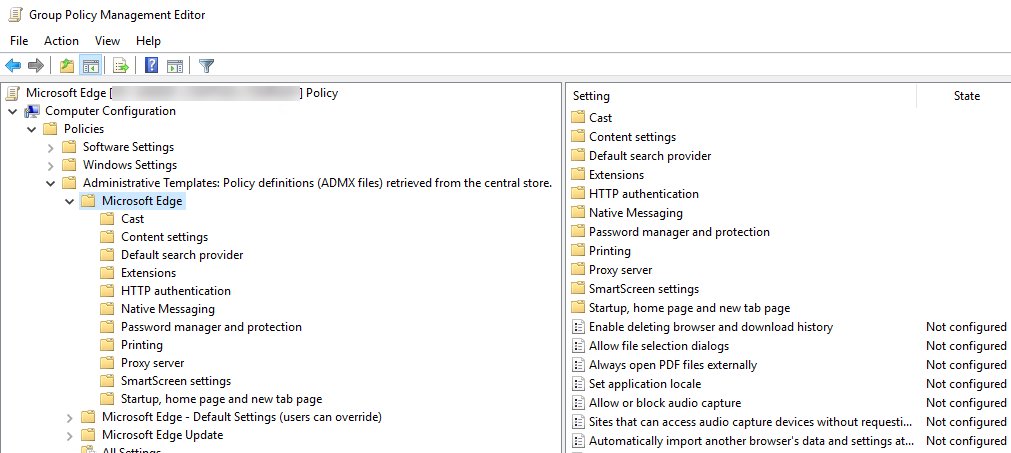
gpedit.mscand press Enter; in a domain, open the Group Policy Management Editor. - Go to Computer Configuration (or User Configuration) > Policies > Administrative Templates > Microsoft Edge > Startup, home page and new tab page.
- Open Configure the new tab page URL, select Enabled, and enter the full address, such as
https://www.bing.com. - Select OK, then close and reopen Edge.
Use the mandatory path above. Microsoft notes that the recommended version of this policy currently behaves exactly like the mandatory one, so users cannot override either.
Set NewTabPageLocation in the registry on a managed PC
Group Policy writes the same value into the registry. On a managed device you can set it directly from an elevated Command Prompt; the rule about managed devices still applies.
reg add "HKLM\SOFTWARE\Policies\Microsoft\Edge" /v NewTabPageLocation /t REG_SZ /d "https://www.bing.com" /fCreates the NewTabPageLocation string (REG_SZ) under the Edge policy key and sets it to your address. Replace the address with your own page. /f overwrites an existing value without prompting.
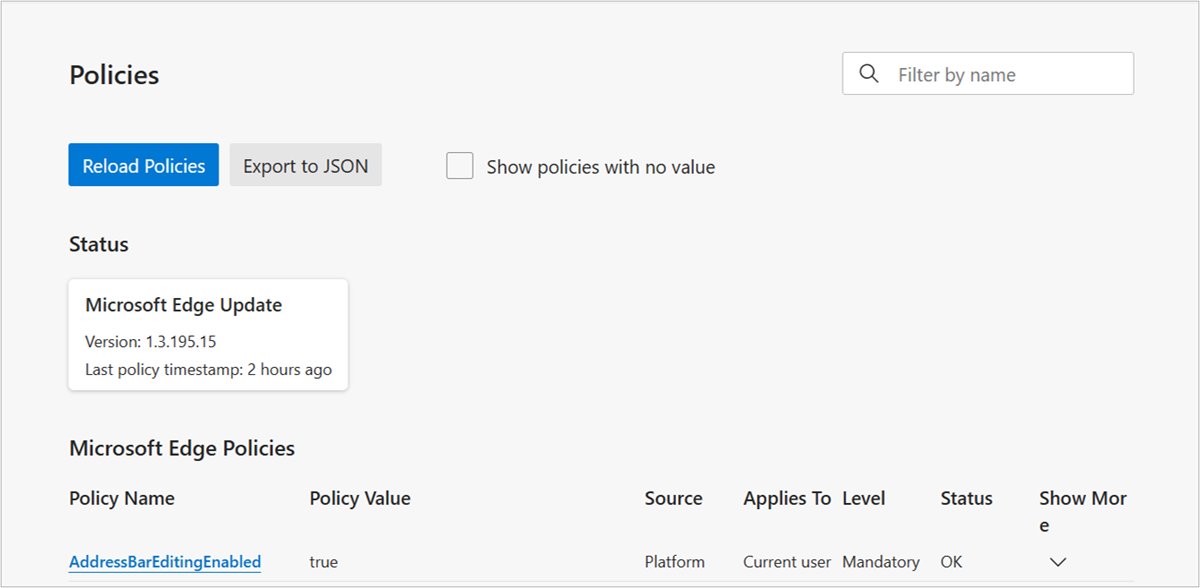
You should see: The command prints "The operation completed successfully." After you restart Edge, edge://policy lists NewTabPageLocation with your address.
Method 4: Set A Custom Startup Page Instead
This does not change new tabs. It opens your chosen pages every time Edge launches, on any PC.
- Select Settings and more (…) > Settings.
- Select Start, home, and new tab page.
- Under When Edge starts, select Open these pages.
- Select Add a new page, enter the address and save it.
- Repeat for any other pages, or select Use all open tabs to add everything that is open now.
- Close and reopen Edge to confirm.
If you would rather pick up where you left off, choose Continue where you left off instead. The guide to restoring tabs in Edge and other browsers covers getting a closed session back.
Method 5: Set The Home Button To Your Preferred Page
The Home button sits on the toolbar of every tab, so your page is always one click from a fresh tab.
- Select Settings and more (…) > Settings.
- Select Start, home, and new tab page.
- Turn on Show home button on the toolbar.
- Select Enter URL, type your page's address and save it.
- Open a new tab and select the Home button.
If an admin has set HomepageLocation, you cannot change the address. You can still switch the button between that address and the new tab page unless HomepageIsNewTabPage is also set.
How To Customize Edge’s Built-In New Tab Page
You cannot change the address of the built-in new tab page, but you can strip it down and pin your own sites to it.
- Press Ctrl + T to open a new tab.
- Select Page settings, the gear icon in the top corner of the page.
- Under Layout, pick a layout; Focused pushes the news feed down the page.
- Under Content, choose Content off to remove the feed, or Headings only to shrink it.
- Add quick links to the sites you use most, so each is one click from any new tab.
- Choose a background from the Edge gallery or upload your own image.
If Content and Layout are greyed out, your organization has turned Microsoft content off through the NewTabPageContentEnabled policy, which locks them to Content off and Custom.
How To Make Google Open In Every New Edge Tab
Edge has no built-in option to load Google in new tabs. Pick the closest route for your device.
| Your situation | What to do | Result |
|---|---|---|
| Managed work or school PC | Ask IT to set NewTabPageLocation to https://www.google.com |
Every new tab and new window opens Google |
| Home PC, Google must be in every tab | Method 1 extension, set to https://www.google.com |
New tabs load Google through the extension |
| Home PC, no extensions wanted | Add https://www.google.com under Open these pages and as the Enter URL home page |
Google opens at launch and from the Home button |
| You just want Google one click away | Add Google as a quick link on the new tab page | A Google tile on every new tab |
How To Open A Blank Page In Every New Tab
A truly empty tab needs policy. Microsoft specifies the address about:blank for it, not about://blank.
| Your situation | What to do | What new tabs look like |
|---|---|---|
| Managed PC | Set NewTabPageLocation to about:blank |
A completely blank page |
| Home PC | In Page settings, set Content to Content off | A mostly empty page with quick links, the search box and the weather |
| Home PC, want nothing at all | Use a Method 1 extension that loads about:blank |
A blank page, through the extension |
How To Use Your Own Custom Dashboard As The New Tab Page
A dashboard can be a hosted page, an intranet site or a start page you built. Edge needs an address it can load.
- Open the dashboard in Edge and copy its full address from the address bar.
- On a managed PC, have IT paste that address into Configure the new tab page URL (Method 3).
- On a home PC, paste it into your new tab extension's settings (Method 1).
- Add the same address under Open these pages so the dashboard also loads at launch.
- Set it as the Home button address with Enter URL as a one-click fallback.
What About Edge On Mac?
| Task | Edge on macOS |
|---|---|
| Startup page and Home button | Same Start, home, and new tab page settings as on Windows |
| Open a new tab | Command + T |
| New tab URL policy | Preference key NewTabPageLocation, as a string in a .plist |
| When the policy applies | Only on Macs managed through MDM or joined to a domain via MCX |
| Extensions | Same Microsoft Edge Add-ons and Chrome Web Store routes as Methods 1 and 2 |
What About Edge On iPhone, iPad, And Android?
Edge for mobile documents a home page setting but no new tab address setting for personal devices.
| Task | How it works on mobile |
|---|---|
| Set a home page | Tap the menu … > Settings > General > Home page, then use the default Edge page or a specific URL |
| Open a new tab | Tap the menu … > New tab, or tap + in the tabs view |
| Change the news on new tabs | Android: … > Settings > New tab page > News feed. iOS: … > Settings > News feed |
| New tab URL policy | NewTabPageLocation supports Android and iOS from Edge 142, on managed devices only |
| See desktop tabs on your phone | Sign in and sync; see open tabs and history sync on Edge for Android |
Why Edge Does Not Offer A Simple New Tab URL Setting
Microsoft has not published a reason. What its documentation does establish is where the setting lives and who can use it.
| What Microsoft documents | What it means for you |
|---|---|
| The new tab URL exists only as the NewTabPageLocation policy | There is no toggle for it in Settings |
| The policy works only on domain-joined, Entra-joined or MDM-enrolled devices | Home PCs ignore it, even with the registry value set |
| It does not apply to profiles signed in with a Microsoft account | A personal profile on a work PC keeps the default page |
| Users control the new tab layout, content, quick links and background | Customizing is the built-in alternative |
| Extensions from the Edge Add-ons store can personalize new tabs | Method 1 is the per-user route |
How to check it worked
- Press Ctrl + T; the new tab should show your page, not the Edge feed.
- Close all Edge windows and reopen Edge; your startup pages should load.
- Select the Home button; it should open the address you entered.
- For the policy route, type
edge://policyin the address bar and press Enter. - Find NewTabPageLocation in the list and confirm the value shows your address.
Troubleshooting: New Tabs Still Open The Default Edge Page
New tabs still open the Edge feed after setting the policy
The device is not managed, the profile uses a personal Microsoft account, or Edge has not reloaded policy.
- Open
edge://policyand check whether NewTabPageLocation is listed. - If it is missing on a domain PC, run
gpupdate /forcefrom Command Prompt or PowerShell. - Close every Edge window and reopen Edge.
- If the PC is not joined to a domain, Entra ID or MDM, switch to Method 1 or Methods 4 and 5; the policy will not apply.
Edge will not open Google in a new tab
Only the startup page or Home button was set to Google; neither controls new tabs.
- Press Ctrl + T and select the Home button to reach Google in one click.
- For Google in every new tab, use a new tab extension (Method 1), or the policy on a managed PC.
- Check the address starts with
https://.
A new tab keeps opening on its own
Edge opens every page in the startup list at launch, or an installed extension opens tabs.
- Go to Settings > Start, home, and new tab page and review the list under Open these pages.
- Remove any page you did not add.
- Select Extensions > Manage extensions and turn off anything you do not recognize.
- Restart Edge and watch whether the extra tab returns.
The extension stopped working and new tabs are Edge tabs again
The extension was turned off or removed.
- Select Extensions > Manage extensions.
- Turn the new tab extension's toggle back on.
- Open a new tab with Ctrl + T to test it.
- If it still fails, remove the extension and add it again.
Page settings options are greyed out
An organization policy such as NewTabPageContentEnabled controls them.
- Open
edge://policyto see which new tab policies are set. - Ask your IT admin to change them; you cannot override a mandatory policy.
How To Undo The Change
- Extension: select Extensions, then More actions next to it > Remove from Microsoft Edge > Remove.
- Startup pages: in Settings > Start, home, and new tab page, set When Edge starts back to Open the new tab page.
- Home button: turn off Show home button on the toolbar, or select New tab page as its target.
- Group Policy: set Configure the new tab page URL to Not Configured.
- Registry: run
reg delete "HKLM\SOFTWARE\Policies\Microsoft\Edge" /v NewTabPageLocation /ffrom an elevated Command Prompt. - Restart Edge and press Ctrl + T to confirm the default page is back.
Frequently Asked Questions
How do I set new tabs in Edge to a specific page?
Edge only allows it through the NewTabPageLocation policy on work- or school-managed devices. On a home PC, use a new tab extension from the Edge Add-ons store, or set your page as the startup page and Home button in Settings > Start, home, and new tab page.
How do I set new tabs in Edge to open Google?
On a managed PC, an admin sets NewTabPageLocation to https://www.google.com. On a home PC, use a new tab extension, or add Google under Open these pages and as the Home button URL so it opens at launch and in one click.
How do I get a blank new tab in Edge?
Set the NewTabPageLocation policy to about:blank on a managed device for a fully blank tab. On a home PC, open a new tab, select Page settings and choose Content off, which leaves only quick links, the search box and the weather.
Why are my new tabs Edge tabs even after I changed my home page?
The home page and new tab page are separate in Edge. Changing the home page only changes where the Home button goes; new tabs keep Edge's own page unless a policy or a new tab extension replaces it.
Why does a new tab keep opening when I start Edge?
Edge opens every page listed under Open these pages at launch. Go to Settings > Start, home, and new tab page, review that list and remove pages you did not add, then check Manage extensions for anything unfamiliar.
How do I get Edge to stop opening new tabs at startup?
Go to Settings > Start, home, and new tab page and set When Edge starts to Open the new tab page. Edge then opens a single new tab at launch instead of your saved list of pages.
What is the new tab page in Edge?
It is the page Edge shows in every new tab and every new window. By default it holds a search box, quick links, a background and Microsoft's news feed, all of which you can change in Page settings.
How do I open a new tab in Edge?
Press Ctrl + T on Windows or Command + T on a Mac. On a phone, tap the menu … and choose New tab, or tap + in the tabs view.