A Word document that opens blank is usually hidden by the current view, damaged, or blocked by an add-in or a graphics problem, and File > Open > Browse > Open and Repair fixes the most common case.
The sections below match each symptom to its fix, show how to pull text out of a file that stays blank, and cover Office repair, safe mode and Word for Mac.
The fastest way to fix a Word document that opens blank
Run these checks in order and stop as soon as your text appears. Make a copy of the file in File Explorer first, so every repair attempt works on a duplicate.
- Look at the top of the document. If a yellow Protected View bar is showing and you trust the sender, select Enable Editing.
- Open the View tab and select Draft, then Web Layout, then Print Layout to see whether the text appears in another view.
- Close the document, then select File > Open > Browse in Word. Do not open it from the Recent list.
- Select the blank document once to highlight it.
- Select the arrow next to the Open button, then select Open and Repair.
- If the text appears, select File > Save As and save it under a new name.
If every Word file opens blank, not just one, the problem is in Word or Office rather than the file. Jump to the safe mode and graphics acceleration sections.
Match what you see to the right fix
Microsoft separates a damaged document from a software problem with one test: open other Word documents. If they open correctly, the problem is the file; if they fail too, it is Word, Office or Windows.
| What you see | Likely cause | Fix to try first |
|---|---|---|
| Only one document is blank, others open normally | Damage to that file or its template | Open and Repair, then Recover Text from Any File |
| Every Word document opens blank | An add-in, a damaged Normal.dotm template, or Office itself | Start Word with winword /safe, then repair Office |
| The Word window is mostly all white or all black | Hardware acceleration and an incompatible display driver | Update the display driver or select Disable hardware graphics acceleration |
| The file came from email or a download and shows a yellow or red bar | Protected View has opened it read-only | Select Enable Editing if you trust the source |
| Pages are missing after a certain point | Damaged content partway through the file | Switch to Web Layout or Draft and delete the damaged paragraph |
| Word closed unexpectedly and your work is gone | Unsaved changes were never written to the file | Use the Document Recovery pane or Recover Unsaved Documents |
| You use Word on a Mac | Word for Mac uses its own recovery tools | Recover Text in the Open dialog, then Help > Check for Updates |
Check whether the document content is hidden or off-screen
Word can show a page with no text even when the text is still in the file. Draft view skips page layout, and it also avoids pulling in linked content that can stall a damaged file.
- Open the View tab and select Draft in the Views group.
- Select File > Options > Advanced.
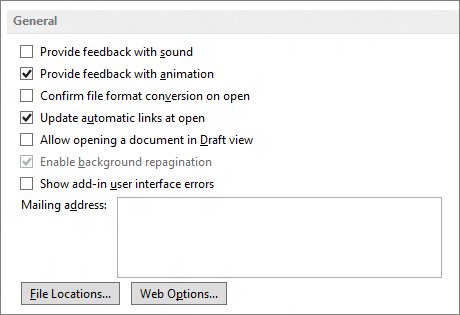
- Under Show document content, select Use draft font in Draft and Outline views and Show picture placeholders.
- Scroll to the General section and clear Update automatic links at open.
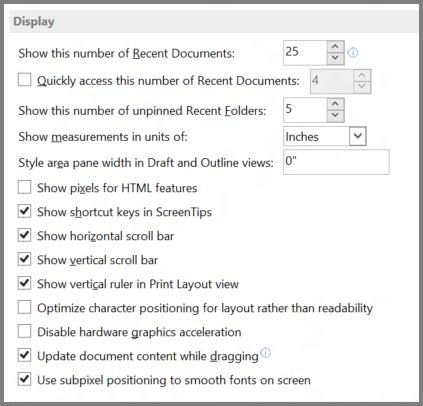
- Select File > Options > Display and, under Always show these formatting marks on the screen, select Hidden text. Text formatted as hidden now shows a dotted underline.
- Select OK, close Word, reopen Word, and open the document again.
If only part of the document is missing, note the last page that displays. Switch to Web Layout or Draft, delete the next paragraph, table or object, then return to Print Layout and repeat until the full document shows. Save the result.
Use Word's Open and Repair feature
Open and Repair makes Word rebuild the file as it opens. It works in Word for Microsoft 365, Word 2024, Word 2021, Word 2019 and Word 2016 on Windows.
- Close the blank document if it is open.
- In Word, select File > Open > Browse.
- Go to the folder that holds the file. Opening it from Recent skips the dialog this method needs.
- Select the document once to highlight it.
- Select the arrow next to Open and choose Open and Repair.
- Check the content, then save a copy with File > Save As.
If the content still does not appear, restart Windows before trying the recovery steps below. Microsoft lists that restart as the step between a failed repair and the next method.
Open Word in safe mode and disable problem add-ins
Safe mode starts Word without add-ins. It also turns off hardware graphics acceleration, so a document that displays in safe mode points to either an add-in or a graphics issue.
- Close Word completely.
- Press Windows + R, type
winword /safe, and select OK. You can also hold Ctrl while you double-click the Word shortcut and select Yes. - Confirm the title bar shows (Safe Mode), then open the blank document.
- If the text appears, select File > Options > Add-Ins.
- In the Manage list, select COM Add-ins, then select Go.
- Clear the check box for one add-in and select OK.
- Close Word, start it normally, and open the document. Repeat with the next add-in until you find the one that blanks the page.
Also check Manage > Word Add-ins > Go, where you clear the check box next to any template or add-in to stop it loading. To start Word with no add-ins and no Normal.dotm at all, run winword /a instead.
Turn off hardware graphics acceleration when the window is white or black
Office 2013 and later draw documents with hardware acceleration. With an incompatible or outdated display driver, Microsoft lists a mostly all white or all black program window, flickering and poorly displayed text as symptoms.
- Open Control Panel and select Hardware and Sound > Device Manager.
- Expand Display adapters, right-click your adapter, and select Properties.
- On the Driver tab, select Update Driver and follow the prompts.
- If the document is still blank, open Word and select File > Options.
- In the Advanced pane, select the Disable hardware graphics acceleration check box.
- Select OK, close Word, and open the document again.
Clear the check box again after a newer display driver is installed, so Word gets its normal performance back. If your Word build does not list the check box, rely on the driver update instead.
Recover text from a Word document that stays blank
When repair fails, pull the words out of the file. Recover Text from Any File drops formatting, graphics, fields and drawing objects, but keeps headers, footers, footnotes, endnotes and field text as plain text.
- In Word, select File > Open > Browse.
- In the file type box beside File name, select Recover Text from Any File(*.*).
- Select the blank document and select Open.
- Delete the unreadable binary characters at the start and end of the recovered text.
- Save the result as a new Word document.
- If that fails, create a new blank document, open the Insert tab, select Object > Text from File, and choose the damaged file.
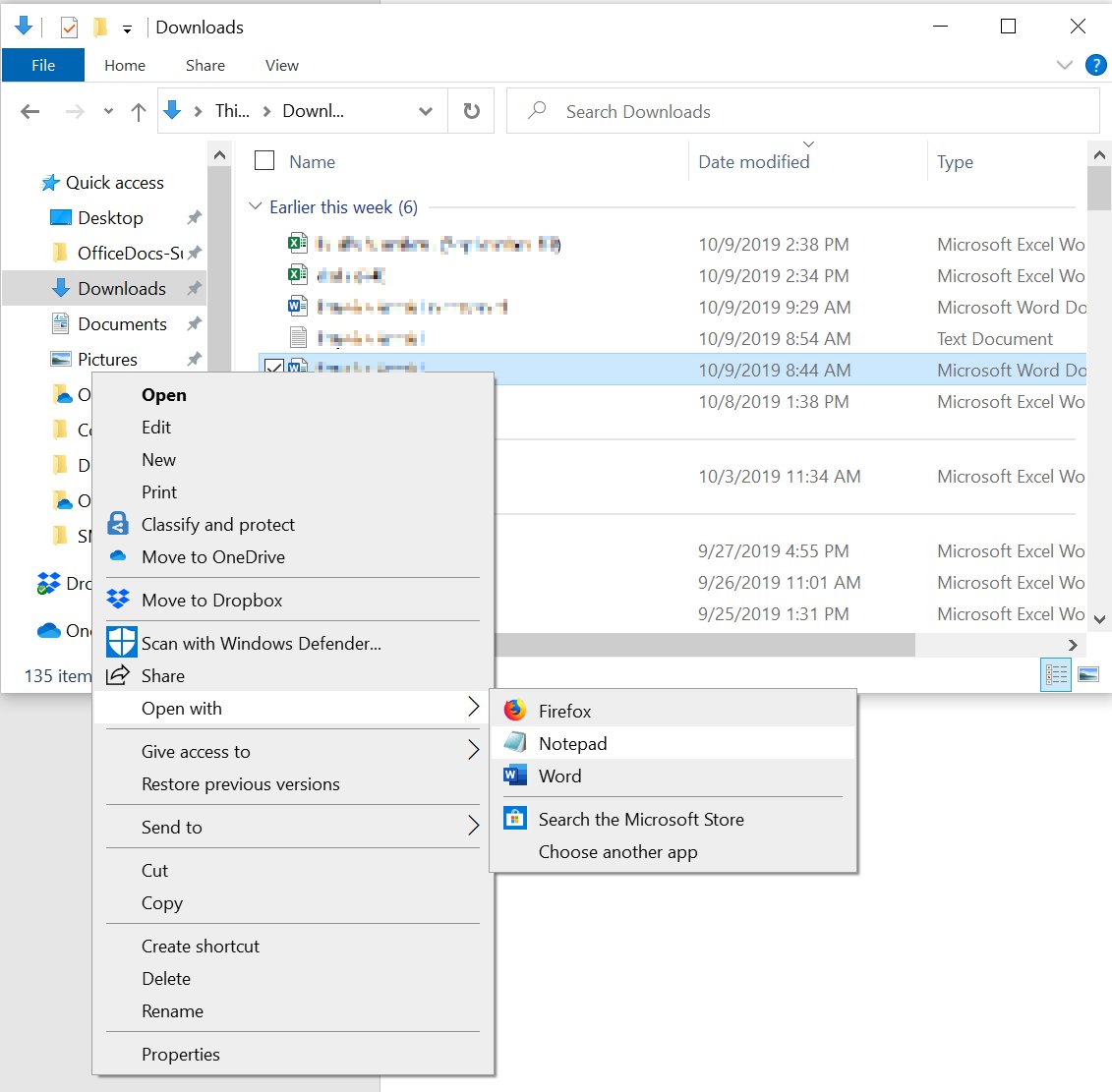
- As a last resort, right-click the file in File Explorer, select Open with > Notepad, delete the extra code around your text, and use File > Save As under a new name.
In Notepad, change the file type from Text Documents (*.txt) to All Files (*.*) if the document is not listed. Paste the cleaned text back into Word and reapply formatting there.
Check file format, compatibility and corruption
A file renamed with the wrong extension, or one with damaged formatting, can open with nothing on the page. Converting it to another format and back strips out much of the damage.
- In File Explorer on Windows 11, select View > Show > File name extensions. On Windows 10, select View and tick File name extensions in the Show/hide group.
- Confirm the ending matches a Word format:
.docxfor a Word document,.docfor documents from before Word 2007,.docmfor a macro-enabled document, or.rtffor Rich Text Format. - Open another Word document. If it opens correctly, the blank file is the problem; if not, repair Office.
- If the blank file opens at all, select File > Save As > Other Formats and choose Rich Text Format (*.rtf).
- Close it, open the
.rtfcopy, then use File > Save As with Word Document as the type and a new file name. - If the problem returns, repeat the conversion with Webpage (.htm; .html), then Plain Text (.txt). Plain text loses all formatting, macros and graphics.
Microsoft notes files often become damaged when they sit on a USB drive that is removed while open. Use Safely Remove Hardware before unplugging a drive that holds documents.
Repair or update Microsoft Office on Windows
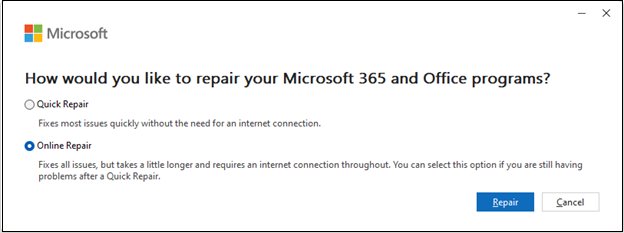
Office repair fixes the whole suite, not only Word. Try Quick Repair first because it only detects and replaces corrupted files; Online Repair is the deeper option that makes sure everything gets fixed.
- Open Word and select File > Account > Update Options > Update Now to install pending Office updates.
- If the document is still blank, close every Office app.
- On Windows 11, right-click Start and select Installed apps. On Windows 10, right-click Start and select Apps and Features.
- Find your Microsoft 365 or Office entry. On Windows 11, select the three dots and Modify; on Windows 10, select Modify.
- Choose Quick Repair and select Repair.
- Restart the PC and open the document. If it is still blank, repeat with Online Repair.
Install Windows updates as well. Microsoft lists updating both Office and Windows as the first step before troubleshooting a damaged document.
Fix a blank document in Word for Mac
For Word for Mac, Microsoft documents three tools for a damaged or lost document: a text recovery converter, a hidden AutoRecovery folder and Microsoft AutoUpdate.
- Open Word and select Help > Check for Updates, then select Update in Microsoft AutoUpdate. For a Mac App Store copy, update Word in the App Store instead.
- Select Word > Preferences, then General under Authoring and Proofing Tools.
- Make sure Confirm file format conversion at Open is selected.
- Select File > Open, choose Recover Text at the bottom right, and open the blank document.
- To find AutoRecover copies, open Finder, press Shift + Command + G, and enter
/Users/<username>/Library/Containers/com.Microsoft.Word/Data/Library/Preferences/AutoRecoverywith your user name. - Open the most recent file in that folder and save it under a new name.
The AutoRecovery folder is hidden, so it does not show if you browse to it in Finder. Use the Go to Folder box every time.
How to check the document is really fixed
A document that shows text once can still carry damage. Confirm it holds up before you delete the original.
- Close the repaired copy and reopen it normally, not with Open and Repair or in safe mode.
- Switch between Print Layout, Web Layout and Draft on the View tab. The same text should appear in each view.
- Scroll to the last page and confirm the page count matches what the document should contain.
- Watch for the warning signs Microsoft lists for damage: repeated page renumbering, shifting page breaks, unreadable characters or error messages.
- If you turned off an add-in or graphics acceleration, start Word normally and open two other documents to confirm they display too.
Fix Word documents that still open blank
Each symptom below comes from what readers search for when Word shows an empty page. Run only the fix under yours.
Why are my Word documents opening blank, all of them?
A damaged global template or a Word setting affects every file, not one document.
- Close Word, press Windows + R, type
winword /a, and press Enter. Word starts without add-ins or your Normal.dotm template. - Open a document. If it displays, the template or an add-in is the cause.
- Close Word and open
%userprofile%\appdata\roaming\microsoft\templatesin File Explorer. - Right-click Normal.dotm, select Rename, and name it
Oldword.old. - Start Word normally. Word creates a fresh Normal template.
Word documents open blank when printing
A problem default printer driver is one of the causes Microsoft tests for when a document's layout misbehaves.
- Search Windows for Devices and Printers and select Add a printer, then Add a local printer.
- Select Use an existing port and Next.
- Under Manufacturer, select Microsoft, then Microsoft XPS Document Writer, and select Next.
- Select Use the driver that is currently installed (recommended), tick Set as the default printer, and select Finish.
- Open the document again. If it now displays and prints, delete and reinstall your original printer.
Blank Word document keeps opening instead of the Start screen
The Start screen is switched off, so Word goes straight to a new blank document when it launches.
- Select File > Options > General.
- Select Show the start screen when Word starts.
- Select OK and restart Word.
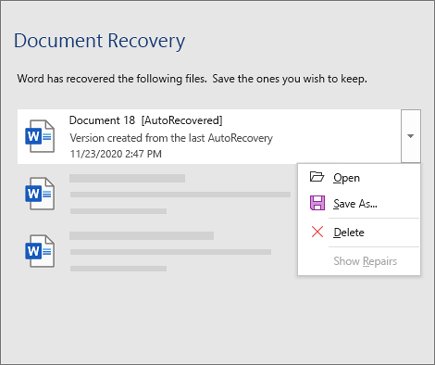
Word document is blank after Word crashed
Changes made since the last save were only held in AutoRecover.
- Reopen Word and look for the Document Recovery pane on the left.
- Check the times under each file in Available Files, open the newest, and save it.
- If no pane appears, select File > Info > Manage Document > Recover Unsaved Documents.
- Select the file, select Open, then Save As.
Document from an email attachment or download opens read-only and empty
Protected View opens files from the internet, Outlook attachments and unsafe locations read-only, and a file that fails validation shows a red bar.
- Read the message bar. For a yellow bar and a sender you trust, select Enable Editing.
- For a red bar, only continue if you trust the file, then select File > Edit Anyway.
- If the document is still blank after editing is enabled, close it and run Open and Repair on it.
Bottom line: what to protect before you repair
Most blank documents come back with a view change or Open and Repair. The fixes that change files, templates or Office itself deserve one precaution.
Copy the blank document to another folder before running any repair, and work only on the copy. Recover Text from Any File, plain text conversion and Notepad cleanup all discard formatting and graphics. Keeping the untouched original lets you try the next method from a clean start. Leave Protected View turned on: select Enable Editing per file instead of switching off the protection for every download.
Frequently asked questions
Why is my Word document blank?
A Word document shows blank when the file is damaged, the text is hidden by the current view, an add-in interferes, or hardware graphics acceleration conflicts with the display driver. Open other documents first: if they display, the file is damaged; if not, the problem is Word or Office.
Why are my Word documents opening blank?
When every document opens blank, the cause is Word rather than the files. Start Word with winword /safe to rule out add-ins, rename Normal.dotm, update the display driver, and then run Quick Repair or Online Repair on Office from Installed apps.
Why does my Word document open blank even though the file size is not zero?
A non-zero size means data is still in the file, but damage, hidden content or a display problem stops Word from drawing it. Try Draft view, then Open and Repair, then Recover Text from Any File to extract the words without formatting.
How do I check if the text is hidden or just not visible in Word?
Select File > Options > Display and turn on Hidden text, which marks hidden text with a dotted underline. Then switch the View tab between Draft, Web Layout and Print Layout. Text that appears in one view but not another is still in the file.
Can Word's Open and Repair feature fix a blank document?
Yes, Open and Repair fixes many damaged documents that open blank. Select File > Open > Browse, highlight the file, select the arrow next to Open, and choose Open and Repair. Opening the file from the Recent list skips the dialog that offers it.
What should I do if Open and Repair does not recover the document?
Restart Windows, then open the file with Recover Text from Any File(*.*) in the Open dialog's file type box. If that fails, insert it into a new document with Insert > Object > Text from File, or open it in Notepad and clean out the extra code.
Could Word add-ins or Office problems make a document appear blank?
Yes. Add-ins load into every document, and a damaged Office installation affects every file. Open Word with winword /safe; if the document displays, turn off COM add-ins one at a time. If it stays blank in safe mode, repair Office.
Why do Word documents open blank when printing?
A problem printer driver is one cause Microsoft tests for when a document's layout breaks. Add Microsoft XPS Document Writer as the default printer through Devices and Printers, reopen the file, and reinstall your original printer if that fixes it.
How do I recover a Word document that went blank after a crash?
Reopen Word and use the Document Recovery pane, which lists recovered files with their save times. If no pane appears, select File > Info > Manage Document > Recover Unsaved Documents, open the file, and save it with Save As.






![SharePoint event list [add, create, and edit event list]](https://techdows.com/wp-content/uploads/2026/10/SharePoint-event-list-add-create-and-edit-event-list-1-600x338.jpg)
Microsoft Outlook Only Opening in Safe Mode? 8 Ways to Fix - Techdows
[…] updating Office is not an option. The same routine fixes shared Office components, which is why a Word document that opens blank often clears at the same […]
How to make a Word document editable: a simple step-by-step guide - Techdows
[…] If the document opens with no content at all, see Word documents that open blank. […]