DirectX updates only through Windows Update on Windows 11 and Windows 10: select Start > Settings > Windows Update > Check for updates and install everything offered.
This guide covers checking your version with DxDiag, what installing DirectX 11 on Windows 11 really means, graphics drivers, the legacy runtime for older games, DirectX 12 Ultimate, and fixes for common DirectX errors.
The fastest way to update DirectX on Windows 11 and Windows 10
Microsoft states that DirectX 11.3 and 12 are included with Windows 10, and that updates arrive through Windows Update. There is no separate DirectX 12 installer to download.
- Select Start > Settings > Windows Update on Windows 11, or Start > Settings > Update & Security > Windows Update on Windows 10.
- Select Check for updates.
- Select Download & install if updates are listed.
- Restart your PC when Windows asks.
- Repeat the check until Windows reports You're up to date.
Then update your graphics driver from your GPU maker's site, because games use the driver to reach DirectX features on your hardware.
Quick checklist: what to install for your situation
Most DirectX problems are not fixed by DirectX itself. Match your case to a row and do only that.
| Your situation | Do this | Why |
|---|---|---|
| You want the latest DirectX 12 | Run Windows Update | DirectX 12 ships with Windows and is only updated through Windows Update |
| You searched for a DirectX 12 download | Do not download one; run Windows Update | Microsoft offers no manual DirectX 12 installer for Windows 10 or 11 |
| A game needs DirectX 11 on Windows 11 | Update Windows and your graphics driver | The Direct3D 11 runtime is already part of Windows |
| A game says a d3dx9, d3dx10 or d3dx11 DLL is missing | Install the DirectX End-User Runtime from microsoft.com | D3DX files come from the legacy DirectX SDK, not from Windows |
| A very old multiplayer game will not start | Enable DirectPlay | DirectPlay is a legacy component that is not installed by default |
| A laptop game runs on the wrong graphics chip | Set High performance in Windows graphics settings | Windows picks the GPU per app |
| Errors continue after all of the above | Repair system files with DISM and SFC | Damaged Windows files can break system components |
Before you start: what installing DirectX 11 on Windows 11 really means
DirectX is a set of Windows components that lets games and apps work directly with your video and audio hardware. You cannot install an older or newer DirectX over the one Windows includes.
Microsoft lists the DirectX version each Windows release carries. To get a later DirectX, you upgrade Windows itself.
| Windows version | DirectX included | How it is updated |
|---|---|---|
| Windows 11 | DirectX 12, with the Direct3D 11 runtime built in | Windows Update only |
| Windows 10 | DirectX 11.3 and 12 | Windows Update only |
| Windows 8.1 | DirectX 11.2 | Windows Update only |
| Windows 8 | DirectX 11.1 | Windows Update only |
| Windows 7 | DirectX 11.0, or 11.1 with KB2670838 | Windows Update and service packs |
Windows 11 does support DirectX 11 games. Its minimum requirement is a graphics card compatible with DirectX 12 or later with a WDDM 2.0 driver, and Microsoft states that all Direct3D 12 drivers are feature level 11_0 or better. A PC that officially runs Windows 11 is not too old for DirectX 11.
Step 1: Check your current DirectX version with DxDiag
The DirectX Diagnostic Tool shows the DirectX version Windows reports and the graphics adapter in use. Check both before and after updating.
- Select Start, type
dxdiagin the search box, and press Enter. - Select dxdiag in the results if it does not open on its own.
- On the System tab, read DirectX Version in the System Information section.
- Select the Display tab.
- Read the Name field in the Device section to see which graphics adapter Windows is using.
- Select Save All Information if a game publisher or GPU maker asks for a report, and save the text file.
If Name shows Microsoft Basic Display Adapter, Windows is using its generic built-in driver. Games need the real driver from your GPU maker, covered below.
How to update DirectX in Windows 11
DirectX components and many graphics drivers arrive as Windows 11 updates. Install the optional updates too, because driver updates are often listed there.
- Select Start > Settings > Windows Update.
- Select Check for updates, then Download & install for anything listed.
- Restart your PC when prompted.
- Return to Windows Update and select Advanced options > Optional updates.
- Select any driver updates for your display adapter, then select Download & install.
- Restart again and run
dxdiagto confirm the version.
How to update DirectX in Windows 10
Windows 10 support ended on October 14, 2025, and Microsoft recommends moving to Windows 11. A Windows 10 PC still gets DirectX fixes only from whatever updates Windows Update offers it.
- Select Start > Settings > Update & Security > Windows Update.
- Select Check for updates.
- Select Download & install if updates are available, then restart.
- Back on the Windows Update page, select View optional updates.
- Select any display driver updates and choose Download & install.
- Restart and run
dxdiagto check DirectX Version again.
DirectX 12 Ultimate features need Windows 10 version 2004 (the May 2020 Update) or later. The 64-bit and 32-bit editions both update DirectX the same way.
Step 3: Install or update your graphics driver
DirectX is the Windows side; the graphics driver is the hardware side. Microsoft recommends Windows Update for drivers first, and warns against downloading drivers from any site other than the manufacturer's own.
Find your graphics card name first on the Display tab in DxDiag, or in Device Manager > Display adapters.
| Graphics maker | Where to get the driver | Notes |
|---|---|---|
| NVIDIA | NVIDIA driver downloads or the NVIDIA app | Pick Game Ready for games or Studio for creative apps in the manual search |
| AMD | AMD drivers and support | Search for your exact Radeon or Ryzen graphics product |
| Intel | Intel Driver & Support Assistant | Detects Intel graphics and offers matching driver updates |
| Laptop or prebuilt PC | The PC maker's support site, or Windows Update | Search the maker's support page by your model number |
| Any maker, quick check | Device Manager, right-click the adapter, select Update driver and the automatic search option | Only finds what Windows already has; it does not check the GPU maker's newest release |
Restart after any driver install, then confirm the Name on the DxDiag Display tab shows your real graphics card.
Step 4: Install the legacy DirectX End-User Runtime for older games
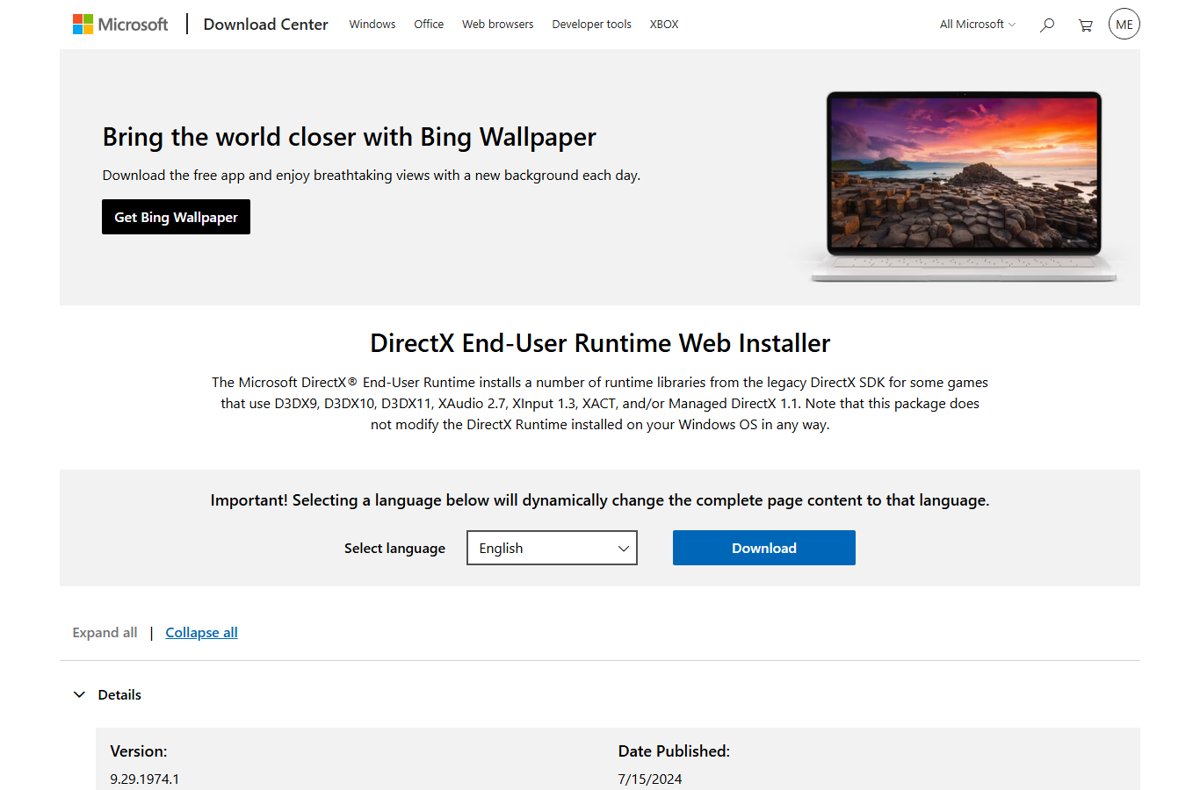
Microsoft's DirectX End-User Runtime adds libraries from the legacy DirectX SDK that some games use: D3DX9, D3DX10, D3DX11, XAudio 2.7, XInput 1.3, XACT and Managed DirectX 1.1. It does not change the DirectX runtime in Windows, and it will not raise the version DxDiag reports.
Microsoft's own DirectX support article points to this runtime when a game reports a missing d3dx9 DLL. Only install it from microsoft.com.
- Open the DirectX End-User Runtime Web Installer page on microsoft.com.
- Confirm the file is
dxwebsetup.exefrom Microsoft, then select Download. - Run
dxwebsetup.exeand follow the on-screen prompts. - Let the installer download and add the missing legacy files.
- Restart your PC and launch the game again.
The download page lists Windows 7 and older as supported systems, and notes that DirectX itself is already part of Windows 10 and later. The installer only adds the side-by-side legacy files older games look for.
Step 5: Make sure a game uses the correct GPU
Laptops with integrated and dedicated graphics can start a game on the weaker chip. That can trigger DirectX feature-level errors even when the driver is current.
- Right-click an empty area of the desktop and select Display settings.
- Scroll down and select Graphics.
- Under Custom options for apps, select the game, or choose Desktop app and select Browse to add its .exe file.
- Select the game, then select Options.
- Choose High performance to use the dedicated GPU.
- Select Save, then close and reopen the game.
Power saving uses the integrated GPU, and Let Windows decide returns the app to automatic choice. You can also press Windows + R, type ms-settings:display-advancedgraphics, and press Enter to open this page directly.
Step 6: Enable DirectPlay for very old games
DirectPlay is a legacy DirectX networking component listed under Legacy Components in Windows optional components. It is not installed by default. When an old game calls it, Windows shows a Features on Demand prompt asking permission to install it.
- Launch the old game and accept the Windows prompt to install the DirectPlay feature.
- Enter administrator credentials if Windows asks for them.
- To install it ahead of time instead, select Start, type
cmd, right-click Command Prompt, and select Run as administrator. - Run
Dism /online /Get-Featuresand find the DirectPlay entry and its exact feature name in the list. - Run
Dism /online /Enable-Feature /FeatureName:<name> /All, replacing<name>with the exact feature name from the list. - Restart your PC if DISM reports a pending change, then start the game.
Step 7: Repair Windows system files with DISM and SFC
If DirectX errors survive Windows Update and a driver reinstall, repair the Windows image. Open Command Prompt as administrator, run the DISM command below, let it finish, then run sfc /scannow.
DISM /Online /Cleanup-Image /RestoreHealthChecks the running Windows image for corruption and repairs it, using Windows Update as the default source for replacement files. Follow it with sfc /scannow, which scans protected system files and replaces incorrect versions with correct Microsoft versions.
You should see: DISM reaches 100% without an error. SFC then completes its scan and reports whether it found and replaced damaged files. Restart the PC afterwards.
How to confirm DirectX 11 or DirectX 12 is working
- Run
dxdiagand confirm DirectX Version on the System tab reads DirectX 12. - Select the Display tab and confirm Name shows your NVIDIA, AMD or Intel graphics card, not Microsoft Basic Display Adapter.
- On a laptop, check the game is set to High performance under Settings > System > Display > Graphics.
- Launch the game that failed and choose its DirectX 11 or DirectX 12 mode if its settings offer one.
- Confirm the error no longer appears on startup.
How to check DirectX 12 Ultimate support and what feature levels mean
The DirectX version in DxDiag is the Windows runtime. What your graphics card can do is its feature level, a defined set of GPU functionality. A feature level describes functionality, not performance.
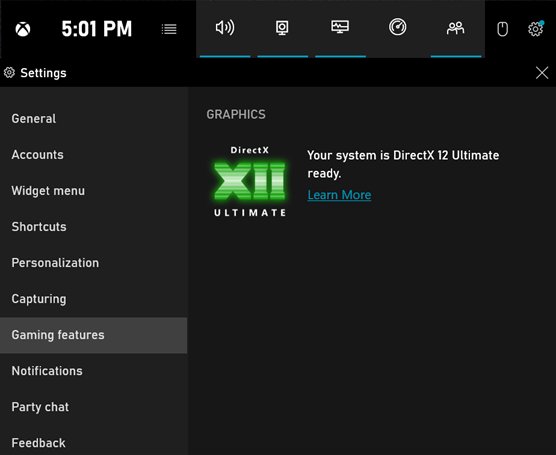
Microsoft's DirectX team says to check DirectX 12 Ultimate by pressing Windows + G to open Xbox Game Bar, opening its settings, and looking under Gaming features.
| Feature level or label | What it means | Hardware and Windows |
|---|---|---|
| 10_0 | Direct3D 10.0 functionality, shader model 4 | The minimum some game engines require |
| 11_0 | Direct3D 11.0 functionality, shader model 5 | Every Direct3D 12 driver is 11_0 or better |
| 12_0 and 12_1 | Direct3D 12 functionality | Need the Direct3D 11.3 or Direct3D 12 runtime |
| 12_2 | Direct3D 12.2 functionality, shader model 6.5 | The feature set behind DirectX 12 Ultimate |
| DirectX 12 Ultimate | DirectX Raytracing 1.1, variable rate shading, mesh shaders, sampler feedback | Examples: GeForce RTX 20 and 30 Series, Radeon RX 6000 Series; needs Windows 10 version 2004 or later |
DirectX 12 Ultimate is not something you download. If your graphics card lacks it, no Windows or DirectX update adds it; only a newer GPU does.
Should you force a game to use DirectX 11?
The DirectX mode belongs to the game, not to Windows. Change it only from the game's own settings or launcher, never with downloaded DLL files.
| Your situation | Choice | Why |
|---|---|---|
| The game runs fine in DirectX 12 | Leave it alone | DirectX 12 features such as DirectX 12 Ultimate need that mode |
| The game crashes only in DirectX 12 mode and offers DirectX 11 | Switch to DirectX 11 in the game's settings | It isolates a DirectX 12 driver or game bug without changing Windows |
| The game has no DirectX 11 option | Update Windows and the driver instead | Windows cannot force a game into a mode it does not ship |
| Your GPU is below the feature level the game requires | Check the game's minimum GPU | No DirectX mode switch adds hardware features |
Troubleshooting DirectX update problems and common DirectX 11 errors
"The program can't start because d3dx9_43.dll is missing"
The game needs a D3DX file from the legacy DirectX SDK, which Windows does not include.
- Install the DirectX End-User Runtime from its microsoft.com download page.
- Restart your PC.
- Launch the game again.
- If the error continues, run the game's own installer again so it installs the redistributables it ships with.
"DirectX Runtime is not installed" or a game's DirectX setup fails
The game is looking for its legacy DirectX files or its own bundled DirectX Setup did not finish.
- Run Windows Update and install all updates, then restart.
- Install the DirectX End-User Runtime from microsoft.com.
- Open the game's install folder and run any DirectX or redistributable installer it includes.
- Use your game launcher's verify or repair option to restore missing game files.
"DX11 feature level 10.0 is required to run the engine"
The game cannot create a Direct3D device at feature level 10_0 on the graphics adapter it is using, often because Windows is on its basic display driver or the wrong GPU.
- Run
dxdiagand check Name on the Display tab. - If it shows Microsoft Basic Display Adapter, install the driver from your GPU maker's site and restart.
- On a laptop, set the game to High performance in Settings > System > Display > Graphics.
- Check that your graphics card meets the game's minimum requirements.
Windows Update shows no DirectX update
DirectX does not appear as a separate update; its fixes ship inside regular Windows updates.
- Select Check for updates and install everything offered.
- Restart and check again until Windows reports You're up to date.
- Install display driver updates from Optional updates.
- Accept that DxDiag shows the latest DirectX your Windows version supports.
The game still fails after updating DirectX
A damaged driver install or damaged system files remain.
- Restart the PC after every update.
- Reinstall the graphics driver: in Device Manager, right-click the adapter, select the uninstall option, restart, then install the GPU maker's driver.
- Run
DISM /Online /Cleanup-Image /RestoreHealthand thensfc /scannowas administrator. - Install the game-specific redistributables from its install folder, and verify its files in the launcher.
What not to do when updating DirectX
| Do not | Why | Do this instead |
|---|---|---|
| Download a "DirectX 12 installer" from a third-party site | Microsoft publishes no such installer for Windows 10 or 11 | Run Windows Update |
| Download single DLL files such as d3dx9_43.dll | Loose DLLs from unknown sites are unverified and can be tampered with | Install the DirectX End-User Runtime from microsoft.com |
| Use a third-party driver updater | Microsoft advises getting drivers only from Windows Update or the manufacturer | Use NVIDIA, AMD or Intel's own site or app |
| Copy DirectX files into the Windows system folder | DirectX runtime files belong to Windows and are serviced by Windows Update | Repair Windows with DISM and SFC |
| Expect the End-User Runtime to upgrade DirectX | It does not modify the DirectX runtime installed with Windows | Treat it as a legacy add-on for older games only |
Frequently asked questions
How do you update DirectX on Windows 10?
Select Start > Settings > Update & Security > Windows Update, then Check for updates, and install everything listed. DirectX 11.3 and 12 are part of Windows 10 and are only updated through Windows Update. Update your graphics driver from the GPU maker afterwards.
How do you update DirectX on Windows 11?
Select Start > Settings > Windows Update > Check for updates, install the updates, and restart. Then open Advanced options > Optional updates for driver updates. DirectX 12 is built into Windows 11, so there is no separate download.
Does DirectX update automatically?
Yes. On Windows 10 and Windows 11, DirectX updates arrive through Windows Update with regular Windows updates, so keeping Windows Update running keeps DirectX current. The legacy DirectX End-User Runtime is the only piece that older games install separately.
Can you download DirectX 12 manually?
No. Microsoft does not offer a standalone DirectX 12 download for Windows 10 or Windows 11. DirectX 12 comes with Windows and updates through Windows Update. Sites offering a DirectX 12 installer are not official and should be avoided.
What is the latest DirectX version for Windows 10?
Windows 10 includes DirectX 11.3 and DirectX 12, according to Microsoft. To get a later DirectX than your Windows version carries, Microsoft says you need to upgrade the operating system itself. Run DxDiag to see the version your PC reports.
How do you install DirectX 11 on Windows 11?
You do not install it separately. The Direct3D 11 runtime is part of Windows 11, which also includes DirectX 12. Update Windows, install your graphics driver from the GPU maker, and add the DirectX End-User Runtime only if a game reports a missing D3DX file.
Is there a DirectX driver update for Windows 10?
No separate DirectX driver exists. DirectX is a Windows component, and the graphics driver comes from NVIDIA, AMD, Intel or your PC maker. Get driver updates from Windows Update optional updates or the GPU maker's own site.
What does the DirectX End-User Runtime do?
It installs legacy DirectX SDK libraries that some older games need, including D3DX9, D3DX10, D3DX11, XAudio 2.7 and XInput 1.3. It does not change the DirectX runtime in Windows. Download it only from microsoft.com.
Is the DirectX update different for Windows 10 64-bit?
No. DirectX ships with Windows, so 64-bit and 32-bit editions of Windows 10 both update it through Windows Update. There is no separate 64-bit DirectX download.