To set up a Google Chromecast, plug it into your TV's HDMI port and a wall outlet, open the Google Home app on your phone, tap Add > Device, and scan the code on the TV.
This guide covers every current model, from the Google TV Streamer and Chromecast with Google TV to the older Chromecast and Chromecast Ultra, plus testing, casting from Chrome and fixes for common setup failures.
Set up any Chromecast with the Google Home app
These steps work for every Google streaming device Google still documents. Your TV must already show the device's setup screen before you start in the app.
- Plug the Chromecast into an HDMI input on your TV, connect its power cable to the included adapter, and plug the adapter into a wall outlet.
- Turn on the TV and switch it to the HDMI input the device uses, for example HDMI 1 or HDMI 2.
- Install or update the Google Home app on your Android phone or iPhone, and connect the phone to your home Wi-Fi.
- Open the Google Home app and tap Add at the top right, then tap Device.
- Scan the QR code shown on the TV. If scanning fails, tap Use setup code and type the code instead.
- Wait for the app to connect to the device.
- Choose your Wi-Fi network, sign in with your Google Account and pick a room when the app asks.
- Follow the in-app steps until the app says setup is finished.
Google does not support Chromecast setup on a computer. Use a phone or tablet, or set up a Google TV model with its remote on the TV.
What Google Chromecast is, and which setup route your model uses
Chromecast is Google's family of streaming devices that plug into a TV's HDMI port. Older models only receive video cast from a phone or computer, while Google TV models also run apps with a remote.
Check the model name on the box before you start, because setup differs by generation.
| Your device | How it works | Setup route | Remote |
|---|---|---|---|
| Google TV Streamer (4K) | Set-top box with apps, up to 4K HDR; has an Ethernet port | Google Home app (recommended) or Set up on TV with the remote | Voice Remote included |
| Chromecast with Google TV (4K or HD) | HDMI dongle with apps; 4K model up to 4K HDR, HD model up to 1080p HDR | Google Home app (recommended) or complete setup with the Voice Remote | Voice Remote included |
| Chromecast (3rd gen or older) and Chromecast Ultra | Cast-only receiver; you pick what to play on your phone or computer | Google Home app on a phone or tablet only | No remote |
| Chromecast (1st gen) | Cast-only receiver | Google Home app, but Google has ended support | No remote; no more software or security updates |
What you need before setup, and what is in the box
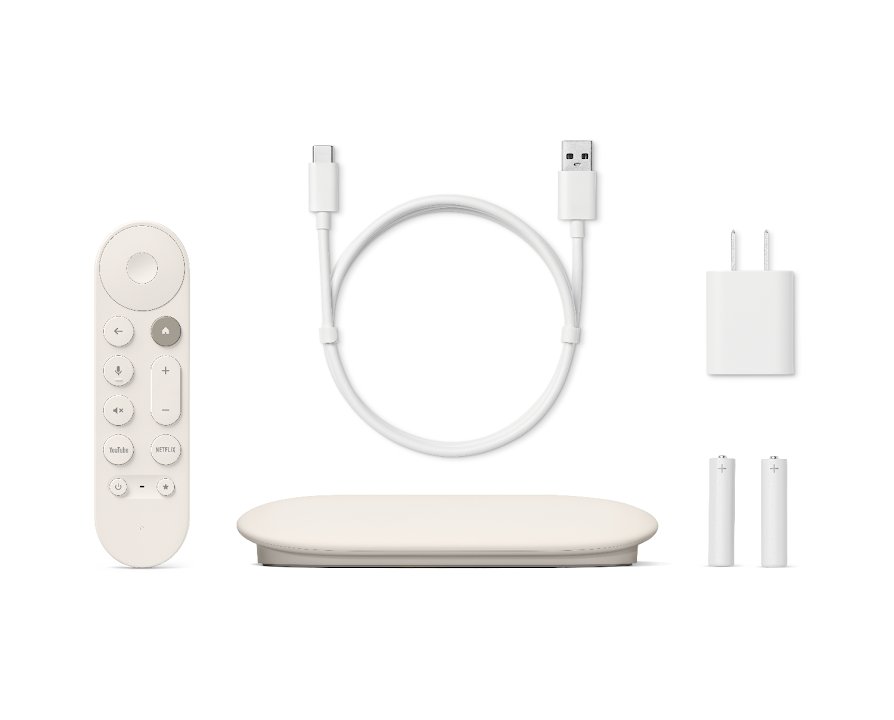
Unbox the device and check the parts first. Google says to use only the power cable that came in the box, because other cables may not work.
| Requirement | What Google specifies | Notes |
|---|---|---|
| A TV or display | An HDMI input, such as an HDTV | Google TV Streamer needs an Ultra High Speed HDMI 2.1 certified cable, sold separately |
| Phone or tablet | Latest Google Home app; Android 9.0 or later, or iPhone and iPad with iOS 17.0 or later, for older Chromecast models | The phone must support 5 GHz Wi-Fi to set up on a 5 GHz network |
| App permissions | Location, Bluetooth and camera allowed for the Google Home app | The camera scans the QR code; on iPhone, Bluetooth must be on |
| Google Account | Required; Google recommends a Gmail account | Sign in with the same account you use on your phone |
| Network | A secure Wi-Fi network with a password, or Ethernet on Google TV models | Chromecast with Google TV does not support WPA2-Enterprise networks |
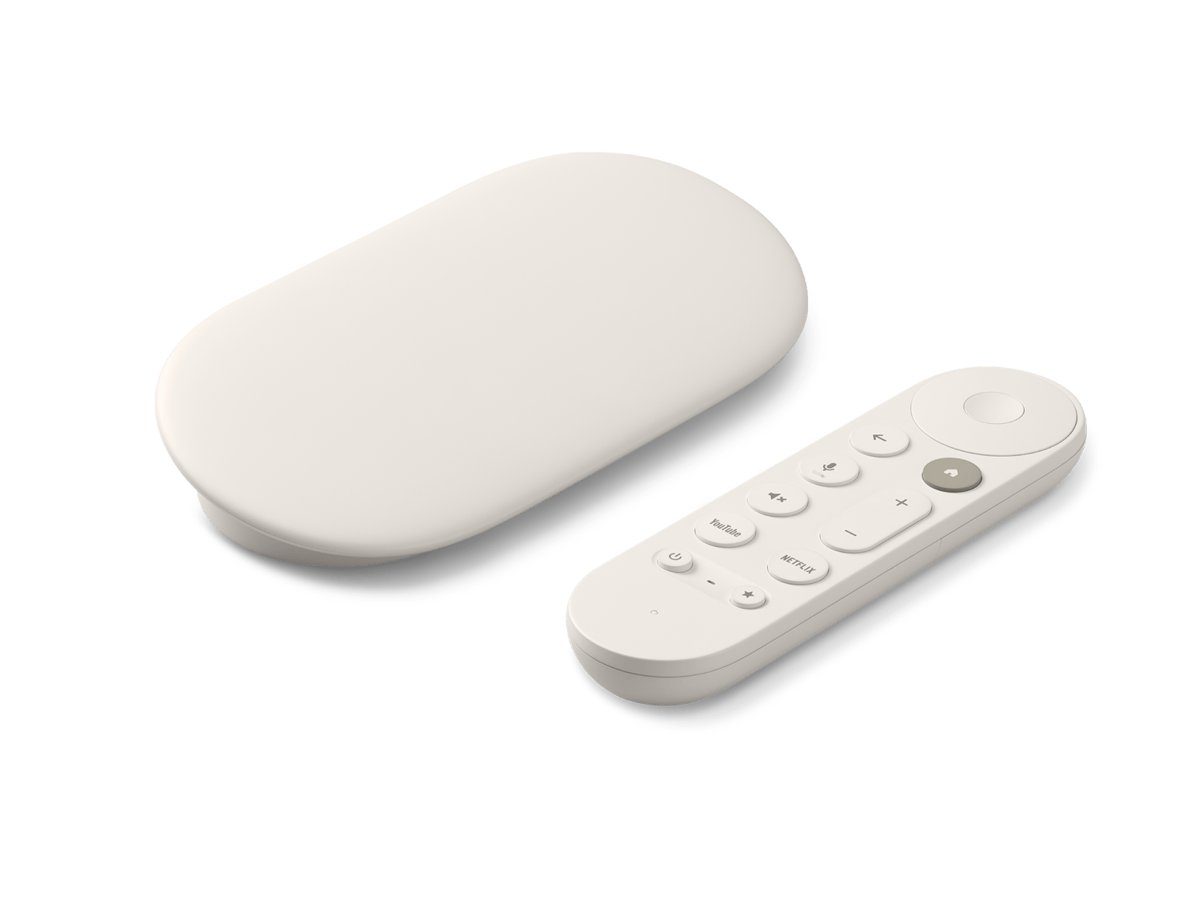
| Google TV Streamer box contents | Streamer, Voice Remote, USB-C power cable, power adapter, 2 AAA batteries | Put the batteries in the remote before you power on |
| Power | The included 5V power adapter plugged into a wall outlet | Do not power a Google TV model from the TV's USB port; it does not supply enough power |
Connect Chromecast to the TV and switch to the right HDMI input
Plug the device in before you open the Google Home app. The app cannot find a device that is not powered and showing its setup screen.
- Turn on your TV.
- Plug the Chromecast into a free HDMI port on the TV. For a Google TV Streamer, connect it with the HDMI cable.
- Plug one end of the power cable into the Chromecast and the other end into the included power adapter.
- Plug the power adapter into an open wall outlet.
- Press the input or source button on your TV remote and choose the HDMI port you used.
- Wait for the setup screen. On a Google TV model, the Voice Remote usually pairs on its own.
- If the remote does not pair, press and hold Back and Home on the remote until its light pulses.
A pulsing white light on the device means it is waiting to be set up. On a Google TV Streamer, a slow white pulse means the same thing.
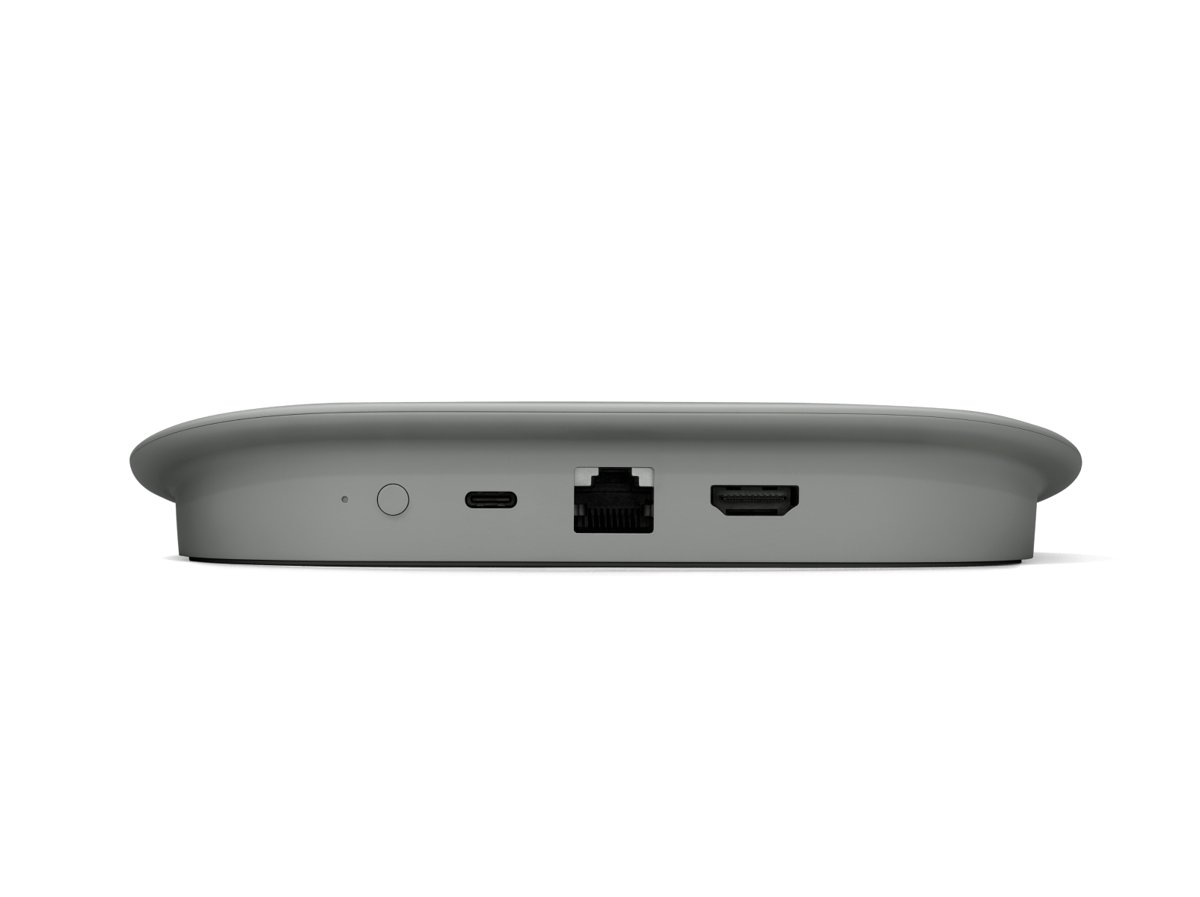
Set up Google TV Streamer or Chromecast with Google TV in the Google Home app
Google recommends the phone route for Google TV models, because the app passes your Wi-Fi and account details to the TV. Open the app only after the TV shows setup instructions.
- Open the Google Home app. If you are new to it, tap Get started, choose your Google Account and tap OK.
- Tap Add > Device, or tap Set up Chromecast if the app offers it.
- Choose the home to add the device to, or tap Add another home, then tap Next.
- Allow camera access and scan the QR code on the TV, or enter the setup code manually.
- Wait for the app to connect, then sign in with your Google Account and tap Continue.
- Select the Wi-Fi network the device should use and enter its password if asked.
- Choose the room where the TV is.
- Follow the in-app steps until you see Setup here is finished, then finish the remaining prompts on the TV.
To finalize setup and personalize the remote on Chromecast with Google TV, select Set up remote. Pick your TV brand so the remote's volume, power and input buttons control the TV, then test each button.
Set up a Google TV model on the TV without a phone
Use this route when no phone is available. Google documents these steps for the Google TV Streamer; Chromecast with Google TV offers a similar option to finish setup with the Voice Remote.
- On the setup screen, select Set up on TV with the remote.
- Select your Wi-Fi network and enter the password with the remote's directional pad.
- Sign in to your Google Account when the TV asks.
- Accept the Terms of Service.
- Follow the remaining on-screen instructions until the Google TV home screen appears.
Set up an older Chromecast (3rd gen or earlier) or Chromecast Ultra
These models have no remote and no on-TV setup, so a phone or tablet is required. If the Chromecast was used before, factory reset it first.
- Confirm the TV shows the Chromecast setup screen on the correct HDMI input.
- Open the Google Home app on your phone or tablet.
- At the top right, tap Add > Device.
- Scan the QR code of your device.
- If you cannot scan it, tap Use setup code and enter the code, or tap Add a different way and search for your device.
- Wait for the app to show that it is connected.
- Follow the in-app steps to connect the Chromecast to Wi-Fi and finish setup.
Test your Chromecast after setup
Two checks prove setup worked: the light on the device and a real cast from your phone. Your phone must be on the same Wi-Fi network as the Chromecast.
- Look at the device light. Solid white on a Chromecast or Chromecast with Google TV means it is connected and ready to cast.
- Open the Google Home app and confirm the TV appears as a device tile in the room you chose.
- Open a Google Cast-enabled app, such as YouTube, on your phone.
- Tap the Cast button and select your TV. The button turns solid when connected.
- Play a video and confirm it appears on the TV.
- To stop, tap the Cast button and select Disconnect.
The Cast button is not in the same place in every app. On iOS 14 or later, allow Local Network access for the app, or it cannot find the TV.
Cast from Chrome, mirror your screen, and change settings afterwards
Once the device works, these additional tips cover the tasks most people need next for optimal everyday usage. Guest mode, which older guides describe, is no longer supported; guests can cast by joining your Wi-Fi instead.
| What you want | How to do it | Notes |
|---|---|---|
| Cast a Chrome tab from a computer | In Chrome, select More > Cast, save and share > Cast, then pick your device | The computer must be on the same Wi-Fi; stop with Cast > Stop casting beside the address bar |
| Cast your whole computer screen | Open the Cast menu in Chrome, select Sources > Cast screen, then pick your device | On macOS 15 or later, give Chrome access in system settings first |
| Play a local music or video file | Open the file in a Chrome tab with Ctrl + O (Windows) or Command + O (Mac), then cast the tab | Works with Chromecast, Chromecast with Google TV, Google TV Streamer and Chromecast Ultra |
| Mirror an Android phone screen | In the Google Home app, touch and hold the device tile, tap Cast > Cast my screen > Cast screen | Needs Android 8.0 or later; stop with Stop mirroring |
| Move a Google TV model to a new Wi-Fi network | On the TV, select Settings > Wi-Fi network > your network > Forget network, then set up again | Applies to Chromecast with Google TV and Google TV Streamer |
| Move an older Chromecast to a new Wi-Fi network | In Google Home, touch and hold the device tile, tap Settings > Device information > Wi-Fi > Forget this network | Then set the Chromecast up again on the new network |
Fix Chromecast setup when it does not work
Match what you see to a heading below; the tips under each run from quickest to most drastic. Most failures come from the TV input, power, or the phone and Chromecast not seeing each other on Wi-Fi.
The TV shows no signal or a black screen
The TV is on the wrong input, the device lacks power, or the HDMI connection is loose.
- Set the TV to the HDMI input the Chromecast uses, for example HDMI 1 or HDMI 2.
- Plug the device into a wall outlet with the power cord and adapter it came with.
- Unplug the Chromecast power cord, wait one minute, and plug it back in.
- Push the HDMI connector firmly into the port, or try a different HDMI input.
- Remove other HDMI devices from the TV, then unplug the TV's power cord for 30 minutes.
- On a Samsung TV, turn off the HDMI UHD Color setting.
The Google Home app can't find the Chromecast
The phone is out of range, lacks a permission, or cannot see the device on the network.
- Keep the phone within 15 to 20 feet of the Chromecast and near your router.
- Turn on Bluetooth and location on the phone, and on iPhone allow Local Network access for Google Home.
- Close the Google Home app completely and reopen it.
- Turn Wi-Fi off and on in the phone's settings, then reopen the app.
- Unplug the Chromecast for one minute and restart your router.
- Uninstall and reinstall the Google Home app, or try a different phone.
Setup fails to connect to Wi-Fi
The network is hidden, uses 5 GHz on a phone that cannot, or blocks devices from talking to each other.
- If your network name is hidden, choose Other in the app and enter the network name, security type and password.
- If your phone does not support 5 GHz, set up on your router's 2.4 GHz network.
- Turn off access point (AP) isolation in your router settings.
- Chromecast with Google TV does not support WPA2-Enterprise networks, so set it up on a secure home network with a password instead.
- Factory reset the Chromecast and run setup again.
A "Low power" or g.co/cast/power screen appears
A Chromecast with Google TV or Google TV Streamer is not getting enough power.
- Use the original power adapter and cable, not the TV's USB port.
- Plug the adapter into a reliable wall outlet.
- Unplug both ends of the cable, wait 5 seconds, and reconnect them firmly.
- Remove any USB-C hub or switch between the device and the adapter.
The Voice Remote does not pair
Automatic pairing did not complete during setup.
- Check the remote has working AAA batteries installed.
- Press and hold Back and Home until the light on the remote pulses.
- If it still will not pair, factory reset the remote using Google's Voice Remote reset steps, then pair it again.
Setup still fails, or the Chromecast was used before
Old settings or a stuck state are blocking a fresh setup.
- On Chromecast with Google TV or Google TV Streamer, select your profile at the top right, then All settings > System > About > Factory Reset.
- Or hold the button on the back of a Google TV model until the light blinks yellow and then turns solid white.
- On Chromecast (2nd or 3rd gen) or Ultra, hold the button on the side until the light turns orange and then solid white.
- On Chromecast (1st gen), hold the button for at least 25 seconds, or until the solid light flashes red, and release it when the light blinks white and the TV goes blank.
- Run setup again from the Google Home app.
Chrome says "No Cast destination found"
The computer cannot see the Chromecast on the network.
- Restart the computer.
- Connect the computer to the same Wi-Fi network as the Chromecast.
- Update Chrome by typing
chrome://chromein the address bar. - Disconnect from any VPN or proxy.
- On Windows 10, set the network profile to Private in Settings > Network & Internet.
- On macOS 15 or later, open Privacy & Security > Local Network and turn it on for Chrome.
A factory reset clears your data and cannot be undone. Use it only after the other fixes fail.
Frequently asked questions
Bing's autocomplete for this query returns only generic Google account questions, so these questions come from the setup and casting topics the ranking pages cover.
Can I set up a Chromecast from a computer?
No. Google says Chromecast setup on a computer is not supported. Use the Google Home app on an Android phone, iPhone or iPad. Google TV Streamer can also be set up directly on the TV with its remote.
Can I set up a Chromecast without a phone?
Only on Google TV models. A Google TV Streamer offers Set up on TV, and Chromecast with Google TV lets you complete setup with the Voice Remote. Older Chromecast and Chromecast Ultra models need the Google Home app on a phone or tablet.
Do I need a Google Account to set up Chromecast?
Yes. Google lists a Google Account as a requirement for every Chromecast model and recommends a Gmail account. You sign in with it in the Google Home app or on the TV during setup.
Can I set up Chromecast with a Google account without Gmail?
Google lists a Google Account as the requirement and says Gmail is recommended, not required. A Google Account created with a non-Gmail address is still a Google Account you can sign in with during setup.
Why can't the Google Home app find my Chromecast?
The phone is usually too far away, missing Bluetooth, location or Local Network permission, or on a network the Chromecast cannot see. Move within 15 to 20 feet, turn those permissions on, restart the app and router, and try again.
Can I plug a Chromecast into my TV's USB port for power?
Not a Chromecast with Google TV or Google TV Streamer. Google says a TV's USB port does not provide enough power for them. Use the included power adapter in a wall outlet.
Does Chromecast work on 5 GHz Wi-Fi?
Yes. Current models support 2.4 GHz and 5 GHz Wi-Fi. To set up on a 5 GHz network, the phone you use for setup must also support 5 GHz, otherwise choose your router's 2.4 GHz network.
Is Chromecast guest mode still available?
No. Google says guest mode is no longer supported. Visitors can still cast from their Android or iOS devices by joining your Wi-Fi network and using the Cast button in a Cast-enabled app.
How do I cast to Chromecast from my phone?
Connect the phone to the same Wi-Fi as the Chromecast, open a Google Cast-enabled app, tap the Cast button and select your TV. The button turns solid when connected. Tap it again and select Disconnect to stop.
Does the first-generation Chromecast still work?
Google has ended support for Chromecast (1st gen). It no longer receives software or security updates, so it will not get fixes or new features. Google still documents how to set it up and factory reset it.