Open Control Panel > System and Security > Power Options > Choose what the power buttons do to decide what the power button, sleep button and laptop lid do in Windows 11.
This guide covers each action, the lid on laptops, adding Hibernate to the Start power menu, powercfg and Group Policy, and fixes for missing or greyed-out options. Screen and sleep timeouts are covered in the separate techdows guide to power management settings in Windows 11/10.
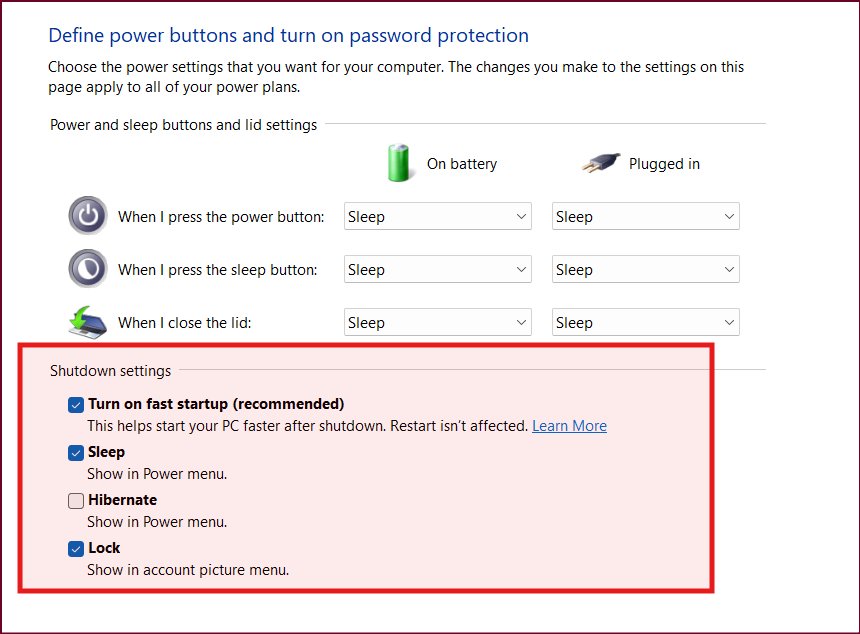
Change what the power button does in Control Panel
This route works on every Windows 11 release and on Windows 10. Each button has one action for battery power and one for plugged in.
- Select Search on the taskbar, type
control panel, and select Control Panel in the results. - Select System and Security.
- In the Power Options section, select Choose what the power buttons do.
- Open the When I press the power button list and pick Do nothing, Sleep, Hibernate or Shut down for battery and for plugged in.
- If your PC or keyboard has a sleep button, set When I press the sleep button the same way.
- On a laptop, set When I close the lid for battery and for plugged in.
- Select Save changes.
If Hibernate is not in the lists, the Hibernate section below shows how to turn it on.
What each power button setting controls
The Choose what the power buttons do page holds three hardware actions and a short list of shutdown settings. Microsoft documents four possible actions for each hardware control: Do nothing, Sleep, Hibernate and Shut down.
| Setting | What it controls | What to know |
|---|---|---|
| When I press the power button | The action when you press the physical power button while Windows runs | Separate values for battery and plugged in; it does not change the Power menu in Start |
| When I press the sleep button | The action for a dedicated sleep button or sleep key | Only matters on hardware that has a sleep button |
| When I close the lid | The action when you close a laptop lid | Shown on laptops; desktops have no lid switch |
| Shutdown settings > Hibernate | Whether Hibernate appears in Start > Power | Locked until you select Change settings that are currently unavailable |
| Fast startup (same page) | Whether Shut down saves the kernel session to Hiberfil.sys for a quicker next start | On by default when the PC can hibernate; Microsoft does not recommend turning it off, and it never applies to Restart |
Fast startup makes Shut down a partial hibernation. Choose Restart from Start > Power when you need a full boot, for example to finish some Windows updates.
Choose Sleep, Hibernate, Shut down or Do nothing for each button
Sleep uses very little power and resumes fast. Hibernate uses less power than sleep but takes longer to start, and Microsoft designed it for laptops left unused for long periods.
| Your situation | Set the button or lid to | Why |
|---|---|---|
| You step away for a short time and want your apps open when you return | Sleep | Resumes in seconds with your work where you left it |
| The laptop goes in a bag for days without a charger | Hibernate | Saves the session to disk and uses less power than sleep |
| You want one press to power the PC off completely | Shut down | Closes apps and turns the PC off; save your work first |
| You use the laptop closed with an external monitor, keyboard and mouse | Lid: Do nothing (plugged in) | Closing the lid no longer sleeps the PC while it is on the charger |
| Children or pets keep pressing the power button | Do nothing | The button no longer interrupts what the PC is doing |
| Battery life matters more on the go than at a desk | Sleep or Hibernate on battery, Do nothing plugged in | Battery and plugged-in values are set separately |
Leave a lid set to Do nothing on battery only if you remember to sleep the laptop yourself. A closed laptop that keeps running in a bag drains the battery.
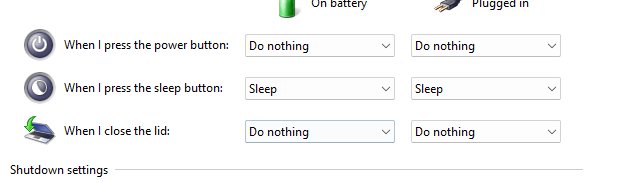
Change what closing the lid does on a Windows 11 laptop
Laptops have a second link on the Power Options page that opens the same settings page. Use either link.
- Open Control Panel > System and Security > Power Options.
- Select Choose what closing the lid does in the left pane.
- Open the When I close the lid list under the battery column and pick an action.
- Open the same list under the plugged-in column and pick an action.
- Adjust When I press the power button on the same page if you want the button to match.
- Select Save changes, then close the lid to test the new behaviour.
Use Power & battery in the Settings app on newer Windows 11 builds
Recent Windows 11 releases also list lid and button actions in the Settings app. Microsoft's release notes for Windows 11 build 26100.4762 (July 2025) refer to a Closing the lid setting under Settings > System > Power & battery.
The July 28, 2026 preview update KB5101684 (builds 26100.8973 and 26200.8973) applies power button, sleep button and lid changes made in Settings to all power plans, so your choice survives a plan switch.
- Select Start > Settings > System > About and check your OS build under Windows specifications.
- Go back to System and select Power & battery.
- Scroll to the lid and button options on that page, including Closing the lid on a laptop.
- Pick the action you want for each option shown.
- If the page shows no lid or button options, use the Control Panel steps above, which work on every build.
- Install the latest update from Settings > Windows Update if your choices do not stick after switching power plans.
Add Hibernate to the Start power menu and the button lists
Hibernation must be turned on before Hibernate shows in Start > Power. Hibernation needs the hidden Hiberfil.sys file, and PCs with InstantGo do not offer hibernate at all.
- Select Search, type
cmd, right-click Command Prompt and select Run as administrator. - Type
powercfg.exe /hibernate onand press Enter. - Open Control Panel > System and Security > Power Options > Choose what the power buttons do.
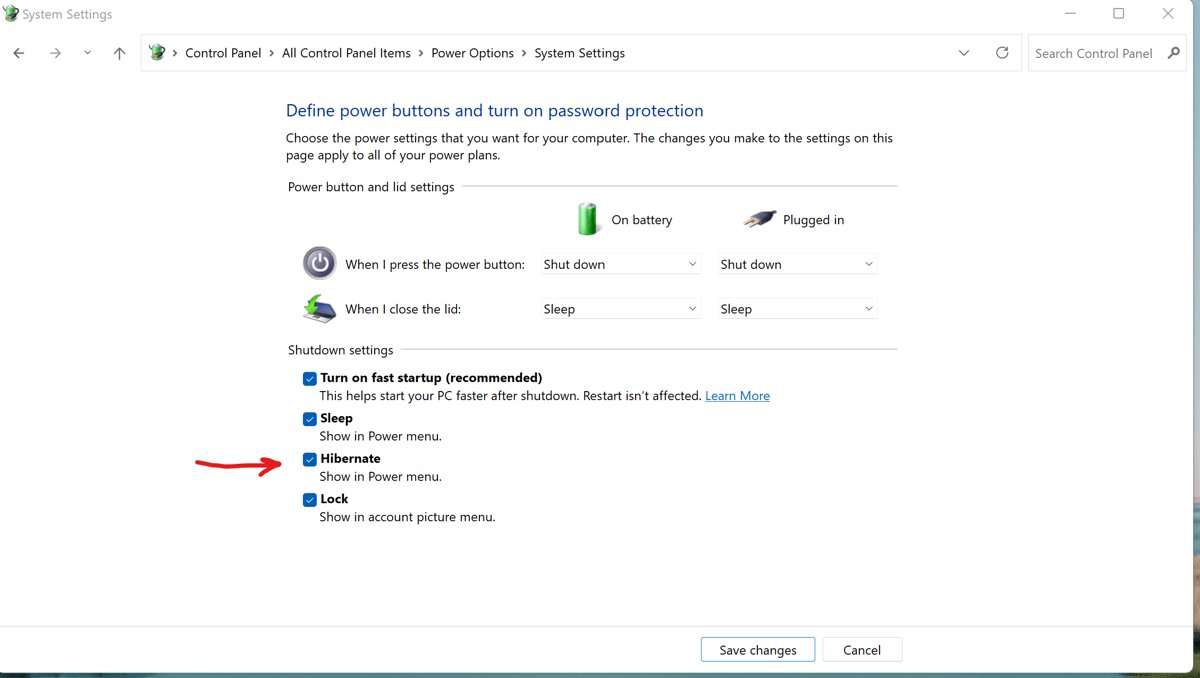
- Select Change settings that are currently unavailable.
- Under Shutdown settings, select the Hibernate checkbox.
- Select Save changes.
- Set When I press the power button or When I close the lid to Hibernate if you want the hardware to use it.
Turning hibernation off later with powercfg.exe /hibernate off also disables hybrid sleep.
Set power button, sleep button and lid actions with powercfg
Microsoft Learn documents each action as a power setting inside the Power button and lid settings subgroup. Values are 0 Do nothing, 1 Sleep, 2 Hibernate and 3 Shut down.
/setacvalueindex sets the plugged-in value and /setdcvalueindex sets the battery value. Replace the Balanced plan GUID below with the one /getactivescheme prints for your PC.
powercfg /getactivescheme
powercfg /query 381b4222-f694-41f0-9685-ff5bb260df2e 4f971e89-eebd-4455-a8de-9e59040e7347
powercfg /setacvalueindex 381b4222-f694-41f0-9685-ff5bb260df2e 4f971e89-eebd-4455-a8de-9e59040e7347 5ca83367-6e45-459f-a27b-476b1d01c936 0
powercfg /setdcvalueindex 381b4222-f694-41f0-9685-ff5bb260df2e 4f971e89-eebd-4455-a8de-9e59040e7347 5ca83367-6e45-459f-a27b-476b1d01c936 1
powercfg /setacvalueindex 381b4222-f694-41f0-9685-ff5bb260df2e 4f971e89-eebd-4455-a8de-9e59040e7347 7648efa3-dd9c-4e3e-b566-50f929386280 3
powercfg /setdcvalueindex 381b4222-f694-41f0-9685-ff5bb260df2e 4f971e89-eebd-4455-a8de-9e59040e7347 96996bc0-ad50-47ec-923b-6f41874dd9eb 1
powercfg /setactive 381b4222-f694-41f0-9685-ff5bb260df2e
/getactivescheme prints the GUID of the plan in use. /query with the plan GUID and subgroup 4f971e89-eebd-4455-a8de-9e59040e7347 lists only the button and lid settings with their current values. 5ca83367-6e45-459f-a27b-476b1d01c936 is the lid close action, 7648efa3-dd9c-4e3e-b566-50f929386280 is the power button action, and 96996bc0-ad50-47ec-923b-6f41874dd9eb is the sleep button action. The example sets the lid to Do nothing when plugged in and Sleep on battery, the power button to Shut down when plugged in, and the sleep button to Sleep on battery. /setactive reapplies the plan. powercfg /aliases lists short names such as SUB_BUTTONS, LIDACTION and PBUTTONACTION that you can use in place of GUIDs.
You should see: Run the /query line again: each changed setting shows its new index, and Choose what the power buttons do shows the matching action.
Lock button and lid actions for every user with Group Policy
On Windows 11 Pro, Enterprise and Education, Group Policy can fix each action so users cannot change it. When a policy is not configured, users see and change the setting themselves.
- Press Win + R, type
gpedit.mscand press Enter. - Go to Computer Configuration > Administrative Templates > System > Power Management > Button Settings.
- Double-click Select the Power button action (plugged in) or Select the Power button action (on battery).
- Select Enabled, choose the action under Power Button Action, then select OK.
- Repeat for Select the lid switch action and Select the Sleep button action, each with its plugged-in and on-battery versions.
- Restart the PC and open Choose what the power buttons do to confirm the lists are locked.
How to check the new power button settings work
A saved page is not proof. Test each control and read back the values Windows actually uses.
- Reopen Choose what the power buttons do and confirm every list shows your choice.
- Select Start > Power and check that Hibernate appears if you turned it on.
- Press Win + X, select Shut down or sign out, and check the same entries appear there.
- Save your work, press the power button once, and confirm the PC does what you picked.
- On a laptop, close the lid on battery, wait a few seconds, open it, and confirm the result.
- Run
powercfg /querywith your plan GUID and4f971e89-eebd-4455-a8de-9e59040e7347to read the stored values.
To wake a sleeping PC, press the power button. Some PCs also wake with any key, a mouse click, or opening the lid.
Put the power button settings back the way they were
Windows keeps no history of these choices. Record the current values before you change them, and restore them the same way.
- Before changing anything, run
powercfg /querywith your plan GUID and4f971e89-eebd-4455-a8de-9e59040e7347, and note each current index. - To revert in Control Panel, open Choose what the power buttons do, pick the original actions, and select Save changes.
- To revert from the prompt, run
/setacvalueindexand/setdcvalueindexwith the indexes you noted, then/setactivewith the plan GUID. - To hide Hibernate again, select Change settings that are currently unavailable, clear the Hibernate checkbox, and select Save changes.
- If you set Group Policy, return each Button Settings policy to Not Configured and restart the PC.
Fix missing, locked or greyed-out power button options
Find the symptom that matches your PC and work through the steps in order.
Hibernate is missing from the power button options or the Start power menu
Hibernation is off, the Hibernate checkbox is cleared, the PC uses InstantGo, or a device policy hides the option.
- Open Command Prompt as administrator and run
powercfg /availablesleepstatesto see whether hibernate is available and why not. - Run
powercfg.exe /hibernate on. - Open Choose what the power buttons do, select Change settings that are currently unavailable, select Hibernate, and select Save changes.
- If the report says the PC does not support hibernate, use Sleep or Shut down for the button instead.
- On a work or school PC, ask your IT admin; the HideHibernate Start policy removes Hibernate from the Start power menu.
Sleep is missing from the power menu or the button lists
Firmware or a driver does not support a sleep state, a policy blocks standby states, or a device policy hides Sleep.
- Run
powercfg /availablesleepstatesand read the reason listed for each unavailable state. - If it names a driver or firmware, install updates from Settings > Windows Update or from your PC manufacturer.
- In
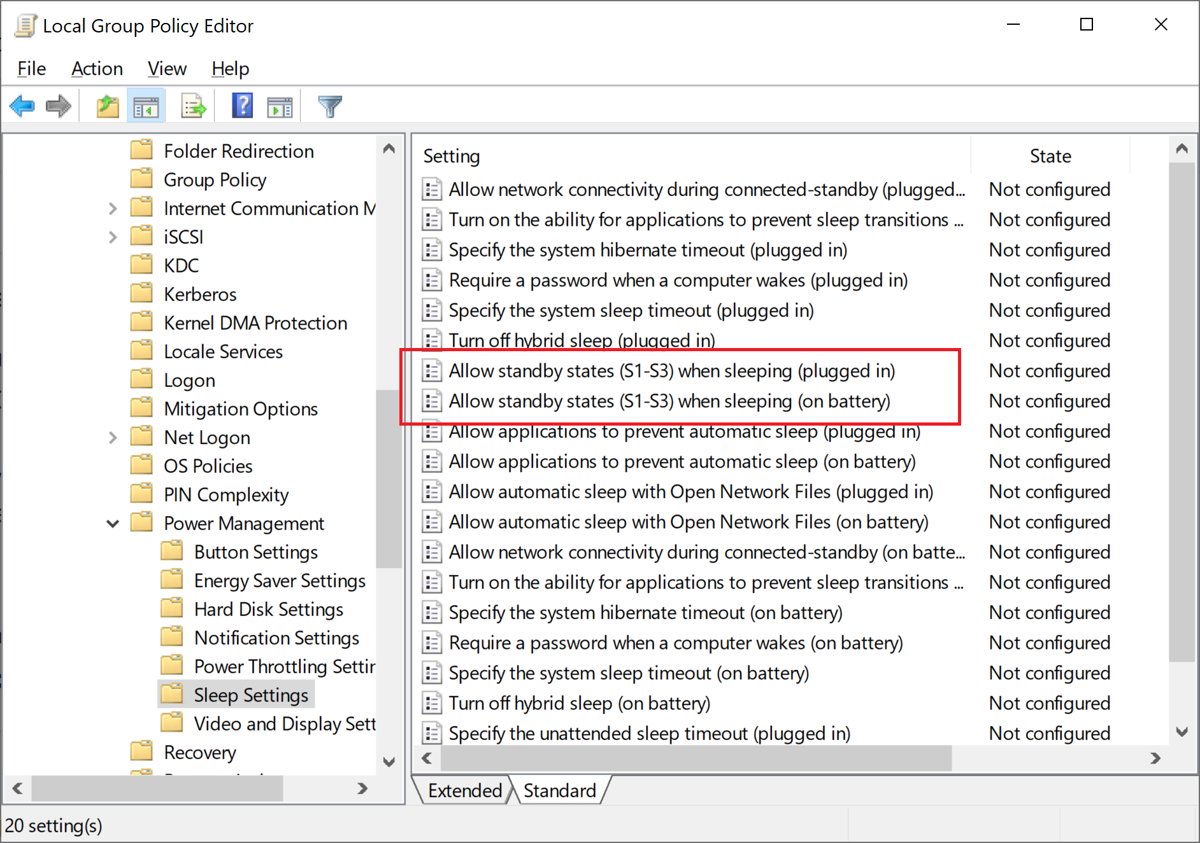
gpedit.msc, open Computer Configuration > Administrative Templates > System > Power Management > Sleep Settings. - Set Allow standby states (S1-S3) when sleeping (plugged in) and (on battery) to Not Configured if they are Disabled.
- On a managed PC, ask your IT admin; the HideSleep Start policy removes Sleep from the Start power menu.
Power button settings are greyed out or cannot be changed
Shutdown settings stay locked until you unlock them, or a Button Settings policy fixes the action for all users.
- On the Choose what the power buttons do page, select Change settings that are currently unavailable before you edit Shutdown settings.
- If the button and lid lists stay grey, open
gpedit.mscand go to Computer Configuration > Administrative Templates > System > Power Management > Button Settings. - Set each Select the Power button action, Select the Sleep button action and Select the lid switch action policy to Not Configured.
- Restart the PC and reopen the page.
- If your organisation manages the PC, the policy comes from them; ask your IT admin to change it.
Frequently asked questions
How do I customize power button settings on a Windows 11 laptop?
Open Control Panel > System and Security > Power Options > Choose what the power buttons do. Set When I press the power button and When I close the lid for battery and plugged in, then select Save changes. Newer Windows 11 builds also show lid options under Settings > System > Power & battery.
How do I stop my laptop from going to sleep when I close the lid?
Open Power Options > Choose what closing the lid does and set When I close the lid to Do nothing for plugged in, battery, or both. Select Save changes. The laptop keeps running with the lid closed, so use this setting mainly with an external monitor.
What should I do if Hibernate is missing from the power button options?
Run powercfg.exe /hibernate on in an administrator Command Prompt, then select Change settings that are currently unavailable and tick Hibernate under Shutdown settings. Hibernate then appears in the button lists. PCs with InstantGo do not support hibernate, so it stays missing there.
How can I change power button settings if the options are greyed out?
Select Change settings that are currently unavailable on the Choose what the power buttons do page first. If the lists stay grey, a policy under Power Management > Button Settings in Group Policy is set. Return it to Not Configured, or ask your IT admin on a managed PC.
Do power button settings apply differently when my laptop is plugged in versus on battery?
Yes. Windows stores a separate action for battery and plugged in for the power button, sleep button and lid. You can, for example, set the lid to Do nothing when plugged in and Sleep on battery. In powercfg, /setacvalueindex sets plugged in and /setdcvalueindex sets battery.
Can I make the physical power button turn off the screen instead of shutting down Windows 11?
Microsoft documents four power button actions: Do nothing, Sleep, Hibernate and Shut down. Pick Sleep to switch the screen off and keep your session, or Do nothing to ignore the button. To turn the screen off on a timer instead, change the screen timeout in Power & battery.
How do I adjust power settings in Windows 11 beyond the buttons?
Screen and sleep timeouts, power mode and Energy saver live in Settings > System > Power & battery, and power plans in Control Panel Power Options. The techdows guide to power management settings in Windows 11/10 covers each one step by step.
How do I power on Windows 11 from sleep or hibernate?
Press the PC's power button. On many PCs, pressing any key, clicking a mouse button, or opening the laptop lid also wakes the PC from sleep. A hibernated PC starts again from the power button.
What is the difference between Sleep and Hibernate as a power button action?
Sleep keeps your session in memory, uses very little power and resumes quickly. Hibernate saves the session to disk and uses less power than sleep, but takes longer to start. Use Sleep for short breaks and Hibernate for a laptop you will not use or charge for a while.