To put out of office on Outlook, turn on Automatic Replies: select File > Automatic Replies in classic Outlook for Windows, or Settings > Accounts > Automatic replies in new Outlook and Outlook on the web.
This guide gives the exact path for every version, including Mac and mobile, the rule-based workaround for Gmail, Yahoo and other IMAP or POP accounts, separate internal and external messages, and fixes when replies do not go out.
The fastest way to put out of office on Outlook
Find your Outlook version and account type in the first column. The last column tells you whether you can close Outlook and leave.
| Your Outlook and account | Where the setting lives | Does Outlook need to stay open? |
|---|---|---|
| Classic Outlook for Windows with Microsoft 365, Exchange or Outlook.com | File > Automatic Replies | No. Automatic Replies is a mailbox setting, not a local rule |
| Classic Outlook for Windows with Gmail, Yahoo, iCloud or another IMAP or POP account | No Automatic Replies button. Build a rule: File > Manage Rules & Alerts > New Rule | Yes. Microsoft says you must leave Outlook running for the rule to reply |
| New Outlook for Windows with a Microsoft 365, Exchange or Outlook.com account | View > View settings > Accounts > Automatic Replies | No |
| New Outlook for Windows with Gmail, Yahoo, IMAP or POP | Not supported. Microsoft documents no path | Use the email provider's own vacation reply, or classic Outlook with a rule |
| Outlook on the web or Outlook.com | Settings > Accounts > Automatic replies | No. Close the browser once you save |
| Outlook for Mac with Exchange, Microsoft 365, Outlook.com or Hotmail | Tools > Automatic Replies | No |
| Outlook for Mac with Gmail, Yahoo or another IMAP or POP account | Not supported. Microsoft documents no path | Use the email provider's own vacation reply |
| Outlook for iPhone, iPad or Android | Settings > your account > Automatic Replies | No. Supported for Microsoft 365, Exchange, Exchange (Hybrid) and Outlook.com |
Microsoft states that automatic replies are not supported for Gmail, Yahoo, POP or IMAP accounts. Only classic Outlook for Windows has a documented workaround for them.
Understand what Automatic Replies does and how often it replies
Outlook has two different out-of-office mechanisms. They behave differently, so check which one your account uses before you leave.
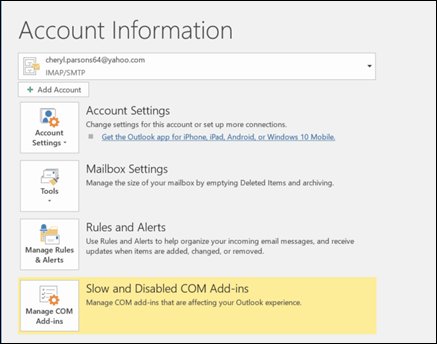
To see your account type in classic Outlook, select File > Account Settings > Account Settings and read the Type column. Exchange means Automatic Replies. IMAP or POP means the rule.
| Behaviour | Automatic Replies (Microsoft 365, Exchange, Outlook.com) | Out-of-office rule (IMAP and POP in classic Outlook) |
|---|---|---|
| Where it runs | In the mailbox, so it works with Outlook closed | In Outlook on your PC, so Outlook must stay running |
| How often each sender gets a reply | Once per sender while replies are on, per Microsoft | Microsoft's rule article does not state a limit |
| Start and end time | Yes. Replies turn off by themselves at the end time | No schedule. Turn the rule off by hand |
| Separate message for people outside your organisation | Yes, for work or school accounts | No. One template for everyone |
| Contacts-only option | Yes in classic Outlook, new Outlook and Mac | Only by adding rule conditions |
| Calendar options | Outlook on the web can block your calendar and decline meetings for the period | None |
If you set no end time, Automatic Replies stays on until you turn it off yourself.
Write your out-of-office message before you turn it on
A good reply answers three questions for the sender: when you are back, whether you are reading email, and who can help now. Leave out anything a stranger should not know, because external replies can reach newsletters and junk senders.
| Situation | Message you can copy |
|---|---|
| Simple vacation | Thanks for your email. I'm out of the office until Monday, June 8, with no access to email. I'll reply when I return. |
| Internal message for coworkers | I'm out until June 8. For anything urgent on the Q2 report, contact Sam Lee at [email protected]. Everything else can wait for my return. |
| External message for clients or vendors | Thank you for your message. I'm away until June 8. For urgent requests, please contact our support team at [email protected]. |
| Limited email access | I'm traveling until June 8 and checking email once a day. Expect a slower reply than usual. For urgent matters, contact Sam Lee. |
| Parental or extended leave | I'm on leave until September 1 and not checking email. Please contact Sam Lee at [email protected] for anything related to my projects. |
Best practice: give an exact return date, name a real backup contact who has agreed to cover, and keep the external message shorter than the internal one. Avoid mentioning where you are or that your home is empty.
Put out of office on classic Outlook for Windows
These steps apply to Outlook for Microsoft 365, Outlook 2024 and Outlook 2021 with an Exchange-based account. No Automatic Replies button under File means the account is IMAP or POP; use the rule method further down.
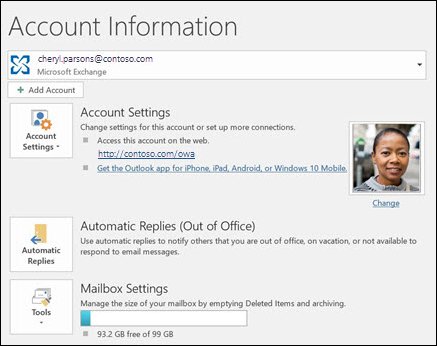
- Select File on the ribbon, then Automatic Replies.
- In the Automatic Replies box, select Send automatic replies.
- To schedule it, select Only send during this time range and set the start and end dates and times.
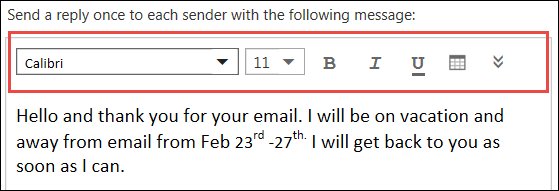
- Type your message on the Inside My Organization tab.
- For outside senders, open the Outside My Organization tab, select Auto-reply to people outside my organization and type that message.
- Choose My Contacts only or Anyone outside my organization.
- Select OK. A message bar under the ribbon confirms replies are on.
Put out of office on the new Outlook for Windows
New Outlook supports Automatic Replies for Microsoft 365, Exchange and Outlook.com accounts. Microsoft says it is not supported for Gmail, Yahoo, POP or IMAP accounts.
- On the View tab, select View settings.
- Select Accounts > Automatic Replies.
- Turn on the Automatic replies toggle.
- Select Send replies only during a time period and enter the start and end times.
- Type your message in the box.
- For a work or school account, select Send replies outside your organization if external senders should get a reply.
- Select Send replies only to contacts to limit external replies to people in your Contacts list.
- Select Save.
Put out of office in Outlook on the web or Outlook.com
The web version adds calendar options that the desktop apps do not show. Use it when you are away from your own computer.
- Sign in to Outlook on the web or Outlook.com.
- At the top right, select Settings > Accounts > Automatic replies.
- Select the Turn on automatic replies toggle.
- Select Send replies only during a time period and enter a start and end time.
- Optionally select Block my calendar for this period, Automatically decline new invitations for events that occur during this period or Decline and cancel my meetings during this period.
- Type your message in the box at the bottom.
- Select Send replies outside your organization if external senders should get a reply.
- Select Save at the top of the window.
Put out of office in Outlook for Mac
Outlook for Mac does not support automatic replies for Gmail, Yahoo or other POP and IMAP accounts. Exchange, Microsoft 365, Outlook.com and Hotmail accounts work.
- Select Mail in the navigation pane.
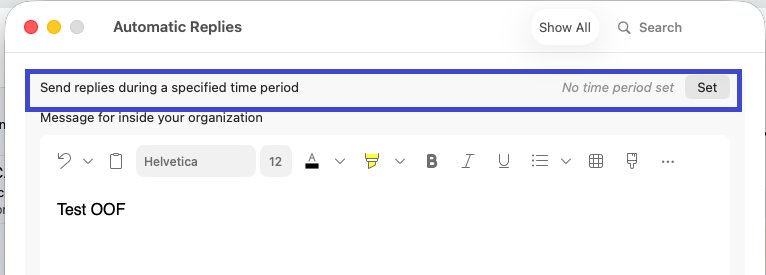
- Select the Tools menu, then Automatic Replies.
- Pick the account from the dropdown and turn on Send Automatic Replies.
- Enter your reply under Message for inside your organization.
- To schedule it, turn on the option next to Send replies during a specific time period and set the start and end dates and times.
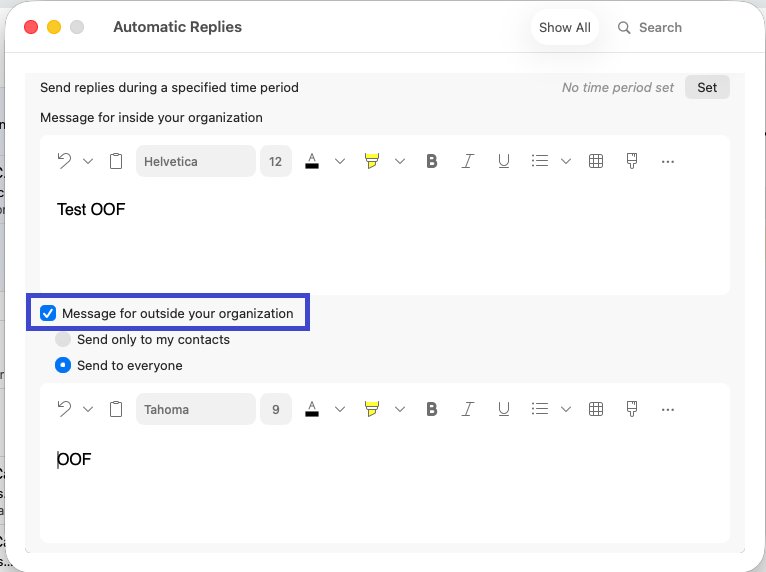
- For outside senders, select Message for outside your organization, choose Send only to my contacts or Send to everyone, and enter that reply.
Put out of office in the Outlook mobile app
Outlook for iPhone, iPad and Android support automatic replies for Microsoft 365, Exchange, Exchange (Hybrid) and Outlook.com accounts.
- Open Outlook and tap Settings.
- Tap your account.
- Tap Automatic Replies and turn the switch on.
- Turn on Reply during a time period and set the start and end time.
- Optionally create an out-of-office calendar event, or use Clear my calendar to choose meetings to cancel or decline.
- Choose to reply to everyone or only to your organization, and type a message for each audience.
- Tap Save.
Set out of office for Gmail, Yahoo, iCloud or IMAP accounts in Outlook with a rule
Only classic Outlook for Windows has a documented workaround for IMAP and POP accounts. It is a rule that replies with a saved template, and Microsoft says you must leave Outlook running while you are gone.
If the PC will be off, set the provider's own vacation reply in its webmail instead. In Gmail, that is Settings > See all settings > General > Vacation responder.
- Create a new email and type the subject and body of your out-of-office message.
- Select File > Save As and choose Outlook Template (*.oft) from the file type list, then save it in the default location.
- Close the message without sending it, then select File > Manage Rules & Alerts.
- On the E-mail Rules tab, select New Rule, then Apply rule on messages I receive.
- Leave the conditions unchanged to reply to every message you receive.
- Select the action reply using a specific template.
- In the Look In box at the top of the Select a Reply Template box, select User Templates in File System and pick your template.
- Add any exceptions, name the rule, and check Turn on this rule to start it now.
Leave Outlook open and the PC awake. To reuse the rule next time, open File > Manage Rules & Alerts and tick its check box.
Send different replies inside and outside your organization
Separate internal and external messages are an Exchange feature, so they appear only for work or school accounts. Microsoft warns that replying to anyone outside your organization sends the reply to every email, including newsletters, advertisements and possibly junk email. It recommends My Contacts only.
| Your Outlook | Internal message | External message and audience |
|---|---|---|
| Classic Outlook for Windows | Inside My Organization tab | Outside My Organization tab > Auto-reply to people outside my organization, then My Contacts only or Anyone outside my organization |
| New Outlook for Windows | Main message box | Send replies outside your organization, plus Send replies only to contacts |
| Outlook on the web | Main message box | Send replies outside your organization |
| Outlook for Mac | Message for inside your organization | Message for outside your organization, then Send only to my contacts or Send to everyone |
| Outlook mobile | Message for your organization | Reply to everyone, with a separate message for external senders |
| Microsoft 365 admin, PowerShell | -InternalMessage |
-ExternalMessage with -ExternalAudience None, Known or All |
Set out of office for a shared mailbox
In new Outlook, add the shared mailbox as an account first. That needs Full Access permission from your IT admin. It then appears in the account selector on the Automatic Replies page.
In classic Outlook, a known issue from Version 2505 shows "Your automatic reply settings cannot be displayed because the server is currently unavailable" for shared mailboxes. Microsoft fixed it in Version 2508 Build 19127.20000 and lists Outlook on the web as the workaround.
An Exchange Online admin can set the reply directly with PowerShell. This example schedules internal and external replies:
Set-MailboxAutoReplyConfiguration -Identity [email protected] -AutoReplyState Scheduled -StartTime "7/10/2026 08:00:00" -EndTime "7/15/2026 17:00:00" -InternalMessage "Internal auto-reply message" -ExternalMessage "External auto-reply message" -ExternalAudience All-AutoReplyState Scheduled sends replies only between -StartTime and -EndTime; use Enabled for no schedule or Disabled to turn it off. -ExternalAudience accepts None, Known (contacts only) or All. Dates use the short date format of the computer running the command.
You should see: Open the shared mailbox's Automatic replies page in Outlook on the web and confirm the toggle is on with the dates and messages you set.
For a new Outlook user with Full Access: select Settings > Accounts > Shared with me, select Convert on an auto-mapped mailbox or + Add for one that is not listed, then open Automatic Replies and pick the shared mailbox.
How to check your out of office reply is working
- In classic Outlook, look for the message bar under the ribbon saying automatic replies are being sent.
- In new Outlook, the web or Mac, reopen the Automatic Replies page and confirm the toggle is on and the dates are right, including AM and PM.
- Ask a coworker to send you an email and confirm they receive the internal message.
- Send a test from a personal address outside your organization to confirm the external message, if you turned it on.
- Remember each sender gets one reply, so a second test from the same address shows nothing new.
- For a rule on an IMAP or POP account, confirm the rule's box is ticked in File > Manage Rules & Alerts and leave Outlook running.
How to turn off out of office early
A scheduled reply stops at its end time. Back early, or set no end time? Turn it off by hand.
- Classic Outlook: select Turn off in the message bar under the ribbon.
- New Outlook: open View > View settings > Accounts > Automatic Replies, turn off the Automatic replies toggle and select Save.
- Outlook on the web: open Settings > Accounts > Automatic replies, turn off the toggle and select Save.
- Outlook for Mac: select Tools > Automatic Replies and turn off Send Automatic Replies.
- Outlook mobile: tap Settings > your account > Automatic Replies and turn the switch off.
- Rule-based reply: open File > Manage Rules & Alerts, clear the rule's check box.
Fix out of office in Outlook when it does not work
Match the symptom, then run only the fix beneath it.
Why can't I find Automatic Replies in Outlook?
The account is IMAP or POP, such as Gmail, Yahoo or iCloud, which does not support the feature.
- In classic Outlook, select File > Account Settings > Account Settings and check the Type column.
- If it says IMAP or POP, set up the rule-based reply described above and keep Outlook running.
- In new Outlook or on a Mac, use the provider's webmail vacation reply instead.
- If you have several accounts, pick the Microsoft 365, Exchange or Outlook.com account in the account selector first.
The OK button is missing in the Automatic Replies box
Microsoft notes certain screen resolution and scaling settings hide the button.
- Lower the display scaling or raise the resolution in Windows display settings.
- Reopen File > Automatic Replies and select OK.
- If it is still hidden, set the reply in Outlook on the web instead.
Automatic replies are on but people outside the organization get nothing
External replies are off, limited to contacts, or blocked by an admin's remote domain setting, which overrides your choice without any error.
- Open the Outside My Organization tab or Send replies outside your organization option and confirm it is selected.
- Check whether contacts-only is set; senders not in your Contacts list get no reply.
- Ask your IT admin whether the remote domain in Exchange Online allows out-of-office messages to that domain.
A sender got one automatic reply and none after that
This is expected. Automatic Replies sends one reply to each sender while it is on.
- Leave the setting as it is; the sender already has your message.
- Put the return date and backup contact in the message from the start, because repeat senders do not see a second reply.
The rule-based out-of-office reply is not sending
Outlook was closed, offline or the rule is turned off.
- Open Outlook and let it connect.
- Select File > Manage Rules & Alerts and confirm the rule is ticked.
- Leave Outlook running and stop the PC from sleeping while you are away.
Shared mailbox shows "the server is currently unavailable"
A classic Outlook known issue introduced in Version 2505, fixed in Version 2508 Build 19127.20000.
- Select File > Office Account > Update Options > Update Now.
- Until the update installs, set the shared mailbox reply in Outlook on the web under Settings > Accounts > Automatic replies.
Frequently asked questions
How do I put out of office on Microsoft Outlook?
In classic Outlook for Windows, select File > Automatic Replies, then Send automatic replies. In new Outlook, go to View > View settings > Accounts > Automatic Replies. On the web, use Settings > Accounts > Automatic replies. Type a message, set dates and save.
How do I turn on out of office in Outlook without keeping my computer on?
Use Automatic Replies with a Microsoft 365, Exchange or Outlook.com account. It is a mailbox setting, so it keeps replying with Outlook closed. Only the rule-based method for IMAP and POP accounts needs classic Outlook to stay running.
How do I put out of office in the Outlook calendar?
In Outlook on the web, turn on automatic replies with a time period and select Block my calendar for this period. In Outlook mobile, create an out-of-office event from the Automatic Replies screen. Both show you as out of office for those dates.
How do I put out of office in Teams?
Select your profile picture in Teams, choose Set status message, then Schedule out of office. Turn on Turn on automatic replies, type the message, set the time period and select Save. Teams turns on the matching Outlook automatic replies.
Does out of office in Teams and Outlook sync?
Yes. Microsoft says an out-of-office message scheduled in Teams turns on automatic replies in Outlook with the same time range and message. Changes you make later in Outlook are reflected back in Teams.
How do I put out of office in Gmail?
In Gmail on a computer, select Settings > See all settings, go to the General tab and find Vacation responder. Select Vacation responder on, fill in the dates, subject and message, then select Save Changes. This runs in Gmail, so Outlook can stay closed.
How often does Outlook send an automatic reply?
Automatic Replies sends one reply to each person who emails you while it is on. A sender who writes five times gets one reply. Microsoft's article on out-of-office rules for IMAP and POP accounts does not state how often a rule replies.
What does inside my organization mean in out of office?
Inside your organization means senders with an address in your company's Microsoft 365 or Exchange organization. Everyone else is outside. Work and school accounts can send each group a different message, and external replies can be limited to your contacts.
What should I write in an out of office message?
State the date you return, whether you are checking email, and who to contact for urgent matters. Keep the external version short and leave out your location. The example messages above cover vacation, limited access and extended leave.