Google does not publish a Google Play Store app for Windows or Mac, so there is no official Play Store download for PC. The official way to play Google Play games on Windows 11 or Windows 10 is Google Play Games on PC, downloaded from play.google.com/googleplaygames, and the Play Store website at play.google.com lets any computer install apps onto your Android phone.
The other route many older guides describe, Windows Subsystem for Android, is gone: Microsoft says that starting March 5, 2025, Windows Subsystem for Android and the Amazon Appstore are no longer available in the Microsoft Store. This guide covers what actually works now, the PC requirements, how to install and update Google Play Games, what a Mac gets, and fixes for failed installs.
Google Play Store download for PC: what Google offers
Match your device below. Most rows need no download at all.
| Your device | What to use | Download |
|---|---|---|
| Windows 11 or Windows 10 PC, to play games | Google Play Games on PC | Free installer from Google’s page |
| Windows PC or Mac, to install apps on a phone | The Play Store website | None |
| Windows 11 with Windows Subsystem for Android | Discontinued; not available in the Microsoft Store since March 5, 2025 | None |
| Mac, to run Android games on the Mac | No Google client exists for macOS | None |
| Android phone or tablet | Already installed on devices that support Google Play | None |
| Chromebook that supports Android apps | Turn on Google Play in ChromeOS Settings | None |
Google’s own help page states that Play Store apps are designed for supported Android and Chromebook devices and can’t be used on Windows or Mac computers. Any site offering a “Play Store for PC” .exe is offering something Google does not publish.
Download Google Play Games on PC from the official Google page
Google Play Games on PC is Google’s only Windows client. It plays Android games from Google Play with a keyboard and mouse, syncs progress with your phone, and earns Google Play Points.
- Google Play Games on PC: the official download page; select Download on PC.
- Install & set up Google Play Games on your PC: Google’s install steps.
- Check if your PC can run Google Play Games on PC: the requirements list.
- Google Play Store on the web: browse and install apps to your Android devices.
The installer Google serves is 42,538,096 bytes (about 40.6 MB). It is a downloader: the platform itself arrives during setup, which is why Google asks for 10 GB of free SSD space.
What are the minimum requirements to run Google Play Games?
| Requirement | Minimum | Recommended |
|---|---|---|
| Operating system | Windows 10 (v2004) | Windows 10 (v2004) |
| Storage | Solid state drive (SSD) with 10 GB of available space | Same |
| Memory | 8 GB of RAM | 8 GB of RAM |
| Graphics | Intel UHD Graphics 630 GPU or comparable | Gaming-class GPU, like Nvidia GeForce MX450 |
| Processor | 4 CPU physical cores | 8 logical cores |
| Other | Windows admin account, and hardware virtualization turned on | |
| Account | A personal Google Account, with your Play country set to a supported country or region | |
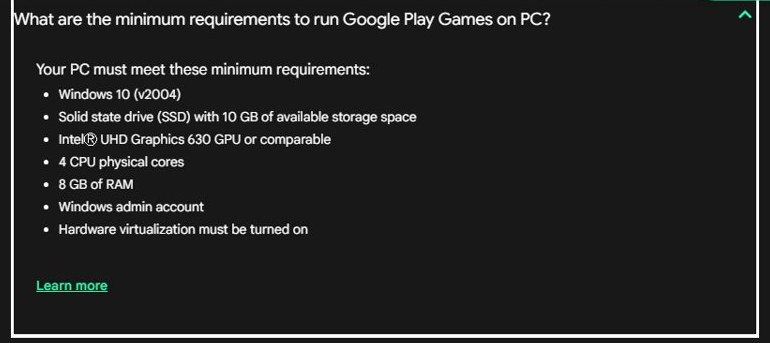
Google also advises setting the SSD up as the main drive. If the PC misses a minimum requirement, the installer tells you which one and stops. Windows 11 meets the operating system requirement.
How to install Google Play Games on Windows 11 and 10
- Sign in to Windows with an administrator account.
- Open play.google.com/googleplaygames in your browser and select Download on PC.
- Open the downloaded file and follow the instructions. The installation can take a few minutes.
- If you are prompted to turn on Windows Hypervisor Platform, accept, then restart the PC.
- Open Google Play Games and sign in with the same Google Account you use on your phone.
- Install a game to confirm the platform runs.
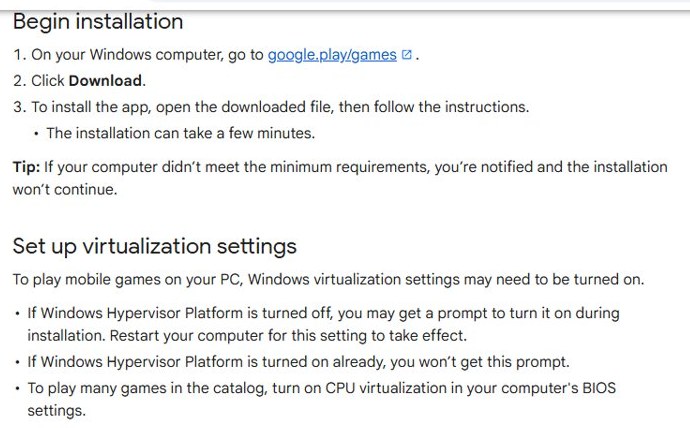
To play many games in the catalog, CPU virtualization must also be turned on in the PC’s BIOS or UEFI settings. Microsoft explains how to enable virtualization on Windows. Google notes that other emulators may stop working once Windows Hypervisor Platform is on, and only the first user who installed Google Play Games on a PC can open it. Our earlier walkthrough of Google Play Games on PC shows the app itself.
Install Google Play Store on Windows 11 with Windows Subsystem for Android
This no longer works. Windows Subsystem for Android (WSA) let Windows 11 run Android apps from the Amazon Appstore, never from Google Play. Guides that put the Play Store on Windows 11 did it by installing modified, unofficial WSA builds.
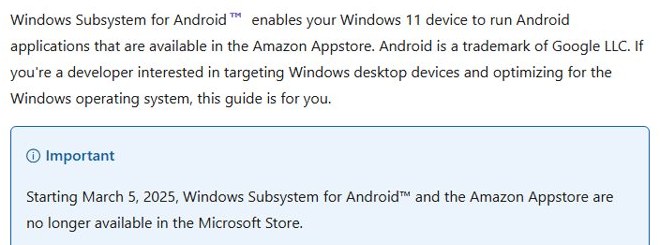
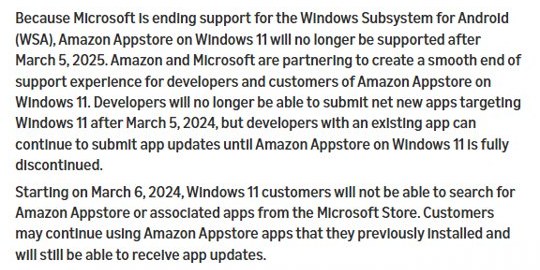
Microsoft’s documentation now states that starting March 5, 2025, Windows Subsystem for Android and the Amazon Appstore are no longer available in the Microsoft Store. Amazon’s developer notice says the end of support came because Microsoft is ending support for WSA, and that apps installed from the Amazon Appstore on Windows 11 are no longer supported after that date.
Do not install a modified WSA package from GitHub or a download site to get the Play Store. It is unsupported, receives no security updates, and asks you to trust files that neither Microsoft nor Google publishes.
How to install Play Store apps from a PC or Mac browser
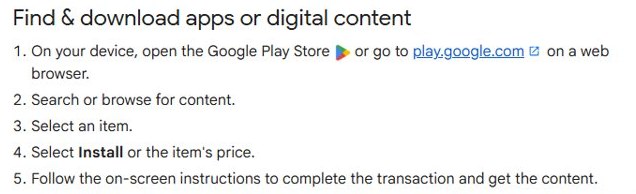
The Play Store website sends an app to any Android device signed in to the same Google Account. This is the official way to “use the Play Store on a PC”.
- Go to play.google.com and sign in with your Google Account.
- Search for the app, or browse to its listing, and select it.
- Select Install or the item’s price.
- Choose the device from the list and confirm.
- Unlock the phone or tablet; the download starts on its own.
Keep Google Play Protect turned on on the phone so apps are scanned as they arrive.
How is Google Play Games for Windows different from the Google Play Games mobile app?
They share a name but do different jobs. Google Play Games on PC is a Windows program that runs Android games on the PC itself. The Google Play Games mobile app on Android is a hub for your gamer profile, achievements and game library, and it does not run games on a computer.
| Feature | Google Play Games on PC | Google Play Games mobile app |
|---|---|---|
| Runs on | Windows 10 (v2004) and later | Android |
| Plays games on that device | Yes, from its PC catalog | Games run as normal Android apps |
| Progress sync | Yes, for supported games | Yes |
| Google Play Points | Earned on PC purchases | Earned on mobile purchases |
Points from both count towards the same account; this guide explains how to earn and use Google Play Points.
What games are available on Google Play Games for Windows?
Every game in the PC catalog carries a badge on its details page, so you know what to expect before you install it.
| Badge | What it means | Where the game appears |
|---|---|---|
| Optimized | The developer optimized it for Windows | Search, catalog and the web listing |
| Playable | Google tested it: stable, 30 fps or higher, mouse or keyboard support | Search, catalog and the web listing |
| Untested | Google has not tested it on PC, but it might still be playable | Name search inside the app only |
| Unsupported | Known technical issues; expect crashes, sign-in errors or poor performance | You can still try to launch it |
| Not available | Not offered on PC, or not for your computer | Not on PC |
The catalog is games. Non-game Android apps such as WhatsApp or Instagram are not part of Google Play Games on PC; use their web or Windows versions instead.
Google Play Store download for Mac
There is none. Google publishes neither the Play Store nor Google Play Games for macOS, and Google Play Games on PC lists Windows as its only supported system.
| What you want to do on a Mac | How | Works? |
|---|---|---|
| Browse and search the store | play.google.com in Safari or Chrome | Yes |
| Install an app onto your Android phone | Select Install, then pick the device | Yes |
| Run an Android game on the Mac | Google Play Games on PC is Windows only | No |
| Install the Play Store app on macOS | Google publishes no macOS release | No |
Is Google Play Store free?
Yes, and so is Google Play Games on PC. Google charges for apps, subscriptions and in-app items, not for the store or the PC client. Any page selling a Play Store setup file or a licence key is selling something Google does not publish. To keep paid items under control, see how to manage Google Play subscriptions.
Android emulators for PC instead of Google Play Games
Third-party Android emulators, such as BlueStacks, are the other route rival guides recommend. They are not made by Google, they run their own copy of Android, and some need you to sign in to Google Play inside the emulator.
- Download an emulator only from its developer’s own website, never from a mirror site.
- Expect conflicts: Google notes that other emulators might not work when Windows Hypervisor Platform is turned on for Google Play Games.
- Prefer Google Play Games on PC for games it supports, because it comes from Google and receives Google’s updates.
- To install a single APK you trust onto a real phone, use ADB from your PC instead of an emulator.
How to check your Google Play Games version and update it
- Right-click Google Play Games in the notification area of the taskbar.
- Select Check for updates and follow the instructions.
- If the update fails, uninstall the app from Settings > Apps > Installed apps.
- Download the installer again from play.google.com/googleplaygames and sign back in.
On Android there is nothing to update by hand; the Play Store updates itself.
How to check the Google Play Games installer is genuine
- Download only from play.google.com/googleplaygames.
- Right-click the downloaded installer and select Properties.
- Open the Digital Signatures tab and check that the signer is Google LLC.
- On the General tab, compare the size with 42,538,096 bytes, the size of the file Google serves today.
A file with no Digital Signatures tab did not come from Google.
Fix Google Play Games not installing on Windows
Google publishes an error code table for the installer. The common codes and Google’s fixes:
| Error code | Meaning | Fix |
|---|---|---|
| NU80070070 | Not enough storage space | Free at least 10 GB on the C: drive |
| NU80070005, NU80070542 | No full Windows administrator privileges | Install from an administrator account |
| NU80010108, NU80040811 | Upgrade Windows | Update Windows to a later version, then try again |
| NU80040801 | Network connection is unstable | Check your connection, then try again later |
| NU80040804, NU80040904, NU80070424 | Download the installer again | Get a fresh installer from Google Play Games on PC |
| NU80040806 | Not available in your region | Check Google’s country and region list |
| 10901, 99999, NC99999 | Unexpected error on Google’s side | Install again; if it fails, restart the PC and retry |
Games will not start after the install finishes
- Turn on Windows Hypervisor Platform when prompted, then restart the PC.
- Turn on CPU virtualization in the BIOS or UEFI settings.
- Update the graphics driver from the GPU maker.
- Right-click the taskbar icon, exit Google Play Games, then reopen it.
The Play Store icon is missing on your Android phone
- Open Settings > Apps, find Google Play Store and select Enable if it is turned off.
- Restart the phone.
- If the store is still missing, the device may not be Play Protect certified; contact the manufacturer or carrier.
How to uninstall Google Play Games on PC
- Press Windows + I to open Settings.
- Select Apps > Installed apps.
- Find Google Play Games, select the three dots and select Uninstall.
- Restart the PC, then reinstall from play.google.com/googleplaygames if you were repairing it.
If you no longer use other emulators either, Google also documents how to turn off Windows Hypervisor Platform after removing Play Games.
Google Play Store for PC FAQ
Is there a Google Play Store download for PC?
No. Google publishes no Play Store app for Windows or macOS, and says Play Store apps can’t be used on Windows or Mac computers. On a PC, use Google Play Games on PC for games and the Play Store website to install apps on your phone.
Is the Google Play Store free?
Yes, and so is Google Play Games on PC. Google charges for apps, subscriptions and in-app items, never for the store. Any site selling a Play Store licence key is selling something else.
What is the official Google Play Store download page?
play.google.com is the store itself, and it works in any desktop browser. Google’s only Windows client, Google Play Games on PC, comes from play.google.com/googleplaygames.
Does the Google Play Store work on Windows 11?
Not as an app. Google Play Games on PC runs on Windows 10 version 2004 and later, which includes Windows 11, and plays games from Google Play. Windows Subsystem for Android, which ran Amazon Appstore apps, has not been available in the Microsoft Store since March 5, 2025.
Is Windows Subsystem for Android discontinued?
Yes. Microsoft states that starting March 5, 2025, Windows Subsystem for Android and the Amazon Appstore are no longer available in the Microsoft Store, and Amazon ended support for Appstore apps on Windows 11 on the same date.
How big is the Google Play Games download?
The installer Google serves is 42,538,096 bytes, about 40.6 MB. It downloads the platform during setup, so Google requires an SSD with 10 GB free.
Is there a Google Play Store offline installer?
No. Google ships no Play Store setup file for Windows or macOS, and the Google Play Games installer fetches its platform during setup, so it needs an internet connection.
Is there a Google Play Store for Mac?
No. Google lists Windows as the only supported system for Google Play Games on PC and publishes no Play Store client for macOS. Use play.google.com in a browser instead.
Is it safe to download a Google Play Store APK for Windows?
No. An APK does not run on Windows by itself, and Play Store APKs on download sites are not distributed by Google. Use Google Play Games on PC or the Play Store website.
Why will Google Play Games not install on my PC?
The installer stops when the PC misses a minimum requirement, and it names the item. The usual causes are less than 10 GB free on the C: drive, an old Windows build, no administrator rights, virtualization switched off, or an unsupported region.

How to Install Google Play Games Beta on Your Windows PC to Play Android Games - Techdows
[…] It installs games only; see the Google Play Store for PC guide […]