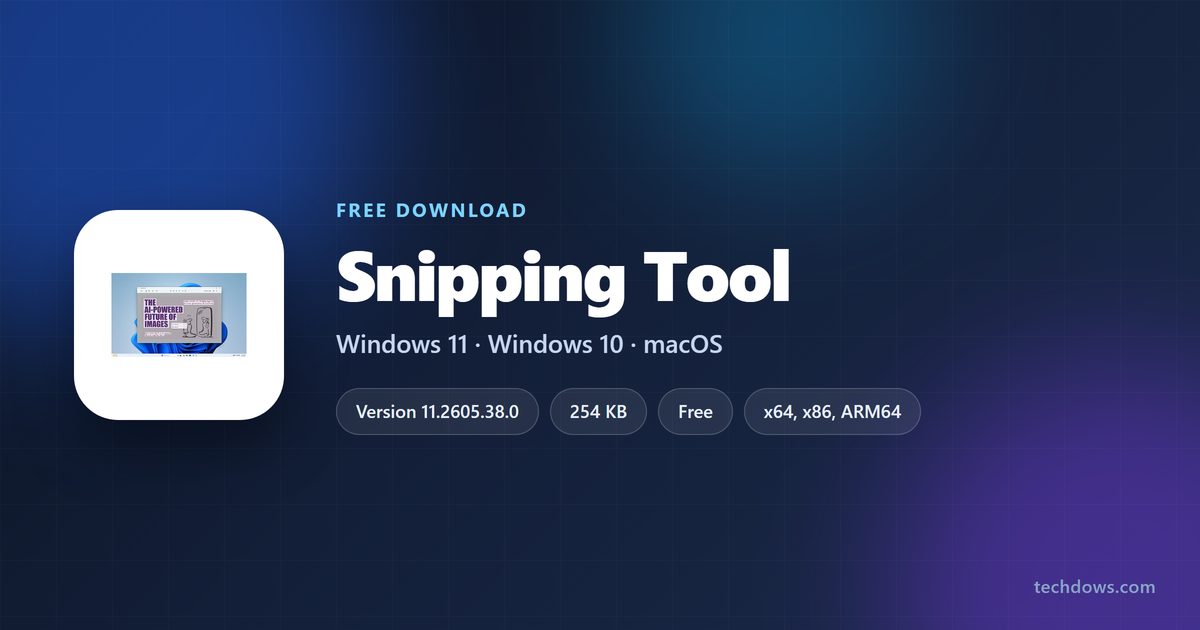
Snipping tool not downloading is almost always a Microsoft Store failure, not a missing file. The app ships with Windows 11 and Windows 10 22H2, and the only file Microsoft publishes is a 254 KB setup that fetches the Store package.
That setup carries no application inside it. Its own text runs Resolving the package, then Installing the package, and ends at Please install Snipping Tool in Microsoft Store when the Store service is unreachable.
This guide covers the official sources, a stalled Store download, a setup that refuses to install, and the repair and re-register commands.
Which Snipping Tool problem do you have?
Match the failure on screen to its cause. Snipping Tool arrives through the Store, so most rows end there rather than at a download link.
| What you see | What is actually wrong | Where to fix it |
|---|---|---|
| The Store download sits at 0% | A stale Store cache | Reset the Store |
| The Store hides the Get button | The current package needs Windows 11 build 22000 or later | Update Windows |
| Setup closes at once and nothing changes | Snipping Tool is already installed | Open the app |
| Setup ends at a Microsoft Store message | The setup could not reach the Store | Microsoft’s Store fixes |
| The app installs but will not open | The installed package is damaged | Repair, then reset |
| The app is missing from Start and Installed apps | It was uninstalled | Run the signed setup |
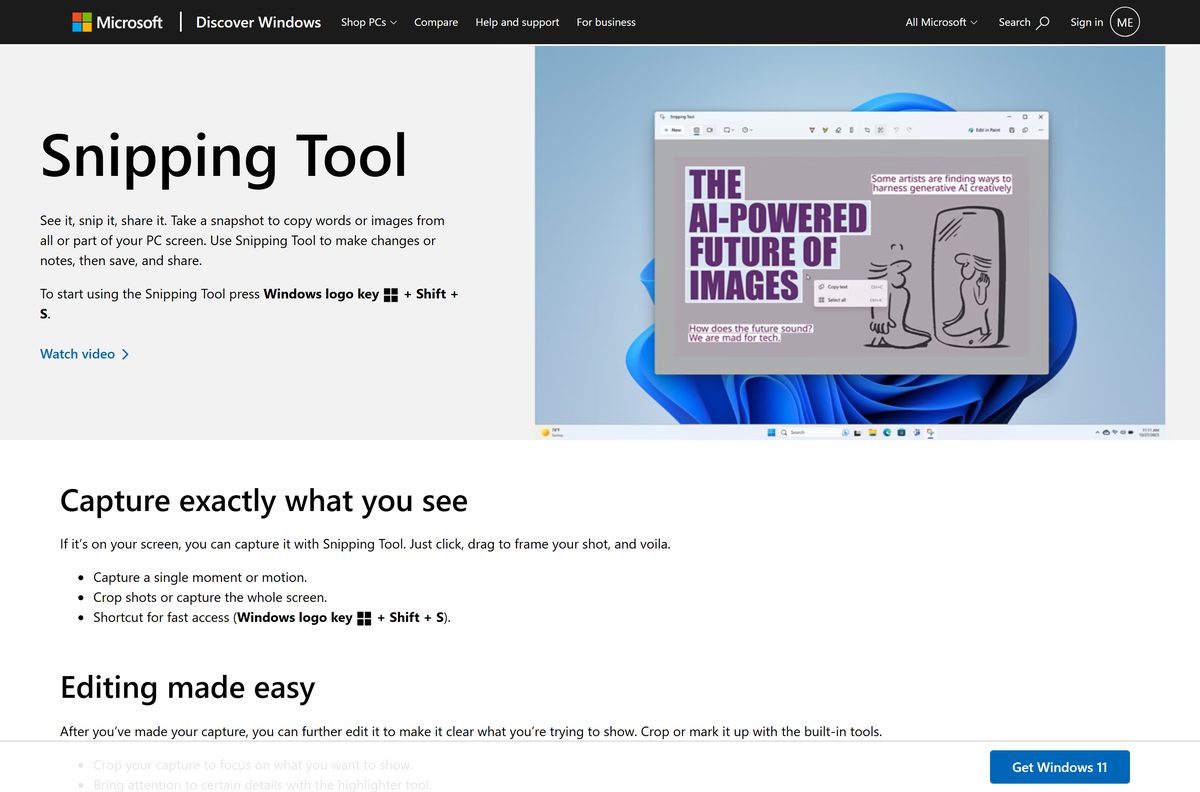
Test before you fix. Press Windows + Shift + S: if the capture bar appears, the app is installed.
Download Snipping Tool from the official Microsoft source
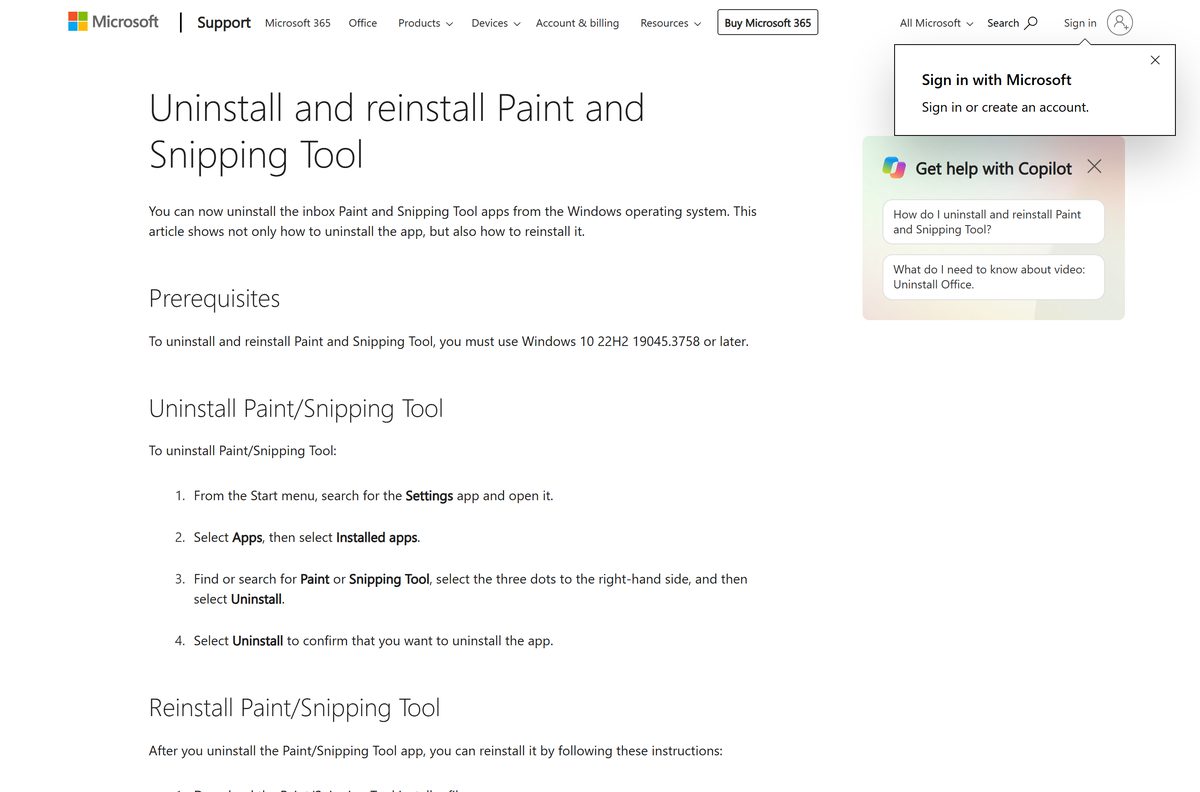
Microsoft publishes Snipping Tool in two places, and neither is an offline installer. Both need the internet and a working Store.
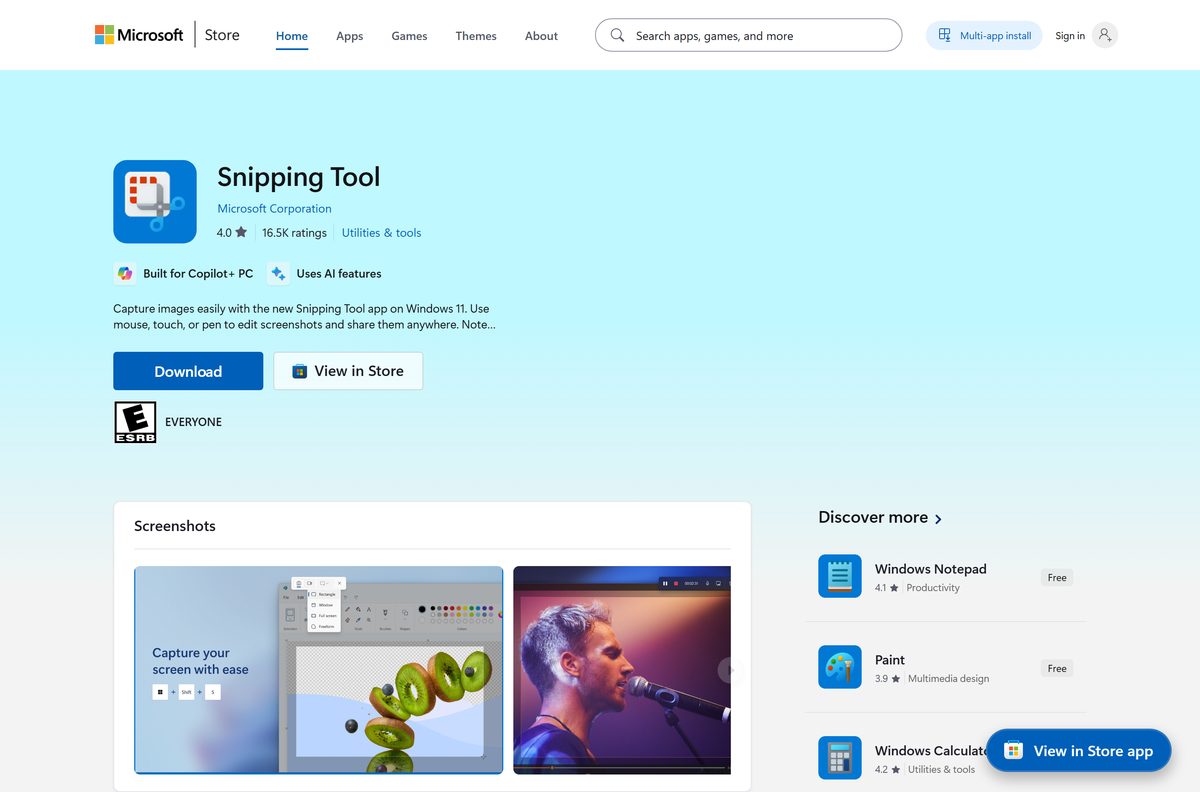
- Microsoft Store listing, product 9MZ95KL8MR0L — Microsoft Corporation, free
- Microsoft’s uninstall and reinstall page — hosts the three signed setup files
- snippingtool_setup_x64.exe — 254 KB · Intel and AMD PCs
- snippingtool_setup_x86.exe — 198 KB · 32-bit Windows
- snippingtool_setup_arm64.exe — 238 KB · Snapdragon and other Arm PCs
The size is the tell. At 260,016 bytes the x64 file holds no app package: it fetches one from the Store.
Any other site offering a Snipping Tool .exe is offering something Microsoft did not publish. The full download picture is in Snipping Tool download for PC, Windows 11/10 and Mac.
Check what Snipping Tool needs before you reinstall
One prerequisite blocks more reinstalls than anything else: Microsoft requires Windows 10 22H2 build 19045.3758 or later before Snipping Tool can be removed or put back.
| Field | Value |
|---|---|
| Developer | Microsoft Corporation |
| Latest version | 11.2605.38.0 |
| Package identity | Microsoft.ScreenSketch |
| Store product ID | 9MZ95KL8MR0L |
| Price | Free, included with Windows |
| Supported OS | Windows 11, and Windows 10 22H2 |
| Minimum build for the current package | Windows 11 build 22000 |
| Minimum build to uninstall or reinstall | Windows 10 build 19045.3758 |
| Architecture | x64, x86, ARM64 |
| Setup file size | 254 KB x64, 198 KB x86, 238 KB ARM64 |
| Offline installer | No, the setup needs the internet and the Store |
| Last verified | 2026-09-10 |
To read your own build, press Windows + R, type winver and select OK.
Microsoft’s catalogue sets Windows 11 build 22000 as the minimum for the current package, so Windows 10 PCs get the older 2021.2008.3001.0 build.
Fix Snipping Tool not downloading from the Microsoft Store
Work down this list in order. Each symptom has one cause and one fix.
The download never starts, or stops at 0%
The Store cache is stale, and Microsoft’s first fix is to reset it.
- Press Windows + R to open the Run box.
- Type wsreset.exe and select OK.
- Wait about ten seconds until the blank window closes and the Store reopens.
- Select Library, then Get updates.
- Open the Snipping Tool listing again and select Get.
Windows installed updates, but the PC has not restarted
Microsoft states that a PC updated without a restart cannot install apps.
- Save your open work.
- Select Start, then Power, then Restart.
- Open Microsoft Store, select Library, then Get updates.
- Install Snipping Tool.
The Store hides the Get button, or says the app is not available
The Store blocks the button on apps that do not match the device.
- Press Windows + R, type winver and select OK to read your build.
- Select Start > Settings > Windows Update > Check for updates, or Update & Security > Windows Update on Windows 10.
- Install everything offered, then restart.
- Open the Store listing again.
The Store is signed out, or the region and clock are wrong
The Store needs a signed-in account, and the right region, date and time.
- Open Microsoft Store, select the profile picture, and sign in.
- Select Start > Settings > Time & language > Date & time.
- Turn on Set time automatically, then confirm the country under Language & region.
- Retry the install.
The drive is full
Store apps install into the user profile, so a full disk stops the install.
- Open File Explorer > This PC and read the free space under Devices and drives.
- Select Start > Settings > System > Storage.
- Turn on Storage Sense, or open Cleanup recommendations and clear what you do not need.
How to install Snipping Tool with Microsoft’s signed setup
Use this route when the app is gone from Installed apps. Microsoft signs the file and hosts it on download.microsoft.com.
- Press Windows + I, open System > About and read the System type line.
- Download the setup that matches it from Microsoft’s reinstall page.
- Double-click the downloaded file.
- Select Yes at the User Account Control prompt.
- Wait while the window reads Resolving the package, then Installing the package.
- Close it when it reads Snipping Tool was successfully installed.
- Press Windows + Shift + S and confirm the capture bar appears.
Snipping Tool is already installed means exactly that, so open the app from the Start menu. Snipping Tool failed to install with the following error passes on a Windows deployment code: restart, install updates, run it again.
Install Snipping Tool from the Microsoft Store or with winget
The Store route needs no download, and the signed setup falls back to it anyway.
- Open Microsoft Store from the Start menu.
- Search for Snipping Tool, or open the listing for product 9MZ95KL8MR0L.
- Check that the publisher line reads Microsoft Corporation.
- Select Get, or Install if the app has been on this PC before.
- For a command line instead, open Terminal and run winget install 9MZ95KL8MR0L –source msstore .
The msstore source uses Store product IDs, so the numeric ID is what winget expects. Store apps install per user, so each account installs its own copy.
Fix Snipping Tool not installing on Windows 11 or 10
These failures survive a Store reset. Start at the symptom that matches.
Setup ends with Please install Snipping Tool in Microsoft Store
The setup handed off to the Store, and the Store service did not answer.
- Open Microsoft Store and sign in with your Microsoft account.
- Press Windows + R, type wsreset.exe and select OK.
- Select Library, then Get updates, and install Snipping Tool from the listing.
- Run the signed setup again only if the Store still refuses.
The app installs but will not open, or opens to a blank window
The package is registered badly for your account.
- Select Start > Settings > Apps > Installed apps.
- Select the three dots beside Snipping Tool, then Advanced options.
- Select Repair, and reopen the app.
- Select Reset if Repair changes nothing.
- Open Windows PowerShell without administrator rights and run Get-AppxPackage ScreenSketch | Foreach {Add-AppxPackage -DisableDevelopmentMode -Register “$($_.InstallLocation)\AppXManifest.xml”} .
- Run Add-AppxPackage -RegisterByFamilyName -MainPackage Microsoft.ScreenSketch_8wekyb3d8bbwe when that command returns nothing.
Windows 10 will not take the reinstall
Microsoft’s reinstall path starts at Windows 10 22H2 build 19045.3758.
- Press Windows + R, type winver and select OK, then read the number after OS Build.
- Select Start > Settings > Update & Security > Windows Update > Check for updates.
- Install every update offered and restart.
- Run the setup again once the build is 19045.3758 or higher.
A work or school PC blocks the install
An administrator policy such as AppLocker blocks packaged apps, and no local setting overrides it.
- Select Start > Settings > Accounts and check whether an organisation manages it.
- Ask whoever manages the device to allow the app or the Store.
- Point them at Microsoft’s Store app troubleshooting guidance.
Nothing above helps
A Windows update sometimes breaks app installs, and Microsoft tracks those on its release health pages.
- Open Windows release health for your version and search the known issues table.
- Open the Get Help app with the error code from the setup window, as covered in how to get help in Windows 11.
How to verify the Snipping Tool setup file is genuine
A setup file from anywhere but Microsoft deserves ten seconds of checking.
- Right-click the downloaded file and select Properties.
- Confirm the Details tab shows the description Snipping Tool Installer.
- Open the Digital Signatures tab, select the signature, and click Details.
- Confirm the signer reads Microsoft Corporation.
- Click View Certificate and confirm the issuer reads Microsoft Code Signing PCA 2011.
The x64 file from Microsoft is 260,016 bytes, with the SHA-256 bdc9e0b26f62ca67e530671eafd41f67ba8b86121ced44c966d008c7e077b321 . No Digital Signatures tab means the file did not come from Microsoft.
How to check your Snipping Tool version and update it
Snipping Tool updates through the Store, not Windows Update. A copy that keeps crashing is usually one the Store never updated.
- Open Snipping Tool.
- Select See more, then Settings.
- Scroll to About this app and read the version number.
- Open Microsoft Store and select Library.
- Select Get updates and let any Snipping Tool update finish.
The current release is 11.2605.38.0. A number far below that means the Store is not updating this PC, so reset it with wsreset.exe .
How to uninstall Snipping Tool and put it back cleanly
Removal and reinstall is the last step before you contact support, not the first.
- Select Start > Settings > Apps > Installed apps.
- Search for Snipping Tool and select the three dots beside it.
- Select Uninstall, then Uninstall again to confirm.
- Restart the PC.
- Open Microsoft Store, select Library, and install Snipping Tool.
- To remove it from a command line instead, run Get-AppxPackage -Name Microsoft.ScreenSketch | Remove-AppxPackage in PowerShell.
Uninstalling needs Windows 10 22H2 build 19045.3758 or later. Below that build the option is not offered.
How to make Print Screen open Snipping Tool again
An install that does nothing on Print Screen is a settings problem, not a download problem.
- Press Windows + I to open Settings.
- Select Accessibility, then Keyboard.
- Turn on Use the Print screen key to open screen capture.
- Press Print Screen and confirm the capture bar appears.
On Windows 10 the switch is Print Screen shortcut, under Ease of Access > Keyboard.
What to capture screenshots with while Snipping Tool is broken
Windows takes screenshots without Snipping Tool, and none of these need a download.
| Tool | Where it comes from | How to use it |
|---|---|---|
| Print Screen | Windows, built in | Copies the whole screen to the clipboard |
| Alt + Print Screen | Windows, built in | Copies only the active window |
| Windows + Print Screen | Windows, built in | Saves a PNG to Pictures > Screenshots |
| Paint | Windows, built in | Paste with Ctrl + V, then crop and save |
| Xbox Game Bar | Windows 11 and 10, built in | Windows + G, then the capture widget |
Microsoft names Snipping Tool, Xbox Game Bar and Clipchamp as the replacements for Steps Recorder, which it has retired.
Frequently asked questions
Why is Snipping Tool not downloading?
The Microsoft Store is failing, not the download. Reset the Store with wsreset.exe, restart the PC when updates are pending, then install from Library.
Do I need to download Snipping Tool at all?
Only if it was uninstalled. Windows 11 and Windows 10 22H2 both ship with it, and Windows + Shift + S opens the capture bar without any download.
Is there a Snipping Tool offline installer?
No. Microsoft’s signed setup is 254 KB and contains no application package. It installs the package over the internet, and falls back to a Microsoft Store message.
Can I install Snipping Tool without the Microsoft Store?
No. Microsoft documents a Snipping Tool Feature on Demand, but states it is not available on images where the app is preinstalled, which covers current Windows 11 and 10 PCs.
Why does the setup say Snipping Tool is already installed?
Because it is. The setup checks for the package first and stops when it finds one. Open the app from the Start menu, or press Windows + Shift + S.
Why will Snipping Tool not install on Windows 11?
The current package needs build 22000 or later, and a PC with updates waiting for a restart cannot install Store apps at all. Install pending updates, restart, then try again.
Why does Windows 10 refuse to reinstall Snipping Tool?
Microsoft’s reinstall path requires Windows 10 22H2 build 19045.3758 or later. Check the build with winver, install every pending update, restart, and run the setup again.
What is the official Snipping Tool download page?
The Microsoft Store listing for product 9MZ95KL8MR0L, published by Microsoft Corporation. The three signed setup files sit on Microsoft’s uninstall and reinstall support page.
How do I fix Snipping Tool freezing after it installs?
Update it from Microsoft Store under Library and Get updates, then use Repair and Reset under Advanced options in Installed apps. Re-register it with PowerShell when it still hangs.
Which Snipping Tool version should I be running?
11.2605.38.0 is the current release. Check yours under See more, then Settings, then About this app, and update from Microsoft Store under Library and Get updates.