You can download Slack for Windows PCs and Macs for free using Slack’s official desktop installers. Windows users can choose between x64 and ARM64 builds, while Mac users can install Slack on both Intel and Apple Silicon Macs. Slack also offers Microsoft Store and Mac App Store versions.
The current Slack desktop app is intended for Windows 11 and recent versions of macOS. A legacy Windows download remains available for older systems, including Windows 10, but older operating systems eventually stop receiving Slack app updates as they leave the company’s support lifecycle.
This guide covers the normal Slack download, Windows x64 and ARM64 installers, Windows 10 legacy version, Microsoft Store installation, Mac Intel and Apple Silicon builds, enterprise MSIX packages, offline-installer options, system requirements, and common installation problems.
Download Slack for PC – Windows 11 and Windows 10
Slack provides its Windows desktop app directly from the official Slack website. The download page detects Windows and offers the current 64-bit installer, along with ARM64 and legacy options.
Official Windows download: Download Slack for Windows
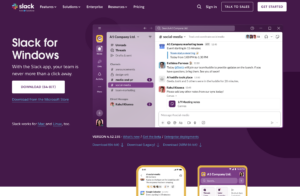
Use the standard 64-bit download on most PCs with an Intel or AMD processor. Snapdragon and other Windows on Arm computers should use the ARM64 version instead.
| Slack Windows download | Best for |
|---|---|
| 64-bit / x64 | Windows PCs with Intel or AMD processors |
| ARM64 | Windows on Arm PCs, including Snapdragon-powered laptops |
| Legacy | Older Windows installations that cannot run the current supported build |
| Microsoft Store | Users who prefer Store-managed installation and updates |
| MSIX | IT administrators and managed deployments |
Download Slack x64 for Windows 11
The x64 version is the correct Slack download for most Windows 11 computers. This includes PCs using Intel Core, Intel Ultra, AMD Ryzen, AMD Threadripper, and other standard 64-bit Intel or AMD processors.
Slack no longer releases new 32-bit Windows builds. Starting with Slack desktop version 4.39, Windows releases became 64-bit only.
To install the x64 version:
- Open Slack’s Windows download page.
- Select Download 64-bit.
- Open the downloaded installer.
- Allow Windows to run the setup if prompted.
- Wait for Slack to finish installing.
- Open Slack and sign in to your workspace.
You do not need to choose a special Windows 11 edition. The current x64 Windows package is the standard Slack desktop installer.
Download Slack ARM64 for Windows 11
Slack offers a native ARM64 Windows build for PCs running Windows on Arm. This is the version to use on devices powered by processors such as Qualcomm Snapdragon X Elite, Snapdragon X Plus, and other ARM-based Windows processors.
Do not download the x64 version simply because Windows 11 can emulate x64 applications. When a native ARM64 Slack build is available, it avoids the extra emulation layer and is the better choice for an ARM PC.
To check which type of PC you have:
- Press Windows + I.
- Open System > About.
- Look at System type.
If Windows says ARM-based processor, download Slack ARM64. If it says x64-based processor, use the normal 64-bit version.
Download Slack for Windows 10
Slack’s current system requirements now list Windows 11 version 23H2 or newer rather than Windows 10. Slack does, however, still provide a Legacy download from its Windows download page.
That distinction matters. A legacy build may continue working for some Windows 10 users, but it is not equivalent to running the current Slack desktop app on a supported Windows release.
Slack states that when an operating system reaches the end of its support period, users can continue accessing Slack while they still have a supported Slack app version, but they stop receiving desktop app updates for that OS. Eventually, older Slack versions themselves also reach end of support.
If your computer supports Windows 11, upgrading Windows is preferable to depending on an old Slack build indefinitely.
Download Slack from the Microsoft Store
Windows 11 users can install Slack through the Microsoft Store instead of downloading the installer manually.
- Open the Microsoft Store.
- Search for Slack.
- Open the official Slack listing.
- Click Install or Get.
- Open Slack after the installation finishes.
You can also reach the Store version from Slack’s official Windows download page by selecting Download on the Microsoft Store.
The direct-download and Microsoft Store versions provide the same main Slack experience. The important difference is how the app is installed and updated.
Download Slack for Mac
Slack provides a desktop app for both Intel Macs and Apple Silicon Macs. You can download it directly from Slack or install it through the Mac App Store.
Official Mac download: Download Slack for Mac
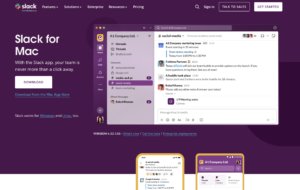
Slack currently requires macOS 13 or newer for its supported desktop app.
Download Slack for Apple Silicon Mac
Apple Silicon Macs use Apple’s M-series processors, including M1, M2, M3, M4, and later generations. Slack provides a native ARM64 build for these systems.
To check your Mac:
- Open the Apple menu.
- Select About This Mac.
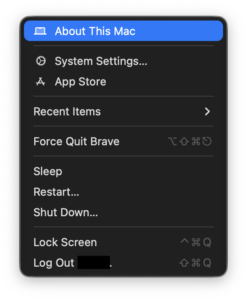
- Look for Chip or Processor.
If you see Apple M1, M2, M3, M4, or another Apple chip, use the Apple Silicon version when choosing an architecture-specific Slack package.
Download Slack for Intel Mac
Older Macs with Intel Core processors use Slack’s Intel x64 build. Slack also provides a Universal Mac package for enterprise deployment that contains support for both Intel and Apple Silicon architectures.
The Universal package is convenient when an administrator manages a mix of Mac hardware, although Slack notes that it is larger than the architecture-specific packages.
Slack PKG Download for Mac
Most individual Mac users can use the normal Slack download or Mac App Store version. Organizations that need to deploy Slack across multiple Macs can use Slack’s PKG installers.
Slack provides three Mac deployment packages:
- Intel x64 PKG for Intel Macs.
- Apple Silicon ARM64 PKG for M-series Macs.
- Universal PKG for both Intel and Apple Silicon Macs.
These packages are intended primarily for managed deployment rather than ordinary single-user installation.
Slack MSI Download for Windows
Older Slack deployment guides often refer to MSI installers. Slack retired its Windows MSI deployment installers in September 2025 and replaced them with MSIX packages.
For current enterprise deployment, use Slack’s MSIX installer instead of searching for an old Slack MSI download.
The MSIX package:
- Supports Windows 10 and Windows 11.
- Is available for x64 PCs.
- Is available for ARM64 PCs.
- Supports centralized deployment.
- Includes Slack’s automatic update functionality.
Slack recommends the normal desktop download for a single computer and MSIX when Slack needs to be deployed across managed Windows machines.
Slack MSIX Download for Windows 11
Slack provides separate x64 and ARM64 MSIX packages for IT administrators.
A downloaded MSIX can be installed for the current Windows user with PowerShell:
Add-AppxPackage -Path "C:\Path\To\Slack.msix"Administrators can also provision Slack so that it becomes available to existing and future users of a managed PC.
The MSIX package stores application data differently from Slack’s traditional Windows desktop installer, so administrators migrating an existing deployment should review Slack’s deployment documentation before switching formats.
Is There a Slack Offline Installer?
Slack does not advertise a separate consumer download called a Slack offline installer. Its official choices are the normal direct desktop download, Microsoft Store or Mac App Store installation, and deployment packages such as MSIX and PKG.
The MSIX and PKG packages are useful when an administrator needs a downloadable installation package, but installing Slack does not make the service itself work offline. Slack relies on its servers to load workspaces, synchronize messages, send files, make calls, and receive new content.
If you need Slack on multiple managed computers, use the official deployment packages rather than downloading an unofficial “full offline installer” from a software mirror.
How to Install Slack on Windows 11
- Download the x64 or ARM64 installer that matches your processor.
- Open the downloaded file.
- Wait while Slack installs.
- Launch Slack from the Start menu.
- Click Sign in to Slack.
- Sign in through your browser when requested.
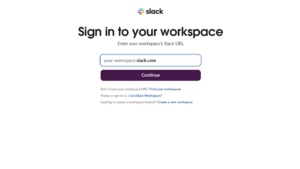
- Select your workspace.
If you belong to several workspaces, you can add them after signing in rather than installing separate copies of Slack.
How to Install Slack on Mac
- Download Slack from the official Mac download page.
- Open the downloaded file.
- Move Slack to the Applications folder if prompted.
- Open Slack from Applications.
- Complete any macOS security confirmation.
- Sign in to your Slack workspace.
The Mac App Store version can be installed directly from the App Store and receives updates through Apple’s update system.
Slack System Requirements for PC and Mac
Slack updates its system requirements regularly. Its current desktop requirements include:
| Platform | Current supported requirement |
|---|---|
| Windows | Windows 11 version 23H2 or newer |
| macOS | macOS 13 or newer |
| Windows architecture | x64 or ARM64 |
| Mac architecture | Intel x64 or Apple Silicon ARM64 |
| Internet | Required for normal Slack operation and synchronization |
Slack reviews its requirements twice per year, so a Windows or macOS version that works today can eventually leave the supported list.
Download the Latest Version of Slack
The direct download pages provide the current Slack desktop release. You do not need to search for a version-specific installer unless your organization intentionally manages a particular build.
To check the installed version on Windows:
- Open Slack.
- Click the three-line menu in the upper-left corner.
- Select Help > About Slack.
Slack can update itself automatically. Store-installed versions receive their updates through the Microsoft Store or Mac App Store.
Using a current build matters because Slack eventually blocks desktop app versions that have passed their support date.
Fix Slack Not Installing on Windows
Make sure you downloaded the correct architecture
Use x64 for Intel and AMD computers and ARM64 for Windows on Arm devices. Check Settings > System > About > System type if you are unsure.
Check your Windows version
The current supported desktop app requires Windows 11 23H2 or newer. If you are using Windows 10 or an older Windows 11 release, the newest Slack build may not be supported.
Try the Microsoft Store version
If the direct installer fails, install Slack from the Microsoft Store. This avoids some issues involving blocked installers, permissions, or damaged downloaded files.
Remove an old Slack installation
If Slack repeatedly fails during an update or reinstall:
- Quit Slack completely.
- Open Task Manager and confirm that Slack.exe is no longer running.
- Open Settings > Apps.
- Uninstall Slack.
- Press Windows + R.
- Enter
%AppData%and delete the Slack folder. - Repeat with
%LocalAppData%. - Download a fresh copy of Slack and reinstall it.
Slack installs but will not load
Open Slack and select Help > Troubleshooting > Clear Cache and Restart. Slack specifically recommends clearing its cache when the desktop app cannot load properly.
You can also run Slack’s connection test at slack.com/help/test. Corporate proxies, firewalls, VPNs, and security software can interfere with Slack’s persistent connection to its servers.
Fix Slack Not Installing on Mac
First, confirm that the Mac is running a supported macOS version. Slack currently requires macOS 13 or later.
If reinstalling the direct-download version:
- Quit Slack.
- Move Slack from Applications to the Bin.
- In Finder, press Command + Shift + G.
- Open
~/Library/Application Support/Slack. - Remove Slack’s remaining application data if you are performing a clean reinstall.
- Download Slack again from the official website.
Users of the Mac App Store version should reinstall Slack through the App Store rather than mixing the two installation methods.
Frequently Asked Questions
Is Slack free to download for PC?
Yes. The Slack desktop app is free to download for Windows and Mac. Slack offers both free and paid workspace plans, but there is no charge simply to install the app.
Can I download Slack for Windows 11?
Yes. Slack currently supports Windows 11 version 23H2 and newer. Choose the x64 build for Intel or AMD computers and ARM64 for Windows on Arm.
Can I download Slack for Windows 10?
Slack still exposes a legacy Windows download, but Windows 10 is no longer listed in Slack’s current desktop system requirements. A legacy build may work, although it will not receive the same ongoing support as Slack on a supported Windows 11 release.
Is Slack available for Windows ARM64?
Yes. Slack provides a native ARM64 Windows download for compatible Windows on Arm computers.
Does Slack still provide a 32-bit Windows version?
No. Slack stopped releasing new 32-bit Windows versions beginning with desktop app version 4.39. Current Windows builds are 64-bit.
Can I download Slack without the Microsoft Store?
Yes. Slack provides direct Windows installers on its official website, so the Microsoft Store is optional.
Does Slack have an MSI installer?
Slack retired its Windows MSI deployment packages in September 2025. Current managed Windows deployments use MSIX instead.
Can I download a Slack MSIX installer?
Yes. Slack provides x64 and ARM64 MSIX packages for Windows deployments.
Is there a Slack offline installer?
Slack does not label a separate consumer build as a full offline installer. Its downloadable MSIX and PKG packages are intended primarily for deployment, and Slack still requires an internet connection for normal workspace use.
Can I download Slack for an M1, M2, M3, or M4 Mac?
Yes. Slack provides an Apple Silicon ARM64 build for Macs using M-series processors.
Can I install Slack on an Intel Mac?
Yes, provided the Mac can run a currently supported version of macOS. Slack offers an Intel x64 build as well as a Universal Mac deployment package.
What is the difference between Slack x64 and ARM64?
x64 is for Windows PCs with Intel or AMD processors. ARM64 is for Windows on Arm devices such as Snapdragon-powered PCs. Installing the native version for your processor provides the appropriate desktop build without relying on architecture emulation.
Should I download Slack from the website or Microsoft Store?
Either is valid. The direct download is convenient when you want the installer from Slack itself, while the Microsoft Store manages installation and updates through Windows.
Do I need to install Slack to use it?
No. Slack also works in supported web browsers. The desktop app is useful for notifications, easier workspace switching, huddles, and keeping Slack separate from browser tabs.