To force quit an app on a Mac, press Option + Command + Esc, select the frozen app from the Force Quit Applications window, and click Force Quit. This is the quickest method when Safari, Chrome, Finder, Word, Photoshop, or another Mac app stops responding.
You can also force close an app from the Apple menu, the Dock, or Activity Monitor. If the entire Mac is frozen and the Force Quit window will not open, you can restart the Mac or hold its power button as a last resort.
Start with a normal Command + Q quit whenever the app still responds because it gives the app a chance to save changes. Force quitting immediately terminates the app, so unsaved work can be lost.
How to Force Quit an App on Mac with the Keyboard Shortcut
The fastest way to force quit a frozen Mac app is the built-in Force Quit shortcut:
- Press Option + Command + Esc at the same time.
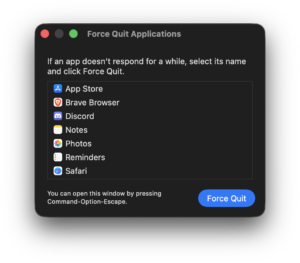
- Wait for the Force Quit Applications window to open.
- Select the app that is not responding.
- Click Force Quit.
- Confirm the action if macOS asks.
The app should close immediately. You can then reopen it from the Dock, Launchpad, Applications folder, or Spotlight.
If you use a Windows keyboard with your Mac, the Alt key normally corresponds to Option and the Windows key corresponds to Command, although keyboard mappings can vary.
Force Quit Mac Shortcut
The Mac force quit keyboard shortcut is:
Option + Command + Esc
| Action | Mac shortcut |
|---|---|
| Quit the current app normally | Command + Q |
| Open Force Quit Applications | Option + Command + Esc |
| Force quit the currently active app directly | Option + Command + Shift + Esc held for several seconds |
For most users, Option + Command + Esc is the better shortcut because it lets you choose exactly which application to close.
How to Force Quit on Mac from the Apple Menu
If the mouse and menu bar still work, you can open the same Force Quit window without using a keyboard shortcut.
- Click the Apple menu in the upper-left corner of the screen.
- Select Force Quit.
- Select the frozen application.
- Click Force Quit.
This opens the same Force Quit Applications window as the keyboard shortcut, so there is no functional difference between the two methods.
How to Force Quit an App from the Mac Dock
You can close an individual application directly from its Dock icon when the rest of macOS is still responding.
- Find the application’s icon in the Dock.
- Right-click or Control-click the icon.
- Hold the Option key.
- The normal Quit command changes to Force Quit.
- Click Force Quit.
This method is useful when you already know which app has frozen and do not need to open the Force Quit Applications window.
How to Force Quit on Mac with Activity Monitor
Activity Monitor gives you more control because it shows applications and background processes running on macOS. It is especially useful when a frozen process does not appear in the normal Force Quit window.
- Press Command + Space to open Spotlight.
- Type Activity Monitor and press Enter.
- Find the frozen app or process in the list.
- Select it.
- Click the Stop button at the top of Activity Monitor.
- Select Force Quit.
Activity Monitor normally marks an unresponsive process with (Not Responding), making it easier to identify the problem.
Quit vs Force Quit in Activity Monitor
Activity Monitor gives you two options. Quit asks the process to close normally and gives it an opportunity to finish current tasks. Force Quit ends the process immediately.
Use Quit first when the application is only sluggish. Use Force Quit when it has completely stopped responding.
Find the app using too much CPU or memory
Activity Monitor can also help when your Mac becomes slow rather than completely frozen. Open the CPU or Memory tab and sort the list to identify an application consuming an unusually large amount of system resources.
Do not force quit unfamiliar macOS system processes simply because their CPU usage is temporarily high. Many background processes are required by macOS and restart automatically when needed.
How to Force Quit Finder on Mac
Finder is different from normal Mac applications because it remains running as part of the macOS desktop. If Finder freezes, you can relaunch it instead of permanently closing it.
- Press Option + Command + Esc.
- Select Finder.
- Click Relaunch.
- Confirm the relaunch.
Your desktop and Finder windows can briefly disappear while Finder restarts. They should return within a few seconds.
Relaunching Finder is useful when folders stop opening, files cannot be moved, the desktop stops updating, or Finder displays the spinning wait cursor indefinitely.
What Is Control Alt Delete on Mac?
Mac does not use the Windows Ctrl + Alt + Delete shortcut for closing frozen programs. The closest equivalent for dealing with an unresponsive application is:
Option + Command + Esc
This opens the Force Quit Applications window directly.
If you need something closer to Windows Task Manager, open Activity Monitor. It shows running processes along with CPU, memory, energy, disk, and network activity.
How to Force Quit on a MacBook
The force quit process is the same on a MacBook Air and MacBook Pro as it is on an iMac, Mac mini, Mac Studio, or Mac Pro.
Press Option + Command + Esc, select the application, and click Force Quit.
MacBooks with Touch ID also use the same shortcut. The Touch ID button becomes relevant only if the entire computer stops responding and you need to force the Mac to power off.
What to Do If Force Quit Does Not Work
If the Force Quit Applications window opens but the app refuses to close, use Activity Monitor and terminate the application’s process there. If Activity Monitor is also frozen, restart the Mac.
Restart the Mac
- Click the Apple menu.
- Select Restart.
- Allow macOS to restart normally.
If macOS warns that an application is preventing the restart, return to Force Quit and close that application first.
Force shut down a completely frozen Mac
If the pointer does not move, keyboard shortcuts do nothing, and the Mac will not restart normally, press and hold the Mac’s power button for up to 10 seconds until it turns off.
On a MacBook with Touch ID, the Touch ID key is also the power button. After the Mac shuts down, wait a few seconds and press the power button again to start it.
Use a forced shutdown only when macOS is completely unresponsive because open files and unsaved changes can be lost.
Why Does an App Keep Freezing on Mac?
If the same application repeatedly needs to be force quit, closing it solves only the immediate freeze. Check the application and macOS for updates before troubleshooting further.
Repeated freezes commonly involve an outdated application, a problematic extension or plug-in, damaged application data, low available storage, excessive memory use, or a compatibility problem after a macOS update.
When only one app freezes, update or reinstall that app. When several unrelated apps freeze, restart the Mac, install current macOS updates, check free storage, and review Activity Monitor for unusually high CPU or memory use.
Does Force Quitting an App Delete Your Work?
Force quitting does not delete the application or its saved files, but changes that the app has not saved can be lost. Some applications use Auto Save or recovery files and can restore recent work when reopened, while others cannot.
Try Command + Q before force quitting whenever the application still responds. A normal quit allows the app to save data and close its files properly.
Frequently Asked Questions
What is the shortcut to force quit on Mac?
Press Option + Command + Esc. Select the unresponsive application in the Force Quit Applications window and click Force Quit.
How do I force quit on a MacBook Pro?
Press Option + Command + Esc, select the frozen app, and click Force Quit. The shortcut works the same way on MacBook Pro, MacBook Air, iMac, Mac mini, Mac Studio, and Mac Pro.
How do I force quit an app without using the keyboard?
Open the Apple menu > Force Quit, select the app, and click Force Quit. You can also right-click the app in the Dock, hold Option, and choose Force Quit.
What is the Mac equivalent of Ctrl Alt Delete?
Option + Command + Esc is the closest equivalent when you need to close a frozen application. Use Activity Monitor when you need a more detailed view of running apps and processes.
How do I open Task Manager on Mac?
macOS does not have an application named Task Manager. Its equivalent is Activity Monitor. Press Command + Space, search for Activity Monitor, and open it.
How do I force quit Safari on Mac?
Press Option + Command + Esc, select Safari, and click Force Quit. When Safari opens again, avoid immediately reopening a problematic tab if that tab caused the freeze.
How do I force quit Chrome on Mac?
Open Force Quit Applications with Option + Command + Esc, choose Google Chrome, and click Force Quit. If a Chrome background process remains stuck, terminate it through Activity Monitor.
Can I force quit Finder?
Yes. Press Option + Command + Esc, select Finder, and click Relaunch. macOS restarts Finder rather than leaving it permanently closed.
Why can’t I force quit an app on my Mac?
The application or macOS itself can be completely unresponsive. Try Activity Monitor first, then restart the Mac. If the entire computer is frozen, hold the power button for up to 10 seconds to turn it off.
Does force quitting damage an app?
Force quitting normally does not damage the application. It can cause unsaved work to be lost because the app closes immediately instead of completing its normal shutdown process.
Should I force quit apps to make my Mac faster?
There is no need to routinely force quit healthy applications. Use a normal Command + Q quit for apps you want to close and reserve Force Quit for applications or processes that stop responding.


![2 Ways to Completely Delete Bing Search History [Browser & Microsoft Account]](https://techdows.com/wp-content/uploads/2026/09/iPhone-Safari-settings-with-Clear-History-and-Website-Data-link-600x338.jpg)