You can update a Mac from System Settings > General > Software Update. Your Mac checks Apple’s servers, shows only macOS updates and upgrades compatible with that model, then downloads and installs the selected version. The same method works on MacBook Air, MacBook Pro, iMac, Mac mini, Mac Studio, and Mac Pro.
As of August 2026, Apple lists macOS Tahoe 26.6 as the latest macOS release, while older supported branches continue receiving their own updates. You do not have to install Tahoe simply because it is the newest version, especially if your Mac does not support it.
This guide covers normal macOS updates, major macOS upgrades, older Mac versions, full installer downloads, Terminal commands, automatic updates, bootable USB installers, and fixes for Macs that refuse to update.
How to Update macOS on a Mac
Software Update is Apple’s recommended method because it automatically checks compatibility and can download less data than a full macOS installer.
- Click the Apple menu in the upper-left corner.
- Open System Settings.
- Select General.
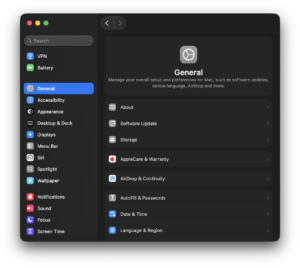
- Click Software Update.
- Wait while the Mac checks for available updates.
- Click Update Now or Upgrade Now.
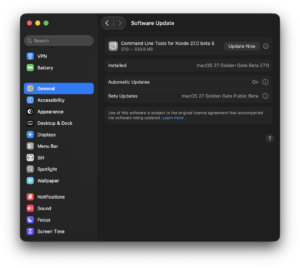
- Enter the administrator password if requested.
- Leave the Mac connected to power and allow it to restart when required.
A smaller Update Now button usually installs a newer release of the macOS version already on your Mac. An Upgrade Now option normally moves the Mac to a newer major release, such as macOS Sequoia 15 to macOS Tahoe 26. Apple distinguishes updates and upgrades in the same way.
How to Update a MacBook Air or MacBook Pro
The update process is the same on MacBook Air and MacBook Pro, but connect the charger before beginning a large macOS upgrade. Installation can take long enough that relying on battery power is unnecessary risk.
Go to:
Apple menu > System Settings > General > Software Update
Then install the available update. If you see an Update Tonight option, macOS can install the downloaded update overnight while the Mac remains turned on, connected to power, and connected to the internet.
How to Update an iMac, Mac mini, Mac Studio or Mac Pro
Desktop Macs use the same Software Update panel:
- Open System Settings.
- Select General > Software Update.
- Allow macOS to check for updates.
- Select the update or upgrade you want.
- Let the Mac restart and finish installation.
Do not unplug the computer while macOS is installing. The Mac can restart several times and display a progress bar for an extended period during a major upgrade.
Latest macOS Version
Apple currently lists these as the latest releases for recent macOS branches:
| macOS release | Latest version listed by Apple |
|---|---|
| macOS Tahoe | 26.6 |
| macOS Sequoia | 15.7.8 |
| macOS Sonoma | 14.8.8 |
| macOS Ventura | 13.7.8 |
| macOS Monterey | 12.7.6 |
| macOS Big Sur | 11.7.11 |
Your Mac does not necessarily support the newest row in the table. Software Update checks the Mac model and offers only compatible software.
How to Check Which macOS Version You Have
Before updating, check the currently installed macOS version and your Mac model:
- Click the Apple menu.
- Select About This Mac.
- Look for the macOS name and version number.
- Click the version number if you also need the build number.
Apple includes the macOS name and version in About This Mac on both newer and older releases.
How to Upgrade Mac to macOS Tahoe 26
If your Mac supports macOS Tahoe 26, open Software Update and choose the Tahoe upgrade when Apple offers it. Apple recommends making a backup before performing the upgrade.
Major Mac categories supported by Tahoe include:
- MacBook Air with Apple silicon introduced in 2020 or later.
- Most MacBook Pro models with Apple silicon introduced in 2020 or later, plus selected 2019 and 2020 Intel models.
- Mac mini introduced in 2020 or later.
- iMac introduced in 2020 or later.
- Mac Studio introduced in 2022 or later.
- Mac Pro introduced in 2019 or later.
Apple maintains the complete model list because compatibility depends on the exact Mac rather than simply whether it is called a MacBook Pro or iMac.
How to Update an Older Mac
An older Mac can install the newest macOS release supported by its hardware. If Software Update says the Mac is up to date, that can mean the computer has reached its newest compatible macOS version rather than the newest macOS Apple currently offers.
For example, a Mac that cannot run Tahoe can still qualify for Sequoia, Sonoma, Ventura, Monterey, or another earlier release.
To identify the best supported version:
- Open About This Mac.
- Note the exact Mac model and year.
- Check Apple’s compatibility page for the macOS version you want.
- Use Software Update when that version is offered.
Download macOS Installer Manually
Software Update is the easiest route for most Macs, but Apple also provides several ways to download full macOS installers when you need a particular version, want to reinstall macOS, or plan to build a USB installer.
Depending on the macOS release, Apple provides installers through:
- Software Update.
- The Mac App Store.
- Terminal.
- Apple-hosted browser downloads for some older releases.
- macOS Recovery.
Use Apple’s official macOS download page to choose the appropriate method for the version you need:
Apple macOS downloads: Download and install macOS
Download Full macOS Installer Using Terminal
Terminal can download a full macOS installer directly from Apple. This is useful when you need the complete installer application rather than the smaller files used by Software Update.
See which full macOS installers are available
Open Terminal from Applications > Utilities and run:
softwareupdate --list-full-installers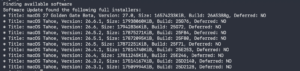
macOS returns the full installers currently available for that Mac.
Download a specific macOS installer
Run:
softwareupdate --fetch-full-installer --full-installer-version VERSIONFor example, Apple currently gives this command format for macOS Tahoe:
softwareupdate --fetch-full-installer --full-installer-version 26.3Replace the version number with one shown by --list-full-installers. When the download finishes, the full Install macOS application appears in the Applications folder.
If Terminal reports that the update was not found, that installer is not currently available for your Mac through this method.
How to Download an Older macOS Version
Apple still provides official installation routes for several older releases, including Sequoia, Sonoma, Ventura, Monterey, Big Sur, and Catalina. Older releases can use App Store links or Apple-hosted installer files depending on the version.
This is useful when:
- Your Mac does not support the newest macOS.
- You need an older version for software compatibility.
- You are rebuilding an older Mac.
- You need a full installer for a bootable USB drive.
The Mac used to download the installer must be compatible with the requested version in many cases, so an installer link can refuse to open or report incompatibility on the wrong Mac.
How to Turn On Automatic macOS Updates
You can let the Mac download and install future updates automatically:
- Open System Settings > General > Software Update.
- Click the information button beside Automatic Updates.
- Enable the update options you want.
Current macOS versions can automatically check for updates, download updates, install macOS updates, and install security responses and system files.
Leaving security responses and system files enabled is sensible even when you prefer to install major macOS upgrades manually.
How Much Free Space Do You Need to Update macOS?
The exact storage requirement changes with the macOS version and the Mac’s current installation. A major upgrade normally requires considerably more temporary space than a small security update because macOS must download, prepare, and install a large operating-system image.
Check available storage before a large upgrade:
- Open System Settings.
- Select General > Storage.
- Wait for macOS to calculate usage.
If storage is tight, remove unnecessary downloads, old iPhone or iPad backups, unused applications, and large files before attempting the upgrade again.
Should You Back Up Your Mac Before Updating?
Apple recommends backing up before a major macOS upgrade.
Time Machine is the simplest built-in option:
- Connect an external drive.
- Open System Settings > General > Time Machine.
- Add the backup disk.
- Allow Time Machine to finish a current backup before upgrading macOS.
A routine point update usually completes without affecting personal files, but a current backup gives you a recovery path if the installation fails or an application becomes incompatible.
Create a Bootable macOS USB Installer
A bootable USB installer is useful for installing macOS on several Macs without repeatedly downloading the same installer, or when Software Update and Recovery do not solve an installation problem. Apple says most users do not need one for a normal upgrade or reinstall.
The basic process is:
- Download the full macOS installer from Apple.
- Connect a suitable USB flash drive or external volume.
- Rename the drive to match the name used in Apple’s Terminal command.
- Run the appropriate
createinstallmediacommand. - Enter the administrator password.
- Allow Terminal to erase the USB drive and copy the installer.
The exact command depends on the macOS version. Use Apple’s current instructions rather than copying a command written for another release:
Official instructions: Create a bootable installer for macOS
How to Update macOS from Recovery Mode
macOS Recovery is useful when Software Update fails repeatedly or the Mac no longer starts normally. Recovery can reinstall a compatible version of macOS without requiring a separate USB installer.
Apple silicon Mac
- Shut down the Mac.
- Press and hold the power button.
- Keep holding until Loading startup options appears.
- Select Options.
- Click Continue.
- Select Reinstall macOS.
Intel Mac
Restart the Mac and immediately hold the appropriate Recovery key combination, commonly Command + R, until the startup screen appears. Then select Reinstall macOS.
Recovery normally attempts to reinstall macOS without deleting user files, but keeping a current backup remains important before repairs or disk operations.
Fix Mac Not Updating macOS
Mac says it is up to date but a newer macOS exists
Software Update only offers releases supported by your exact Mac model. If a newer macOS exists but does not appear, check the compatibility list before assuming Software Update is broken.
macOS update is stuck on downloading
Check the internet connection, confirm that enough storage is available, and restart the Mac before retrying. A large upgrade can appear stationary while macOS verifies or prepares downloaded files.
macOS update is stuck on preparing
Wait before forcing a shutdown because preparation can take time, especially on slower Macs or when storage is nearly full. If the process genuinely stops for an extended period, restart the Mac and run Software Update again.
Mac does not have enough storage to update
Open System Settings > General > Storage and free space from the largest categories. Emptying the Trash alone does not help if large files remain elsewhere on the disk.
Software Update does not open
Restart the Mac, then search Spotlight for Software Update. You can also download a full compatible macOS installer through Terminal or use macOS Recovery if the Settings app remains unusable. Apple officially supports all of these installation routes.
Mac restarts but the update does not install
Check free storage, disconnect unnecessary external devices, install any smaller available updates first, and retry. If the same failure repeats, use macOS Recovery or download the full installer.
Update failed after downloading
Delete the incomplete installer when appropriate, restart the Mac, and download it again. Make sure the Mac remains connected to a stable network and power supply throughout the installation.
Update macOS from Terminal
Advanced users can check for and install normal software updates from Terminal.
List available updates:
softwareupdate --listInstall available recommended updates:
sudo softwareupdate --install --recommendedInstall all available updates:
sudo softwareupdate --install --allTerminal can also download complete macOS installers with --fetch-full-installer, which is the more relevant command when you need an installer application for another Mac or a bootable USB drive. Apple documents this full-installer method directly.
Frequently Asked Questions
How do I update my Mac?
Open Apple menu > System Settings > General > Software Update, then select the available update or upgrade.
What is the latest macOS version?
Apple currently lists macOS Tahoe 26.6 as the latest macOS release. Sequoia, Sonoma, Ventura, and several older versions also have their own latest maintenance releases.
How do I update my MacBook Pro?
Use System Settings > General > Software Update. Connect the MacBook Pro to power before installing a large upgrade.
How do I update my MacBook Air?
The process is identical to other Macs. Open Software Update from System Settings and install the version offered for your model.
Why can’t I update my Mac to the newest macOS?
Your Mac model may not support that macOS release. Software Update only offers compatible versions, so an older Mac can correctly report that it is up to date even when a newer macOS exists.
Can I update an old Mac?
Yes, up to the newest macOS release supported by that particular model. Check your exact model under About This Mac and compare it with Apple’s compatibility lists.
Can I download macOS manually?
Yes. Apple provides macOS installers through Software Update, the App Store, Terminal, Recovery, and direct browser downloads for selected older versions.
Can I download the full macOS installer?
Yes. Run softwareupdate --list-full-installers in Terminal to see available installers, then use softwareupdate --fetch-full-installer --full-installer-version VERSION to download one.
Can I update macOS without the App Store?
Yes. Current Macs normally use Software Update rather than the App Store for system updates. Terminal and macOS Recovery are also available.
Can I update macOS without internet?
You need internet access to download an update normally. A previously created bootable installer can install macOS without downloading the full installer again, although activation or other services can still require a network connection.
Do macOS updates delete files?
Normal updates and upgrades are designed to preserve user accounts, applications, and files. Make a backup before a major upgrade because installation failures and software conflicts can still occur.
How long does a macOS update take?
The time depends on download size, internet speed, available storage, Mac performance, and whether you are installing a small update or a full operating-system upgrade. The Mac can restart several times during installation.
Should I update to macOS Tahoe?
Install Tahoe when your Mac supports it and the applications and hardware you rely on are compatible. Businesses and users with specialist software should verify compatibility with those products before performing a major OS upgrade.
Can an Intel Mac update to macOS Tahoe?
Some Intel Macs support Tahoe, including selected MacBook Pro, iMac, and Mac Pro models. Many older Intel Macs do not. Check the exact model against Apple’s Tahoe compatibility list.
Can Apple silicon Macs update normally?
Yes. M-series Macs use the same Software Update interface as Intel Macs. Most current Apple silicon Macs support recent macOS releases, subject to the compatibility list for each version.

![2 Ways to Completely Delete Bing Search History [Browser & Microsoft Account]](https://techdows.com/wp-content/uploads/2026/09/iPhone-Safari-settings-with-Clear-History-and-Website-Data-link-600x338.jpg)