‘Scan with Malwarebytes anti-Malware’ Missing on the context menu? Find out how to fix that. When you right click on any file in Windows Explorer, in the previous versions before introducing Malwarebytes Anti-Malware 2.0, there is option for scanning with MBAM, Now it’s not there in the current version where Malwarebytes corporation has gone for a subscription model. Is it disabled? How to add it? Is there any option or Setting that I can enable or turn on? Yes, follow the steps below.
Where to download Malwarebytes Chameleon File?
How to Revert to Malwarebytes Free from Premium Trial?
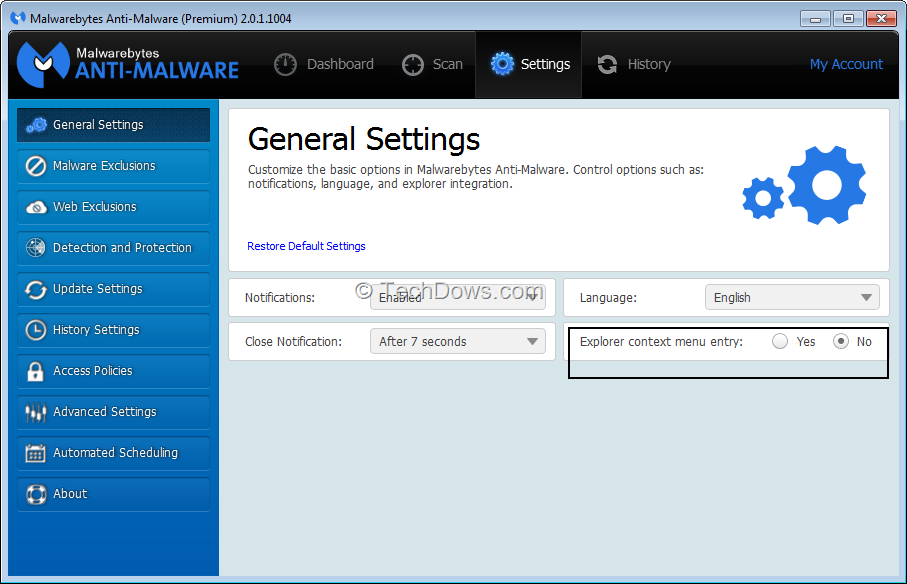
Enabling or adding Malwarebytes anti-malware v2.0′s Scan option to Explorer Context Menu
1. Open Malwarebytes interface
2. Click on General Settings> Select Yes for ‘Explorer Context Menu entry”.
3. Changes will apply immediately, you don’t need to restart explorer or computer, and you can notice ‘Scan with Malwarebytes anti-malware’ option on the file context menu.
Malwarebytes Anti-Exploit’s New Architecture gives More Control to Admin Users
What is Malwarebytes Chameleon Technology? How it Runs MBAM on an Infected Computer
Happy custom file or folder or particular drive scanning from right click menu with Malwarebytes. Have you found this tip useful? Share with us in the comments.


Fix ‘Malwarebytes Anti-Malware has stopped working’ - Techdows
[…] How to Add Scan Option for Malwarebytes v2.0 in the Explorer Right Click Menu […]