SmartScreen.exe is the Windows process behind Microsoft Defender SmartScreen, the reputation check that warns you about unsafe downloads, apps and phishing sites in Windows 11 and Windows 10.
This guide explains why it shows up in Task Manager, how to tell the real process from a fake, and how to fix high CPU use, errors and repeated SmartScreen warnings.
Is SmartScreen.exe safe in Windows 11 and Windows 10?
The genuine SmartScreen.exe is part of Windows and is safe to leave running. It starts on demand when Windows needs a reputation check, then goes quiet again.
Run these checks once if the process worries you, then leave it alone.
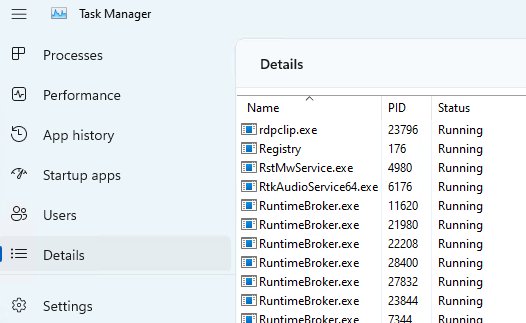
- Press Ctrl + Shift + Esc to open Task Manager.
- Select Details, then find smartscreen.exe in the list.
- Right-click it and select Open file location. The file should sit inside the Windows folder, not in Downloads, AppData or a temporary folder.
- Right-click the file, select Properties, then open the Digital Signatures tab. The signer should be Microsoft.
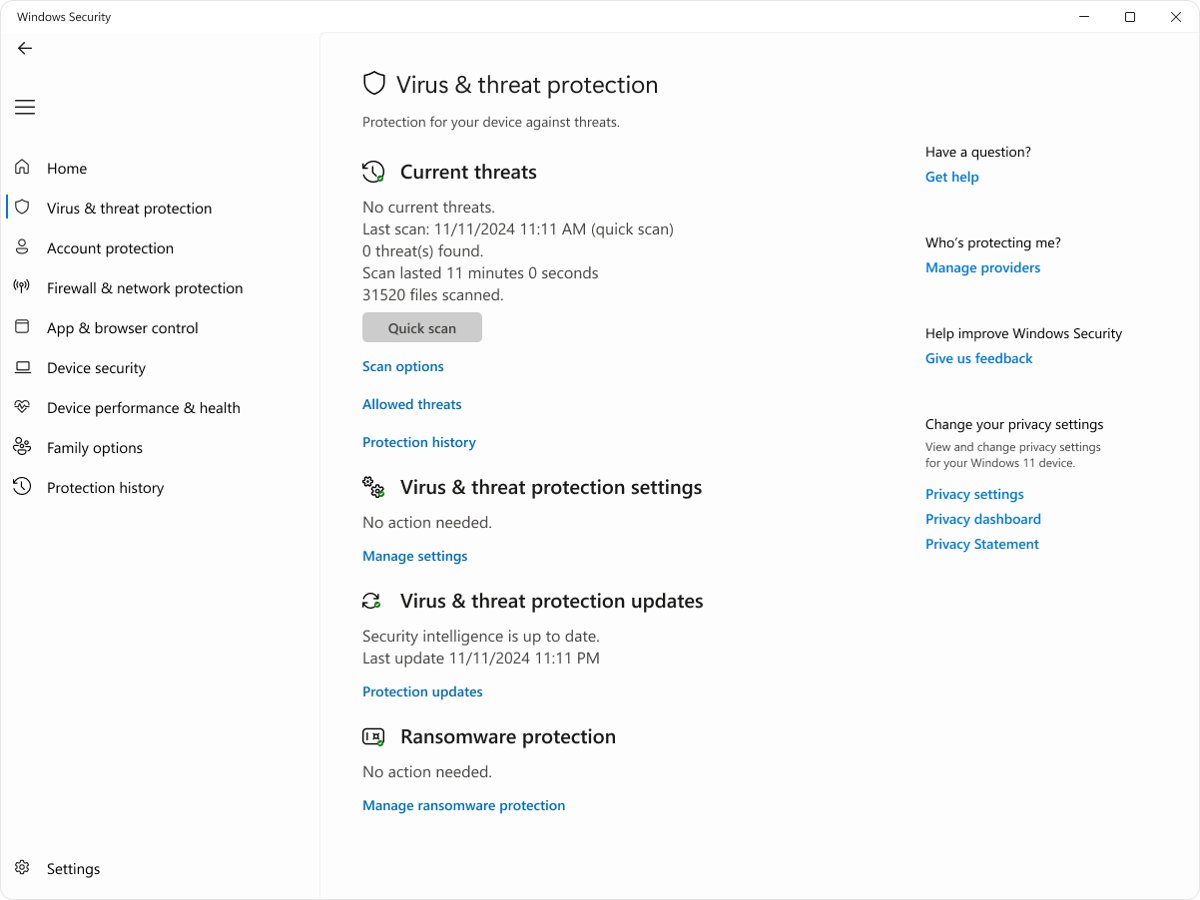
- If the location or signer is wrong, open Windows Security and run a Full scan from Virus & threat protection > Scan options.
What SmartScreen.exe is and what it does
Microsoft Defender SmartScreen protects against phishing and malware websites, malicious apps and potentially harmful downloads. It is built into Windows and also works inside Microsoft Edge.
The checks below are the jobs Microsoft documents for SmartScreen.
| What SmartScreen checks | How it decides | What you see |
|---|---|---|
| Websites you visit in Edge | Compares the address with a dynamic list of reported phishing and malware sites, and looks for suspicious page behaviour | A full-page warning before the site loads |
| Files you download | Checks the file against a list of known unsafe programs and against a list of well-known, frequently downloaded files | A warning in Edge or when you open the file |
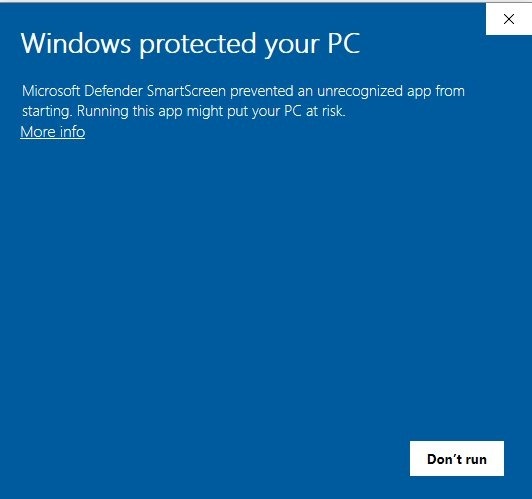
| Apps you run from the internet | Checks the file hash and the publisher's digital signature for an established reputation | The "Windows protected your PC" dialog for unknown apps |
| Content used by Microsoft Store apps | SmartScreen for Microsoft Store apps checks web content those apps load | A warning inside the app |
| Your Windows sign-in password (Windows 11) | Phishing protection watches for that password typed into unsafe sites or apps | An alert and a prompt to change your password |
SmartScreen only checks files that come from the internet. Microsoft states it does not protect against malicious files on internal network shares, such as UNC paths or SMB shares.
Why SmartScreen.exe is running in Task Manager
Microsoft builds SmartScreen into the operating system, and it checks any file that an app, including third-party browsers and email clients, downloads and tries to run.
That is why the process appears even when you never opened Edge or any security tool.
| Common times you may notice SmartScreen.exe | Why it runs |
|---|---|
| Right after you open a newly downloaded installer | Check apps and files is evaluating the file's reputation |
| While a browser or email app saves a download | Windows checks files that any app downloads, not only Edge |
| When a Microsoft Store app loads web content | SmartScreen for Microsoft Store apps checks that content |
| When you type your Windows 11 password into a site or app | Phishing protection checks where the password is going |
A short burst of activity at these moments is normal. A copy that runs nonstop at high CPU for hours is worth checking with the steps below.
How to check whether SmartScreen.exe is legitimate
Malware sometimes copies the names of Windows processes, such as SmartScreen.exe or the WerFault.exe error reporting process, so it blends into Task Manager. Two checks settle it: where the file lives and who signed it.
- Open Task Manager with Ctrl + Shift + Esc and select Details.
- Right-click smartscreen.exe and select Open file location.
- Confirm the folder is inside the Windows folder. A copy in your user profile, Downloads, AppData or Temp folder is not part of Windows.
- Right-click the file and select Properties > Digital Signatures. Check that the signer is Microsoft and that Details reports the signature as valid.
- Open Windows Security > Virus & threat protection > Scan options, select Full scan, then select Scan now.
- If you still suspect an infection, return to Scan options, select Microsoft Defender Antivirus (offline scan) and select Scan now. The PC restarts and scans before Windows loads.
After an offline scan, open Windows Security and select Protection history to see what it found. If it quarantined a file you trust, you can allow the blocked file from the same page.
Common SmartScreen.exe problems and what causes them
Most SmartScreen complaints fall into a few groups. Match yours to a row, then use the fix in the next section.
| Problem | Likely cause |
|---|---|
| High CPU, memory, or disk usage | SmartScreen is checking a large or unfamiliar download, or Windows system files are damaged |
| Repeated SmartScreen warnings for apps or installers | The file is unsigned, newly released, or has no reputation yet, so every new version starts at zero |
| SmartScreen cannot be reached | The PC cannot contact Microsoft's reputation service because of no internet, a proxy or a firewall |
| SmartScreen blocked by policy or missing settings | A work, school or local Group Policy setting controls SmartScreen and locks the toggles |
| Fake SmartScreen.exe or malware using a similar name | A malicious file uses the same or a near-identical name outside the Windows folder |
| Warnings for a signed app from a known company | Even signed files can be flagged until the publisher's certificate builds reputation |
How to fix high CPU, errors, or repeated SmartScreen prompts
Start with basic system and network checks, then repair Windows components if the problem returns.
SmartScreen.exe high CPU, memory, or disk usage
A reputation check is still running, or damaged system files keep the process busy.
- Let any download or installer you just opened finish, then watch whether usage drops in Task Manager.
- Open Settings > Windows Update and select Check for updates to install the latest Windows and Defender updates.
- Select Start, type
cmd, right-click Command Prompt and select Run as administrator. - Type
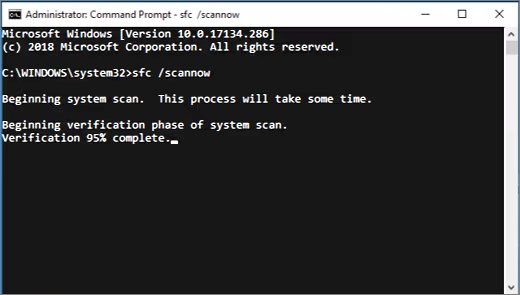
DISM.exe /Online /Cleanup-image /Restorehealthand press Enter. Wait for it to finish. - Type
sfc /scannowand press Enter. - Restart the PC and check Task Manager again.
Repeated SmartScreen warnings for an app you trust
The file has little or no reputation yet. Unsigned files must rebuild reputation with every new version.
- Download the app again from the publisher's own website or from the Microsoft Store, never from a mirror site.
- Read the publisher name on the warning. Stop if a well-known company's app shows no publisher name or a different one.
- If you trust the source and the publisher, select Run anyway for that one file instead of switching SmartScreen off.
- If you believe the warning is wrong, submit the file to Microsoft for analysis and select Microsoft Defender SmartScreen from the product menu.
SmartScreen cannot be reached right now
SmartScreen checks files and sites against Microsoft's online lists, so it needs an internet connection.
- Open a website in your browser to confirm the PC is online.
- Turn off any VPN or proxy you set up, then try the file again.
- On a work network, ask the administrator to allow the Microsoft Defender SmartScreen service addresses Microsoft publishes for Defender connectivity.
- Restart the PC and open the file again.
SmartScreen settings are greyed out or missing
A Group Policy or Intune setting manages SmartScreen, so users cannot change it.
- On a work or school PC, contact your IT administrator. The setting is managed on purpose and cannot be changed locally.
- On your own Windows Pro PC, press Win + R, type
gpedit.mscand press Enter. - Go to Computer Configuration > Administrative Templates > Windows Components > Windows Defender SmartScreen > Explorer.
- Open Configure Windows Defender SmartScreen and set it to Not Configured so the Windows Security toggle works again.
- Restart the PC and reopen Windows Security.
Fake SmartScreen.exe or malware using a similar name
A malicious program copied the Windows process name to hide in Task Manager.
- Note the file's folder from Open file location in Task Manager.
- Open Windows Security > Virus & threat protection > Scan options.
- Select Microsoft Defender Antivirus (offline scan) and select Scan now. Save your work first, because the PC restarts.
- After the restart, open Protection history in Windows Security and remove or quarantine what it found.
If sfc /scannow reports Windows Resource Protection could not perform the requested operation, run the same scan again in safe mode.
How to turn SmartScreen settings on or off safely
SmartScreen settings live in two places: Windows Security for apps and files, and Edge for websites and downloads. Keep both on. Turning a toggle off removes that layer of protection for every file and site, not just the one that triggered a warning.
Each toggle switches one check, so you can turn SmartScreen back on in Windows 11 without touching the others.
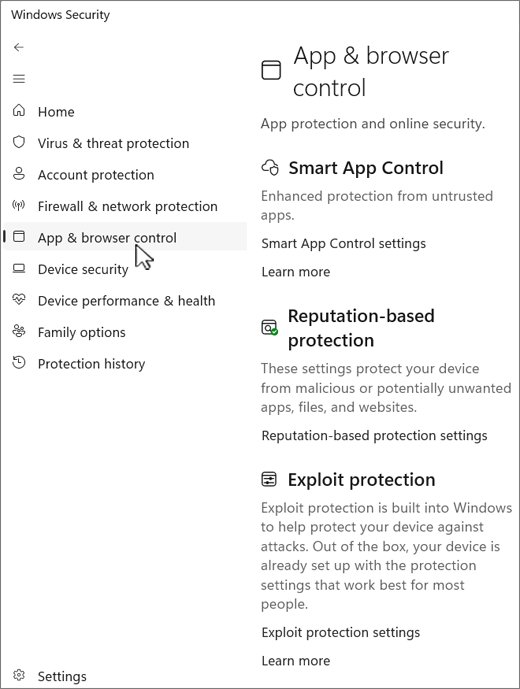
- Open Windows Security and select App & browser control.
- Select Reputation-based protection settings.
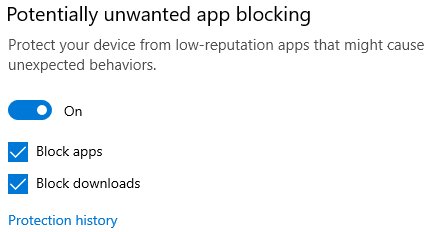
- Make sure Check apps and files, SmartScreen for Microsoft Edge, Potentially unwanted app blocking and SmartScreen for Microsoft Store apps are turned on.
- On Windows 11, choose the Phishing protection options you want under the same page.
- In Microsoft Edge, select Settings and more > Settings > Privacy, search, and services.
- Select Security and check that Microsoft Defender SmartScreen is turned on.
If one trusted file keeps getting flagged, use Run anyway for that file. That keeps protection in place for everything else you download.
SmartScreen vs Smart App Control in Windows 11
Both features sit on the same App & browser control page, and on Windows 11 Smart App Control can take over SmartScreen's app reputation checks.
| Feature | SmartScreen | Smart App Control |
|---|---|---|
| Windows versions | Windows 11 and Windows 10 | Windows 11 only |
| What it checks | Downloaded files, apps from the internet, websites in Edge | Every executable file, not only downloads |
| Unknown or unsigned apps | Warns, and lets you select Run anyway unless policy blocks it | Blocks unsigned files that lack a positive reputation |
| Availability | Toggle in Reputation-based protection at any time | New Windows 11 installs only; once switched on or off, evaluation mode returns only after a reset or reinstall |
| Choose it if | You want warnings with the option to proceed | You want strict blocking of untrusted apps |
Should you end SmartScreen.exe in Task Manager?
Leave the genuine SmartScreen.exe running and keep SmartScreen turned on. Only act when the file sits outside the Windows folder, lacks a valid Microsoft signature, or stays at high CPU after updates and a DISM and SFC repair. The process is a short-lived reputation check that guards every download and app you open. Ending it or switching it off removes that check for all files, while the real problems it gets blamed for are fixed by updates, a system file repair or a malware scan.
SmartScreen.exe FAQ
Is SmartScreen.exe a virus?
No. The genuine SmartScreen.exe is the Microsoft Defender SmartScreen process that ships with Windows. A file with that name outside the Windows folder, or without a valid Microsoft digital signature, is suspicious and should be checked with a Microsoft Defender full or offline scan.
Why is SmartScreen.exe running in Task Manager even when I did not open it?
SmartScreen is built into Windows and checks files that any app downloads and runs, including third-party browsers and email clients. It also checks web content for Microsoft Store apps, so it starts on its own whenever one of those checks is needed.
What should I do if SmartScreen.exe is using high CPU?
Let any download or installer finish first, then install Windows updates. If usage stays high, run DISM.exe /Online /Cleanup-image /Restorehealth and then sfc /scannow from an elevated Command Prompt, and restart. Also confirm the file is genuine and signed by Microsoft.
Can I turn off Microsoft Defender SmartScreen safely?
You can, but it is not recommended. Turning off Check apps and files or SmartScreen for Microsoft Edge removes warnings for every unsafe download and site. For one trusted file, select Run anyway on the warning instead and keep SmartScreen on.
Why does SmartScreen keep warning me about an app I know is safe?
SmartScreen warns about files with little or no reputation. Unsigned apps start at zero reputation with every new version, and even signed apps can be flagged until their certificate builds a history. Download from the publisher's own site, check the publisher name, then decide.
Does SmartScreen work on Windows 10?
Yes. Microsoft Defender SmartScreen works on Windows 11, Windows 10 and Microsoft Edge. Phishing protection for your sign-in password and Smart App Control are Windows 11 features and are not available on Windows 10.
Does SmartScreen scan files on a network share?
No. Microsoft states that SmartScreen protects against malicious files from the internet, but not against files on internal locations or network shares, such as shared folders with UNC paths or SMB shares. Use a Microsoft Defender scan for those files.
How do I report a SmartScreen warning that I think is wrong?
Submit the file to Microsoft for analysis and select Microsoft Defender SmartScreen from the product menu. To report an unsafe site SmartScreen missed in Edge, select Settings and more, then Help and feedback, then Report unsafe website.